
Building your site with Divi? SaveTo Wishlist Lite now includes a native Divi Builder module, so you can drop the wishlist into any layout without wiring up a Shortcode module by hand. This article shows you where to find the module, what its one setting does, and how it compares to the [saveto_wishlist] shortcode.
Before you begin
- The Divi theme, or the standalone Divi Builder plugin, version 4.x.
- SaveTo Wishlist Lite version 1.1.3 or later, active on your site.
- WooCommerce, active on your site.
Add the module to your layout
Open any page in the Divi Builder, whether you’re building a new layout or editing an existing one.
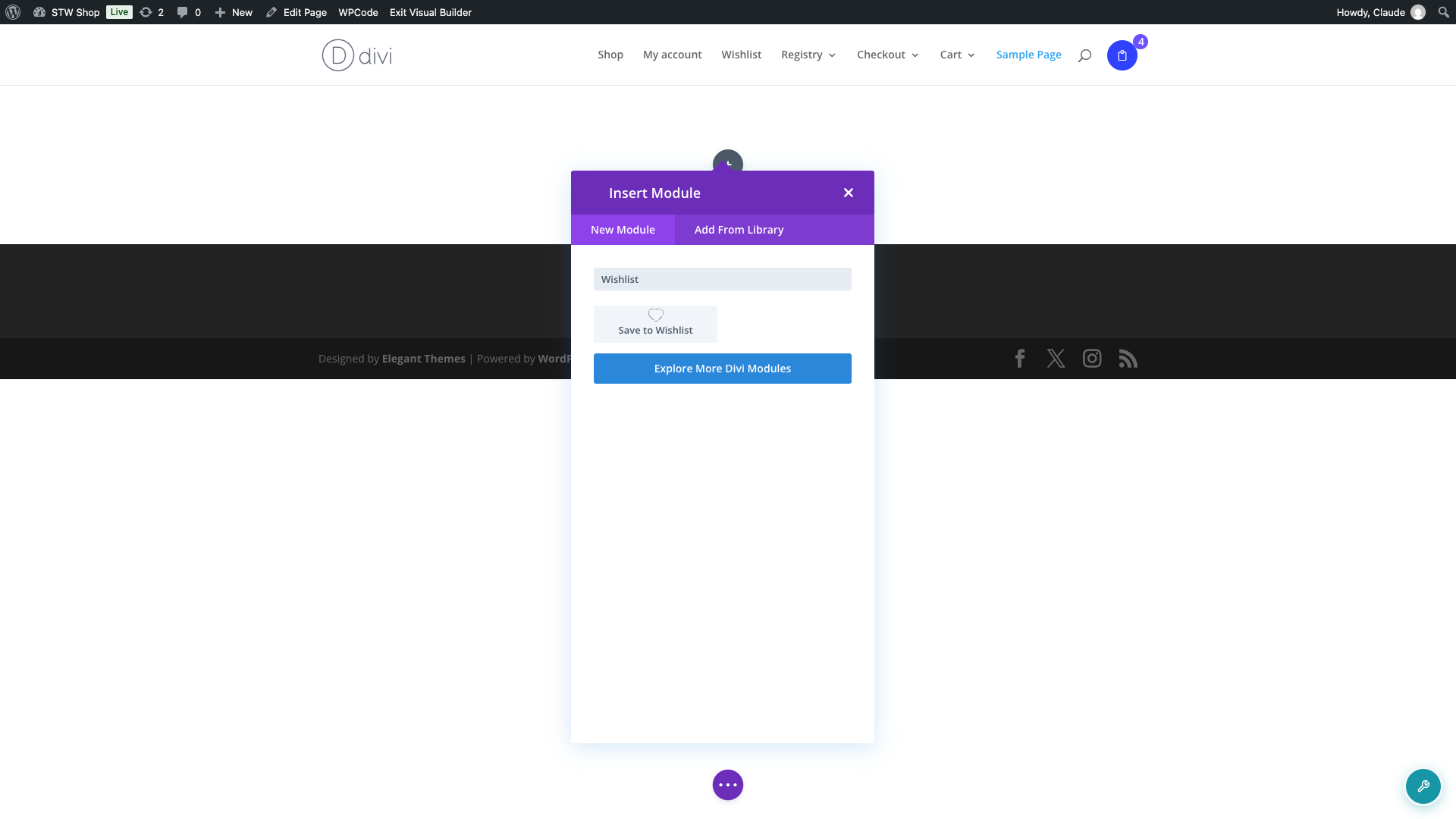
- Click the module insertion icon wherever you want the wishlist to appear.
- In the module search box, type Wishlist.
- Select Save to Wishlist from the results. Look for the heart icon.
Choose which wishlist to display
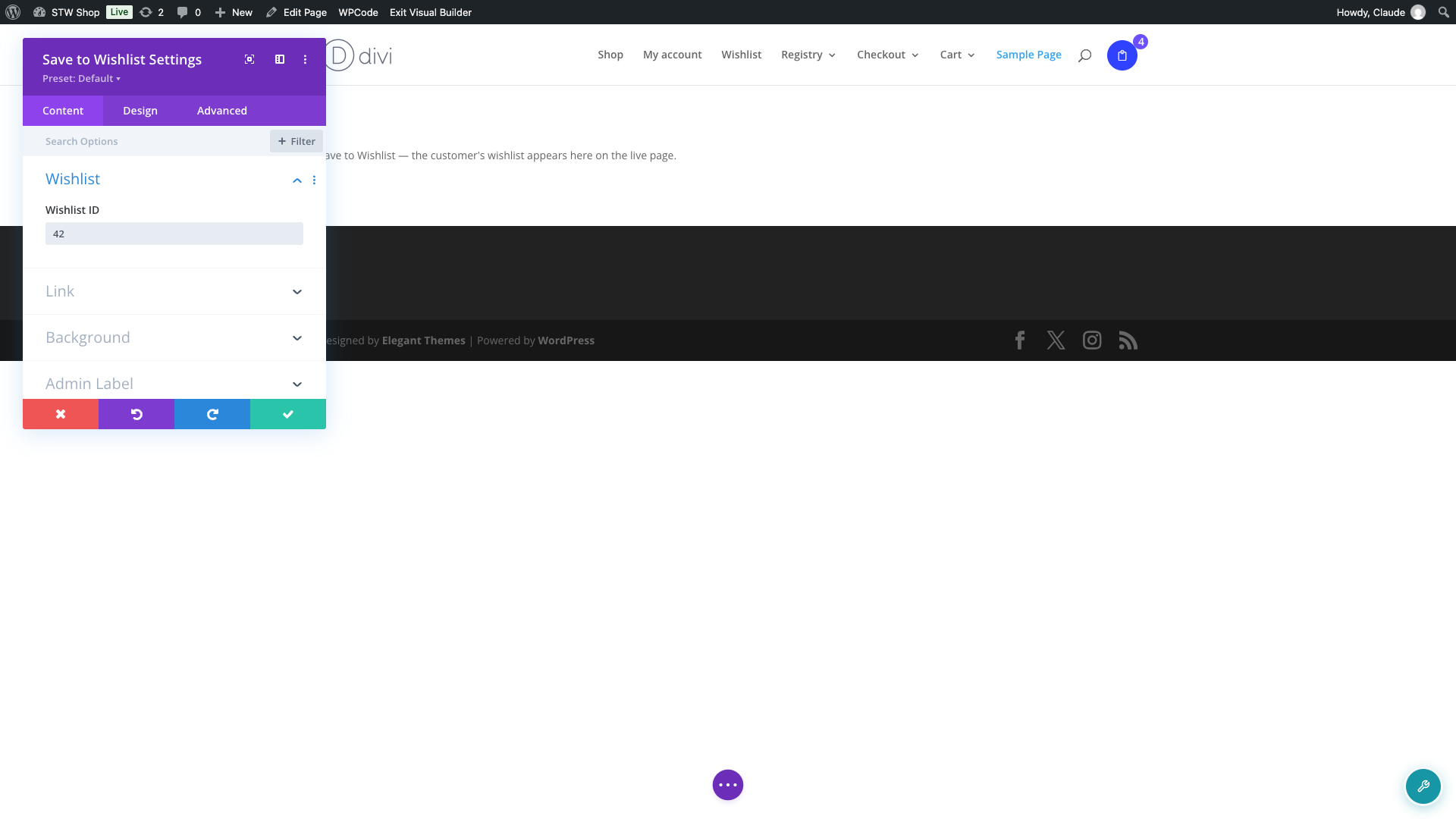
- With the module selected, open its Content tab.
- Find the Wishlist section, then the Wishlist ID field.
- Leave the field empty to show whichever wishlist belongs to the person viewing the page, or enter a specific wishlist’s ID to always display that one wishlist to every visitor.
What you’ll see while building vs. on the live page
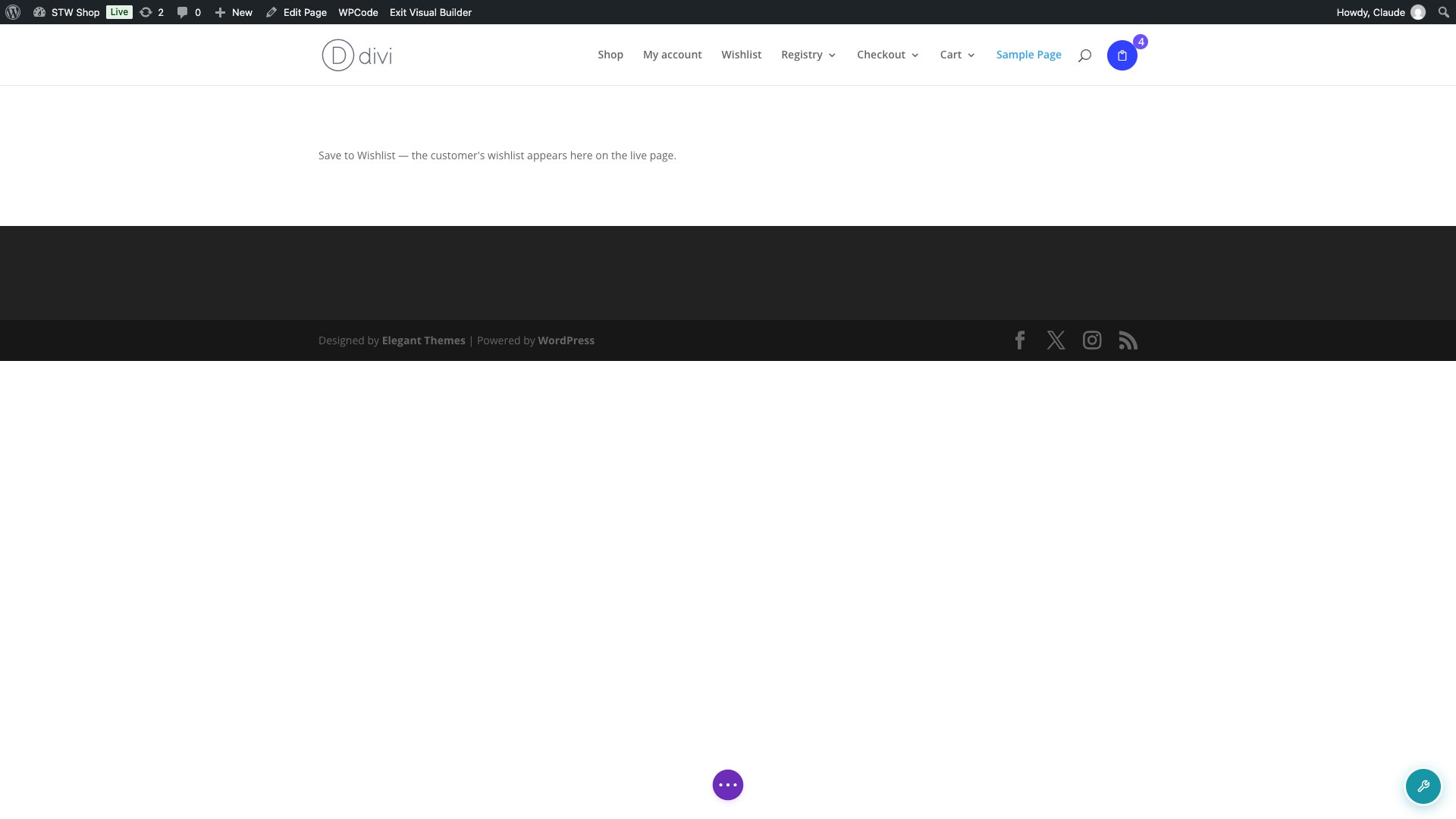
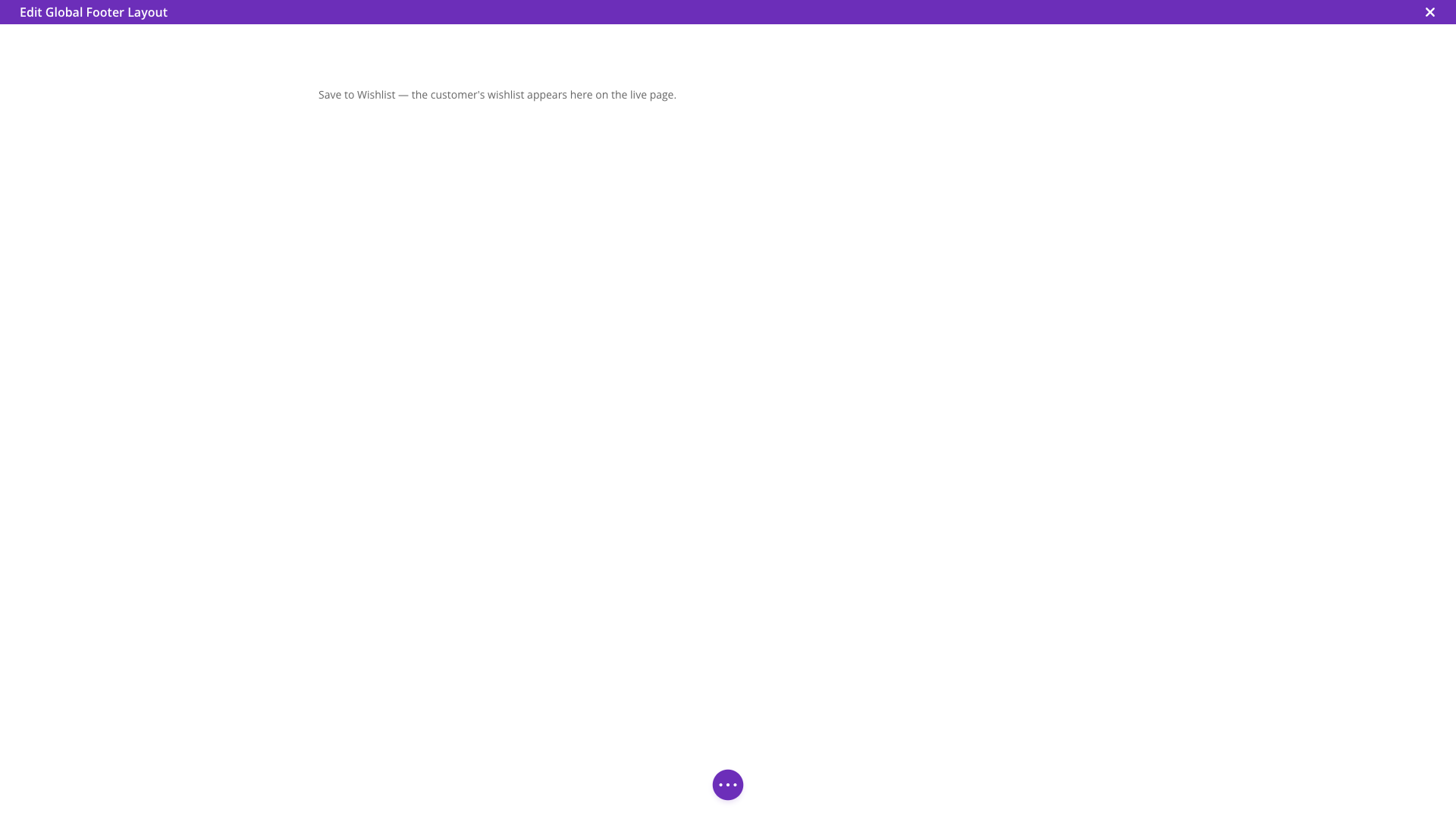
Inside the Divi Builder canvas, the module shows a placeholder message instead of a live wishlist. This is deliberate. The wishlist is a real, interactive list tied to whoever is logged in, so rendering it live inside the builder could let a stray click add or remove an item from your own account, or show your private wishlist to anyone previewing the layout.
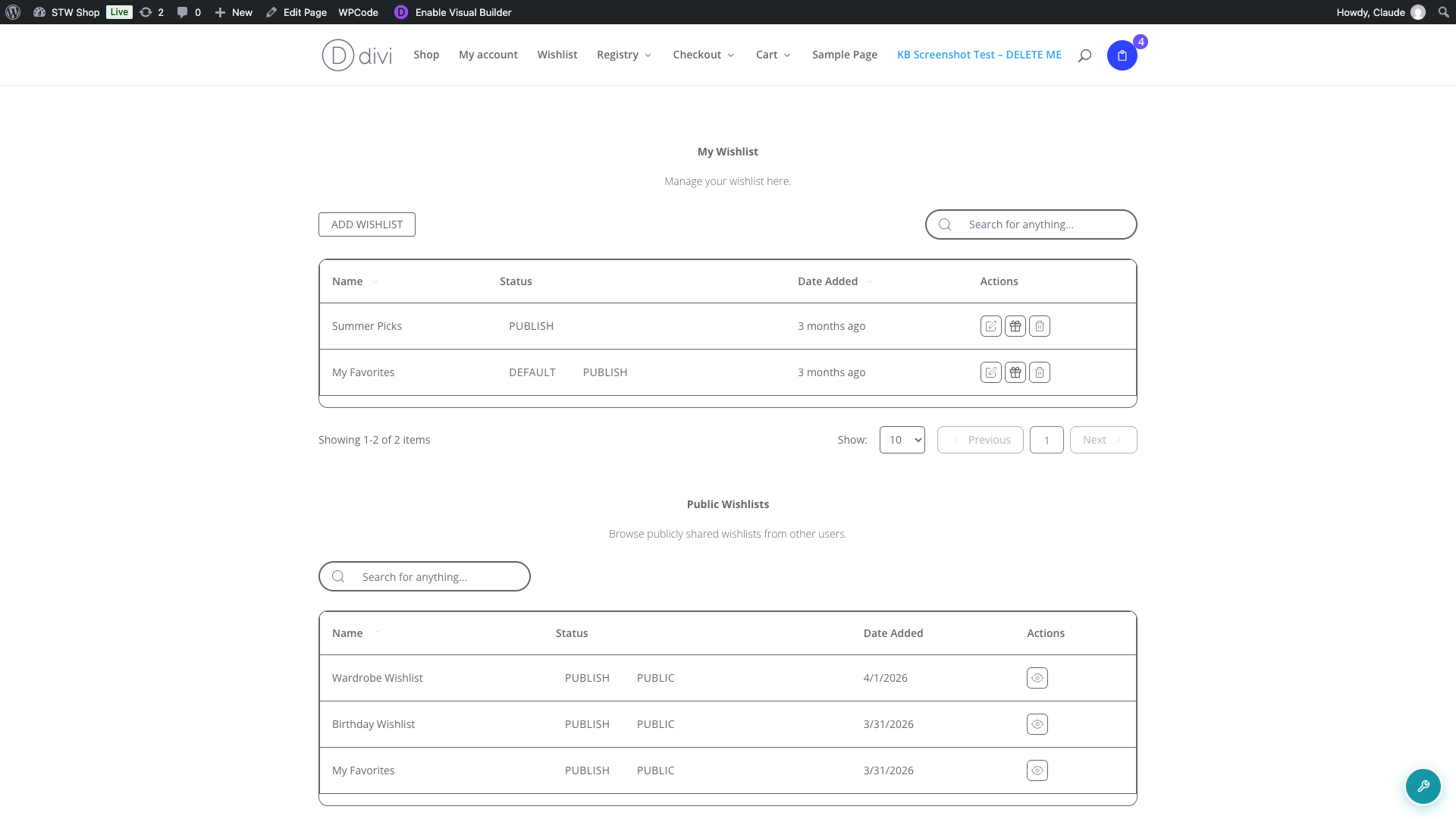
Once you save your changes and view the actual page, the placeholder is replaced by the real wishlist for each visitor.
Using the module in Divi Theme Builder layouts
If a Divi Theme Builder template replaces the body of your wishlist page, the shortcode stored in that page’s content never runs, and the wishlist appears blank. Adding the Save to Wishlist module directly to that template solves this, since the module renders itself rather than relying on the page’s original content.
- Go to Divi > Theme Builder.
- Edit the template assigned to your wishlist page, or any other template where you want the wishlist to appear, such as a header or footer.
- Add the Save to Wishlist module the same way you would on any other page.
Save to Wishlist module vs. the shortcode
Before this module existed, adding the wishlist to a Divi layout meant dropping in Divi’s generic Shortcode module and typing the shortcode ([saveto_wishlist]) by hand. The Save to Wishlist module does the same thing under the hood, but gives you a proper settings panel instead of a stray shortcode, so you no longer need a Shortcode module for this.
Troubleshooting
I can’t find the Save to Wishlist module in the builder
This module only registers on Divi 4.x’s builder API. If your site runs Divi 5’s newer Visual Builder, the module doesn’t appear, and there’s no error message, it’s not available yet. Use the [saveto_wishlist] shortcode or the Wishlist Gutenberg block instead until support is added.
The wishlist area is blank even though the module is on the page
This can happen if you added the module inside a Divi Library global module that itself references another global module. The plugin only checks one level of nested global modules when deciding whether to load the wishlist’s scripts and styles, so a module nested two levels deep may not get the assets it needs. Move the module out of the nested global module, or add it directly to the layout instead.
Frequently asked questions
Can I use the Wishlist ID field to show someone else’s wishlist?
The field shows one specific wishlist, chosen by its numeric ID, to every visitor. It doesn’t let you target a particular customer, so use it for a shared or curated wishlist rather than a personal one. Leave the field empty to show whichever wishlist belongs to the person currently viewing the page.
Do I still need a Shortcode module for the wishlist?
No. The Save to Wishlist module replaces that workaround. If you have an existing Shortcode module with [saveto_wishlist] in it, you can safely delete it and use this module instead.
Why does the module look different in the builder than on the live page?
The builder shows a placeholder so that editing the layout can’t accidentally change your own wishlist or expose it to anyone else viewing the page. Once you save and visit the live page, each visitor sees their own wishlist, or the one you specified, in place of the placeholder.
Need help?
- Premium users: Open a support ticket
- Free users: Visit our community forum

