
If you run a wholesale store, your wholesale customers expect to see their discounted prices everywhere, including the wishlist page.
SaveTo Wishlist Pro works with WooCommerce Wholesale Prices to automatically show each customer’s correct wholesale price in the wishlist table. There’s nothing to configure. It works automatically as long as both plugins are active.
Requirements
- SaveTo Wishlist Pro installed and active
- WooCommerce Wholesale Prices (free)
- At least one product with a wholesale price set for a wholesale role
What you need to set up
The integration is automatic. There’s no toggle to flip in SaveTo Wishlist settings. Follow these steps to make sure everything is in place.
- Install and activate SaveTo Wishlist Pro on your site.
- Install and activate WooCommerce Wholesale Prices.
- For simple products: open the product, go to the General tab, and find the Wholesale Price field below the Sale price. Set the price for your wholesale role.
- For variable products: open the product, go to the Variations tab, expand each variation, and set the Wholesale Price field for your role.
- In your WordPress admin, go to Users → All Users.
- Click the customer you want to make a wholesale customer.
- Under Change role to, select Wholesale Customer.
- Click Change.
WooCommerce Wholesale Prices automatically creates a default Wholesale Customer role when activated. To add more roles you’ll need WooCommerce Wholesale Prices Premium.
Once those are in place, the wishlist table shows each wholesale customer their correct price automatically on every page load.
Wholesale prices only appear when a customer with a wholesale role is logged in. Guests and customers without a wholesale role see the standard retail prices.
What customers see
When a wholesale customer views their wishlist, the Price column shows their wholesale price instead of the regular retail price.
For simple products, the column shows the product’s wholesale price directly.
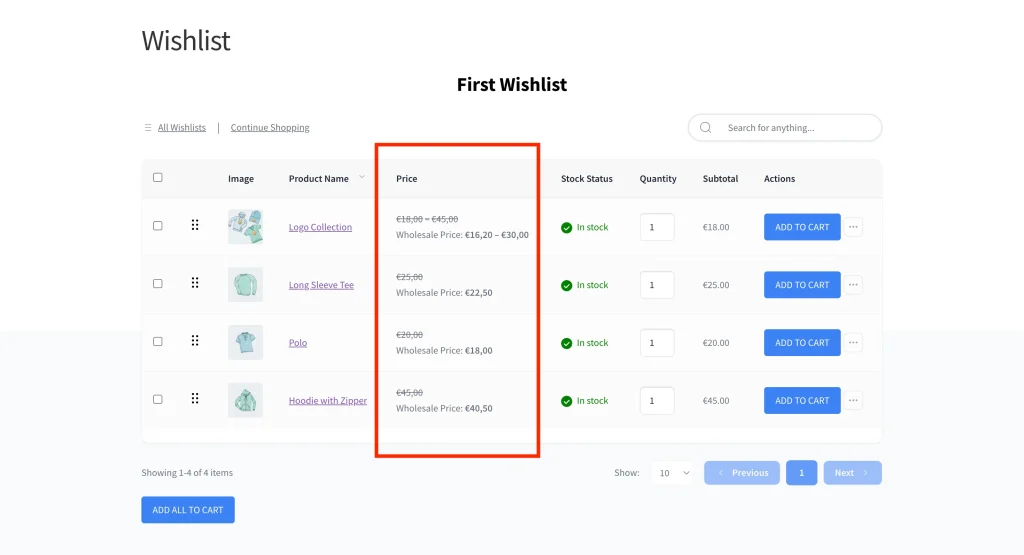
For variable products, the wishlist row shows the variation name picked from the first available term of each attribute (for example, V-Neck, Red, Large). The price column shows a wholesale price range: the lowest and highest wholesale prices across every variation, regardless of which variation is named on the row (for example, $5.00 – $15.00).
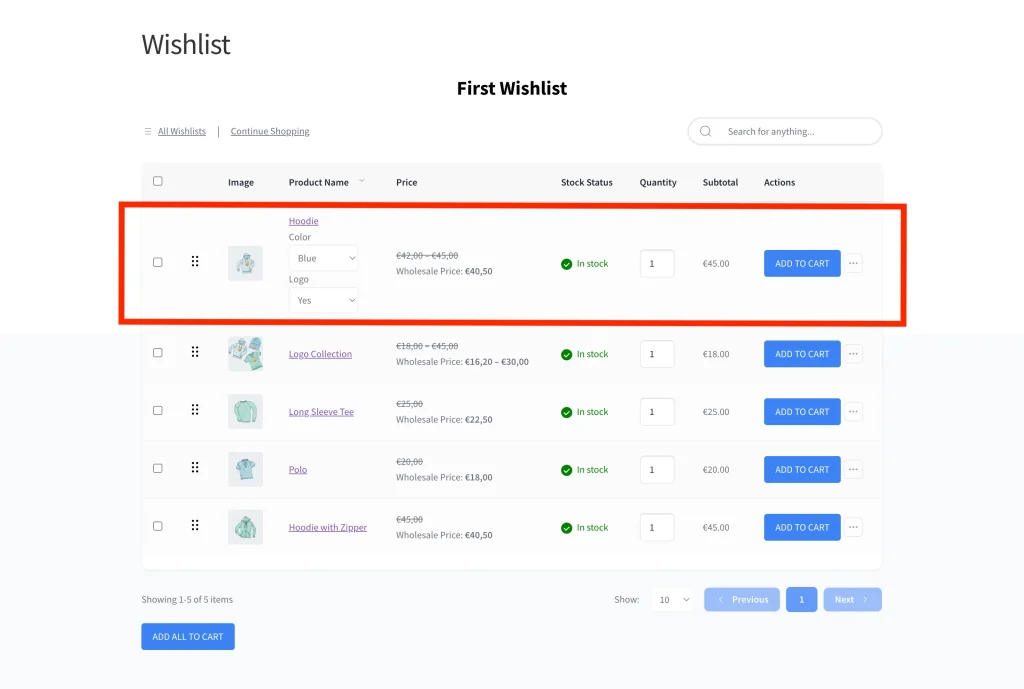
Non-wholesale customers and guests always see the regular retail price as usual.
Frequently asked questions
Does this work with the free version of SaveTo Wishlist?
No, wholesale price display is a Pro-only feature and is not available in the free plugin. The free SaveTo Wishlist plugin still works as normal, but wishlist rows show the regular retail price for everyone.
What if a product has no wholesale price set for that customer’s role?
If no wholesale price is set for a product, the wishlist falls back to showing the regular retail price for that item. To fix it, open the product in WooCommerce → Products, go to the General tab, and add a wholesale price in the Wholesale Prices section.
What happens if I deactivate WooCommerce Wholesale Prices?
Nothing breaks. The integration checks whether WooCommerce Wholesale Prices is active before it does anything. If the plugin is not active, the wishlist shows regular retail prices and everything else works normally.
Need help?
If you have a question or run into any issues, we’re here to help.
- Premium users: Open a support ticket
- Free users: Visit our community forum

