
 Reviewed by
 I’ve watched store owners spend weeks comparing options to see which WooCommerce wishlist plugin actually delivers, analyzing them feature by feature, reading every review they can find, and still feeling stuck. The problem isn’t a lack of information. It’s that most comparisons start in the wrong place.
Most start with feature lists. But the real question isn’t “which plugin has the most features?” It’s “which plugin fits my store?”
That’s what this guide is for. Instead of giving you another best WooCommerce wishlist plugins roundup, I’m walking you through a five-step decision framework you can use to evaluate any wishlist plugin against your actual needs. By the end, you’ll know exactly what to look for and what to skip.
Jump to:
- Why Choosing The Right Plugin Matters More Than You Think
- Step 1: Define Your Store Profile
- Step 2: Identify Your Must-Have Features
- Step 3: Evaluate Performance And Compatibility
- Step 4: Compare Pricing Models Honestly
- Step 5: Test Before You Commit
- Putting It All Together
- FAQs: Which WooCommerce wishlist plugin is right for your store?
- Conclusion
Why Choosing The Right Plugin Matters More Than You Think
Picking a wishlist plugin might seem like a small decision. It’s just a button on your product page, right? But the plugin you choose affects more than you’d expect.
Performance is the first concern. Every plugin you add to your WooCommerce store adds weight. A bloated wishlist plugin that loads unnecessary scripts on every page can drag down your site speed. According to Google’s Web Performance Research, even a 100-millisecond delay in page load time can reduce conversions. If your wishlist plugin is adding half a second to your load time, that’s a real cost.
Switching costs are the second concern. If you pick the wrong plugin now, migrating later means potentially losing all your customers’ saved wishlists. That’s not just a technical headache. It’s a customer experience problem. People who saved items expect those items to still be there when they come back.
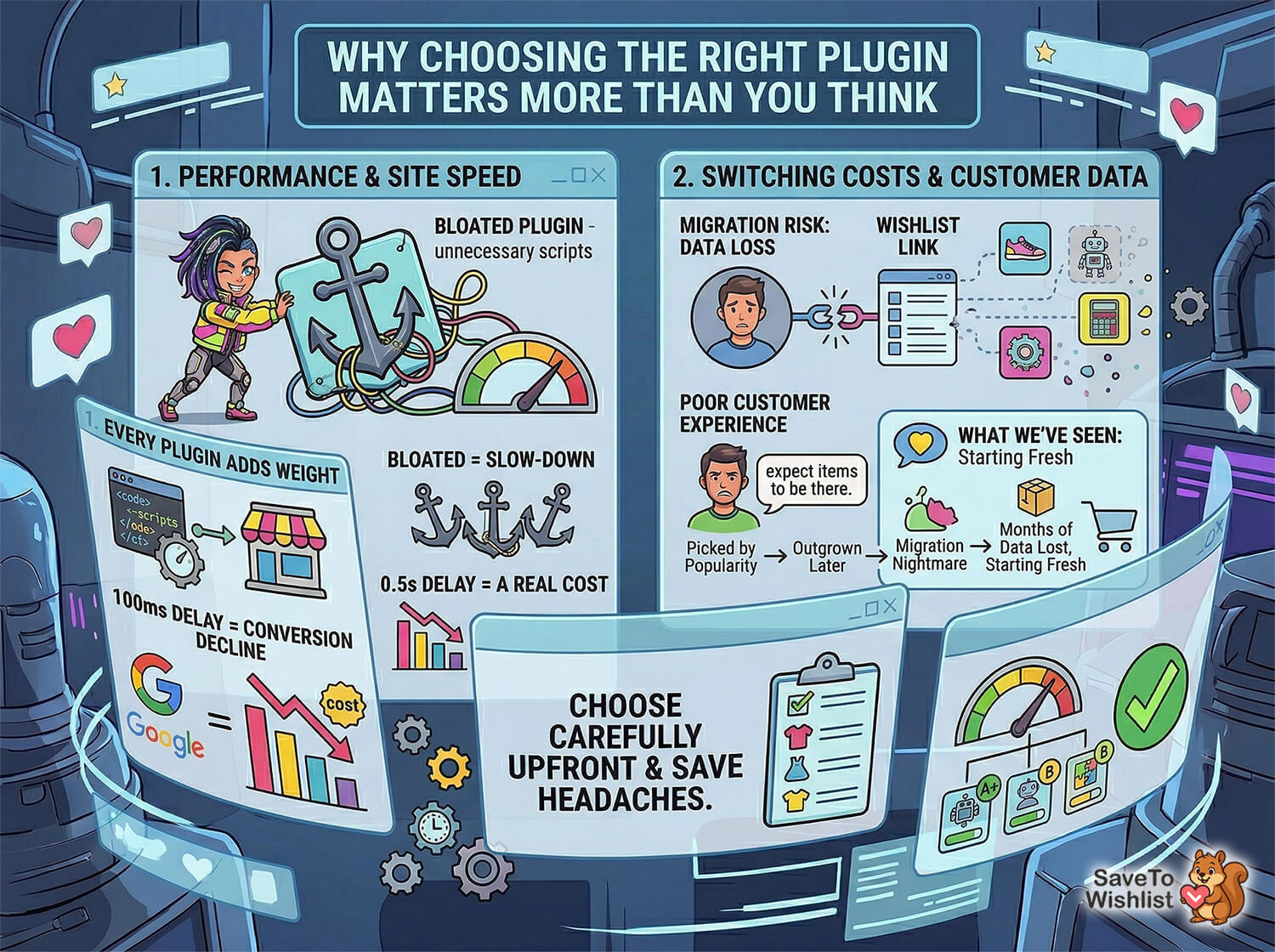
🔍️ What We’ve Seen: We’ve worked with stores that chose their wishlist plugin based on popularity or a single recommendation, only to outgrow it within a year. The migration process meant starting fresh, and some stores lost months of wishlist data their customers had built up. Choosing carefully upfront saves you from that situation entirely.
You can see how different plugins stack up in practice in our wishlist plugin speed test, which measures actual page load impact.
Step 1: Define Your Store Profile
Before you compare a single feature, you need to understand what kind of store you’re running. Different stores have very different wishlist needs.
Single site vs. multisite or agency
If you run one WooCommerce store, you need a single-site license. If you manage multiple stores or build stores for clients, you need either unlimited-site licensing or a per-site plan that makes financial sense at scale.
This is one of the biggest pricing traps in the wishlist plugin space. Some plugins charge per site with no volume discount. If you’re managing five stores, that adds up fast.
Store size and traffic volume
A small store with a few hundred products and modest traffic has different requirements than a store with 10,000 SKUs and thousands of daily visitors. Larger stores need plugins that handle big databases efficiently and won’t choke under load.
Customer type: guests vs. registered users
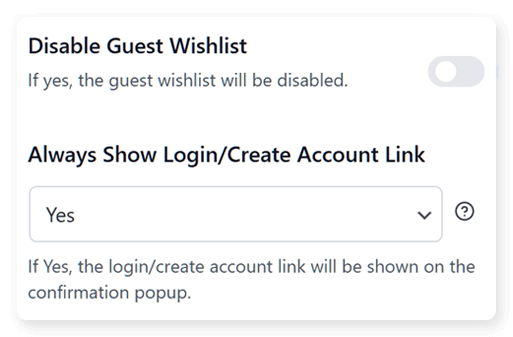
Do most of your customers check out as guests? Then you need a wishlist plugin that supports guest wishlists out of the box. It’s surprising how many plugins either don’t support guest wishlists at all or lock that feature behind a premium tier.
Budget reality check
Be honest about what you can spend. Wishlist plugins range from completely free to over $100 per year. The good news is that you don’t always need to pay more to get more. Some free plugins include features that others charge premium prices for.
Here’s a quick way to think about it:
- Starter stores (just launched, testing the waters): Start free. Don’t pay for features you haven’t proven you need yet.
- Growing stores (steady traffic, ready to optimize): Consider a low-cost premium plan for analytics and automation features.
- Established stores (high traffic, multiple sites): Look for unlimited-site licensing and API access.
Step 2: Identify Your Must-Have Features
Now that you know your store profile, it’s time to figure out which features actually matter for your situation.
Free features you should expect from any plugin
Some features are so fundamental that you shouldn’t have to pay for them. If a plugin charges for any of these, that’s a red flag:
- Unlimited wishlists for your customers (not capped at one list per user)
- Guest wishlists so non-registered visitors can save items
- Variation tracking so customers can save specific sizes, colors, or options
- Multiple wishlists so customers can organize items into different lists
- Block theme support so the plugin works with modern WordPress themes
- Translation readiness for multilingual stores
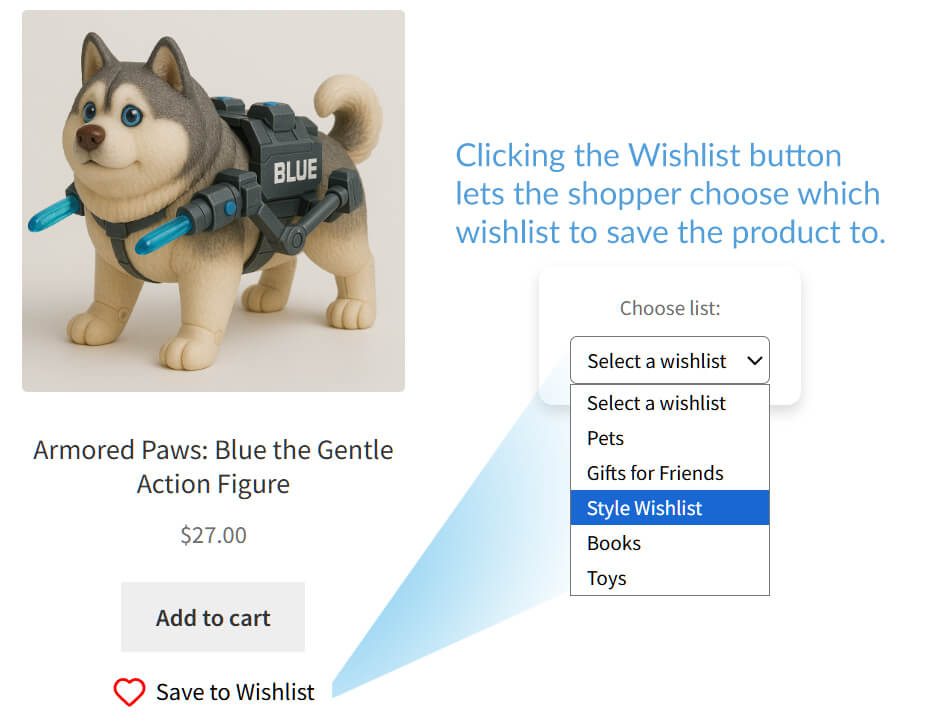
SaveTo Wishlist includes all of these in its free version. Not every competitor does.
Premium features worth paying for
These are the features that justify a paid plan because they directly impact your revenue:
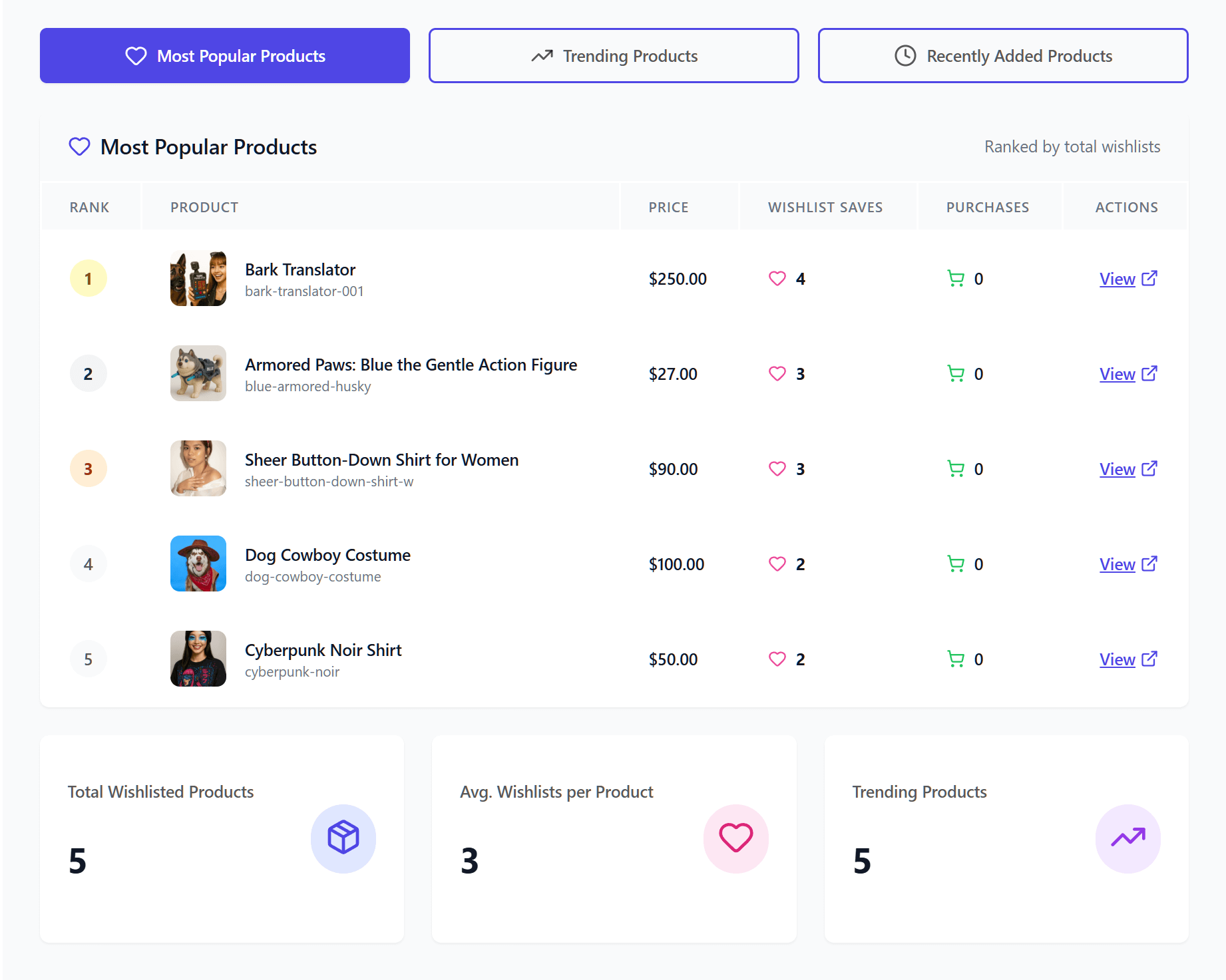
- Analytics and reports to understand what customers are saving and what’s trending
- Price drop alerts that automatically notify customers when a wishlisted item goes on sale
- Back-in-stock notifications for out-of-stock items customers saved
- Automations that trigger actions based on wishlist behavior
- Webhooks to connect your wishlist data with other tools
- Collaborative lists for gift registries and shared wishlists
Features you probably don’t need yet
Unless you have a specific use case, these features are nice to have but not essential for most stores:
- REST API access (unless you’re building custom integrations)
- Role-based access controls (mainly useful for B2B stores with wholesale tiers)
Don’t pay for features you’ll never use. Start with what you need today and upgrade when your store demands it.
Step 3: Evaluate Performance And Compatibility
A wishlist plugin that slows down your store is worse than no wishlist plugin at all.
Page load impact
The biggest performance concern with any WooCommerce plugin is how much it adds to your page load time. According to Portent’s research on page speed and conversions, the highest ecommerce conversion rates occur on pages that load in under two seconds. Every additional second costs you sales.
Ask these questions about any plugin you’re considering:
- Does it load scripts on every page, or only on pages where the wishlist button appears?
- Does it use AJAX or full page reloads when customers add items?
- How large are its CSS and JavaScript files?
Our speed test comparison covers this in detail for the major plugins.
Theme and plugin compatibility
Make sure the wishlist plugin you’re evaluating works with your specific theme. Pay particular attention to:
- Block theme compatibility if you’re using a block-based theme (like Twenty Twenty-Five or Flavor)
- Page builder compatibility if you use Elementor, Divi, or similar
- WooCommerce version support to confirm the plugin is actively maintained for the latest WooCommerce release
Block theme readiness
This is increasingly important. WordPress is moving toward block themes, and plugins that haven’t adapted will cause headaches. Check that the wishlist plugin provides proper Gutenberg blocks or block patterns, not just shortcodes from 2018.
Step 4: Compare Pricing Models Honestly
Pricing for WooCommerce wishlist plugins follows a few different models. Understanding them saves you from surprises.
Free vs. freemium vs. premium-only
- Free plugins cost nothing but may lack advanced features. Check whether “free” means truly full-featured or severely limited.
- Freemium plugins offer a free base with paid upgrades. This is the best model for most stores because you can start free and upgrade when the need is proven.
- Premium-only plugins require payment upfront. You’re committing money before you’ve tested the plugin in your environment.
Annual renewals vs. lifetime pricing
Most WooCommerce plugins use annual pricing for continued updates and support. Lifetime pricing sounds appealing, but the plugin still needs ongoing development to stay compatible with WooCommerce updates. Be cautious of lifetime deals from plugins with small development teams.
Per-site vs. unlimited-site licensing
This is where costs diverge significantly. If you manage multiple stores:
- Per-site licensing at $50-100/site/year multiplied across five stores is $250-500/year
- Unlimited-site licensing is a flat fee regardless of how many stores you run
For reference, SaveTo Wishlist Pro’s pricing offers Growth at $49.50 for the first year, then $99/year for a single site. Meanwhile, the Business tier costs $199.50 for the first year, then $399/year for unlimited sites. Both include a 14-day money-back guarantee. That Business plan at $199.50 for unlimited sites is worth comparing against competitors that charge $79-99 per site.
Calculate your real cost over time
Don’t just compare year-one prices. Map out what you’ll pay over two or three years. A plugin that’s $20 cheaper this year but doesn’t include the features you’ll need next year isn’t actually cheaper.
Step 5: Test Before You Commit
Never buy a premium wishlist plugin without testing it first. Here’s how to do that effectively.
Start with the free version. If the plugin offers a free tier, install it. Use it for at least a week. Add items to wishlists. Test it on mobile. Check your page speed before and after installation. See how it looks with your theme.
What to look for during testing:
- Does the wishlist button appear where you expect it?
- Can you customize the button’s appearance to match your store?
- Do guest wishlists actually work (test in an incognito window)?
- Is the wishlist page easy to find and use?
- Does the plugin add noticeable load time?
Questions to ask before upgrading:
- What specific premium feature am I paying for?
- Can I prove that feature will generate enough value to justify the cost?
- Does the premium version offer a trial or money-back guarantee?
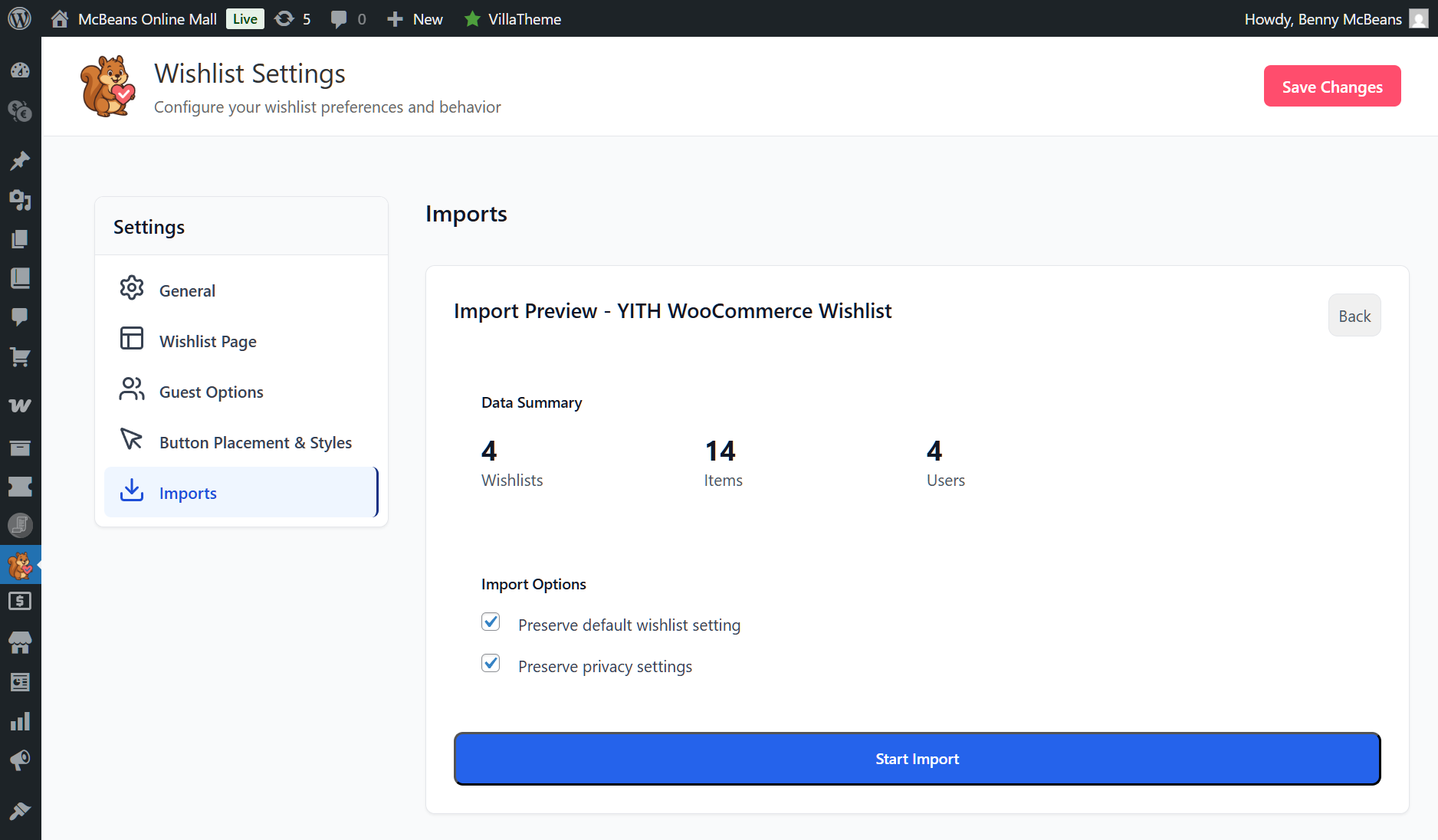
Think about migration early. If you’re switching from another wishlist plugin, check whether the new one offers a wishlist importer. SaveTo Wishlist includes a built-in wishlist importer that handles data from other popular plugins, which eliminates the biggest risk of switching.
Putting It All Together
Here’s the quick version of the framework:
- If you’re just starting out: Use a free plugin that doesn’t lock basic features behind a paywall. You need unlimited wishlists, guest support, and variation tracking at minimum.
- If you’re growing and want to optimize: Add analytics and automations. Look for a plan under $50/year for a single site.
- If you run multiple stores: Unlimited-site licensing saves you hundreds per year compared to per-site plans.
- If performance is your top concern: Test before you buy. Check the speed test data. Avoid plugins that load heavy scripts on every page.
Most store owners who work through this framework land on SaveTo Wishlist because it offers the most generous free tier (features that competitors charge for) and the most reasonable premium pricing when you’re ready to upgrade. But don’t take my word for it. Run through the steps yourself and see where you end up.
FAQs: Which WooCommerce wishlist plugin is right for your store?
Can I switch wishlist plugins without losing customer data?
It depends on the plugins involved. Some wishlist plugins offer import tools that bring over existing wishlist data from other plugins. SaveTo Wishlist includes a built-in wishlist importer for this purpose. Before switching, export your current data if possible and test the migration on a staging site first.
Do I need a premium wishlist plugin for a small store?
Not necessarily. If you just need basic wishlist functionality (saving items, guest support, multiple lists), a good free plugin covers that. Premium features like analytics, price drop alerts, and automations become valuable once you have enough traffic and wishlist data to act on. Start free and upgrade when the data justifies it.
Which WooCommerce wishlist plugin works best with block themes?
Look for plugins that explicitly support the WordPress block editor and modern block themes. SaveTo Wishlist includes native block theme support in its free version. Older plugins that rely solely on shortcodes may require extra work to integrate with block-based themes.
How do I know if a wishlist plugin is slowing down my store?
Test your page speed before and after installing the plugin. Use Google PageSpeed Insights or GTmetrix to measure your product page load time with the plugin active vs. deactivated. Pay attention to Total Blocking Time and Largest Contentful Paint scores. A well-built plugin should add minimal overhead.
What’s the difference between wishlists, favorites, and save-for-later?
Functionally, they’re similar. All three let customers bookmark products for future reference. Wishlists typically offer more features like multiple lists, sharing, and notifications. “Favorites” and “save for later” are often simpler implementations. For most WooCommerce stores, a full wishlist plugin gives you more flexibility and more data to work with.
Conclusion
Choosing a WooCommerce wishlist plugin doesn’t have to be overwhelming. Instead of getting lost in feature comparison spreadsheets, work through the five steps: define your store profile, identify your must-have features, evaluate performance, compare pricing honestly, and test before you commit.
The right plugin for your store is the one that fits your current needs without overcharging for features you won’t use. And if your needs grow, you want a plugin with a clear upgrade path.
If you want to see how this framework plays out in practice, start with the free version of SaveTo Wishlist. It includes unlimited wishlists, guest wishlists, multiple lists, and variation tracking at no cost. When you’re ready for analytics, automations, and price drop alerts, SaveTo Wishlist Pro starts at $49.50/year.