
 Reviewed by
 I’ve reviewed hundreds of WooCommerce product pages over the years, and the same mistakes keep showing up on almost every ecommerce product page. Tiny product images. Walls of text that nobody reads. Zero trust signals. And a single “Add to Cart” button as the only action a visitor can take.
Most WooCommerce stores are leaving money on the table with their product pages. Not because they have bad products, but because the default WooCommerce product page template is built to be functional, not optimized.
This guide covers the elements that turn a basic product page into one that actually converts: images, descriptions, CTAs, trust signals, social proof, mobile optimization, and yes, wishlists. Each section includes specific changes you can make today.
Table Of Contents
- Why Your Product Page Is Your Most Important Page
- Product Image And Gallery Best Practices
- Writing Product Descriptions That Convert
- Call-To-Action Buttons That Drive Action
- Building Trust On The Ecommerce Product Page
- Social Proof And Urgency Elements
- Mobile Ecommerce Product Page Optimization
- The Role Of Wishlists In Your Product Page Strategy
- Frequently Asked Questions
- Conclusion
Why Your Product Page Is Your Most Important Page
Every other page on your WooCommerce store exists to get people to your product pages. Your homepage, your category pages, your blog posts, your ads. They’re all funnels pointing toward one destination: the page where someone decides to buy.
That means small improvements to your ecommerce product pages compound across your entire store. A change that increases your product page conversion rate by even half a percent applies to every product, every visitor, every day.
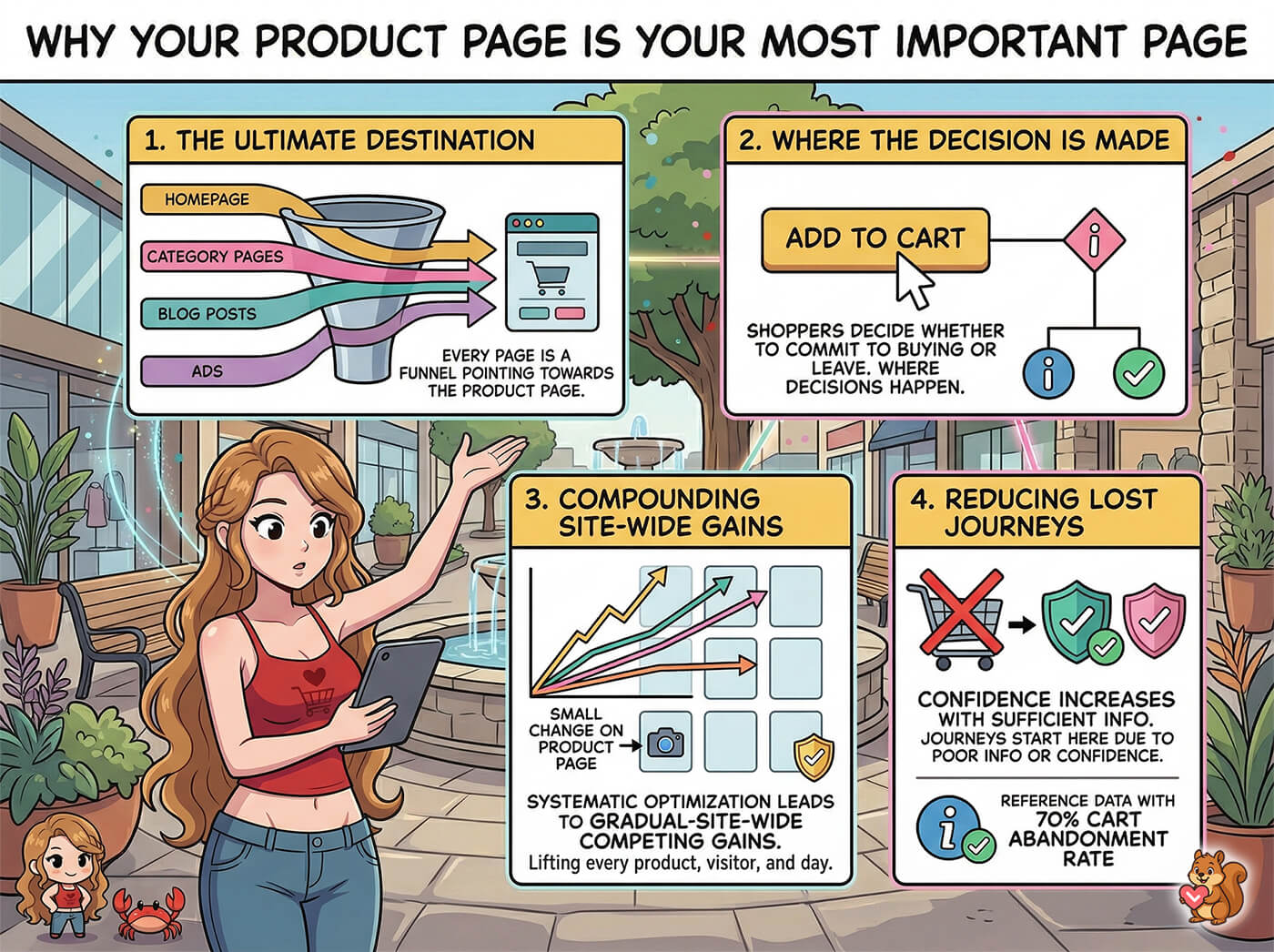
According to the Baymard Institute’s ecommerce UX research, the average documented online shopping cart abandonment rate is around 70%. A significant portion of those abandoned journeys start with product pages that didn’t give shoppers enough information or confidence to commit.
🚀 What We’ve Seen: Stores that systematically optimize their product pages, even with small changes like improving image quality, adding trust badges, and including a secondary CTA like a wishlist button, tend to see gradual but compounding gains. The improvements don’t just affect one product. They lift every product page on the site.
Product Image And Gallery Best Practices
Your product images do more selling than your copy. Most shoppers decide whether to keep scrolling based on the first image they see.
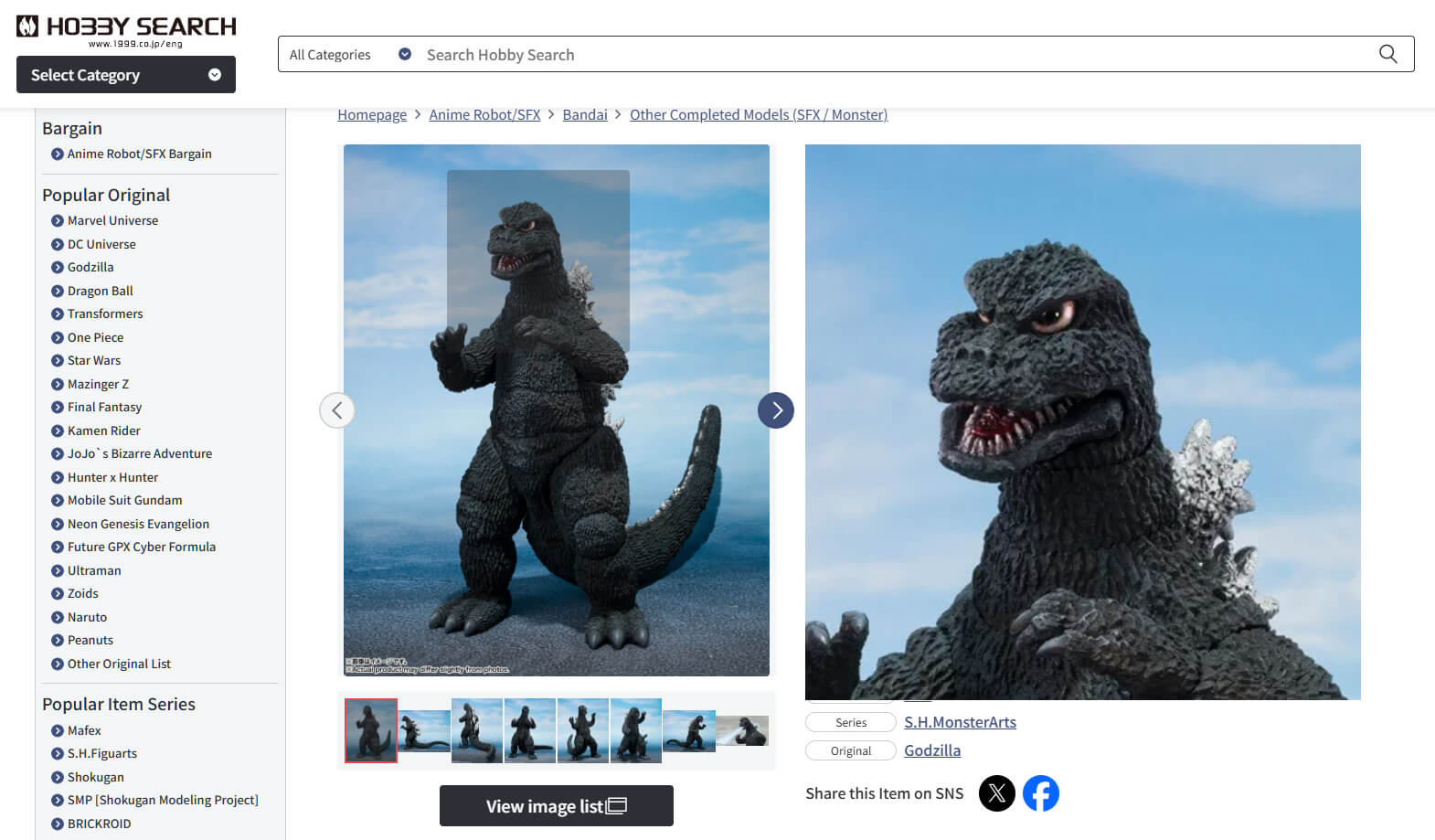
Use high-quality images from multiple angles
Show the product from the front, back, side, and at an angle. For physical products, include at least 4-6 images. For wearable items, include a size reference. Customers can’t touch your product, so your photos need to fill that gap.
Enable zoom and gallery features
WooCommerce includes a built-in image zoom and gallery lightbox. Make sure they’re enabled. Shoppers want to inspect details up close, especially for products over $50 where the purchase decision carries more weight.
Consider lifestyle images alongside product shots
A plain white background is fine for showing the product itself. But lifestyle images, ones that show the product being used in context, help shoppers imagine owning it. A mix of both is ideal.

Image optimization for page speed
Large, uncompressed images are one of the most common reasons WooCommerce product pages load slowly. Use WebP format where possible, set appropriate dimensions (don’t upload 4000px images and let CSS resize them), and use lazy loading for gallery images below the fold.
Writing Product Descriptions That Convert
A good product description answers the customer’s questions before they have to ask.
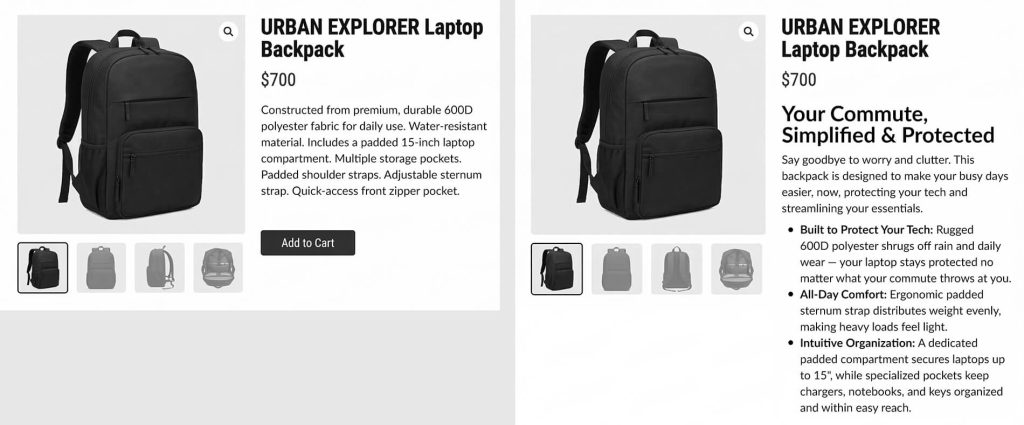
Lead with benefits, follow with specs
Most store owners write descriptions that list specifications first. “Made from 304 stainless steel, measures 8x4x2 inches, weighs 1.2 lbs.” That’s important information, but it’s not what hooks someone.
Instead, lead with what the product does for them: “Keeps your coffee hot for 12 hours, fits in any standard cup holder, and survives being dropped.” Then follow with the specs for shoppers who want the details.
Use scannable formatting
Nobody reads product descriptions word by word. They scan. Use short paragraphs, bullet points for key features, and bold text for the most important details. Make it easy to get the gist in five seconds.
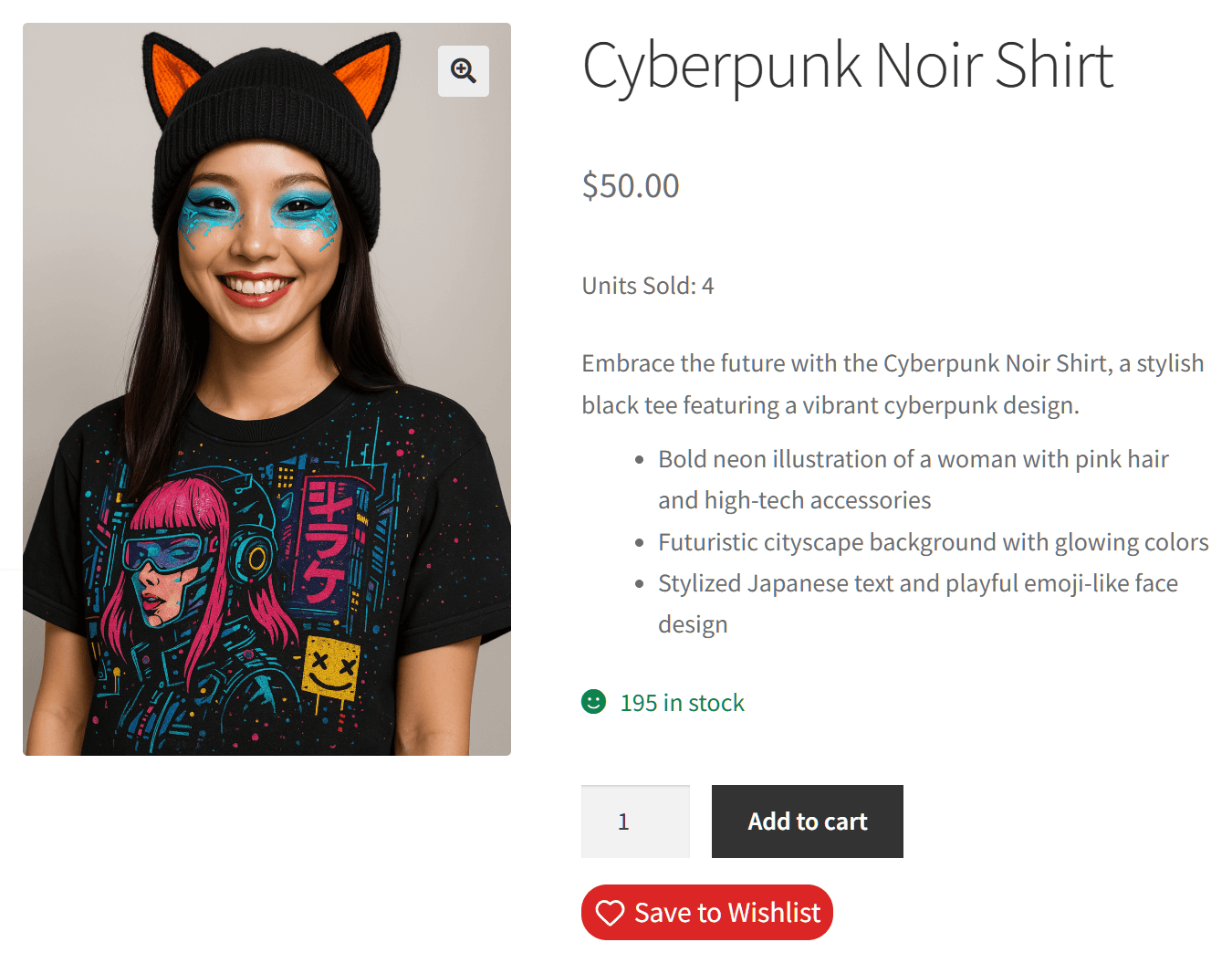
Address objections in the description
Think about why someone might hesitate. Is it the price? Address the value. Is it durability? Mention the materials and warranty. Is it compatibility? State exactly what it works with. Every objection you address in the description is one less reason to leave.
Include keywords naturally
Your product description is a ranking opportunity. Include your target keywords, product category terms, and common search phrases, but work them into natural sentences. Keyword stuffing in product descriptions hurts readability and won’t help your rankings.
🚀 Pro Tip: Need a fast and easy way to write compelling, SEO-optimized product descriptions for hundreds of products? Consider using an AI product description generator. With this tool, you can automate the writing of the basic text in your brand’s voice, optimizing for SEO, organizing the product details, and more.
Call-To-Action Buttons That Drive Action
Your ecommerce product page buttons are where intention turns into action. Getting them right is worth the effort.
Primary CTA: the Add to Cart button
This is the most important button on the page. It should be immediately visible without scrolling, use a contrasting color that stands out from the rest of the page, and use clear text. “Add to Cart” works. “Buy Now” works for single-purchase flows. Don’t get creative with CTA text. Clarity beats cleverness.
Secondary CTA: the wishlist button
Here’s what most stores miss: not every visitor is ready to buy right now. Some are browsing. Some are comparing. And some are waiting for payday. If your only option is “Add to Cart,” those visitors leave with no way to come back.
A wishlist button gives undecided shoppers a lower-commitment action. They can save the item and return later. This is especially important for higher-priced products where the decision cycle is longer.
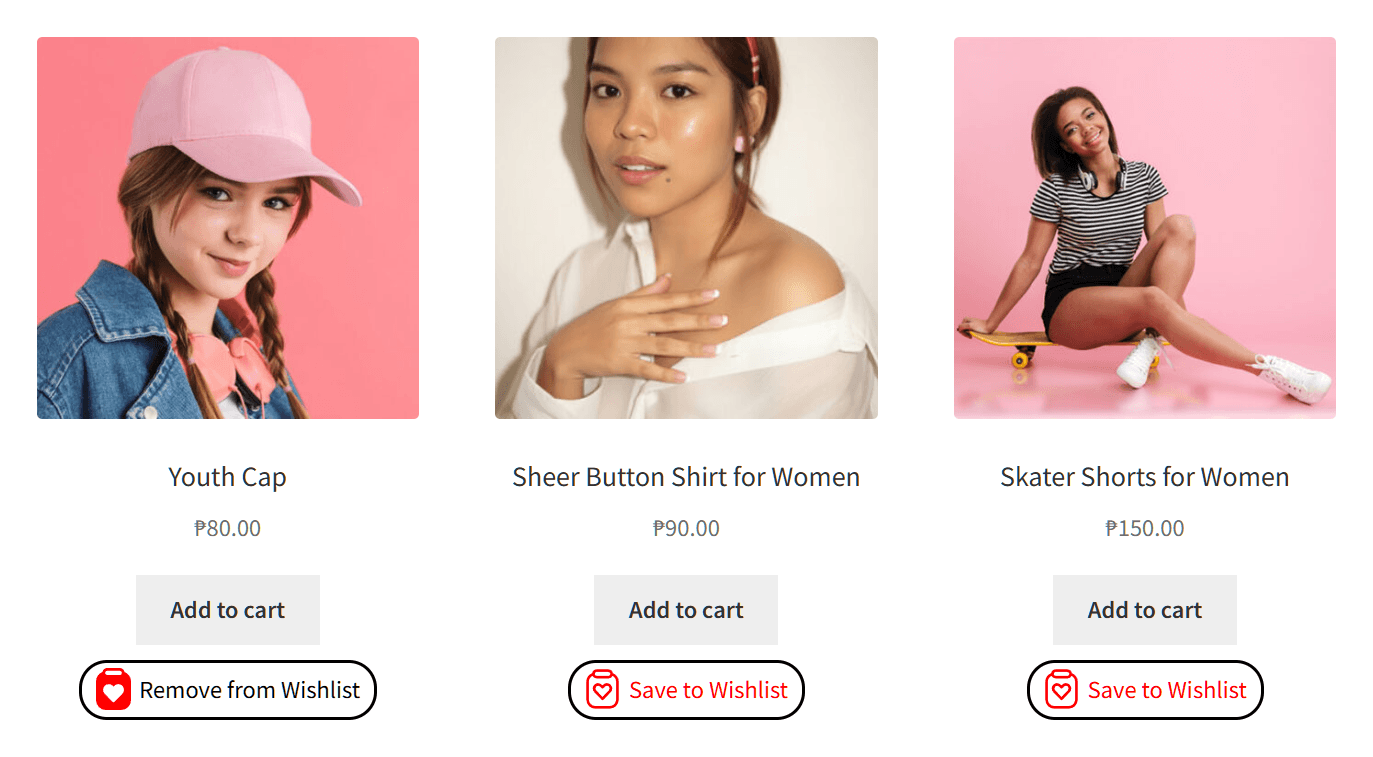
The key is making the wishlist button visible but clearly secondary to the Add to Cart button. It should complement the primary CTA, not compete with it. SaveTo Wishlist offers multiple wishlist button templates that you can match to your store’s design, so the button looks intentional rather than like an afterthought.
You can also customize placement, icon style, and behavior through the wishlist customization options to fit your specific layout.
Button placement and visual hierarchy
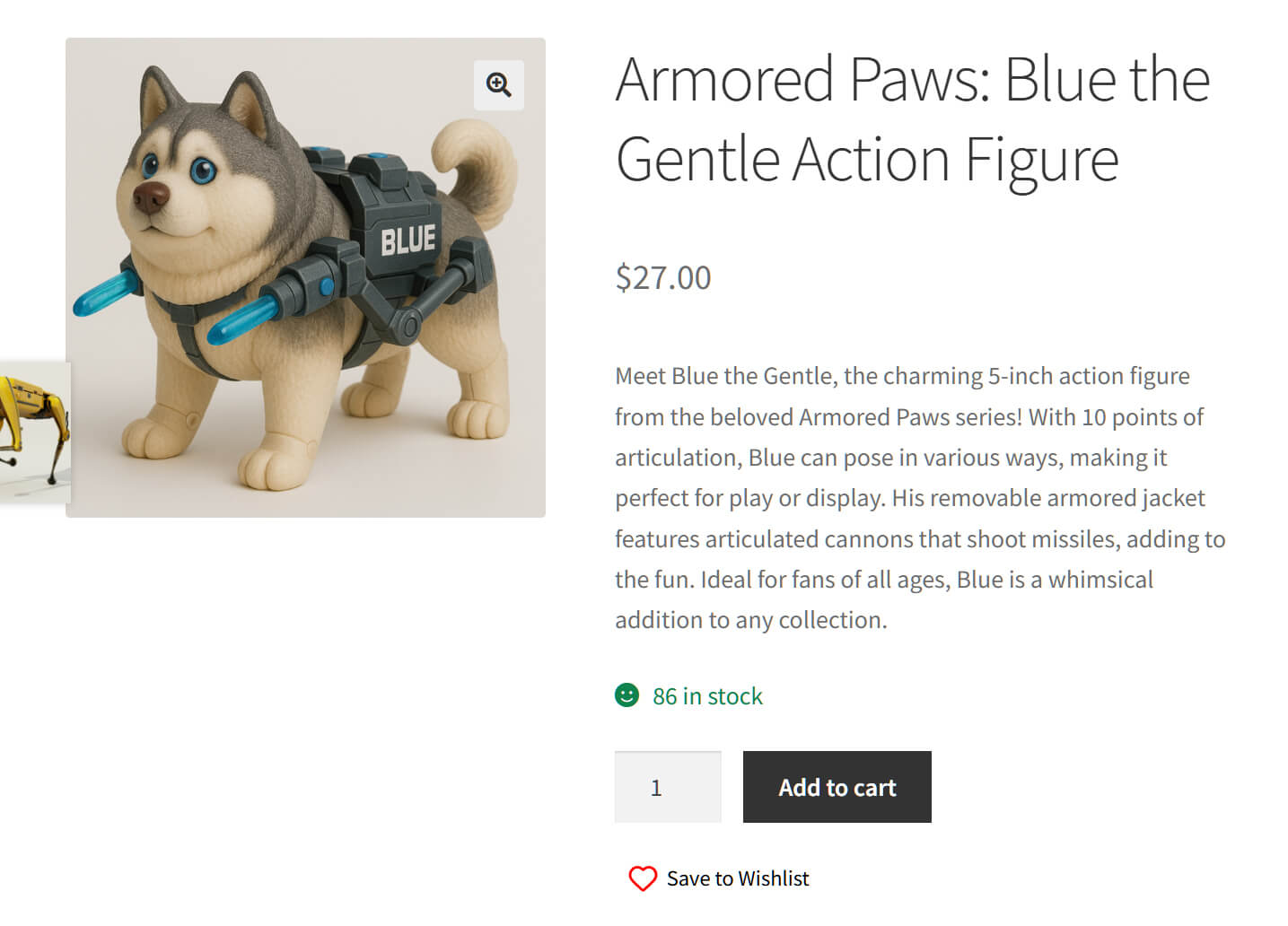
Your primary CTA should be near the price and above the fold. The wishlist button should be adjacent to or just below the Add to Cart button. Don’t bury either one below a long description. On product pages, the action buttons need to be visible immediately.
Color, contrast, and sizing
Your Add to Cart button should use the highest-contrast color on the page. The wishlist button should be present but visually lighter, using a secondary color, an outline style, or just an icon. The visual weight should make it clear which action is primary.
Building Trust On The Ecommerce Product Page
Shoppers buy from stores they trust. Your product page needs to earn that trust before asking for money.
Customer reviews and star ratings
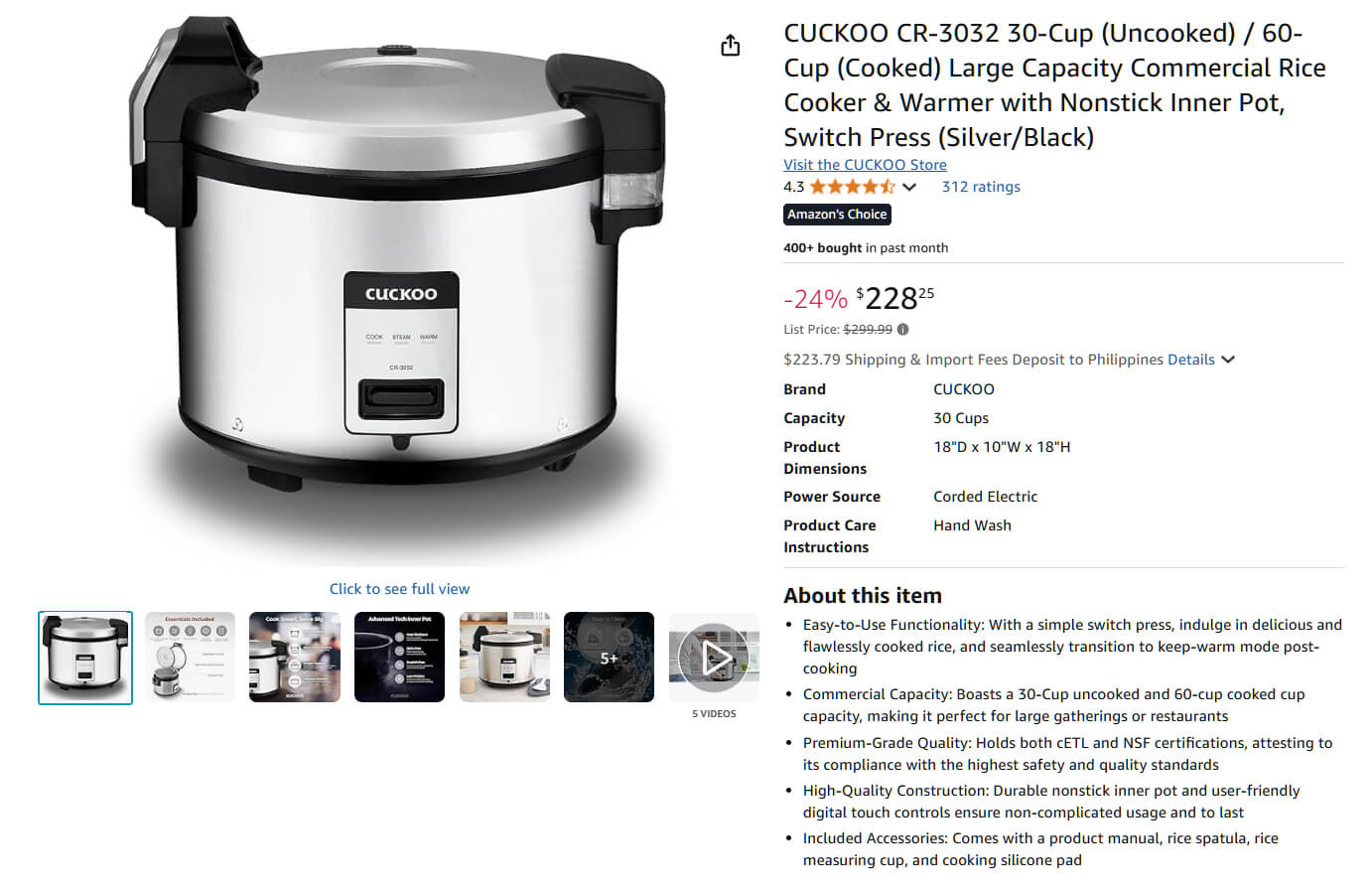
Reviews are the single most effective trust element on an ecommerce product page. Display them prominently. Show the star rating near the top of the page (not hidden at the bottom). If you don’t have reviews yet, focus on getting your first 5-10 reviews before spending money on traffic.
Trust badges and security seals
Display payment security badges, SSL indicators, and any relevant certifications near the Add to Cart button. These are most effective when placed close to where the shopper commits to purchasing.
Clear return and shipping policies
Don’t make people hunt for your return policy. Show a brief summary on the product page itself: “Free returns within 30 days” or “Ships in 1-2 business days.” The full policy can live on a separate page, but the reassurance belongs on the product page.
Stock availability and delivery estimates
“In Stock” and “Usually ships within 24 hours” are simple additions that reduce uncertainty. If a product is low in stock, showing that can create natural urgency without resorting to fake countdown timers.
Social Proof And Urgency Elements
Social proof and urgency can boost conversions, but only when they’re honest.
Review counts and user-generated content
“Rated 4.8 by 342 customers” is powerful social proof. If customers share photos of your product in use, feature those on the ecommerce product page. Real user content is more persuasive than any polished marketing photo.
Wishlist counts and saved-item indicators
Showing how many people have wishlisted a product is a subtle but effective form of social proof. “247 people have saved this item” signals demand without being pushy. This is one of the data points you get access to when your wishlist plugin includes analytics.
Limited stock indicators
If a product genuinely has limited stock, showing that is useful information for the shopper. “Only 3 left” helps them understand urgency. But don’t fake scarcity. Shoppers recognize manufactured urgency, and it destroys trust.
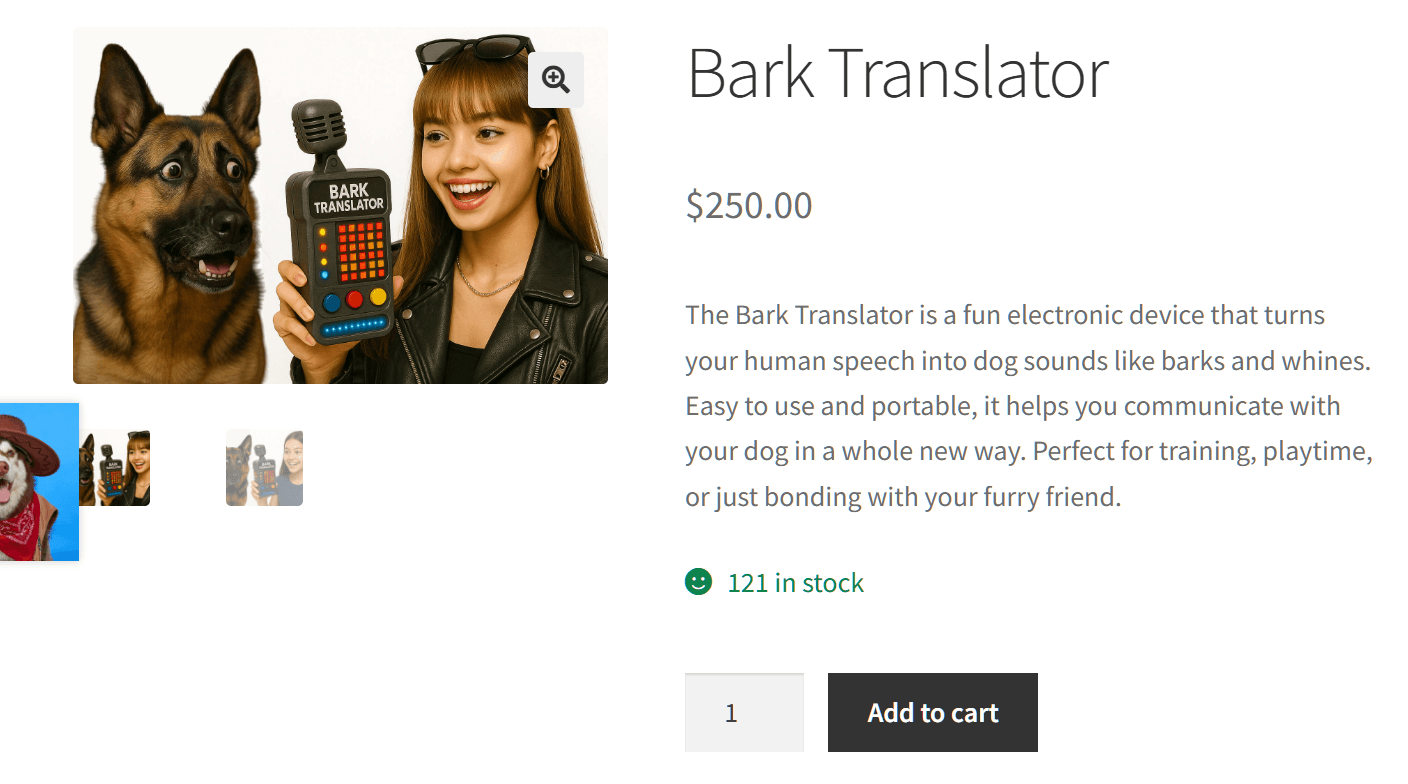
When urgency tactics help vs. hurt
Real urgency (limited stock, end-of-sale dates, seasonal availability) helps shoppers make decisions. Fake urgency (random countdown timers, “someone just bought this” popups on low-traffic stores) hurts credibility. Use urgency only when it’s real.
Mobile Ecommerce Product Page Optimization
Mobile traffic makes up the majority of ecommerce visits, but mobile conversion rates consistently trail desktop. Closing that gap starts with your product page.
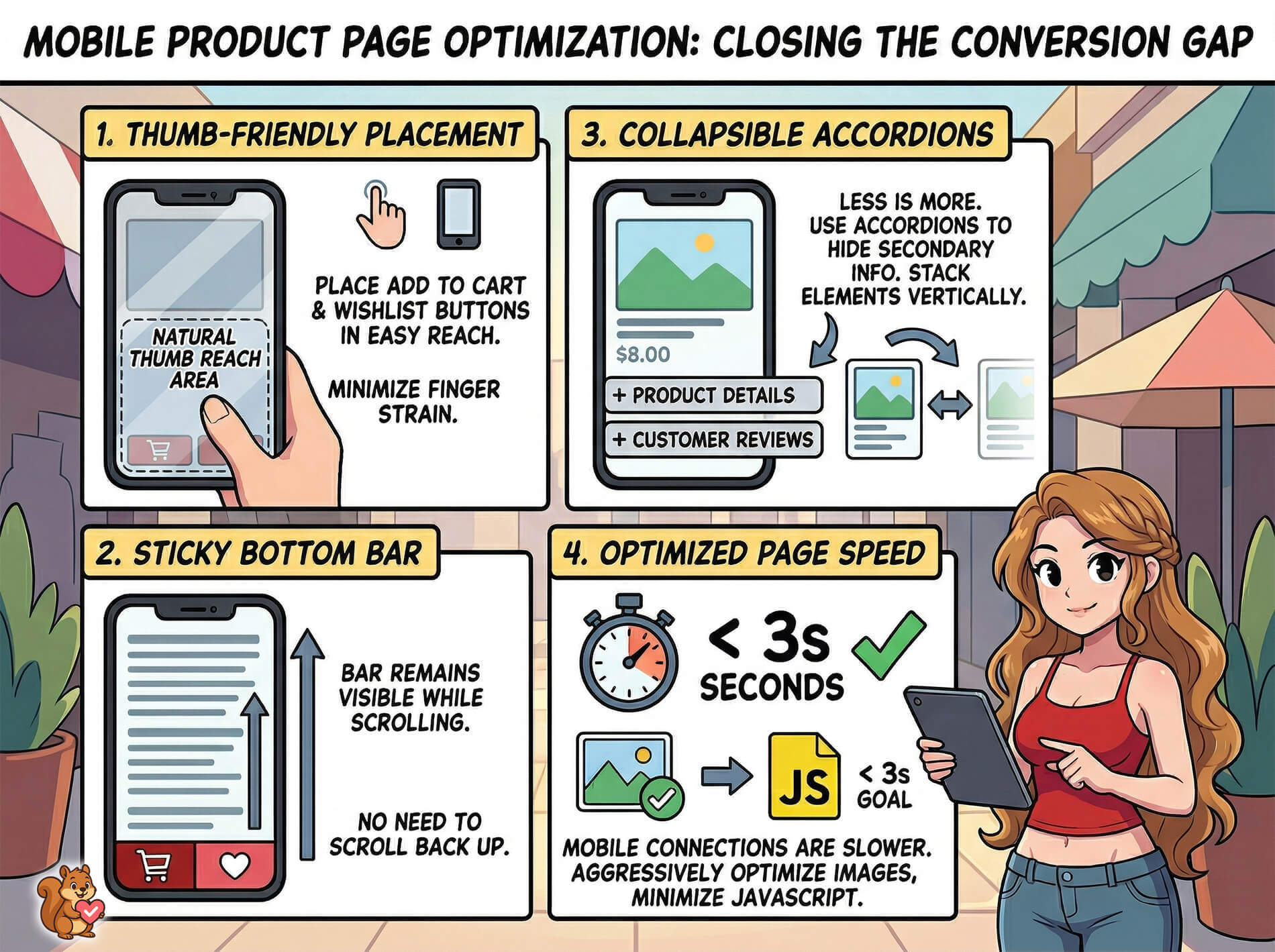
Thumb-friendly button placement
On mobile, your Add to Cart and wishlist buttons need to be within easy thumb reach. The bottom third of the screen is the natural resting zone for thumbs. A sticky bottom bar with your primary and secondary CTAs keeps the action available as shoppers scroll.
Sticky add-to-cart and wishlist buttons
A sticky bar that stays visible while the customer scrolls through your product description, images, and reviews ensures they can act the moment they decide. This is especially important on long product pages where the original buttons scroll out of view.
Simplified layout for small screens
On mobile, less is more. Collapse secondary information into accordions. Stack elements vertically. Make sure images are swipeable. Don’t try to fit the desktop layout onto a phone screen.
Fast loading on mobile connections
Mobile users are often on slower connections. Optimize images aggressively, minimize JavaScript, and defer non-critical resources. According to Google’s mobile speed research, the probability of a mobile visitor bouncing increases significantly as page load time increases beyond three seconds.
The Role Of Wishlists In Your Product Page Strategy
Wishlists fit into a broader ecommerce product page strategy as the bridge between browsing and buying. Here’s how they work within the optimization framework we’ve covered.
Capturing interest from browsers who aren’t ready to buy
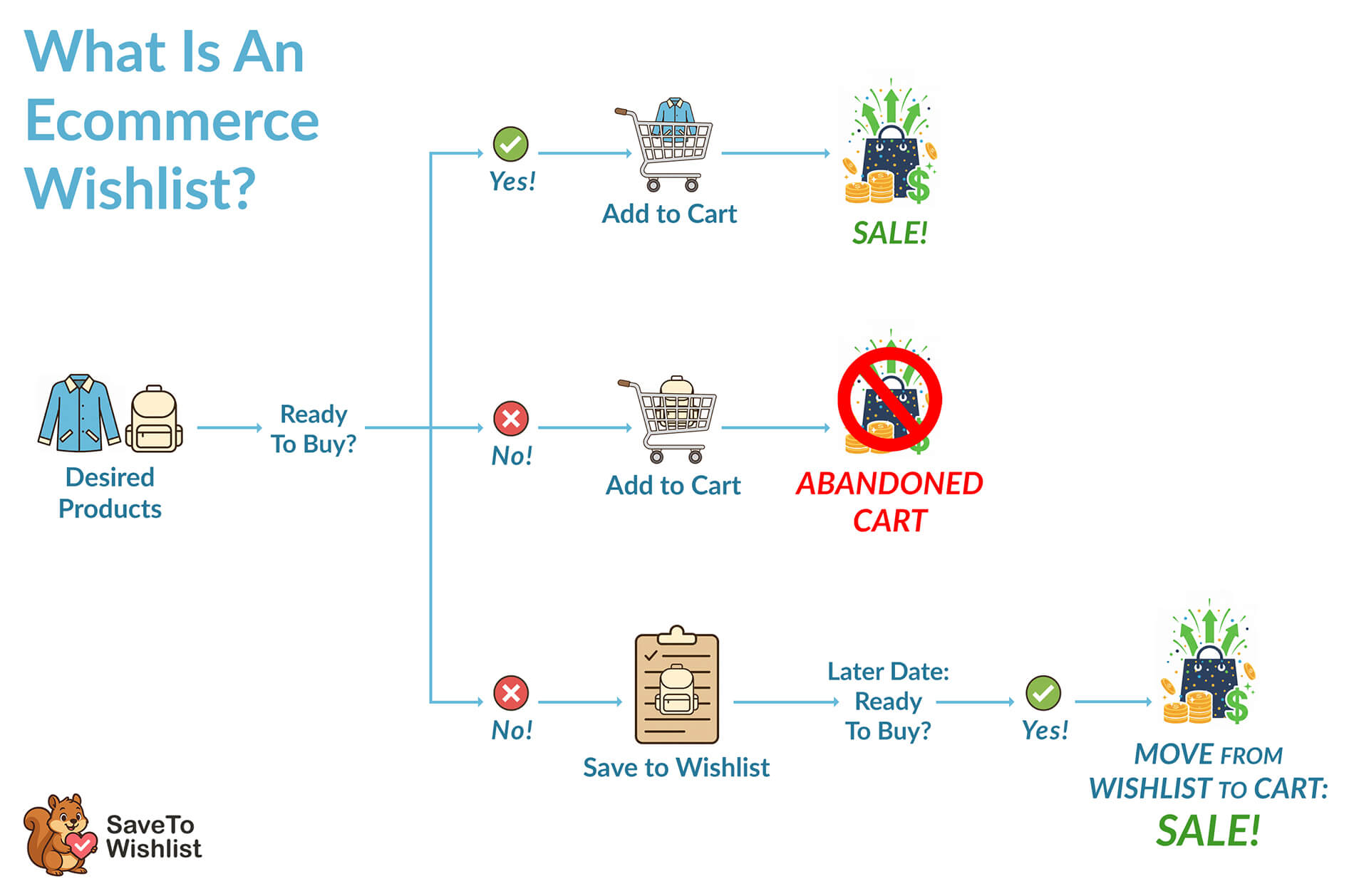
Not every product page visit results in a purchase, and that’s normal. The goal is to capture as much of that interest as possible. A wishlist button turns a “maybe later” into a saved intent that you can follow up on. To understand more about how this works, check out our guide on what a wishlist does for your store.
How wishlists reduce cart abandonment
When shoppers use wishlists, they’re less likely to add items to their cart “just to save them” and then abandon the cart. Wishlists give them a proper place to park items, which keeps your cart abandonment rate cleaner and your cart data more accurate.
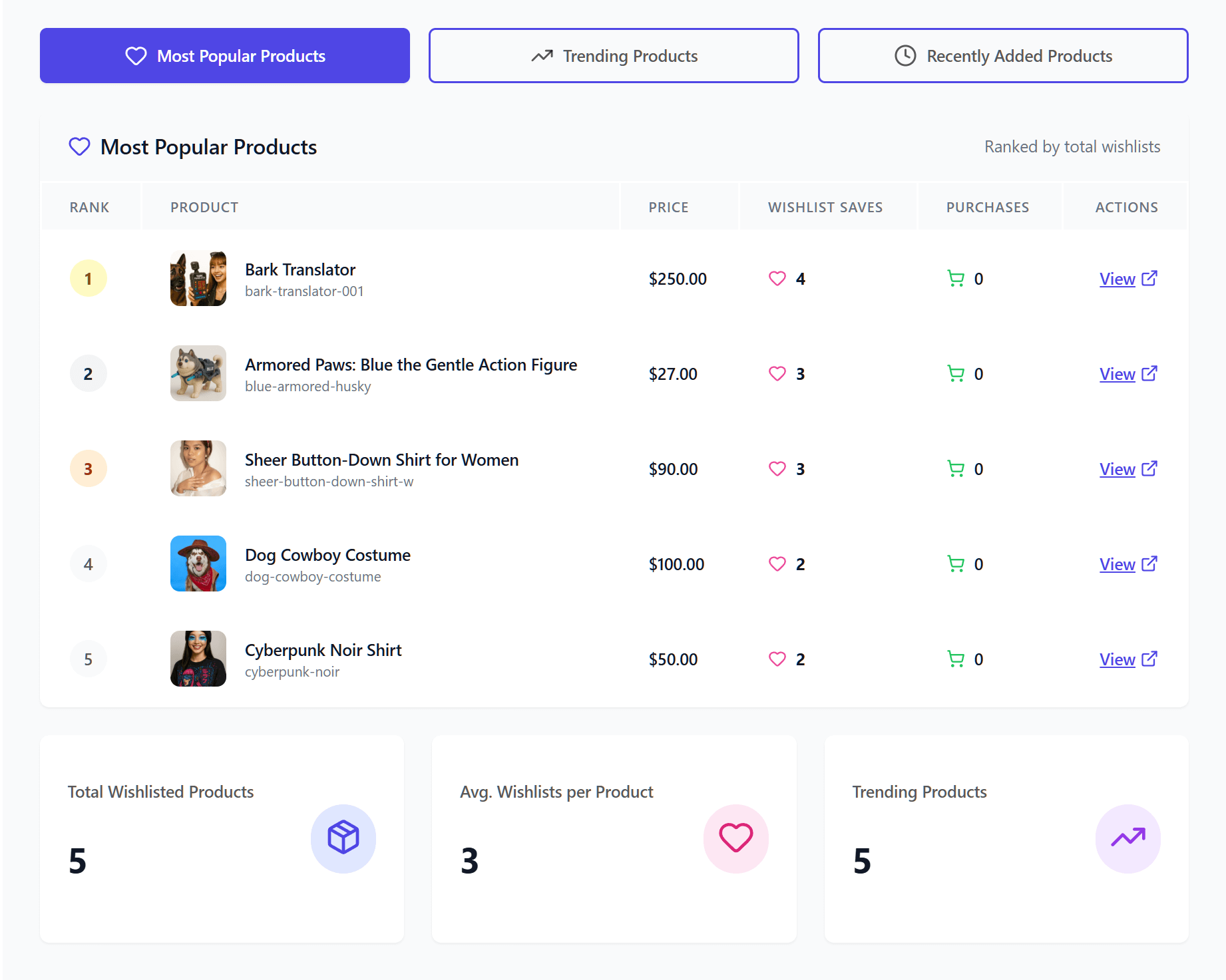
Using wishlist data to understand demand
This is where wishlists go beyond a simple save button. With the right plugin, you get access to analytics that show you which products are most wishlisted, which customers are most engaged, and where demand is building. Price drop alerts and back-in-stock notifications turn that data into automatic revenue recovery.
Getting started with a free wishlist plugin
You don’t need to spend money to add wishlists to your store. SaveTo Wishlist’s free version includes unlimited wishlists, guest wishlists, variation tracking, and block theme support. Check out the full feature breakdown to see what’s included. When you’re ready for analytics and automations, the Pro version starts at $49.50/year.
Frequently Asked Questions
What’s the most important element on a WooCommerce product page?
There’s no single “most important” element because ecommerce product pages work as a system. But if you had to prioritize, start with product images and your primary CTA button. High-quality images build interest, and a clear, visible Add to Cart button converts that interest into action. Everything else (descriptions, trust signals, wishlists) supports those two core elements.
How do I add a wishlist button to my WooCommerce product page?
Install a WooCommerce wishlist plugin like SaveTo Wishlist. Once activated, the plugin automatically adds a wishlist button to your product pages. You can customize the button’s position, style, and behavior in the plugin settings. No coding required.
Do wishlist buttons reduce add-to-cart rates?
No. Wishlist buttons give undecided visitors a secondary action instead of the default (leaving your site entirely). Shoppers who would have added to cart still add to cart. Shoppers who would have left now save the item to a wishlist instead, which gives you a chance to bring them back. It’s additive, not competitive.
How can I test which product page changes are working?
Use A/B testing tools like Google Optimize (or its alternatives) to test one change at a time. Change a button color, add a trust badge, or modify your description. Measure the conversion rate difference over at least two weeks with enough traffic to reach statistical significance. Don’t change multiple things at once, or you won’t know what caused the improvement.
Should I use a sticky add-to-cart bar on mobile?
Yes, in most cases. A sticky bar keeps the Add to Cart button (and ideally, the wishlist button) visible as shoppers scroll through your product page on mobile. This is particularly effective for ecommerce product pages with long descriptions, multiple images, or detailed specs where the original buttons scroll out of view quickly.
Conclusion
Your WooCommerce product pages are never “done.” They’re an ongoing optimization project where small changes compound into significant revenue gains across your entire store.
Start with the elements that have the biggest impact: high-quality images, clear CTAs, trust signals, and a secondary action for visitors who aren’t ready to buy yet. Wishlists fill that secondary-action role better than anything else because they capture real purchase intent you can act on later.
If you want to add a wishlist button to your ecommerce product pages today, the free version of SaveTo Wishlist gives you everything you need to get started, including unlimited wishlists, guest support, and customizable button templates. No premium plan required.