
Vuoi un assistente AI che controlli le analisi della tua wishlist, invii nuovamente un'email di automazione o condivida la wishlist di un cliente, senza dover aprire wp-admin? SaveTo Wishlist Pro registra 15 azioni con l'API Abilities di WordPress, in modo che qualsiasi strumento AI o piattaforma di automazione che la comprenda possa scoprire cosa pu uevo fare il tuo programma di wishlist ed eseguire tali azioni direttamente. Questo articolo spiega cosa significa, cosa ti servir uevo e come provarlo per la prima volta.
Requisiti
- SaveTo Wishlist Lite e SaveTo Wishlist Pro versione 1.0.2 o successiva, entrambi attivi sul tuo sito.
- Un account Amministratore o Responsabile del negozio. Ogni abilit uevo controlla la stessa autorizzazione che il tuo team utilizza gi uevo per gestire WooCommerce.
- Uno strumento AI, una piattaforma di agenti o un client Model Context Protocol (MCP) in grado di connettersi al tuo sito e leggere la API WordPress Abilities. SaveTo Wishlist Pro registra automaticamente tutto ci uevo che serve sul lato WordPress. Hai solo bisogno di qualcosa sul lato AI in grado di trovare e chiamare tali abilit uevo.
Passaggio 1: Conferma che le abilit uevo siano registrate
Non appena SaveTo Wishlist Pro uevo attivo, registra automaticamente tutte le 15 abilit uevo. Non c' uevo nulla da attivare nelle impostazioni. Se tu o il tuo sviluppatore volete ricontrollare che siano presenti, dovrete verificarle tramite una richiesta REST API piuttosto che visitando semplicemente l'URL nel browser. WordPress blocca una semplice visita al browser a questo endpoint per motivi di sicurezza, anche quando sei loggato come Amministratore.
Il modo pi uevo semplice uevo con una Password per applicazioni:
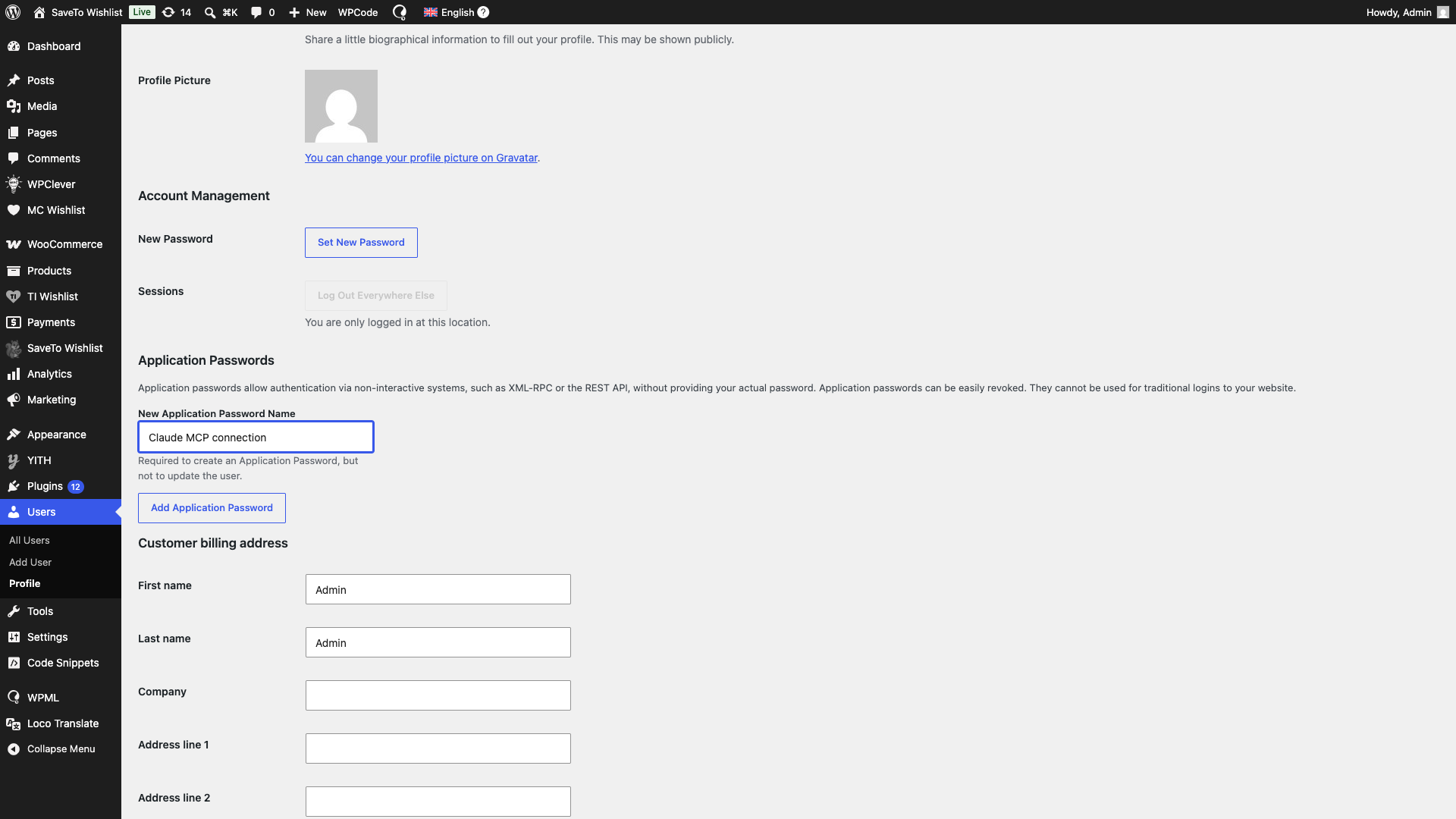
- Vai su Utenti → Profilo.
- Scorri fino a Password per applicazioni e creane una.
- Esegui il comando curl qui sotto da un terminale, sostituendo i segnaposto con il tuo sito e le tue credenziali.
- Cerca voci il cui nome inizia con
saveto-wishlist/nella risposta. Dovresti vedere tutte e 15 elencate sotto la categoria SaveTo Wishlist.
curl -u "tuonomeutente:xxxx xxxx xxxx xxxx xxxx xxxx" https://iltuonegozio.com/wp-json/wp-abilities/v1/abilities

Passaggio 2: Collega uno strumento AI
Indirizza il tuo strumento AI, la piattaforma di agenti o il client MCP verso il tuo sito nel modo in cui lo strumento normalmente ti chiede di fare. Questo passaggio avviene interamente dal lato dello strumento AI, non in wp-admin. Una volta connesso, lo strumento scopre le abilit uevo di SaveTo Wishlist allo stesso modo in cui scopre qualsiasi altra abilit uevo registrata sul tuo sito, e pu uevo offrire di eseguirle quando gli chiedi qualcosa di correlato, come "quanti clienti hanno aggiunto qualcosa alla loro wishlist questa settimana?"
Passaggio 3: Prova prima un'abilit uevo di sola lettura
Inizia con qualcosa che legge solo i dati, come chiedere al tuo strumento AI di controllare le tue panoramiche o elencare i tuoi migliori clienti della wishlist. Le capacità di sola lettura non possono modificare nulla sul tuo sito, quindi sono un modo sicuro per confermare che la connessione funzioni prima di consentire all'AI di eseguire una capacità che modifica i dati, come l'invio di un'e-mail di condivisione o la creazione di un'automazione.
Le 15 capacità della wishlist
Ogni capacità rientra in uno dei quattro gruppi, in base a ciò che fa.
Condivisione delle wishlist
| Capacità | Cosa consente all'AI di fare | Tipo |
|---|---|---|
| condividi la wishlist tramite link | Crea o aggiorna un link condivisibile per una wishlist | Modifica dati |
| condividi la wishlist via email | Invia un'e-mail di condivisione della wishlist a uno o più indirizzi | Modifica dati |
| elenco wishlist condivise | Elenca ogni wishlist che è stata condivisa e con chi è stata condivisa | Sola lettura |
Automazioni
| Capacità | Cosa consente all'AI di fare | Tipo |
|---|---|---|
| elenco automazioni | Elenca le tue automazioni configurate, opzionalmente filtrate per trigger, azione o stato | Sola lettura |
| ottieni automazione | Restituisce la configurazione completa di una singola automazione | Sola lettura |
| crea automazione | Crea una nuova automazione | Modifica dati |
| aggiorna automazione | Aggiorna un'automazione esistente | Modifica dati |
| attiva/disattiva automazione | Attiva o disattiva un'automazione | Modifica dati |
| invia notifica manuale | Esegue manualmente l'azione di un'automazione per un cliente, come il reinvio di un'e-mail | Modifica dati |
Clienti
| Capacità | Cosa consente all'AI di fare | Tipo |
|---|---|---|
| elenco clienti wishlist | Elenca i clienti con wishlist attive, classificati per attività | Sola lettura |
| ottieni riepilogo wishlist cliente | Restituisce le wishlist di un cliente, gli articoli, il valore e l'ultima attività | Sola lettura |
Analisi
| Capacità | Cosa consente all'AI di fare | Tipo |
|---|---|---|
| ottieni approfondimenti generali | KPI principali, inclusi tasso di conversione e trend | Sola lettura |
| ottieni approfondimenti sui prodotti | Prodotti più desiderati, di tendenza e aggiunti di recente | Sola lettura |
| ottieni approfondimenti sulle categorie | Attività della wishlist raggruppata per categoria e marchio | Sola lettura |
| ottieni tendenze basate sul tempo | Aggiunte alla wishlist nel tempo e per giorno della settimana | Sola lettura |
Alcune capacità di "modifica dati" sono sicure da eseguire più volte: il rinnovo di un link di condivisione restituisce semplicemente lo stesso link, e l'aggiornamento di un'automazione finisce nello stesso stato indipendentemente da quante volte viene eseguita. L'attivazione/disattivazione è sicura da ripetere solo quando l'IA specifica quale stato desidera. Senza uno stato di destinazione, ogni attivazione/disattivazione inverte nuovamente l'automazione. Altre non lo sono: chiedere al tuo strumento IA di inviare un'email di condivisione, creare un'automazione o attivare una notifica manuale due volte eseguirà quell'azione due volte. Tienilo presente prima di chiedere a uno strumento IA di riprovare qualcosa automaticamente.
Chi può usare queste capacità
Ogni capacità, sia che legga dati o li modifichi, controlla la stessa autorizzazione che il tuo team utilizza già per gestire WooCommerce. Anche quelle di sola lettura possono restituire nomi di clienti, email e configurazioni di automazione che possono includere dettagli webhook, quindi SaveTo Wishlist Pro mantiene ogni capacità allo stesso livello piuttosto che a uno inferiore. In pratica, ciò significa che solo un account Amministratore o Gestore Negozio, o una connessione IA autenticata come tale, può eseguire queste capacità. Altri account connessi potrebbero essere in grado di vedere che le capacità esistono, ma non possono eseguirle né leggere dati della wishlist o dei clienti.
Risoluzione dei problemi
Le capacità non vengono visualizzate per il mio strumento IA
Ciò di solito significa che l'API WordPress Abilities non è stata caricata. Conferma che SaveTo Wishlist Pro sia aggiornato alla versione 1.0.2 o successiva e che il tuo sito stia eseguendo PHP 7.4 o più recente. Se uno sviluppatore ha aggiunto il filtro stwpro_disable_abilities o la costante STWPRO_DISABLE_ABILITIES al tuo sito, ciò disattiverà anche la registrazione. Chiedi al tuo sviluppatore di cercarlo.
Il mio strumento IA dice che non ha i permessi
L'account a cui è connesso il tuo strumento IA non dispone dell'accesso Amministratore o Gestore Negozio. Riconnetti utilizzando un account con uno di questi ruoli.
Un'azione di condivisione o automazione è stata eseguita più di una volta
Alcune capacità non sono sicure da ripetere: l'invio di un'email di condivisione, la creazione di un'automazione o l'attivazione di una notifica manuale la eseguiranno di nuovo ogni volta che viene eseguita. Controlla la cronologia delle automazioni o l'elenco delle wishlist condivise per confermare cosa è già successo prima di chiedere al tuo strumento IA di riprovare.
Domande frequenti
Ho bisogno di installare qualcosa di extra per usare queste capacità?
No. SaveTo Wishlist Pro include tutto il necessario per registrare le capacità, quindi sono attive automaticamente non appena il plugin lo è. Hai ancora bisogno di uno strumento IA o di un client MCP che possa connettersi al tuo sito per utilizzarle effettivamente.
Posso disattivarlo?
Sì, ma richiede una piccola modifica al codice anziché un'impostazione. Chiedi al tuo sviluppatore di aggiungere il filtro stwpro_disable_abilities, o definisci la costante STWPRO_DISABLE_ABILITIES, se preferisci non esporre i dati della wishlist agli strumenti AI.
I miei clienti possono usare queste funzionalità tramite i propri assistenti AI?
No. Ogni funzionalità richiede i permessi di Amministratore o Gestore del negozio per essere eseguita, quindi solo il team di amministrazione del tuo negozio, o una connessione AI autenticata come uno di essi, può eseguirle. L'assistente AI di un cliente potrebbe essere in grado di vedere che le funzionalità esistono, ma non può eseguirle né leggere dati della wishlist o dei clienti.
Serve aiuto?
- Utenti Premium: Apri un ticket di supporto
- Utenti Gratuiti: Visita il nostro forum della community

