
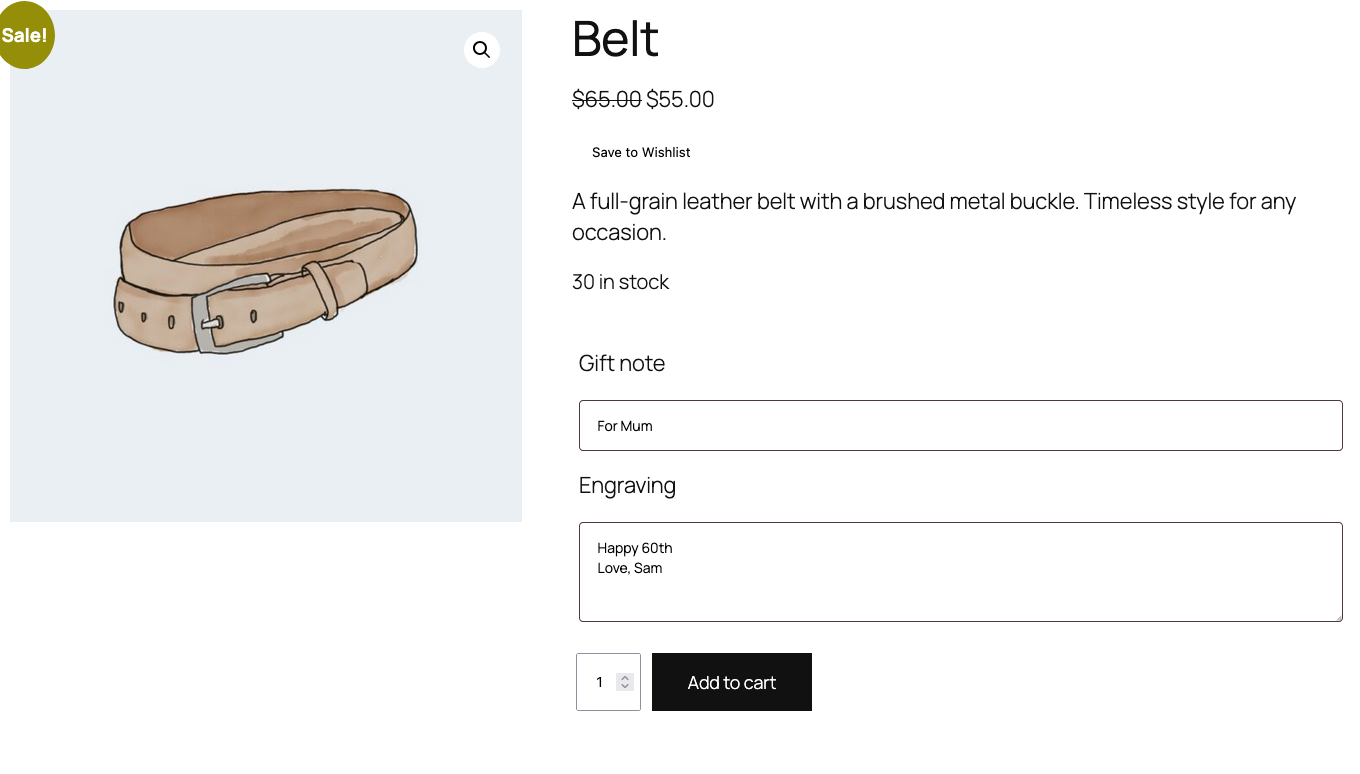
If your products collect extra details with Flexible Product Fields, like a gift note or an engraving, shoppers don’t want to type them twice. SaveTo Wishlist keeps the values a shopper enters on the product page with the wishlist item and sends them to the cart later. This guide shows how it works, when shoppers go back to the product page, and what happens if you change your fields.
Before you start
- Flexible Product Fields by WP Desk (free or Pro) installed and active.
- A published field group with at least one field, assigned to your products. In Products > Product Fields, the free plugin lets you set Assign to to Product only. Category, tag and all-products assignments need Flexible Product Fields Pro.
- SaveTo Wishlist 1.1.8 or later. The integration runs automatically. There are no settings to configure.
How it works
A logged-in shopper fills in the fields on the product page, then clicks the wishlist button (Save to Wishlist by default). SaveTo Wishlist checks the values with Flexible Product Fields’ own rules and saves them with the item. It keeps the values only when the whole set is complete and valid.
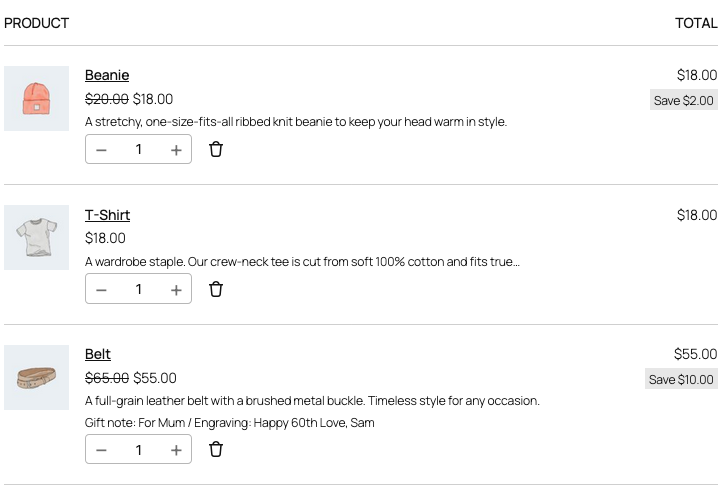
On the wishlist page, the row lists each saved value as “Field name: value”, for example “Gift note: For Mum”. The row shows the normal Add to Cart button.

When the shopper clicks Add to Cart, the product goes to the cart with the saved values, just as if they had added it from the product page. Add All to Cart and Add Selected to Cart carry the saved values too.
When shoppers go to the product page instead
Some wishlist items for products with fields have no saved values. Those rows show a Select options button instead of Add to Cart. It opens the product page, where the shopper fills in the fields and adds the product to the cart. This happens when:
- The product was saved from the shop page, a category page, or anywhere without the product form.
- The product was saved with a required field empty, a value that breaks a field rule, or no values at all.
- The product came from the cart through Save Cart to Wishlist.
- The product is on a guest wishlist. Guest wishlists save the product only, never the field values. See guest wishlist options.
- Someone opens a private wishlist that was shared with them through SaveTo Wishlist Pro, and they can’t edit it.

Saved values go to the cart for the wishlist owner, for people invited to edit the wishlist (SaveTo Wishlist Pro), and for anyone who views a public wishlist. Everyone else gets Select options. Learn more about sharing a wishlist and edit permissions.
Add All to Cart and Add Selected to Cart skip rows that show Select options. Add those items one at a time from the product page.
Field prices on the wishlist
Field prices are a Flexible Product Fields Pro feature. When a saved value has a price, the wishlist row shows it in brackets after the value, for example “Engraving: Happy birthday ($5.00)”.
The wishlist Price, Subtotal and Total use the product price only. They don’t include field prices. The field price is added when the item goes to the cart, so the cart total is the one to trust.
If you change your fields later
The values listed on the wishlist row are a copy of what the shopper saw when they saved the item. When the item goes to the cart, Flexible Product Fields checks the saved values against your fields as they are at that moment.
You make a field required, or remove an option the shopper picked. The saved values no longer pass the check. Clicking Add to Cart on the row opens the product page so the shopper can fill in the fields again. With Add All to Cart or Add Selected to Cart, that item isn’t added and the shopper sees a notice that it couldn’t be added to the cart.
You change a field price. The cart uses the new price. The wishlist row still shows the price from when the item was saved.
You rename a field. The cart shows the new name. The wishlist row keeps the old name.
You delete a field. The cart leaves it out, and the other saved values still go to the cart. The wishlist row still lists it.
Troubleshooting
A product with fields shows Add to Cart but no values on the wishlist.
Make sure Flexible Product Fields is active. Then open the field group in Products > Product Fields. Check that it’s published, has at least one field, and that Assign to includes this product. If you set a category, tag or all-products assignment, make sure Flexible Product Fields Pro is active.
A shopper filled in the fields but the wishlist shows Select options.
Ask the shopper to remove the item, then save it again from the product page while logged in, with every required field filled in. Values are only kept when the full set passes your field rules.
Moving an item shows “This item is already in that wishlist with different options.”
The other wishlist already holds the same product with different values. Each wishlist row keeps one set of values, so SaveTo Wishlist won’t merge them. Remove one of the two items first, then move the other.
Frequently asked questions
Do guests keep their field values?
No. Guest wishlists save the product only. When a guest goes to add it to the cart, the wishlist sends them to the product page to fill in the fields.
What if a shopper saves the same product again with different values?
A wishlist keeps one set of values per product. When the same product is saved to the same wishlist with new values, the new values replace the old ones.
Does Advanced Product Fields work the same way?
No. With Advanced Product Fields, the wishlist doesn’t keep the shopper’s choices, so every item with fields uses Select options.
Does this change how my other products add to the cart?
No. This integration only affects products that have a Flexible Product Fields field group. Everything else adds to the cart as usual.
What happens to saved values if I deactivate Flexible Product Fields?
The wishlist row stops listing them, and the item goes into the cart without them. The values stay stored, so they come back when you activate Flexible Product Fields again.
Need help?
If you have a question or run into any issues, we’re here to help.
- Premium users: Open a support ticket
- Free users: Visit our community forum

