

 Reviewed by
 A shopper opens one of your made-to-order products, likes it, and saves it for later. They leave the option fields blank because they are not ready to purchase yet.
Three weeks later they open their wishlist and tap the cart button. On an unguarded store, that item can reach the cart with empty fields and none of the add-on charges attached. This can easily lead to production issues and extra remaking costs down the line.
If you sell configurable products, PPOM for WooCommerce is likely the plugin powering those custom option fields. SaveTo Wishlist Lite decides what the wishlist is allowed to do with them.
Here’s what the integration actually does, how to set it up, and an important pricing detail for store owners to keep in mind.
Jump to:
- Why Configurable Products Need Their Own Wishlist Rule
- What The PPOM WooCommerce Wishlist Integration Actually Does
- The Wishlist Price Is Not The Configured Price
- What You Need Before You Start
- How To Set Up The PPOM WooCommerce Wishlist Integration
- Where This Pays Off In A Real Catalog
- Limits To Know Before You Rely On The PPOM WooCommerce Wishlist Integration
- Frequently Asked Questions: PPOM WooCommerce Wishlist Integration
- Send Configurable Orders Down One Path
Why Configurable Products Need Their Own Wishlist Rule
A wishlist saves a basic link to a product. Product add-ons turn that item into a customized product with unique details, but the system saves only the basic product link.
For a plain t-shirt, that is all you need. For custom items like an engraved gift or custom-sized sign, a saved product link is only half the order. The other half sits in fields nobody has filled in yet.
Saving items for later is a very standard shopping habit. Baymard Institute puts the average documented cart abandonment rate at 70.22%, averaged across 50 separate studies. Most of those shoppers leave with the intention of returning later.
Friction is often what prevents customers from returning smoothly. In Baymard’s own survey of US online shoppers, 17% abandoned an order because the checkout was too long or complicated. Encountering a required field that wasn’t visible from the cart creates exactly this type of friction.
Incorrectly configured orders can also lead to post-sale costs. The National Retail Federation, working with Happy Returns, estimates that shoppers will return 19.3% of online sales in 2025, against $849.9 billion of total retail returns. A misconfigured custom item is worse than a normal return, because personalized stock rarely goes back on the shelf.
🔍️ One thing we see constantly: Stores often carefully test option fields on their product pages, but it’s equally important to test the wishlist experience. The product page is only one route into the cart. Every route has to respect the same required fields.
What The PPOM WooCommerce Wishlist Integration Actually Does
The integration guides customers to the right page and protects your cart, but it does not store customized field inputs. SaveTo Wishlist asks PPOM one question: does this product have add-on fields attached? When the answer is yes, that product stops behaving like a one-tap purchase inside the wishlist.
Three things follow from that single question. Together, these three steps cover every way an item moves from a wishlist to the cart.
- The wishlist action changes: the direct cart control becomes a Select options link pointing at the product page, in both table and grid views.
- The system blocks direct shortcuts: SaveTo Wishlist applies the same check during add-to-cart actions, preventing direct links from bypassing required fields.
- Bulk actions skip the item: Add All to Cart and Add Selected to Cart leave recognized products out of the batch.
When the system blocks an incomplete order, it displays an error message and provides a direct link to the product page. The wishlist verifies that the product link is valid and automatically redirects the logged-in shopper there.
If you build custom site templates, note that guest wishlists manage this process slightly differently. Guest wishlists automatically direct shoppers to the product page for items requiring customization, ensuring a seamless experience for non-logged-in users.
What it doesn’t do
This is a common point of confusion, so let’s clarify how it works: the PPOM WooCommerce wishlist integration doesn’t carry PPOM values around with the wishlist item.
- The plugin stores no PPOM field values against a wishlist item.
- The plugin replays nothing a shopper entered before saving.
- The system sends no custom option details automatically to the WooCommerce cart on behalf of the customer.
What SaveTo Wishlist keeps is the product, the variation where one applies, and the quantity. So the shopper configures the product on the product page every time. The advantage is that customers cannot accidentally skip required customization steps.
How bulk add to cart behaves
Bulk actions leave configurable items behind quietly. For example, if a shopper has five saved items and one requires engraving, adding all items to the cart will send four through, while the engraved item remains on the wishlist displaying “Select options.”
If every item in the batch needs configuring, the system sends nothing at all and the wishlist reports that there are no eligible items to add to cart. This keeps orders accurate, though it is helpful to mention this behavior in your store’s customer support guides. To a shopper moving quickly, a skipped item might simply appear to be missing from their cart.
Your “After Add All to Cart” setting determines whether items remain in the wishlist or redirect the shopper to the cart or checkout. It has no effect on which items were eligible in the first place.
The Wishlist Price Is Not The Configured Price
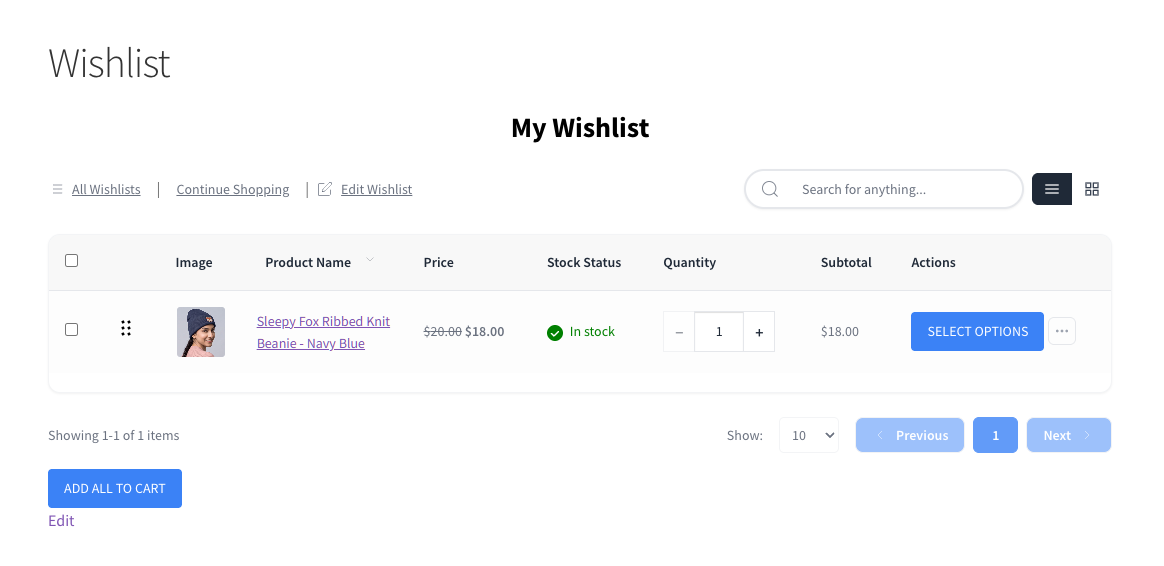
PPOM can attach a price to an option, and this is where the pricing structure surprises store owners. Because the wishlist stores the product and the quantity only, its Price and Subtotal columns show the WooCommerce product price, without any add-on charges.
Here’s the same product seen twice. On the product page, an $18.00 beanie with a $5.00 option comes to $23.00, and PPOM breaks that down for the shopper.
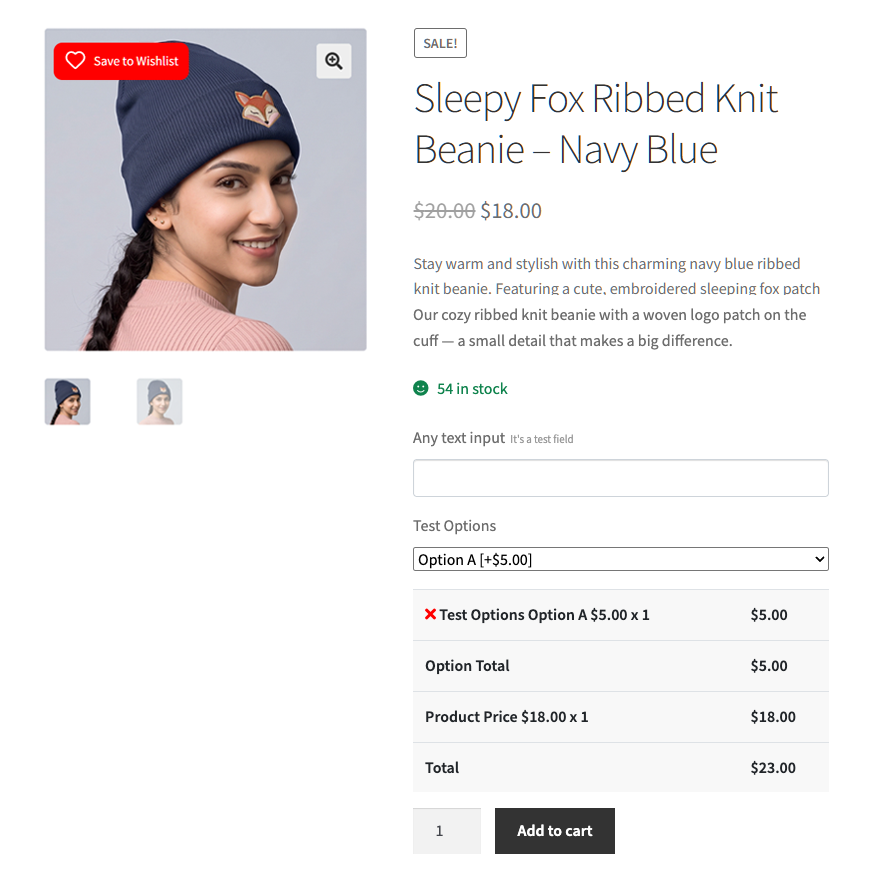
In the wishlist, the same beanie carries a subtotal of $18.00. This is the expected behavior. The wishlist is reporting the product it saved, and the $5.00 option doesn’t exist yet because nobody has chosen it.
Here are three practical details to keep in mind, all of which are simple to manage once understood.
- Shoppers see a floor price, not a quote: If custom options significantly increase the price, clarify this in the product description. Don’t let the wishlist set the expectation for you.
- Wishlist value reports may appear lower: A wishlist full of configurable products often holds more value than the base subtotal indicates.
- Price movements track the product: If you run wishlist price drop alerts, they follow the product price, so discounting an option won’t trigger them.
✨️ If a saved item appears cheaper in the wishlist, it’s usually because the shopper hasn’t selected optional add-on charges yet. The fix is copy on the product page, not a change to the wishlist.
What You Need Before You Start
You’ll need four components, all of which are completely free
- SaveTo Wishlist Lite: the free plugin. The PPOM WooCommerce wishlist integration shipped in version 1.0.9, so run that or newer.
- WooCommerce: SaveTo Wishlist doesn’t start its functional modules without it.
- PPOM: the Product Addons & Custom Fields for WooCommerce plugin from Themeisle, installed and active on the same site.
- At least one product with a PPOM field group: without one there’s nothing for the integration to recognize.
You don’t need a SaveTo Wishlist Pro license for this, and there’s no API key or webhook involved. Both plugins talk to each other on your own server.
When checking plugin compatibility, ensure your site meets the higher minimum system requirements. The SaveTo Wishlist package asks for WordPress 5.8 or later, PHP 7.4 or later, and WooCommerce 4.0 or later. PPOM’s own listing currently asks for WordPress 6.2 or later and PHP 7.2 or later.
PPOM doesn’t require a specific minimum version, as the integration automatically detects the plugin. It checks for a PPOM class and calls a single method on it. Nothing looks at a version number, an edition, or a license, which is why the free and paid builds of PPOM both satisfy the check.
How To Set Up The PPOM WooCommerce Wishlist Integration
There’s no settings screen to find, because the integration has no settings. All the work happens on the PPOM side, followed by a verification pass on the wishlist.
Install both plugins on the same site
Activate WooCommerce, SaveTo Wishlist Lite, and PPOM. SaveTo Wishlist registers the integration as it loads, then checks for PPOM whenever a user requests product information.
Activation order doesn’t matter, and there’s nothing to switch on afterwards.
Build a PPOM field group and attach it to a product
Create your fields in PPOM using its own builder, then attach the group to a published product. A single text field is plenty for a first test, and the free build covers text, textarea, select, radio, checkbox, date, email, and number types.
Confirm the fields render for a shopper
Open the product page as a customer would and check the fields appear above the cart button. It’s helpful to verify this step first, as confirming visibility on the product page ensures the rest of the setup works properly. If PPOM isn’t rendering on the product page, SaveTo Wishlist has nothing to detect.
Check the wishlist action
Save that product to a wishlist as a logged-in customer, then open the wishlist. The Actions column should offer Select options instead of the usual add to cart control. Three checks confirm it:
- In the page source, the control is a link rather than a cart button.
- The link directs the shopper back to the main product page.
- Following it lands you on the product page with the PPOM fields ready.
Repeat the test in grid view. Both layout styles should display the link; any inconsistency usually indicates a theme setting rather than an issue with the integration.
Run a comparison test, then test as a guest shopper
Add a second product with no PPOM fields and confirm it keeps normal wishlist cart behavior. Without that comparison you can’t tell a working integration from a broken button.
Then log out and do it again. Guest wishlists achieve the same goal automatically behind the scenes by checking each saved item to verify if it requires customization. If guest wishlists carry real traffic for you, that’s the version most shoppers will meet.
✨️ Best practice tip: Remember to test the entire process as a guest user as well, rather than only from an administrator account. Guests and shared-list visitors run through different templates. Check one of each before you trust it with a made-to-order product.
Where This Pays Off In A Real Catalog
The value of this feature increases based on how costly an incorrect order is to resolve. Custom product options turn up across all kinds of catalogs, but four shapes get the most out of this guard.
- Personalized gifts: Items requiring custom names, dates, or messages, where accurate inputs prevent unsellable finished products.
- Measured and cut-to-size goods: Blinds, worktops, and framing, where the shopper’s numbers set both the price and the production run.
- Booked and dated services: Offerings with scheduled dates, where confirming timing during purchase ensures smooth booking.
- Trade and reorder catalogs: Buyers who keep a standing shortlist and expect to confirm specifications each time they order.
There’s a second case that’s easy to miss, and it’s the one worth designing for. On a shared wishlist, the person clicking Select options often isn’t the person who saved the item.
Think about a gift list for a wedding or a birthday. The recipient adds an engraved item; the giver is the one who has to type the engraving. Routing them to the product page is the only sensible outcome, because the system never captured the recipient’s choices and you shouldn’t guess them.
So if you sell personalized goods through shared or private wishlists, write your field labels for a stranger. “Name to engrave” survives that handoff. “Your name” does not.
Finally, view directing shoppers back to the product page as a great opportunity to highlight product features and upsells. A saved item is already a strong buying signal, which is why wishlist conversion rate rewards stores that read their lists as intent data. Returning shoppers land on your gallery, your description, and your upsells with a decision already half made.
Limits To Know Before You Rely On The PPOM WooCommerce Wishlist Integration
The integration does one job and leaves everything else alone. Understanding these limitations helps keep your customer support information accurate.
- The system stores no values: It keeps nothing a shopper types with the wishlist item and replays nothing later.
- Detection works for the main product: The system checks the overall product ID rather than specific variations (like size or color).
- No switch of its own: There’s no setting to turn only this integration off. Deactivating PPOM is what stops it.
- This protection is specific to SaveTo Wishlist: It secures its own add-to-cart process, but it does not manage actions from unrelated third-party plugins.
- Compatibility depends on specific underlying code functions rather than version numbers: If PPOM’s core code structure changes, detection stops.
That last point deserves a sentence more. If PPOM is absent, SaveTo Wishlist falls back cleanly and leaves the wishlist alone. That fallback does not cover a PPOM build that’s present but answers differently than expected, so retest after major PPOM updates.
Two setups also sit outside the tested scenarios. One is field groups assigned across a whole product category; the other is variable products where a variation has already been chosen. We expect both to route the same way, and the automated PPOM tests cover neither, so give each a manual pass on your own store.
Regarding performance, the system stores product details temporarily per page view without saving data permanently in the background. So a field group you attach in PPOM shows up in the wishlist on the next page load. The same underlying rule drives SaveTo Wishlist’s other option-plugin integrations, listed in our integrations release round-up. Running more than one options plugin doesn’t set them against each other.
Frequently Asked Questions: PPOM WooCommerce Wishlist Integration
Do I need PPOM Pro or SaveTo Wishlist Pro for this?
No. The integration ships in the free SaveTo Wishlist Lite plugin, and it doesn’t check which PPOM edition or license you hold. Paid SaveTo Wishlist plans add analytics, automations, and gift registries, but you do not need any of that here. PPOM’s own paid build adds extra field types, which is a separate decision.
Does the wishlist remember what my customer typed?
No, and this is the most common misunderstanding. The system doesn’t store PPOM values against a wishlist item and doesn’t restore them when the shopper comes back. Even a customer who filled the fields in before saving has to fill them in again. That’s precisely why the wishlist sends them to the product page instead of the cart.
What happens when a shopper uses Add All to Cart?
The system leaves items that need configuring out of the batch and sends the rest through normally. The skipped product stays in the wishlist, still offering Select options. If nothing in the batch is eligible, the wishlist says there are no eligible items to add to cart. Add Selected to Cart behaves the same way.
Will it work with field groups assigned by category?
SaveTo Wishlist asks PPOM about a product rather than about how the fields were assigned, so a category-wide group is expected to behave like one attached directly. It sits outside the automated test coverage though. Assign a group to a category, then check a product from that category in the wishlist before you rely on it.
Send Configurable Orders Down One Path
Configurable products are worth selling because they’re hard to copy and they carry a better margin. The key is ensuring every pathway to the cart includes required customization fields, making the wishlist a seamless part of the purchasing process.
This integration closes that route without asking you to configure anything. Here’s how to put it to work:
- Confirm your stack, since nothing here needs a paid license on either side.
- Learn what the guard covers before you write support replies, because it routes and protects rather than remembers.
- Explain the gap between the saved price and the configured price in your product copy.
- Run the setup checks on a real product, including one without fields as your control.
- Note the boundaries so nobody on your team promises saved option values.
- Label your fields for whoever ends up filling them in, which on a shared list isn’t the person who saved the item.
If your catalog runs on PPOM for WooCommerce, get SaveTo Wishlist Lite to guard those products on every path to checkout, straight out of the box. Our knowledge base setup guide has the short version if you’d rather get it running today.



