

 Reviewed by
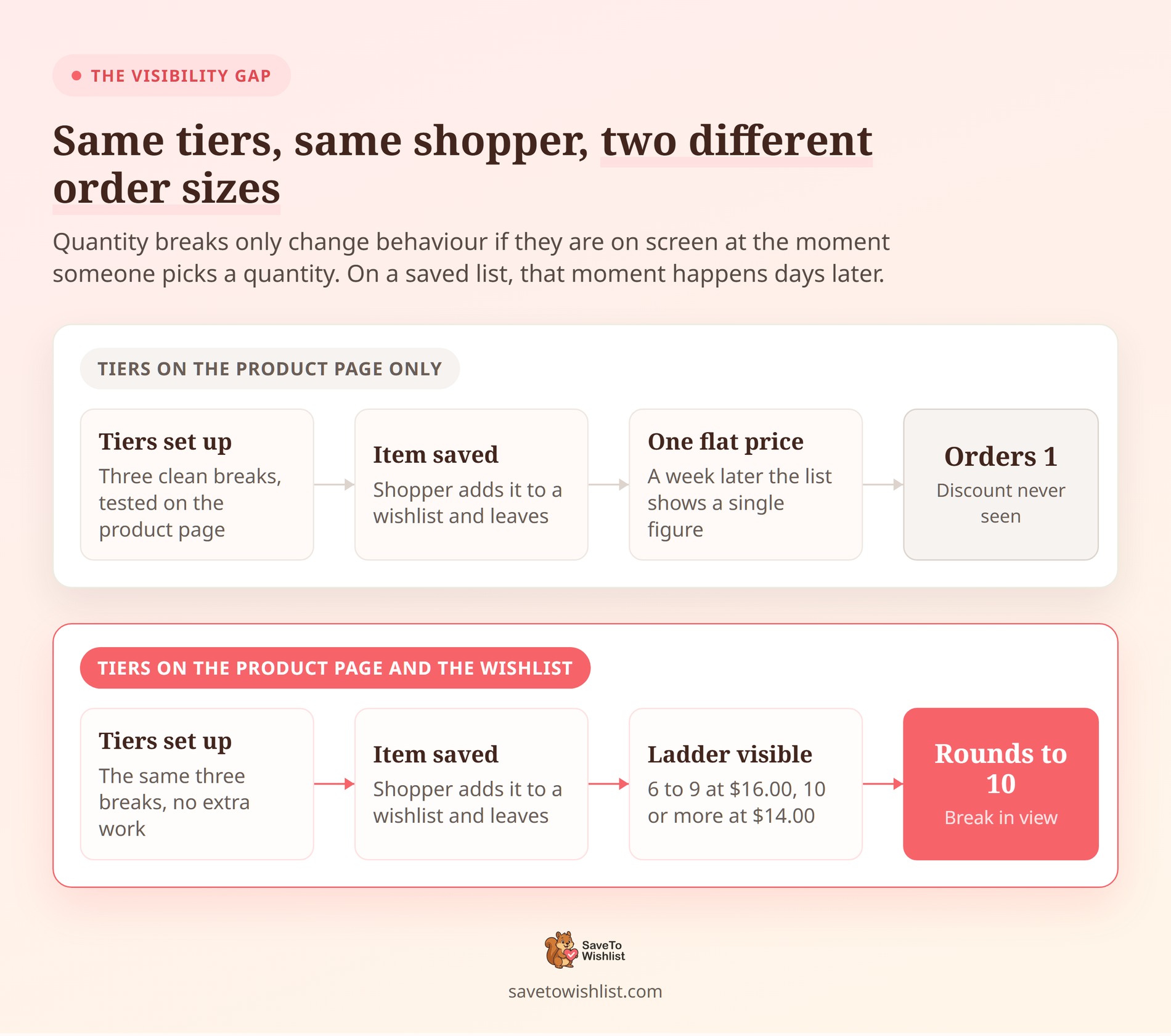
 You set up quantity breaks so ten units cost less each than one. A customer saves the product to a wishlist. They come back a week later, see one flat price, and order a single unit.
The discount was sitting there the whole time. They just never saw it while deciding how much to buy. That’s the gap WooCommerce tiered pricing runs into. Your tiers live on the product page, but a lot of the deciding happens elsewhere.
Specifically, it happens on a saved list a buyer opens and closes over several days. I’ve seen this pattern in plenty of stores. The pricing works fine. It just isn’t in front of the buyer at the deciding moment.
SaveTo Wishlist and Tiered Pricing Table for WooCommerce close that gap. Below, I’ll walk through the setup, what customers actually see, and where the behaviour stops. Then we’ll look at how stores are using it.
Table of Contents
- Why Quantity Discounts Need To Be Visible Where Customers Plan
- What The Integration Actually Does
- What You Need Before You Start
- How To Set Up WooCommerce Tiered Pricing On A Product
- What Customers See On The Wishlist
- Where The Integration Stops
- Four Ways To Put Wishlist Tier Pricing To Work
- Frequently Asked Questions: WooCommerce Tiered Pricing Wishlist Integration
- Wrapping Up
Why Quantity Discounts Need To Be Visible Where Customers Plan
Shoppers don’t carry your pricing structure around in their heads. If the volume break isn’t on screen when they pick a quantity, it won’t change their decision.
This is a well-documented pattern rather than a hunch. According to Baymard Institute, 86% of ecommerce sites don’t show a price per unit. That applies to any product sold in different quantities or volumes.
In their testing, shoppers given only a package total tried the maths themselves. Plenty got it wrong. As a result, some rejected good-value items and others abandoned the purchase entirely.
Unclear totals follow shoppers all the way to the till. Baymard’s compilation of 50 studies puts the average documented cart abandonment rate at 70.22%. Among people who abandoned during checkout itself, 12% couldn’t see or calculate the total cost up front. Another 40% said the extra costs were too high once they appeared.
For stores selling to trade buyers, the stakes climb higher. McKinsey’s 2024 B2B Pulse Survey found a real shift in self-service spending. 73% of B2B buyers will now spend over $50,000 per order through self-service or remote channels.
Two years earlier, that figure was 59%. Meanwhile, those buyers size their own orders, with no rep on hand to explain the price breaks.
🔍️ One thing we see often: a store sets up three tidy quantity tiers and tests them on the product page. Then nothing else gets checked. The wishlist, the saved-for-later list and the quote request all show one flat price. The tiers are correct, they’re just not where the buyer is looking.
What The Integration Actually Does
SaveTo Wishlist Lite reads the quantity-based rules you’ve already set in Tiered Pricing Table. It then adds them to the product data the wishlist uses. The integration shipped in SaveTo Wishlist Lite v1.0.9.
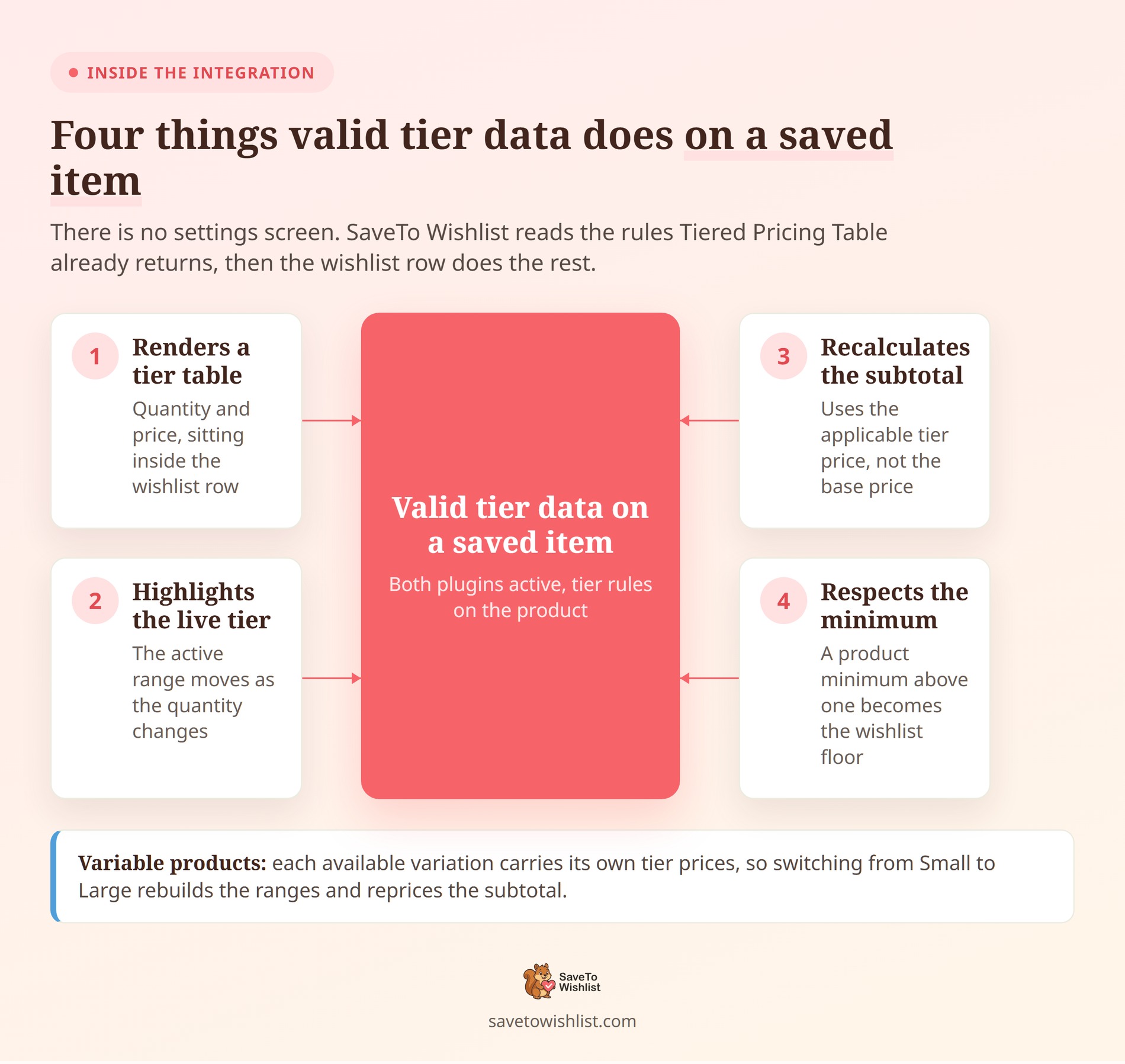
On the standard wishlist, valid tier data does four things:
- Renders a tier table: A two-column quantity and price table appears inside the wishlist item, under the product price. Customers see the whole ladder without leaving the list.
- Highlights the live tier: The range matching the current quantity is marked active. The highlight moves as the quantity changes, so a shopper always knows which price applies.
- Recalculates the subtotal: The row subtotal uses the applicable tier unit price instead of the base price. The saving shows up as a number, not an implication.
- Respects the product minimum: If Tiered Pricing Table supplies a minimum order quantity above one, that becomes the wishlist floor. Nobody sees a price they can’t actually buy at.
Variable products are handled per variation. Each available variation carries its own tier prices. So switching from Small to Large rebuilds the ranges and reprices the subtotal against that variation’s rules.
One detail matters before you design your tiers. The integration doesn’t force a customer onto an exact threshold. If your tiers start at 5 and 10, a quantity of 7 prices at the 5 tier. The rule is the highest threshold that doesn’t exceed the chosen quantity.
Below the first threshold, the wishlist uses the ordinary product price.
What You Need Before You Start
There’s nothing to install or switch on beyond the two plugins. Check these three things:
- Tiered Pricing Table for WooCommerce is active: The integration detects the plugin at runtime. Without it, no tier data gets produced.
- Tier rules exist on the products you care about: SaveTo Wishlist only displays rules the partner plugin returns. A product with no rules shows its ordinary price.
- SaveTo Wishlist is active: The integration registers during boot. There’s no settings screen, no toggle and no field to fill in.
That last point is worth repeating, because it comes up in support. If you go looking through the SaveTo Wishlist settings for a Tiered Pricing Table option, there isn’t one. The behaviour is on when both plugins are active, and off when either isn’t.
Prefer to handle this with coupons instead? Advanced Coupons covers quantity discounts by coupon.
How To Set Up WooCommerce Tiered Pricing On A Product
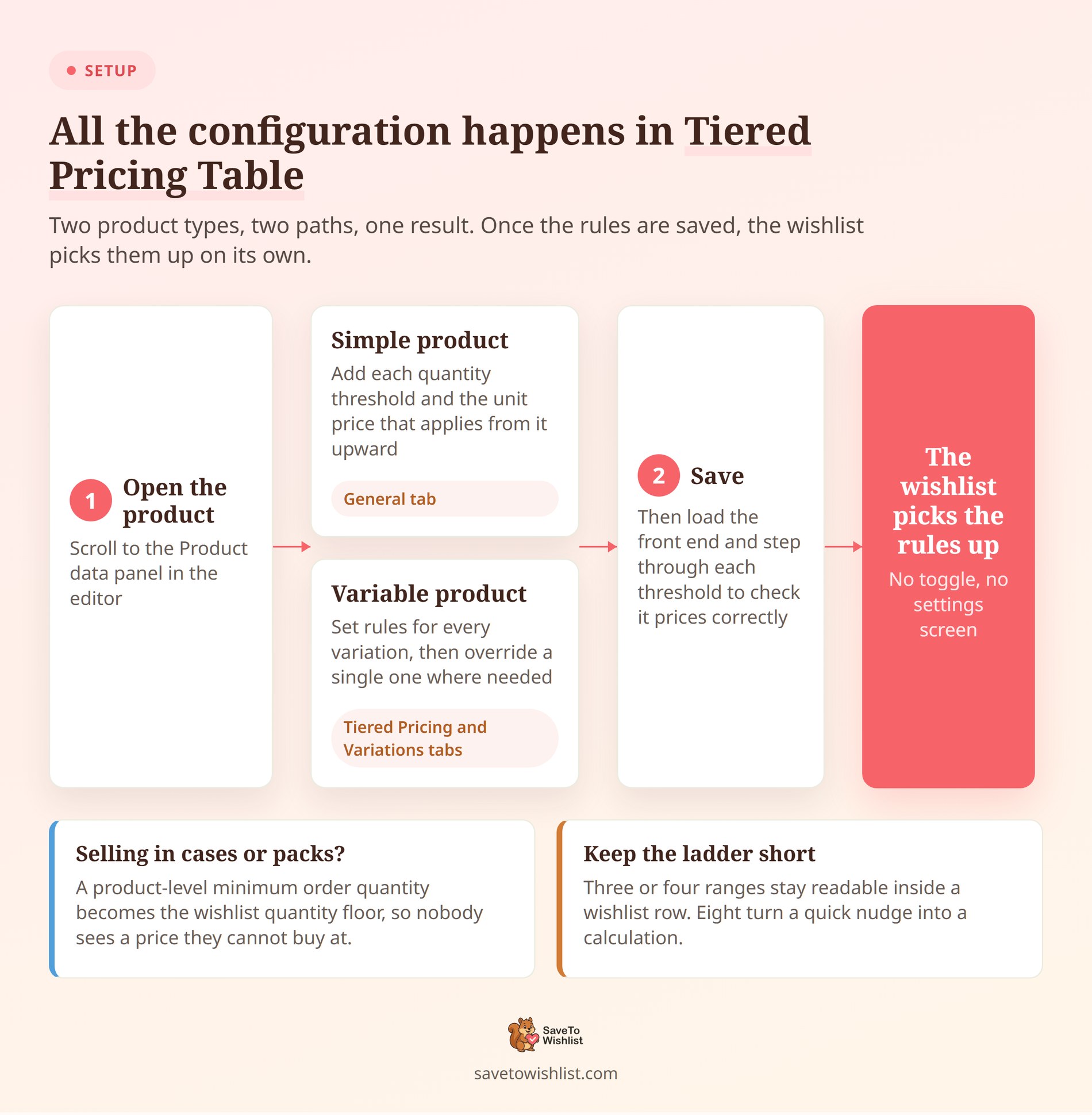
All the configuration happens in Tiered Pricing Table. Once a product has rules saved, the wishlist picks them up on its own.
Setting up a simple product
- Open the product in the WordPress editor and scroll to the Product data panel.
- On the General tab, find the tiered pricing fields added by Tiered Pricing Table.
- Add each quantity threshold and the unit price that applies from that quantity upward.
- A common set is 6 and 10, or 10, 50 and 100 for trade products.
- Save the product.
Keep the number of tiers small. Three or four ranges stay readable inside a wishlist row. Eight ranges turn a quick nudge into a calculation, which defeats the point.
Setting up a variable product
Variable products get their own tab, and you can set rules two ways.
- Open the Tiered Pricing tab in the Product data panel and add rules for every variation.
- To override one variation, open the Variations tab and set its rules directly.
- Variation-level rules take priority over the general ones.
- Save, then load the product and switch between variations to confirm each prices correctly.
Test the variation swap on the wishlist too, not just the product page. The wishlist prices whichever variation is currently selected. A variation with no rules of its own falls back to the general set.
Setting a minimum order quantity
If you sell in cases or packs, set the product-level minimum order quantity on the Tiered Pricing tab. SaveTo Wishlist reads that minimum and uses it as the wishlist quantity floor. That way a customer never sees a price they couldn’t actually buy at.
When no usable minimum comes back, the wishlist falls back to a minimum of one. Quantities also normalise to whole numbers, and anything below the minimum clamps up to it.
Choosing how the tiers display on your store
Tiered Pricing Table’s own display options live under WooCommerce > Settings > Tiered Pricing. There you can pick a table, blocks, options or tooltip layout for the product page. Those settings govern the product page only.
The wishlist table is generated separately by SaveTo Wishlist from the same underlying rules. So the two can look slightly different depending on the layout you pick.
What Customers See On The Wishlist
Here’s the result on a live wishlist. The item shows its normal price at the top. Underneath sits a compact Quantity and Price table, with the matching range highlighted in blue.
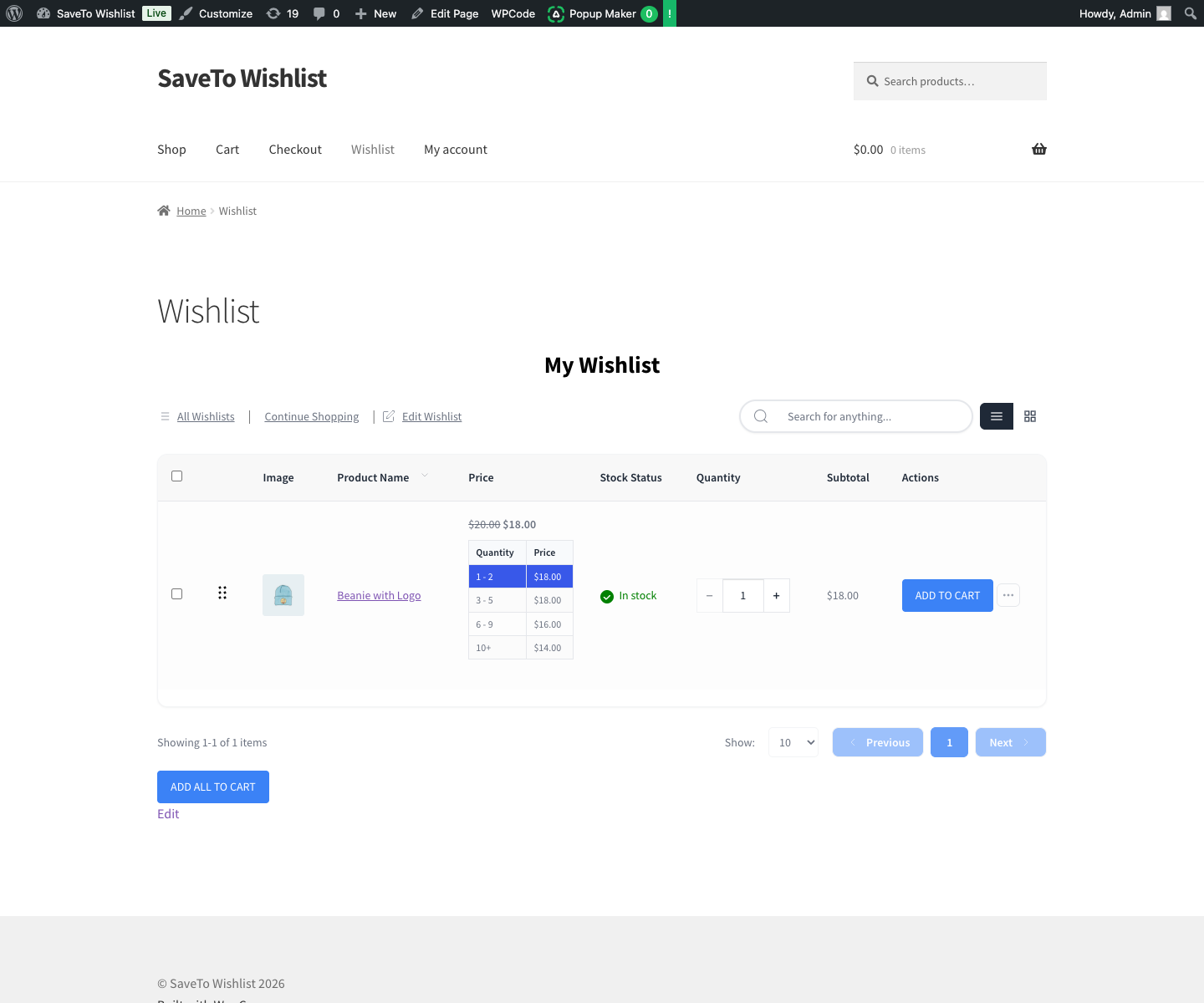
In this example, buying 6 to 9 units drops the unit price to $16.00. At 10 or more it drops to $14.00. The Subtotal column tracks the quantity control. Nudging from 5 to 10 changes both the highlighted row and the total.
Formatting follows your WooCommerce store settings. That covers the currency symbol, decimal count, and the decimal and thousand separators. The table also renders in the grid layout, so it survives a change of wishlist view.
✨️ Here’s a pattern worth knowing: If your product minimum sits below your first discounted tier, the wishlist adds a base-price range in front of it. Customers then see the full price alongside the discounted ones. That contrast is what makes the saving land.
AdTribes has a wider rundown of discount pricing strategies if you want to test other offers.
Where The Integration Stops
Four limits are worth knowing before you point customers at this. Being straight about the edges now saves a support ticket later.
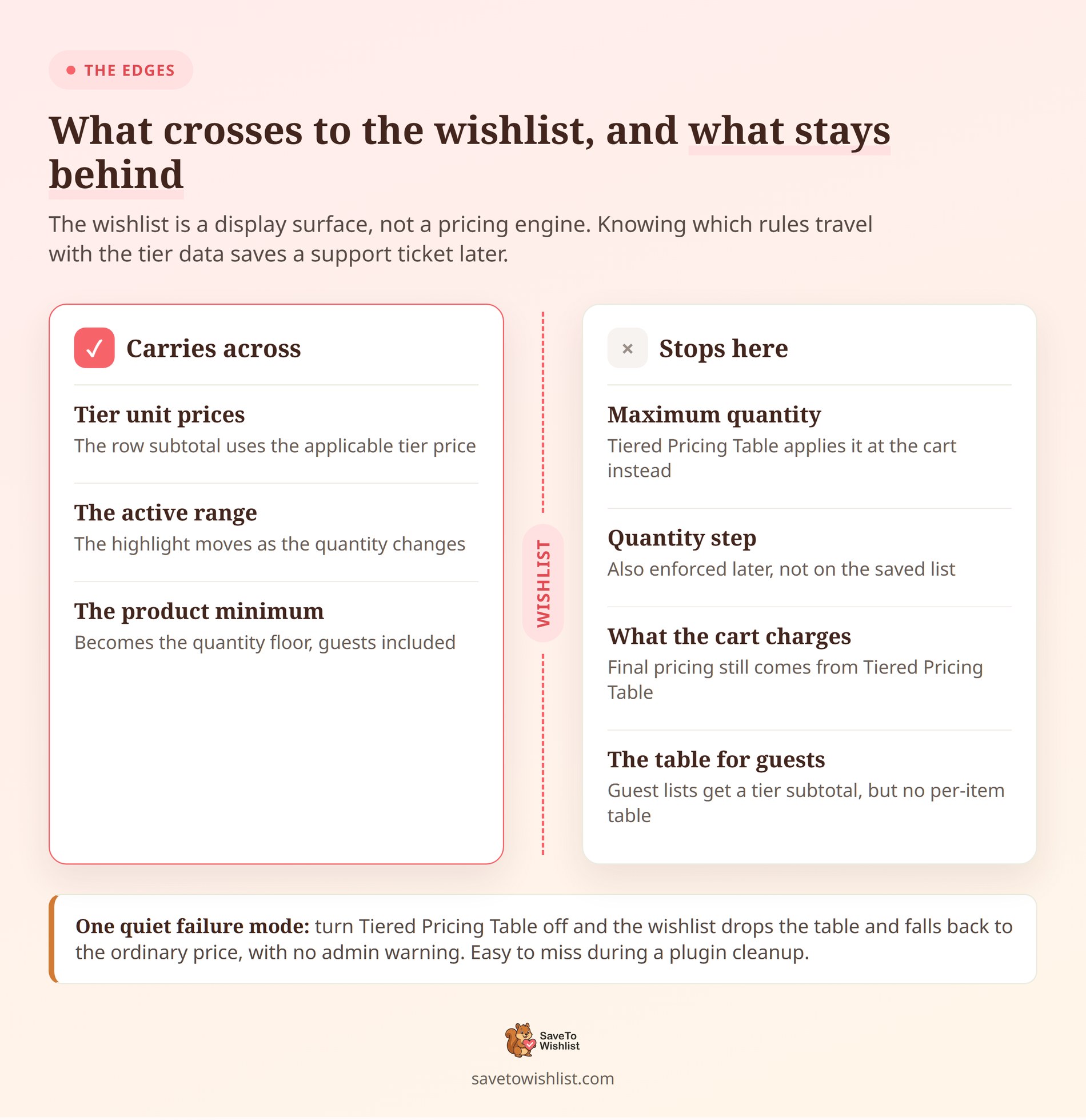
- Guest wishlists don’t show the tier table: A guest wishlist still uses tier prices for the subtotal. It also applies the product minimum. It just renders the ordinary formatted price instead of the per-item table.
- It’s a display, not a pricing engine: The wishlist shows customers what the tiers are. The price WooCommerce charges in the cart and at checkout still comes from Tiered Pricing Table.
- Only the minimum carries across: Tiered Pricing Table has its own maximum quantity and quantity step controls. The wishlist integration reads only the minimum, so those other rules apply at the cart.
- Deactivating the partner plugin removes the table quietly: Turn Tiered Pricing Table off and the wishlist drops the table. It falls back to the ordinary product price with no admin warning, so it’s easy to miss.
Before you announce volume pricing to your list, run one check. Put a tier-priced product in a wishlist, then compare the wishlist subtotal against what the cart charges. Record any difference rather than assuming they match.
Four Ways To Put Wishlist Tier Pricing To Work
The setup takes a few minutes, and the payoff depends on who’s saving what. These four scenarios come up most often.
Turn saved lists into trade order sheets
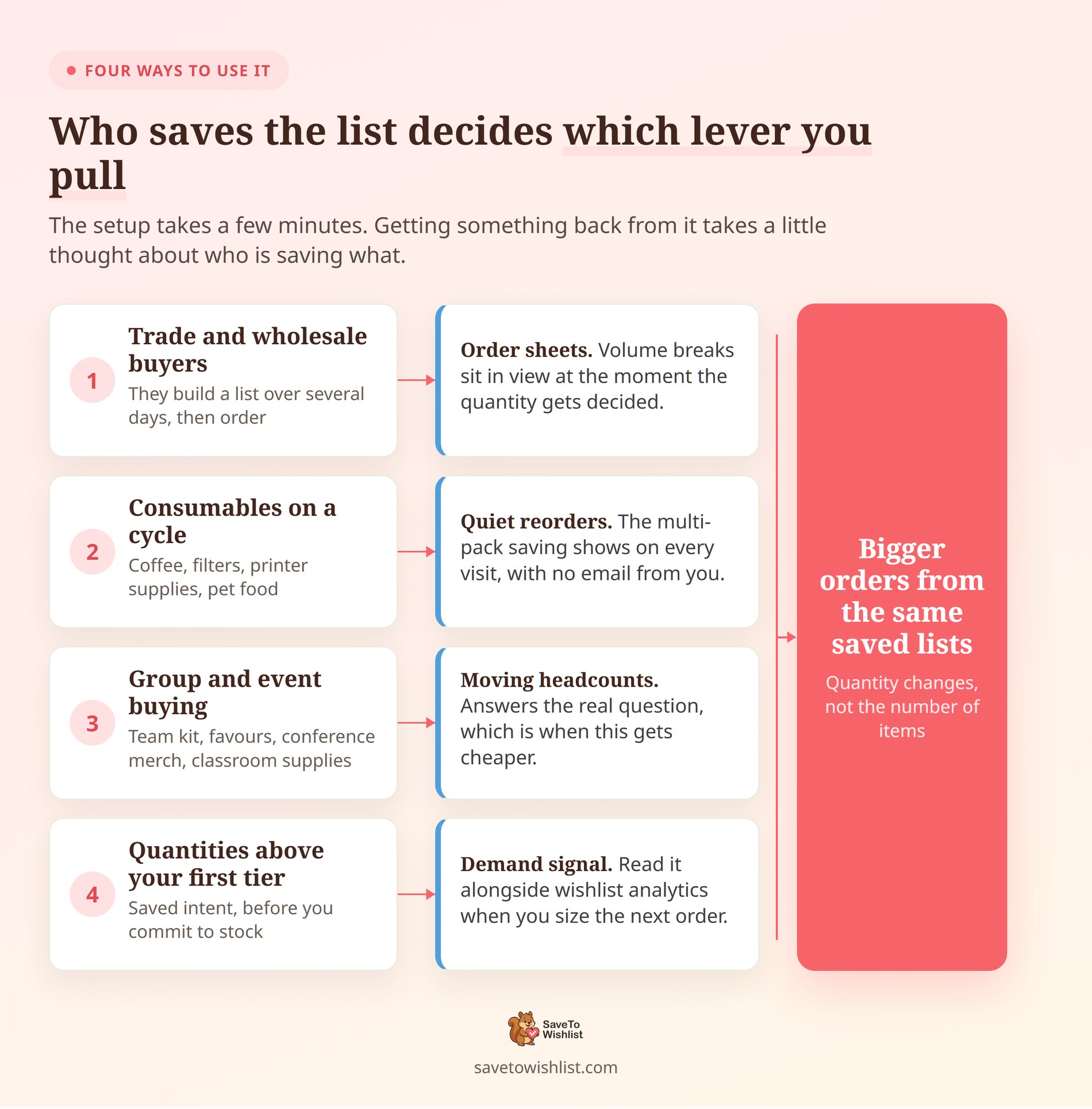
Wholesale and trade buyers rarely order in one sitting. They build a list, check it against stock or a budget, then place the order. With tier tables on that list, the volume breaks stay in view the whole time.
That’s exactly when a buyer decides whether to round 8 units up to 10. It’s a direct lever on average order value because it changes quantity rather than adding items. If you’re designing the tiers themselves, Wholesale Suite has a useful breakdown of tiered pricing strategy.
Give consumables a reorder home
Coffee, filters, printer supplies and pet food all get bought on a cycle. Customers who keep a standing wishlist of repeat items see the multi-pack saving every time they open it. No extra email needed from you.
It’s a quieter version of the nudge you’d make with an upsell or cross-sell. The difference is that the customer started it.
Support group and event buying
Think team kit, wedding favours, conference merchandise or classroom supplies. The person buying is usually still collecting a headcount, so the number moves. A visible tier table answers the question they’re actually asking.
That question isn’t “what does this cost” but “at what point does this get cheaper”.
Read the demand signal before you buy stock
Saved quantities point forward in a way past orders don’t. If tier-priced products stack up on wishlists above your first threshold, that’s intent you can act on.
Pair it with wishlist analytics to see which products and quantities get saved. Then use that as an input when you forecast demand for the next purchase order.
Pick the scenario that matches your catalogue and start there. The tiers you already have will do the work.
Frequently Asked Questions: WooCommerce Tiered Pricing Wishlist Integration
Do I need to enable the integration in SaveTo Wishlist?
No, there’s no setting, toggle or configuration screen for it. SaveTo Wishlist registers the integration at boot, then checks at runtime whether Tiered Pricing Table is available. If both plugins are active and the product has tier rules, the table appears.
Does it work with the free version of SaveTo Wishlist?
Yes. The integration ships in SaveTo Wishlist Lite for WooCommerce, which is the free plugin. It was announced in v1.0.9. The paid plans are listed on our pricing page.
What happens if a customer picks a quantity between two tiers?
They get the lower tier’s price. The wishlist applies the highest threshold that doesn’t exceed the chosen quantity. So with tiers at 5 and 10, a quantity of 7 prices at the 5 tier. Quantities below the first threshold use the ordinary product price.
Do variable products show per-variation tiers?
Yes. Tier prices attach to each available variation, and the wishlist prices the currently selected one. Changing the selected variation rebuilds the displayed ranges and recalculates the subtotal.
Will the wishlist price match what the customer pays at checkout?
The wishlist reads its unit prices from Tiered Pricing Table, so they should line up. That said, the wishlist doesn’t set the cart or checkout price itself. Test one product at each threshold and compare the wishlist subtotal with the cart total.
Why can’t guests see the tier table?
The guest wishlist template doesn’t render the per-item table. Guests still get a tier-aware subtotal and the product’s minimum quantity. They just see the ordinary formatted price instead of the full range breakdown.
Wrapping Up
Volume pricing does its job when the person choosing the quantity can see it. Most stores get that right on the product page. Carrying it through to the wishlist is a small change with a clear reason behind it.
Here’s what to do next:
- Confirm both plugins are active, then check the prerequisites.
- Add three or four quantity tiers to your highest-volume products using the setup steps.
- Set a product minimum if you sell in cases or packs.
- Save one product to a wishlist and step the quantity through each threshold.
- Compare the wishlist subtotal against the cart before you point customers at it.
- Watch which quantities customers save, then size your tiers against that real intent.
If you want WooCommerce tiered pricing showing up where customers plan their orders, SaveTo Wishlist Lite handles it with no setup. The full setup reference lives in our Tiered Pricing Table integration guide. Plans and what each one includes are on the pricing page.



