
You want Claude or ChatGPT to check your wishlist analytics or manage your automations, without opening wp-admin. SaveTo Wishlist Pro adds 15 AI abilities that a connected assistant can use. This article shows what each ability does, who can use it, and how to allow the abilities that make changes.
What you’ll need
- WordPress 6.9 or newer, where the Abilities API is built in, or an earlier version with the Abilities API feature plugin active.
- SaveTo Wishlist Lite and SaveTo Wishlist Pro 1.0.2 or later, both active on your site. SaveTo Wishlist Lite on its own and SaveTo Wishlist Registry add no abilities.
- StoreAgent 1.1.9 or later, with your StoreAgent account connected and MCP switched on. See How to connect ChatGPT or Claude to your store with MCP.
- A paid Claude plan (Pro, Max, Team, or Enterprise) or a paid ChatGPT plan (Plus, Pro, Business, or Enterprise). Custom connectors are not available on the free tiers of either.
- An administrator or shop manager account.
What AI abilities are
An ability is an action that an AI assistant can take in your store, such as listing your automations or sending a wishlist share email. SaveTo Wishlist Pro registers its abilities with the WordPress Abilities API, so any tool that reads that API can find them. Some abilities only read data. Others make changes.
Connect your AI assistant
Step 1: Connect the assistant to your store
Connect Claude or ChatGPT to your store through StoreAgent. Follow the steps in How to connect ChatGPT or Claude to your store with MCP, then come back here. Pick Read-only the first time you approve the connection.
Other AI tools and Model Context Protocol (MCP) clients that read the WordPress Abilities API can also use these abilities. Connect them the way that tool asks you to.
Step 2: Find the SaveTo Wishlist abilities in StoreAgent
- Go to StoreAgent > Settings > MCP in your WordPress admin.
- Open the Abilities sub-tab.
- In Ability allowlist, select the SaveTo Wishlist source.
The read-only SaveTo Wishlist abilities are on by default, so your assistant can use them straight away. Each ability that makes changes stays off until you switch it on.
Step 3 (optional): Let the assistant make changes
Your assistant can run an ability that makes changes only when two things are true. The ability is switched on in the Ability allowlist, and you approved the connection as Read and write. A Read-only connection never sees the 6 abilities that make changes, even when they are switched on.
- In Ability allowlist, select the SaveTo Wishlist source and filter by Makes changes.
- Switch on each ability you want your assistant to use.
- If you approved the connection as Read-only, choose Revoke on the assistant’s row on the Connections sub-tab, then approve it again as Read and write.
Before you allow them, know that Share Wishlist by Email, Create Automation and Trigger Manual Notification do their action again each time they run.
Step 4: Try a read-only ability first
Start with something that only reads data, like asking your assistant to check your overview insights or list your top wishlist customers. Read-only abilities can’t change anything on your site, so they’re a safe way to confirm the connection is working before you let the assistant run an ability that makes changes, like sending a share email or creating an automation.
What your assistant can do
SaveTo Wishlist Pro adds 15 abilities in four groups. The Ability column shows the name StoreAgent lists. Your assistant may use the technical name instead. Each technical name starts with saveto-wishlist/, for example saveto-wishlist/list-automations.
Sharing wishlists
| Ability | Name | What it does | Type |
|---|---|---|---|
| Share Wishlist by Link | share-wishlist-by-link | Creates or refreshes a shareable link for a wishlist | Makes changes |
| Share Wishlist by Email | share-wishlist-by-email | Sends a wishlist share email to one or more addresses | Makes changes |
| List Shared Wishlists | list-shared-wishlists | Lists every wishlist that’s been shared, and who it was shared with | Read only |
Automations
| Ability | Name | What it does | Type |
|---|---|---|---|
| List Automations | list-automations | Lists your configured automations, optionally filtered by trigger, action, or status | Read only |
| Get Automation | get-automation | Returns the full setup for a single automation | Read only |
| Create Automation | create-automation | Creates a new automation | Makes changes |
| Update Automation | update-automation | Updates an existing automation | Makes changes |
| Toggle Automation | toggle-automation | Turns an automation on or off | Makes changes |
| Trigger Manual Notification | trigger-manual-notification | Manually runs an automation’s action for one customer, like resending an email | Makes changes |
Customers
| Ability | Name | What it does | Type |
|---|---|---|---|
| List Wishlist Customers | list-wishlist-customers | Lists customers with active wishlists, ranked by activity | Read only |
| Get Customer Wishlist Summary | get-customer-wishlist-summary | Returns one customer’s wishlists, items, value, and last activity | Read only |
Analytics
| Ability | Name | What it does | Type |
|---|---|---|---|
| Get Overview Insights | get-overview-insights | Headline KPIs, including conversion rate and trend | Read only |
| Get Product Insights | get-product-insights | Most-wishlisted, trending, and recently added products | Read only |
| Get Category Insights | get-category-insights | Wishlist activity grouped by category and brand | Read only |
| Get Time-Based Trends | get-time-based-trends | Wishlist additions over time, and by day of the week | Read only |
A few abilities that make changes are safe to run more than once: refreshing a share link just gives you the same link back, and updating an automation ends up in the same state no matter how many times it runs. Toggling is safe to repeat only when the assistant specifies which state it wants. Without a target state, each toggle flips the automation again. Others aren’t: asking your assistant to send a share email, create an automation, or trigger a manual notification twice will do that action twice. Keep that in mind before you ask an assistant to retry something automatically.
Who can use each ability
Every ability, whether it reads data or changes it, checks for the same permission your team already uses to manage WooCommerce. Even the read-only ones can return customer names, emails, and automation setups that may include webhook details, so SaveTo Wishlist Pro holds every ability to that same bar rather than a lower one. In practice, that means only an administrator or shop manager account, or an AI connection authenticated as one, can run these abilities. Other logged-in accounts may be able to see that the abilities exist, but they can’t run them or read any wishlist or customer data.
Troubleshooting
The assistant does not list any SaveTo Wishlist abilities
Update SaveTo Wishlist Pro to version 1.0.2 or later and check that it is active. SaveTo Wishlist Lite on its own adds no abilities. If Pro is up to date, ask your developer to check that no disable switch is set. See “Turn abilities off (for developers)” below.
The assistant cannot create or change anything
Switch the ability on under the SaveTo Wishlist source in Ability allowlist. Then check the Scope column on the Connections sub-tab. If it reads Read only, revoke the connection and approve it again as Read and write.
My AI tool says it doesn’t have permission
Reconnect using an administrator or shop manager account. The account your AI tool is connected as doesn’t have either role.
A share or automation action ran more than once
Check your automation history or shared wishlists list to confirm what’s already happened before asking your assistant to try again. Some abilities aren’t safe to repeat: sending a share email, creating an automation, or triggering a manual notification will do it again each time it’s run.
Check that the abilities are registered (for developers)
SaveTo Wishlist Pro registers all 15 abilities when it is active and the Abilities API is available. There’s nothing to turn on in its settings. To confirm they’re there, send a REST API request rather than visiting the URL in your browser. WordPress blocks a plain browser visit to this endpoint for security reasons, even when you’re logged in as an administrator.
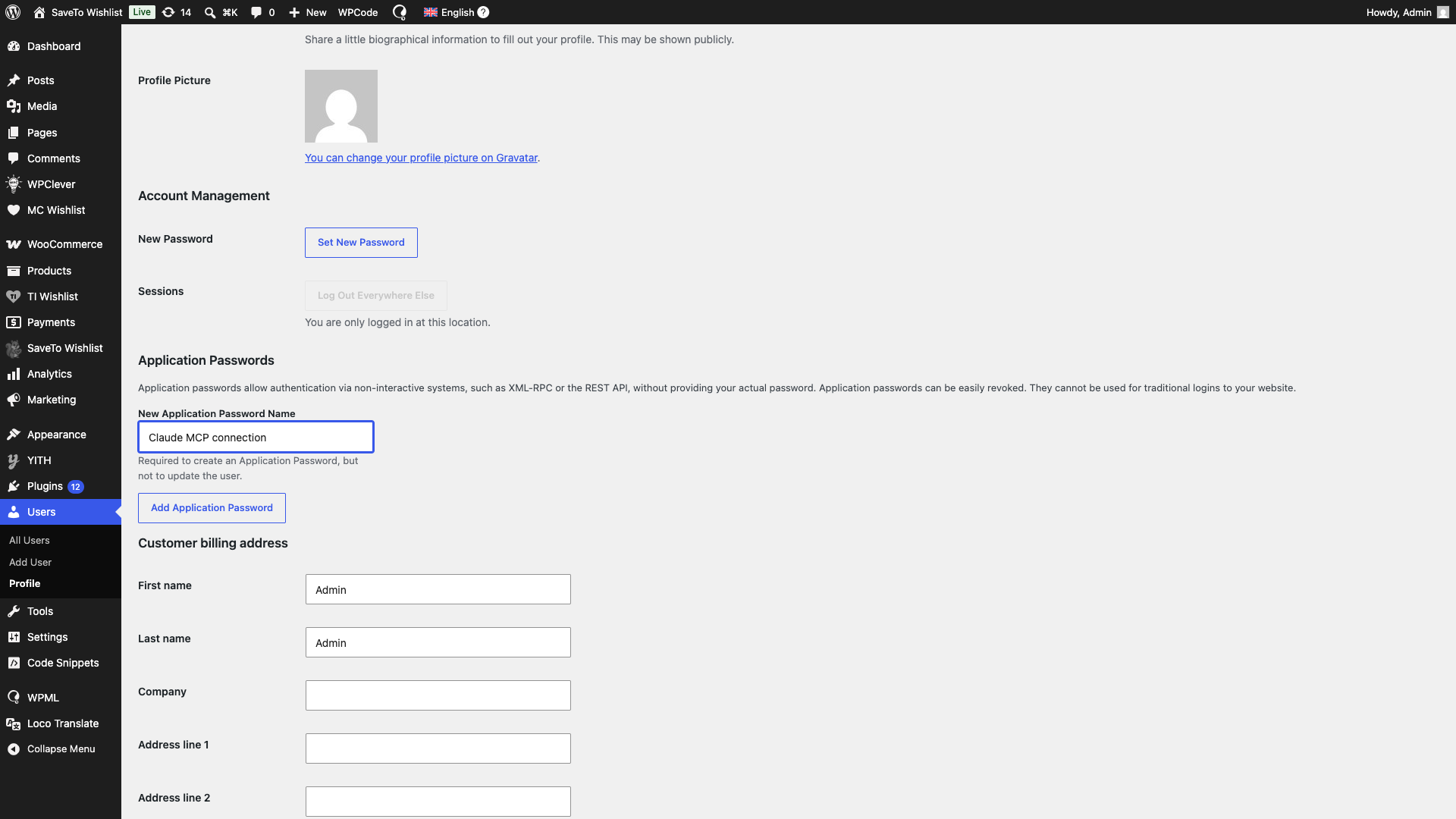
- Go to Users > Profile.
- Scroll to Application Passwords and create one.
- Run the curl command below from a terminal, replacing the placeholders with your own site and credentials.
- Look for entries whose name starts with
saveto-wishlist/in the response. You should see all 15 listed under the SaveTo Wishlist category.
curl -u "yourusername:xxxx xxxx xxxx xxxx xxxx xxxx" https://yourstore.com/wp-json/wp-abilities/v1/abilities

Frequently asked questions
Do I need to install anything extra to use these abilities?
SaveTo Wishlist Pro needs nothing extra to register the abilities. To connect Claude or ChatGPT, you need StoreAgent, or another AI tool or MCP client that reads the WordPress Abilities API.
Do SaveTo Wishlist Lite or SaveTo Wishlist Registry add abilities?
No. Only SaveTo Wishlist Pro adds abilities.
Will the assistant make changes without asking?
Only if you allow it. The assistant can run an ability that makes changes only when you switch that ability on and approve the connection as Read and write. Whether the assistant asks you before it runs one depends on the assistant.
Can I turn this off?
Yes, but it takes a small code change rather than a settings toggle. Ask your developer to add the stwpro_disable_abilities filter, or define the STWPRO_DISABLE_ABILITIES constant, if you’d rather not expose wishlist data to AI tools.
Can my customers use these abilities through their own AI assistants?
No. Every ability requires administrator or shop manager permissions to run, so only your store’s admin team, or an AI connection authenticated as one of them, can run them. A customer’s AI assistant may be able to see that the abilities exist, but it can’t run them or read any wishlist or customer data.
Turn abilities off (for developers)
Add the constant to wp-config.php, or use the filter in code. You need only one of the two. Either one turns off all SaveTo Wishlist Pro abilities.
define( 'STWPRO_DISABLE_ABILITIES', true );

// Or use the filter:
add_filter( 'stwpro_disable_abilities', '__return_true' );
Need help?
- Premium users: Open a support ticket
- Free users: Visit our community forum

