
With SaveTo Wishlist Pro, you can send email notifications automatically based on what customers do with their wishlists. Automations run in two directions. They alert the site admin when a customer shows buying intent, such as adding an item to a wishlist or creating a new one. They also email customers directly the moment something they saved goes on sale or comes back in stock. This guide shows you how to set up both.
Prerequisites
- SaveTo Wishlist Pro installed and active on your WooCommerce store.
- WooCommerce email delivery configured (the same channel used for order receipts).
Recipient Modes: Admin vs. Per-Customer
Every email automation has an Email Address field that controls who receives the notification. There are two ways to use it:
- Admin mode: Enter a static address (e.g. your store email) or leave it blank to default to the site admin email. The automation sends one email per trigger event, regardless of how many customers have the product wishlisted.
- Per-customer mode: Enter
{customer_email}as the recipient. For the Product on Sale and Back in Stock triggers only, this sends one email per customer who has that product in their wishlist. Other triggers always send a single email, so per-customer mode applies only to those two triggers.
The first time SaveTo Wishlist Pro is activated, it creates a predefined “Product on Sale” automation for you under SaveTo Wishlist → Automations, already filled in with a customer-friendly email body (“Good news! A product on your wishlist is now on sale”). It ships switched off, so it won’t send anything until you turn it on. To activate the per-customer flow, open it, set Email Address to {customer_email}, set the status to Active, and click Update Automation to save.
Understanding Automation Triggers
Triggers define when an automation runs, the specific wishlist event that fires the action. Available triggers:
- When a new wishlist is created for a user
You can also enable “Also fire for admin-created wishlists” if you want automations to run when wishlists are created manually in the admin area. - When an item is added to a wishlist
You can trigger this for products in all categories, or limit it to a specific category. - When an item is removed from a wishlist
You can also limit this to all categories or a specific category. - When a wishlist product goes on sale: supports per-customer emails
Fires when a product with active wishlisters has its sale price applied. Set Email Address to{customer_email}to notify each customer individually, or use a static address to alert only the admin. - When an out of stock wishlist product comes back in stock: supports per-customer emails
Fires when a previously out-of-stock product is replenished. Set Email Address to{customer_email}to notify each customer individually.
Create An Email Automation
Admin notification
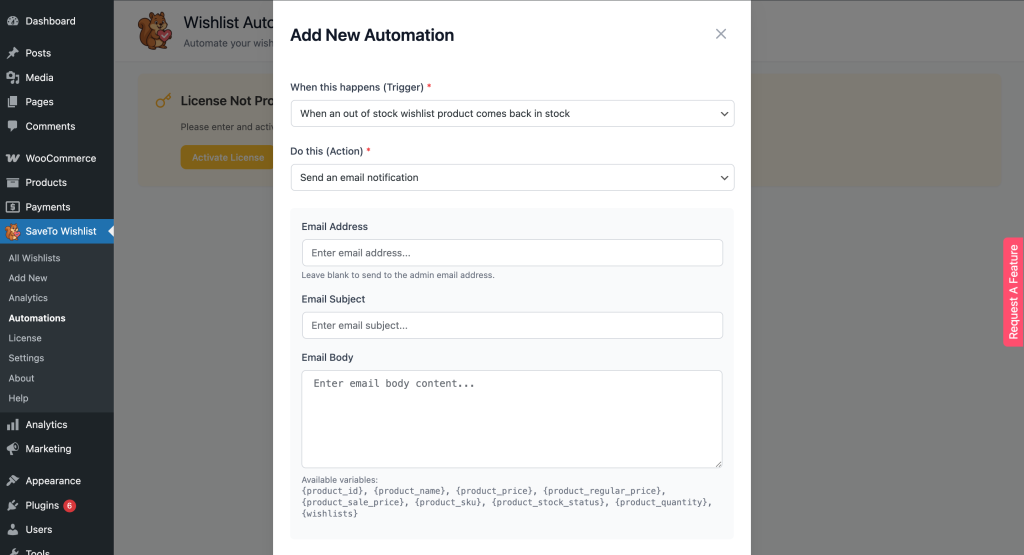
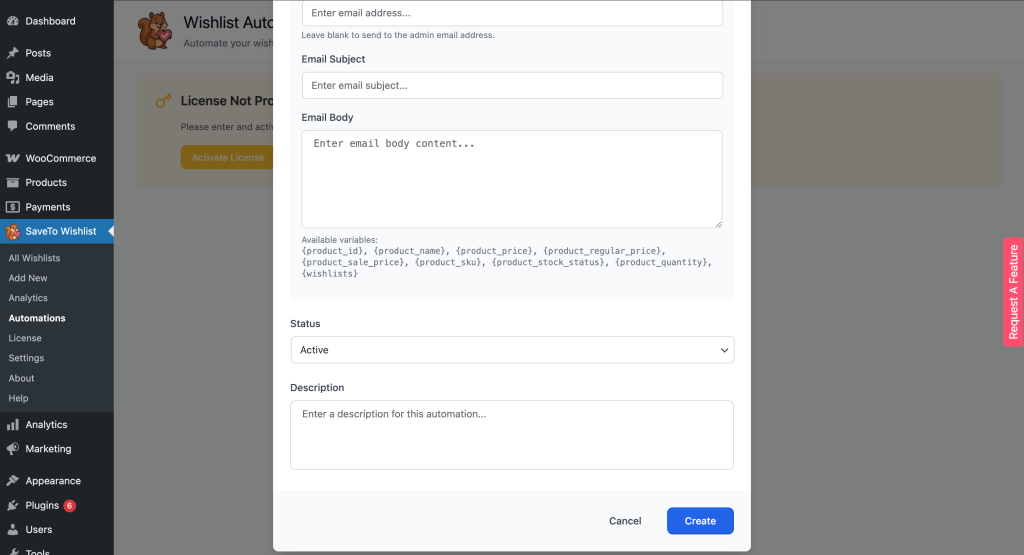
- Navigate to Automations: Go to SaveTo Wishlist → Automations in your WordPress dashboard.
- Open the automation editor: Click Add New to open the automation editor.
- Select a trigger: Choose from the dropdown: for example, When an item is added to a wishlist.
- Choose action type: Set the action to Send an email notification.
- Configure the email:
- Email Address: Enter the admin email address, or leave blank to use the site admin email.
- Email Subject: Write a subject line such as “Admin Alert: New Wishlist Activity”.
- Email Body: Use available variables such
{product_name},{customer_name}, and{wishlist_name}to include relevant details.
- Set status to Active so the automation runs immediately.
- Save: Click Create Automation to save your new automation (or Update Automation if you’re editing).
Per-Customer Notification (Product on Sale or Back in Stock)
Use this approach to email each customer directly when a product they wishlisted goes on sale or comes back in stock.
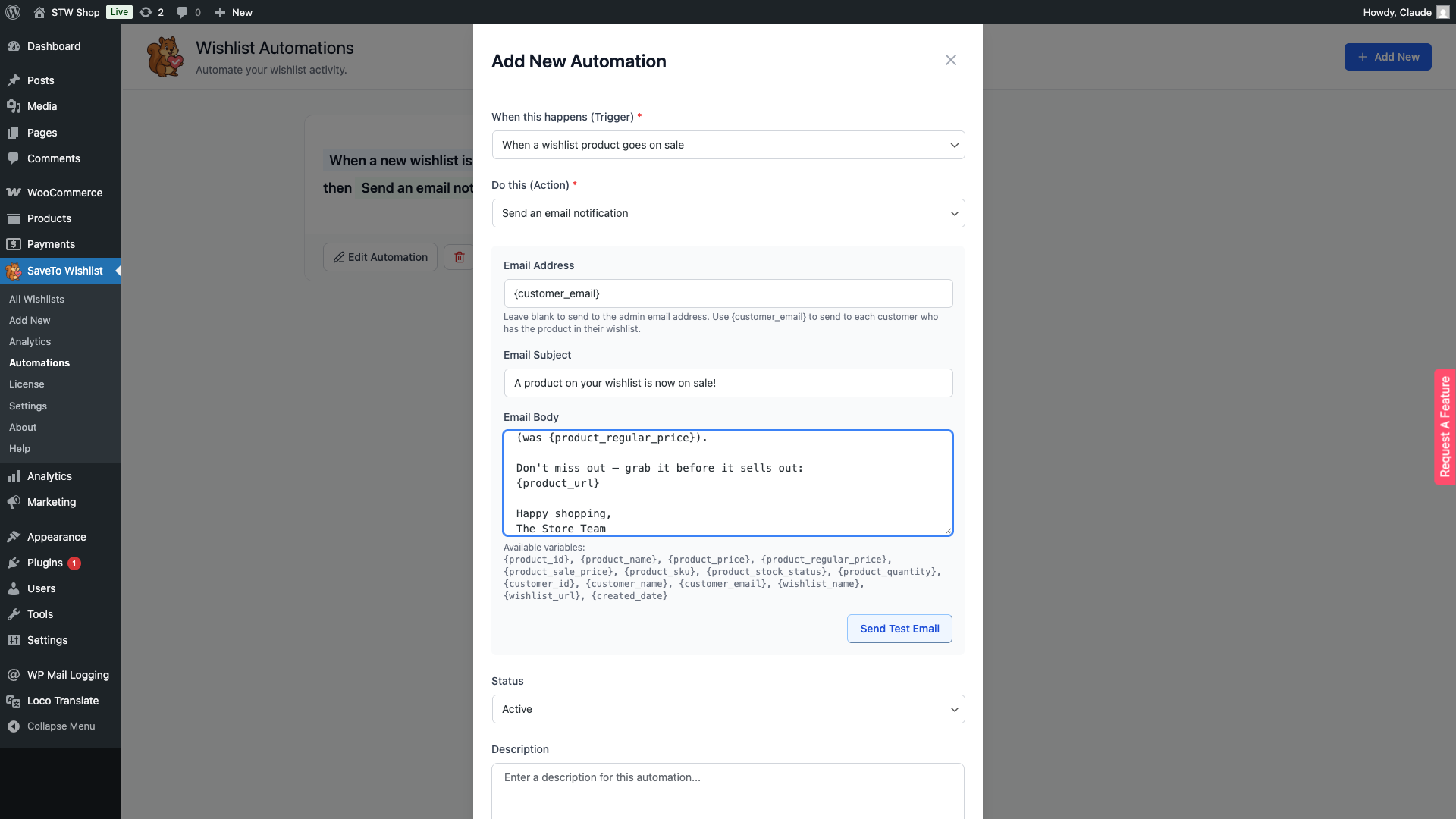
- Go to SaveTo Wishlist → Automations and click Add New.
- Select the trigger: Choose When a wishlist product goes on sale or When an out of stock wishlist product comes back in stock.
- Choose action type: Set the action to Send an email notification.
- Configure the email:
- Email Address: Enter
{customer_email}. This tells the automation to send one email to every customer who has the product in their wishlist. - Email Subject: Use something customer-friendly like “A product on your wishlist is now on sale!”
- Email Body: Use
{product_name},{product_sale_price}, and{product_regular_price}to show the customer exactly what changed.
- Email Address: Enter
- Set status to Active and click Create Automation (or Update Automation if you’re editing).
Tip: use the predefined automation
SaveTo Wishlist Pro ships with a “Product on Sale” automation that already has a customer-friendly subject and body set up. Open it, set Email Address to {customer_email}, set the status to Active, then click Update Automation to save. It’s ready to go.
Test Your First Automation
Trigger the event manually to verify your setup works. Add a product to a wishlist (or mark a product on sale), then check that the email arrives.
For additional guidance on WooCommerce email delivery, see the official WooCommerce email documentation.
Frequently Asked Questions
What happens if I leave Email Address blank?
The automation falls back to your site’s admin email address (the one set under Settings → General → Administration Email Address in WordPress).
Can I use placeholders in the subject line, or only the body?
Both. Placeholders work the same way in Email Subject and Email Body. You can also use {customer_email} in the Email Address field to send to each individual customer (for the on-sale and back-in-stock triggers only).
Why isn’t my per-customer email arriving?
Per-customer mode (entering {customer_email} in the Email Address field) only works for the product goes on sale and back in stock triggers. If you set {customer_email} for any other trigger, the automation will not send. Confirm the trigger you picked, then check that the product actually has wishlisters (you can verify in SaveTo Wishlist → Analytics).
Available Placeholders
Drop any of these placeholders into the Email Subject or Email Body (or the Email Address field for per-customer mode), and SaveTo Wishlist Pro replaces them at send time. The set available to you depends on which trigger you picked.
| Placeholder | Resolves to | Available for |
|---|---|---|
{customer_id} | The customer’s user ID | All triggers |
{customer_name} | The customer’s display name | All triggers |
{customer_email} | The customer’s email address (also the value to enter in Email Address for per-customer mode) | All triggers |
{wishlist_name} | The wishlist’s name | All triggers |
{wishlist_url} | The wishlist’s public URL | All triggers |
{created_date} | The wishlist’s creation date | All triggers |
{product_id} | The product ID | Item added, item removed, product on sale, product back in stock |
{product_name} | The product name | Item added, item removed, product on sale, product back in stock |
{product_price} | The product’s current price | Item added, item removed, product on sale, product back in stock |
{product_regular_price} | The product’s regular (non-sale) price | Item added, item removed, product on sale, product back in stock |
{product_sale_price} | The product’s sale price | Item added, item removed, product on sale, product back in stock |
{product_sku} | The product’s SKU | Item added, item removed, product on sale, product back in stock |
{product_stock_status} | The product’s stock status (instock, outofstock, onbackorder) | Item added, item removed, product on sale, product back in stock |
{product_image} | The product’s thumbnail image URL (falls back to the WooCommerce placeholder image if none is set). This is a plain URL, not an image. Wrap it in an <img src="{product_image}"> tag to display it | Item added, item removed, product on sale, product back in stock |
{product_quantity} | The product quantity added | Item added to wishlist only |
Placeholders work in both the Email Subject and Email Body.
Help & Support
We have a dedicated support team for SaveTo Wishlist Pro for WooCommerce who knows our products, WooCommerce, and the industry very well. You’re welcome to make use of their expertise at any time, worldwide.
- Premium users: Open a support ticket
- Free users: Visit our community forum
Need Help?
If you have a question or run into any issues, we’re here to help.
- Premium users: Open a support ticket
- Free users: Visit our community forum

