
Site speed is absolutely crucial for e-commerce success. While caching plugins help your WooCommerce store load in a flash, they can sometimes break dynamic features like wishlists by aggressively minifying or combining code.
This guide walks you through how SaveTo Wishlist handles caching plugin compatibility automatically — which caching tools are supported out of the box, and what to do if the wishlist still breaks after installing a caching plugin.
Prerequisites
- SaveTo Wishlist Lite (or Pro) installed and activated.
- WooCommerce installed and configured.
- A WordPress caching or performance optimization plugin installed.
Automatic Caching Compatibility for Fast Loading
We know you’re busy running a business, so we built SaveTo Wishlist to do the heavy lifting for you.
When you install SaveTo Wishlist alongside a popular performance plugin, our plugin automatically communicates with it. We instruct the caching tool to safely exclude our specific JavaScript files from being minified, combined, or deferred.
There is zero manual configuration required on your part. You don’t need to hunt down file paths or write complex exclusion rules in your caching settings.
Supported Caching & Optimization Plugins
SaveTo Wishlist provides built-in, automatic compatibility with the most popular WordPress caching and optimization tools on the market:
- WP Rocket
- SiteGround Optimizer (SG Optimizer)
- LiteSpeed Cache
- Autoptimize
- W3 Total Cache
- WP Fastest Cache
- Asset CleanUp
- WP-Optimize
- Breeze
If you’re using any of the plugins listed above, SaveTo Wishlist functions perfectly out of the box.
Why Exclude Wishlist Scripts from Minification?
If you’re curious about the technical reason, it comes down to how modern code works. SaveTo Wishlist is built using modern “ES Modules” via a lightning-fast build tool called Vite.
Because the code is already highly optimized and relies on this modern module structure, pushing it through a traditional caching plugin’s minifier can jumble the code and break the wishlist buttons.
By automatically excluding these specific files, we protect the modern architecture while letting your caching plugin optimize the rest of your website.
Troubleshooting Performance Roadblocks
1. The wishlist buttons have disappeared or aren’t clicking!
If you recently installed a caching plugin or changed its settings, your site might be serving an outdated, cached version of your pages.
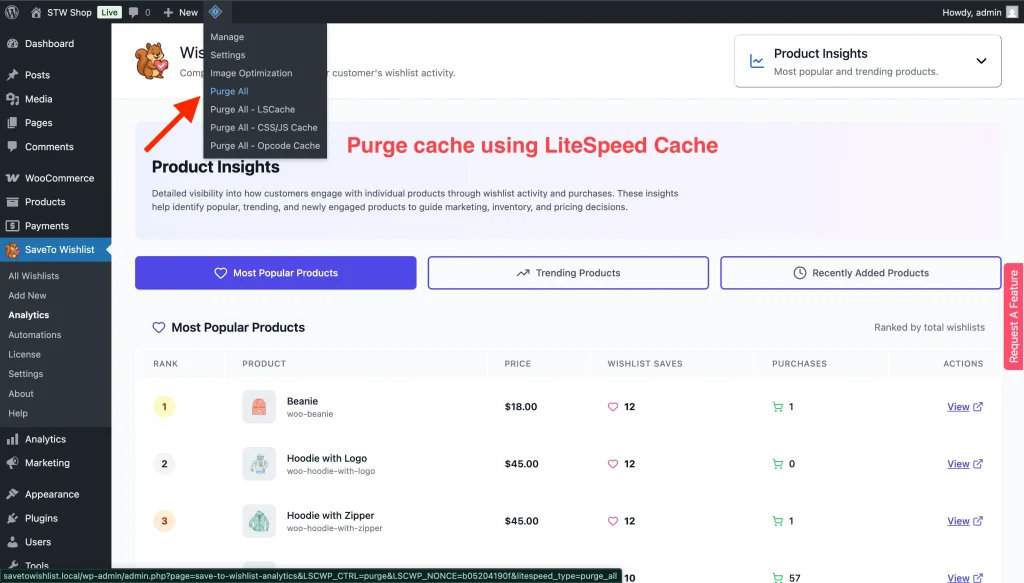
- Click your caching plugin’s menu in the WordPress Admin Bar.
- Select Purge All Cache (or “Clear Cache”).
- Refresh your storefront page to see the changes.
💡 Tip:
For more details on how to clear your site’s cache manually, refer to your specific provider, such as the LiteSpeed Cache Clearing Documentation.
2. I use a caching plugin not listed above.
If you are using a lesser-known optimization tool, you may need to manually exclude SaveTo Wishlist’s JavaScript assets. Look for an option in your caching plugin called “Exclude JS from Minification” or “Exclude Scripts” and add the savetowishlist directory or script handles.
Frequently Asked Questions
1. Does SaveTo Wishlist slow down my site?
No. Because we use modern Vite builds and automatically handle caching exclusions, SaveTo Wishlist is incredibly lightweight and designed not to impact your Google PageSpeed scores.
2. Do I need to turn off my caching plugin?
Absolutely not! Keep your caching plugin active. SaveTo Wishlist is built to work beautifully alongside them.
Keep Your Store Fast and Wishlists Running Smoothly
SaveTo Wishlist handles its own caching compatibility in the background, so you can focus on making sales instead of tweaking performance settings.
Open an “Incognito” or “Private” browser window, visit your store as a guest, and test clicking the Wishlist heart icon to ensure everything triggers instantly alongside your caching plugin.
Help & Support
We have a dedicated support team for SaveTo Wishlist Pro for WooCommerce who knows our products, WooCommerce, and the industry very well. You’re welcome to make use of their expertise at any time, worldwide.
- Premium users: Open a support ticket
- Free users: Visit our community forum

