
 Reviewed by
 A product goes out of stock. A customer leaves your store. And unless someone tells them it’s back, they probably won’t return. That’s the quiet revenue leak most WooCommerce store owners don’t realize they have, and WooCommerce restock notifications are the fix.
The frustrating part isn’t the stockout itself. It’s that customers who wanted your product have already moved on by the time you restock. They bought from a competitor, forgot about your store, or simply lost interest. All of that is preventable.
This guide walks you through setting up back-in-stock notifications using a wishlist-based approach, plus the email strategy and measurement framework that turn restock alerts from a simple notification into a genuine revenue recovery tool.
Table Of Contents
- Why WooCommerce Restock Notifications Matter For Online Stores
- How Wishlist-Based Back-In-Stock Alerts Work
- Setting Up Back-In-Stock Notifications With SaveTo Wishlist Pro
- Email Strategy For WooCommerce Restock Notifications
- Measuring Your Back-In-Stock Recovery Rate
- Beyond Notifications: Using Back-In-Stock Data Strategically
- FAQs: WooCommerce Restock Notifications
- Turn Stockouts Into A Recovery Channel
Why WooCommerce Restock Notifications Matter For Online Stores
Back-in-stock notifications recover revenue you’d otherwise lose permanently. When a product goes out of stock, the immediate lost sale is just the beginning. The real cost is what happens next.
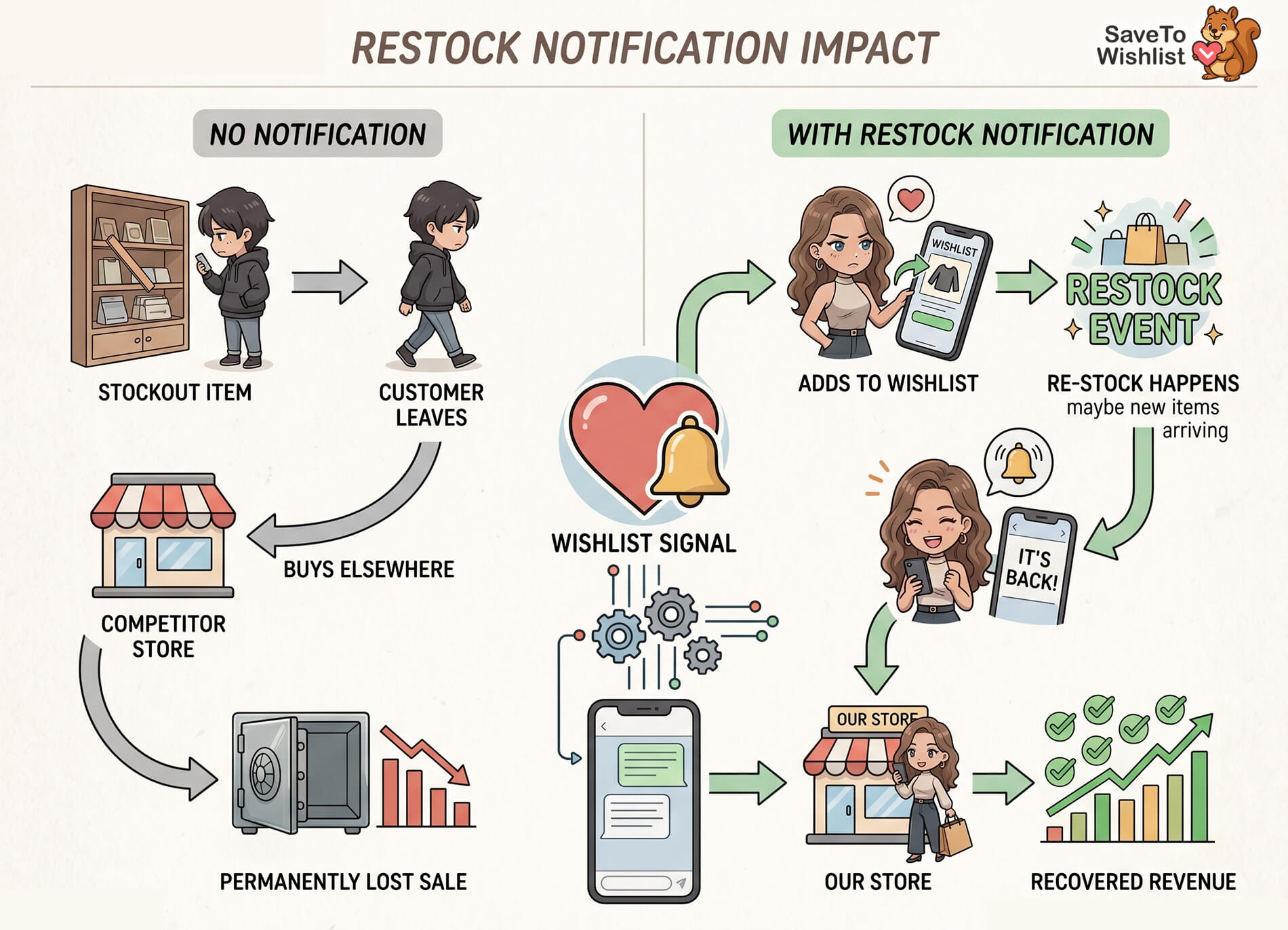
Your customer doesn’t wait around. They search for the same product somewhere else, find a competitor, and buy there instead. Even if they liked your store, the next time they need something similar, they’ll start with the competitor who actually had it in stock. One stockout can redirect an entire customer relationship.
Industry data consistently shows that stockouts are one of the top reasons online shoppers abandon a store, which is why restock notifications WooCommerce stores use are so vital. And most of those customers don’t come back to check whether you’ve restocked. Why would they? Nothing prompted them to.
That’s where back-in-stock notifiers change the equation. Instead of hoping customers return on their own, you reach out the moment inventory is available again. The key insight is that product wishlists help automate restock notifications in WooCommerce by creating a natural back-in-stock signal. When a customer adds an out-of-stock product to their wishlist, they’re explicitly telling you: “I want this. Let me know.” That’s not a vague browsing signal. That’s direct purchase intent.
Do you want to understand more about how wishlists work as a customer behavior tool? Then check out our guide on what a wishlist is. It covers the fundamentals!
How Wishlist-Based Back-In-Stock Alerts Work
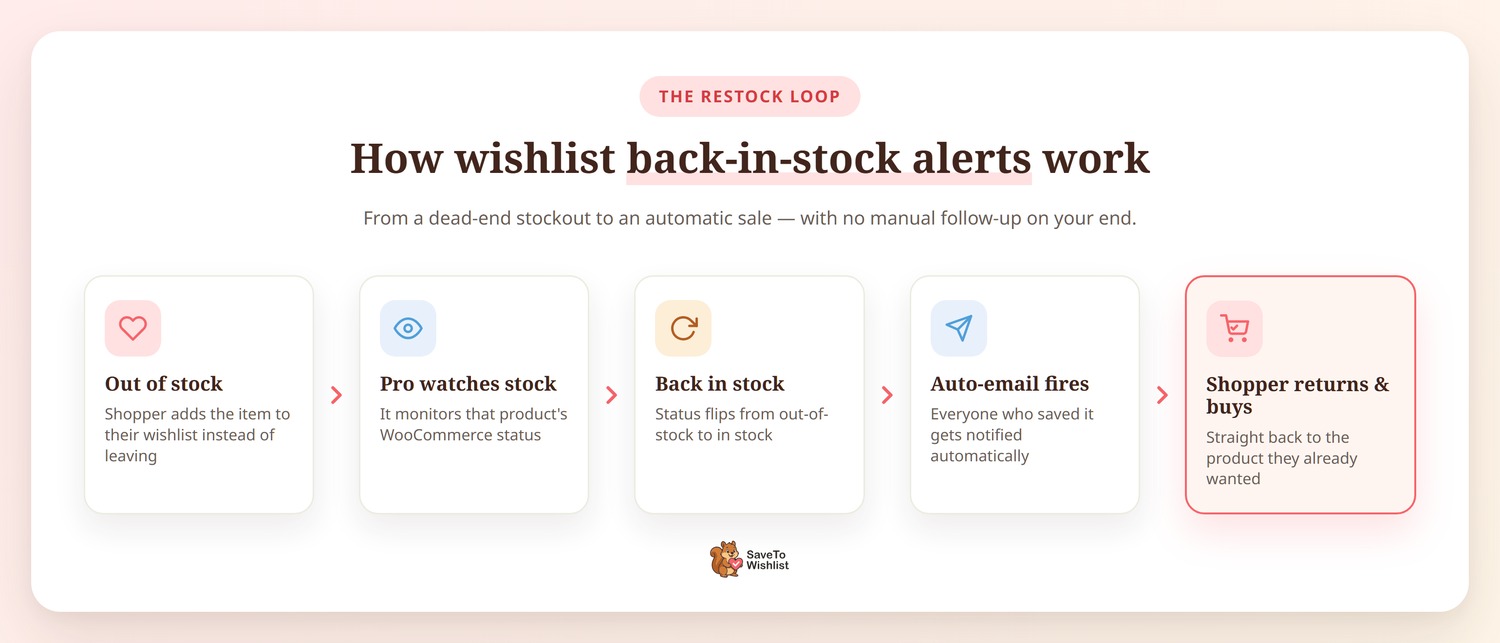
When a customer wishlists an out-of-stock product, the system monitors that product’s inventory status and sends a notification automatically when it returns to stock. It’s a straightforward loop: customer expresses interest, system watches for the restock, customer gets notified.
The customer experience
From your shopper’s perspective, the flow is simple. They land on a product page and see it’s out of stock. Instead of a dead end, they see an “Add to Wishlist” button. They click it, the product gets saved to their wishlist, and they move on.
When you restock that product, they receive an email letting them know it’s available again. No manual follow-up required on your end, no need for the customer to keep checking back. The notification brings them straight back to the product they already wanted.
What happens behind the scenes
SaveTo Wishlist Pro monitors inventory status changes in WooCommerce. When a product’s stock status shifts from “out of stock” to “in stock,” the wishlist automation triggers a notification to every customer who has that product on their wishlist.
This works with WooCommerce’s built-in inventory management system. There’s no separate inventory tracking tool needed. As long as your product’s stock status updates correctly in WooCommerce, the notification fires automatically.
🔍️ What we’ve seen: Store owners sometimes enable back in stock notifications but forget to keep their WooCommerce stock status accurate. If you’re manually managing inventory without actually updating the stock status field in WooCommerce, the automation can’t trigger. Make sure your inventory workflow changes the product status, not just the quantity display. This is the most common reason restock alerts don’t fire.
For a deeper look at the feature itself, the back-in-stock notifications feature page covers the technical details.
Setting Up Back-In-Stock Notifications With SaveTo Wishlist Pro
Setting up a restock notification in WooCommerce involves installing SaveTo Wishlist Pro and configuring the automation in your WordPress dashboard.
Prerequisites
Before you start, you’ll need:
- WooCommerce with stock management enabled: Your products need to use WooCommerce’s built-in inventory tracking so stock status changes are recorded.
- SaveTo Wishlist Pro: The back in stock notifications are part of the Pro version. The Growth plan runs $49.50 for the first year, then $99/year for a single site. Plus runs $99.50 for the first year, then $199/year. Business is $199.50 for the first year, then $399/year for unlimited sites. All paid plans come with a 14-day money-back guarantee.
- Products with correct stock status: Any product you want to trigger restock alerts for needs to be properly marked as “out of stock” in WooCommerce, not just showing zero quantity with the status left as “in stock.”
Configuring the notification
Once SaveTo Wishlist Pro is installed, navigate to the plugin’s automation settings.
This is as simple as going to your WordPress dashboard, then clicking SaveTo Wishlist > Automations.
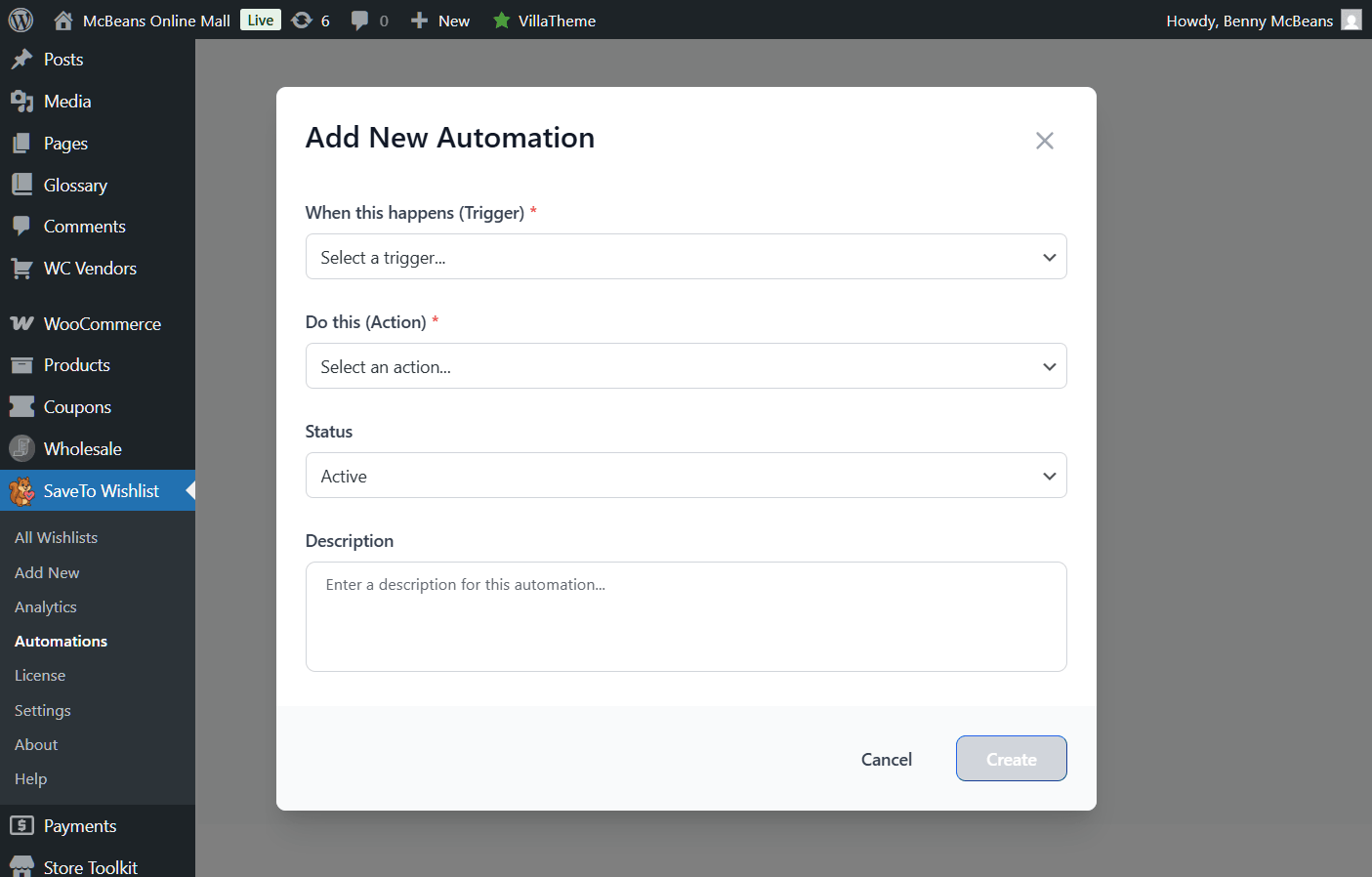
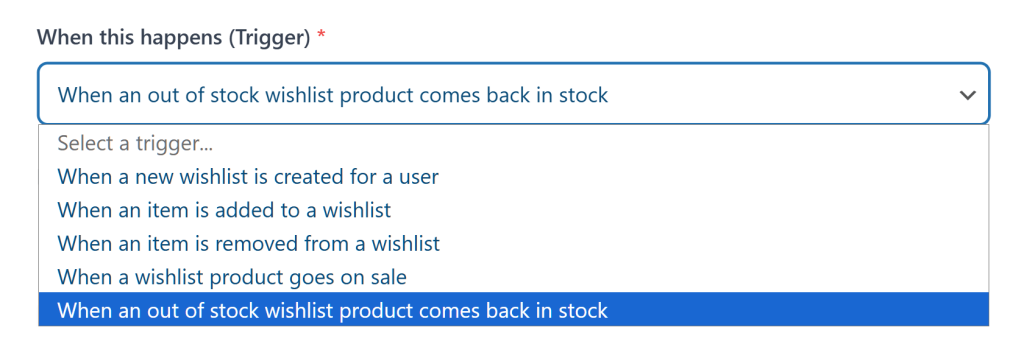
To enable WooCommerce restock notifications, pick “When an out-of-stock wishlist product comes back in stock” as the Trigger.
Then, select “Send an email notification” as the Action.
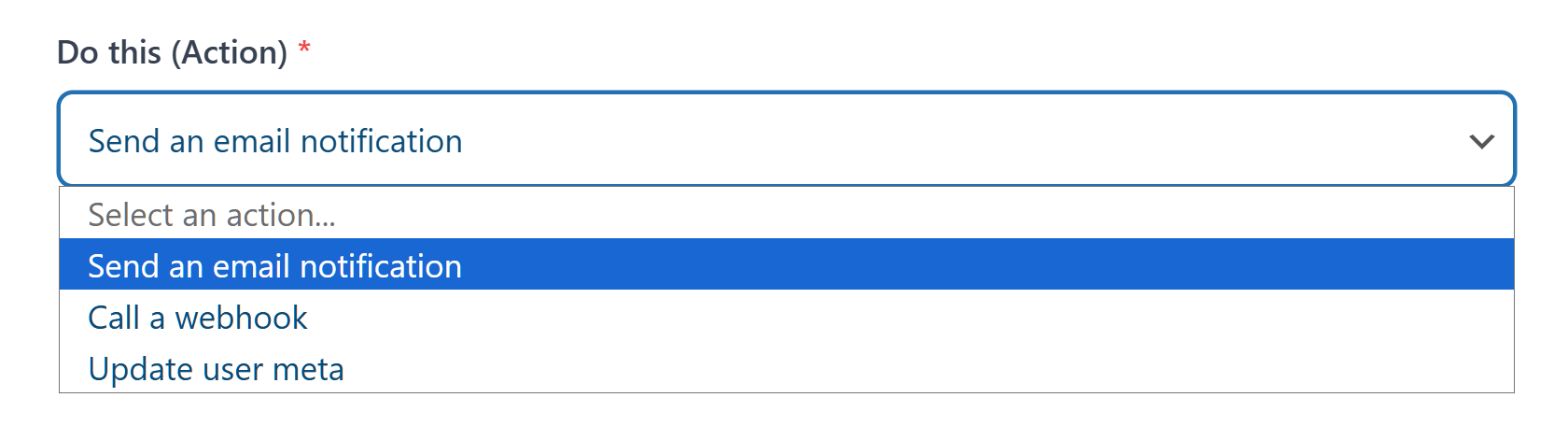
Now, every time an out-of-stock product is restocked, the system will automatically send an email alert to customers who wishlisted the product.
Before you leave the page, however, make sure to customize the content of your email template. Make sure it matches your brand (more on that in the next section).
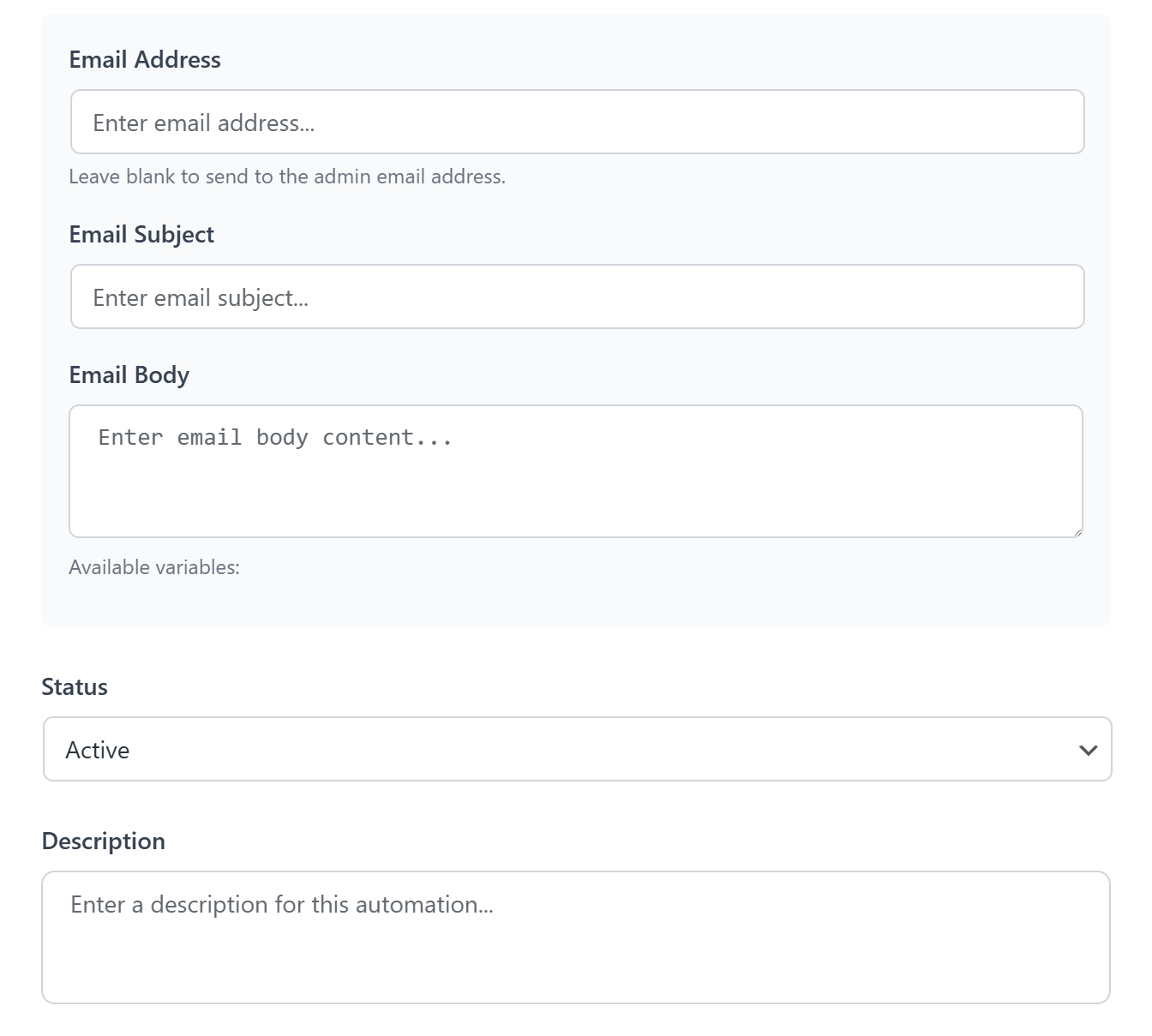
Once you’re done with that, the system starts monitoring inventory changes for wishlisted products.
Test the feature by changing a product’s stock status from “out of stock” to “in stock” and confirming the notification triggers. This takes less than a minute and saves you from wondering whether it’s working when a real restock happens.
Email Strategy For WooCommerce Restock Notifications
The WooCommerce restock notification email itself needs to do one thing well: get the customer back to the product page while the restock is fresh. Every element in the email should serve that goal.
What to include in your back-in-stock notification email
- Product name and image: The customer may have wishlisted this weeks ago. Remind them what it looks like.
- Clear “it’s back” messaging: Don’t bury the lead. The subject line and first sentence should both confirm that the product is available again.
- Direct link to the product page: Not your homepage, not a category page. Link straight to the product so they can add it to their cart immediately.
- Urgency element: If the item sold out before, it can sell out again. A simple line like “This item sold out quickly last time” adds honest urgency without being manipulative.
- Keep it short: This isn’t a newsletter. The customer already wants this product. Get out of the way and let them buy it.
Timing considerations
Send the notification immediately when stock status changes. Every hour you delay is an hour where the customer might buy from someone else or lose interest entirely. Automated triggers handle this perfectly since there’s no manual step between restock and notification.
If your audience is spread across time zones, keep in mind that an immediate send is still better than a delayed one in most cases. The customer checked out of this purchase decision days or weeks ago. A restock email at 3 AM is better than one that arrives two days late.
Consider setting up a follow-up reminder. If the customer doesn’t open or click through the initial notification within 48-72 hours, a brief follow-up can catch those who missed the first email.
For more on building wishlist-driven email marketing workflows, that guide covers the broader strategy.
Measuring Your Back-In-Stock Recovery Rate
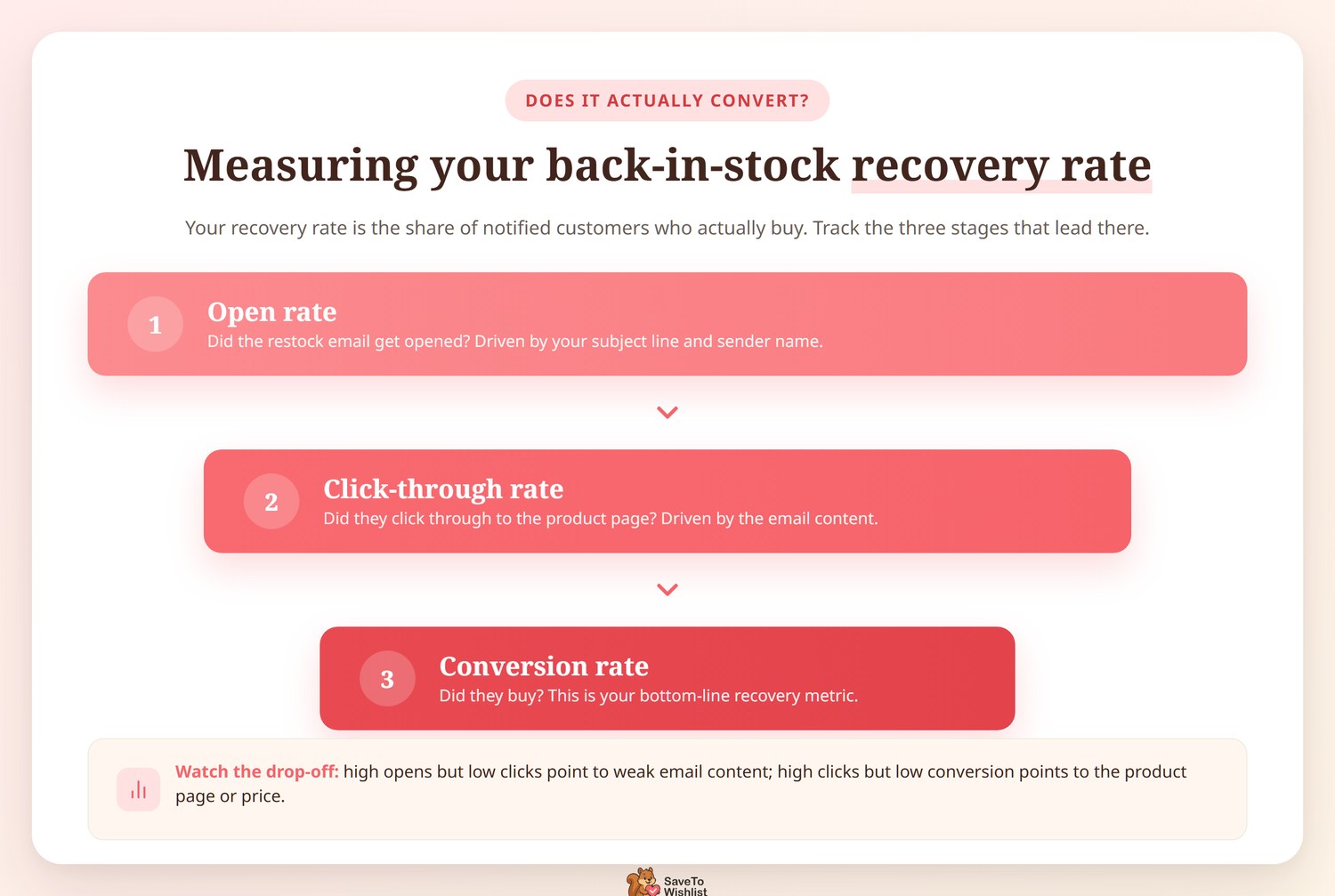
Your back-in-stock recovery rate measures how many notified customers actually purchase the restocked item. It’s the number that tells you whether your restock alerts are working or just filling inboxes.
Track these metrics:
- Notification open rate: How many customers opened the restock email. If this is low, your subject line or sender name needs work.
- Click-through rate: How many clicked through to the product page. If opens are high but clicks are low, the email content isn’t compelling enough.
- Conversion rate: How many of those who clicked actually purchased. This is your bottom-line recovery metric.
SaveTo Wishlist Pro’s analytics dashboard helps you see which products accumulate the most wishlist saves while out of stock. Products with high wishlist counts during stockouts are your highest-demand items, and they’re the ones where back in stock notifications will have the biggest revenue impact.
Use this data to inform your restocking decisions too. If a product has 50 customers waiting for a restock notification, that’s a clear signal to prioritize it with your supplier. Wishlist data turns your restock process from guesswork into demand-driven decisions.
Beyond Notifications: Using Back-In-Stock Data Strategically
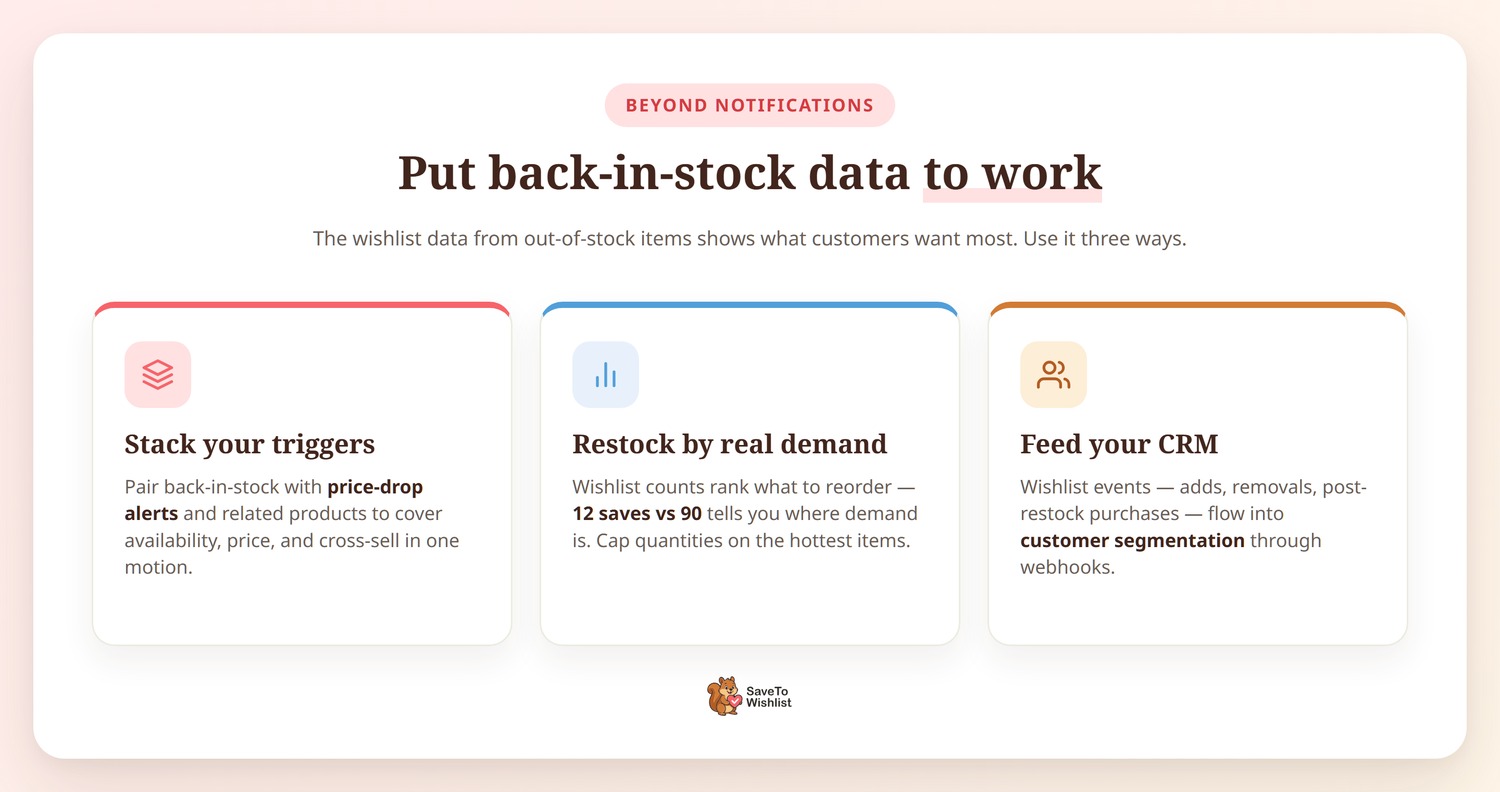
The wishlist data from out-of-stock items tells you what your customers want most, and that’s valuable well beyond the notification itself.
Combine back in stock notifications with price drop notifications for a complete demand capture strategy. A customer who wishlisted an out-of-stock item at $80 might convert even faster if you restock it, offer it at $72, or suggest relevant product add-ons to complete their purchase. These features work together with your related products section to cover availability, price, and cross-selling purchase triggers.
You can also use wishlist counts on out-of-stock items to prioritize restocking. If Product A has 12 wishlist saves and Product B has 90, you know where the demand is. This is especially useful for stores with limited warehouse space or seasonal inventory. Instead of restocking based on gut feeling, you’re restocking based on verified customer demand, while also setting max quantities for high-demand items to ensure more customers get a chance to buy.
For stores using a CRM, wishlist events from out-of-stock products (adds, removals, purchases after restock) can feed directly into your customer segmentation. This ties into the broader strategy of using wishlist webhooks to build more accurate customer profiles.
FAQs: WooCommerce Restock Notifications
Do back-in-stock notifications work for guest users?
Yes. SaveTo Wishlist supports guest wishlists, so visitors who aren’t logged in can still save out-of-stock items. They’ll need to provide an email address to receive the notification, but they don’t need to create an account.
Can I customize the back-in-stock notification email?
You can customize the email content, subject line, and branding to match your store. The goal is to make the notification feel like it comes from your store, not from a generic third-party tool.
What happens if the product goes out of stock again quickly?
If a product returns to stock and then sells out again before all notified customers buy it, the cycle restarts. Customers who didn’t purchase can re-wishlist the item and get notified on the next restock. This is one reason to pair WooCommerce restock notifications with accurate demand data so you can restock in sufficient quantities.
Do I need a separate back-in-stock plugin if I have SaveTo Wishlist Pro?
No. The back in stock notifier feature is built into SaveTo Wishlist Pro. Therefore, you don’t need to install a separate single-purpose plugin. Since the notifications work through the wishlist system, you get the alerts as part of a broader wishlist feature set rather than paying for a standalone tool. If you would rather compare the options before you commit, our guide to the best WooCommerce wishlist plugins is the place to start.
How are WooCommerce restock notifications different from simple “notify me” buttons?
A standalone “notify me” button collects an email address for one product. Wishlist-based WooCommerce restock notifications are richer: the customer saves the item alongside other products they’re interested in, and you get a full picture of their preferences. Furthermore, the same system powers other features like price drop alerts and analytics.
Does this work with my specific shipping setup?
Yes! Whether you use an Australia Post shipping method or another local carrier, these WooCommerce restock notifications only care about your inventory levels, not how you deliver the goods.
Will this affect my fulfillment process?
No. If you use a Canada Post shipping method, the notification triggers based on WooCommerce stock status before the shipping process even begins.
Can I use this with international shipping?
Absolutely. Whether your customers choose a FedEx shipping method or a slower international option, the restock alert will bring them back to your store the same way.
Does this integrate with US-based stores?
Yes. Even if you rely on a USPS shipping method for all your orders, this plugin works seamlessly with your existing WooCommerce inventory settings.
Turn Stockouts Into A Recovery Channel
Most store owners treat stockouts as a pure loss. Product unavailable, customer gone, sale missed. But with the right WooCommerce restock notification system in place, a stockout becomes a touchpoint. The customer tells you what they want, you tell them when it’s back, and the sale happens.
Here’s what to focus on:
- Why back-in-stock notifications matter: understand the revenue at stake when customers leave without a way to come back
- How wishlist-based alerts work: the mechanics of turning a wishlist save into an automatic restock notification
- Setting up the WooCommerce restock notifications: getting SaveTo Wishlist Pro configured for back-in-stock automation
- Email strategy: what your restock email needs to include and when to send it
- Measuring recovery: tracking whether your WooCommerce restock notifications are actually converting into sales
SaveTo Wishlist Pro includes WooCommerce restock notifications alongside analytics, price drop alerts, and full wishlist automation. Check the current pricing to see which plan fits your store, and start turning stockouts into recovered revenue. And if you aren’t ready for Pro, you can always try out the free version first!