
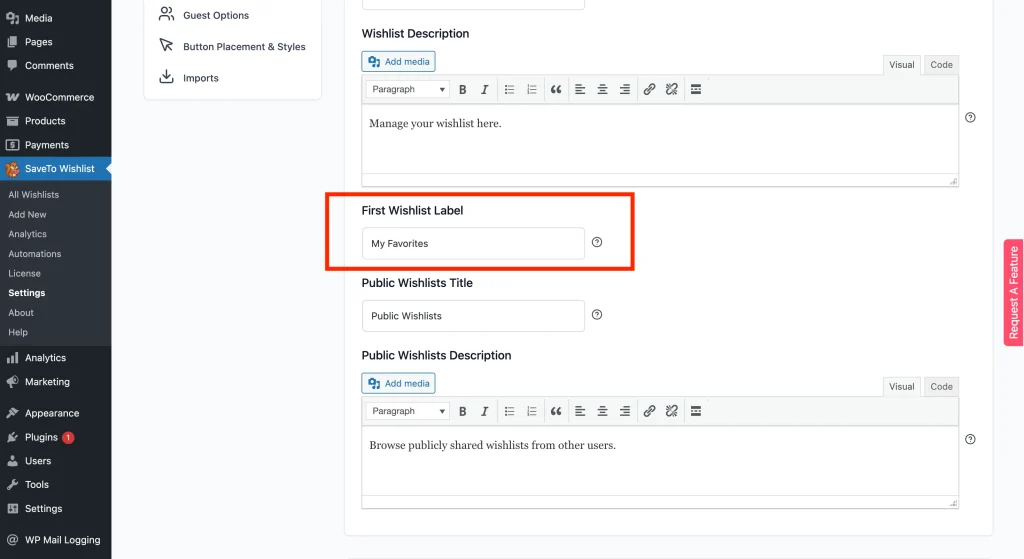
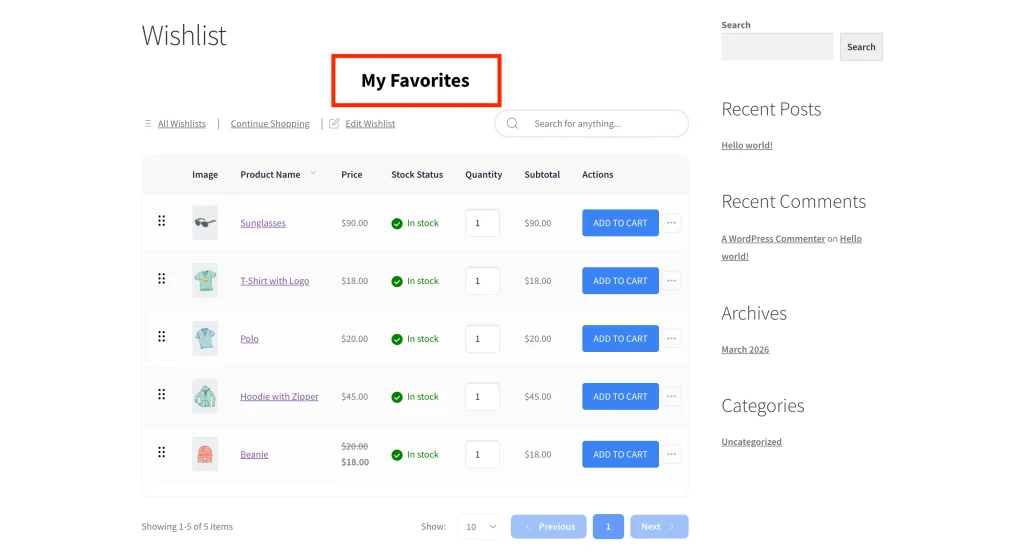
When a customer creates an account on your store, SaveTo Wishlist Lite automatically creates their first wishlist for them. By default, it’s called “First Wishlist”, but you can rename it to something that fits your store, like “My Saved Items” or “My Favorites”.
Requirements
- SaveTo Wishlist Lite installed and active
- Published products in your WooCommerce store.
How to Customize the First Wishlist Label
- In your WordPress admin, go to SaveTo Wishlist → Settings.
- Click the Wishlist Page tab.
- Find the First Wishlist Label field.
- Enter the label you want new customers’ wishlists to be called.
- Click Save Changes.
What Customers See
After saving, any new wishlist created automatically by the plugin will use the label you set. The plugin creates a wishlist automatically when a customer registers and doesn’t have one yet, and when a logged-in customer has locally-saved items that get moved to their account.
Customers who already have wishlists are not affected, their wishlist names stay as they are.
Frequently Asked Questions
Does changing this label rename wishlists that already exist?
No. The label only applies to new wishlists the plugin creates automatically from this point on. Customers who already have a wishlist aren’t affected, their wishlist names stay the same.
What happens if I leave this field empty?
The plugin falls back to the default label, “First Wishlist”.
Need Help?
If you have a question or run into any issues, we’re here to help.
- Premium users: Open a support ticket
- Free users: Visit our community forum

