
When a customer wants a specific number of an item before heading to checkout, they can adjust it right in the wishlist table. Every wishlist item has a quantity field with +/− controls, so there’s no need to navigate away to the product page. This article explains how the quantity controls work, how the quantity carries through to the cart, and what to do when the controls don’t respond.
Before you begin
- SaveTo Wishlist Lite must be installed and active on your store.
- The customer must be on the wishlist page where their wishlist is displayed.
- Only the wishlist owner, site administrators, and — with SaveTo Wishlist Pro — users who have been granted edit permission can adjust quantities. Visitors viewing someone else’s wishlist cannot change quantities.
How to adjust item quantities
- Open the wishlist page.
- Find the item in the wishlist table and look for the Quantity column in that row.
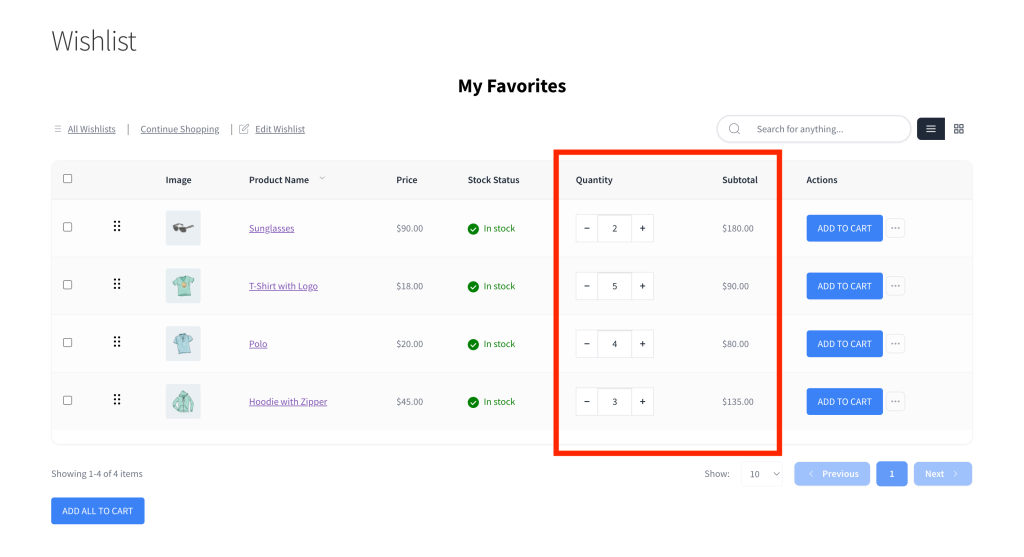
- Click + to increase the quantity or − to decrease it. You can also click inside the field and type a number directly.
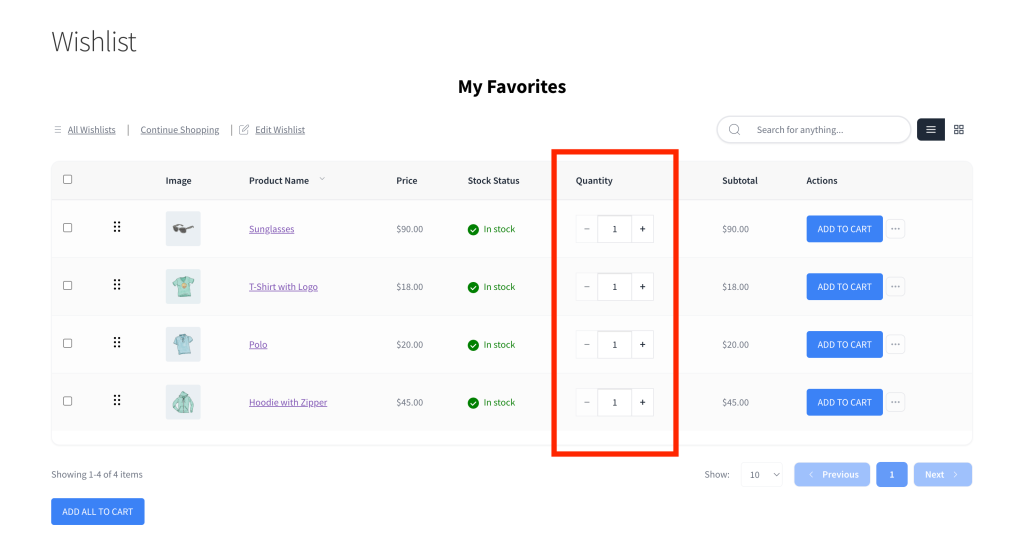
The quantity saves automatically when you change the value — there is no separate save button. The Subtotal column updates right away to show the new item total (quantity × price).
How quantities carry through to the cart
When a customer clicks Add to Cart on a wishlist item, the plugin uses the quantity shown in the Quantity column. Setting a quantity of 3 and then clicking Add to Cart adds exactly 3 units to the cart in one step.
Changing the quantity in the wishlist does not move anything to the cart — it only records the intended amount until the customer is ready to buy.
Troubleshooting
The quantity field isn’t saving my changes
The quantity field only updates for the wishlist owner, site administrators, and (with SaveTo Wishlist Pro) users who have been granted edit permission. If you’re the owner and the field still won’t respond, check that the wishlist is published rather than a draft, then refresh the page and try again.
I typed 0 and the field reset to 1
The minimum allowed quantity is 1. If you enter 0 or clear the field entirely, the plugin automatically resets it to 1.
My quantity change disappeared after refreshing
This usually means the change didn’t save. It can happen if the quantity was changed without the necessary permission — for example, while logged out. Log in as the wishlist owner and try again.
Frequently asked questions
Can I set a quantity to 0 to hide an item from the wishlist?
No — the minimum is 1. To remove an item from the wishlist entirely, click the ⋯ (More Actions) button in that item’s row and select Delete.
Does changing the quantity automatically add it to my cart?
No. Changing the quantity in the wishlist only updates the stored amount. You still need to click Add to Cart to move the item into your cart at the updated quantity.
Need help?
- Premium users: Open a support ticket
- Free users: Visit our community forum

