

 Reviewed by
 Running a WooCommerce store where everyone gets the exact same experience can quietly leave money on the table. A WooCommerce membership setup changes that. It gives your best customers something the general public doesn’t get: early access, members-only pricing, and perks that make them feel like insiders.
The problem is that most stores treat every shopper identically. Loyal buyers end up with no real reason to sign up, log in, or come back. That sameness makes it hard to build the kind of repeat relationship that keeps a store healthy.
The good news: you can build a VIP, members-only experience in WooCommerce without a mountain of custom code. This guide walks through what to gate, how to set it up, what to charge, and how to tell whether it’s actually working.
Jump to:
- What Is A WooCommerce Membership Store?
- Why Build A VIP, Members-Only Experience
- How To Decide What To Put Behind The Login
- How To Set Up Member-Only Access In WooCommerce
- Mistakes That Quietly Sink A Members-Only Store
- Reserving Wishlist Perks For Members With Role-Based Access
- How To Tell If Your VIP Program Is Working
- Frequently Asked Questions: WooCommerce Membership
- Turning Members-Only Access Into Repeat Sales
What Is A WooCommerce Membership Store?

A WooCommerce membership store is an online shop where certain products, prices, or features sit behind a login. Only registered members can reach them. Instead of one experience for everyone, you create tiers: guests see the public storefront, while members unlock exclusive perks.
This model works because it gives people a reason to sign up and keep coming back. When logging in unlocks better pricing, early access, or a private product line, membership stops feeling like a chore. It starts feeling like a reward.
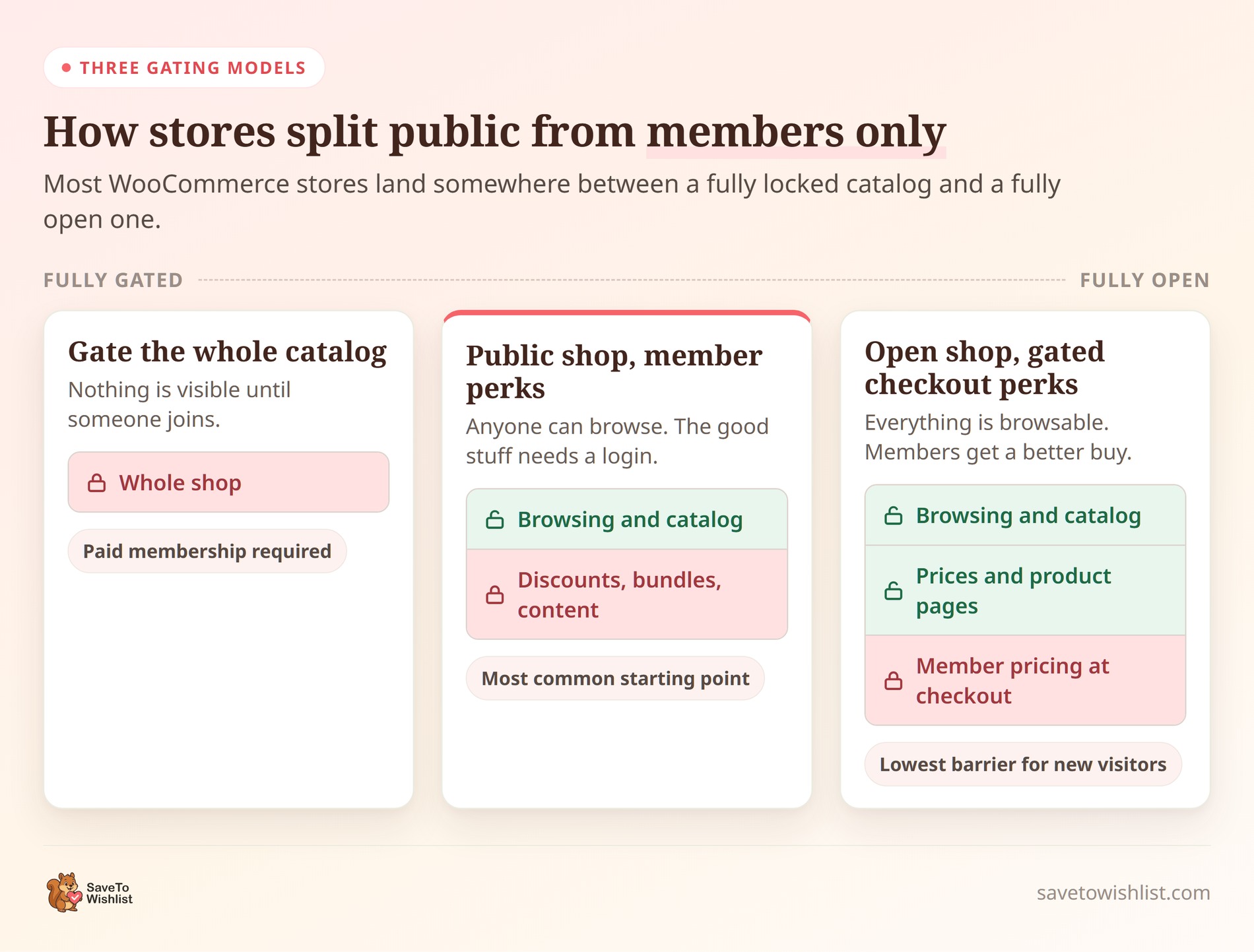
There are a few common flavors. Some stores gate the entire catalog behind a paid membership and collect a recurring fee. Others keep the shop public but reserve discounts, bundles, or content for members. Many WooCommerce stores land somewhere in between, mixing public browsing with member-only checkout perks.
The mechanics almost always come down to WooCommerce user roles . Every registered customer gets a role, and you can use those roles to decide who sees what. That single idea, role-based control, is the backbone of nearly every VIP setup. The same approach powers a private WooCommerce wholesale catalog with role-based access, which is a useful worked example if you want to see role-based product and price visibility in action. It’s what makes the rest of this guide practical rather than theoretical.
Membership vs. subscription: what is the difference?
A membership controls access. A subscription controls billing. They get talked about as if they’re the same thing, and mixing them up is the most common reason a WooCommerce membership build goes sideways.
Think of it this way. A membership answers “what is this person allowed to see and do in my store?” A subscription answers “how often does this person get charged?” You can run either one on its own:
- Membership without a subscription: a customer spends over a threshold, you assign them the VIP role, and access is free from then on. No recurring billing anywhere.
- Subscription without a membership: a coffee club that ships beans monthly. The customer is billed on a cycle, but nothing on the site is hidden from anyone.
- Both together: a paid VIP tier. The subscription collects the fee, and the membership tool grants or revokes the role depending on whether the payment is current.
Decide which of those three you’re building before you install anything. Most stores that get stuck are trying to solve an access problem with a billing tool, or the other way around.
Why Build A VIP, Members-Only Experience
A VIP WooCommerce membership is worth building because it turns one-time buyers into repeat customers. It also gives you a reason to collect logins that unlock more personalized marketing later. Exclusivity is a genuine motivator, and people value access that not everyone has.
There’s a retention angle too. When someone has a login and a reason to use it, they come back more often. Returning customers tend to spend more over the long run. That’s the quiet engine behind wishlists and customer retention. Saved items give members a reason to return again and again.
It also helps you catch the shoppers who aren’t ready yet. Baymard research puts cart abandonment at 70.22%, averaged across 50 separate studies. The same research finds 42% of people who abandon do so because they were just browsing. A members-only wishlist gives those browsers a place to park their intent. A “not now” doesn’t have to mean “never.”
Be realistic about what a membership fixes, though. According to Deloitte’s 2024 Consumer Loyalty Survey, 86% of consumers rate financial rewards and ease of use as important or very important, and three-quarters of Gen Z and millennial shoppers say a high-quality digital experience is essential. Exclusivity alone won’t carry a program. The perks still have to be worth something and easy to use.
In our experience, the stores that get the most from membership treat it as a two-way deal. Members give you their attention and loyalty. You give them access, savings, and a smoother way to shop.
How To Decide What To Put Behind The Login
Deciding what to gate is the hardest part of a WooCommerce membership build, and it’s the part most guides skip. Gate too little and nobody joins. Gate too much and you lose the search traffic and first-time buyers that feed the program in the first place.
Run every perk through two questions
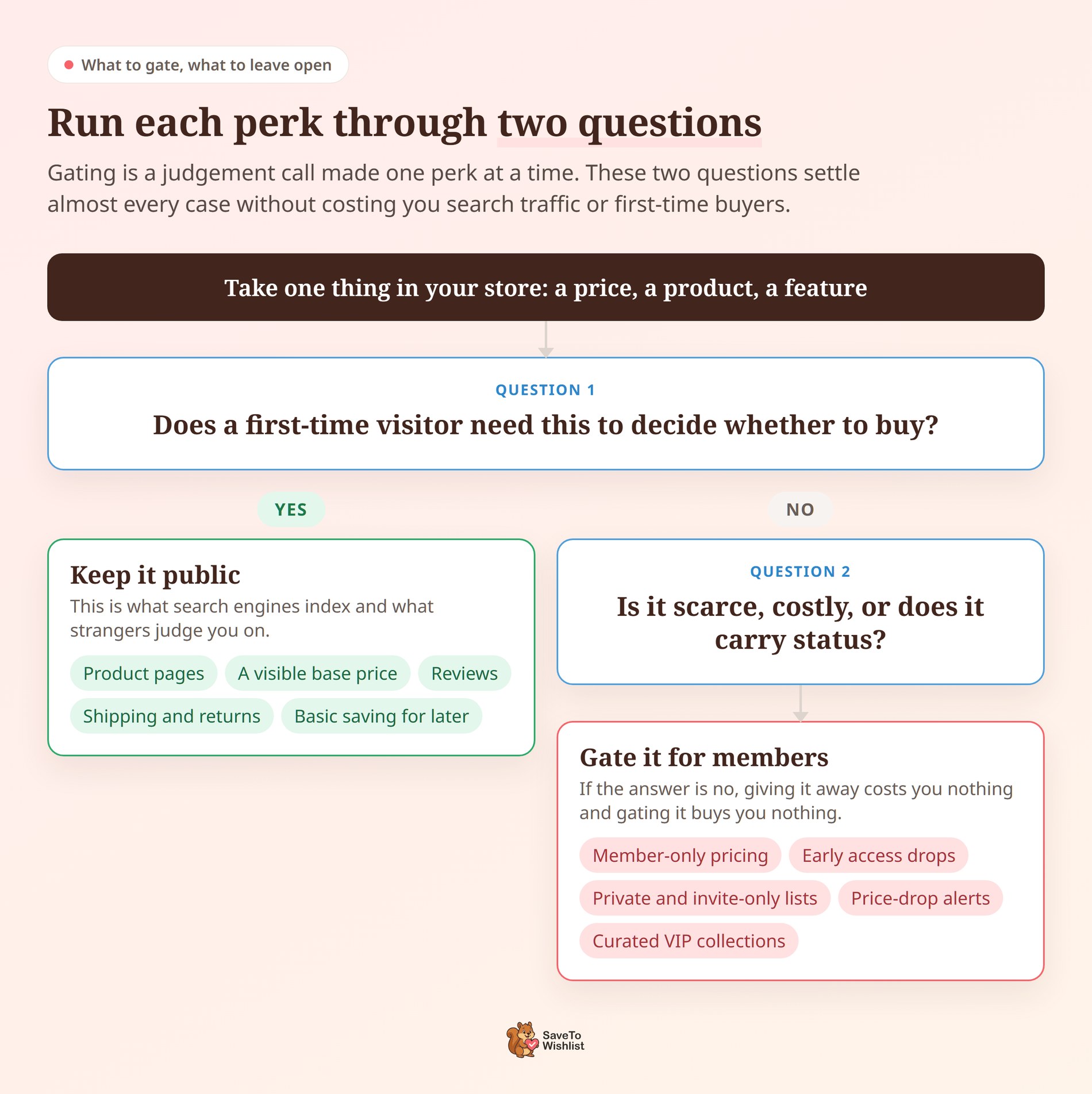
Take one thing at a time as you plan your WooCommerce membership, whether that’s a price, a product, or a feature, and ask two questions in order.
First: does a first-time visitor need this to decide whether to buy? If yes, it stays public. Product pages, a visible base price, reviews, and your shipping and returns terms all fall here. These are what search engines index and what strangers judge you on, so hiding them costs far more than it earns.
Second: is it scarce, costly, or does it carry status? If yes, gate it. Member pricing costs you margin. Early access to a limited drop is genuinely scarce. A private, invite-only list carries a bit of status. If the answer is no, giving it away costs you nothing and gating it buys you nothing, so leave it open.
Design tiers people can see the point of
Two or three tiers are plenty for most stores. Each one should keep everything below it and add something the tier below can clearly identify as missing. A perk nobody knows exists persuades nobody to upgrade.
Here’s a structure that works for most stores:
| Tier | How they get in | What it adds |
|---|---|---|
| Guest | Nothing, just browsing | Public catalog, base pricing, basic saving for later |
| Registered customer | Free account signup | Order history, multiple saved lists, faster checkout |
| VIP member | Paid fee or a spend threshold | Member pricing, early access, private lists, price alerts |
Notice that the free account tier does real work here. It’s the bridge between a stranger and a paying member, and it asks nothing of you but a signup form. Skipping it forces shoppers to jump straight from anonymous to paying, which is a much bigger ask.
Deciding what to charge
Start by asking whether your WooCommerce membership tier should be paid at all. A free VIP tier earned by spending a certain amount is easier to launch, needs no billing setup, and still creates the exclusivity you’re after. Charge only when the perks have a real, ongoing cost to you.
If you do charge, anchor the fee to what a member saves rather than to what feels reasonable. A shopper who buys three times a year at an average order value of $80 and gets 10% off is saving $24. Charge $49 a year and that’s a losing deal they will work out fast. A $15 fee is an obvious yes.
Two more things worth settling early. Offer an annual option alongside monthly, because annual members churn less and give you a full year to prove the value. Decide what happens when someone lapses, too: most stores drop them back to the free registered tier rather than to guest, so their saved lists and history survive and rejoining stays easy.
How To Set Up Member-Only Access In WooCommerce
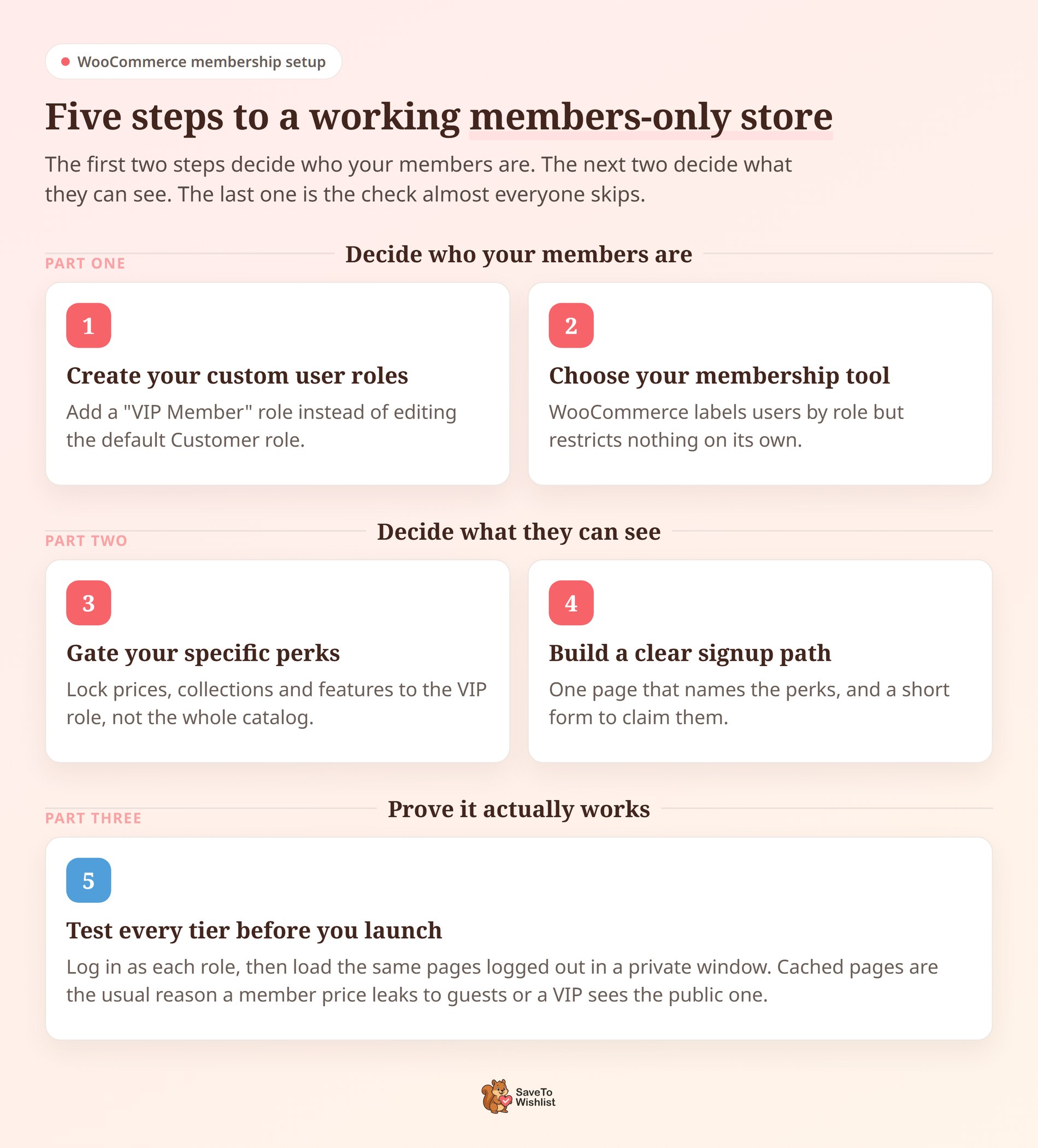
Setting up member-only access comes down to defining who your members are and controlling what they can see. To do this, you need to combine WooCommerce user roles with a dedicated membership plugin.
Here’s the step-by-step playbook to get it running:
1. Create your custom user roles
Out of the box, WooCommerce gives registered shoppers a basic “Customer” role. To make a VIP tier, you need a custom role. Use a free plugin like User Role Editor to quickly add a new role. Name it something clear, like “VIP Member” or “Gold Tier.”
Add a new role rather than editing the built-in Customer role. Editing Customer changes the experience for every existing shopper at once, and it’s awkward to unwind if you change your mind. A separate role also lets you move a single person between tiers by changing one dropdown on their user profile.
Worth knowing before you go further: a role on its own restricts nothing. It’s a label. The restricting happens in step three, which is where a lot of first-time builds stall.
2. Choose your membership tool
WooCommerce can’t hide products or prices on its own. You need a dedicated WooCommerce membership plugin to handle the actual gating.
WooCommerce Memberships is the standard premium choice, while Paid Memberships Pro offers a strong free version to start with. If your VIP program goes beyond store perks, MemberPress is an all-in-one platform that adds members-only courses, coaching programs, and a private community (through ClubSuite™) with profiles, discussion circles, and direct messaging. Install and activate the one that fits your budget.
Whichever you pick, check it against the four things you’ll actually need:
- Product and category restriction: can it lock an entire category, not just individual products? Gating 400 products one at a time is not a plan.
- Automatic role assignment: does buying a membership product grant the role by itself, or will you be editing user profiles by hand?
- Recurring billing support: only matters if you’re charging a fee, but retrofitting it later is painful.
- Expiry and downgrade handling: what happens to a member who stops paying? You want the role removed automatically, not a manual cleanup job every month.
3. Gate your specific perks
Once your WooCommerce membership plugin is active, it’s time to lock things down. Go into your store’s product or category settings. Use the plugin’s restriction rules to block guests. Set the rules so only logged-in users with your new “VIP Member” role can view the exclusive items, get the discounted pricing, or use advanced wishlist features.
Restrict at the category level wherever you can. Rules attached to a category apply automatically to every product you add to it later, so your gating stays correct as the catalog grows. Product-level rules are for the handful of one-off exceptions.
You’ll also choose between hiding restricted items completely and showing them with a locked message. Showing them usually converts better, because a shopper can’t want something they never knew existed. Hide entirely only when the product itself is confidential, such as a private wholesale line.
4. Build a clear signup path
Don’t make people guess how to join. Give guests an obvious route to become a member. Create a simple landing page that explains the exact perks they’ll get, such as private collections and price-drop alerts, and link it straight to your account registration form.
Then place entry points where the wanting happens: on the locked product itself, next to the public price, and in the wishlist area when someone saves an item. A generic “Join our VIP club” link in the footer gets ignored. A line that says “VIP members pay $42 for this” sitting under a $52 price does not.
Keep the form itself short. Baymard’s abandonment research found 18% of shoppers who abandon at checkout do so because the site required them to create an account. Every extra field you add is a reason to leave, so ask for an email and a password and collect the rest later.
5. Test every tier before you launch
Create one test account per tier, then visit the same three pages as each of them: a gated product, a public product, and the cart. Then load those pages logged out in a private browser window. You’re checking that each role sees exactly what it should and nothing more.
What we’ve seen trip up more launches than anything else is page caching. A caching plugin or a host-level cache will happily store the version of a page it built for a logged-in VIP and serve it to the next guest who lands there, member price and all. It also works in reverse, showing a VIP the public price they came to avoid.
The fix is to exclude logged-in users from the cache, or to exclude the specific pages where prices and restricted content change by role. Most caching plugins have a setting for this. Test it after every cache configuration change, not just once.
⚠️ A quick warning: Don’t retro-gate. Locking content or pricing that your existing customers already had access to turns loyal buyers into complaints. Point new restrictions at new products and new tiers, and let the people who already had it keep it.
Mistakes That Quietly Sink A Members-Only Store
Most WooCommerce membership programs don’t fail loudly. They just stop growing, and the reason is usually one of a handful of avoidable setup decisions.
- Perks nobody would pay for: a members-only newsletter is not a perk. If it takes nothing from you to give, it usually reads as worth nothing to receive.
- Discounts deeper than your margin: a VIP order that earns you less than a retail one turns your best customers into your least profitable ones.
- A tier almost everyone reaches: if most of your customers qualify, the status stops meaning anything and all you’ve done is cut your prices.
- Member prices leaking into your product feed: when a shopping feed picks up the logged-in price, it stops matching your public product page, and a price mismatch can get the product disapproved.
- Silent renewals: billing an annual fee with no warning email beforehand earns you refund requests and chargebacks instead of renewals.
A mistake we see repeatedly is store owners launching the VIP tier to strangers first. The people most likely to join are already in your customer list. Email your existing repeat buyers, offer them the role for free or at a founding-member rate, and let them use it for a month before you promote it publicly. You get real usage data and a group of members who can tell you which perks actually matter.
Reserving Wishlist Perks For Members With Role-Based Access
SaveTo Wishlist Pro lets you restrict wishlist features based on the custom user role we just set up. This turns saving items, sharing lists, and getting price alerts into exclusive membership perks rather than default features.
The core setting you’ll use is Role-Based Access Control. This simply lets you assign specific tools to specific user groups. Your VIP customers get access to features that guests and standard accounts don’t.
Here’s a three-tier setup you can follow:
- Guests: one basic saved-items list, no sharing. Anything they save merges into their account if they sign up later, so nothing is lost.
- Registered customers: multiple named wishlists that persist across devices, plus a shareable public link. This is the free tier that gets people to create an account.
- VIP members: Advanced Sharing & Permissions for private or invite-only lists, automatic price-drop alerts, back-in-stock alerts, collaborative group wishlists, and personal notes on saved items.
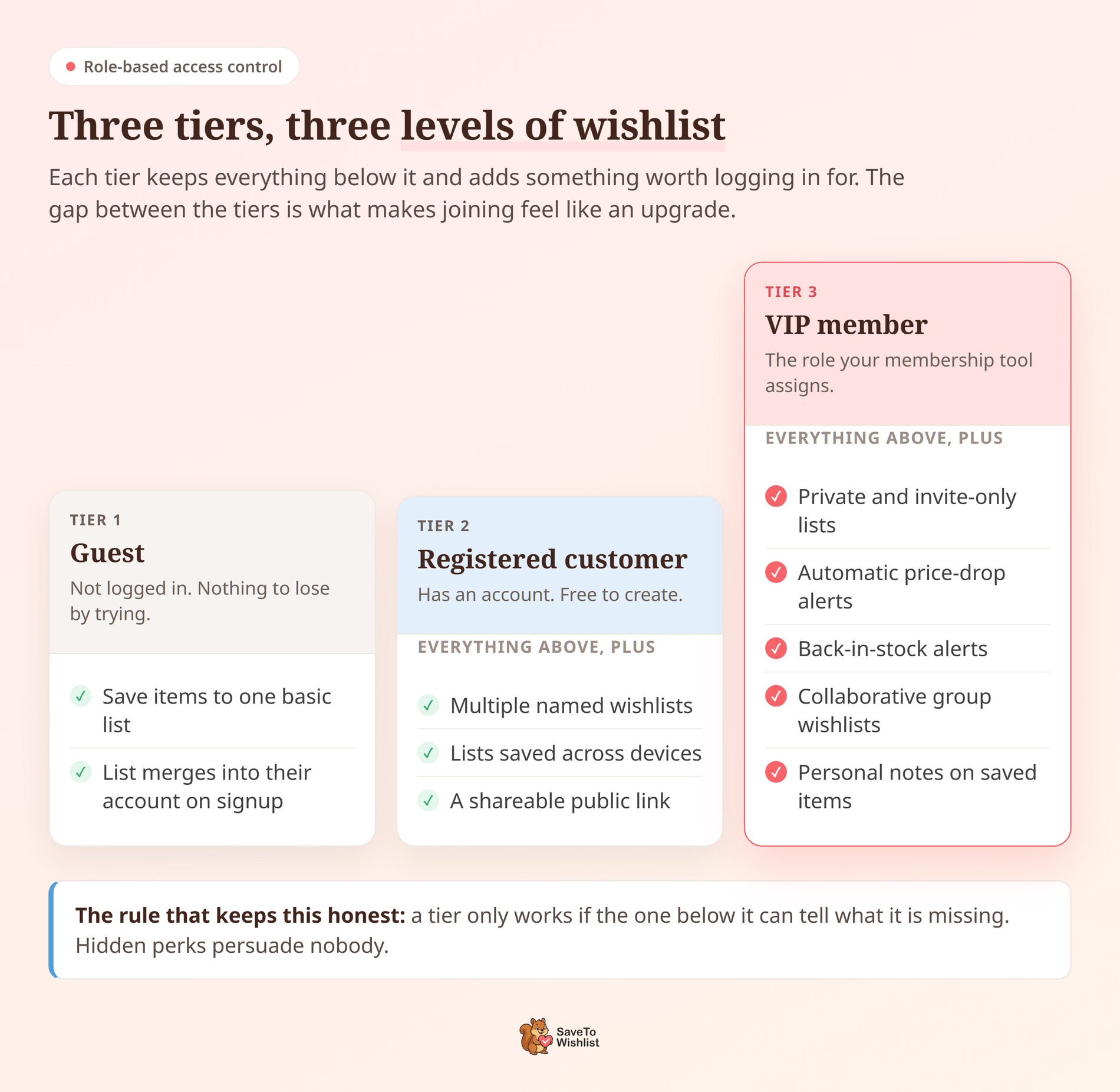
Restricting these features creates a functional gap between your tiers. Shoppers have to upgrade if they want to use the advanced tools.
Pro features worth reserving for VIPs
Two of the Pro features are easy to overlook. Admin-Created Templates let you publish a curated list, such as a members-only seasonal edit, that VIPs can load into their own account in one click. Strategic Wishlist Expiry puts an automatic end date on a saved list, which is useful for limited-time sales or a temporary seasonal catalog because the items clear themselves out when the event ends.
If your VIP tier is really a wholesale or trade tier, SaveTo Wishlist Pro is compatible with Wholesale Suite and WC Vendors, and it supports “Ask for Quote” integrations. That combination lets a trade member build a list and request a price on it rather than checking out at retail.
One note on plans so you can match features to budget: role-based access controls, price-drop alerts, back-in-stock alerts and wishlist analytics are available from the Growth plan up, while advanced sharing options arrive on Plus. Check the current SaveTo Wishlist pricing page before you commit to a tier structure that depends on a specific feature.
How To Tell If Your VIP Program Is Working
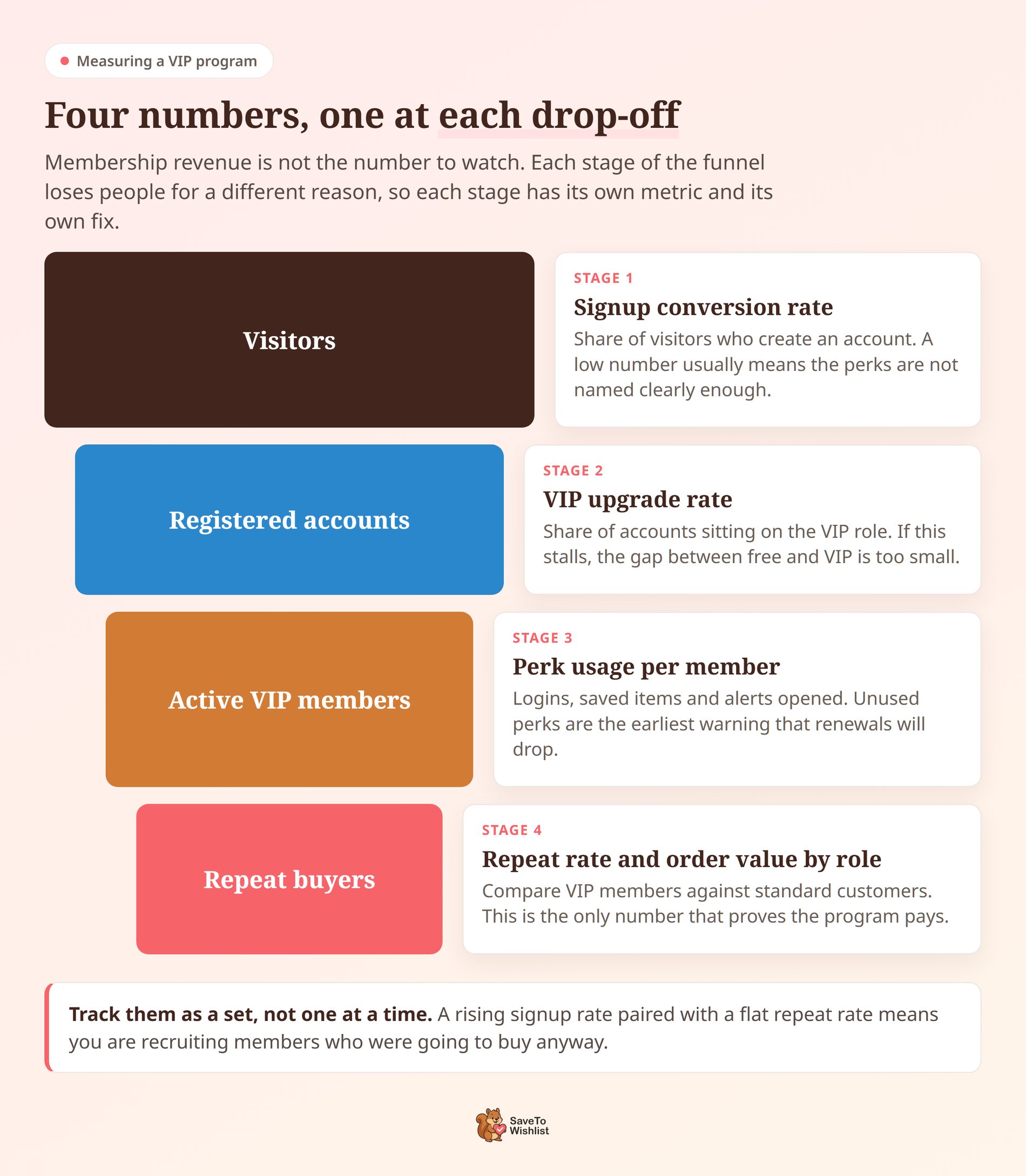
Overall WooCommerce membership revenue is the wrong headline number. A program can collect fees for a year and still be losing you money if those members were going to buy anyway. Watch the funnel instead, because each stage drops people for a different reason and each one has a different fix.
- Signup conversion rate: the share of visitors who create an account. When this is low, the perks usually aren’t named clearly enough on the pages where people decide.
- VIP upgrade rate: the share of registered accounts sitting on the VIP role. A stall here means the gap between free and VIP is too small to bother crossing.
- Perk usage per member: logins, items saved, alerts opened. Unused perks are the earliest warning you’ll get that renewals are about to drop.
- Repeat rate and average order value by role: compare VIP members against standard customers. This is the only number that proves the program pays for itself.
Reading the numbers together
Read them as a set. A rising signup rate next to a flat repeat rate is a warning, not a win, because it means you’re recruiting members who were already buying. The wishlist analytics and reports in SaveTo Wishlist Pro cover the middle of that funnel, showing which saved products are trending and how members are using their lists. Customer lifetime value is the longer-term version of that last number.
Give it a full quarter before you judge any of it. Membership behavior takes at least one purchase cycle to show up, and killing a program at week three tells you nothing except that three weeks isn’t long enough.
Frequently Asked Questions: WooCommerce Membership
Do I need a membership plugin to create a VIP store?
Yes, you’ll need one to hide products, prices, or content. WooCommerce user roles just label your users; they don’t actually restrict what people see. A separate WooCommerce membership plugin handles the locking. SaveTo Wishlist Pro then works alongside it, reserving wishlist features for the specific roles your membership plugin creates.
Can I limit wishlist features to certain user roles?
Yes. SaveTo Wishlist Pro uses Role-Based Access Control, which simply means you pick which user groups can create lists, share them, or get price alerts. You can give your VIP members the full toolkit while leaving guests with a basic version, or no wishlist at all.
What’s the difference between a private and invite-only wishlist?
A private list is only visible to the person who made it. An invite-only list can be shared, but only with specific people the owner approves by email. Both options let members keep complete control over who sees their saved items.
Will members-only pricing hurt my SEO (Search Engine Optimization)?
Not if you set it up correctly. SEO is just how search engines like Google find and rank your site. To protect your ranking, leave your product pages open to the public and show a standard price to guests. Only reveal the discounted member pricing after a user logs in. This way, Google can still read your catalog, but your VIP perks stay protected.
Can guests still use wishlists?
That’s entirely up to you. You can let anyone save items as a guest, and those lists will automatically merge into their account if they sign up later. Or, you can turn off guest saving completely, making the wishlist a strict members-only tool. Many stores start by letting everyone save items, and then tighten the rules as their VIP program grows.
Can I charge a recurring fee for VIP access?
Yes. Pair your membership tool with WooCommerce subscriptions and the fee is collected on whatever cycle you choose. Two things are worth setting up at the same time: a reminder email before each renewal, and a grace period for failed payments so one declined card doesn’t lock a good customer out overnight.
How much should I charge for VIP membership?
Anchor the fee to what a member actually saves in a year, not to what feels right. Multiply a typical customer’s yearly order count by their average order value, then by your member discount. The fee needs to sit comfortably below that figure or shoppers will do the math and decline. Many stores skip a fee entirely and grant VIP status at a spend threshold instead.
Turning Members-Only Access Into Repeat Sales
A VIP, members-only WooCommerce store works best when the perks are real and the access is controlled. Members should always have a reason to log back in. Wishlists reserved by role give you exactly that. They’re a tangible benefit you can hand to paying members and hold back from everyone else. AdTribes has a good breakdown of why repeat customers matter.
Here’s what to do next:
- Settle whether you’re building a membership, a subscription, or both before you install anything.
- Run every perk through the two gating questions so your search traffic stays intact.
- Price the tier against what a member actually saves, or skip the fee and use a spend threshold.
- Build the roles, gate the perks, then test every tier logged out to catch caching leaks.
- Reserve your advanced wishlist features by role so joining unlocks something visible.
- Track the four funnel metrics for a full quarter before you judge the program.
If you’re ready to make wishlists a membership perk rather than a giveaway, get SaveTo Wishlist Pro. It has the tools you need, including role-based access control, private and invite-only lists, and price alerts for a VIP experience your best customers keep coming back for. Take a look at what’s included and start rewarding the shoppers who matter most!



