
Using a block theme, or the newer block-based Cart in WooCommerce? SaveTo Wishlist still shows the wishlist button in the right place. This article explains how the button works inside WooCommerce blocks and how you control where it appears.
Why this matters
On a classic theme, WooCommerce builds your shop and cart with template hooks, and SaveTo places its button into those hooks. Block themes and the block-based Cart don’t use those hooks, they use blocks instead. Without this integration, the button would have nowhere to go on a block-based store.
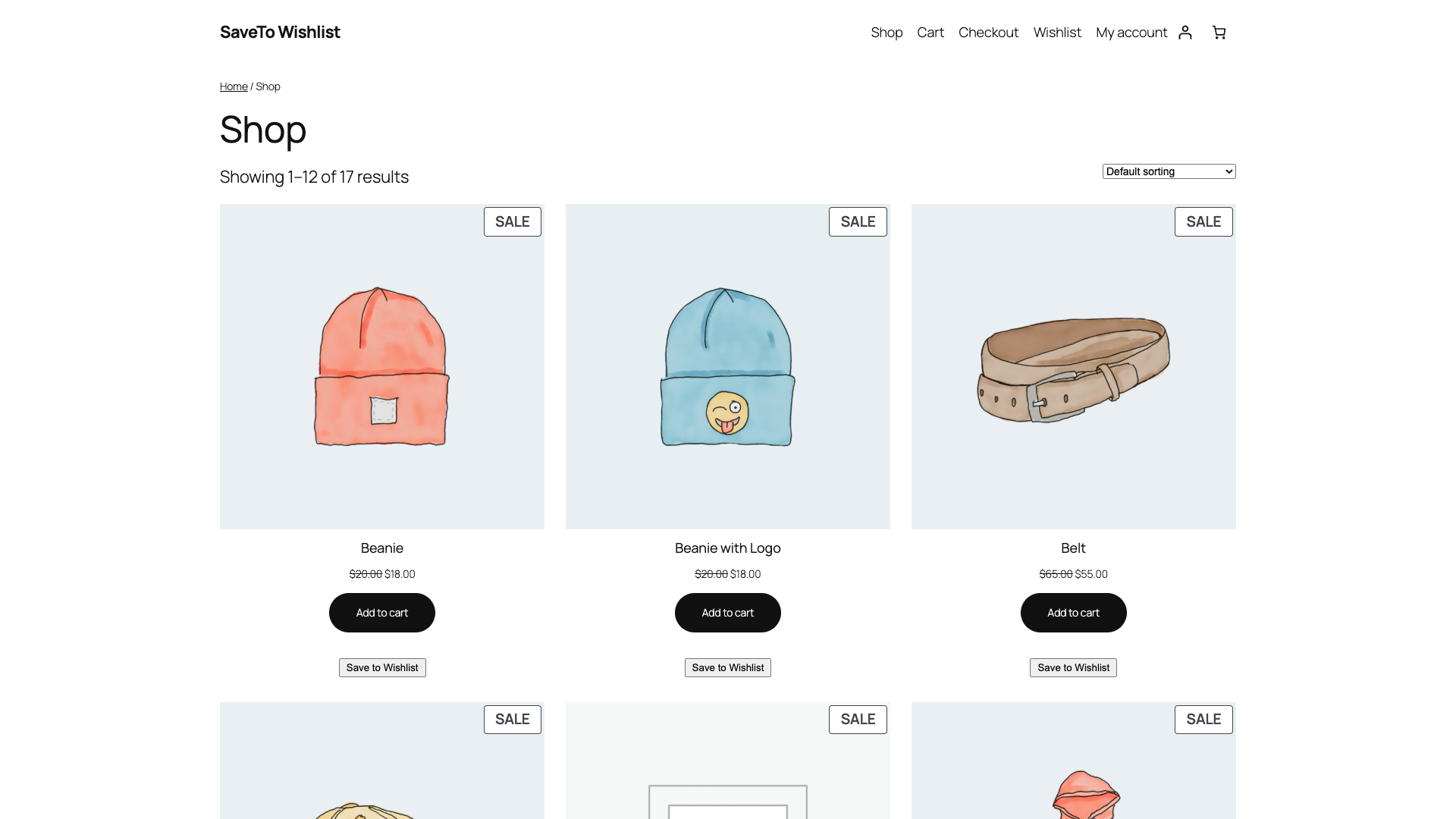
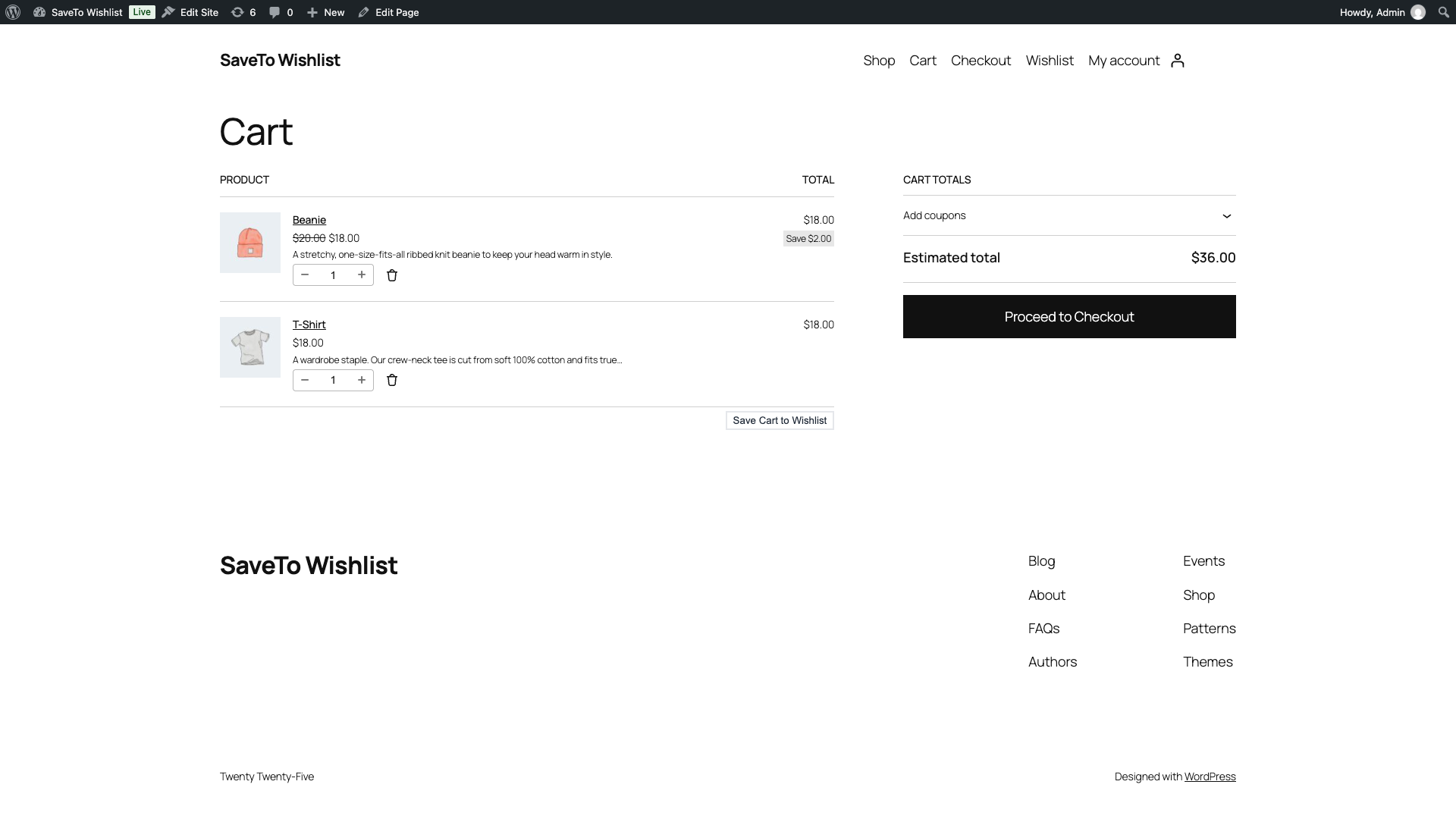
SaveTo handles this for you. It hooks into the supported WooCommerce blocks and drops the wishlist button in, so your store looks the same whether it’s built with classic templates or blocks.
What you need
- WooCommerce, using a block theme or the block-based Cart.
- SaveTo Wishlist active. There’s no separate setting to switch on, it works automatically.
The button follows your normal settings
There’s nothing block-specific to configure. The button uses the same placement and style settings you already set for your shop and cart. If you want to move it or change how it looks, you do that in SaveTo Wishlist, then Settings, then Button Placement & Styles, the same as any theme. See How to customize wishlist button placement and styles in WooCommerce for the full options.
Two things follow from that. In product grids, the button appears in the spot your shop page placement points to, so if you set that to “Don’t show”, it won’t appear in the product blocks either. In the block Cart, the button shows for logged-in customers, matching how the cart button works on a classic theme.
Supported blocks
SaveTo supports the wishlist button in these WooCommerce blocks.
| Area | Blocks |
|---|---|
| Cart | Cart, Filled Cart, Cart Items, Cart Line Items, Cross-Sells, Cross-Sells Products, Order Summary, Order Summary Heading, and Proceed to Checkout. |
| Product grids | Product Image, Product Price, and Product Button (Add to Cart). |
Frequently asked questions
Do I need to set anything up?
No. As long as SaveTo Wishlist is active, the button appears in the supported blocks on its own. You only visit the settings if you want to change where the button sits or how it looks.
The button isn’t showing in my product grid. What should I check?
Check that your shop page button placement isn’t set to “Don’t show”. The product blocks use that same shop setting, so hiding it there also hides it in the blocks.
Why don’t guests see the button in the Cart?
Saving cart items to a wishlist is for logged-in customers, in the block Cart and on a classic theme alike. Guests can still use the wishlist button on your shop and product pages.
Need help?
If you have a question or run into any issues, we’re here to help.
- Premium users: Open a support ticket
- Free users: Visit our community forum

