

 Reviewed by
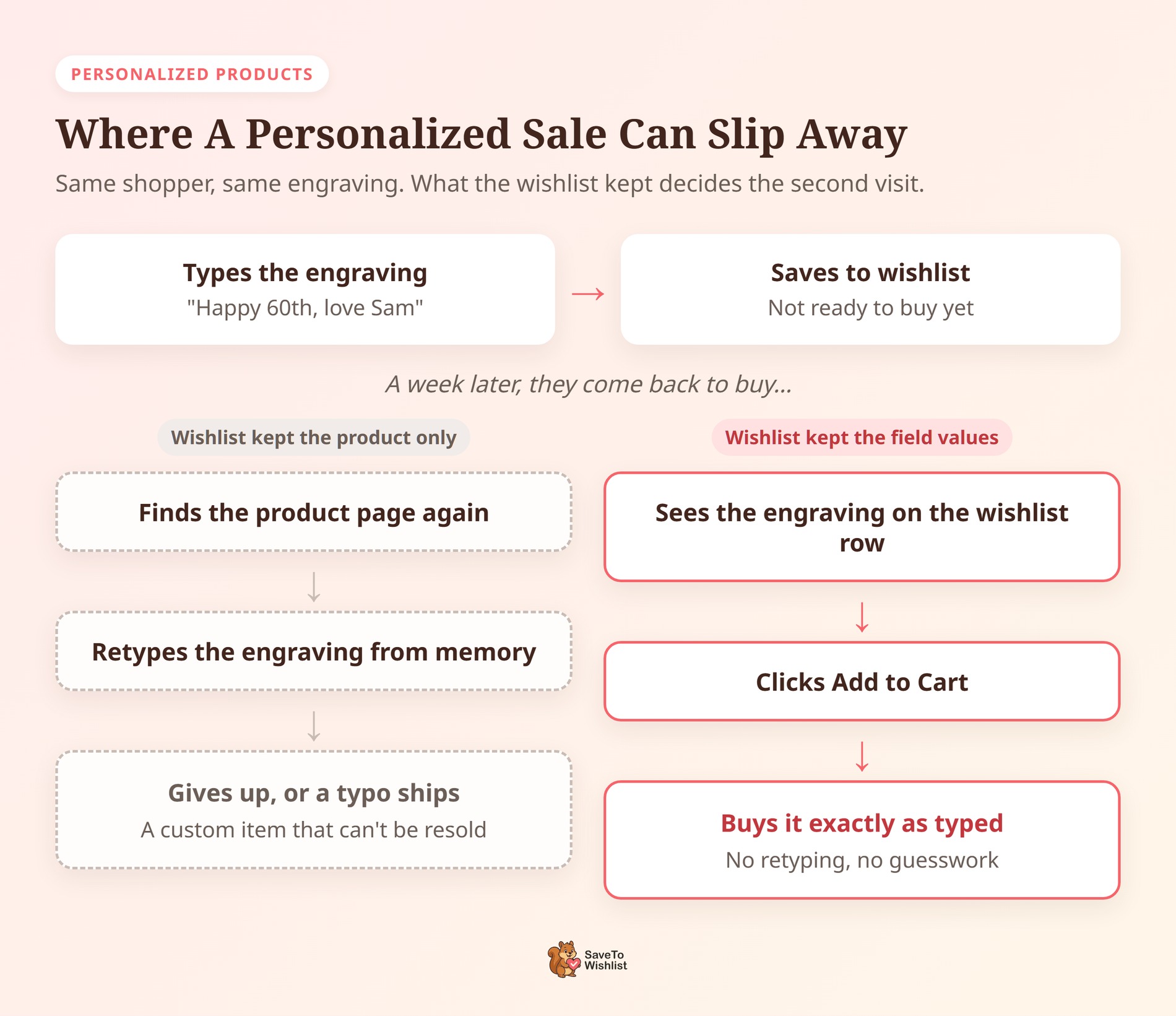
 A shopper types “Happy 30th, Sam” into your engraving field. Then they decide to wait for payday and save the product to their wishlist.
A week later, they come back to buy. With many wishlist setups, the engraving is gone. They have to find the product page, type everything again, and hope they remember it right. Some won’t bother.
If you sell personalized products with Flexible Product Fields, the free SaveTo Wishlist Lite plugin now fixes that. It keeps the values a shopper enters on the product page and sends them to the cart later.
Below, I’ll show you how to set it up and test it. I’ll also cover when shoppers go back to the product page. Then I’ll share five ways to sell more personalized products.
Jump to:
- Why Personalized Products Lose Sales Between Visits
- What The Flexible Product Fields Integration Does
- What You Need Before You Start
- How To Set Up Flexible Product Fields With SaveTo Wishlist
- When Shoppers Go Back To The Product Page
- How Field Prices And Field Changes Work
- 5 Ways To Sell More Personalized Products With This Integration
- Troubleshooting The Integration
- Frequently Asked Questions
- Ready To Keep Shoppers' Choices On The Wishlist?
Why Personalized Products Lose Sales Between Visits
Most carts never turn into orders. Baymard Institute puts the average documented cart abandonment rate at 70.22%, based on 50 different studies.
A wishlist is how many of those shoppers come back. But a personalized product asks for more than a click. It asks for a name, a message, a size choice or a gift note.
Plus, every extra field is another chance to give up. In Baymard’s own survey, 17% of US online shoppers abandoned an order because checkout was too long or complicated. Retyping a gift note you already wrote feels like exactly that kind of extra work.
Mistakes cost you, too. The NRF and Happy Returns expect 19.3% of online sales to be returned in 2025. A personalized item usually can’t be resold, so an engraving retyped wrong after a week away is an expensive slip.
Keeping the shopper’s own words from the first visit helps with both problems. They check what they wrote, then buy.
What The Flexible Product Fields Integration Does

Flexible Product Fields by WP Desk adds custom fields to your WooCommerce product pages. Think of text boxes for engravings, dropdowns, gift-wrap checkboxes and color pickers.
SaveTo Wishlist Lite 1.1.8 connects the two plugins in three ways.
It saves the field values with the wishlist item
A logged-in shopper fills in the fields, then clicks the wishlist button. SaveTo Wishlist checks the values against your Flexible Product Fields rules, then saves them with the item.
It only keeps a complete, valid set. If a required field is empty, nothing is kept for that item.
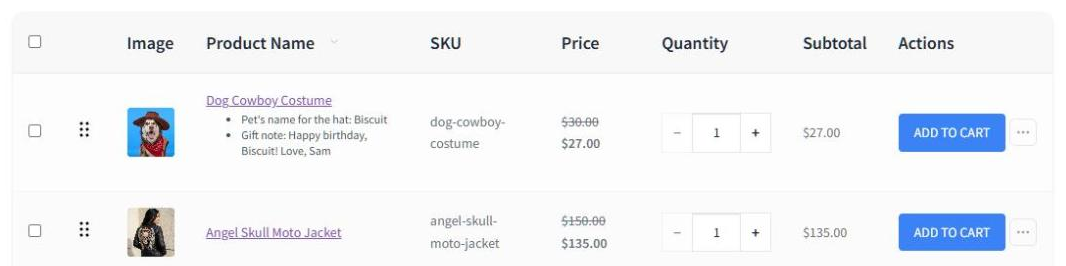
It shows the values on the wishlist row
The wishlist row lists each saved value as “Field name: value”. So a shopper sees “Pet’s name for the hat: Biscuit” under the product name. The row keeps its normal Add to Cart button.
It sends the values to the cart
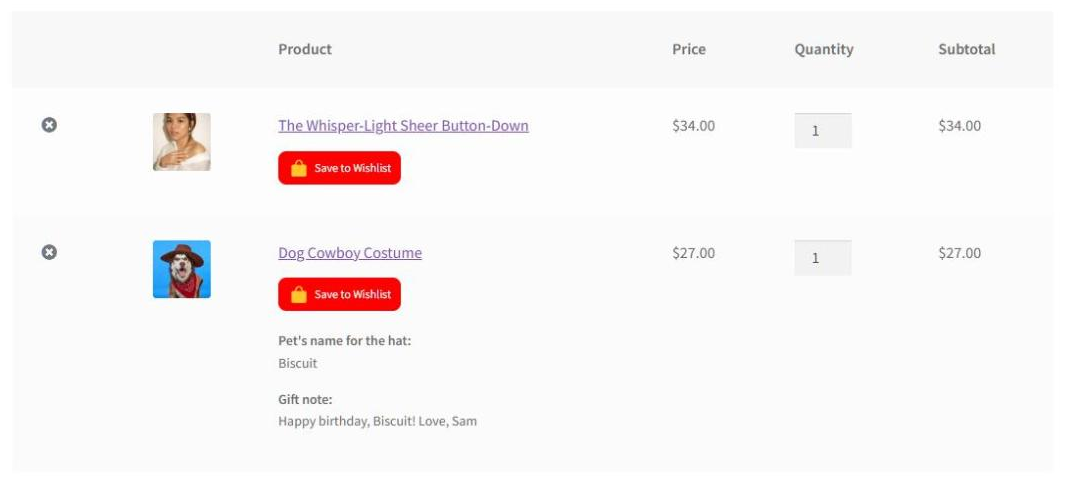
When the shopper clicks Add to Cart, the product goes to the cart with the saved values. It’s the same result as adding it from the product page.
Need those values in a spreadsheet for production? Visser Labs explains exporting order item meta.
Add All to Cart and Add Selected to Cart carry the saved values too. So a shopper buying several saved gifts doesn’t retype anything.
🔍️ What we’ve seen: This is different from our other product-options integrations. With Advanced Product Fields and PPOM, the wishlist sends shoppers back to the product page to choose again. In SaveTo Wishlist Lite 1.1.8, Flexible Product Fields is the only options plugin whose choices travel with the wishlist item.
What You Need Before You Start
- SaveTo Wishlist Lite 1.1.8 or later: The integration ships in the free plugin. SaveTo Wishlist Pro runs on top of Lite, so Pro users get it too.
- Flexible Product Fields, free or Pro: The free plugin by WP Desk has 10,000+ active installs. You don’t need Flexible Product Fields Pro for the integration itself.
- A published field group: It needs at least one field, and it must be assigned to your products.
There’s nothing to switch on in SaveTo Wishlist. The integration starts as soon as both plugins are active.
That said, one plan detail matters here. The free version of Flexible Product Fields assigns a field group to specific products only. Category, tag and all-products assignments need Flexible Product Fields Pro.
How To Set Up Flexible Product Fields With SaveTo Wishlist
There are four steps, and most of the time goes into building your fields.
Step 1: Install or update both plugins
Go to Plugins > Installed Plugins and update SaveTo Wishlist Lite to 1.1.8 or later. Then go to Plugins > Add New Plugin, search for “Flexible Product Fields”, and install and activate it.
Step 2: Create a field group
Go to Products > Product Fields and add a new field group. Add your fields, such as a text field for an engraving or a select field for a gift box style.
Under Assign to, pick the products that should show these fields. Then publish the group.
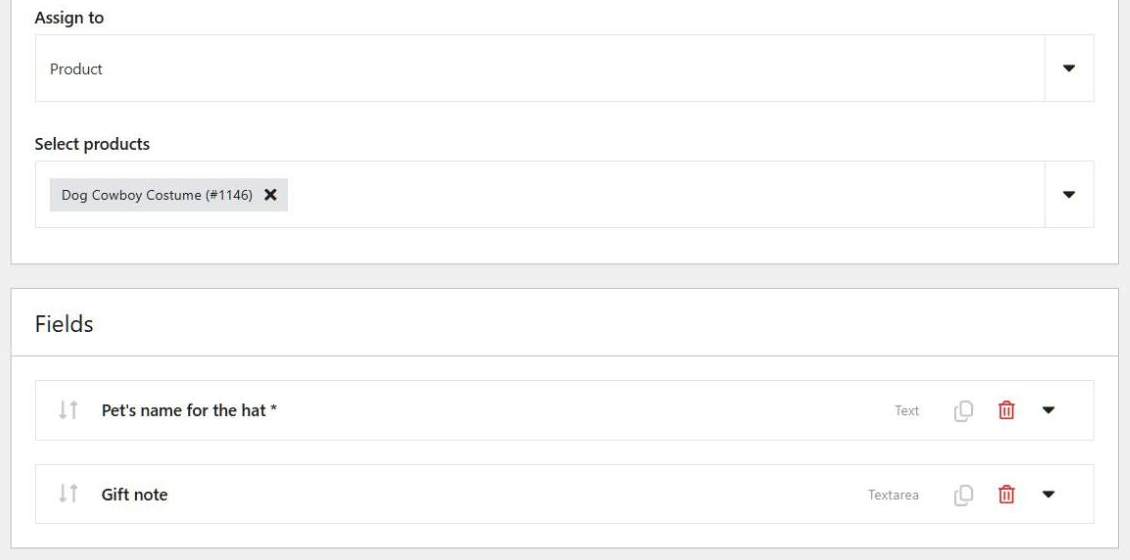
Draft groups are ignored. A published group with no fields is ignored too, because there’s nothing for a shopper to fill in.
Step 3: Save a product with values as a test customer
Log in to your store as a test customer. Open a product with your fields, fill them in, and click the wishlist button.
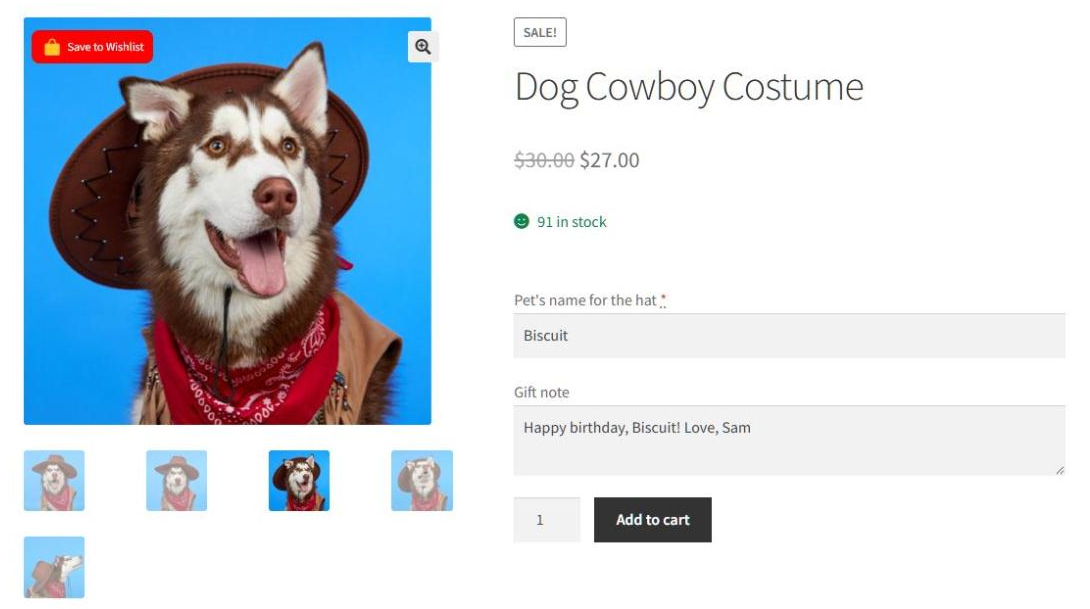
Step 4: Check the wishlist and the cart
Open your wishlist page. The row should list each value you entered. Click Add to Cart, then open the cart and check the same values appear on the cart line.
For the full reference, see our Flexible Product Fields knowledge base guide.
When Shoppers Go Back To The Product Page
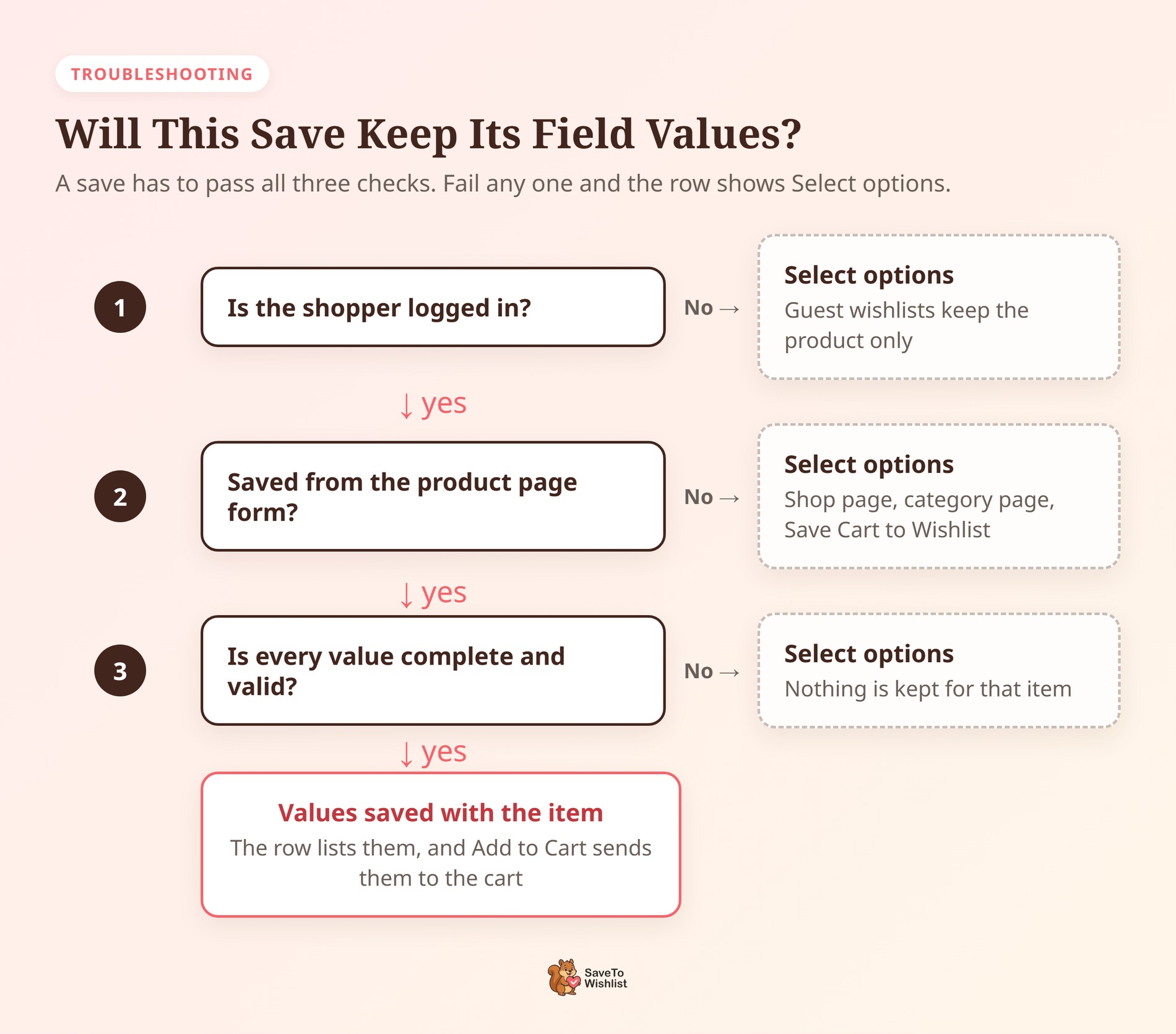
Some wishlist items for products with fields have no saved values. Those rows show a Select options button instead of Add to Cart. It opens the product page, where the shopper fills in the fields.
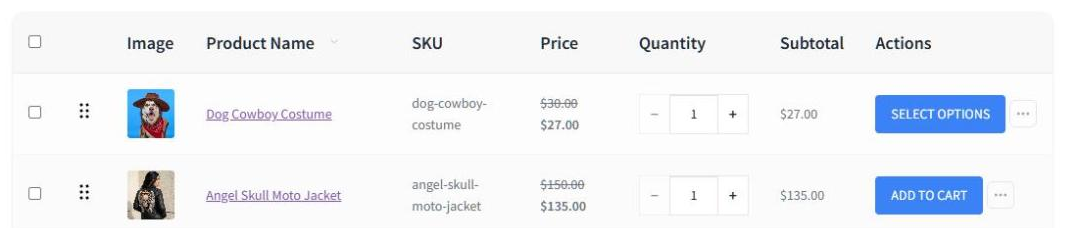
This happens when:
- The product was saved from the shop page, a category page, or anywhere without the product form.
- A required field was empty, a value broke a field rule, or no values were entered.
- The product came from the cart through Save Cart to Wishlist.
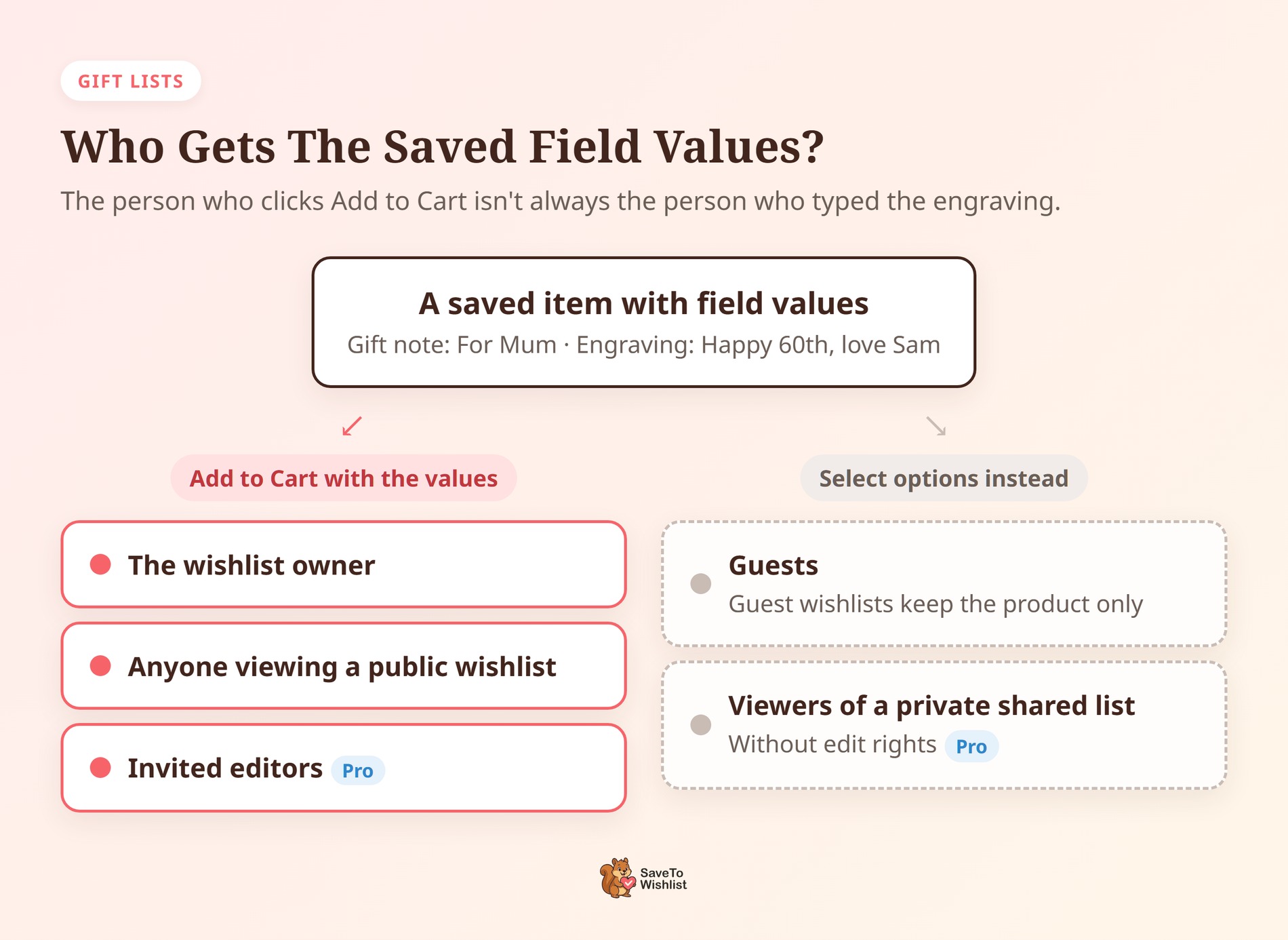
- The product is on a guest wishlist. Guest wishlists save the product only, never the field values.
- Someone opens a private wishlist shared with them through SaveTo Wishlist Pro, without edit rights.
Add All to Cart and Add Selected to Cart skip rows that show Select options. Those items need adding one at a time.
In practice, this fallback is a safety net. A product with required fields never reaches the cart half-configured from the wishlist.
How Field Prices And Field Changes Work
Field prices on the wishlist
Priced fields are a Flexible Product Fields Pro feature. When a saved value has a price, the wishlist row shows it in brackets. For example: “Engraving: Happy birthday ($5.00)”.
The wishlist Price, Subtotal and Total columns use the product price only. The field price is added once the item reaches the cart, so the cart total is the one to trust.
If you change your fields later
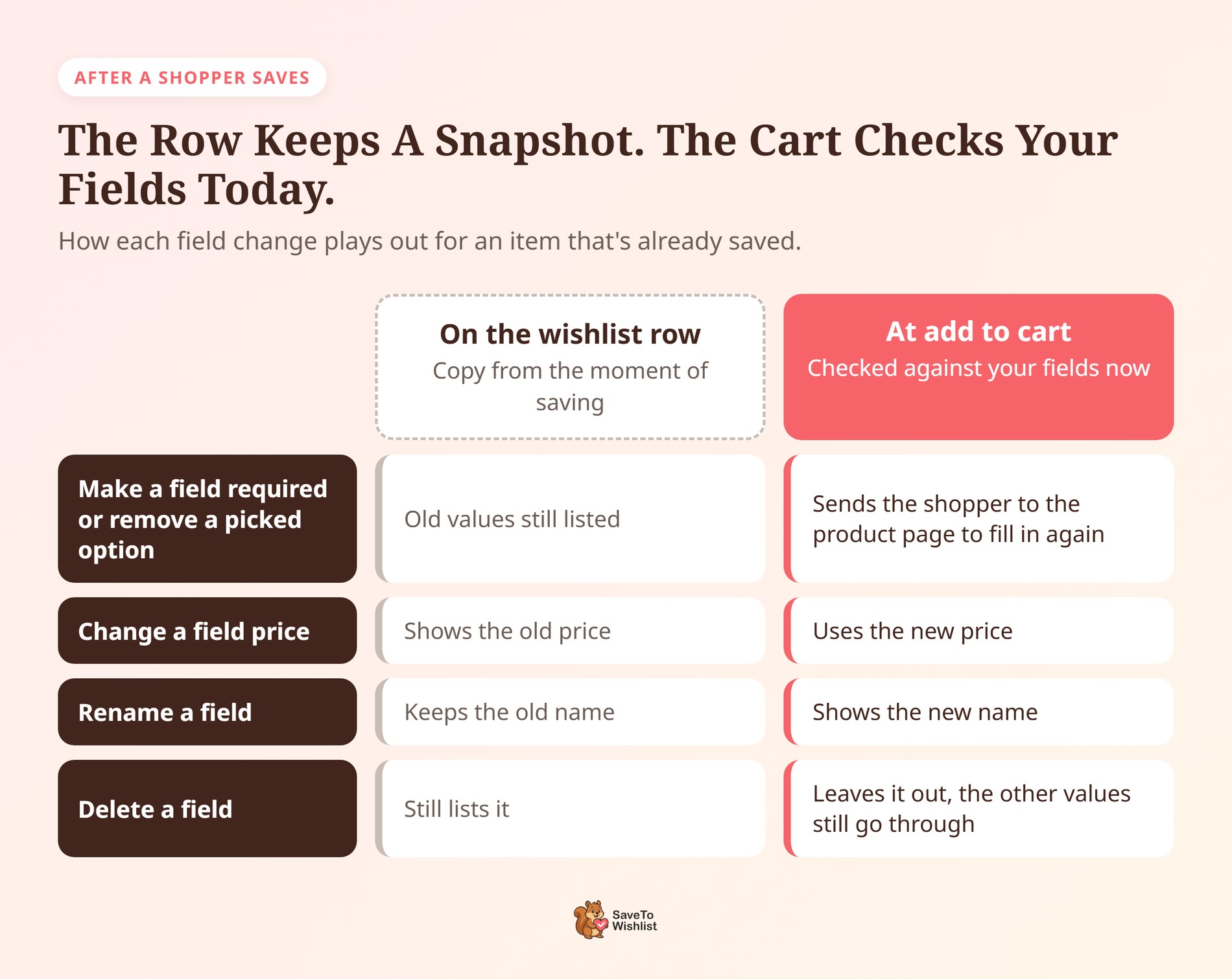
The values on a wishlist row are a copy of what the shopper saw when they saved. At add to cart, Flexible Product Fields checks them against your fields as they are now.
- You make a field required, or remove an option a shopper picked: The saved values fail the check. Add to Cart opens the product page instead.
- You change a field price: The cart uses the new price. The wishlist row still shows the old one.
- You rename a field: The cart shows the new name. The wishlist row keeps the old name.
- You delete a field: The cart leaves it out, and the other saved values still go through.
5 Ways To Sell More Personalized Products With This Integration
The integration removes the retyping. These five habits help you turn saved, personalized items into orders.
Ask shoppers to fill in fields before saving
Values are only kept when a shopper fills in the fields first, then saves from the product page. On our test store, the wishlist button sits on the product image, so shoppers may click it too early.
A short line in your product description helps, such as “Add your engraving, then save it to your wishlist.” A save without values still works. It ends with Select options instead of a one-click add to cart.
Keep required fields short and clear
A save keeps nothing if any required field fails your rules. Only mark a field required when the order truly can’t ship without it.
Put the expected format in the field label, like “Engraving (up to 20 characters)”. As a result, fewer saves fail and more rows get a ready Add to Cart button.
Write field labels for gift givers
Saved values go to the cart for the wishlist owner and for anyone viewing a public wishlist. Editors invited through SaveTo Wishlist Pro get them too. That makes this a strong fit for gift lists and registries.
A gift giver can add the item with the owner’s choices already filled in. They’ll see your field labels on the row and in their cart. Write them for a stranger: “Name to engrave”, not “Your name”.
Nudge guests to log in before they save
Guest wishlists keep the product but not the field values. So a guest who saves a personalized item will have to retype the values later. A login link on the guest wishlist helps more shoppers sign in first.
Plan field changes around saved items
Making a field required, or removing an option, sends affected saved items back to the product page. That’s safe, but it adds a step for shoppers who already did the work.
So make those changes outside your busiest season if you can. Price changes are gentler, since the cart uses the new price.
🔍️ What we’ve seen: A common setup slip is testing with a save from the shop page. That save has no field values, so the row shows Select options. Test from the product page instead, logged in, with every required field filled in.
Troubleshooting The Integration
A product with fields shows Add to Cart but no values
Make sure Flexible Product Fields is active. Then open the field group under Products > Product Fields. Check it’s published, has at least one field, and that Assign to includes this product.
If you used a category, tag or all-products assignment, Flexible Product Fields Pro must be active.
A shopper filled in the fields but sees Select options
Ask the shopper to remove the item and save it again from the product page while logged in. Every required field must be filled in, because values are only kept when the full set passes your rules.
Moving an item shows an error about different options
The message reads “This item is already in that wishlist with different options.” The other wishlist already holds the same product with different values.
Each row keeps one set of values, so SaveTo Wishlist won’t merge them. Remove one of the two items first, then move the other.
Frequently Asked Questions
Do I need SaveTo Wishlist Pro for the Flexible Product Fields integration?
No. The integration is part of the free SaveTo Wishlist Lite plugin, version 1.1.8 or later. If you run SaveTo Wishlist Pro, you have it too, because Pro is built on Lite.
Do I need Flexible Product Fields Pro?
No. The free plugin works with the integration. You only need Pro for priced fields and for assigning field groups by category, by tag, or to all products.
Do guests keep their field values?
No. Guest wishlists save the product only. When a guest adds it to the cart, they go to the product page to fill in the fields.
What happens if a shopper saves the same product again with different values?
A wishlist keeps one set of values per product. Saving the same product to the same wishlist with new values replaces the old ones.
What happens to saved values if I deactivate Flexible Product Fields?
The wishlist row stops listing them, and the item goes into the cart without them. The values stay stored, so they come back when you activate Flexible Product Fields again.

Ready To Keep Shoppers’ Choices On The Wishlist?
Personalized products take effort to configure. This integration makes sure shoppers only put in that effort once.
- Install both plugins and publish a field group.
- Test as a logged-in customer from the product page.
- Ask shoppers to fill in fields before saving.
- Write field labels gift givers can follow.
Your personalized products are one free update away from wishlists that remember. Install or update SaveTo Wishlist Lite to version 1.1.8 to get started.



