Installing the gift registry add-on, or moving it to a new site? Your license key unlocks new registries and plugin updates. This guide shows you how to activate your SaveTo Wishlist Registry license, what each license status means, and how to move it to another site.
Prerequisites
- SaveTo Wishlist Lite and SaveTo Wishlist Registry installed and active. On the Plugins screen, the Registry is listed as SaveTo Wishlist Gift Registry Addon.
- Your SaveTo Wishlist Registry license key and the email address of your SaveTo Wishlist account. You can find both in your account dashboard.
Activate your Registry license
- Go to SaveTo Wishlist > License.
- If the page shows tabs, click the Gift Registry tab.
- Enter your email address in the Account Email field.
- Enter your key in the License Key field.
- Click Save License.
When the key is valid, the status at the top of the tab changes to Your license is active.
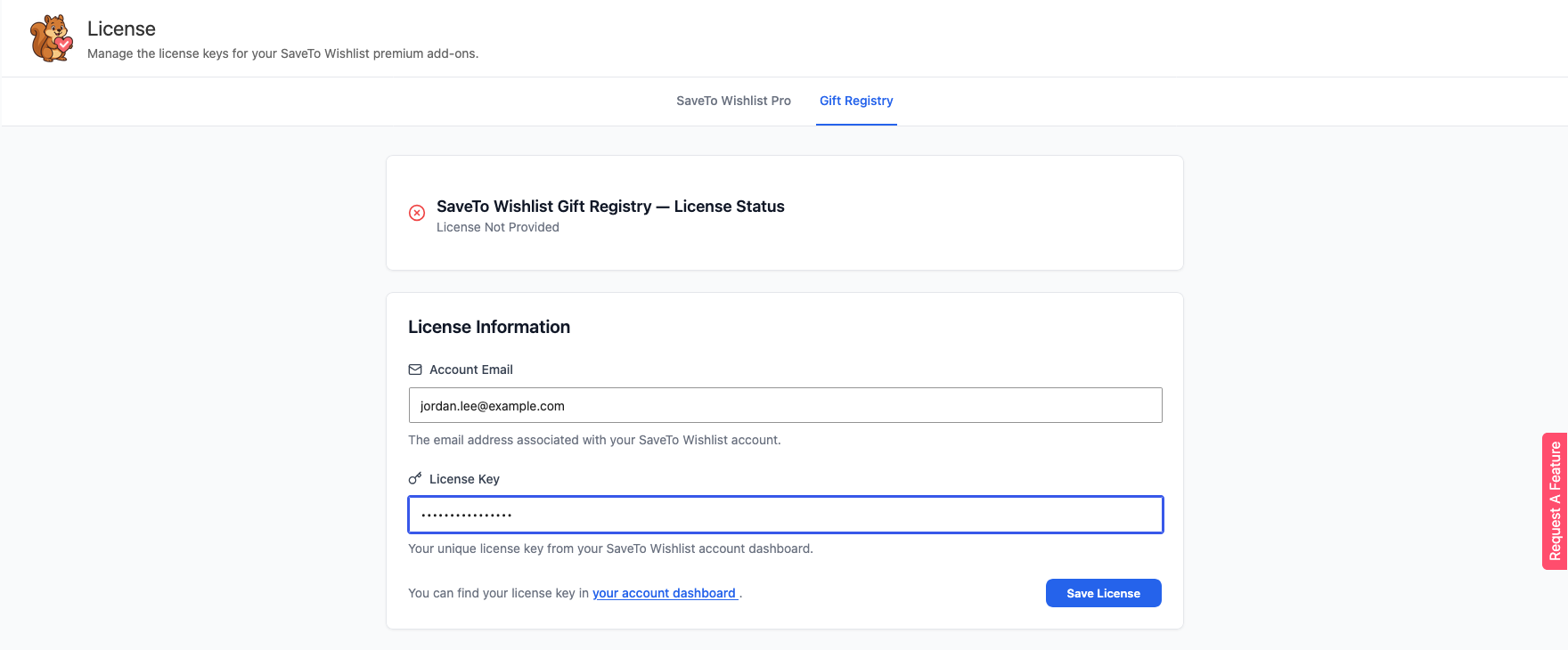 The tabs only show when you have more than one premium add-on. If the Registry is your only one, the page shows its form straight away. If you also use SaveTo Wishlist Pro, its key goes on the SaveTo Wishlist Pro tab. Each plugin keeps its own key.
What each license status means
| Status | What it means |
|---|---|
| Your license is active | Your key is valid. You can create registries and get plugin updates. |
| License Not Provided | No key is saved on this site yet. Enter your email and key, then click Save License. |
| License Not Active | The license server has turned your key off. Check your license in your account dashboard, then enter the key again and click Save License. |
| License Expired | Your license period has ended. Renew it to create registries and get updates again. |
What happens when your license is not active
Your existing registries keep working. Guests can still open them and buy gifts, and you can still manage the items on them. These features stop until you activate or renew your license:
- Creating a new registry, including converting a wishlist into a registry.
- The settings on the Gift Registry tab under SaveTo Wishlist > Settings. The tab shows only a license notice.
- Plugin updates for SaveTo Wishlist Registry.
The Registries screen and the settings tab show a notice with an Activate License button, or a Renew License button when the license has expired. Both buttons open the license page.
Get plugin updates
When your license is active, new versions of SaveTo Wishlist Registry show on the WordPress Plugins screen, like any other plugin update. The plugin also checks your license once a day in the background, so a renewal shows up on its own. The check runs on WP-Cron, so it runs when your site gets visits.
Move your license to another site
- On the old site, go to SaveTo Wishlist > License. If the page shows tabs, click Gift Registry.
- Click Remove License.
- Free the activation in your account dashboard. See How to remove an activated site from your license.
- On the new site, activate the license with the steps above.
Remove License only clears the key from this site. It does not free the activation on your account, so do step 3 as well.
Troubleshooting
I see “Failed to connect to license server.”
Check that your site can reach the internet, then click Save License again. A firewall or security plugin can block the connection.
I see “Account email is required.” or “License key is required.”
Fill in both fields, then click Save License.
Save License shows an error
Check that the key and email match the ones in your account dashboard. If the key is already active on the number of sites your plan allows, remove an old site first.
I renewed my license, but the site still shows License Expired
Enter your license key again on the Gift Registry tab and click Save License. Your email is already filled in. The daily license check also updates the status within a day.
Frequently asked questions
Do my existing registries stop working when my license expires?
No. Existing registries remain active. You cannot create new registries or get updates until you renew.
Can I use my SaveTo Wishlist Pro key for the Registry?
No. The Registry has its own key. You can find it in your account dashboard. Enter it on the Gift Registry tab, and the Pro key on the SaveTo Wishlist Pro tab.
What’s next
- Getting started with SaveTo Wishlist Registry
- How to manage your SaveTo Wishlist Pro license
- How to remove an activated site from your license
Need help?
If you have a question or run into any issues, we’re here to help.
- Premium users: Open a support ticket
- Free users: Visit our community forum