
If you use Search & Filter to let shoppers narrow down your products, you want the wishlist button on those filtered results too. SaveTo Wishlist adds it automatically. This guide shows you how to set it up, and how to let shoppers filter by their own wishlists.
Search & Filter comes in two versions, and SaveTo Wishlist supports both. Version 1.x is the version on WordPress.org. The wishlist button works with it, no setup needed.
Version 3.x is a full rewrite by Code Amp, and its free edition is a separate download from the Search & Filter website. The wishlist button also works on 3.x results. With 3.x and SaveTo Wishlist Lite 1.1.5 or later, you also get a filter-by-wishlist field and a wishlist-popularity sort option, covered further down.
Using ThemeHunk’s Advance Product Search for live search suggestions instead? See How to integrate SaveTo Wishlist with Advance Product Search (ThemeHunk).
What you’ll need
- SaveTo Wishlist version 1.1.0 or newer, installed and active. The free plugin includes Search & Filter support, so you don’t need Premium.
- The free Search & Filter plugin, installed and active. Version 1.x is on WordPress.org. The free 3.x edition is a separate download from the Search & Filter website.
- The wishlist button turned on for your shop and category pages. It’s on by default.
- To add a wishlist filter field or the Wishlist Count sort option, you also need SaveTo Wishlist Lite version 1.1.5 or later and Search & Filter 3.x. These options aren’t available on Search & Filter 1.x.
How it works
Once both plugins are active, there’s nothing to configure. When a customer uses your Search & Filter form or fields and the results are WooCommerce products, SaveTo Wishlist adds the wishlist button to each product in the grid, the same way it does on your normal shop page. This applies to both Search & Filter 1.x and 3.x.
This works with the free Search & Filter plugin. On 1.x, Search & Filter Pro is a different plugin and works in its own way. On 3.x, Search & Filter Pro is an add-on that runs on top of the free plugin.
Set it up
Install the free Search & Filter plugin
- Go to Plugins, then Add Plugin.
- Search for Search & Filter.
- Install and activate the plugin.
This installs Search & Filter 1.x. To use 3.x instead, download the free edition from the Search & Filter website, then go to Plugins, Add Plugin, Upload Plugin, and upload the zip file.
Create a search form that returns products (1.x)
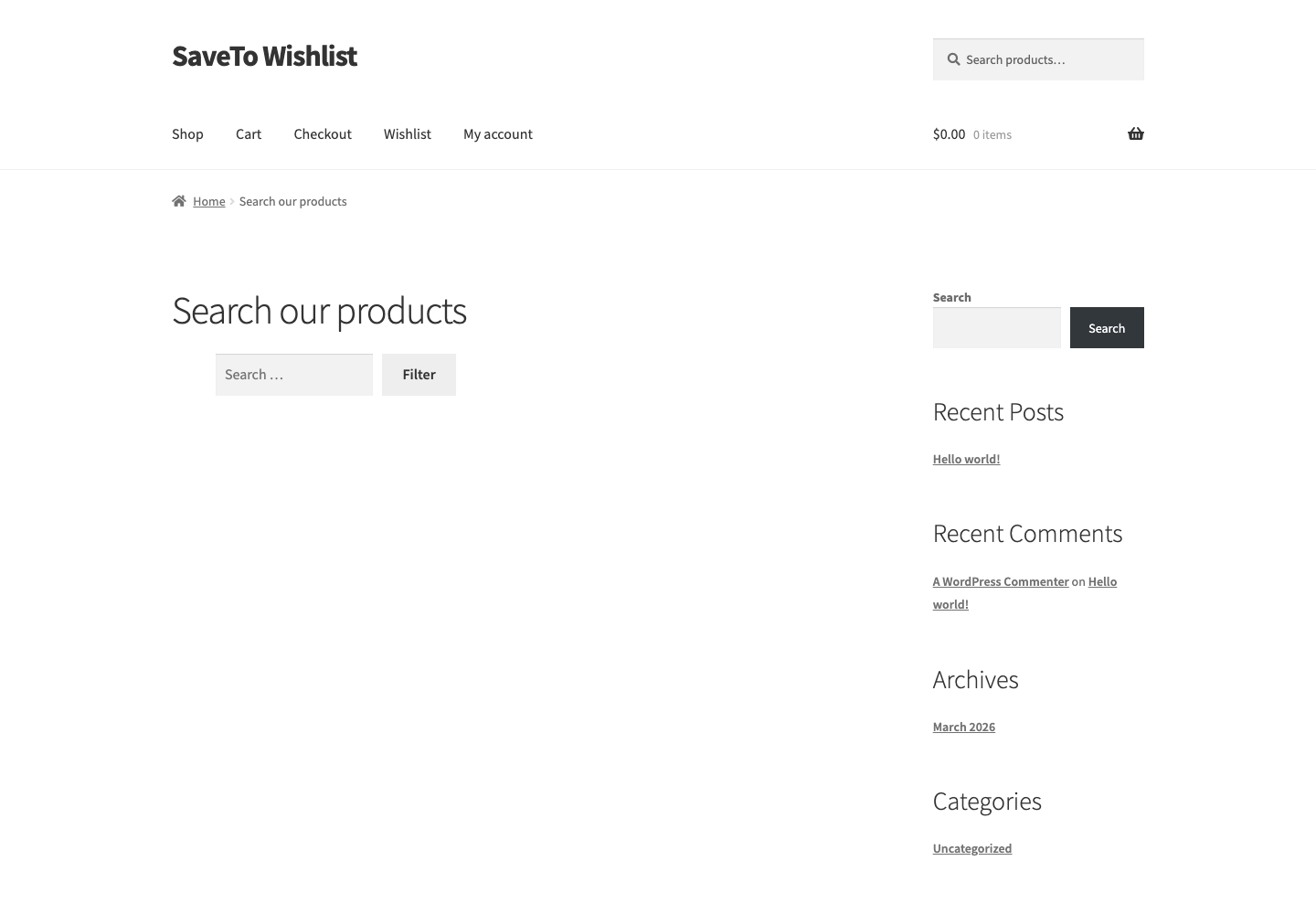
In Search & Filter, create a search form and set it to filter your WooCommerce products. The quickest way is to add this shortcode to any page:
[searchandfilter fields="search" post_types="product"]The post_types="product" part is what matters. It tells Search & Filter to search your products only. If your form returns other content like blog posts as well, the wishlist button won’t appear on the results.
Create a query (3.x)
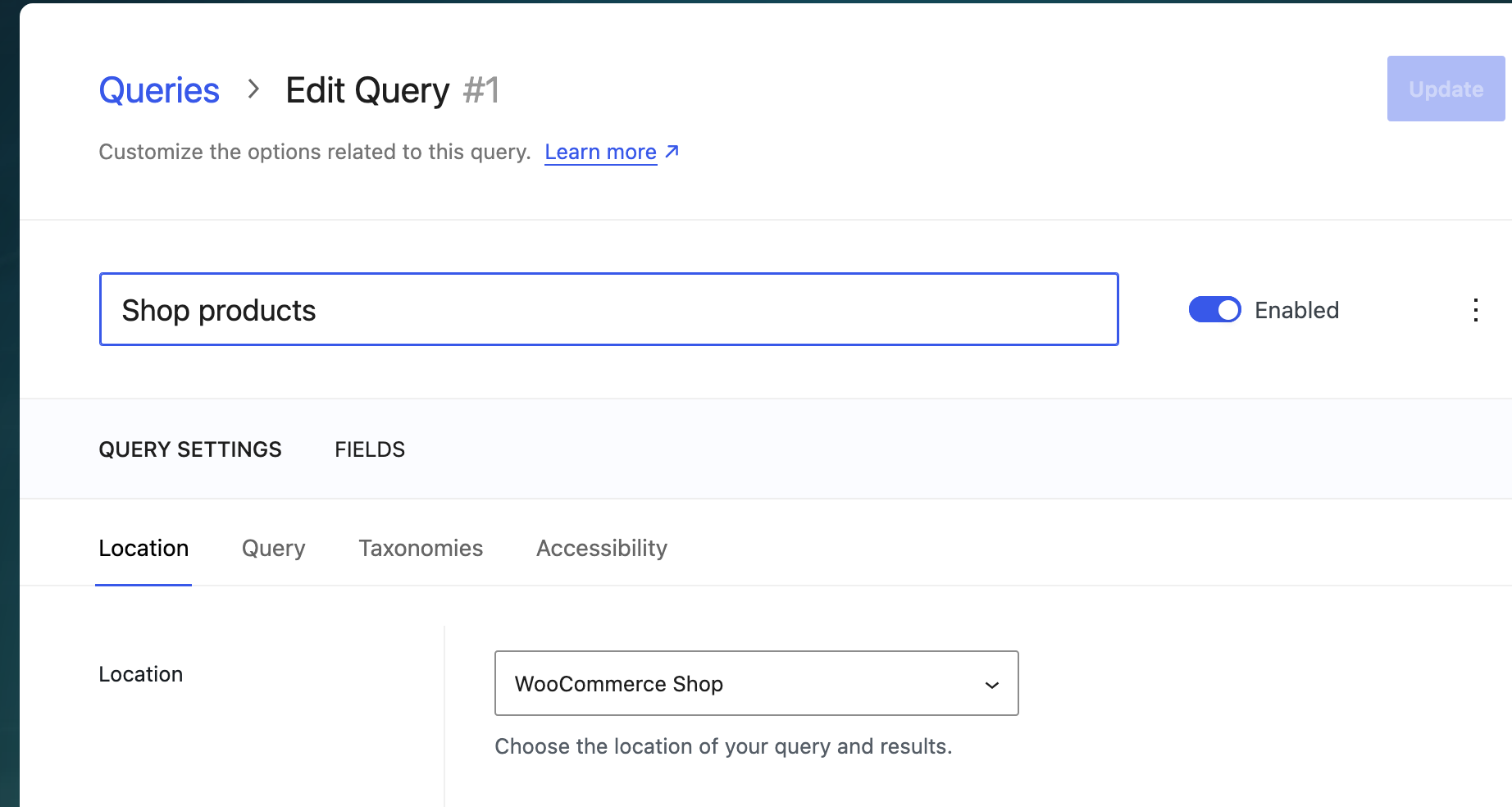
Search & Filter 3.x has no forms. You create a query for your products, then create fields and connect them to that query.
- Go to Search & Filter, then Queries.
- Click Add New.
- Enter a name for the query.
- Set Location to WooCommerce Shop.
- Click Save.
Create the fields (3.x)
- Go to Search & Filter, then Fields, and click Add New.
- Pick your new query in the Query setting.
- Set up the field, then click Save. Repeat steps 1 to 3 for each field you want.
- Repeat steps 1 to 3 to add a Control > Submit field. The free edition doesn’t apply filters on its own, so shoppers click this button to apply their choices.
- Click Copy shortcode on each field.
- Add the shortcodes where your products appear, for example in your shop template above the products.
Check the wishlist button is turned on
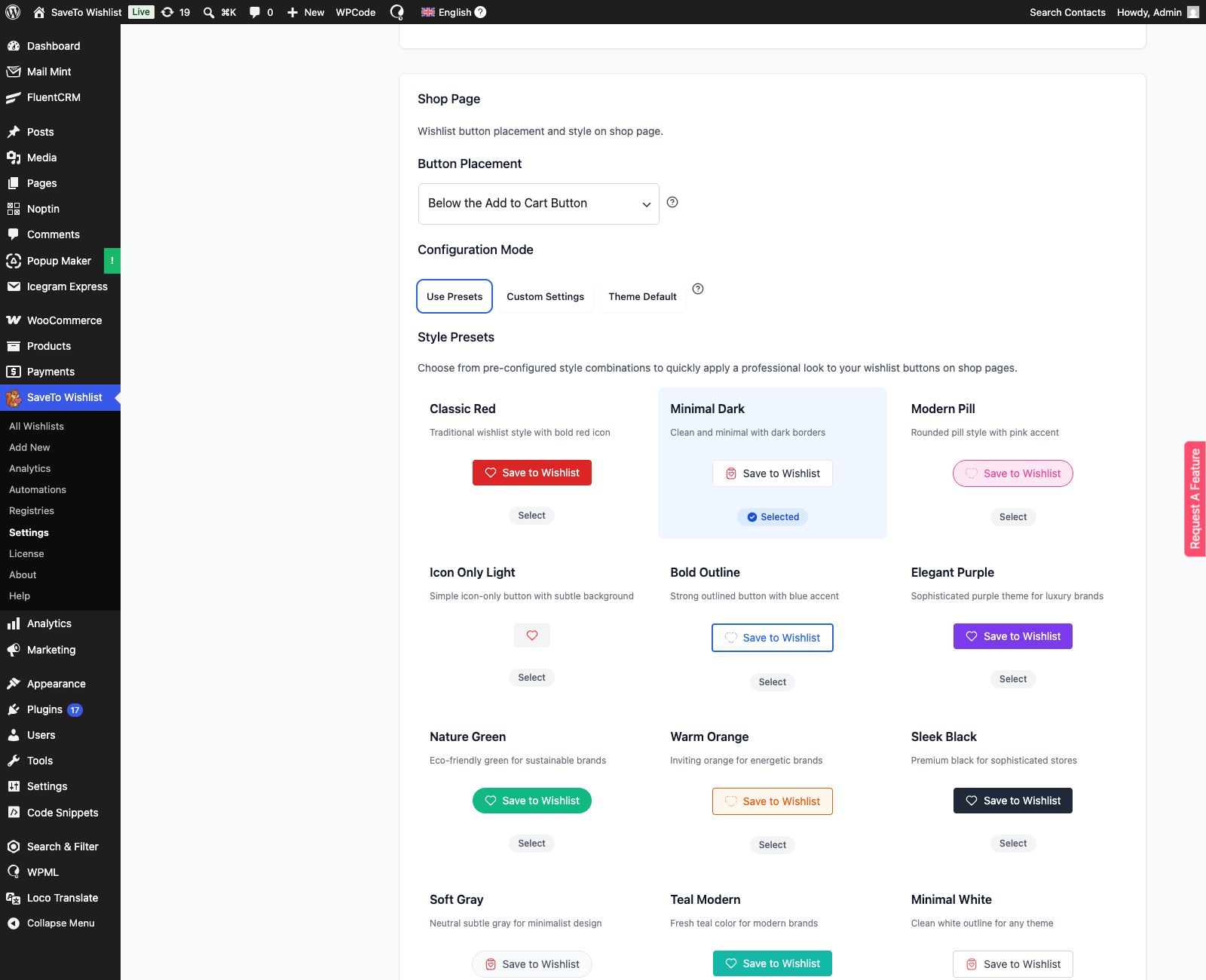
- Go to SaveTo Wishlist, then Settings.
- Open the Button Placement & Styles tab.
- Open the Shop Page section.
- Make sure Button Placement is set to a visible option, not Don’t show. Any of the placement options work. This example uses Below the Add to Cart Button.
View your filtered results
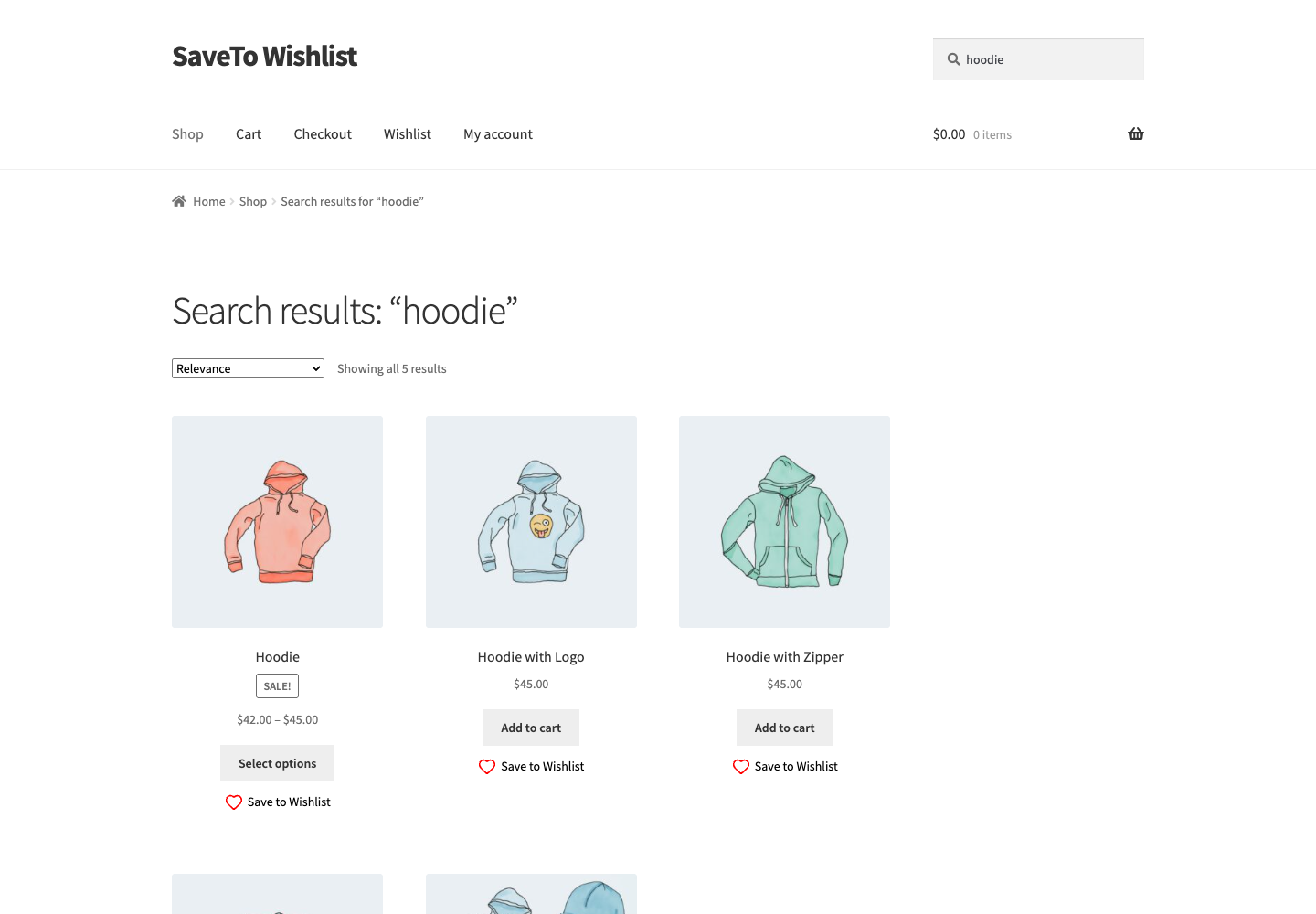
Open the page where your Search & Filter fields and results appear, then filter the results. On 3.x, click your Submit button to apply the filters. The wishlist button shows on each product, so shoppers can save items straight from the filtered grid.
Filter and sort by wishlist (Search & Filter 3.x only)
If you’re on Search & Filter 3.x and SaveTo Wishlist Lite 1.1.5 or later, you can also let shoppers filter results down to the products on their wishlist, and sort your shop results by how many wishlists each product appears on.
Add a wishlist filter field
- Go to Search & Filter, then Fields, and add or edit a field that is connected to your shop query.
- Set the field type to a Choice type: Select, Radio, Checkbox, or Button.
- Set Data Type to Wishlist.
- Choose a Data Source. Any of my wishlists shows a single option, “On my wishlist”, that matches a product against any wishlist the shopper owns. One option per wishlist lists each of the shopper’s own wishlists as a separate choice.
- Click Save, or Update if you edited an existing field.
- Make sure the page also has a Submit field, so shoppers can apply the filter.
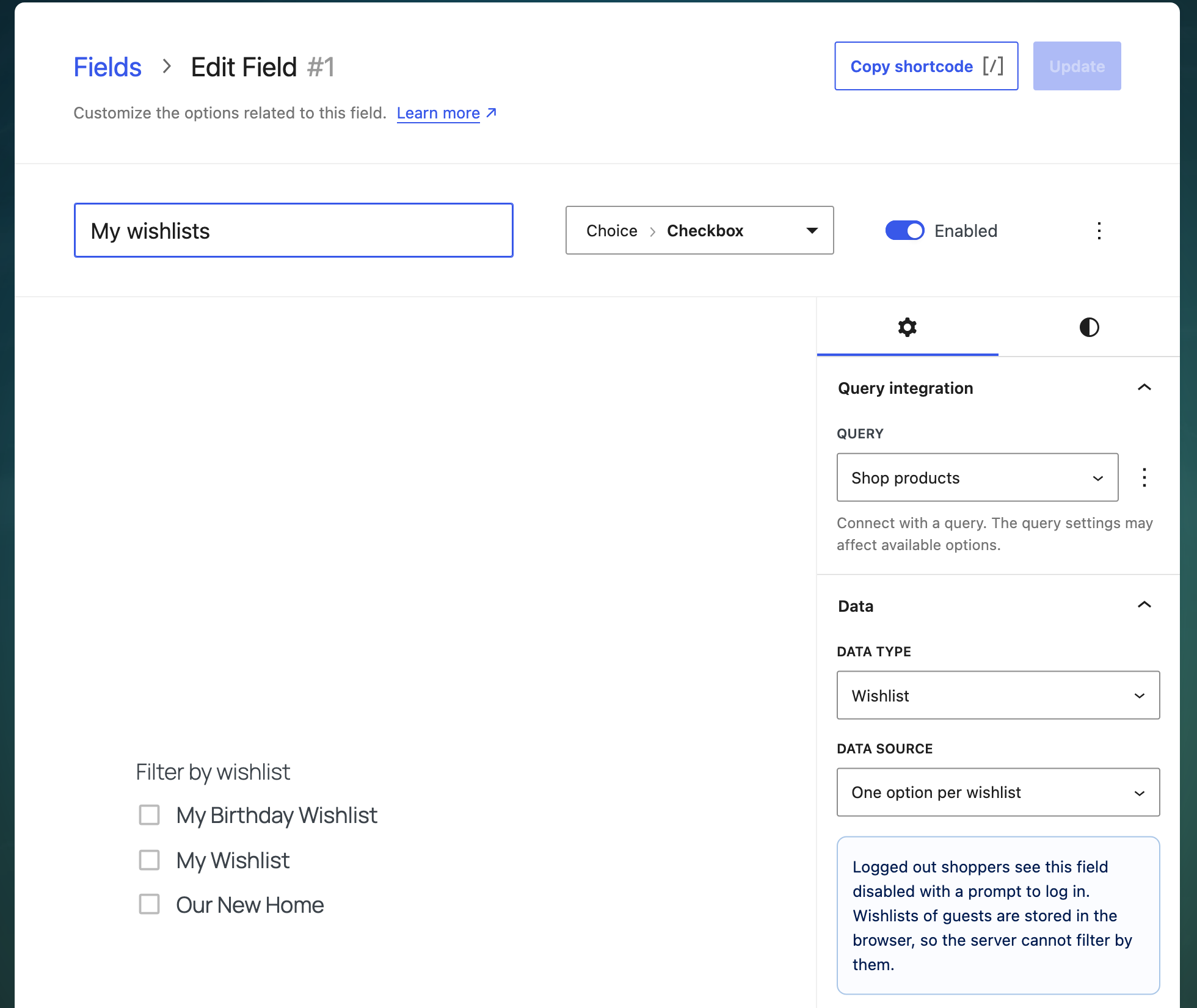
Logged-in shoppers see this field work like any other Search & Filter choice field. Logged-out shoppers see a “Log in to filter by your wishlist.” prompt and a Log in link in place of the options. The link brings them back to the same page after they log in. A guest’s wishlist lives in their browser only, so the server has nothing to filter by until they log in.
Sort results by wishlist popularity
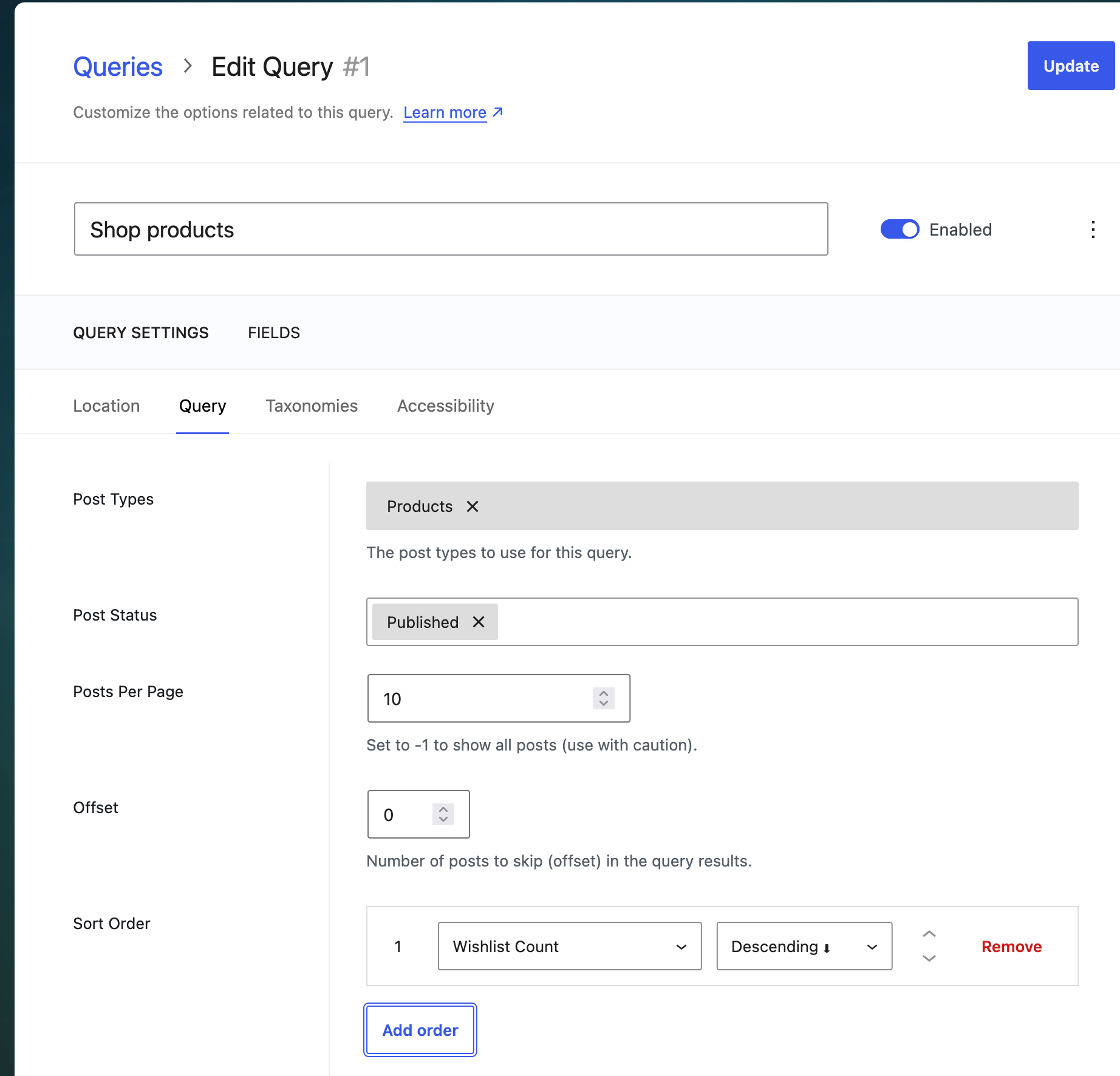
- Go to Search & Filter, then Queries, and edit your shop query.
- Open the Query tab.
- Under Sort Order, click Add order and choose Wishlist Count.
- Set the direction to Descending to show the most-wishlisted products first.
- Click Update.
Results are ordered by how many saved wishlists each product appears on. Private wishlists count too, as long as they’re not left in draft. Shoppers can’t pick this sort themselves, because the Search & Filter Sort field doesn’t list it.
Troubleshooting
The wishlist button isn’t showing on my filtered results
On Search & Filter 1.x, set your search form to return products only. SaveTo Wishlist adds the button only when the results are all WooCommerce products. If the form returns a mix of products and other content like blog posts, the button won’t appear.
The button isn’t showing on any shop or category page
Go to SaveTo Wishlist, then Settings, then the Button Placement & Styles tab, then the Shop Page section, and check Button Placement. If it’s set to Don’t show, choose one of the placement options instead.
The wishlist filter field shows a login prompt
This is expected for logged-out shoppers on Search & Filter 3.x. A guest’s wishlist lives in their browser, not on your server, so there’s nothing for the field to filter by until they log in. The field shows a login prompt and a Log in link instead of the wishlist options.
Ticking a wishlist option doesn’t change the results
Add a Submit field to the page. The free Search & Filter 3.x edition applies filters only when the shopper clicks the Submit button. To add one, go to Search & Filter, then Fields, click Add New, and choose Control > Submit. Then add its shortcode to the same page as your other fields.
I’m using Search & Filter Pro
This built-in compatibility is for the free Search & Filter plugin. On 1.x, Search & Filter Pro is a separate plugin that works differently. On 3.x, Pro is an add-on that runs on top of the free plugin. If the button isn’t showing with Pro, reach out to our support team.
Frequently asked questions
Do I need the paid version of Search & Filter?
No. This works with the free Search & Filter plugin. You don’t need Search & Filter Pro. Version 1.x is on WordPress.org, and the free 3.x edition is a download from the Search & Filter website.
Do I need SaveTo Wishlist Premium?
No. Search & Filter support, including the wishlist filter field and sort option, is part of the free SaveTo Wishlist Lite plugin.
Does the wishlist button work when customers filter the results?
Yes, on both versions of Search & Filter. On 1.x and on the free 3.x edition, filtering reloads the page and the button is drawn on each product in the fresh grid. If Search & Filter updates the results without a page reload, SaveTo Wishlist re-applies the button state right after the update. Either way, saved items are remembered for both logged-in customers and guests.
Can I filter or sort products by wishlist?
Only on Search & Filter 3.x. Add a choice field with the Wishlist data type to let shoppers filter to their own wishlisted products. To order results by how many wishlists each product is on, set the Wishlist Count sort on your query. Shoppers can’t pick this sort themselves. Both are part of the free SaveTo Wishlist Lite plugin, version 1.1.5 and newer.
Need help?
- Premium users: Open a support ticket
- Free users: Visit our community forum

