
Searching a long product list for a specific item slows down wishlist management. SaveTo Wishlist lets you type a SKU or barcode directly into the product search box. No configuration needed. It works when adding products in the admin panel and when filtering items on the customer-facing wishlist page.
Prerequisites
- SaveTo Wishlist Lite version 1.0.6 or later installed and active
- WooCommerce active on your store
How to Search by SKU or Barcode
SKU and barcode search works in the admin panel when you’re editing a wishlist.
- Go to SaveTo Wishlist → All Wishlists.
- Click a wishlist to open it.
- Click Add Product.
- In the search box, type the SKU or barcode. Results appear once you’ve typed at least 3 characters.
- Click the matching product to add it to the wishlist.
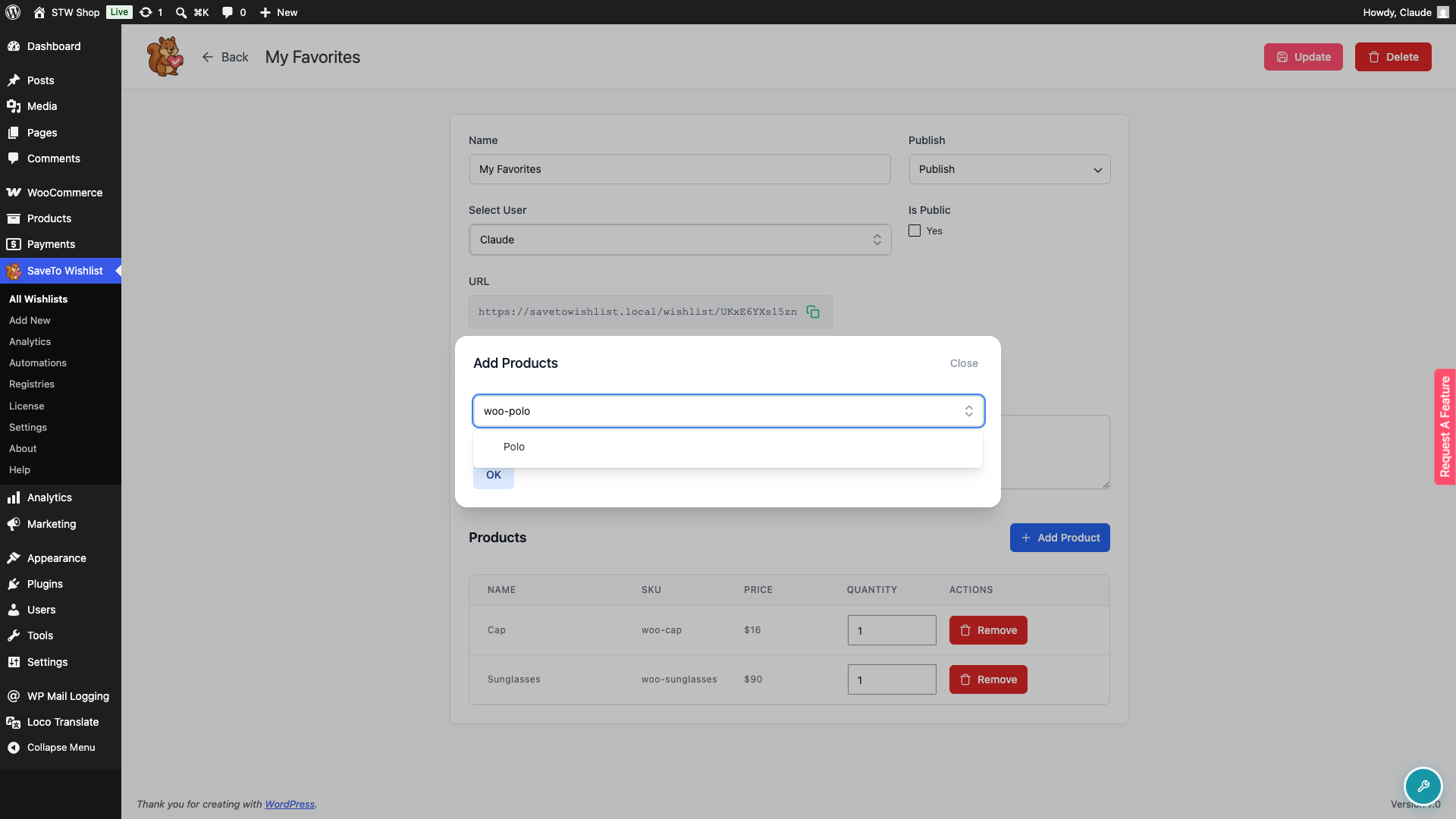
If you type an exact SKU, that product appears at the top of the results. Partial SKU and barcode matches follow below it.
Searching Your Wishlist on the Customer Page
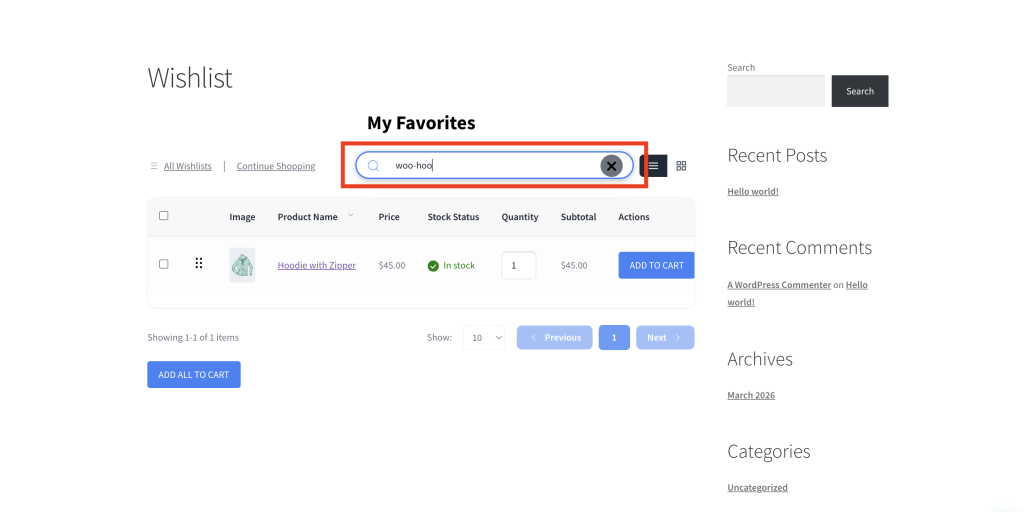
Customers can also search the items already in their wishlist by SKU or barcode. The search box on the wishlist page (placeholder “Search for anything…”) filters existing wishlist items as you type.
- Open the wishlist page from My Account or a shared wishlist link.
- In the Search for anything… box, type a SKU or barcode. Results appear as you type.
- The wishlist filters to show only matching items.
Supported Barcode and GTIN Formats
The search checks the barcode or GTIN value stored on each product, covering the most common WooCommerce barcode plugins automatically:
- WooCommerce’s built-in GTIN field (WooCommerce 9.2 or later)
- EAN for WooCommerce (Algoritmika)
- Other barcode plugins that store values in a
_barcodeorbarcodemeta field are covered automatically - A developer can register additional meta fields via the
stwlite_product_search_gtin_meta_keysfilter if their barcode plugin stores values elsewhere.
Troubleshooting
Typing a SKU returns no results
When searching from the admin panel, make sure you’ve typed at least 3 characters. The search won’t run on shorter terms. Then check the product’s Inventory tab in WooCommerce to confirm the SKU is saved on the product.
Barcode search returns no results
Your barcode plugin may store values in a meta field that isn’t in the supported list above. Check which field your plugin uses, then have a developer register it via the stwlite_product_search_gtin_meta_keys filter.
Frequently Asked Questions
Does this require any setup or configuration?
No. SKU and barcode search is active automatically from SaveTo Wishlist Lite version 1.0.6. There are no settings to enable.
I typed the correct barcode but got no results. What should I check?
First confirm the barcode is saved on the product in WooCommerce. Check the product’s Inventory tab or the dedicated barcode field added by your plugin. If your barcode plugin stores values in a meta field that isn’t in the supported list above, a developer can add it via the stwlite_product_search_gtin_meta_keys filter. Search terms shorter than 3 characters don’t trigger a search in the admin panel.
Can I search by a product variation’s SKU?
Yes. If a variation has its own SKU, typing it returns the parent product in the results. The wishlist stores the parent product, not the specific variation.
Need Help?
- Premium users: submit a support ticket and our team will help you out.
- Free users: post in the WordPress.org support forum.

