
When you’re setting up an automation to send email notifications, it’s worth checking the email looks right before a real trigger fires it. SaveTo Wishlist Pro lets you send a test email directly from the automation editor—so you can confirm the subject line, message body, and any variable tags are working exactly as you expect.
Requirements
- SaveTo Wishlist Lite installed and active
- SaveTo Wishlist Pro 1.0.1 or later installed and active
- WooCommerce installed and configured
- An automation with Send an email notification set as the action
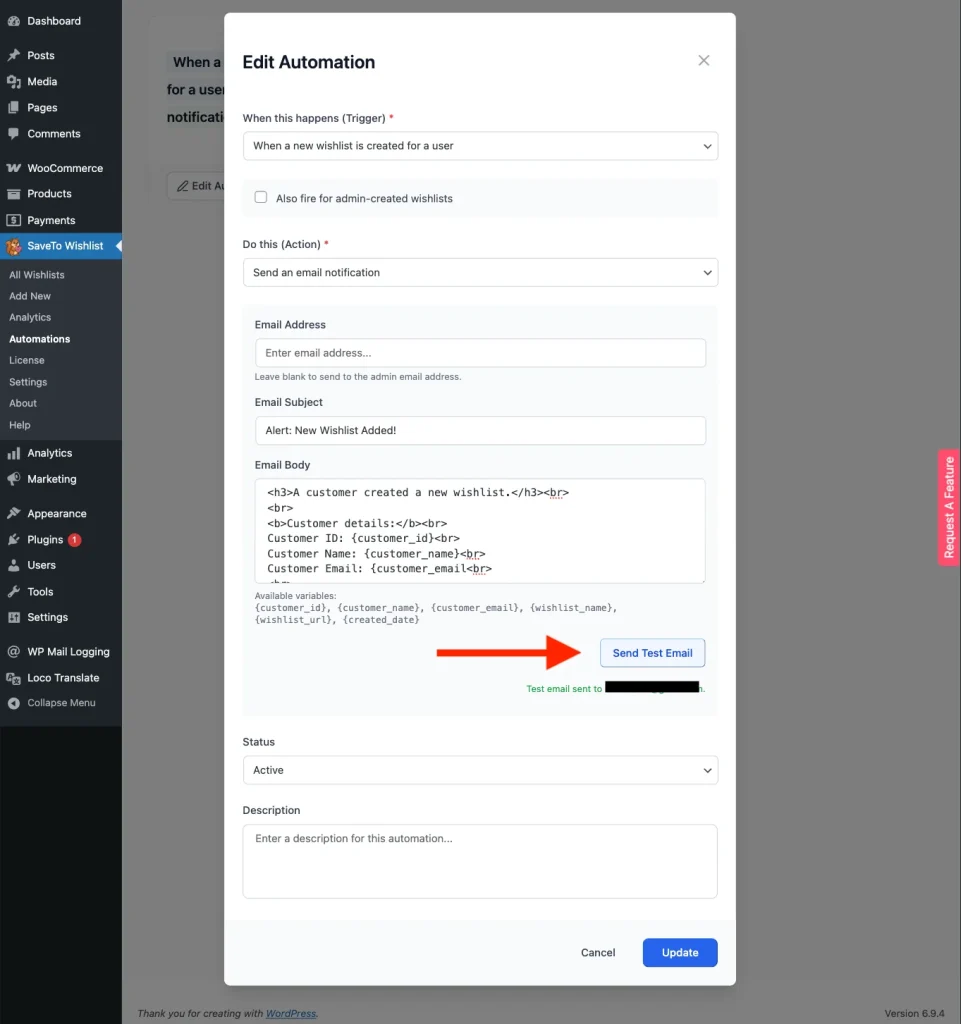
How To Send A Test Email
- Go to SaveTo Wishlist → Automations.
- Open an existing automation or click Add New to create one.
- Under Do this (Action), select Send an email notification.
- Fill in the Email Address, Email Subject, and Email Body fields.
- Leave the email address blank to send to your site’s admin email instead.
- Click Send Test Email.
- Check the inbox for the address you entered (or your admin inbox if left blank).
What To Check In Your Test Email
When the test email arrives, check the following:
Subject line. The test email arrives with a [Test] prefix added to whatever subject you entered. For example, [Test] Your subject here. If you left the subject blank, it arrives as [Test Email] Automation Preview. Confirm the rest of the subject reads as intended.
Message body. Review the layout and wording. Variable tags are replaced with sample data so you can see how the formatted email will look. For example, {customer_name} shows as “Jane Doe” and {wishlist_name} shows as “My Sample Wishlist”. None of it is real customer data.
Sender name and address. The email comes from your site’s configured “from” name and address, the same as any other WooCommerce transactional email.
If anything looks off, close the automation editor, adjust the subject or body, and send another test.
![Test email in an inbox showing the [Test] prefix in the subject line and sample data values (e.g. Jane Doe, My Sample Wishlist) in the body.](https://savetowishlist.com/wp-content/uploads/stw-test-email-sample-1024x875.webp "stw - test email - sample - SaveTo Wishlist")
Available Variable Tags
The variables available in your email body depend on the trigger you’ve chosen. Here’s a quick reference:
| Trigger | Available variables |
|---|---|
| When a new wishlist is created | {customer_id}, {customer_name}, {customer_email}, {wishlist_name}, {wishlist_url}, {created_date} |
| When an item is added to a wishlist | All of the above, plus {product_id}, {product_name}, {product_price}, {product_regular_price}, {product_sale_price}, {product_sku}, {product_stock_status}, {product_quantity} |
| When an item is removed from a wishlist | Same as above, minus {product_quantity} |
| When a wishlist product goes on sale | {customer_id}, {customer_name}, {customer_email}, {wishlist_name}, {wishlist_url}, {created_date}, {product_id}, {product_name}, {product_price}, {product_regular_price}, {product_sale_price}, {product_sku}, {product_stock_status}, {product_quantity} |
| When an out of stock wishlist product comes back in stock | {customer_id}, {customer_name}, {customer_email}, {wishlist_name}, {wishlist_url}, {created_date}, {product_id}, {product_name}, {product_price}, {product_regular_price}, {product_sale_price}, {product_sku}, {product_stock_status}, {product_quantity} |
You’ll see the full list of available tags for your chosen trigger at the bottom of the Email Body field in the automation editor.
Troubleshooting
Test email didn’t arrive? Try these checks:
- Check your spam or junk folder. Test emails can sometimes be filtered there.
- Check your WooCommerce email settings. Go to WooCommerce → Settings → Emails and confirm outgoing email is configured correctly.
- Check the Email Address field. If the field is blank, the email goes to your admin address—confirm that address is correct in Settings → General.
Frequently Asked Questions
Does the test email use real customer data?
No. Variable tags are replaced with sample data. For example, {customer_name} becomes “Jane Doe” and {product_name} becomes “Sample Product”. This lets you see how the formatted email will look without needing a real customer action. None of it is real customer data.
Where does the test email go?
It goes to the address you entered in the Email Address field. If you left that field blank, the test email is sent to your site’s admin email address.
Does sending a test email save the automation?
No. The test send is independent of saving. Once you’re happy with the email, click Create (or Update if editing) to save your changes.
Need Help?
If you have a question or run into any issues, we’re here to help.
- Premium users: Open a support ticket
- Free users: Visit our community forum

