
Got customers who wishlist products and wait for them to come back in stock? As of SaveTo Wishlist Pro, you can automatically email each of those customers the moment a product is restocked—no manual work needed. This article walks you through setting it up.
Requirements
- SaveTo Wishlist Lite and Pro installed and active
- At least one customer account with a product saved to their wishlist
How This Works
When a product comes back in stock, the plugin finds every customer who has it on a wishlist and emails each of them. You don’t need to do anything per customer — set the automation up once and it runs whenever stock comes back.
The plugin automatically identifies every wishlist containing the restocked product and triggers a personalized notification for each relevant customer. This ensures that every interested shopper is reached individually, rather than just notifying the store owner.
How to Set Up the Automation
Step 1: Open Automations
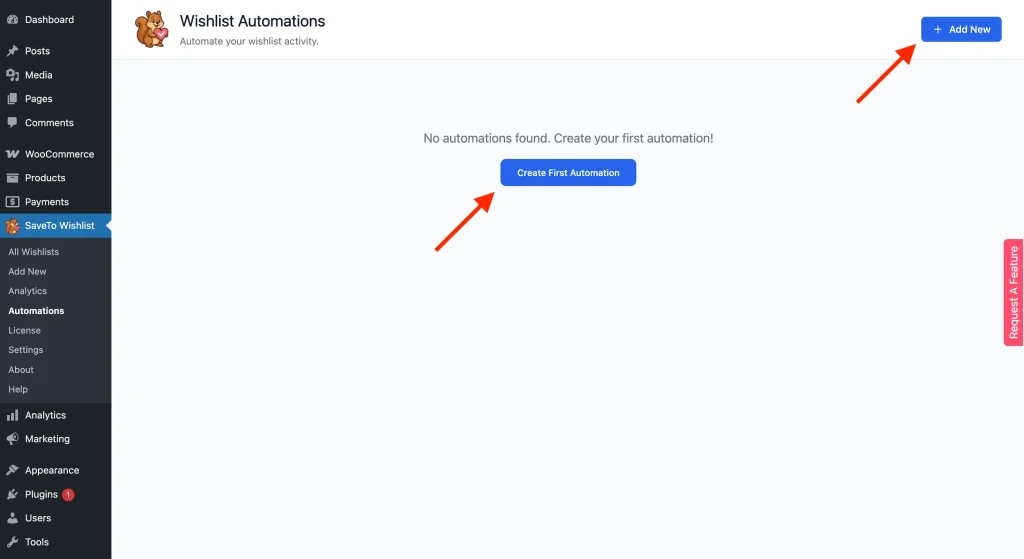
In your WordPress admin, go to SaveTo Wishlist → Automations.
Step 2: Add a New Automation
Click Add New. The automation modal opens with the heading Add New Automation.
Step 3: Choose the Trigger
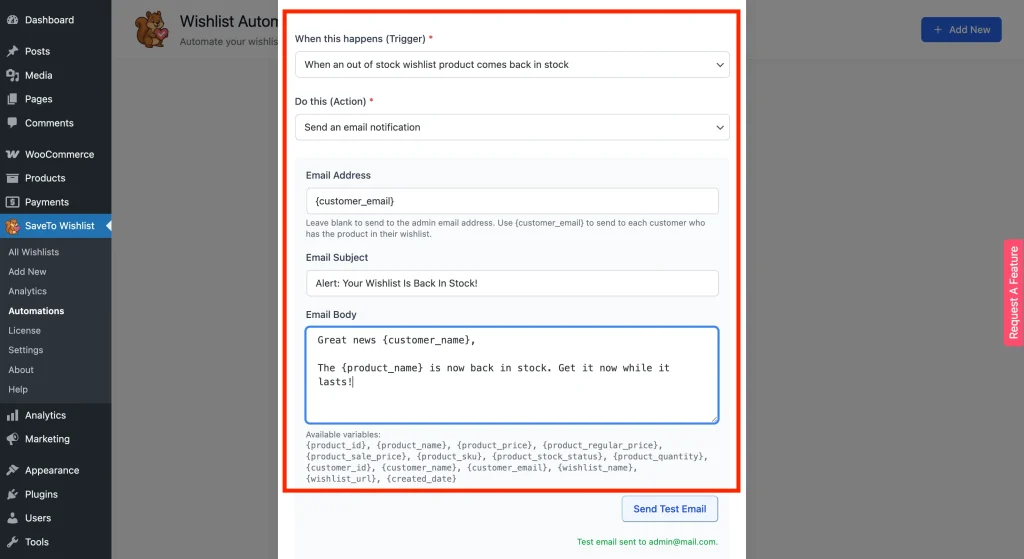
Under When this happens (Trigger), select When an out of stock wishlist product comes back in stock.
Step 4: Choose the Action
Under Do this (Action), select Send an email notification. The email fields will appear below.
Step 5: Configure the Email
Fill in the email fields:
Email Address: Enter {customer_email} to send directly to each customer who has the product in their wishlist. If you leave this blank, the email goes to your admin email address instead.
Email Subject: Write your subject line. You can use variables here, for example: {product_name} is back in stock!
Email Body: Write the message body. Use variables to personalize it. For example:
Step 6: Save the Automation
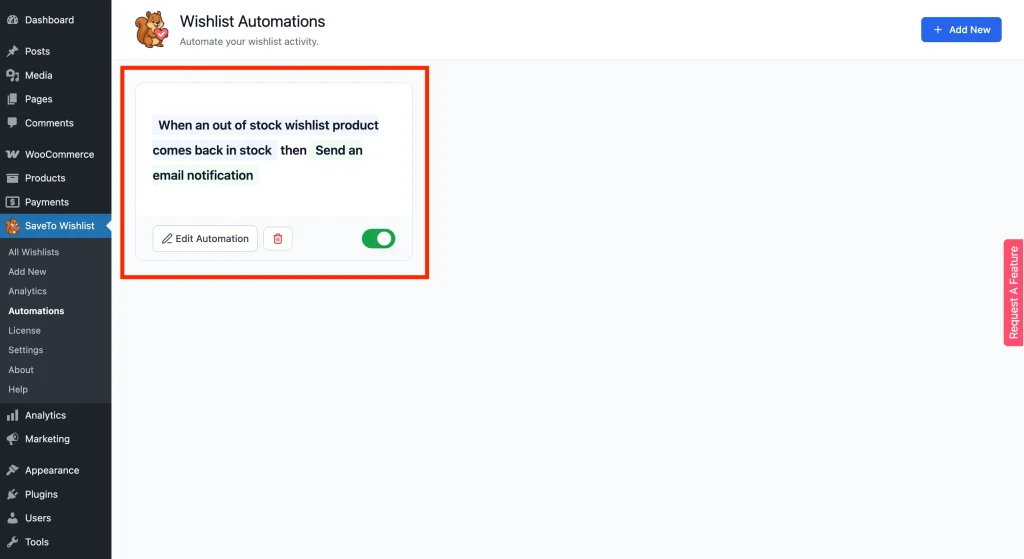
Click Create Automation. The automation will appear in your list with an Active status. From now on, every time a wishlist product comes back into stock, the plugin will automatically email each customer who saved it.
Available Variables
You can use any of the following variables in the subject line or body. The plugin replaces each one with the actual value for each customer when the email is sent.
| Variable | What it outputs |
|---|---|
{customer_name} | The customer’s display name |
{customer_email} | The customer’s email address |
{customer_id} | The customer’s WordPress user ID |
{product_name} | Name of the restocked product |
{product_id} | The product’s WooCommerce ID |
{product_price} | Current product price |
{product_regular_price} | Regular (non-sale) price |
{product_sale_price} | Sale price, if set |
{product_sku} | Product SKU |
{product_quantity} | Quantity the customer saved to their wishlist |
{product_stock_status} | Current stock status |
{wishlist_name} | Name of the customer’s wishlist |
{wishlist_url} | Direct link to the customer’s wishlist |
{created_date} | Date the wishlist was created |
Troubleshooting
The email isn’t arriving.
Check a few things: make sure {customer_email} is entered in the Email Address field—if the field is blank, the email goes to your admin address only. Confirm the customer has the product saved to an active wishlist. Finally, check that the product’s stock status actually transitioned from out of stock to in stock. The trigger doesn’t fire if the product was already in stock when you saved it.
Frequently Asked Questions
What happens if I leave the Email Address field blank?
The email goes to your site’s admin email address, not to individual customers. To notify customers, you must use {customer_email} in the Email Address field.
Can I notify both customers and my admin at the same time?
Yes, create two separate automations for the same trigger. Set one to {customer_email} for customers and the other to your admin email address.
When exactly does the trigger fire?
The trigger fires when a product’s stock status changes from out of stock to in stock. This happens when you update the product in WooCommerce, either manually or via an import. It does not fire if the product was already in stock when you saved it.
Will customers with the product in multiple wishlists get more than one email?
Yes, one email is sent per wishlist entry. If one of your customers has the same product saved in two separate wishlists, they’ll receive two emails—one for each.
Need Help?
If you have a question or run into any issues, we’re here to help.
- Premium users: Open a support ticket
- Free users: Visit our community forum

