Want to know how many of your customers are showing their wishlists to friends and family? Shared wishlists are a good sign of word-of-mouth interest, and they tell you which shoppers might be great fits for a referral program. This guide shows you where to find shared wishlist numbers in SaveTo Wishlist Pro analytics, and how often those numbers update.
Before you begin
You’ll need the following in place:
- SaveTo Wishlist Pro installed with an active license. Analytics stays locked until your license is active. See How to manage your SaveTo Wishlist Pro license.
- An administrator account on your WordPress site
- At least one customer who has made a wishlist public. See How to share your wishlist and manage edit permissions.
What counts as a shared wishlist
In analytics, a wishlist counts as shared when its owner has made it public. Customers do this by ticking the Is Public checkbox when they create or edit a wishlist. Public wishlists show a Public badge on the customer’s wishlist page. See How to Create a Public Wishlist? (Store Owner Guide).
Sharing a private wishlist with specific people by email doesn’t make it public, so it won’t add to the shared count. Using the share buttons on a wishlist doesn’t change the count either. Only the Is Public setting does. Guest wishlists aren’t counted, because analytics only looks at wishlists that belong to logged-in users.
Step 1: Open the Customer Behavior view
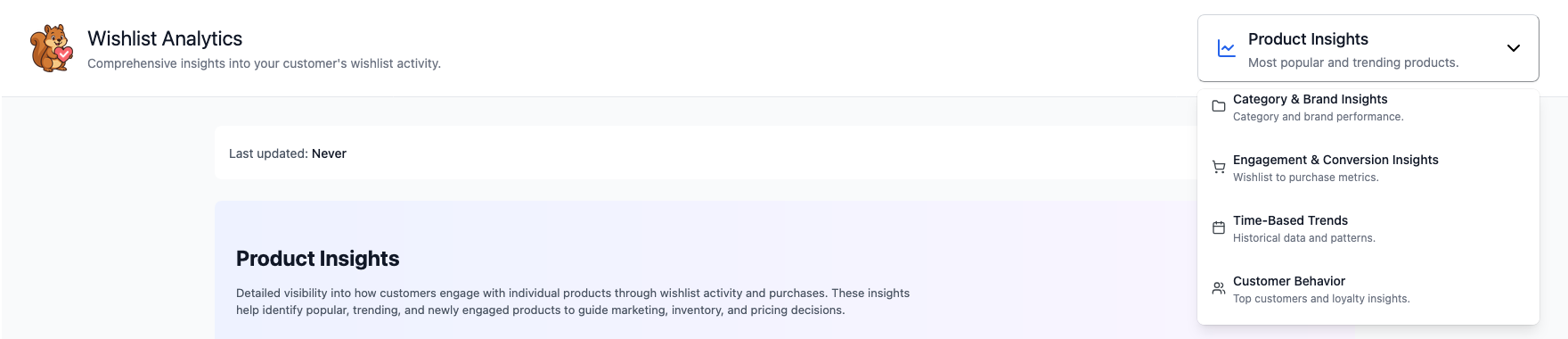
Shared wishlist numbers live in the Customer Behavior view of Wishlist Analytics. The Analytics page opens on Product Insights by default, so you’ll need to switch views.
- In your WordPress admin, go to SaveTo Wishlist → Analytics.
- Open the view dropdown at the top of the Wishlist Analytics page.
- Select Customer Behavior.
Step 2: Check your store-wide share rate
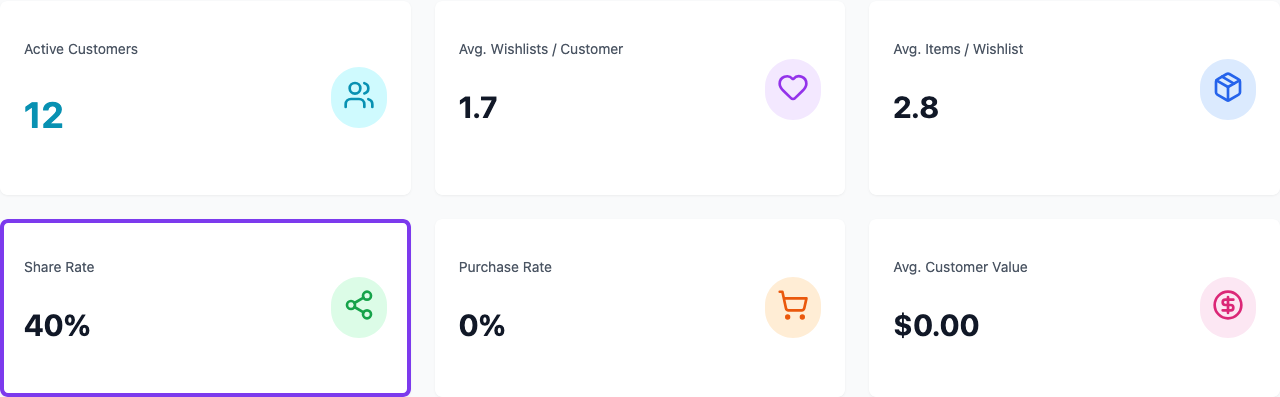
At the top of the Customer Behavior view, a row of summary cards gives you the big picture. Look for the Share Rate card.
Share Rate is the percentage of wishlists owned by logged-in users that are public. For example, if logged-in users have 200 wishlists between them and 30 are public, your share rate is 15%. The card counts every logged-in user, including administrators and shop managers, even though the Top Wishlisters table leaves them out.
Step 3: See how many wishlists each customer has shared
Below the summary cards, the Top Wishlisters tab is open by default. It shows the Top Wishlisters – VIP Candidates table.
- Look at the Shared column in the table.
- Read the number in each row. It’s how many public wishlists that customer has.
- Click View in the Actions column to open a customer’s WordPress profile in a new tab.
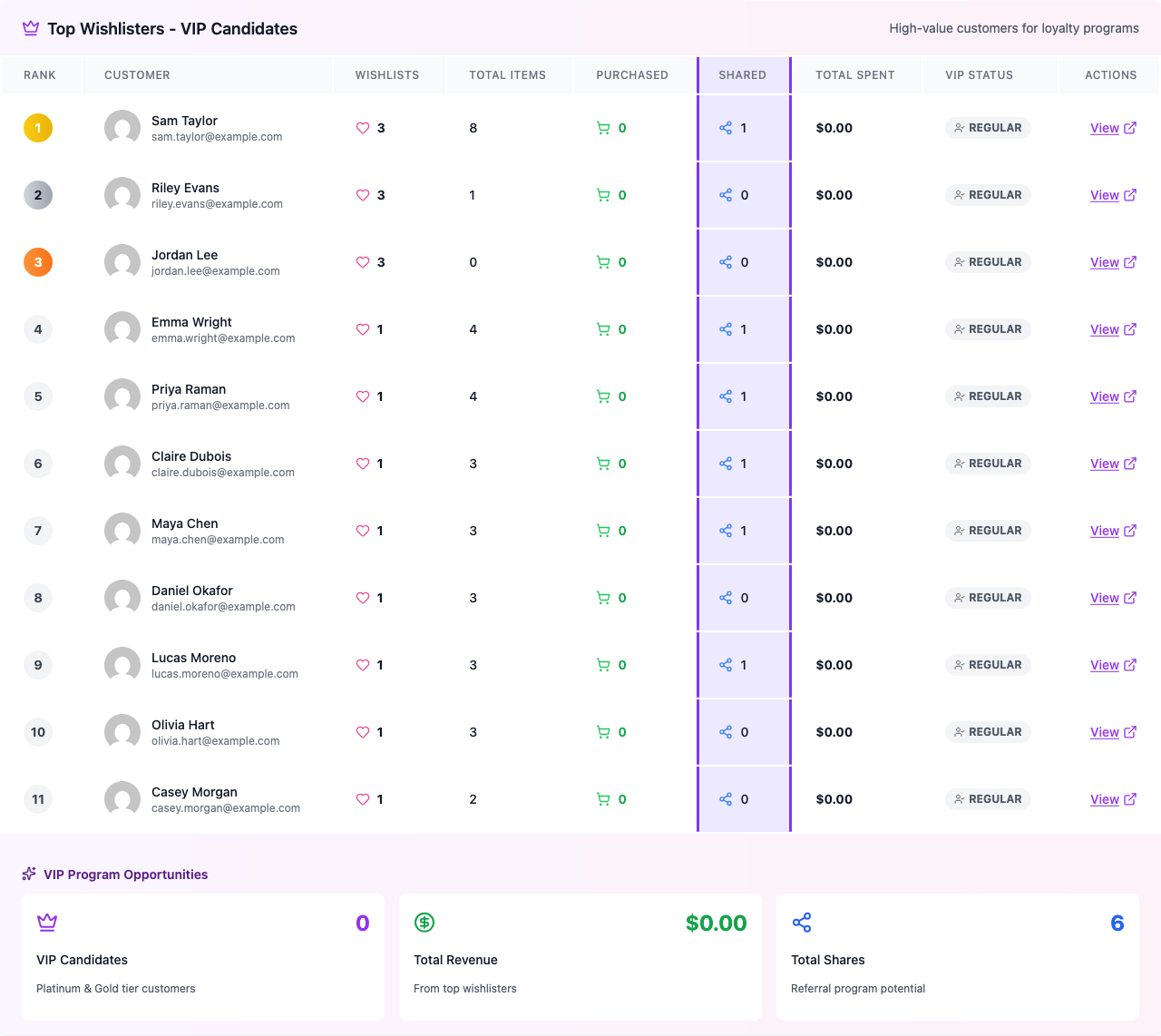
The table lists up to 15 customers, ranked by how many wishlists they have, then by how many items they’ve saved. Administrators and shop managers are left out, so your own test wishlists won’t crowd the list.
Under the table, the VIP Program Opportunities section includes a Total Shares card. This adds up the Shared column for the customers in the table only, so it can be lower than the total number of public wishlists in your store.

How analytics results refresh
Analytics numbers take some work to calculate, so SaveTo Wishlist Pro saves (caches) each result for one hour. During that hour, reopening a view shows the saved numbers instead of recalculating them. Once the hour is up, the next visit to that view pulls fresh numbers.
This means a customer who makes a wishlist public right now might not show up in your shared counts for up to an hour.
Refresh analytics manually
Don’t want to wait? You can clear the saved results and pull fresh numbers straight away.
- On the Wishlist Analytics page, find the bar above the analytics showing Last updated:.
- Click Update Now.
- Wait for the button to change from Updating… back to Update Now. You’ll see an Analytics data refreshed. message when it’s done.

A manual refresh clears saved results for every analytics view, not just the one you’re looking at, and for every admin on your site.
The Last updated: time only tracks manual refreshes. It shows Never until someone clicks Update Now for the first time, even though your numbers still refresh automatically every hour.
Troubleshooting
A customer made their wishlist public, but the shared count didn’t change
The numbers you’re seeing are probably still saved from earlier in the hour. Click Update Now to pull fresh results. If the count still doesn’t change, check that the customer ticked Is Public on the wishlist. Sharing a private wishlist by email doesn’t count as public.
I see “Please wait X seconds before refreshing analytics again.”
You can only refresh once every 30 seconds. This protects your site from heavy repeated calculations. Wait for the countdown to finish, then click Update Now again.
A customer with public wishlists isn’t in the Top Wishlisters table
The table only shows your top 15 customers by wishlist count, and it leaves out administrators and shop managers. Customers outside the top 15 still count toward your Share Rate, even if they aren’t listed. Administrators and shop managers count toward Share Rate too, so their public wishlists can raise the percentage without showing in the table.
The Analytics page is locked or shows a license notice
Analytics needs an active SaveTo Wishlist Pro license. Go to SaveTo Wishlist → License and enter or renew your Pro license key, then reload the Analytics page. The page shows a License Not Active, License Not Provided, or License Expired notice until the license is active. See How to manage your SaveTo Wishlist Pro license.
Frequently asked questions
Can I see shared wishlists on the Engagement & Conversion Insights view?
No. That view focuses on how wishlist items turn into purchases. Shared wishlist numbers only appear in the Customer Behavior view.
Why is Total Shares lower than I expected?
Total Shares only adds up the public wishlists of the customers listed in the Top Wishlisters – VIP Candidates table. For a store-wide picture, use the Share Rate card instead.
Do guest wishlists count as shared?
No. Analytics only counts wishlists that belong to logged-in users.
Does clicking Update Now slow down my store?
Recalculating takes a little extra work the first time each view loads afterward, but it doesn’t affect your shoppers. The 30-second limit between refreshes keeps it from piling up. For a full tour of every analytics view, see How to analyze wishlist data with analytics.
Need help?
- Premium users: Open a support ticket
- Free users: Visit our community forum