
Does your store need a design refresh, but you don’t have the time to manually tweak every single pixel? Choosing the right look for your Add to Wishlist buttons shouldn’t be a time-consuming chore.
With the Configuration Mode settings in SaveTo Wishlist, you can professionally style your wishlist buttons in seconds. Whether you want to use instant Style Presets or dive into Custom Settings, you now have total control over how your buttons appear on Product, Shop, and Cart pages.
By the end of this guide, you’ll know how to toggle between design modes and give your store a cohesive, professional look that matches your brand perfectly.
Prerequisites
- SaveTo Wishlist Lite installed and active.
- Administrator access to your WordPress dashboard.
- WooCommerce installed and configured.
Why use button style presets?
Speed and consistency are vital for any growing WooCommerce store. When your buttons look great and function identically across all pages, it builds trust with your shoppers.
Presets save time. You can swap button looks instantly without manual CSS or color picking. And since each page location is independent, you can apply different designs to the Product, Shop, and Cart pages separately.
💡 Tip:
If you prefer a completely unique look, you can still use a preset as a “base” and then customize the colors afterwards!
1. Access the button style tabs
We’ve organized the settings into easy-to-manage categories so you can style each part of your store individually.
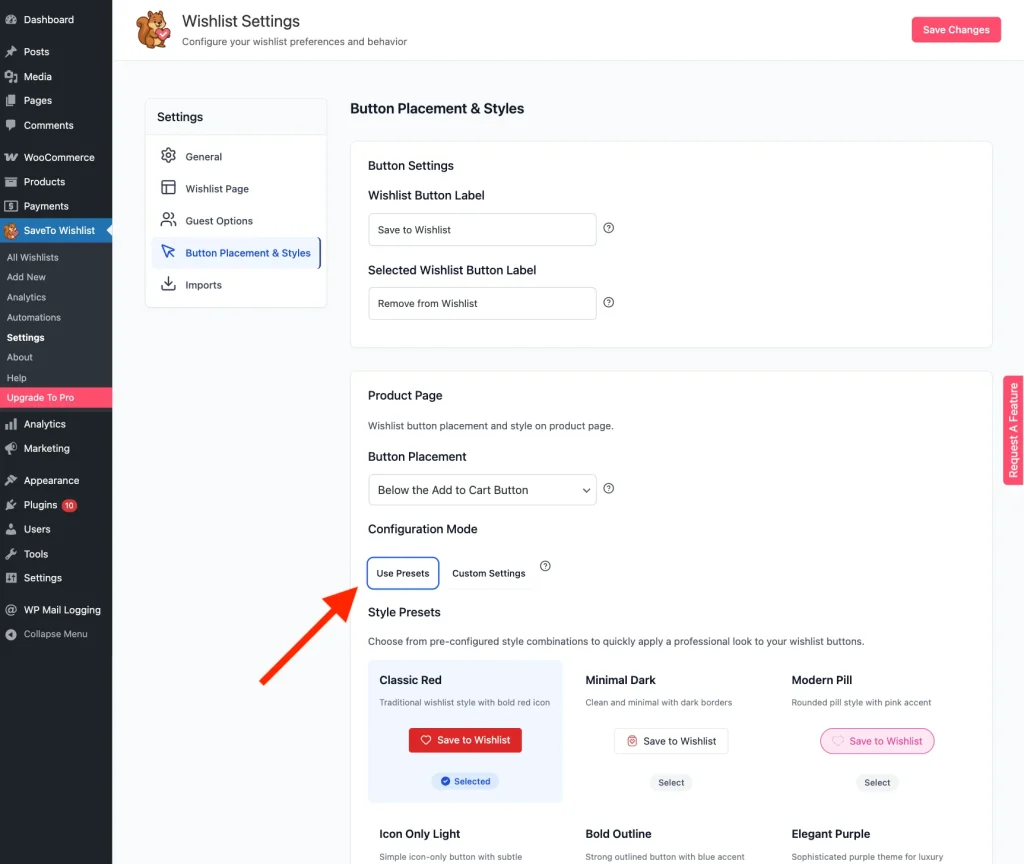
- Navigate to SaveTo Wishlist → Settings.
- Go to the Button Placement & Styles tab.
- Three sections appear: Product, Shop, and Cart. Click the one you want to edit.
2. Choose your configuration mode
Each location has a Configuration Mode radio selector. This is where you decide how much control you want:
- Select Use Presets to view the wishlist button template gallery.
- Alternatively, select Custom Settings if you prefer to skip the templates and use the manual color pickers.
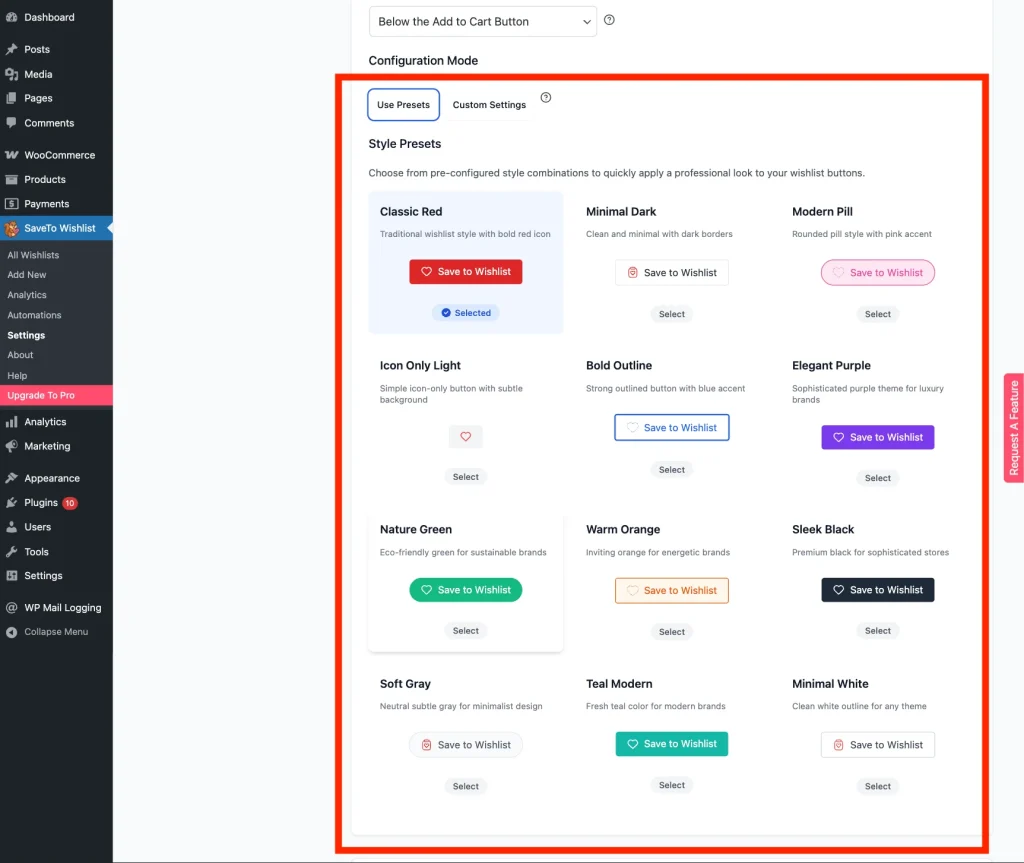
3. Apply a preset template
Inside each section, select the Use Presets tab under the Configuration Mode option.
- Browse the available presets (e.g., “Classic Red,” “Minimal Dark”, or “Modern Purple”).
- Click a preset to apply it. The tool will automatically update the button’s shape, border, and default layout.
4. Fine-tune your colors
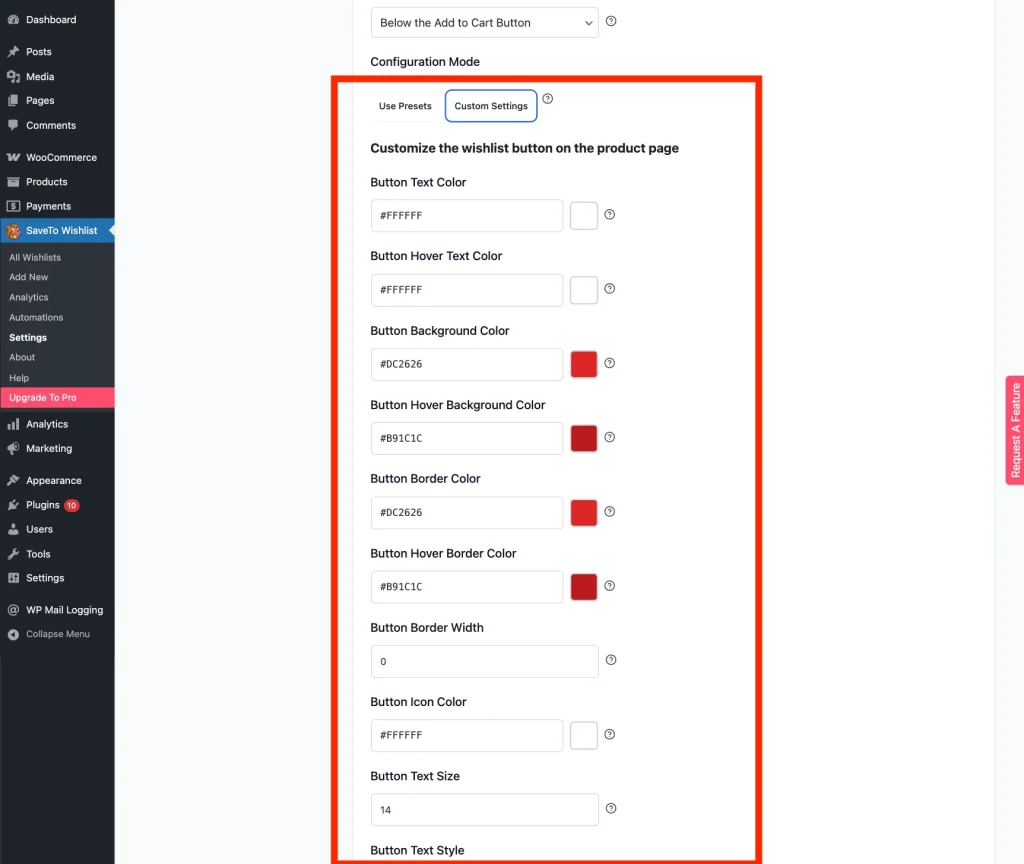
If you choose Custom Settings, the preset picker is replaced by individual design controls. Use these to build your button from scratch or customize a preset “base.”
- Typography & Size: Set the exact Text Size and Icon Size.
- Color Pickers: Manually choose your Background Color, Text Color, and Icon Color.
- Border & Shape: Adjust the border width, color, and corner roundness.
- Button Icon: Pick the glyph the button uses. The choices are Heart, Star, Bookmark, Plus and Custom Image. Heart is the default, and the button type still controls layout and weight, so this only changes the shape.
- Custom Button Icon: Appears once you pick Custom Image, and lets you upload your own glyph. Choosing Custom Image also hides the icon color settings, because those cannot apply to an uploaded image. The button keeps showing a heart until you actually pick an image, so upload one to finish the change.
- The color picker stays open while you work, making it faster to compare different shades without closing the menu repeatedly.
5. Apply independent styles
Remember, you can mix and match styles for different contexts!
- Use a large Custom button on your Product Page to make it the primary call to action.
- Apply the Minimal Preset on your Shop Page to keep your product grid clean and uncluttered.
- Select the Modern Preset on the Cart Page to encourage customers to save items for later instead of abandoning them.
6. Save and review your changes
- Click Save Changes at the bottom of the page.
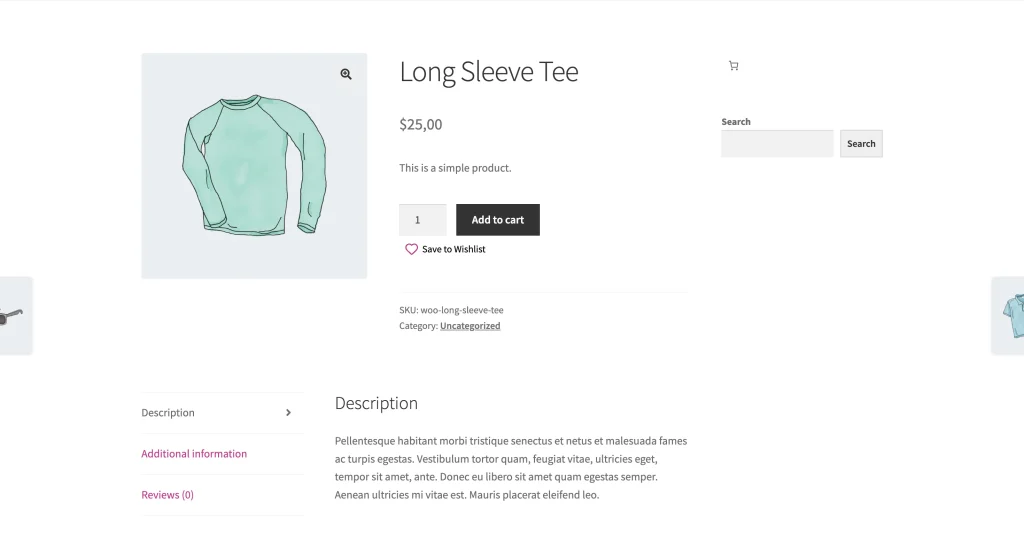
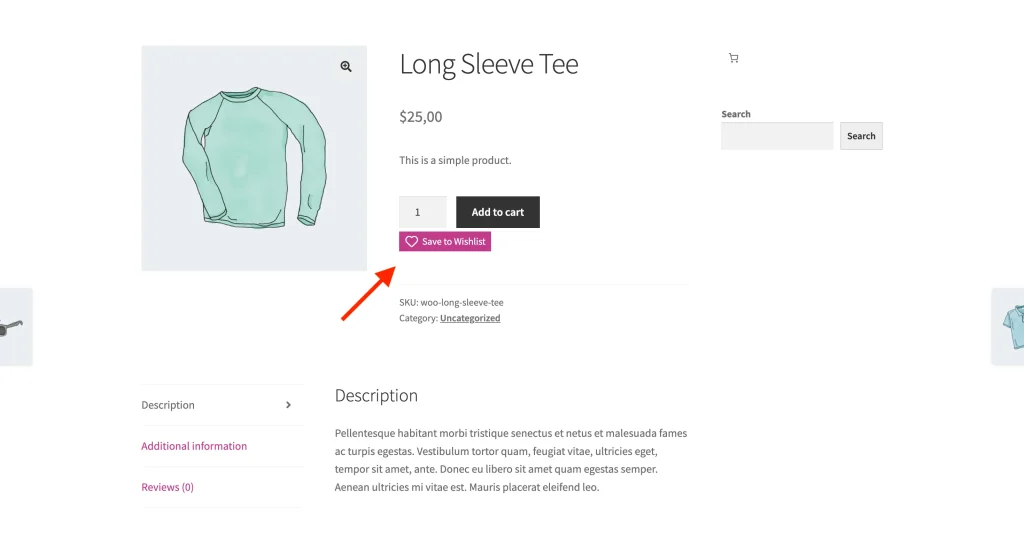
- Visit your shop and a product page to see your new button styles in action!
Troubleshooting common roadblocks
⚠︎ The preset didn’t change my button color.
Presets primarily control the structure and template of the button. If you have previously set a “Custom Color,” that color will be replaced. Update the color picker settings directly from the Custom Settings child tab to ensure your brand colors are applied to the new template.
⚠︎ The button looks different on my mobile phone.
Some WordPress themes have very strong “Global Styles” that try to override plugin buttons. If your button looks “boxed in” or the font is too small, try a different preset or check your theme’s button settings.
If your page layout isn’t updating after saving, clear your site cache. For more on this, see the official WooCommerce guide on clearing caches.
Frequently asked questions
When should I use Preset mode instead of Custom mode?
Use Preset mode if you want a guaranteed “good” design quickly. Use Custom mode if your brand uses non-standard colors or if you need the button to be a very specific size.
Does changing the Shop Page preset affect the Product Page?
No. Each page location (Product, Shop, Cart) is 100% independent, so you can tune each area of your store on its own.
Will selecting a new preset delete my previous custom colors?
Yes, if you confirm the change, your current settings will be replaced by the selected preset’s default styles. After applying the preset, you can still update the colors from the Custom Settings child tab.
What to do next
Presets keep button styling consistent across your store without hand-editing colours, and each page location stays independent so you can tune them separately.
Once the buttons look right, you can change what happens when a customer clicks one. Set the button action from the Wishlist Action section of the General tab, described in How to enable “Add to Wishlist” fade notifications.
Help & Support
We have a dedicated support team for SaveTo Wishlist Pro for WooCommerce who knows our products, WooCommerce, and the industry very well. You’re welcome to make use of their expertise at any time, worldwide.
- Premium users: Open a support ticket
- Free users: Visit our community forum

