Seeing a red notice in your WordPress admin that says SaveTo Wishlist Pro needs SaveTo Wishlist Lite? That means Pro has switched itself off until Lite is installed, active, and up to date. Here’s what the notice means, why Pro needs Lite, and how to clear it in a couple of clicks.
Before you begin
- Access to your WordPress admin with an administrator account (the notice only shows to users who can activate plugins)
- SaveTo Wishlist Pro installed on your site
- WooCommerce installed and active
Why SaveTo Wishlist Pro needs SaveTo Wishlist Lite
SaveTo Wishlist Pro is an add-on, not a standalone plugin. The free SaveTo Wishlist Lite plugin provides the wishlist itself: the wishlist button, the wishlist page, the SaveTo Wishlist admin menu, and its settings. Pro builds on top of that with extras like analytics and automations.
Pro also uses Lite to host your license. The license form for Pro lives on Lite’s SaveTo Wishlist → License page, so without a recent version of Lite there’s nowhere to enter or manage your Pro license key.
When Pro can’t find a suitable version of Lite, it doesn’t load any of its features. Your Pro settings and data stay saved. They come back as soon as Lite is sorted out.
The notice says Lite must be installed and activated
What’s happening
You see a red notice at the top of your admin screens that reads: SaveTo Wishlist Pro for WooCommerce requires SaveTo Wishlist Lite to be installed and activated.

Why it happens
SaveTo Wishlist Lite is either deactivated or not installed on your site. This often happens after a site migration where only Pro was copied over, or after Lite was removed or deactivated outside the WordPress Plugins screen (for example, by your host or over FTP).
How to fix it
The notice includes a button that matches your situation, so you only need one click to get started:
Install SaveTo Wishlist Lite: shows when Lite isn’t on your site at all. Clicking it installs Lite from WordPress.org.
Activate SaveTo Wishlist Lite: shows when Lite is already installed but switched off. Clicking it activates Lite straight away.
Manage Plugins: shows when Lite isn’t installed and your account isn’t allowed to install plugins. It takes you to the Plugins screen. Ask a site administrator to install Lite for you.
If you see Install SaveTo Wishlist Lite:
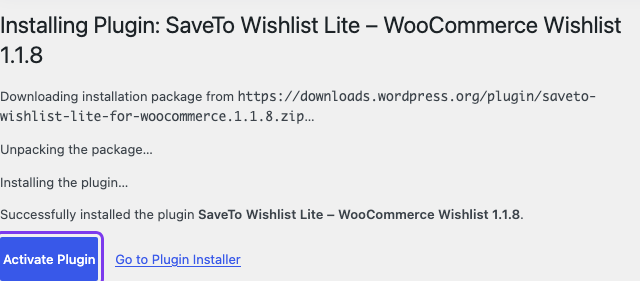
- Click Install SaveTo Wishlist Lite in the notice.
- Wait for WordPress to finish installing the plugin.
- Click Activate Plugin on the installation screen.
If you see Activate SaveTo Wishlist Lite:
Click Activate SaveTo Wishlist Lite in the notice.

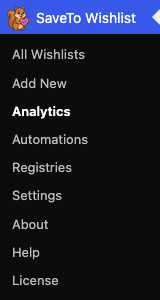
Once Lite is active, the notice disappears and the SaveTo Wishlist menu shows up in your admin sidebar with Pro’s features back in place.
The notice says you need a newer version of Lite
What’s happening
You see a red notice that reads: SaveTo Wishlist Pro for WooCommerce requires SaveTo Wishlist Lite 1.0.8 or later. Please update SaveTo Wishlist Lite to manage your license and use Pro features.

Why it happens
Lite is active, but it’s older than version 1.0.8. Older versions of Lite don’t include the License page that Pro relies on, so Pro stays switched off until Lite is updated.
How to fix it
- Click Update SaveTo Wishlist Lite in the notice.
- Wait for WordPress to finish updating the plugin.
- Go back to any admin screen and check that the notice is gone.
If there’s no update button in the notice, your account isn’t allowed to update plugins. Ask a site administrator to update SaveTo Wishlist Lite from the Plugins screen.
Troubleshooting
The notice is still showing after I activated Lite
Reload the page first. WordPress checks for Lite each time a page loads, so the notice can linger on the screen you were already on. If it’s still there after a reload, go to Plugins and confirm that SaveTo Wishlist Lite for WooCommerce shows as active, and that it’s the version from WordPress.org rather than a renamed or duplicated copy in a different folder. Pro looks for Lite in its standard plugin folder, so a renamed copy isn’t detected.
The install button fails or WordPress asks for FTP details
Some hosts block installing plugins from inside WordPress. Download SaveTo Wishlist Lite from WordPress.org, then go to Plugins → Add Plugin, click Upload Plugin, and upload the zip file. You can also ask your host to install it for you.
I can’t see the notice, but Pro features are missing
The notice only shows to users who can activate plugins. If you’re logged in as a shop manager or another role without that permission, Pro can be switched off without you seeing why. Log in as an administrator to see the notice and fix it.
Frequently asked questions
Will I lose my Pro settings or data while this notice is showing?
No. Pro pauses its features while Lite is missing or out of date, but your settings, automations, and license details stay saved. Everything picks up again once Lite is active.
Do I need to buy SaveTo Wishlist Lite?
No. SaveTo Wishlist Lite is free on WordPress.org. Your Pro purchase covers the Pro add-on that runs on top of it.
Can I deactivate Lite once Pro is active?
No. Pro needs Lite active the whole time. On WordPress 6.5 and later, WordPress itself also lists Lite as a required plugin for Pro and won’t let you activate Pro until Lite is active.
Where do I enter my Pro license key once the notice is gone?
Go to SaveTo Wishlist → License. See How to manage your SaveTo Wishlist Pro license for the full steps.
What’s next
- SaveTo Wishlist Pro Getting Started Guide
- How to manage your SaveTo Wishlist Pro license
- Getting started with SaveTo Wishlist
Need help?
- Premium users: Open a support ticket
- Free users: Visit our community forum