

 Reviewed by
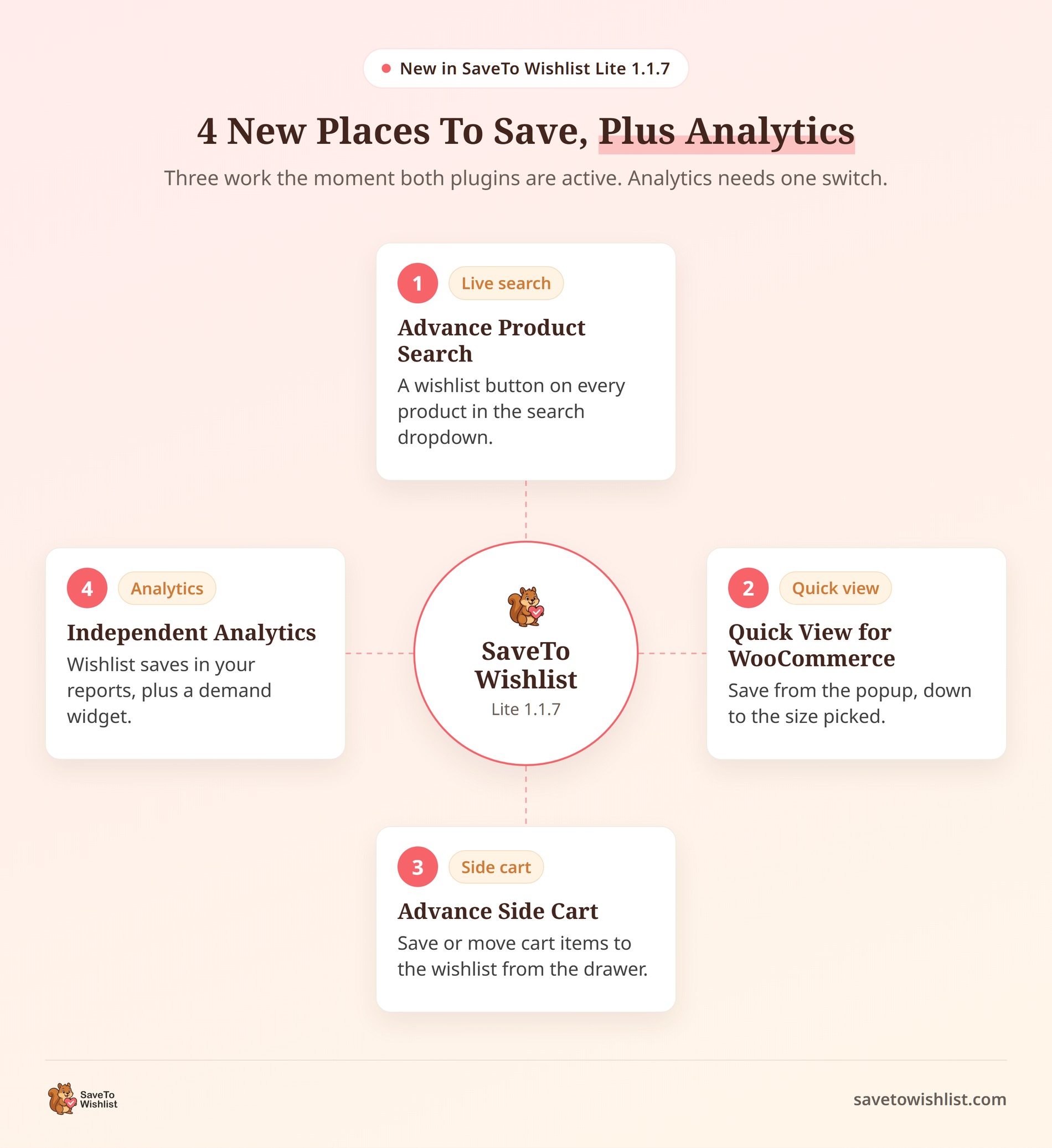
 With the release of the SaveTo Wishlist v1.1.7 integrations, the free version now works with 4 more WordPress plugins.
This update puts the wishlist button where shoppers already browse: live search, quick view popups, and the side cart. It also brings wishlist activity into your Independent Analytics reports, so you can see demand next to your traffic.
Each integration only switches on when its partner plugin is active. On stores without that plugin, it registers nothing and adds no extra work to your pages.
Here’s a plain-English breakdown of what each new connection does and how to set it up.
Jump to:
4 New SaveTo Wishlist Plugin Integrations
Three of the SaveTo Wishlist v1.1.7 integrations follow the shopper’s path through your store: search, quick view, then cart. The fourth gives you the other side of the story, showing which products people are saving. Here’s how each one works.
1. Advance Product Search: Save Products Straight From Live Search
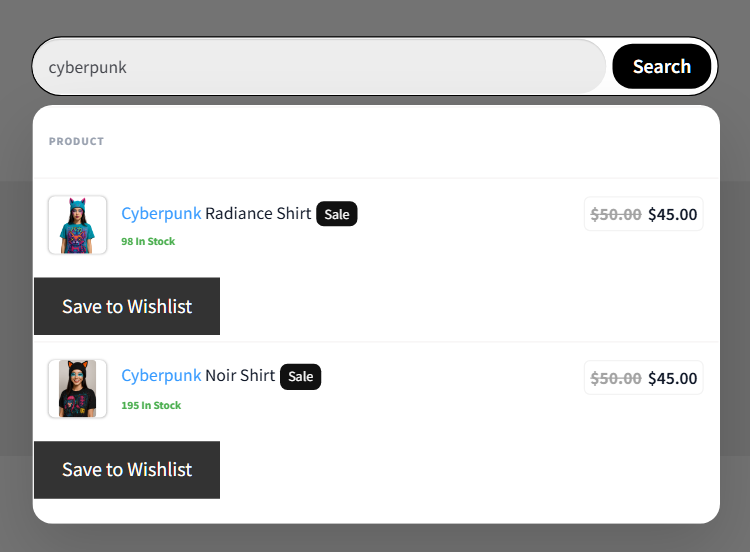
ThemeHunk’s Advance Product Search adds a live search box that suggests products as a shopper types. Before this update, the wishlist button didn’t appear in those suggestions. Shoppers had to open the product page first to save anything.
Now every product in the live search results gets its own wishlist button. A shopper who searches “linen throw” can save three candidates without leaving the search box.
How it works
- A Button On Every Product Suggestion: Each product row in the dropdown shows a working wishlist button. Category and other non-product suggestions are left alone.
- Matches Your Shop Page: The button uses the same style and colors you set for your shop page buttons. It looks the same in search as it does in your product grid.
- Works As Results Update: Suggestions reload with every keystroke. The buttons keep working on each fresh set of results.
- Light On Your Server: Live search fires on every keystroke. So the integration caps the work at 20 buttons per search. That’s more rows than a usable dropdown shows anyway.
- Guest Rules Applied: If you’ve turned off guest wishlists, logged-out shoppers won’t see the button in search, either.
Settings and configuration
There’s nothing to set up. The integration turns on as soon as both plugins are active.
🚀 Pro tip on visibility: The search button follows your shop page button settings. So if you set the shop page button to “Don’t show,” it disappears from live search too. To restyle the search button, change your shop page button style and both update together.
2. Quick View For WooCommerce: Save Without Leaving The Shop Page
ShapedPlugin’s Quick View for WooCommerce opens a product in a popup. On WordPress.org it’s now listed as Quick View for WooCommerce – Reno QuickView. Shoppers can check details without leaving the shop page. That popup builds its own product layout, so the wishlist button often went missing there.
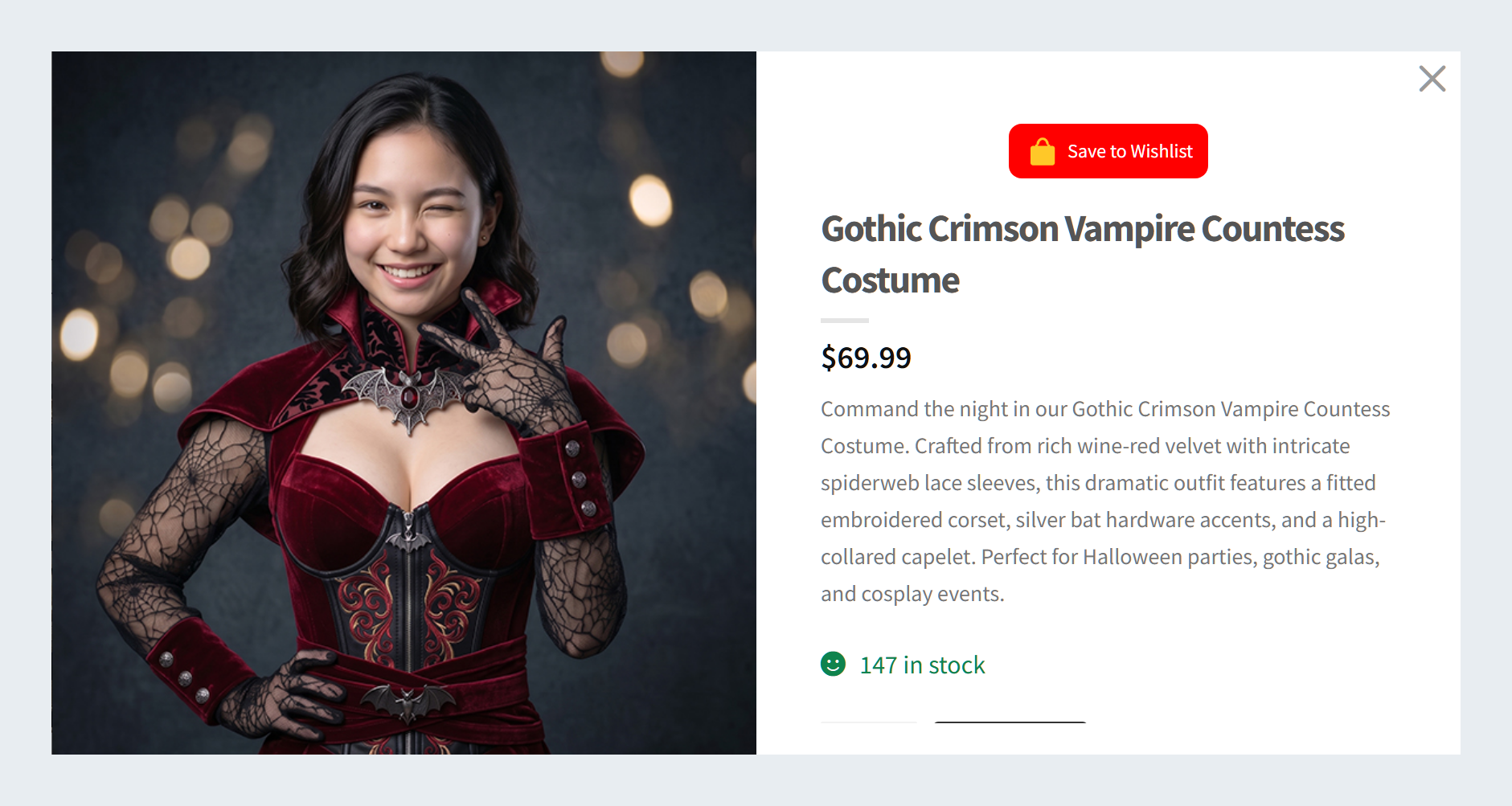
This integration puts the button inside the quick view popup, in the same spot your product pages use. Shoppers can compare a few items in quick view and save the ones they like on the way.
How it works
- Follows Your Button Placement: The button sits in the same relative position you chose for your product pages. The one exception is the two image placements, which show the button above the product title in the popup.
- Variation Aware: When a shopper picks a size or color in the popup, the button updates to match. The exact variation they chose is what gets saved.
- Never A Second Button: The integration checks whether the popup already shows a wishlist button. You’ll only ever see one.
- Out-Of-Stock Products Covered: Products with no add-to-cart form, like out-of-stock items, still get a wishlist button. That’s handy, since “save it until it’s back” is a common reason to wishlist something.
- Guest Rules Applied: The button follows your normal SaveTo Wishlist guest settings, the same as everywhere else on your store.
Settings and configuration
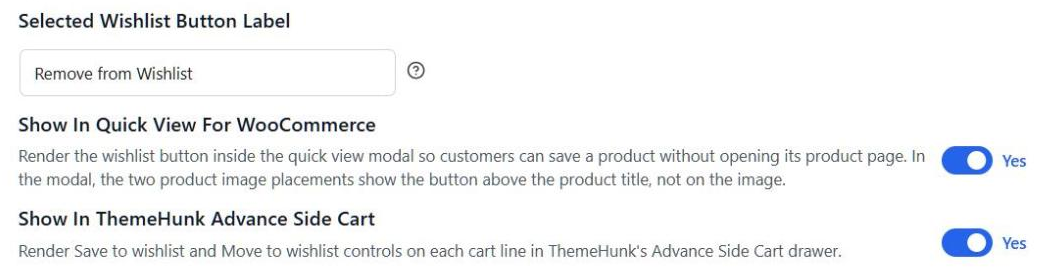
The integration is on by default once both plugins are active. To hide the button from the quick view popup:
- Go to SaveTo Wishlist → Settings → Button Placement & Styles tab.
- Open the Button Settings section.
- Set Show in Quick View for WooCommerce to No.
Note: This setting only appears in your dashboard while Quick View for WooCommerce is active.
3. Advance Side Cart: Move Cart Items To The Wishlist
ThemeHunk’s Advance Side Cart adds a slide-out cart drawer to your store. Its full name is Advance Side Cart, Ajax Cart & Floating Cart for WooCommerce. It’s where shoppers review what they’re buying, and often where they decide something can wait.
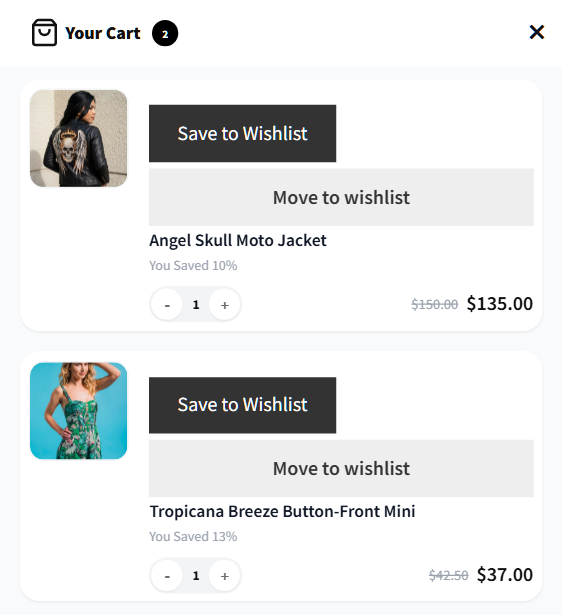
Until now, the drawer had no way to save an item for later. Removing it meant losing track of it. This integration gives shoppers a better choice: save it, or move it to their wishlist in one click.
How it works
- Two Controls Per Line: Each drawer item gets two buttons: Save to Wishlist and Move to wishlist. Save keeps the item in the cart. Move saves it and takes it out of the cart.
- Safe Moves Only: The cart line is only removed after the wishlist save is confirmed. If the save fails, the item stays in the cart, so nothing gets lost.
- Totals Stay In Sync: After a move, the drawer and cart totals refresh on their own. That includes the cart page and the checkout order summary.
- Exact Variations Saved: If the cart line is a variation, like a medium blue shirt, that exact variation gets saved.
- Works For Guests: Guest shoppers can save and move items too, unless you’ve turned guest wishlists off.
Settings and configuration
Both controls are on by default once the two plugins are active. To turn them off:
- Go to SaveTo Wishlist → Settings → Button Placement & Styles tab.
- Open the Button Settings section.
- Set Show in ThemeHunk Advance Side Cart to No.
Note: This setting only appears in your dashboard while Advance Side Cart is active.
🚀 Pro tip on placement: The two controls only appear inside ThemeHunk’s drawer. They won’t show up in your theme’s mini-cart or the WooCommerce mini-cart widget. Those stay exactly as they are.
4. Independent Analytics: See Wishlist Demand In Your Reports
Independent Analytics is a privacy-friendly analytics plugin that keeps your stats inside WordPress. With this integration, wishlist activity shows up in those same reports, right next to your page views and referrers.
That means you can answer questions like “which products are shoppers saving this month?” without leaving your dashboard.
How it works
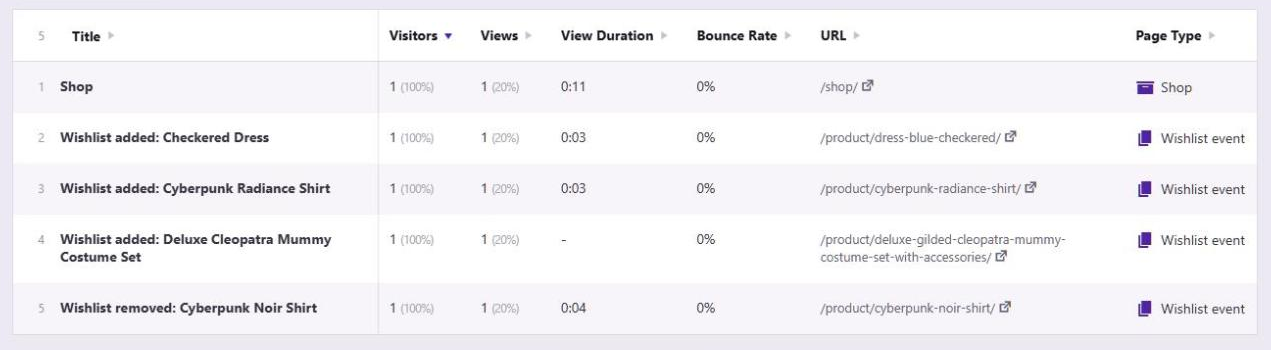
- Wishlist Events In Your Reports: Each save and removal is recorded as an event named after the product. You’ll see entries like “Wishlist added: Linen Throw” and “Wishlist removed: Linen Throw.”
- Easy To Spot: Every wishlist entry carries the label “Wishlist event,” so it stands out from your regular pages.
- Variations Roll Up: Saves of different variations count toward the main product. Your report groups them by product, not by size or color.
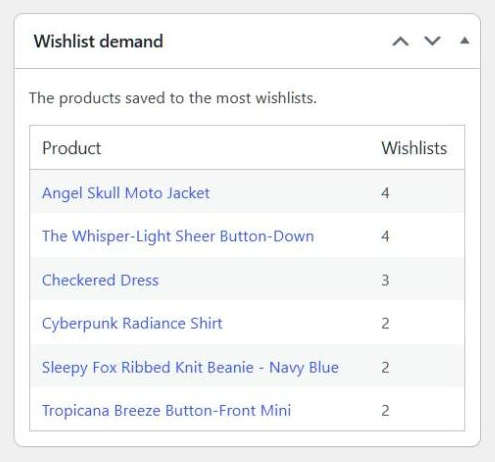
- A Wishlist Demand Widget: Your WordPress Dashboard gets a Wishlist demand widget. It lists the 10 products saved to the most wishlists. It refreshes every 15 minutes.
- Built To Fail Safe: If an Independent Analytics update ever changes how it works, the integration quietly turns itself off. It never breaks a wishlist action on your store.
Settings and configuration
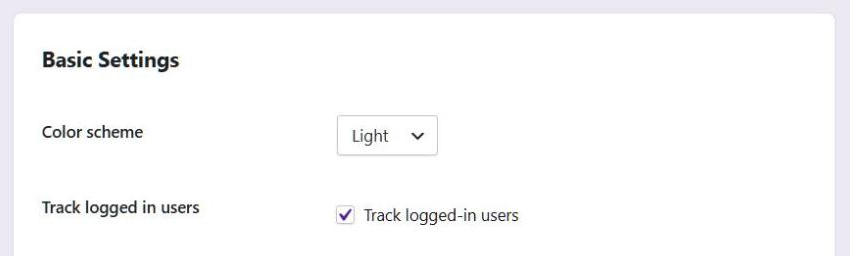
There are no settings in SaveTo Wishlist, but there’s one switch to flip in Independent Analytics. Wishlist events come from logged-in customers, and Independent Analytics doesn’t track logged-in users by default.
- Open your Independent Analytics settings.
- Turn on Track logged-in users.
- Save, then add a product to a wishlist while logged in as a test customer. Use a role Independent Analytics doesn’t ignore, or nothing gets recorded.
We left that switch for you to flip on purpose. It’s a privacy choice, and your Independent Analytics settings should stay in your hands.
🔍️ Pro tip for reading your numbers: Independent Analytics records each wishlist event as a page view. That’s also how it records its own checkout events. So expect a small bump in page views, and wishlist events can show up as a session’s exit page. Also, saving the same product twice records two events. Check the Visitors column when you want unique demand.
If you run SaveTo Wishlist Pro, the demand widget reuses Pro’s popular products data instead of counting everything again. For deeper reports, see our guide to advanced wishlist analytics.
Ready To Upgrade Your Wishlists?
The SaveTo Wishlist v1.1.7 integrations put the wishlist button wherever shoppers are making decisions. They can save from search, quick view, and the cart drawer. Meanwhile, you can watch that demand build in your analytics.
Three of the four need no setup at all. Independent Analytics needs one switch turned on. If you missed our earlier batches, the v1.0.9 integrations and v1.1 integrations cover the rest.
Missed any of the details? Jump right back to a specific integration to review how it works:
- Advance Product Search: Save Products Straight From Live Search
- Quick View For WooCommerce: Save Without Leaving The Shop Page
- Advance Side Cart: Move Cart Items To The Wishlist
- Independent Analytics: See Wishlist Demand In Your Reports
Update to SaveTo Wishlist Lite today and start connecting your favorite plugins!



