

 Reviewed by
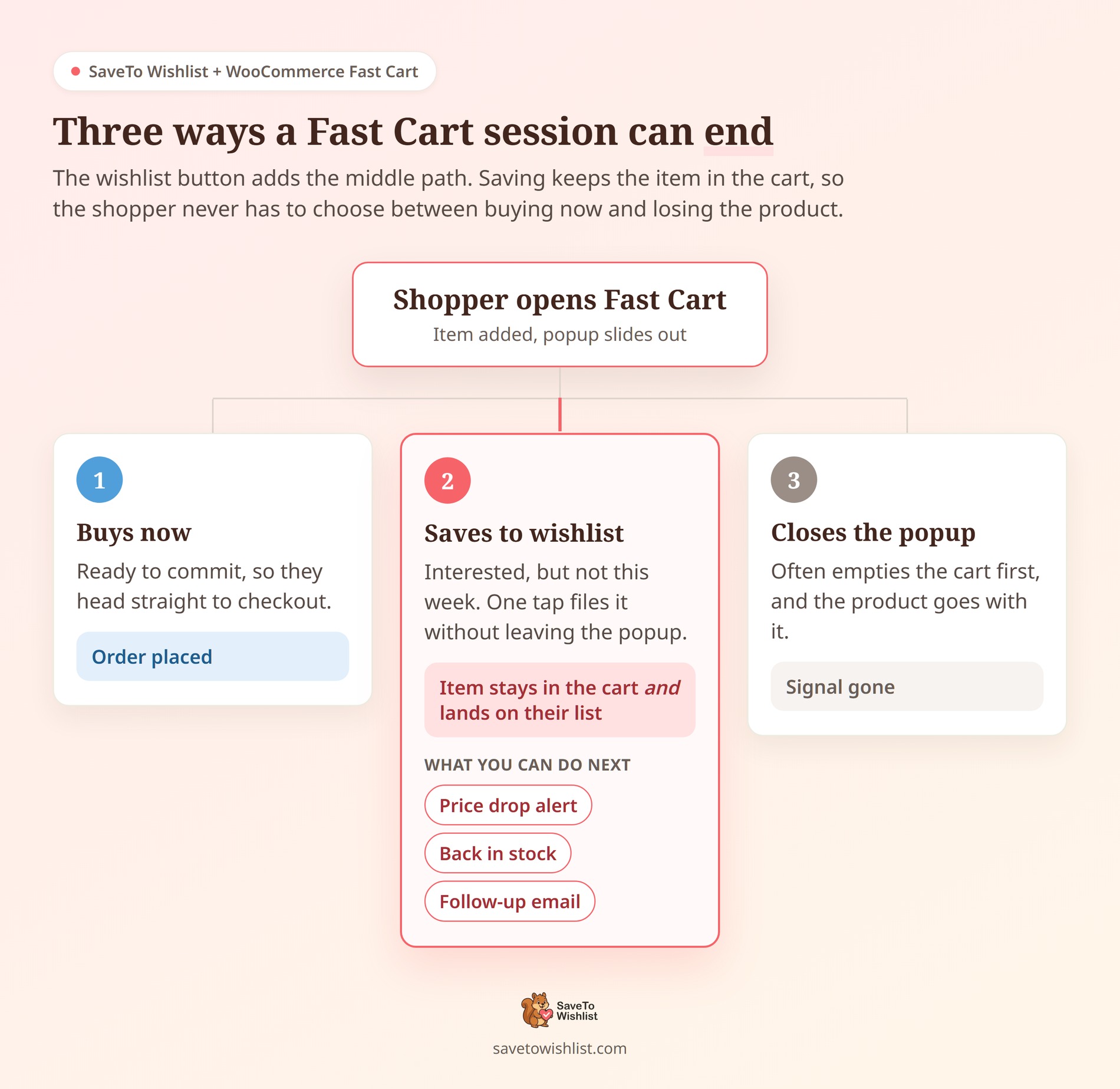
 A shopper adds a jacket to their cart. The Fast Cart plugin popup slides open, and they stop. They like the item. They just aren’t ready to buy it today.
So they close the popup. Often they empty the cart first, and the intent goes with it. According to Baymard Institute, 42% of US online shoppers have abandoned a cart because they were “just browsing / not ready to buy”. That hesitation is normal. Losing the product isn’t.
SaveTo Wishlist Lite adds a wishlist button inside the WooCommerce Fast Cart popup. We’ll walk through the setup below. Plus the two settings that trip people up, and where this pays off in a real store.
Jump to:
- Why Shoppers Stall Inside The Cart Popup
- What The SaveTo Wishlist And WooCommerce Fast Cart Integration Does
- What You Need Before You Start
- How To Set Up The Wishlist Button In WooCommerce Fast Cart
- Where This Earns Its Keep In A Real Store
- Troubleshooting The Fast Cart Wishlist Button
- FAQs: WooCommerce Fast Cart Wishlist Integration
- Turn Cart Popup Hesitation Into Saved Intent
Why Shoppers Stall Inside The Cart Popup
A cart popup is a decision point, not a receipt. The shopper has shown real interest. They just haven’t committed yet.
That gap is where most revenue leaks out. Baymard Institute’s meta-analysis of 50 studies puts the average documented cart abandonment rate at 70.22%. We broke the wider picture down in our 2026 cart abandonment statistics roundup.
The usual answer is a recovery email an hour later. However, that only works if you can identify the shopper. It also arrives after they’ve already gone.
Waiting for them to come back on their own is worse. Contentsquare’s 2026 Digital Experience Benchmark covers 99 billion sessions across more than 6,500 sites. It found that only 13% of visitors return within 30 days. The same report recorded conversion rates falling 5.1% year over year.
So the popup itself is your last reliable chance to catch that intent. A save button gives the shopper a third option besides buy or bail.
🔍️ What we’ve seen: store owners treat cart abandonment as an email problem. Often it’s neither an email nor a checkout problem. Plenty of those carts were never checkout attempts at all. They were shortlists, built by people using the cart as a holding pen. Give them a real place to save, and your cart data gets cleaner too.
If that pattern sounds familiar, our guide to browse abandonment in WooCommerce covers the earlier stage of the same behaviour.
What The SaveTo Wishlist And WooCommerce Fast Cart Integration Does
It adds a per-product wishlist button after the product name on eligible Fast Cart line items. Saving an item doesn’t remove it from the cart, so the shopper keeps their order intact.
WooCommerce Fast Cart is Barn2‘s cart popup plugin. It replaces the trip to the cart page with a slide-out panel. SaveTo Wishlist hooks into that panel and renders its standard button beside each item.
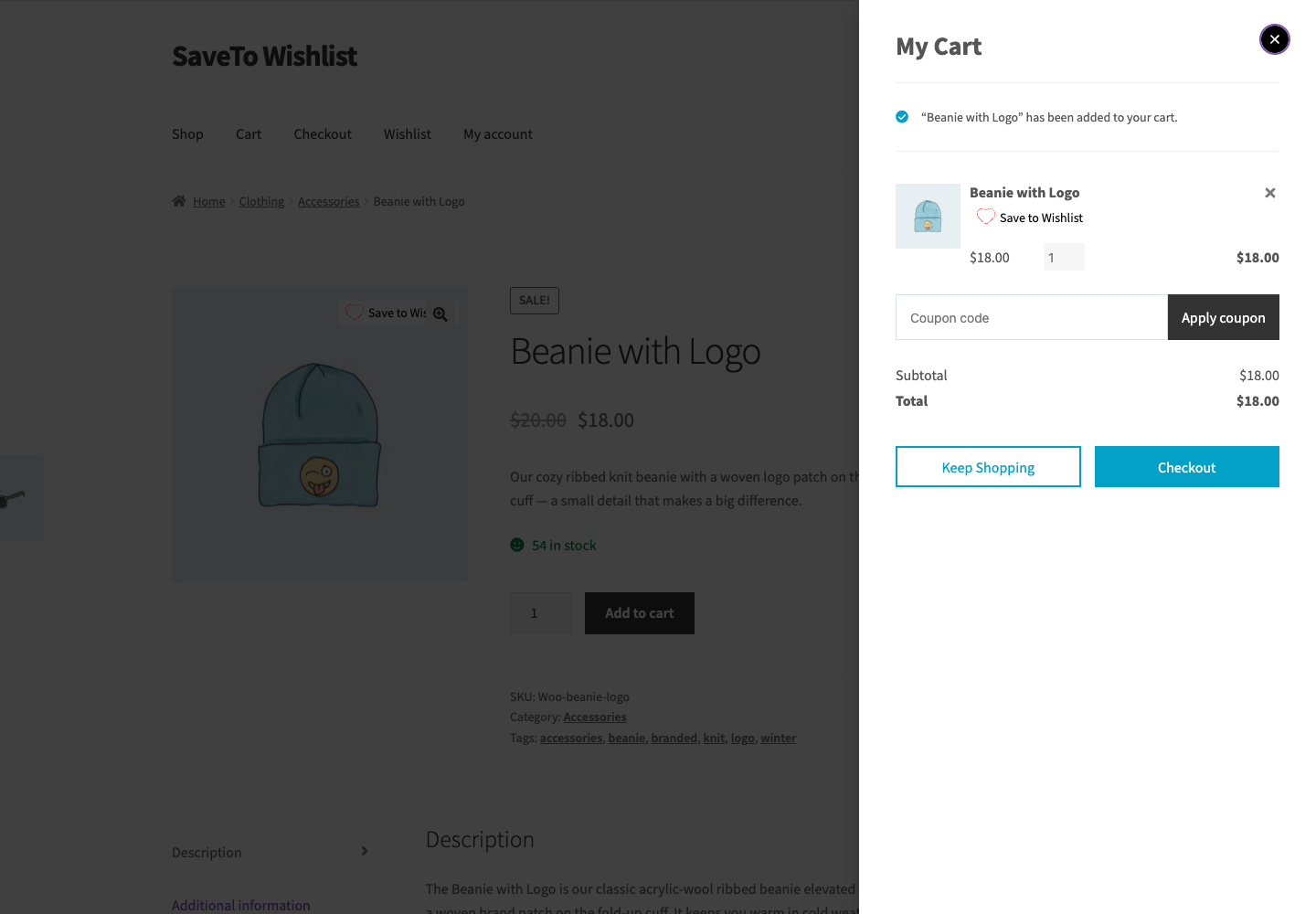
Here’s what the integration supports, and what each part changes for your shoppers:
- Account wishlists for logged-in customers: The saved product lands on the customer’s account list, so it survives the session.
- Guest saves: Logged-out visitors can use the button when guest wishlists are on. You capture intent before anyone signs up.
- Multiple list selection: Logged-in customers get the standard picker when multiple wishlists are enabled. They can file a gift separately from their own shortlist.
- Your existing button behaviour: Redirect, Popup and Fade all work as they do elsewhere. Nothing new to configure.
- Simple products and variations: Any cart line with a valid WooCommerce product object gets a button.
What it doesn’t do matters just as much. It’s a per-product button, not a “save this whole cart” control. It won’t add a column or replace the product name. It also leaves quantities, totals and checkout behaviour alone.
The integration arrived alongside four others. You can read the full list in our SaveTo Wishlist v1.0.9 release notes.
What You Need Before You Start
You need five things, and none of them cost extra. There’s no add-on to buy, no API key, and no connection wizard.
- WordPress 5.8 or newer
- PHP 7.4 or newer
- WooCommerce 4.0 or newer
- SaveTo Wishlist Lite 1.0.9 or newer: The integration ships in the free version. SaveTo Wishlist Pro isn’t required.
- WooCommerce Fast Cart by Barn2: Installed and active at its standard plugin path.
That last point matters more than it sounds. SaveTo Wishlist detects Fast Cart at woocommerce-fast-cart/woocommerce-fast-cart.php. If the folder was renamed during a manual upload, detection fails silently.
One note on versions. The integration has been verified against Fast Cart 1.4.1. That isn’t a promise of compatibility with every Fast Cart release, theme and customisation, so test on staging first.
How To Set Up The Wishlist Button In WooCommerce Fast Cart
The button is on by default once both plugins are active. The steps below confirm it’s switched on, then get the design and behaviour right.
Step 1: Confirm the Fast Cart setting is switched on
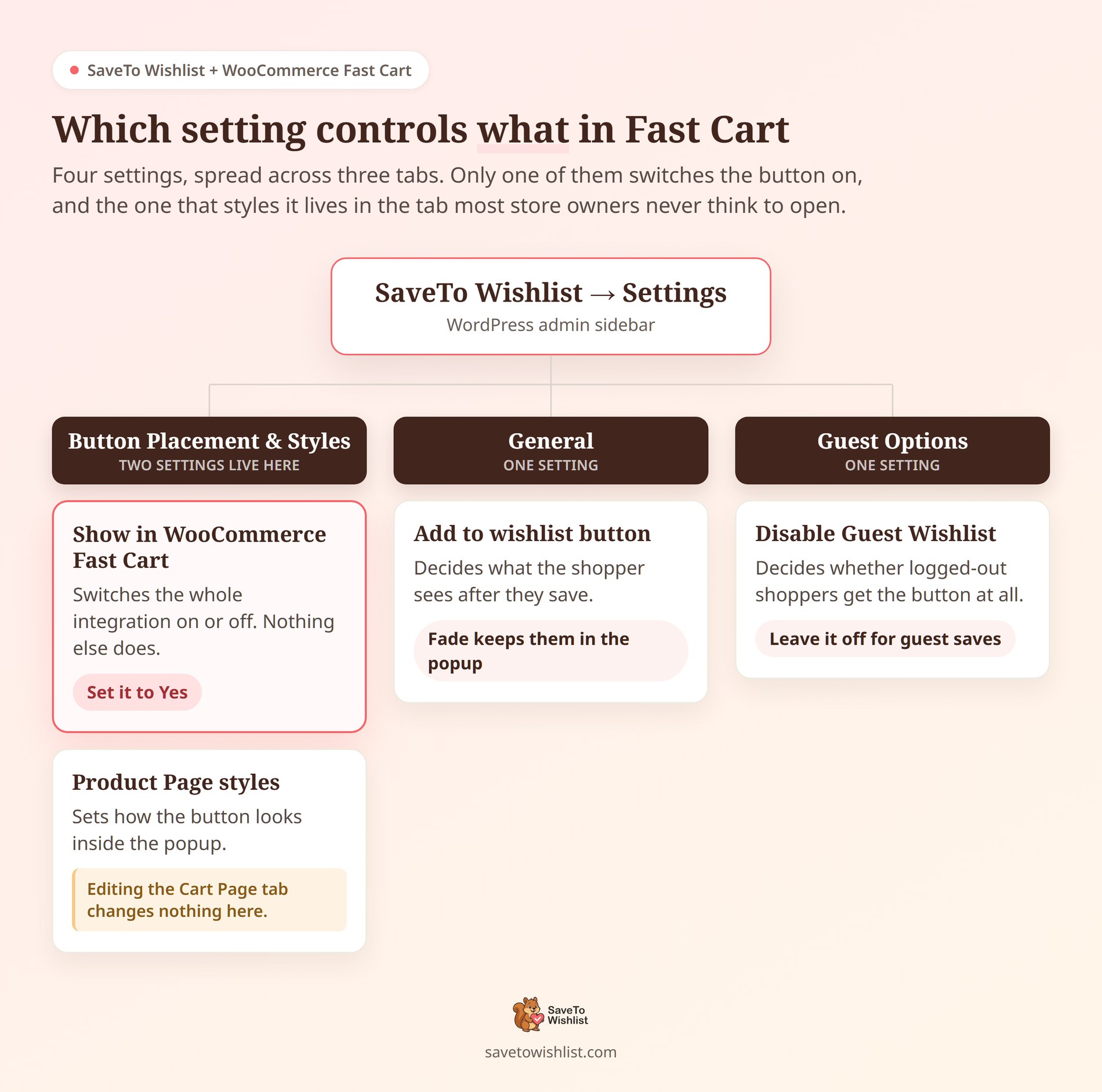
Go to SaveTo Wishlist → Settings in your WordPress admin. Open the Button Placement & Styles tab, then find the Button Settings section.
Look for Show in WooCommerce Fast Cart and set it to Yes. Save your settings.
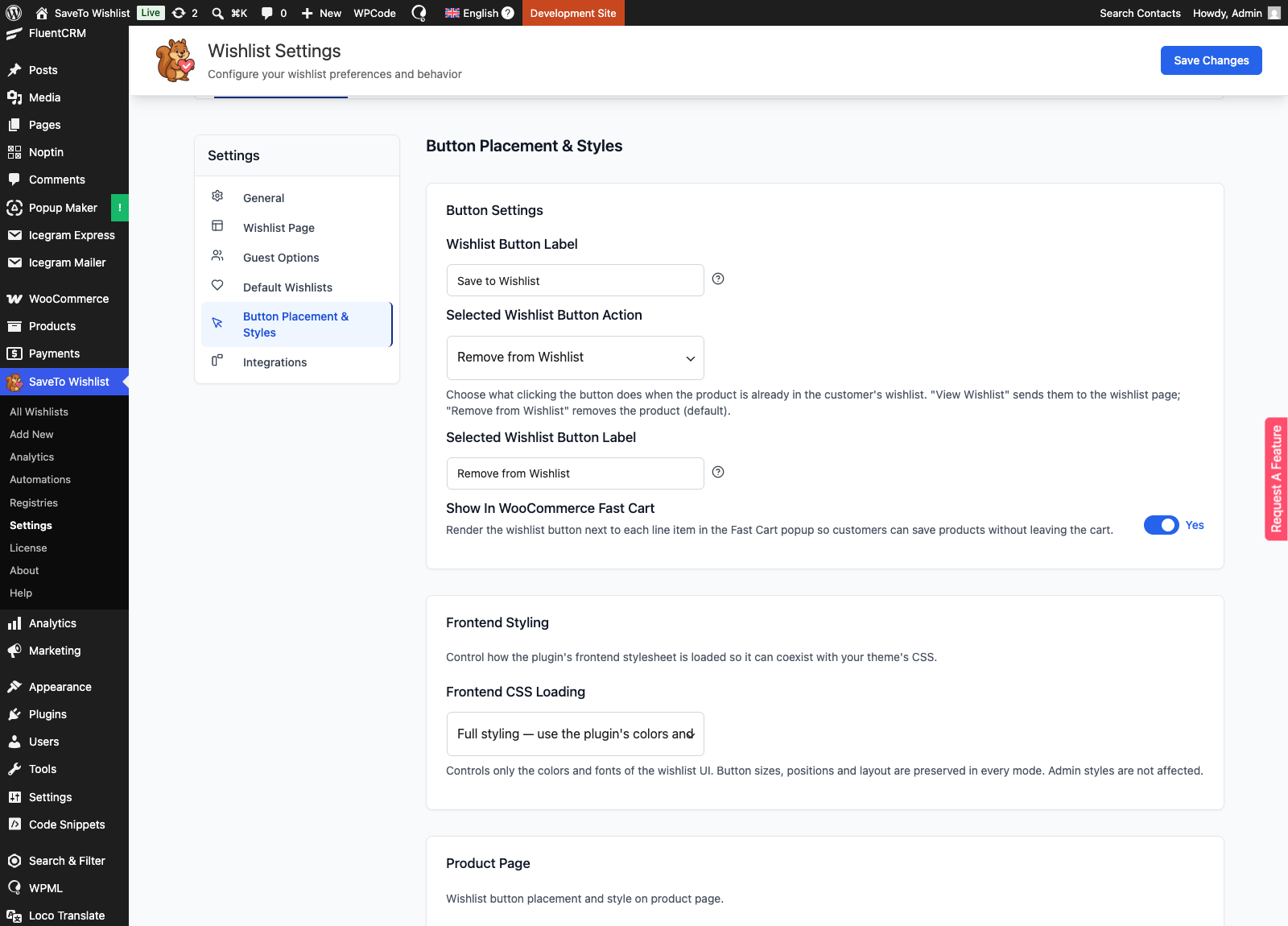
Can’t find the setting? It’s registered only when SaveTo Wishlist detects Fast Cart as active. A missing option almost always means a plugin problem, not a settings problem.
This one setting controls the whole integration. Set it to No and SaveTo Wishlist stops registering its Fast Cart hooks. Meanwhile every other wishlist button on your store keeps working.
Step 2: Style the button under Product Page, not Cart Page
The Fast Cart button uses your Product Page button configuration. It doesn’t use your Cart Page style, even though it appears inside a cart.
To change it, go to SaveTo Wishlist → Settings → Button Placement & Styles. Open the Product Page section, pick your mode, then set the options.
- Use Presets: The quickest route. Pick a ready-made button template and move on.
- Custom Settings: Control over button type, text and hover colours, background, borders and radius. Icon colour and size, text size and padding are all there too.
- Theme Default: SaveTo Wishlist applies theme button classes instead of its inline styles. The result depends on your theme.
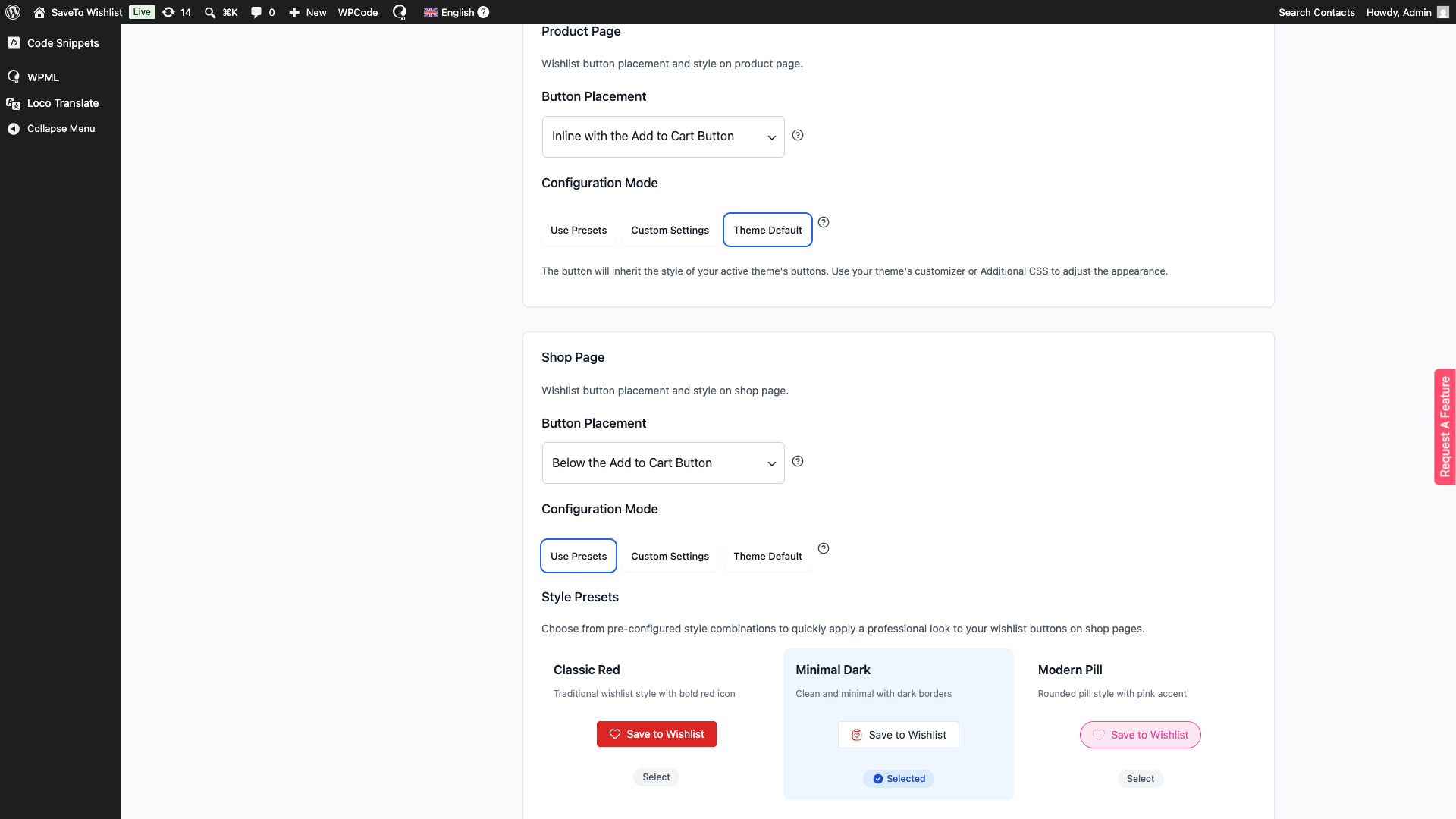
🔍️ What we’ve seen: this is the most common support question on the Fast Cart integration. Store owners spend twenty minutes restyling the Cart Page button. Then they reload the popup and nothing has changed. The button sits inside a cart, so Cart Page settings feel like the obvious place to look. Edit the Product Page section instead.
There’s a practical upside here. Fast Cart panels are narrow, and a button sized for a full-width product page can crowd the line item. So preview it on mobile before you settle on padding and text size.
Step 3: Pick what happens after a save
Go to SaveTo Wishlist → Settings → General and find Add to wishlist button. You get three options, and they apply everywhere, including Fast Cart.
- Fade: The button changes state to confirm the save, with no redirect. The shopper stays in the popup.
- Popup: The standard confirmation popup appears over the page.
- Redirect: The shopper is sent to your configured redirect page, so they leave the cart behind.
Think about this one carefully. Redirect pulls the shopper out of the cart they were reviewing. That works against the reason you added the button in the first place. Fade keeps them where they are.
Step 4: Decide whether guests can save
Logged-out visitors can use the Fast Cart button when guest wishlists are enabled. Go to SaveTo Wishlist → Settings → Guest Options and check Disable Guest Wishlist.
Leave it off to allow guest saves. Turn it on and SaveTo Wishlist won’t register the Fast Cart hooks for logged-out visitors. Logged-in customers carry on as normal.
Worth knowing: the popup is more generous than your normal cart page here. On the cart page, per-item saving needs a logged-in customer plus two more settings switched on. Inside the Fast Cart popup, that guest toggle is the only gate.
Guests don’t get the multiple-list selector. That’s the one experience difference between the two groups. It’s worth knowing before you write any help text. Our guest wishlist guide covers the trade-offs in more depth.
Step 5: Test it logged in and logged out
Add a product, open Fast Cart, and save an item while logged in. Confirm the item stays in the cart and lands on the right list.
Then repeat it in a private window if you’ve allowed guest saves. Test a variable product too. Variations behave differently from simple products in some cart setups.
For a condensed version of these steps, our knowledge base has a short setup walkthrough you can hand to a developer.
Where This Earns Its Keep In A Real Store
A save button in the cart popup isn’t a universal win. It pays off hardest in stores where shoppers compare before they commit.
- Fashion and variation-heavy catalogues: Shoppers load the cart with three sizes, then cut it down. Without a save button, the rejected variations vanish. With one, the runners-up become a shortlist you can market to later.
- High-consideration purchases: Furniture and equipment rarely sell on the first session. The popup is where the “let me think about it” moment happens, so that’s where the save needs to be.
- Budget staging and payday buyers: Plenty of shoppers buy two items now and three more next month. Splitting the cart in place beats making them remember product names.
- Gift and group shopping: With multiple wishlists enabled, a logged-in customer files an item onto a specific list. Their current order stays untouched.
- Out-of-budget items on sale watch: A saved product is a signal. On a SaveTo Wishlist Pro plan you can act on it with price drop and back-in-stock alerts.
The bigger shift is what happens to your data. Each save is a micro-conversion you can measure. As a result, carts and wishlists start meaning different things again.
A cart becomes a genuine purchase attempt worth chasing with a recovery sequence. By contrast, a wishlist is a considered shortlist that deserves a different message. We covered where that line sits in wishlist vs save for later.
🔍️ What we’ve seen: stores turn this on, then keep emailing saved-item shoppers the same abandoned-cart discount. It reads as pushy, because the shopper told you they weren’t buying yet. A restock or price-drop nudge on the saved item lands better. It also avoids training people to wait for a coupon.
How to tell whether it worked
The Fast Cart button itself is free, but the numbers that show whether it earned its place sit in SaveTo Wishlist → Analytics, which comes with a SaveTo Wishlist Pro plan. Four readings are worth your time:
- Saves Over Time: the chart under Time-Based Trends, with 7D, 30D, 90D and 1Y views. Note the date you switch the button on, then compare the weeks either side of it.
- Overall Conversion Rate: under Engagement & Conversion Insights, shown against the previous period. Read it as the share of wishlisted products that were later bought, not the share of shoppers who converted.
- Wishlist Age Analysis: how long items sit before customers buy them or give up on them. This is the reading that tells you when a follow-up should land.
- High Wishlist / Low Sales: products with at least 10 saves and under 20% conversion, or no purchases at all. Hesitation is exactly what a cart-popup save captures, so this table is worth watching once the button is live.
The dashboard refreshes on a background schedule. Use Update Now at the top of the Analytics screen if you want to see the effect of a change straight away, and check the timestamp beside it so you know how current the numbers are.
One limitation to plan around. SaveTo Wishlist doesn’t record where a save came from, so a save made in the Fast Cart popup is stored exactly like one made on a product page. No report will isolate Fast Cart on its own. Anchor your read to the date you switched the button on and treat the change in total saves as your signal. For the same reason, the wishlist conversion funnel starts at the save rather than at a product view.
Troubleshooting The Fast Cart Wishlist Button
Most problems come down to one of six checks. Work through them in order.
- No button anywhere in the popup: Confirm WooCommerce, SaveTo Wishlist Lite 1.0.9 or newer, and WooCommerce Fast Cart are all active. Then check Show in WooCommerce Fast Cart is set to Yes.
- The setting itself is missing: SaveTo Wishlist can’t see Fast Cart. Check it’s installed at
woocommerce-fast-cart/woocommerce-fast-cart.phpand active. - Button missing on one product only: That cart line isn’t returning a valid WooCommerce product object. Nothing renders for those items by design.
- Logged-out visitors can’t see it: Check Disable Guest Wishlist under Guest Options. When it’s on, the Fast Cart hooks never register for guests.
- Wrong design: You’re editing Cart Page styles. Switch to the Product Page section.
- Button vanished after a code change: A custom filter on
stwlite_wishlist_button_cart_item_htmlmay be returning an empty value. The markup may also have been stripped during sanitisation.
One more thing worth knowing if you’re debugging with a developer. Fast Cart controls which clicks inside its panel reach other scripts. So SaveTo Wishlist appends .save-to-wishlist-button and .save-to-wishlist-multiple-lists-container to Fast Cart’s permitted selectors.
Existing selectors are kept, not replaced. If a click does nothing at all, that’s the mechanism to look at first.
Still stuck? Advanced Coupons has a guide to isolating plugin conflicts that works for any WooCommerce plugin.
FAQs: WooCommerce Fast Cart Wishlist Integration
Do I need SaveTo Wishlist Pro for the Fast Cart integration?
No. The integration ships in SaveTo Wishlist Lite, the free version, from release 1.0.9 onwards. There’s no separate add-on, no API key, and no connection process. Install both plugins and the button appears. A SaveTo Wishlist Pro plan adds analytics, price drop alerts and automations. None of those are needed for the Fast Cart button.
Does saving a product remove it from the cart?
No. Saving adds the product to the wishlist and leaves the cart untouched. Quantities, totals and removal controls stay exactly as they were. That’s deliberate. A shopper may well save an item and still buy it in the same session. To take it out, they use Fast Cart’s own removal control.
Can customers save the entire cart to a wishlist?
Not through this integration. It adds a button to individual line items. A shopper saving four products taps four buttons. There’s no single “save this cart” control inside the Fast Cart popup. For most stores that’s the right behaviour. Shoppers usually want to keep some items and shelve others.
Can guests save products from Fast Cart?
Yes, as long as guest wishlists are enabled. Check Disable Guest Wishlist under SaveTo Wishlist → Settings → Guest Options and leave it off. Guests get the same button as logged-in customers, with one difference. They don’t see the multiple-list selector. Turn guest wishlists off and the button won’t render for them.
Does this work with other side cart or mini cart plugins?
This integration is built specifically for WooCommerce Fast Cart. It relies on hooks that Barn2‘s plugin provides. So it doesn’t establish compatibility with other mini cart, side cart, quick cart or cart block plugins. Those may still work with SaveTo Wishlist through standard WooCommerce templates. That’s separate behaviour, and worth testing on staging first.

Turn Cart Popup Hesitation Into Saved Intent
Most cart optimization work assumes the shopper wants to buy right now. It assumes something is in the way. Often that’s not the problem at all. They want the product, but not this week, and the cart was never the right place to keep it.
Pairing the Fast Cart plugin with SaveTo Wishlist gives that shopper somewhere to put it. No leaving the popup, no losing their order.
Here’s how to get going:
- Know what you’re switching on. What The SaveTo Wishlist And WooCommerce Fast Cart Integration Does covers the per-product button, and the save-the-whole-cart control it deliberately isn’t.
- Check the requirements in What You Need Before You Start, especially the 1.0.9 minimum.
- Switch on the setting and style the button under Product Page in How To Set Up The Wishlist Button In WooCommerce Fast Cart. Set the confirmation behaviour to Fade so shoppers stay in the popup.
- Match your follow-up emails to the use cases in Where This Earns Its Keep In A Real Store.
- Anchor your reporting to the date you switched the button on, then read the four numbers in How to tell whether it worked.
- Check Troubleshooting The Fast Cart Wishlist Button and the Frequently Asked Questions before you open a support ticket.
The Fast Cart integration is free, so you can test it this week. Get SaveTo Wishlist Lite to switch it on. Or compare the Growth, Plus and Business plans if you want price drop alerts, analytics and automations on top of what your shoppers save.



