

 Reviewed by
 A customer logs in, saves three winter coats to a wishlist, then closes the tab. Your wishlist reports show that intent clearly. But if that shopper isn’t on a mailing list, you can’t act on it.
That’s the gap the SaveTo Wishlist bridge to email subscribers closes. Email Subscribers & Newsletters runs under the Icegram Express menu in your admin. It already handles your lists and your sending. SaveTo Wishlist Lite hands it the contacts.
I’ve seen store owners collect wishlist data for months without ever mailing the people behind it. The plugin side of the fix takes a couple of minutes. The thinking behind it deserves a bit longer.
So this guide walks through the full setup. It also covers what most tutorials skip. That means what the integration enrolls, what it ignores, and the consent question worth settling first.
Table Of Contents
- Why A Wishlist Save Earns A Spot On Your List
- What The Email Subscribers Integration Does
- What You Need Before You Start
- How To Connect Email Subscribers To Your Wishlist
- Consent Stays Your Job, Not The Plugin's
- Your List Is A Running Record, Not A Live Snapshot
- Why Guest Shoppers Never Reach Your List
- Limits To Know Before You Map A List
- Frequently Asked Questions: Email Subscribers WooCommerce Wishlist Integration
- Turn Saved Products Into A List You Own
Why A Wishlist Save Earns A Spot On Your List
A wishlist save is one of the clearest buying signals a shopper hands over on purpose. Better still, it arrives attached to a real account with a real email address. That combination is rarer than it sounds.
Most store traffic leaves without buying. Baymard Institute puts the average documented cart abandonment rate at 70.22%, drawn from 50 separate studies. A good share of those people intend to come back.
A wishlist save isn’t the same as an abandoned cart, though. Abandoning a cart is something a shopper does by drifting away. Saving a product is a deliberate act that says “later, not never”.
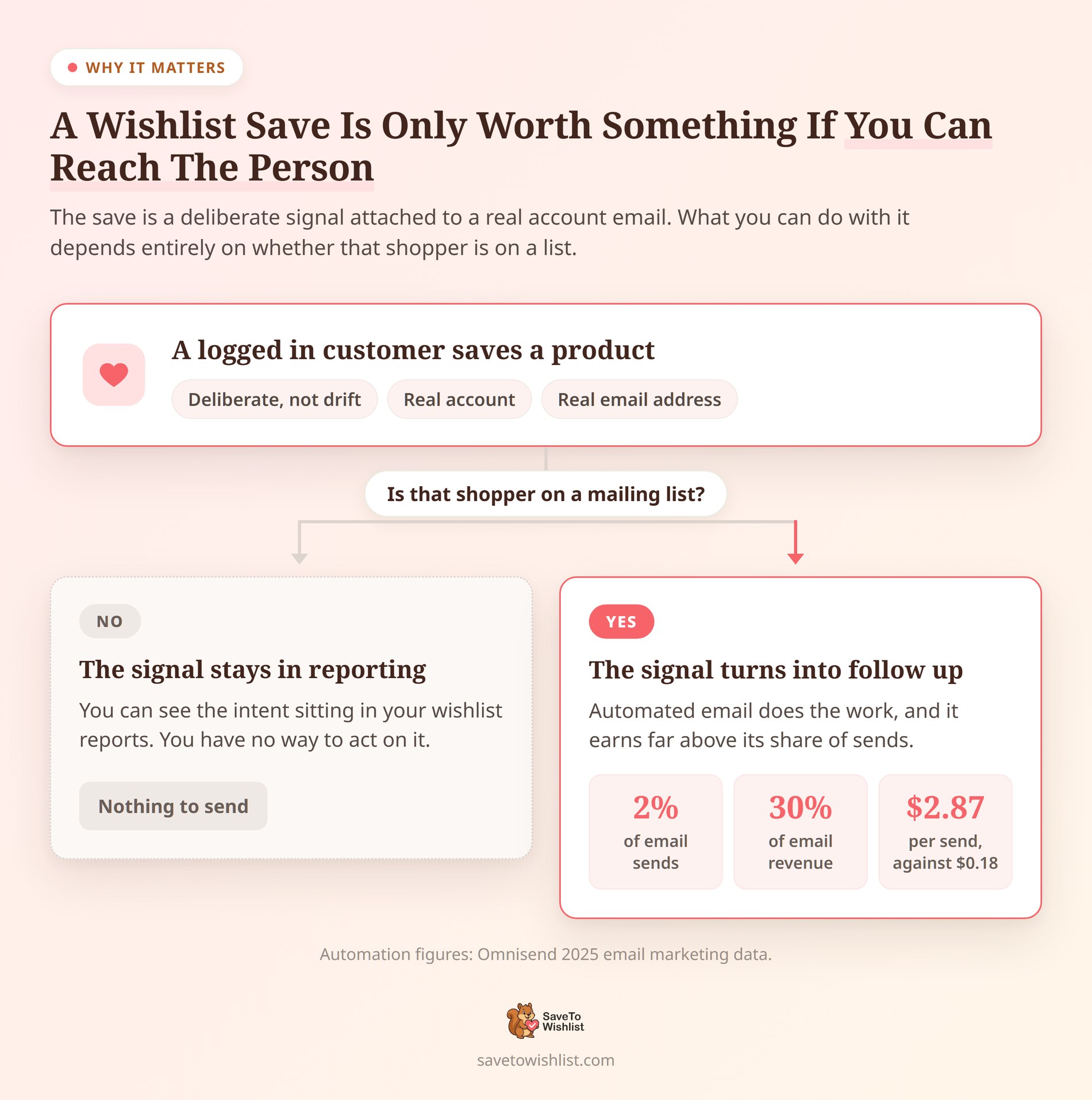
The commercial case for getting those people onto a list is strong. According to Omnisend’s 2025 email marketing data, automated messages made up just 2% of email sends. Still, they drove 30% of email revenue, earning $2.87 per send against $0.18 for campaigns. Omnisend also found that abandoned cart, welcome, and browse abandonment emails accounted for 87% of all automated orders.
Automation like that only works when the person is on a list first. That’s why building an email list for your WooCommerce store is worth wiring into moments customers already act on. A footer signup form nobody notices won’t do it.
What The Email Subscribers Integration Does
It subscribes a logged-in customer’s Email Subscribers contact to a list you choose, after either of two wishlist events. That’s the whole job.
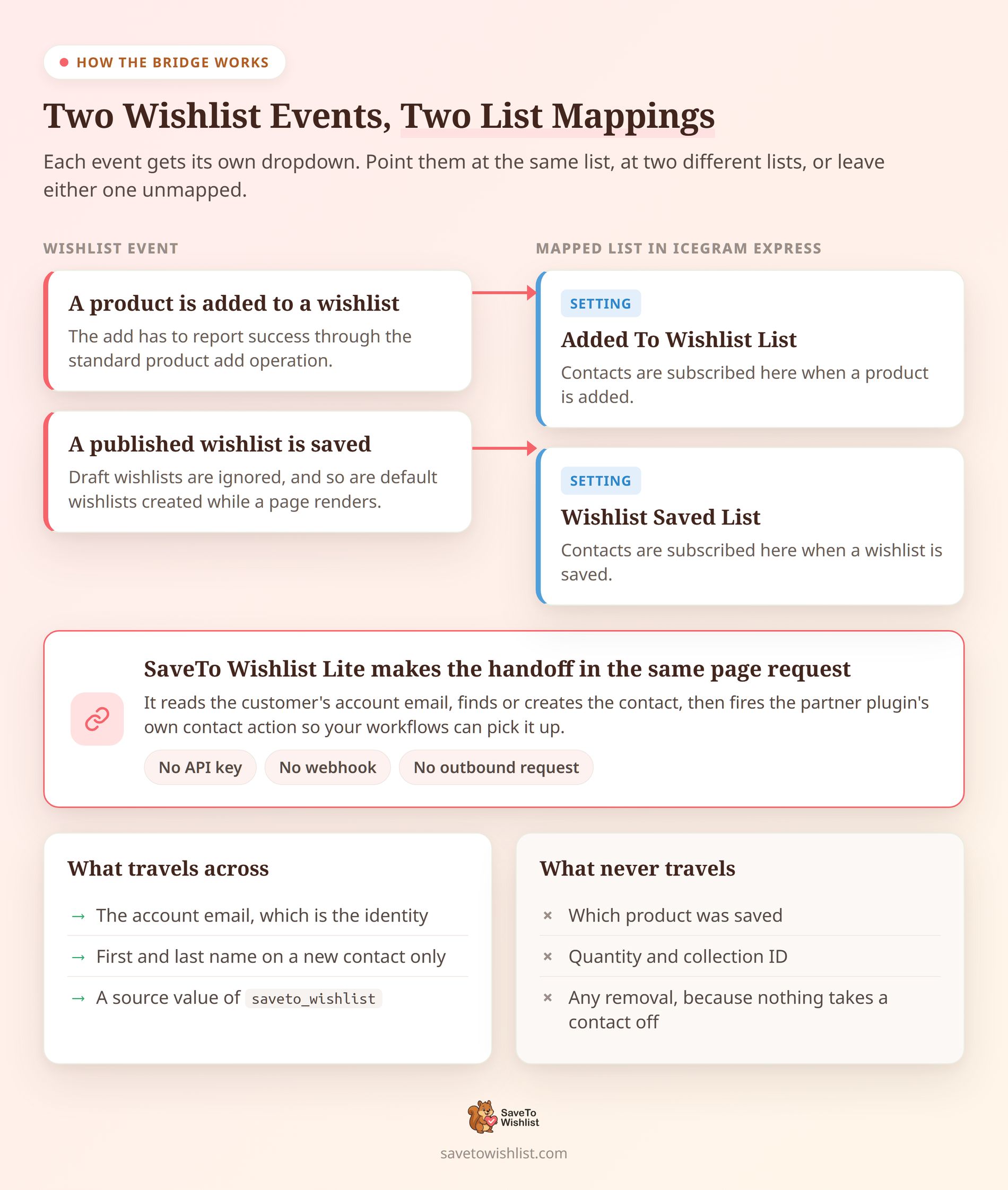
The two events have separate list mappings. So you can point them at the same list, at two different lists, or leave one unmapped:
- A product is added to a wishlist: the add has to report success through SaveTo Wishlist’s standard product-add operation.
- A published wishlist is saved: draft wishlists are ignored, and so are default wishlists created automatically while a page renders.
Everything runs through the Email Subscribers PHP objects on the same WordPress install. There’s no API key, no webhook, and no outbound HTTP request from SaveTo Wishlist. In practice, that means no third-party outage sits between a save and your list.
The customer’s account email is the identity. SaveTo Wishlist looks for a matching contact first, then creates one if none exists. A new contact carries over the first name, last name, and email from the WordPress account. It also gets a source value of saveto_wishlist.
If the account has no name saved, the first name is derived from the email address. Existing contacts keep their profile fields exactly as they are, so records you’ve already cleaned up aren’t overwritten.
Once list membership is confirmed, the integration fires the partner plugin’s own contact action. That action is what Icegram Express workflows listen for. As a result, your existing automations can pick up wishlist activity with no extra glue.
What it does not do
Being clear about the boundaries here saves a lot of confusion later:
- It sends no email of its own. SaveTo Wishlist fires the contact action, and delivery is down to your Email Subscribers setup.
- It passes no product details. The list tells you somebody saved something, not what they saved.
- It never removes anyone. No product-removal handler is registered at all.
- It skips several save routes. Save Cart to Wishlist uses separate cart hooks, and direct item writes through the frontend REST action don’t count.
That third point is the main difference from the FluentCRM integration. FluentCRM pulls its tag back off when the product is removed. Email Subscribers gets list enrollment instead, and enrollment is one-way. FluentCRM shipped in the v1.0.9 integrations release, while this bridge arrived later in SaveTo Wishlist Lite 1.1.1.
What You Need Before You Start
Five things need to be in place before the settings section will even appear:
- SaveTo Wishlist Lite 1.1.1 or later, which is the free wishlist plugin and needs no paid upgrade for this.
- WooCommerce active, since SaveTo Wishlist Lite boots as a WooCommerce extension.
- Email Subscribers & Newsletters active, exposing the objects the integration checks for at runtime.
- At least one Email Subscribers list, because there’s nothing to map an event to otherwise.
- Customers with accounts, logged in and holding an email address on the WordPress user record.
You also need the WordPress manage_options capability to reach the SaveTo Wishlist settings page. A shop manager role won’t be enough.
One detail is worth knowing up front. SaveTo Wishlist doesn’t check the partner’s version number. Instead, availability is decided by testing for specific Email Subscribers functions and objects at runtime.
Those checks don’t cover every method the integration later calls. That means a partner release keeping the objects but changing the methods underneath isn’t established as compatible.
New to wishlists generally? The complete guide to WooCommerce wishlists covers the groundwork.
How To Connect Email Subscribers To Your Wishlist
Setup runs in two places, starting on the Email Subscribers side. There are no code snippets and nothing to paste anywhere. Our knowledge base tutorial covers the same ground in shorter form if you only want the clicks.
Create your lists in Icegram Express first
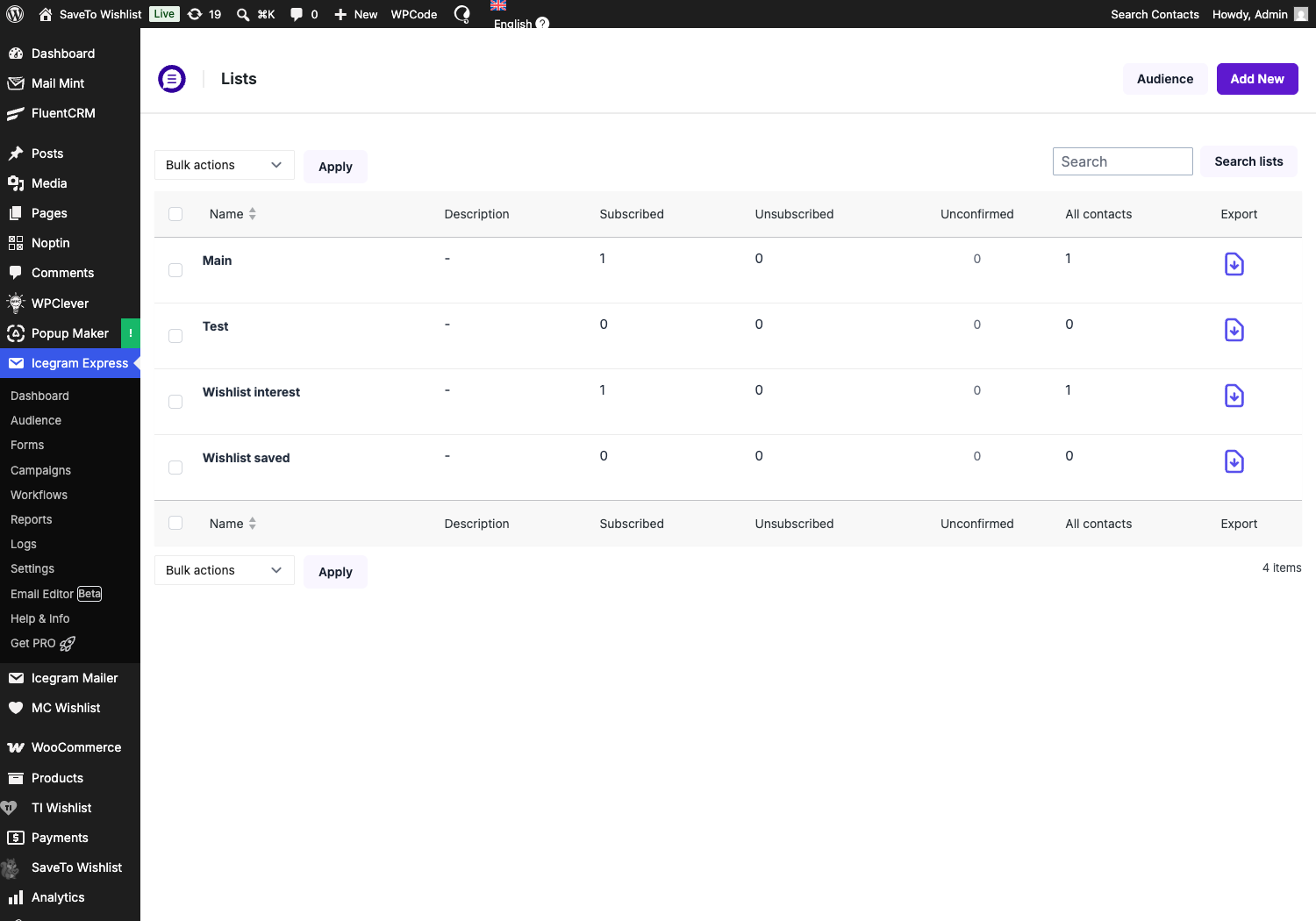
The plugin’s admin menu is labeled Icegram Express, not Email Subscribers. That catches people out on a fresh install. Open it, go to Audience, then Lists, and add the lists you want wishlist activity to feed.
Two lists give you the most useful split, and they map neatly onto the two events. Try “Wishlist interest” for individual product saves, and “Wishlist saved” for shoppers who saved a whole list. A single list works fine too if you only want one audience.
🔍️ One thing we see constantly: Someone creates the list, switches to the SaveTo Wishlist settings, and finds the dropdown empty. SaveTo Wishlist caches the Email Subscribers lists for five minutes. A brand new list can take a moment to appear. Make the lists first, then go and map them.
Map both wishlist events
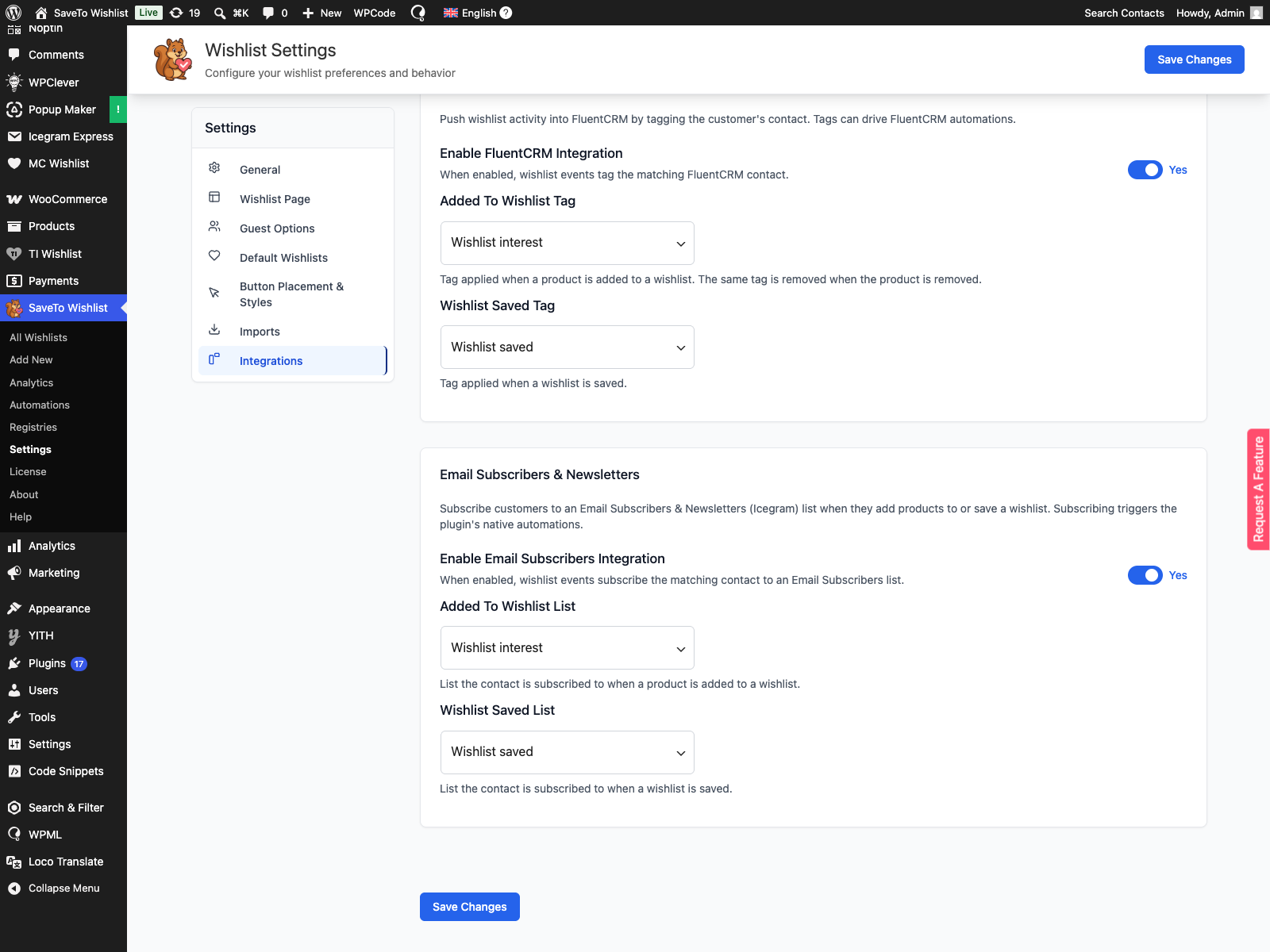
Now head to SaveTo Wishlist, then Settings, then the Integrations tab. Find the Email Subscribers & Newsletters panel and set Enable Email Subscribers Integration to Yes. The two list dropdowns stay hidden until you do, so that’s the first switch to flip.
- Pick a list under Added To Wishlist List. Contacts are subscribed to this one when a product is added to a wishlist.
- Pick a list under Wishlist Saved List. Contacts are subscribed to this one when a wishlist is saved.
- Leave either dropdown on the empty Select a list option if you want that event to do nothing.
- Click Save Changes.
Confirm the first enrollment landed
Test with a customer account rather than your admin login. The integration only acts when the wishlist owner is the person currently logged in.
Add a product to a wishlist as that customer, then go back to Audience, then Lists in Icegram Express. On single opt-in, the Subscribed count on your mapped list should move. On double opt-in, watch the Unconfirmed column instead, because nobody counts as subscribed until they confirm.
Either way, the work happens at the end of the same page request rather than on a scheduled job. So a refresh is all it takes.
Consent Stays Your Job, Not The Plugin’s
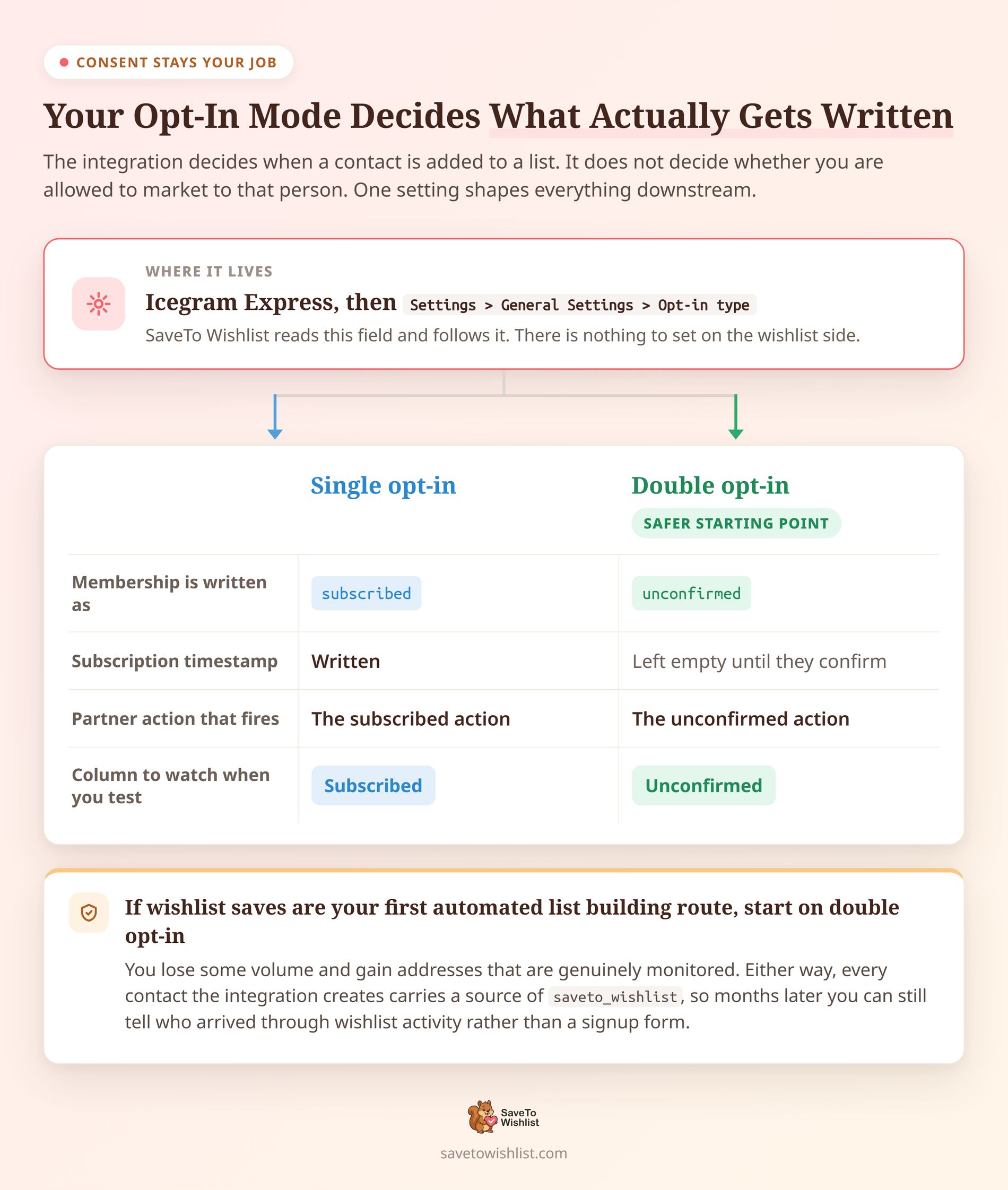
The integration decides when a contact gets added to a list. It doesn’t decide whether you’re allowed to market to that person. Our own documentation is deliberately plain about that distinction.
Saving a coat for later is a shopping action. Treating it as a request for marketing email is a leap, and it’s your leap to justify. The code establishes the technical trigger conditions. Your notice, your legal basis, and your consent wording are separate work.
Two mechanics help you stay on the right side of this. The first is your opt-in mode. It lives in Icegram Express under Settings, on the General Settings tab, as the Opt-in type field. SaveTo Wishlist reads it and follows it.
- Single opt-in: membership is written as subscribed, with a subscription timestamp, and the plugin’s subscribed action fires.
- Double opt-in: membership is written as unconfirmed, the timestamp is left empty, and the unconfirmed action fires instead.
If wishlist saves are your first automated list-building route, double opt-in is the safer starting point. You lose some volume and gain addresses that are genuinely monitored.
The second mechanic is the audit trail. Every contact the integration creates carries a source of saveto_wishlist. Months later, you can still tell which contacts arrived through wishlist activity rather than a signup form.
Global unsubscribes are respected too, wherever Email Subscribers exposes that state to the integration. A contact flagged as unsubscribed isn’t enrolled into another list by wishlist activity.
Practically, the fix is a sentence of copy. Say near your wishlist or account area that saving products may add the shopper to store updates. Then give them the unsubscribe route.
Wishlist behavior is zero-party data, information customers hand over knowingly. It keeps that quality only while the exchange stays transparent.
Your List Is A Running Record, Not A Live Snapshot
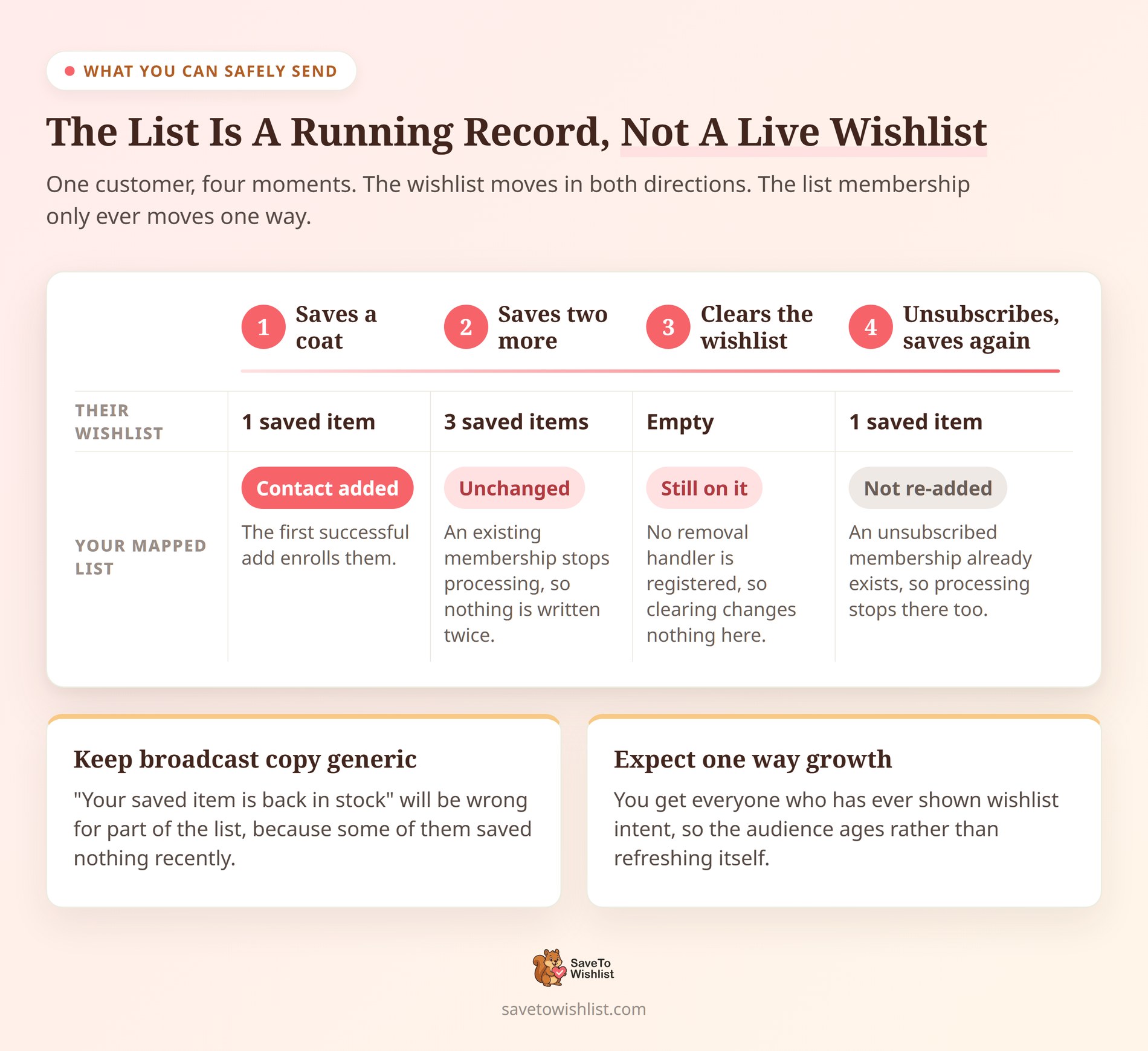
Once a contact lands on the mapped list, no amount of wishlist activity takes them off again. That shapes what you can safely send. So it’s worth getting straight before you write a campaign.
Two behaviors combine here. No removal handler exists, so clearing a wishlist changes nothing on the list. Meanwhile, an existing membership stops processing entirely. That holds whether the membership reads subscribed, unconfirmed, or unsubscribed.
What you end up with is an audience of everyone who has ever shown wishlist intent. It isn’t everyone with something in a wishlist right now. That has two practical consequences:
- Keep broadcast copy generic. A subject line like “your saved item is back in stock” will be wrong for part of the list.
- Expect one-way growth. Someone who unsubscribed won’t be quietly re-added by saving another product, so the list ages rather than refreshing itself.
Use the list as an audience definition and let something else supply the detail. Pairing it with WooCommerce customer segmentation built on wishlist data gives you the specificity the list can’t carry. From there, plenty of wishlist-triggered email automations become worth building.
Why Guest Shoppers Never Reach Your List
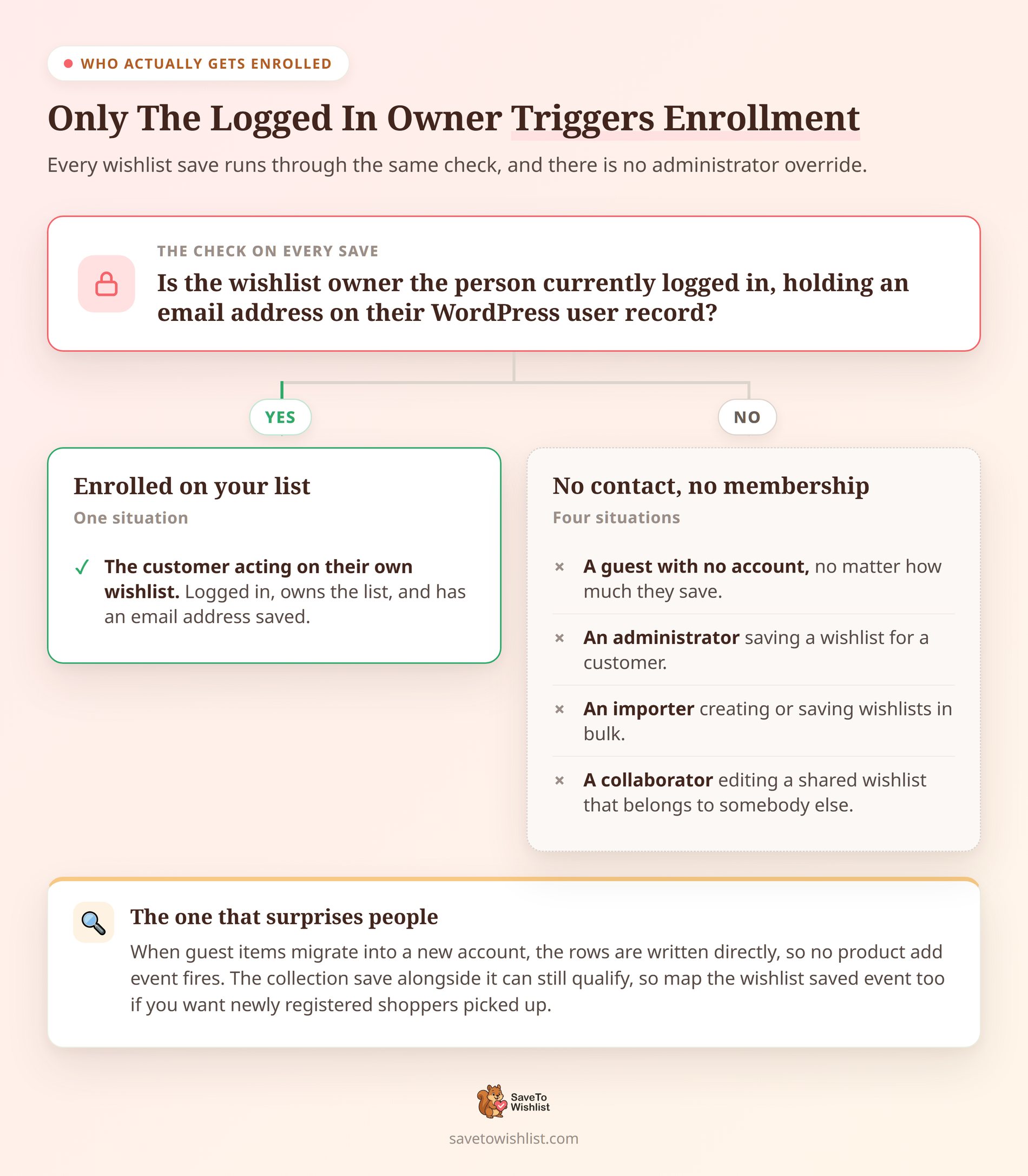
The integration works for logged-in users only. A guest wishlist creates no contact and no list membership, no matter how much a guest saves.
Enrollment also requires the wishlist owner to be the person acting. There’s no administrator override, which rules out a few situations you might expect to work:
- An administrator saving a customer’s wishlist on their behalf.
- An importer creating or saving wishlists for a batch of customers.
- A collaborator editing a shared wishlist that belongs to somebody else.
The tempting response is to force account creation, so every wishlist save yields an email address. Baymard’s abandonment-reason survey argues against it. Among shoppers who abandoned checkout for a specific reason, 18% blamed being made to create an account. Gating wishlists behind registration trades away more than it collects.
Letting guests save freely and converting them later works better. SaveTo Wishlist supports guest wishlists and migrates saved items into an account once the shopper registers.
🔍️ A detail that surprises people: When guest items migrate into a new account, the item rows are written directly. That means the migration doesn’t fire a product-add event. It can still create or save a collection, which may qualify for your Wishlist Saved List mapping. So if you want newly registered shoppers picked up, map the wishlist-saved event too.
Limits To Know Before You Map A List
None of these are faults, but each one will confuse you at some point if you haven’t met it before:
- The list menu is cached for five minutes. A list you create, rename, or delete may not show up in the dropdown straight away.
- Stale mappings are ignored quietly. Delete a mapped list and processing stops once the cache refreshes, with no error and nobody enrolled.
- SaveTo Wishlist writes no log line for this bridge. If enrollment doesn’t happen, no error reaches you or the customer, and the wishlist action still succeeds.
- A first wishlist can trigger both events. Creating a customer’s first published wishlist emits the save event, and the successful add emits the add event.
- Quantity updates count as adds. Re-adding a product that’s already saved can qualify when the operation updates its quantity.
On that fourth point, mapping both events to the same list is the tidier setup for most stores. The membership check stops the second callback. So the partner event isn’t expected to fire twice for the same contact and list in one request.
Because nothing is logged, treat the Lists screen as your monitoring. If subscriber counts stop moving while wishlist analytics show saves still happening, the mapping is the first thing to check.
Want a copy outside the plugin? Visser Labs covers how to export your customer emails for email marketing.
Frequently Asked Questions: Email Subscribers WooCommerce Wishlist Integration
Does this integration cost anything?
No. It ships in the free SaveTo Wishlist Lite plugin, and needs no SaveTo Wishlist Pro license, add-on, or API key. Paid SaveTo Wishlist plans add wishlist analytics and automations. The Gift Registry Addon comes with the Plus and Business tiers.
Does Email Subscribers find out which product was saved?
No. The integration passes the contact and the list, nothing more. Product IDs, quantities, and collection IDs reach the underlying wishlist hook, but this bridge ignores them. If you need product-level detail in a campaign, source it from wishlist reporting instead.
Is the contact removed when a customer clears a wishlist?
No. The integration registers no product-removal handler, so list membership survives an emptied wishlist. Removing subscribers is a manual job in Icegram Express, or something the customer does by unsubscribing.
Does it work for guest wishlists?
No, enrollment needs a logged-in WordPress user with an email address. The wishlist owner also has to be the person acting, so guest saves create no contact. Migrating guest items into a new account doesn’t count as a product-add event either. The collection save alongside it may still qualify.
Does SaveTo Wishlist send the subscription email?
No. It confirms the list membership and then fires the partner plugin’s native contact action. What happens next is handled by Email Subscribers and your own site configuration. That includes any confirmation email or workflow.
Why is my new list missing from the dropdown?
SaveTo Wishlist caches the Email Subscribers list map for five minutes. A list created moments ago may not appear yet. Wait for the cache to expire, then reload the settings page. The same delay applies to renamed and deleted lists.
Turn Saved Products Into A List You Own
Wishlist data is usually treated as reporting, something you look at rather than act on. This integration turns one slice of it into a marketing asset. Better still, it does that with no API key, no sync schedule, and no third-party service in the middle.
Keep the scope honest and it works well. The list tells you who is interested, and your wishlist-powered campaigns supply the rest.
Here’s what to do next:
- Create your lists in Icegram Express, then map both wishlist events and test with a real customer account.
- Decide your opt-in mode and consent wording before you switch the integration on, not after.
- Check what actually reaches the list so nobody writes a campaign expecting product names.
- Write broadcast copy that suits a cumulative audience rather than a live wishlist.
- Keep wishlists open to guests and convert them into accounts later.
Ready to put it together? Install the free SaveTo Wishlist plugin and map your two Email Subscribers lists. Then let saved products build the audience you follow up with.



