
 Reviewed by
 This SaveTo Wishlist walkthrough shows every major feature of the plugin with screenshots of each one in action.
I’ve reviewed a lot of WooCommerce plugins over the years. One thing that always frustrates me is vague feature pages. You read “advanced analytics” and have no idea what that actually looks like inside your dashboard. You see “customizable buttons” and wonder if that means a color picker or a full template system.
So we put together this complete walkthrough of SaveTo Wishlist, with screenshots of every major feature. That way you can see exactly what you’re getting before you install anything.
This article covers all the core features, including installation, settings, the frontend customer experience, admin tools, analytics, automations, and developer features. I’ll clearly mark which features are in the free version and which require SaveTo Wishlist Pro.
Table Of Contents
- Installation And Activation
- Settings Overview
- Frontend Customer Experience
- Customization Options
- Admin Dashboard And Management
- Analytics And Reports (Pro)
- Automations And Notifications (Pro)
- Developer Features (Pro)
- Free Vs. Pro: What's In Each Tier
- FAQ: SaveTo Wishlist Walkthrough
- Wrapping Up The SaveTo Wishlist Walkthrough
Installation And Activation
Getting SaveTo Wishlist onto your WooCommerce store is a standard WordPress plugin installation. Nothing unusual here.
- In your WordPress dashboard, go to Plugins > Add New
- Search for “SaveTo Wishlist”
- Click Install Now, then Activate
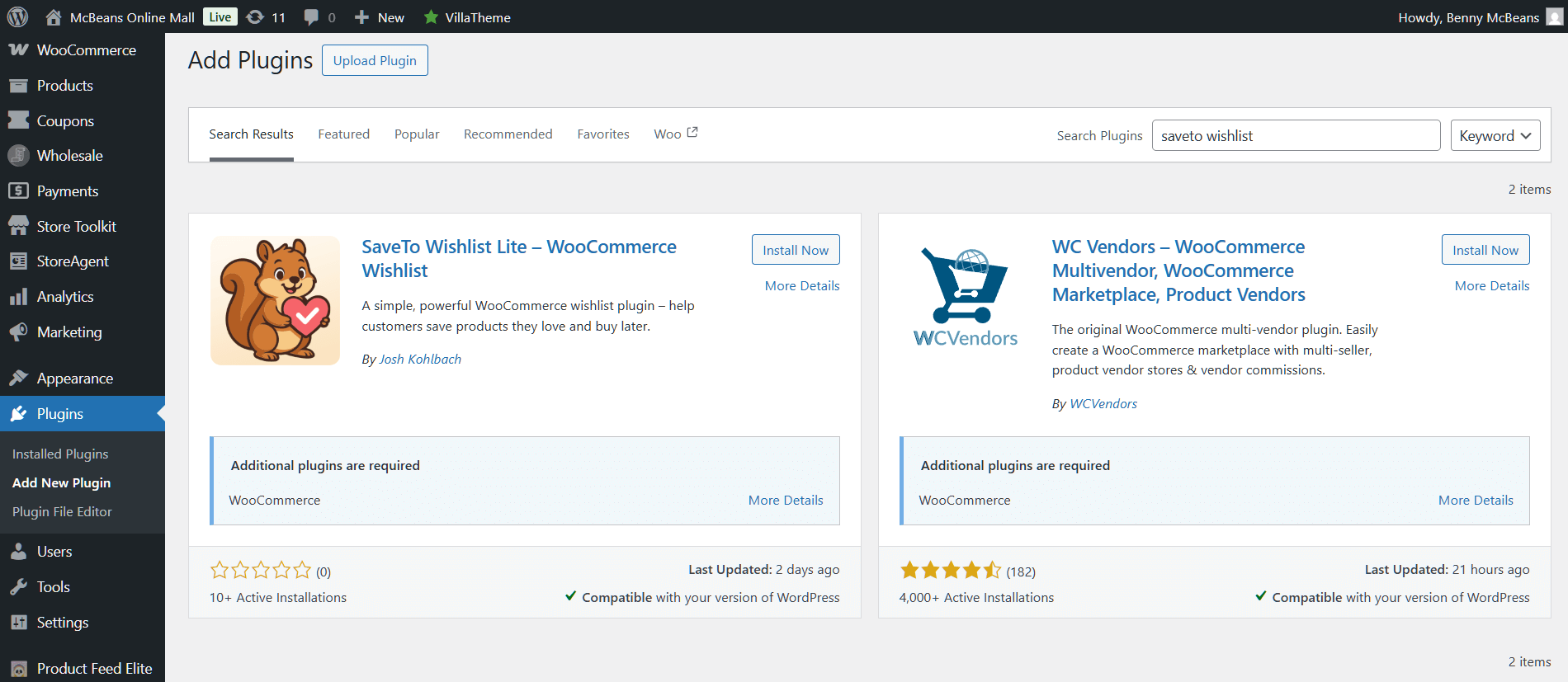
After activation, you’ll see a new SaveTo Wishlist menu item in your WordPress sidebar. Plus, the plugin creates a wishlist page automatically, so there’s no manual page creation required.
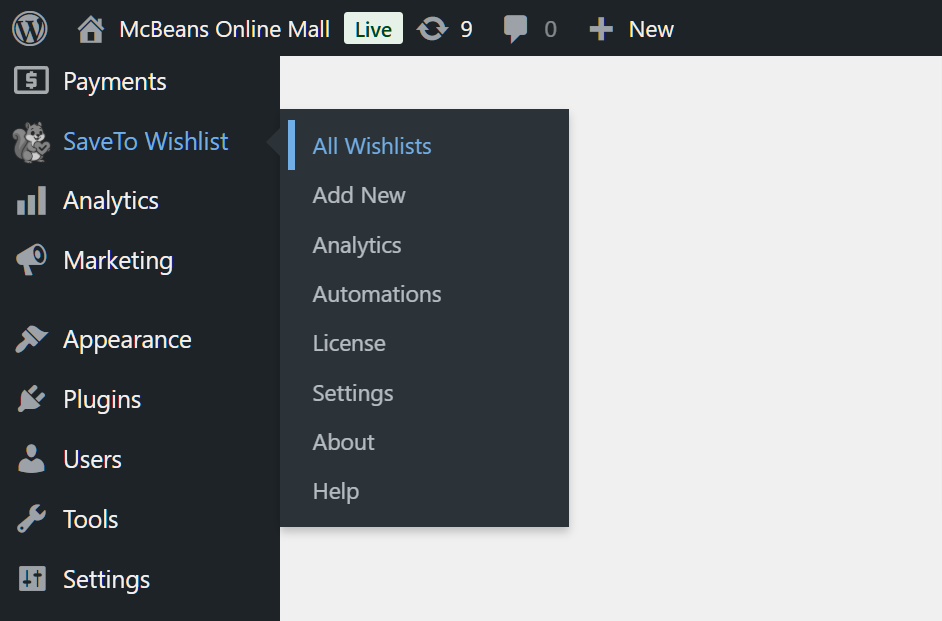
WordPress sidebar showing the SaveTo Wishlist menu item after activation (click to zoom)
If you just want the quick version of getting up and running, check out the 5-minute quick start guide. This SaveTo Wishlist walkthrough goes deeper into every feature.
Settings Overview
Next up in our SaveTo Wishlist walkthrough, we explore the settings panel. Basically, this is where you configure how the WooCommerce wishlist plugin behaves on your store. It’s organized into clear tabs, and the defaults are sensible for most stores.
General settings cover the basics:
- Wishlist page: The page where customers view their saved items. SaveTo Wishlist creates this automatically, but you can change it to any page on your site.
- Remove on add to cart: Choose whether products are automatically removed from the wishlist when a customer adds them to their cart. Most stores leave this off so the wishlist serves as a persistent “favorites” list.
- Redirect after add: Whether to send customers to the wishlist page after saving a product, or keep them on the product page. I’d recommend keeping them on the product page so they can continue browsing.
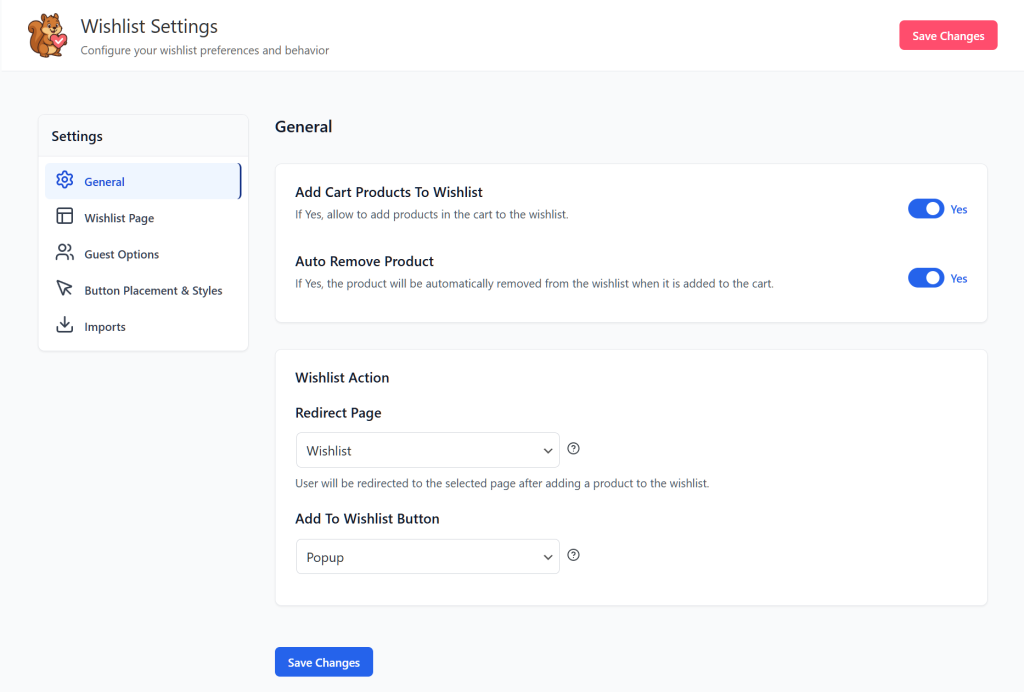
Button placement settings control where the wishlist button appears:
- Position relative to the Add to Cart button (before, after, or custom)
- Show on shop/archive pages (not just individual product pages)
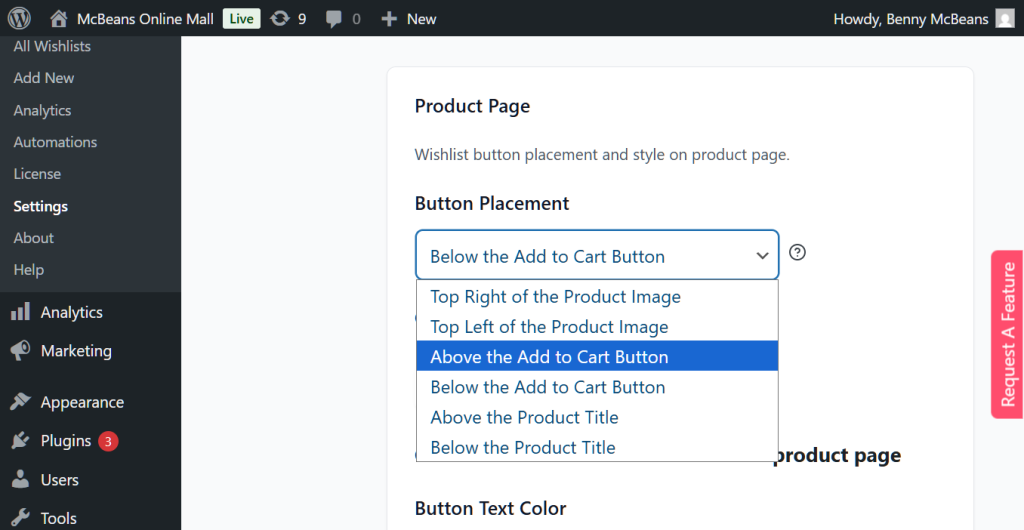
The default button placement works with most WooCommerce themes, including Storefront, Astra, Kadence, and block-based themes. However, if your theme uses a custom product template, you may need to adjust the position.
Frontend Customer Experience
This is what your customers actually see and interact with when they use your store’s wishlist functionality. I’ll walk through each piece of the frontend experience.
The wishlist button on product pages
By default, SaveTo Wishlist places a button on every product page near the Add to Cart area. When a customer clicks it, the product is saved to their wishlist with a visual confirmation.
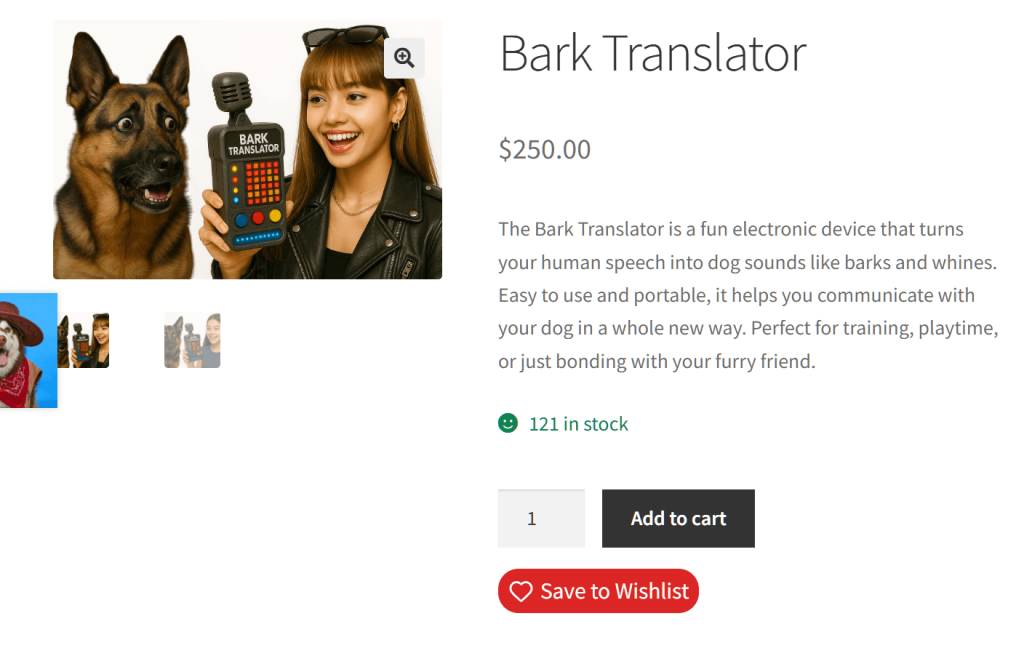
The button works with simple products, variable products, and grouped products. For variable products, SaveTo Wishlist tracks the specific variation a customer selected. So if they save a “Blue / Large” t-shirt, that’s exactly what shows up in their wishlist.
This is actually a bigger deal than it sounds. Several competing plugins only save the parent product. As a result, when a customer returns to their wishlist, they have to re-select their preferred size and color. SaveTo Wishlist remembers the full variation.
The wishlist page
When customers click through to their wishlist, they see a clean, organized view of everything they’ve saved.
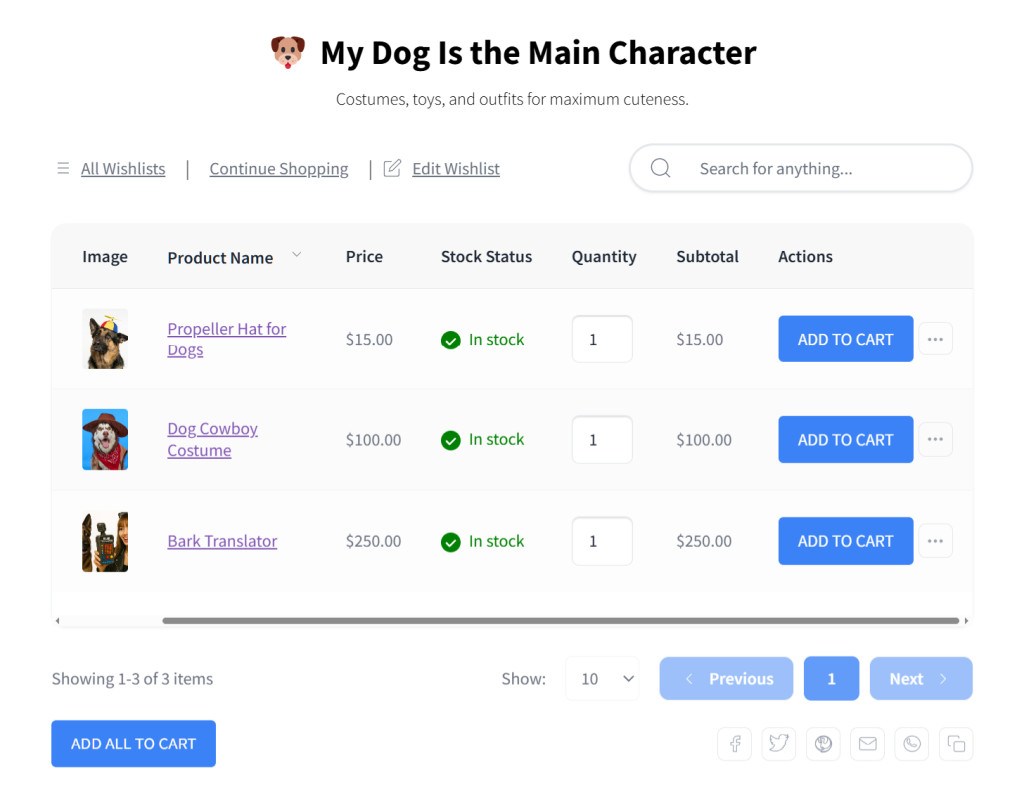
Each wishlist entry shows:
- Product image and name
- The specific variation saved (if applicable)
- Current price (updated in real time)
- Stock status
- An Add to Cart button so they can purchase directly from the wishlist
- A Remove button to clean up items they no longer want
The wishlist page is responsive and works well on mobile devices. That matters because a significant portion of wishlist activity happens on phones.
Multiple wishlists
Here’s where SaveTo Wishlist stands out from most free alternatives. Customers can create multiple wishlists and organize products however they want.
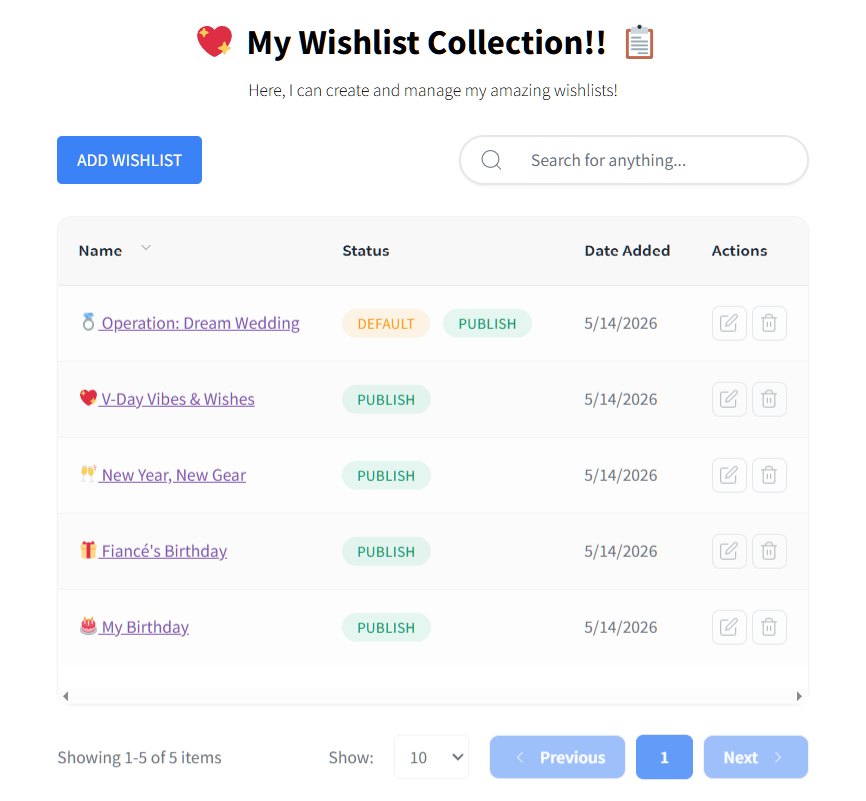
A customer might create:
- “Birthday Wishlist” to share with family
- “Home Office” for products they’re planning to buy over time
- “Gift Ideas for Mom” for seasonal shopping
This feature is free in SaveTo Wishlist. By contrast, YITH WooCommerce Wishlist locks multiple wishlists behind their premium tier. So customers can only have a single list unless the store pays for an upgrade.
Guest wishlists (no account required)
Guest user wishlists let visitors save products without creating an account or logging in. This is included in the free version, SaveTo Wishlist Lite.
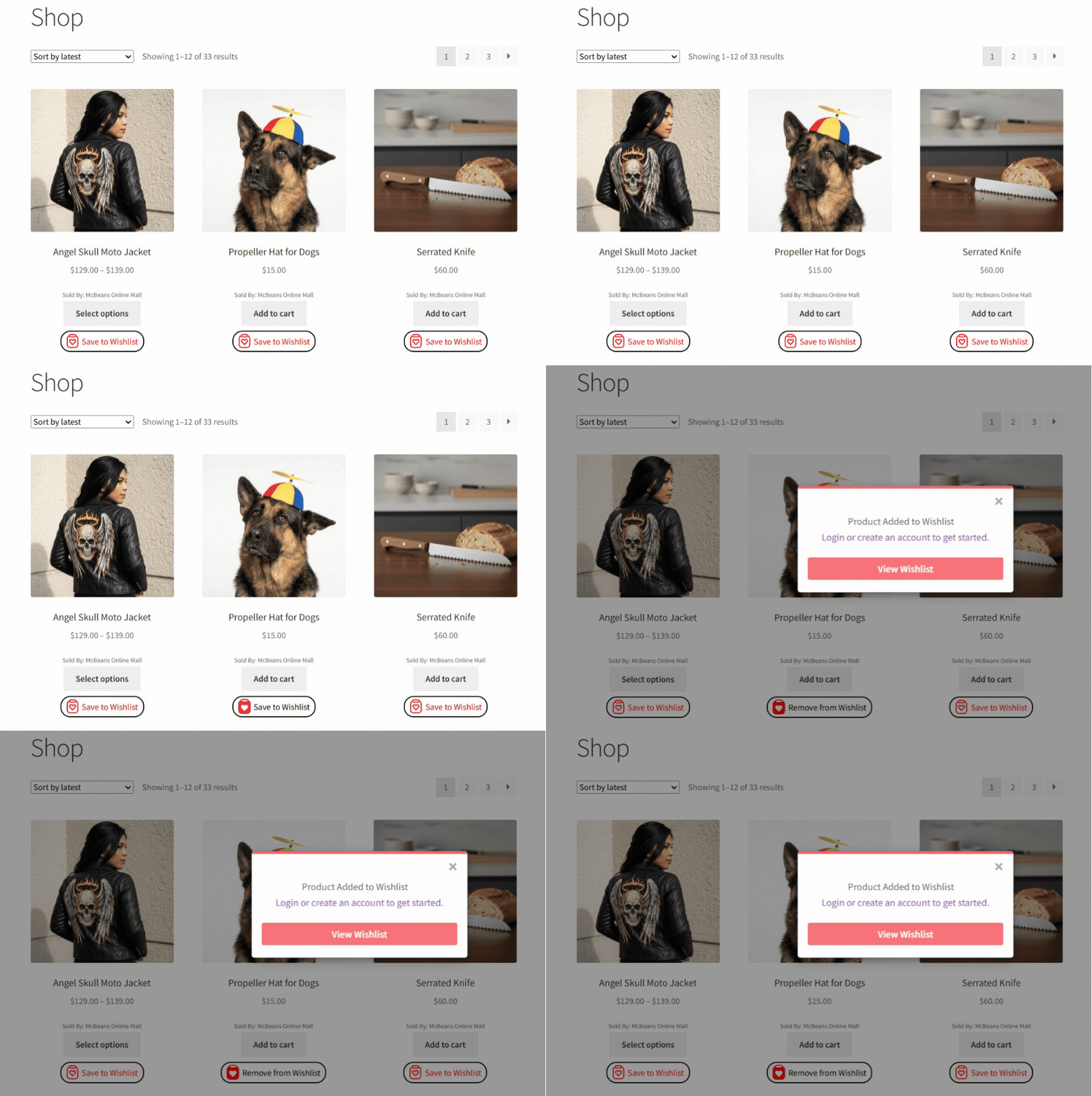
Why does this matter? According to Baymard Institute’s checkout UX research, 19% of online shoppers abandon orders because the site forced them to create an account. So if your wishlist also requires registration, you’re cutting off a sizeable share of potential wishlist users before they even start.
Guest wishlists store data in the browser, so returning visitors see their saved items even without logging in. Plus, if they later create an account, their guest wishlist can merge with their registered account.
For a deeper look at guest wishlist strategy, see the guest wishlist guide.
Customization Options
SaveTo Wishlist gives you several ways to match the wishlist experience to your store’s branding.
Button templates let you choose from pre-designed button styles. You can go with an icon-only heart, a text button, or a combination of both.
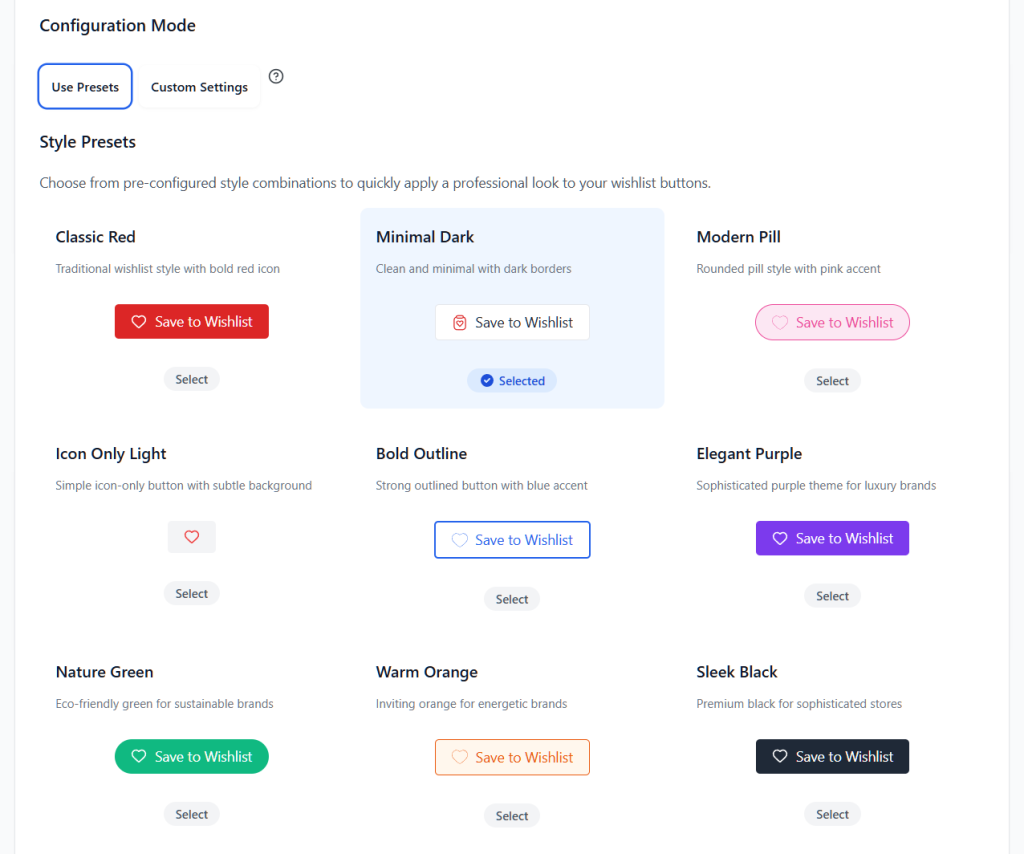
Beyond templates, you can customize:
- Button text (change “Add to Wishlist” to “Save for Later,” “Love It,” or whatever fits your brand)
- Button colors to match your theme’s palette
- Icon style (filled heart, outline heart, bookmark, or custom)
- Added state (what the button looks like after a product has been saved)
SaveTo Wishlist supports block themes natively. So if you’re using WordPress full-site editing, the wishlist components work within the block editor without workarounds.
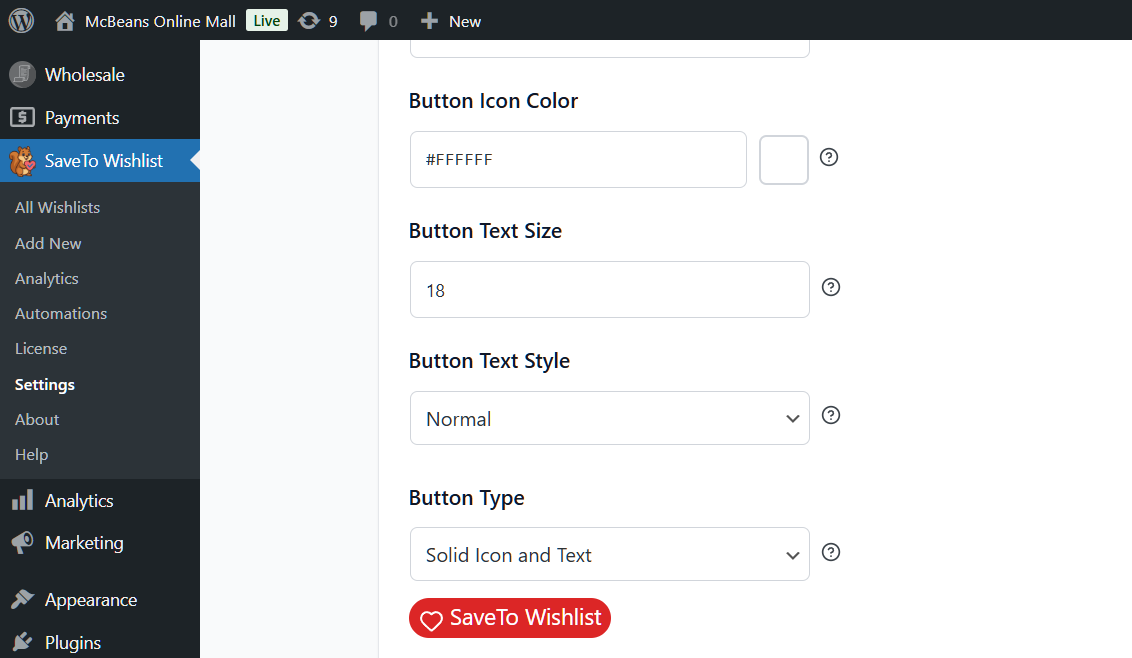
For the complete guide to customization, including advanced styling options, see the wishlist customization page.
Admin Dashboard And Management
Continuing our SaveTo Wishlist walkthrough on the admin side, the plugin gives you a centralized view of all wishlist activity across your store.
The main dashboard shows:
- Total wishlists created across all customers
- Total items saved with trend indicators
- Most wishlisted products at a glance
- Recent activity feed showing the latest saves and removals
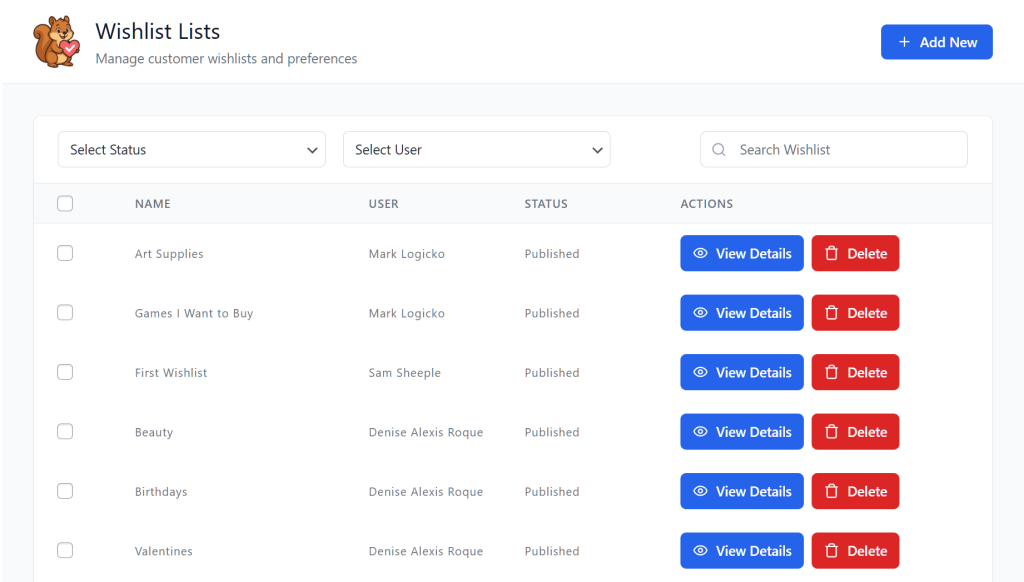
You can drill down into individual customer wishlists, filter by date range, and see which products are getting the most wishlist activity. In practice, this data is valuable even without the SaveTo Wishlist Pro analytics features. It tells you what customers want but haven’t purchased yet.
Analytics And Reports (Pro)
This is where SaveTo Wishlist Pro starts earning its price. The advanced analytics dashboard turns raw wishlist data into actionable insights.
🔍️ What we’ve found: Stores that actively use wishlist analytics tend to make better stocking, pricing, and promotion decisions. Imagine seeing that a specific product has been sitting on hundreds of wishlists for weeks without converting. That’s a clear signal that the price point is too high, or the product needs a promotion to move. The analytics don’t just report numbers. They surface opportunities.
Key reports include:
Wishlist-to-cart conversion tracking shows which wishlisted products actually get purchased and how long the conversion takes. You can see whether customers typically buy within a day, a week, or a month.
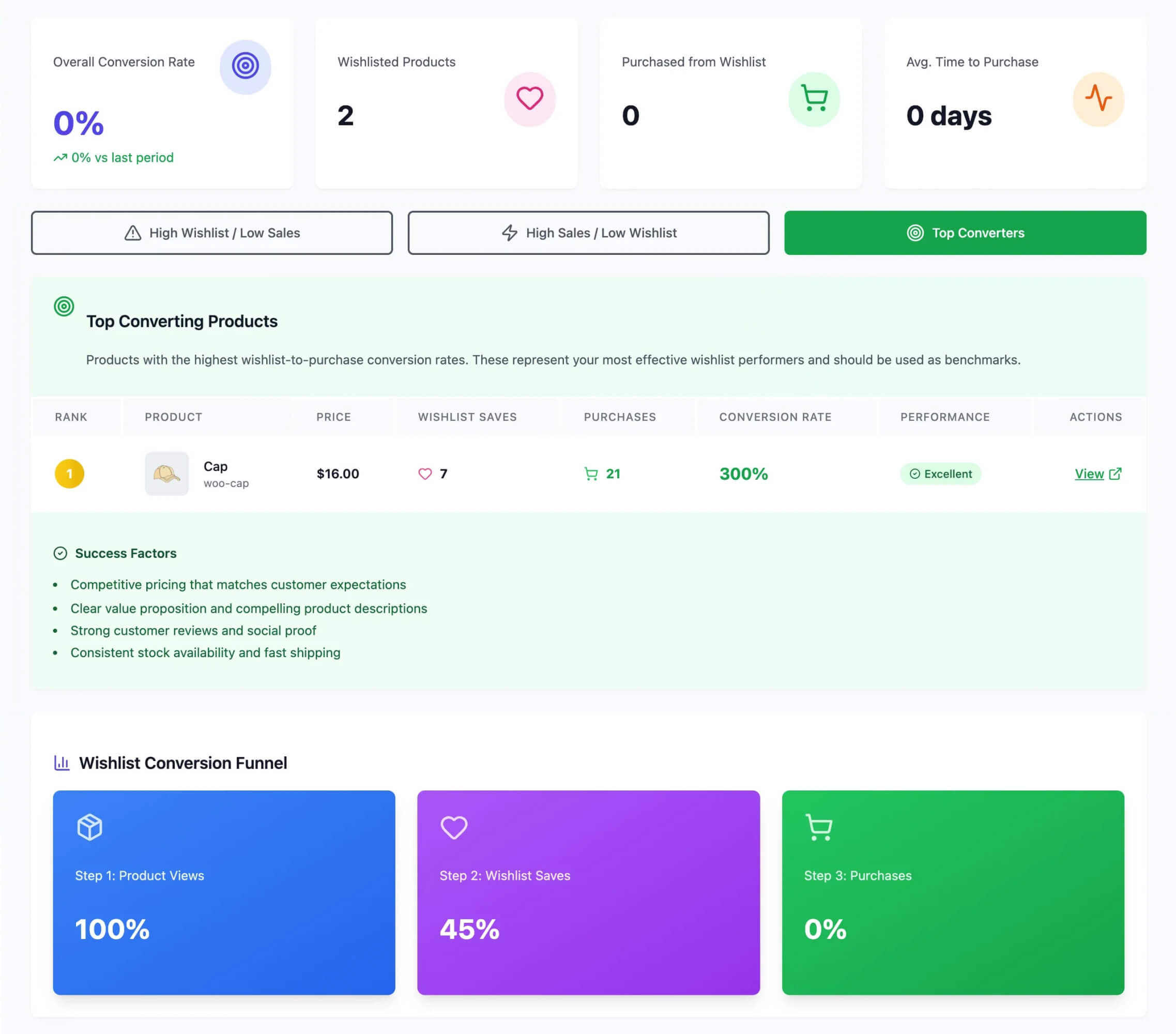
Most wishlisted products ranked by total saves, with conversion rate alongside. A product with high wishlist saves but low conversion is a pricing or availability problem worth looking into.
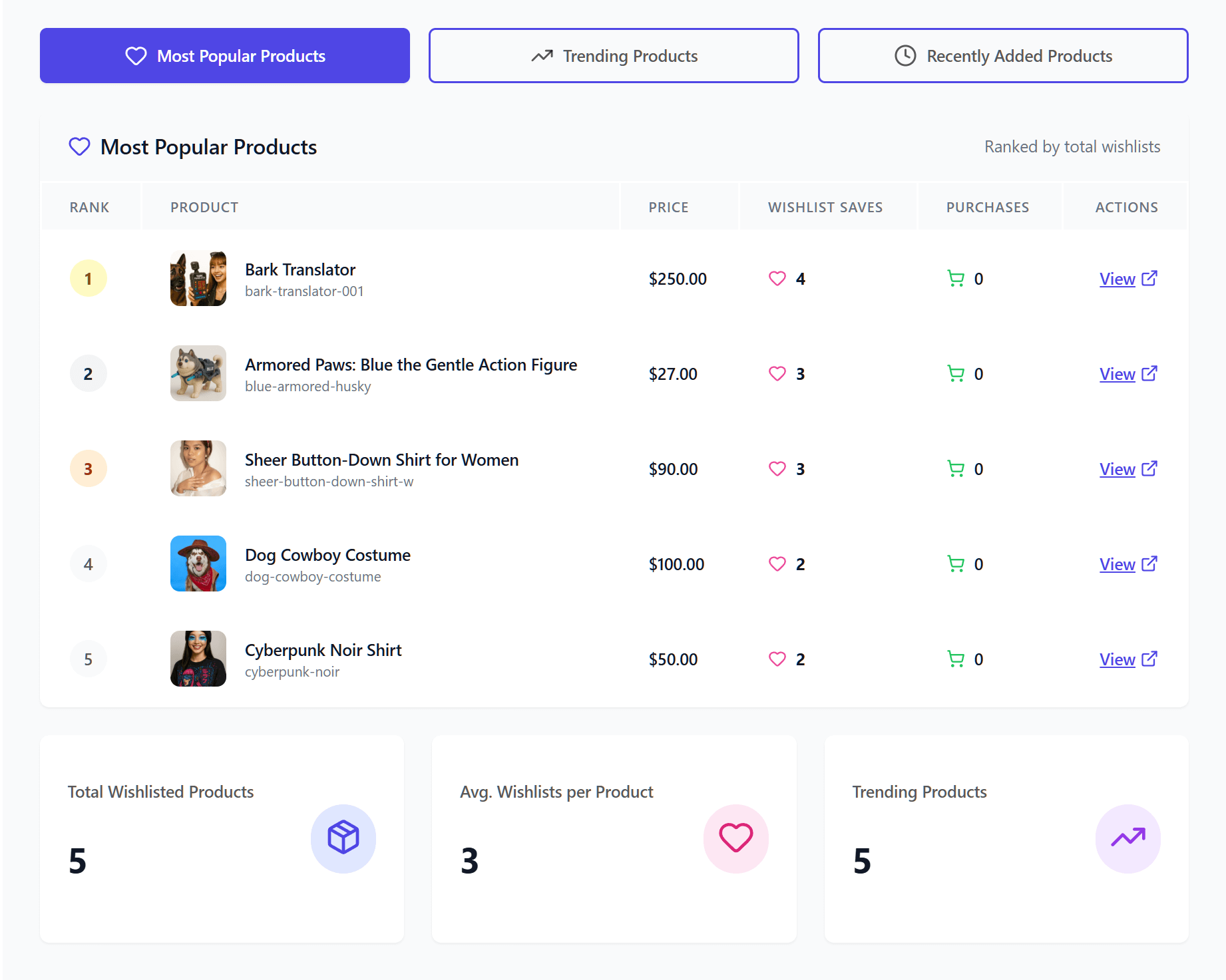
Trend analysis shows how wishlist activity changes over time. Spikes in saves often come before buying events like Black Friday or seasonal shifts. As a result, this data helps you time your promotions.
Funnel reporting tracks the customer journey from product view to wishlist save to cart addition to purchase. You can see where customers drop off, and what share of wishlist users ultimately convert.
According to Omnisend’s email marketing data, behavior-triggered emails (like those based on wishlist activity) generate much higher engagement than generic campaigns. In fact, automated emails drove 37% of email-generated sales from just 2% of email volume. SaveTo Wishlist Pro’s analytics tell you exactly which behaviors to target.
Automations And Notifications (Pro)
SaveTo Wishlist Pro includes built-in automation features that turn wishlist data into revenue-driving actions.
Price drop alerts notify customers when a product on their wishlist goes on sale. You configure the threshold (any price decrease, 10%+ decrease, etc.) and SaveTo handles the rest.
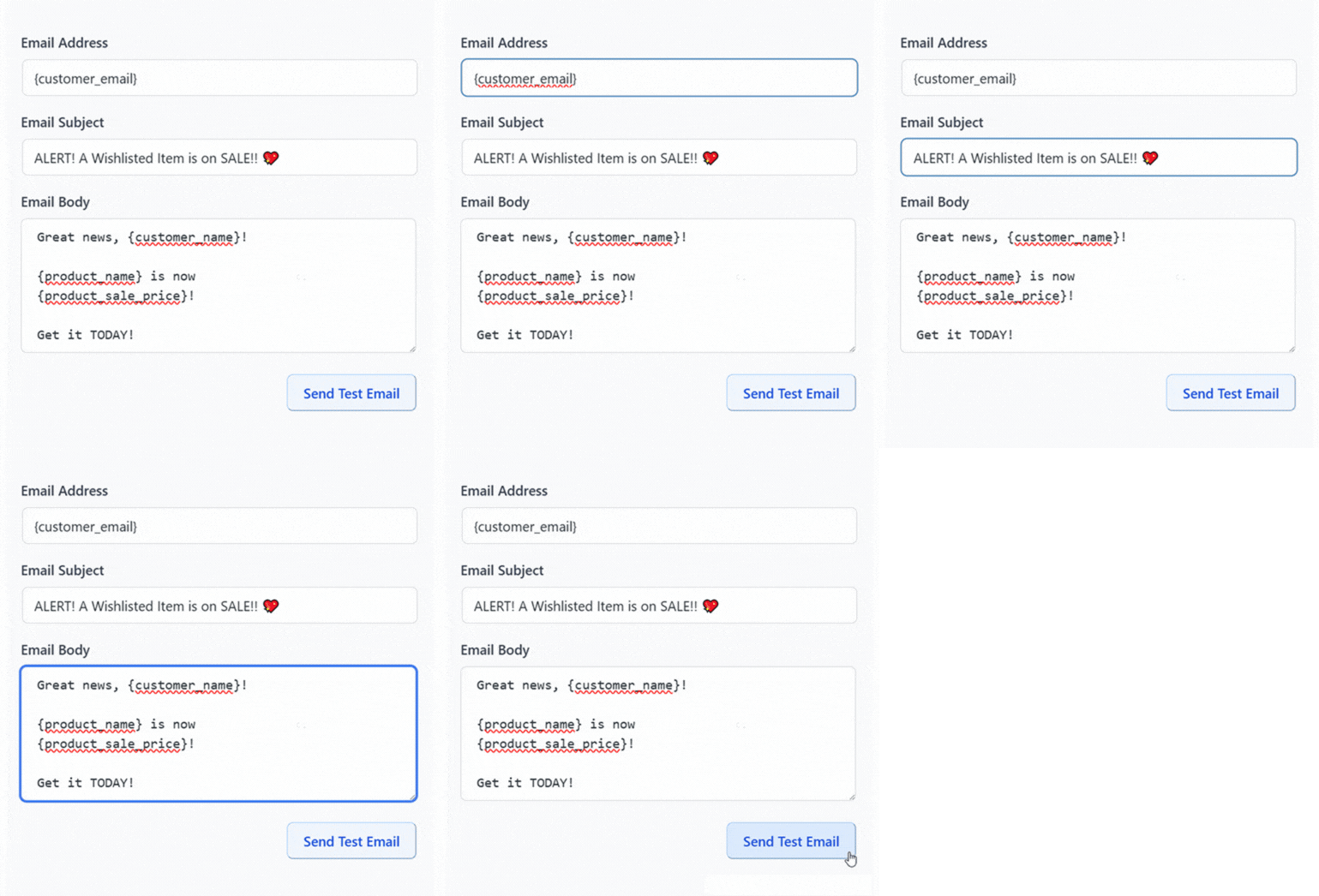
This is one of the highest-converting features in SaveTo Wishlist Pro. When someone already wants a product and the price drops, that notification tends to convert at a higher rate than a generic promotional email.
For a detailed look at how price drop alerts work, see the price drop alerts page.
Back-in-stock notifications alert customers when an out-of-stock wishlist item becomes available again. This is particularly valuable for stores with inventory fluctuations or limited-edition products.
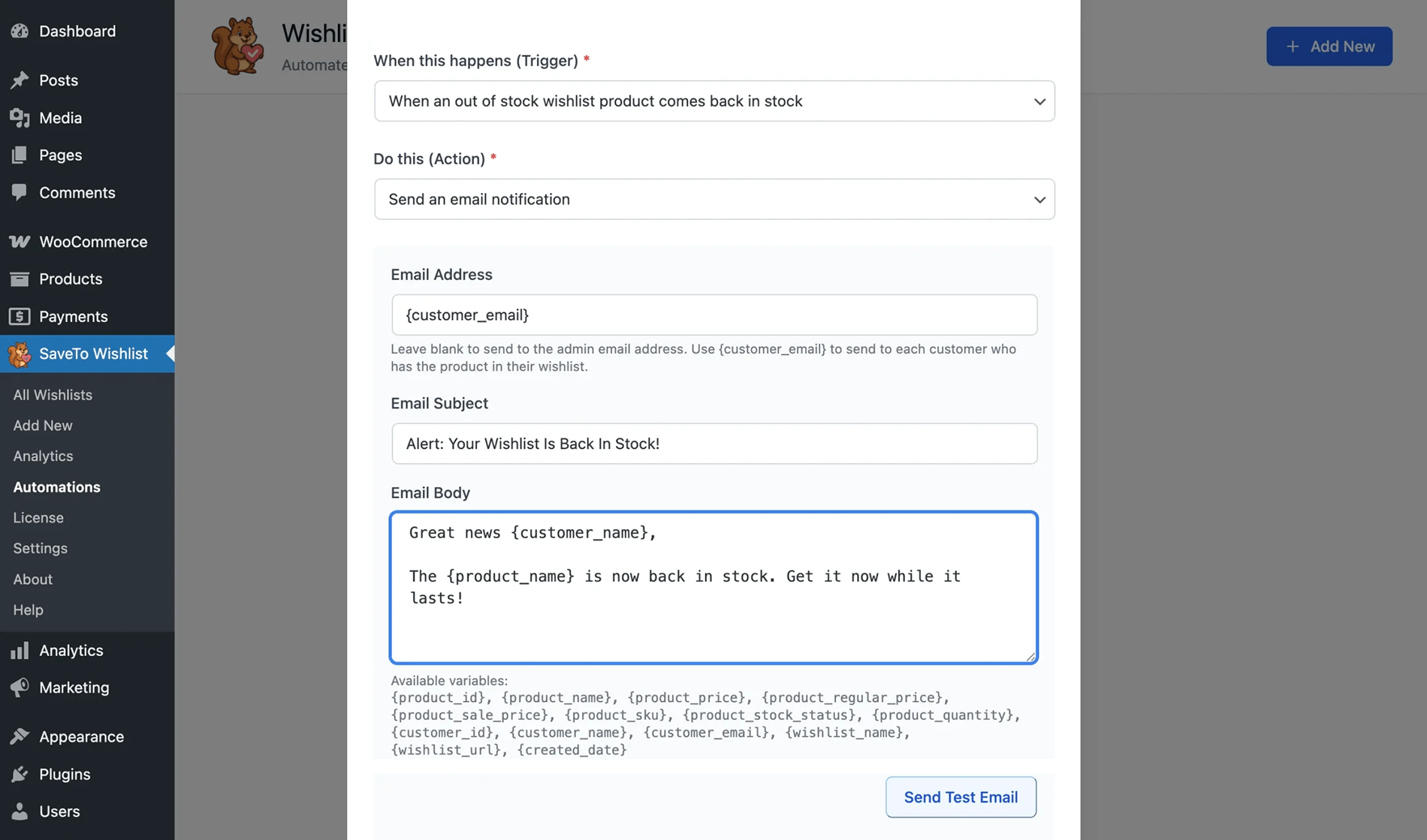
For more on back-in-stock workflows, see the back-in-stock notifications page.
Webhooks let you send wishlist event data to external tools. When a customer adds a product to their wishlist, changes their list, or triggers any other wishlist event, a webhook can fire. It can hit your email platform, CRM, analytics tool, or any custom endpoint.
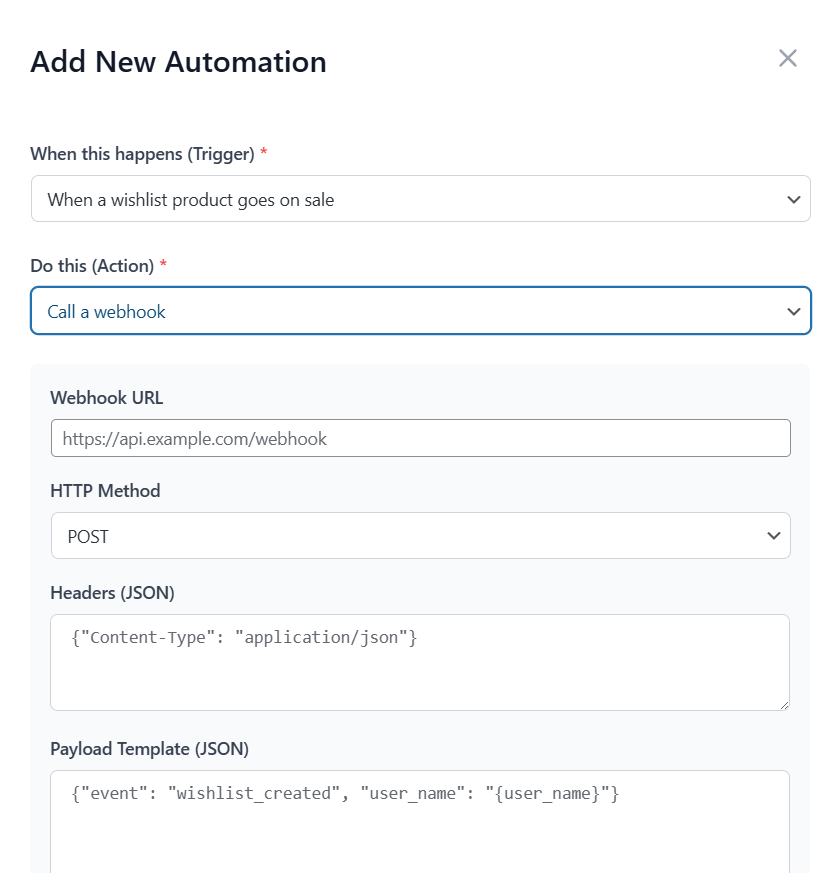
The wishlist automation guide covers the full range of automation possibilities, including connecting to platforms like Klaviyo, Mailchimp, and ActiveCampaign.
Developer Features (Pro)
For agencies and developers building custom WooCommerce solutions, SaveTo Wishlist Pro includes a full REST API and webhook system.
The REST API lets you read and write wishlist data programmatically. You can build custom wishlist UIs, integrate wishlist data into mobile apps, or sync wishlist information with external databases.
Webhooks (covered briefly above) provide real-time event notifications. Every wishlist action can trigger an outbound HTTP request to your system.
For technical documentation on webhooks, see the webhooks feature page.
These features are mostly relevant for stores with custom development needs, agencies managing multiple WooCommerce sites, or businesses integrating wishlist data into broader marketing technology stacks.
Free Vs. Pro: What’s In Each Tier
Here’s a clear breakdown of what you get at each level.
Free (SaveTo Wishlist):
- Unlimited wishlists per customer
- Guest wishlists (no account required)
- Variation tracking
- Multiple wishlists
- Block theme support
- Wishlist importer
- Button templates
- Translation-ready
- REST API
Pro (SaveTo Wishlist Pro):
Everything in Free, plus:
- Analytics and reports
- Automations (price drop alerts, back-in-stock notifications)
- Webhooks for external tool integration
- Collaborative lists
- Role-based access
- REST API
Pricing:
- Growth plan: for a single site, $49.50 for the first year, then $99/year
- Plus plan: for a single site, $99.50 for the first year, then $199/year, and includes the Gift Registry Addon
- Business plan: for unlimited sites, $199.50 for the first year, then $399/year
- 14-day money-back guarantee on all plans
See the full pricing details or the SaveTo Wishlist Pro overview page for more.
FAQ: SaveTo Wishlist Walkthrough
Is SaveTo Wishlist compatible with my theme?
SaveTo Wishlist works with block themes (WordPress full-site editing) and most classic WooCommerce themes. It’s tested with Storefront, Astra, Kadence, GeneratePress, OceanWP, and dozens of others. If your theme uses standard WooCommerce hooks for product pages, the wishlist button will appear automatically.
Can I try the free version before upgrading to SaveTo Wishlist Pro?
Yes, and that’s what I’d recommend. Install the free version, use it on your store, and see how your customers interact with wishlists. When you’re ready for analytics, automations, and developer tools, upgrade to SaveTo Wishlist Pro. All your existing wishlist data carries over.
How does SaveTo Wishlist compare to YITH WooCommerce Wishlist?
The biggest difference is what you get for free. SaveTo Wishlist includes multiple wishlists, guest wishlists, and variation tracking in its free tier. YITH WooCommerce Wishlist locks multiple wishlists behind its premium tier. For a detailed comparison, see our best WooCommerce wishlist plugins roundup.
Will SaveTo Wishlist slow down my store?
SaveTo Wishlist is built with performance as a priority. It loads minimal assets on the frontend, uses efficient database queries, and doesn’t add unnecessary JavaScript to pages where the wishlist button isn’t present. For performance data, see the speed test results.
What happens to my data if I switch from another wishlist plugin?
If you’re switching from another WooCommerce wishlist plugin, SaveTo Wishlist includes a built-in importer that can easily migrate your existing data. Basically, your customers’ saved products transfer over, so they don’t lose their wishlists during the switch.
Does SaveTo Wishlist work with variable products?
Yes, and it tracks the specific variation. If a customer saves a “Blue / Large” shirt to their wishlist, that exact combination is what appears on their list. They don’t have to re-select their preferred options when they return. This works with all standard WooCommerce product variations.
Why are you introducing SaveTo Wishlist now?
We’re introducing SaveTo Wishlist because we wanted to give WooCommerce store owners a clearer, more transparent experience from day one. Basically, we believe that essential wishlist features shouldn’t be reserved for a premium tier; they belong in the free version. That’s why we built a highly optimized, lightweight alternative that works great right out of the box, ensuring you get the core tools you need without sacrificing site speed.
Wrapping Up The SaveTo Wishlist Walkthrough
That concludes our SaveTo Wishlist walkthrough; you’ve now seen every major feature from installation to admin analytics to developer tools.
The free version covers the essentials that most stores need: unlimited wishlists, guest support, variation tracking, multiple lists, and customizable buttons. In short, it’s a legitimate wishlist solution, not a teaser for a paywall.
When your store grows, you’ll want to act on wishlist data. SaveTo Wishlist Pro picks up where the free version leaves off with analytics, automations like price drop alerts and back-in-stock notifications, and developer integrations via webhooks and the REST API. Pricing starts at $49.50 for the first year, then renews at $99/year. 14-day money-back guarantee included!
Start with the free version and see how your customers use wishlists. Get SaveTo Wishlist from the WordPress plugin directory and explore everything you’ve seen in this walkthrough on your own store.