

 Reviewed by
 When a customer plans a wedding or a baby shower, they want one shared list. Friends and family can then buy from it. If your store can’t handle that, those shoppers go somewhere that does. Usually that means a big marketplace, and the sale leaves with them.
That gap is exactly what we built our new feature to close.
The WooCommerce Gift Registry Addon is now live for SaveTo Wishlist. Built as a powerful extension for your store, it’s available exclusively with our Plus and Business plans. Your shoppers can turn any eligible wishlist they own into a public, shareable registry. Their guests buy the gifts straight through your normal checkout.
In this article, we’ll cover what the Gift Registry Addon does and how customers create one. We’ll also look at how guests buy, how purchases get tracked, and how you manage it all. So, let’s get started!
Table of Contents
- What Is A Gift Registry?
- Turn An Eligible Wishlist Into A WooCommerce Gift Registry
- How Guests Buy Gifts (And How Purchases Get Tracked)
- Give Registry Owners A Purchase And Thank-You Dashboard
- Help Guests Find The Right Registry
- Manage Every Registry From Your Store Admin
- Stay In The Loop With Email Notifications
- Who The WooCommerce Gift Registry Addon Is For
- Conclusion
- FAQs: WooCommerce Gift Registry Addon
What Is A Gift Registry?
A gift registry is a shared list of products a person wants for a big event. So guests buy from that list, and the list keeps track of what guests have already bought. It’s the same idea as a wedding registry, just hosted on your store instead of someone else’s.
SaveTo Wishlist’s WooCommerce Gift Registry Addon is a separate extension that sits on top of the wishlist tools you already know. While it uses SaveTo Wishlist Lite as its foundation, it’s exclusively included with our Plus and Business plans. It adds its own pages, its own data, and its own settings. Activating it doesn’t convert or replace your existing wishlists. It adds separate registry pages, data, and settings alongside them.
The whole thing runs on your store. Guests check out through your normal WooCommerce cart, not a separate payment system. That keeps the sale, the customer data, and the experience under your roof.

Turn An Eligible Wishlist Into A WooCommerce Gift Registry
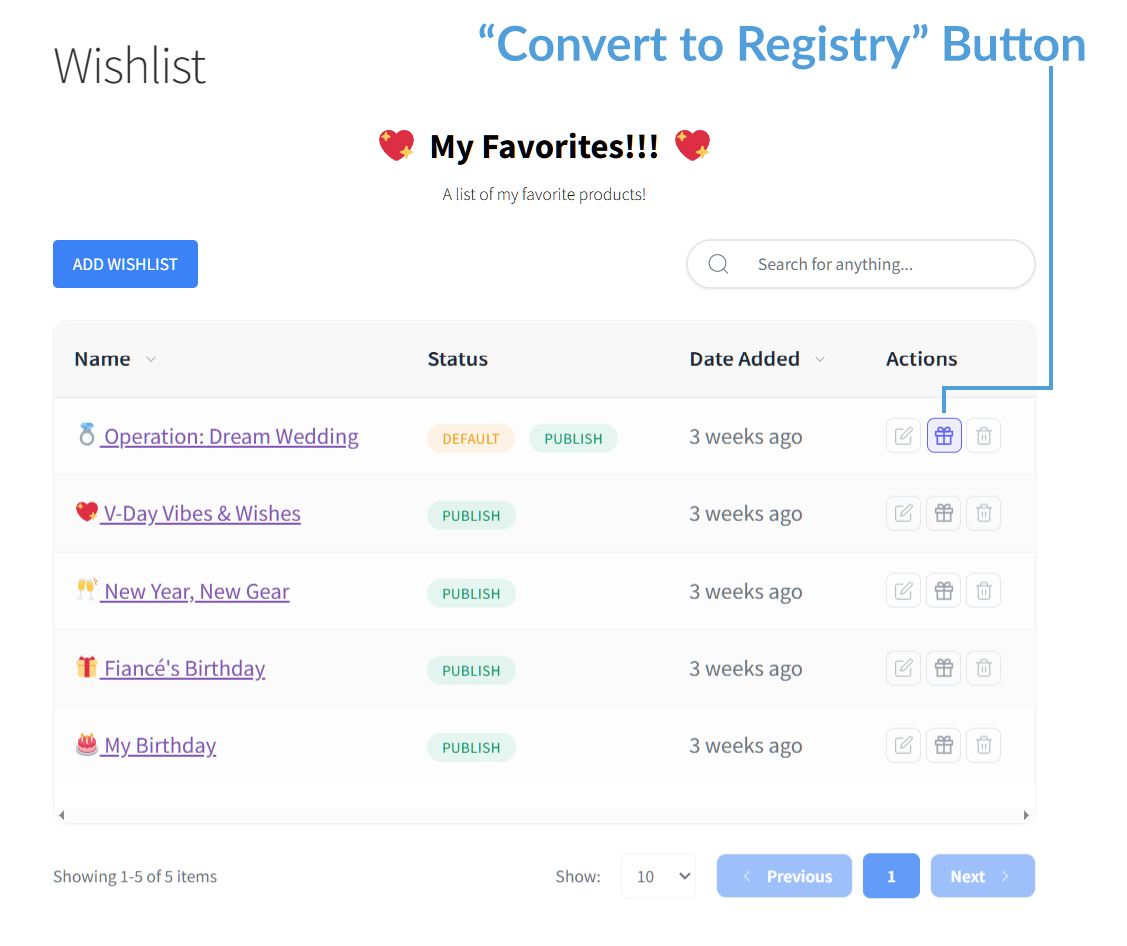
The starting point is a regular wishlist. On the shopper’s wishlist collection page, each eligible wishlist they own shows a gift-box action labeled Convert to Registry. Clicking it opens the conversion form. They don’t even need items saved yet, since they can add gifts once the registry exists. One click opens a short form.
On that form, they pick the event type and add a few details. Here’s what they fill in:
- Event type: wedding, baby shower, birthday, or any type you’ve set up.
- Event date: the day of the event, set to today or later.
- Registrant names: one name, plus an optional co-registrant for a couple.
- Message: an optional welcome note for guests.
- Cover image: an optional photo they can drag and drop in.
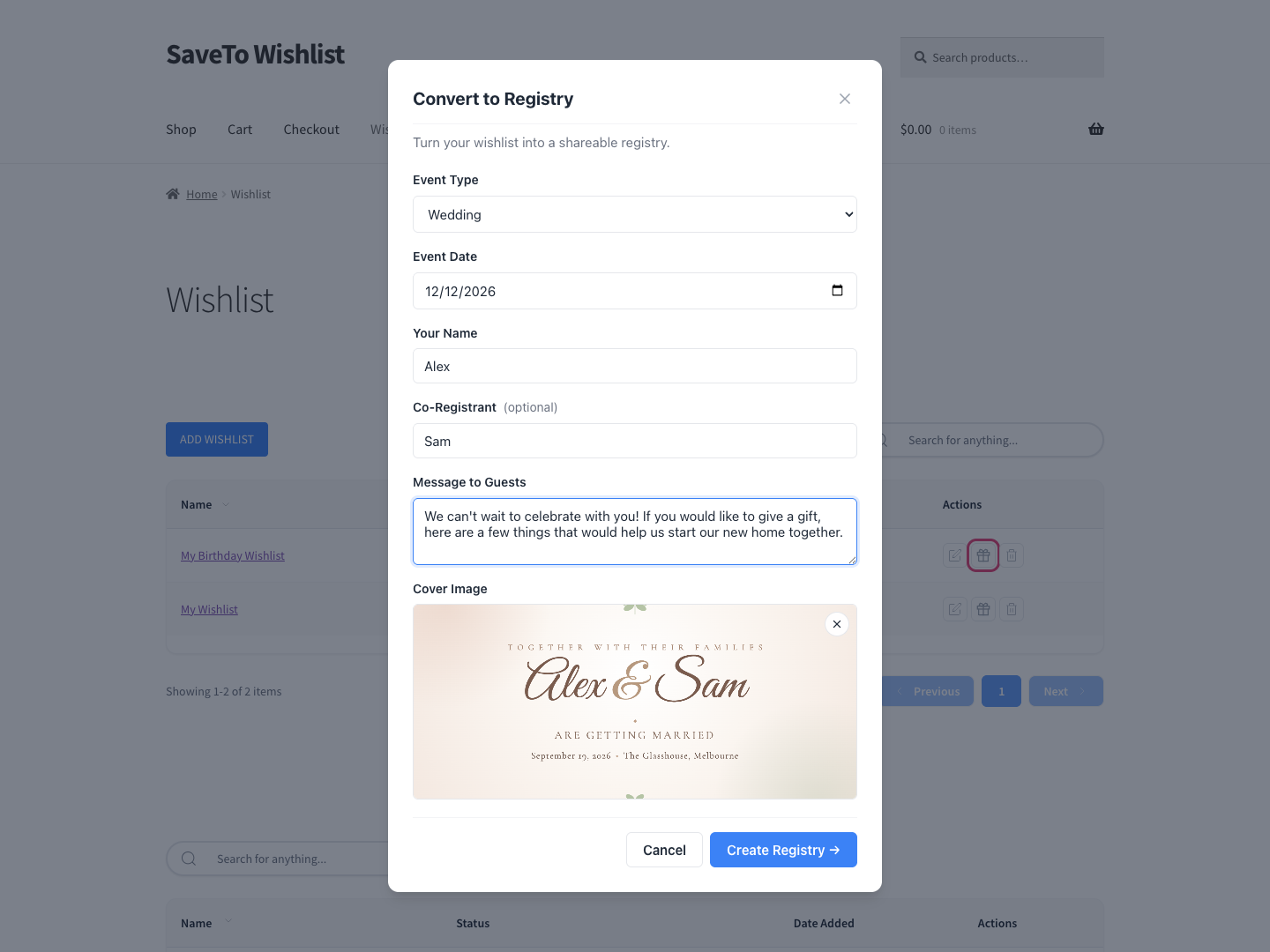
That cover photo is a quiet win. Shoppers normally can’t upload images to a WordPress site. The registry form lets them anyway, so registries look polished with no work on your side.
How shoppers share their live registry
After the shopper submits the form, the registry goes live at a public link, like yourstore.com/registry/ABC12345. You can change the /registry/ part to match your branding. The shopper can then share the link with anyone, logged in or not.
Sharing gets even easier with a built-in Share button. Only the registry owner sees it, sitting at the top of their own registry page. One click opens a small window with five sharing actions: copy the link, send an email, or share directly to Facebook, X, or WhatsApp. There’s no hunting through the address bar and no extra steps. The easier you make sharing, the more guests reach the registry. And more guests means more gifts bought from your store.
The public page is built to look the part. It shows the cover image, event details, registrant names, the welcome message, and a product grid. If a shopper skips the photo, the page shows a tasteful colour gradient instead of a blank space. Each product shows a running count such as “2 out of 5 purchased,” so guests can see how many have been claimed and work out what’s still needed.
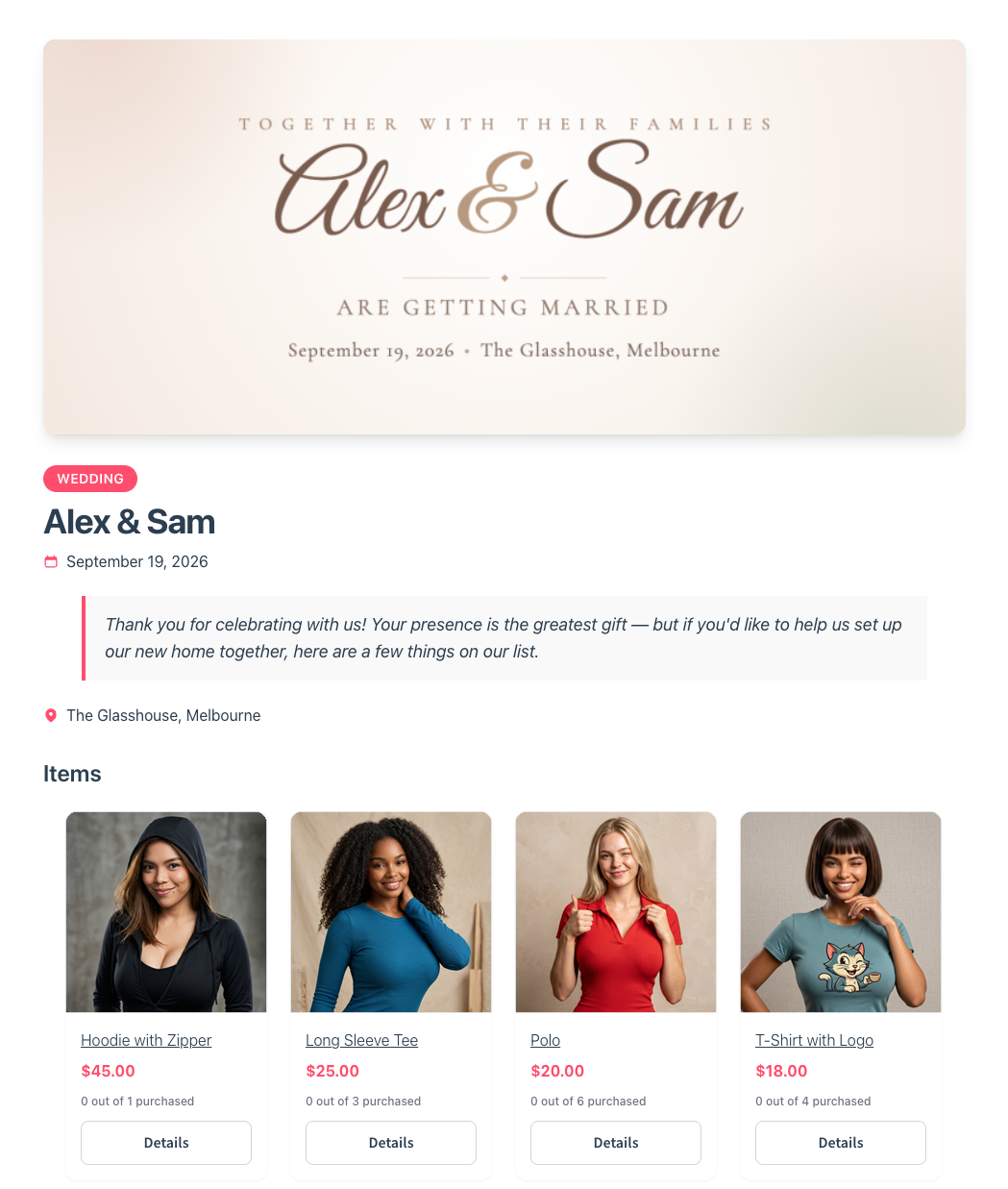
There’s a nice bonus when someone shares the link. The registry provides social metadata for a clean preview with a title and description, plus an image when the registry has a cover image. That preview pulls friends and family straight back to your store, for free.
Shoppers can fine-tune their registry any time
A registry isn’t set in stone. After creating one, shoppers can keep adding items whenever they like. Plans change and new gift ideas pop up. There’s no need to start over or convert a fresh wishlist.
Shoppers can also drag items into the order they want. For example, maybe they’d like the big-ticket gift up top, or the things they need first. A quick drag sets the order, and the public page shows it right away.
This keeps a registry alive and organized for weeks or months. And a well-kept registry is one guests actually buy from.
How Guests Buy Gifts (And How Purchases Get Tracked)
This is the part that makes a WooCommerce gift registry useful instead of just pretty. Every item shows a running count such as “2 out of 5 purchased,” indicating the quantity claimed and the quantity requested. When an item is fully claimed, its count shows the full purchased amount, such as “5 out of 5 purchased,” and guests can no longer add another normal claim for it. That reduces duplicate purchases, although simultaneous checkouts can still cause the purchased quantity to exceed the amount requested.
Buying a gift is simple. A guest opens an item, enters their name and email, sets the quantity, and adds it to the cart. Before adding the gift to the cart, the guest enters their name and email in the registry’s purchase window. Those details are carried through the cart and order so the registry owner knows who sent the gift.
By default, they then go straight to the cart, so checkout is one clear step away. You can switch that off in the settings if you’d rather keep them on the registry page to browse for more gifts. Then they check out like any other order.
The store prevents a guest from adding more than the registry’s currently remaining quantity, although simultaneous purchases can still result in an over-purchase. For instance, if just one of an item remains, trying to buy two triggers polite error messages like “Only 1 remaining for this registry.” It’s a small nudge that keeps the registry honest.
Here’s the important detail on tracking. The purchased count updates when an order first enters a WooCommerce paid status, normally Processing or Completed. This includes a Cash on Delivery order if the gateway moves it directly into Processing. Items sitting in someone’s cart don’t reserve the registry’s remaining requested quantity or block another guest from adding the same registry item. That’s a deliberate choice, since fake scarcity would only frustrate gift-givers.
The recording is automatic. Once a WooCommerce order enters a paid status, the registry credits the matching items as purchased. A full refund or order cancellation frees the item back up, and a partial refund adjusts the count. Best of all, if anything hiccups on the registry side, it never blocks the actual order.
Give Registry Owners A Purchase And Thank-You Dashboard
Each gift registry owner gets their own private view to track gifts. It lives on the storefront under My Account, in a tab called Gift Registries. It sits right next to the Wishlist tab, so customers never touch the WordPress back-end. The tab only appears once a customer actually owns a registry, so nobody lands on an empty page.
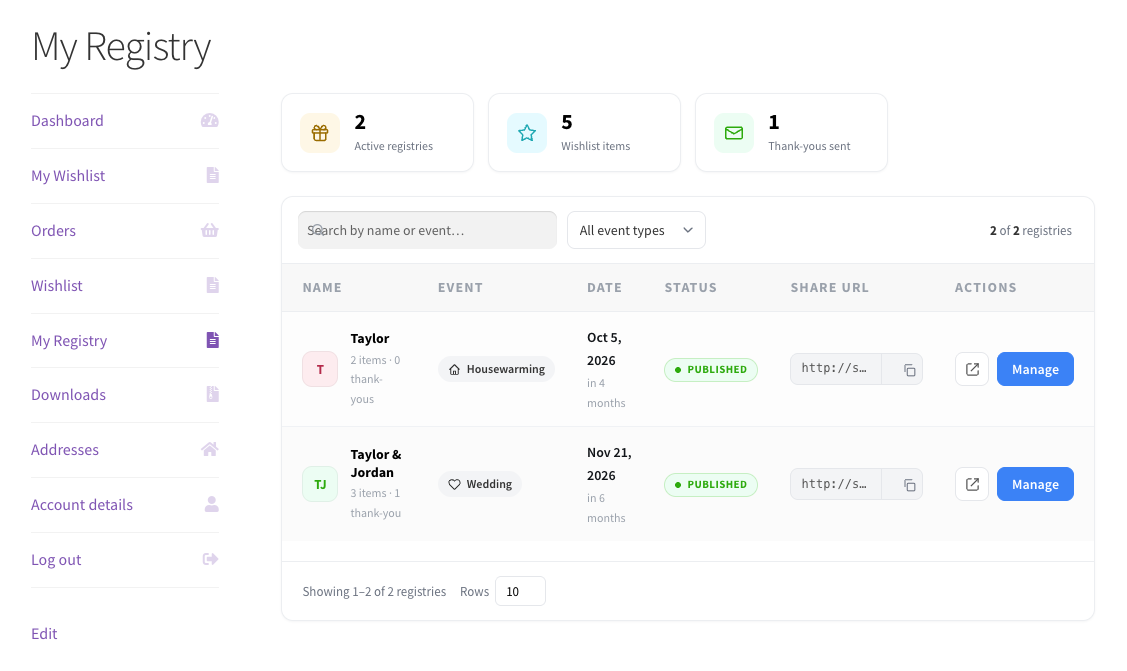
Each row shows the item with a thumbnail and the quantity. It also shows the buyer’s name and email, the purchase date, and the order number. There’s also a thank-you toggle and a spot for a quick note. Finally, the list sorts by date or item and filters by thank-you status.
The thank-you tracker is a small touch that owners love. As they send each note, they flip the toggle to mark it done. A bulk action lets them mark several at once, which saves time after a big event. If a customer creates multiple gift registries, the Gift Registries dashboard lists them in a table, and the customer clicks Manage to open the purchase and thank-you tracker for a particular registry.
If no gifts have arrived yet, the page shows the share link. It adds a friendly nudge to spread the word. I’ve seen this kind of gentle prompt do real work, since most people just need a reminder to share.
Help Guests Find The Right Registry
Not every guest arrives with a direct link. Some only know the couple’s names or the type of event. In fact, the registry includes a built-in search page on your store.
The search form takes a name and an event type. A guest types in a registrant’s name and picks an event type if they want. They then get a list of matching registries. The list shows soonest events first, so upcoming events lead.
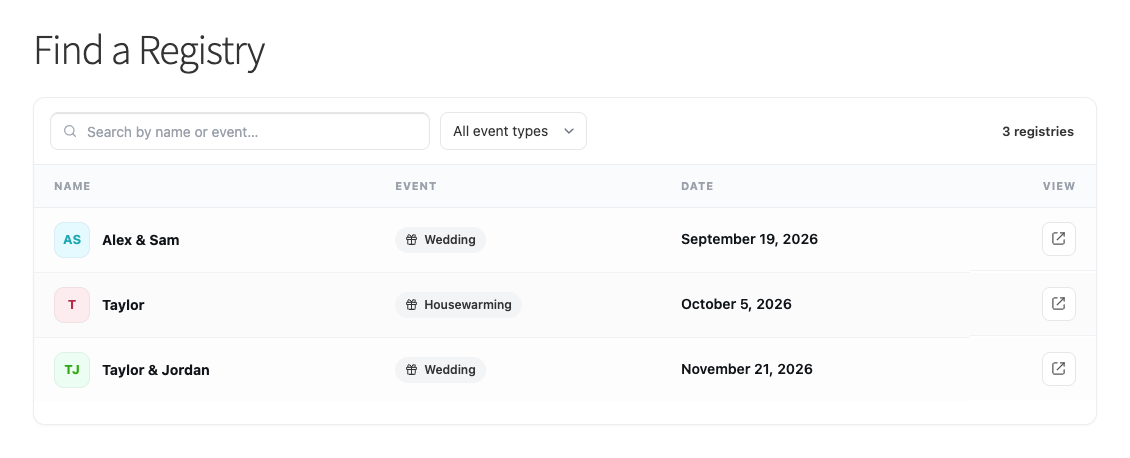
The plugin handles privacy with care here. Search only returns published registries, and results never expose buyer details. Guests see the registrant names, event type, event date, and a link to the public registry, but no buyer or purchase details.
Setting it up is quick. The plugin automatically creates, publishes, and assigns the Find a Registry page for you upon activation.
Manage Every Registry From Your Store Admin
As the store owner, you get a single screen that lists every registry on your site. You’ll find it in your WordPress admin under SaveTo Wishlist > Registries. So you get full visibility without digging through individual pages.
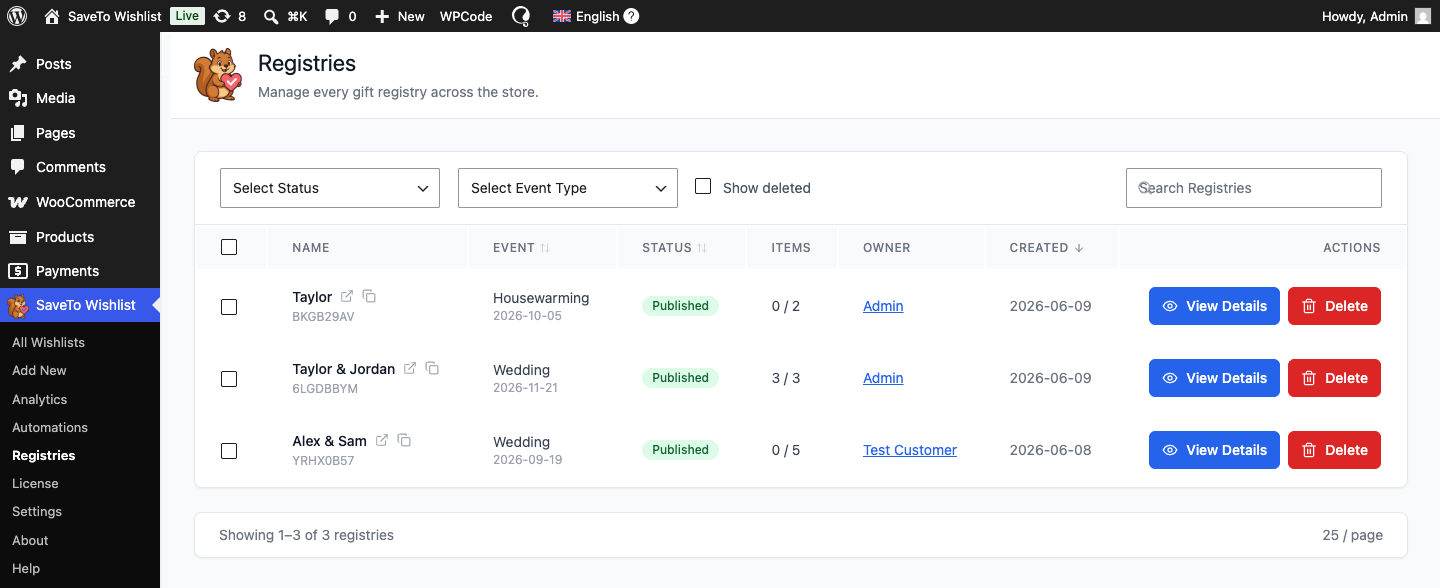
The list shows registrant names, event type and date, and status. It also shows item counts, purchase counts, and the specific user who owns each registry. Plus, you can sort, filter, and search the whole thing. From any row, you can view the public page, edit details, archive a registry, or remove it.
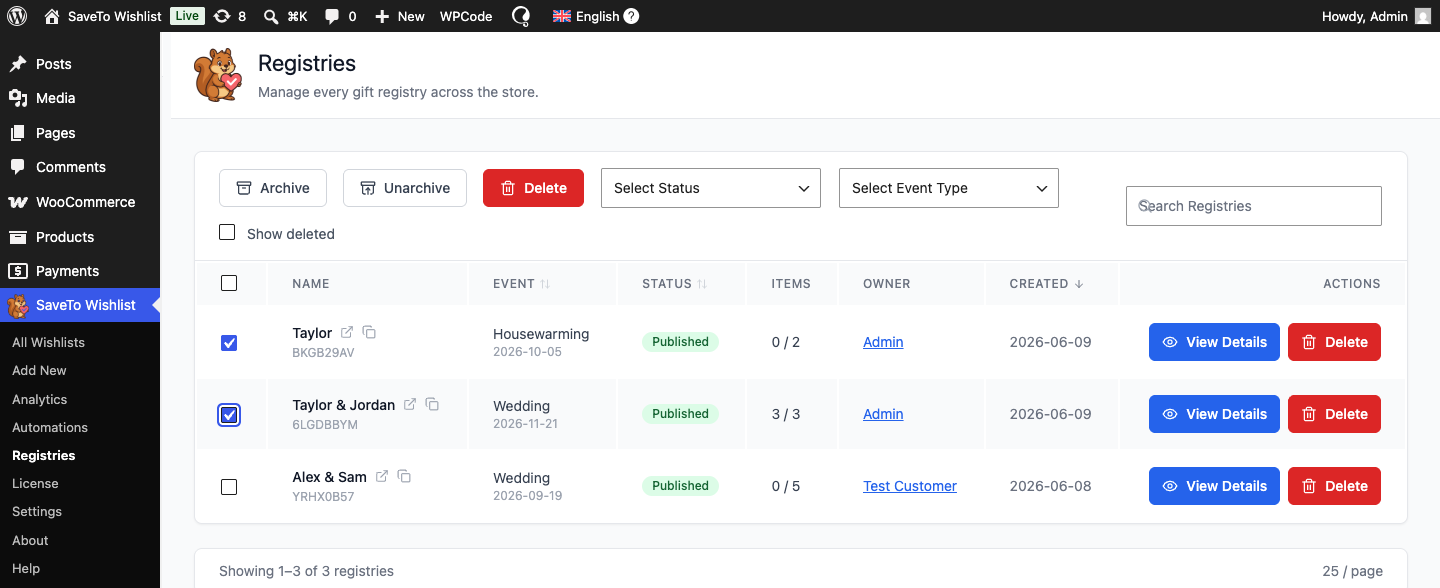
Archiving is handy after an event wraps up. An archived registry stops accepting purchases but stays on record for the owner. Old links to it fail gracefully, since guests see a “no longer accepting purchases” message instead of a broken page, and links to unknown or deleted registries show a “Registry not found” response. Bulk actions let you tidy up several at once when the season slows down.
You can also start a registry for a customer yourself. If a shopper needs a hand, you or your store managers can convert their wishlist into a registry from the admin. It’s the same quick form, just handled on their behalf. That’s handy for support requests or less tech-savvy customers.
Deleting is safe, not scary. A removed registry hides but stays recoverable through a Show deleted toggle and a Restore button. It’s a soft delete that hides the registry while retaining its purchase records for 90 days. During that recovery window, an administrator can restore it using Show deleted and Restore.
Stay In The Loop With Email Notifications
A WooCommerce gift registry runs over weeks or months, so the right people need to hear about activity as it happens. The feature ships with a set of email notifications you control from settings.
- Inform the registry owner when a guest buys a gift.
- Alert the owner when an order is refunded or cancelled.
- Notify you, the admin, when a new registry is created.
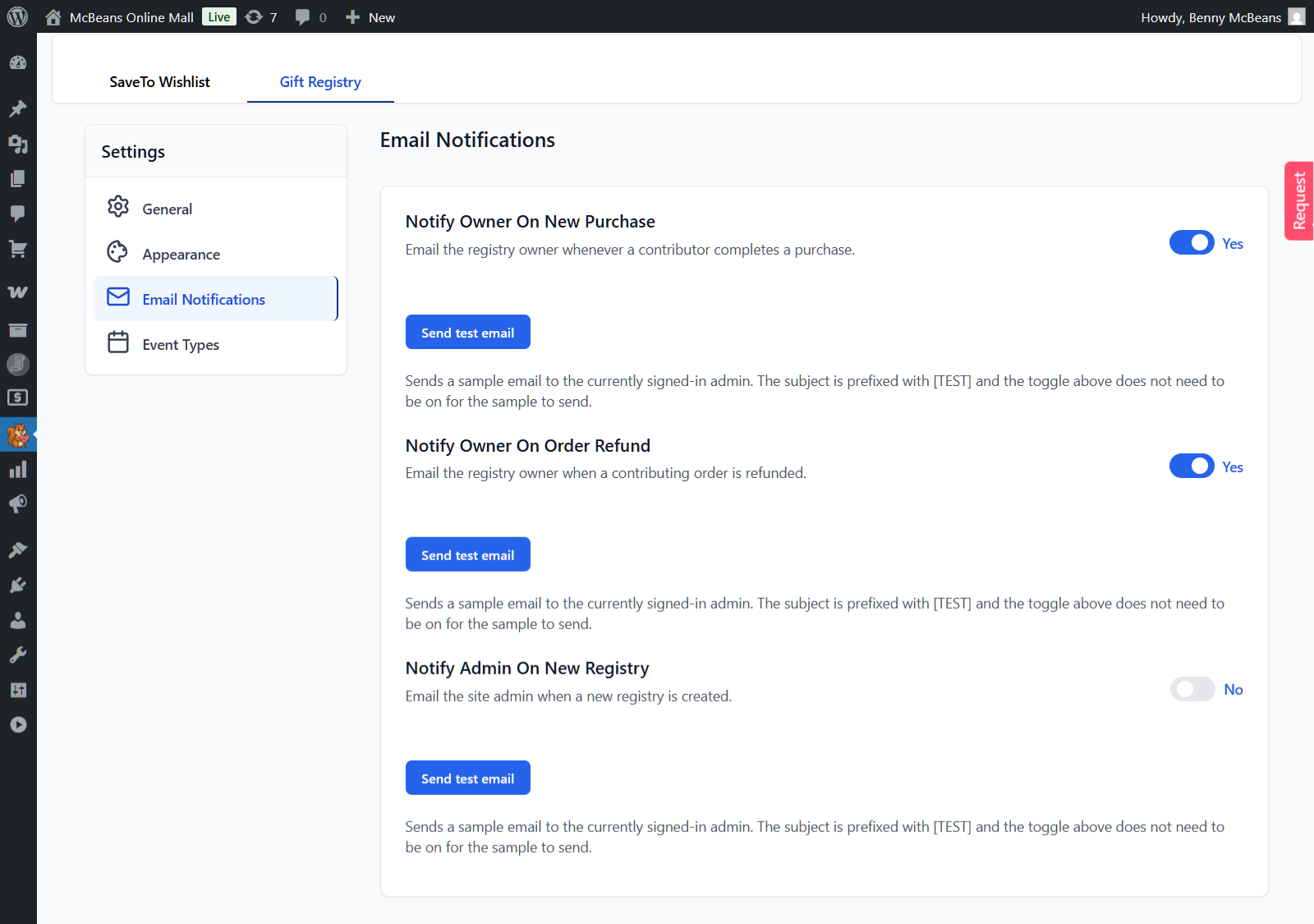
You control all three from SaveTo Wishlist > Settings > Gift Registry > Email Notifications. By default, the two owner emails are on, and the admin email is off. Each one has a Send test email button, so you can preview before a real event goes live. In short, you decide which messages go out and who hears about what.
Who The WooCommerce Gift Registry Addon Is For
Any store selling giftable products can put this to work. The event types are yours to define, so the same tool fits a lot of different shops. Here are a few common fits:
- Weddings: couples can build one list, or even create multiple gift registries for different bridal showers, and skip the third-party wedding registry website.
- Baby showers: a baby gift registry tracks completed purchases to reduce the risk of friends and family doubling up.
- Birthdays and holidays: a shared list takes the guesswork out of group gifts.
- Housewarmings and graduations: any milestone where people want to chip in.
The shared thread is intent. People searching for wedding registry ideas or a place to start one are ready to buy. So hosting that moment on your store turns it into repeat traffic and sales you used to send elsewhere.

Conclusion
Adding a gift registry for WooCommerce brings a whole new kind of shopper onto your store and keeps them there through checkout. It’s additive, configurable, and built on the wishlist flow your customers already use.
Here’s what we covered:
- Shoppers convert a wishlist into a public, shareable registry.
- Guests buy through your normal checkout with per-item purchase tracking.
- Owners track purchases and thank-you notes from a dashboard.
- Guests find registries through a built-in search page.
- You manage every registry and notification from your store admin.
If you’re ready to add a registry to your store, upgrade to our Plus or Business plan and activate the Gift Registry Addon alongside SaveTo Wishlist Lite. Your next wedding or baby shopper will thank you for it.
FAQs: WooCommerce Gift Registry Addon
What is WooCommerce gift registry?
A gift registry for WooCommerce is a shared list of products someone wants for an event. Guests buy items from the list, while the registry tracks what they have already bought. It tracks completed purchases to reduce duplicate gifts and make group gifting easier, although simultaneous checkouts can still exceed the requested quantity.
What is a wedding registry?
A wedding registry is a gift registry built around a wedding. The couple lists the products they’d like, and their guests buy from it. With this feature, that list lives on your WooCommerce store instead of a third-party site.
Do guests need an account to buy a gift?
Guests can view a registry without an account. They can also buy without logging in if WooCommerce guest checkout is enabled; otherwise, the store’s normal account requirement applies at checkout. When adding a registry gift to the cart, guests enter their name and email in the registry purchase window. Those details are then stored with the cart and order so the owner knows who sent the gift.
How are gift purchases tracked?
The store records purchases automatically when a WooCommerce order first enters a paid status, normally Processing or Completed. This includes Cash on Delivery orders when the gateway moves them into Processing. The Gift Registry Addon then shows the item as claimed or fully purchased. Refunded or cancelled orders reverse the purchase so the item opens back up.
Can guests search for a registry?
Yes. The WooCommerce Gift Registry Addon adds a public search page where guests look up a registry by registrant name or event type. Only published registries show, and the page never reveals buyer details.
Does the WooCommerce Gift Registry Addon work with my existing wishlists?
Yes. The WooCommerce Gift Registry Addon is a separate extension that adds to SaveTo Wishlist without changing your current wishlists. Nothing converts until a shopper chooses to turn their own wishlist into a registry.
Which plan do I need to use the Gift Registry Addon?
The WooCommerce Gift Registry Addon is a premium extension that works alongside SaveTo Wishlist Lite, and it comes exclusively included with our Plus and Business plans! The Plus Plan costs $99.50 for the first year (renews annually at $199.00). Meanwhile, the Business Plan is priced at $199.50 for the first year (renews annually at $399.00).



