
Want a popup to react the moment a customer saves a product, or to target shoppers who already have something on their wishlist? Since version 1.1.5, SaveTo Wishlist Lite adds a native integration with Popup Maker, so you can build wishlist-driven popups without writing any code. This guide covers the built-in trigger, condition, shortcode, and call to action, plus an advanced option for anyone who wants more control.
Before you start
- Popup Maker installed and active.
- SaveTo Wishlist Lite version 1.1.5 or later is installed and active. Earlier versions only emit the raw signal covered in Advanced: build your own behaviour from the signal, not the native trigger, condition, shortcode, and call to action below.
What SaveTo adds to Popup Maker
With Popup Maker active, SaveTo Wishlist Lite adds four things to Popup Maker’s own screens: a trigger that opens a popup the moment a product is wishlisted, a condition that targets shoppers who already have something saved, the wishlist shortcode in Popup Maker’s shortcode picker, and a call to action that sends shoppers to their wishlist page. The sections below cover each one.
Show a popup the moment a product is wishlisted
This uses the Product Added to Wishlist (SaveTo Wishlist) trigger. It works for guests and logged-in customers alike.
- In Popup Maker, create or edit the popup you want to open.
- Under the popup’s conditions, choose where it should load, for example Any WooCommerce Page, so it’s available on your shop and product pages.
- Under triggers, add Product Added to Wishlist (SaveTo Wishlist).
- Optionally set a Delay, in milliseconds, if you don’t want the popup to open instantly.
- Publish the popup.
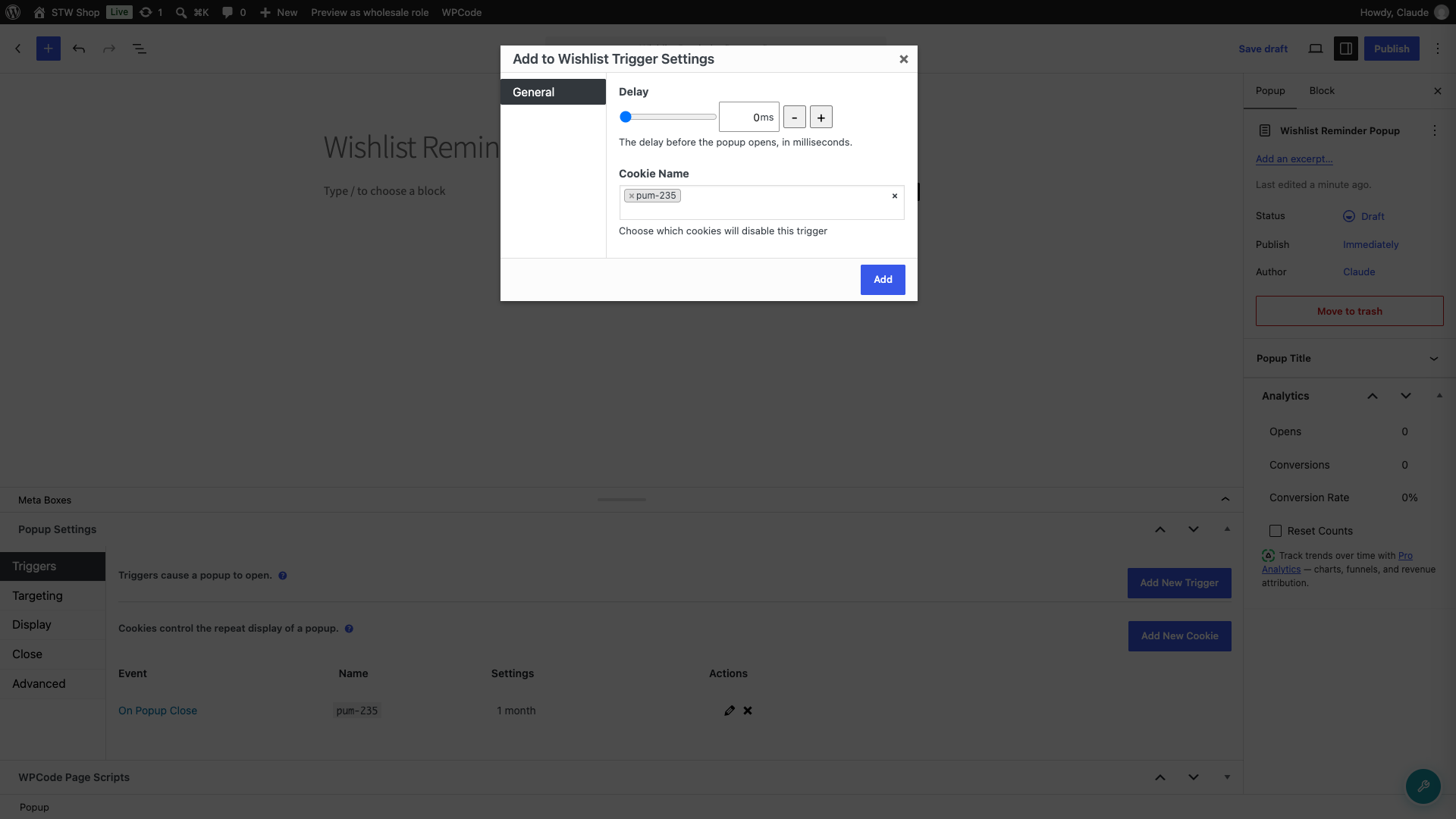
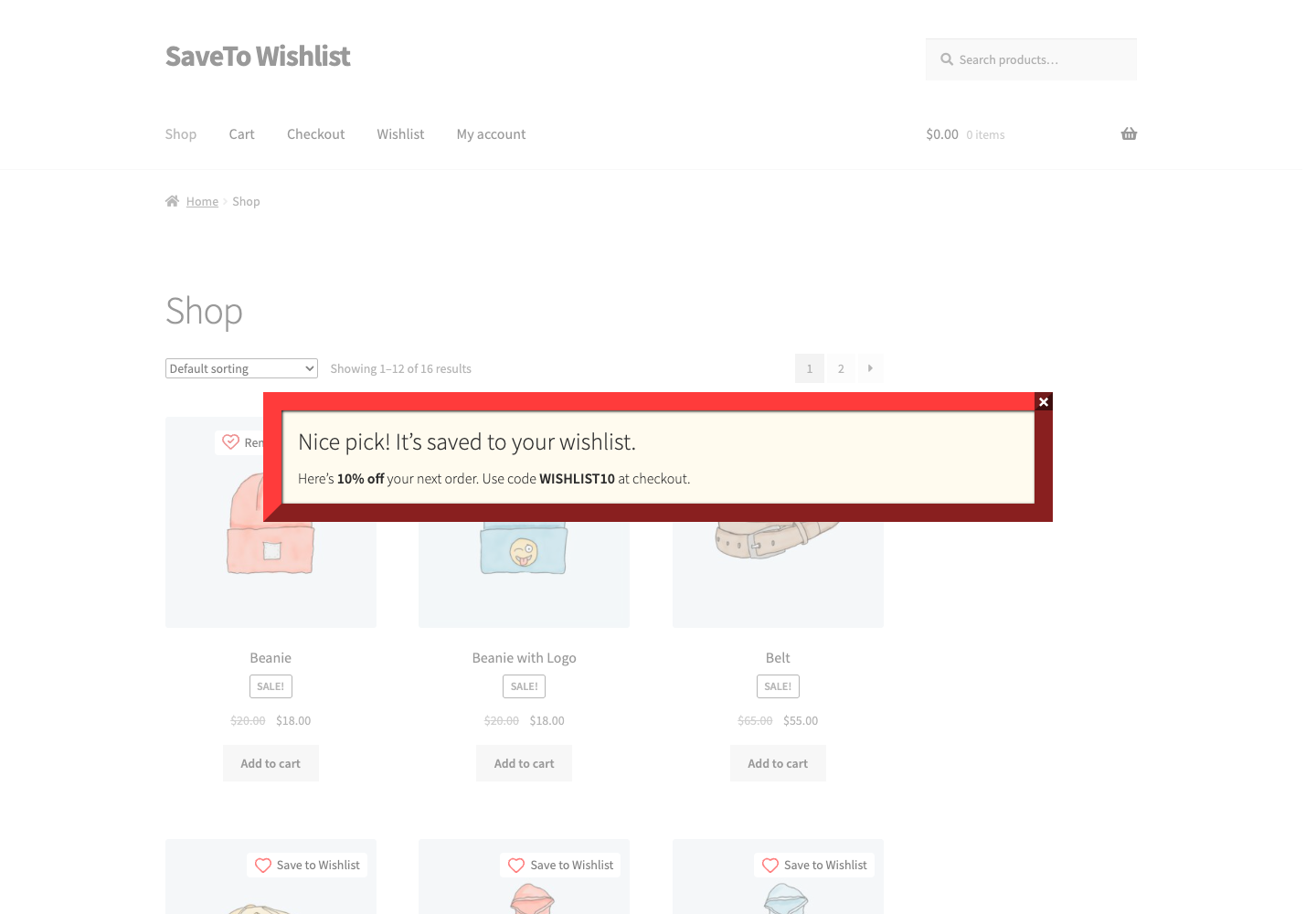
Now the popup opens whenever a customer adds a product to their wishlist, with no code required.
Show a popup only to shoppers who have wishlisted something
Use the Customer Has Wishlisted Products condition, listed under the SaveTo Wishlist group in the popup’s conditions. It’s a good fit for exit-intent reminders or return-visit offers aimed at shoppers who already saved something.
- Edit the popup you want to target.
- Under conditions, add Customer Has Wishlisted Products from the SaveTo Wishlist group.
- Add any trigger you’d like, for example a time delay or exit intent.
- Publish the popup.
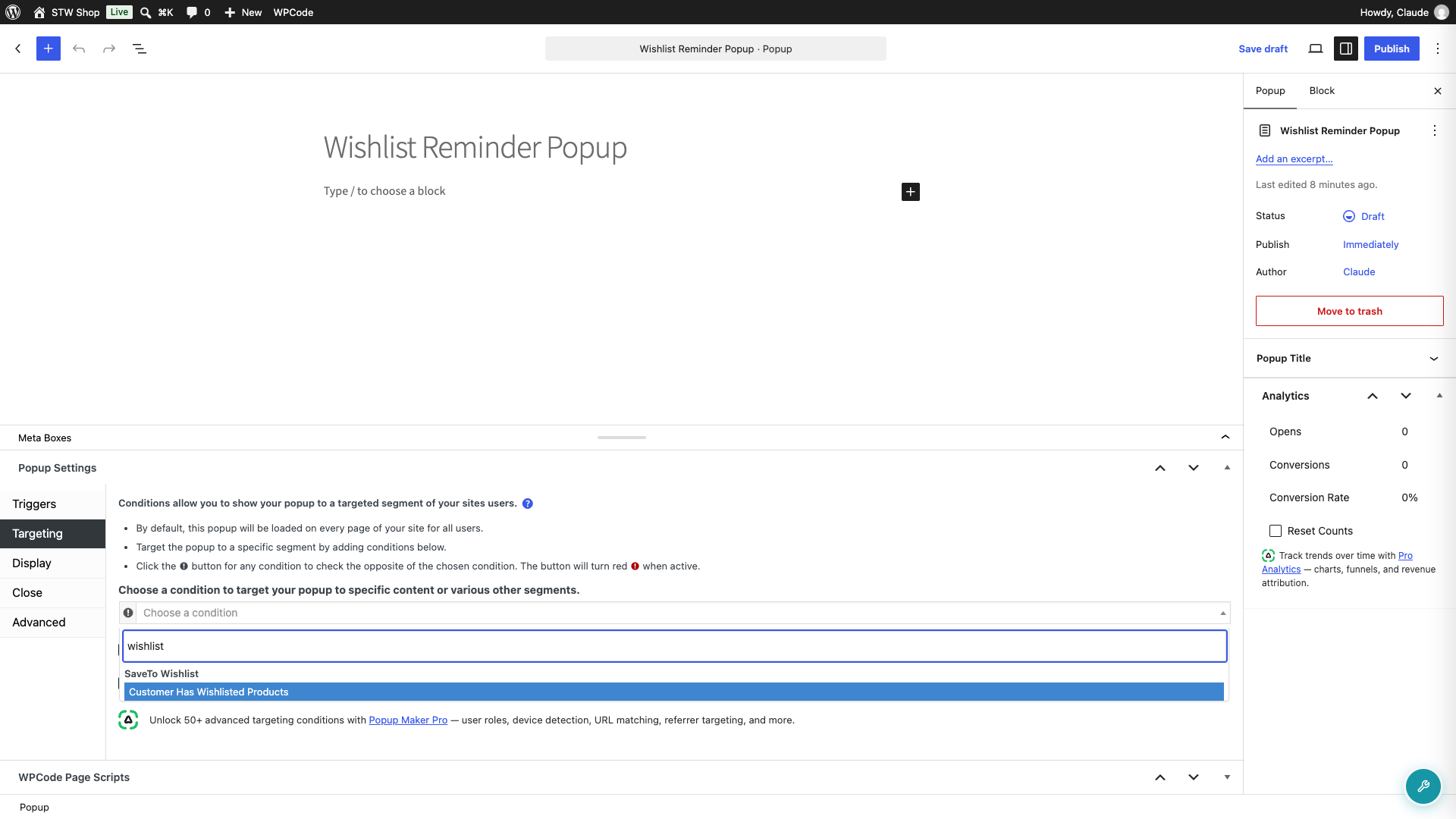
A logged-in customer is matched from their own saved wishlists (wishlists still saved as a draft don’t count). A guest is matched from the stwlite_wishlist_added signal cookie, so the condition still works before they create an account.
Show the wishlist inside the popup
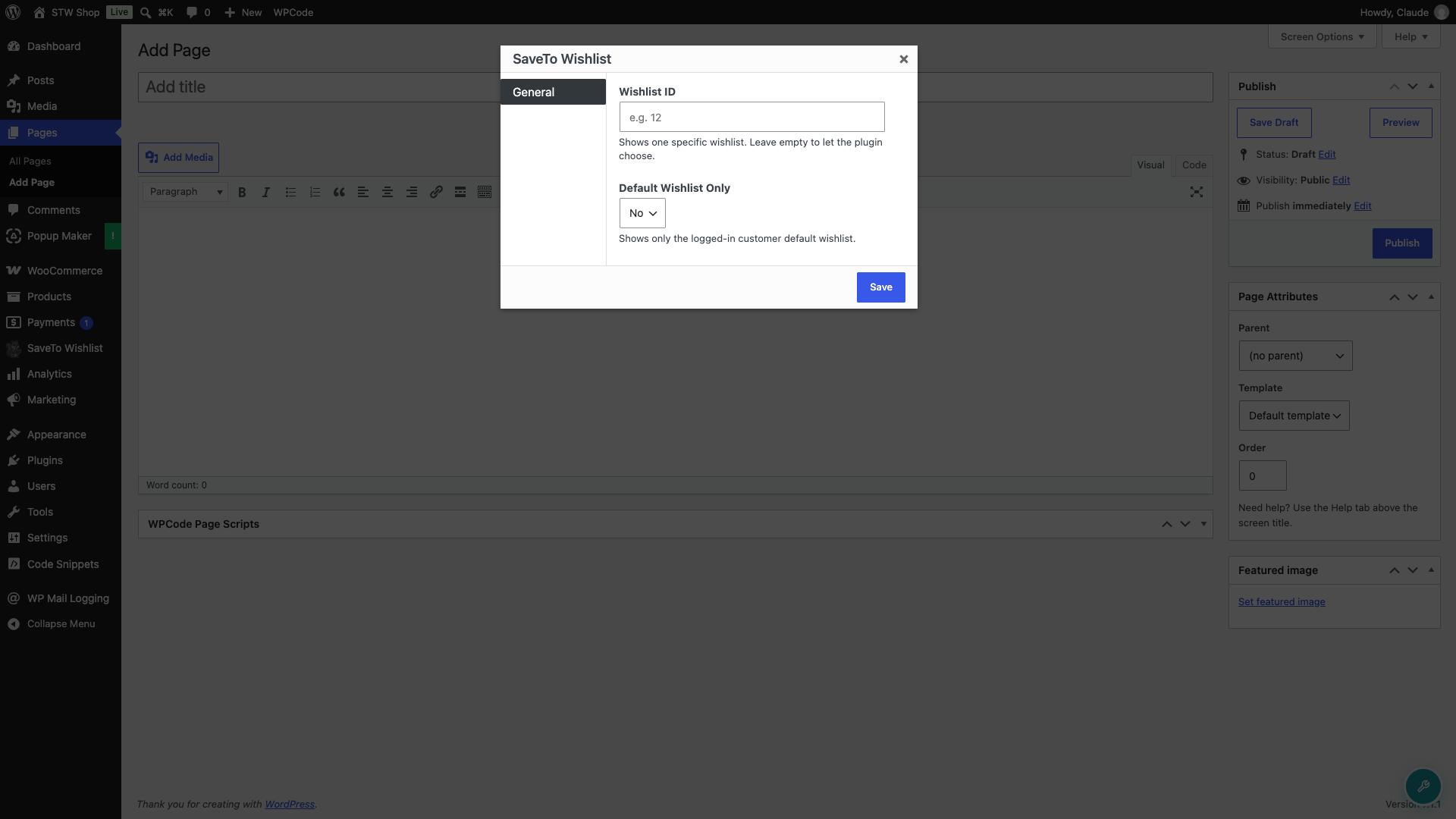
SaveTo Wishlist Lite adds its SaveTo Wishlist shortcode to Popup Maker’s shortcode picker, so you can drop a customer’s wishlist into a popup’s content.
- Edit the popup’s content.
- Open Popup Maker’s shortcode picker and select SaveTo Wishlist.
- Optionally set a Wishlist ID to show one specific wishlist, or leave it empty to let the plugin choose.
- Optionally set Default Wishlist Only to Yes to show only the logged-in customer’s default wishlist.
- Publish the popup.
Send shoppers to their wishlist
Add the View Wishlist (SaveTo Wishlist) call to action to a button inside your popup. Clicking it sends the shopper to your wishlist page and records the click as a Popup Maker conversion, so you can see how many shoppers acted on it.
- In the popup editor, add a Call to Action Button block.
- In the block settings, open CTA Settings and select + Create new CTA.
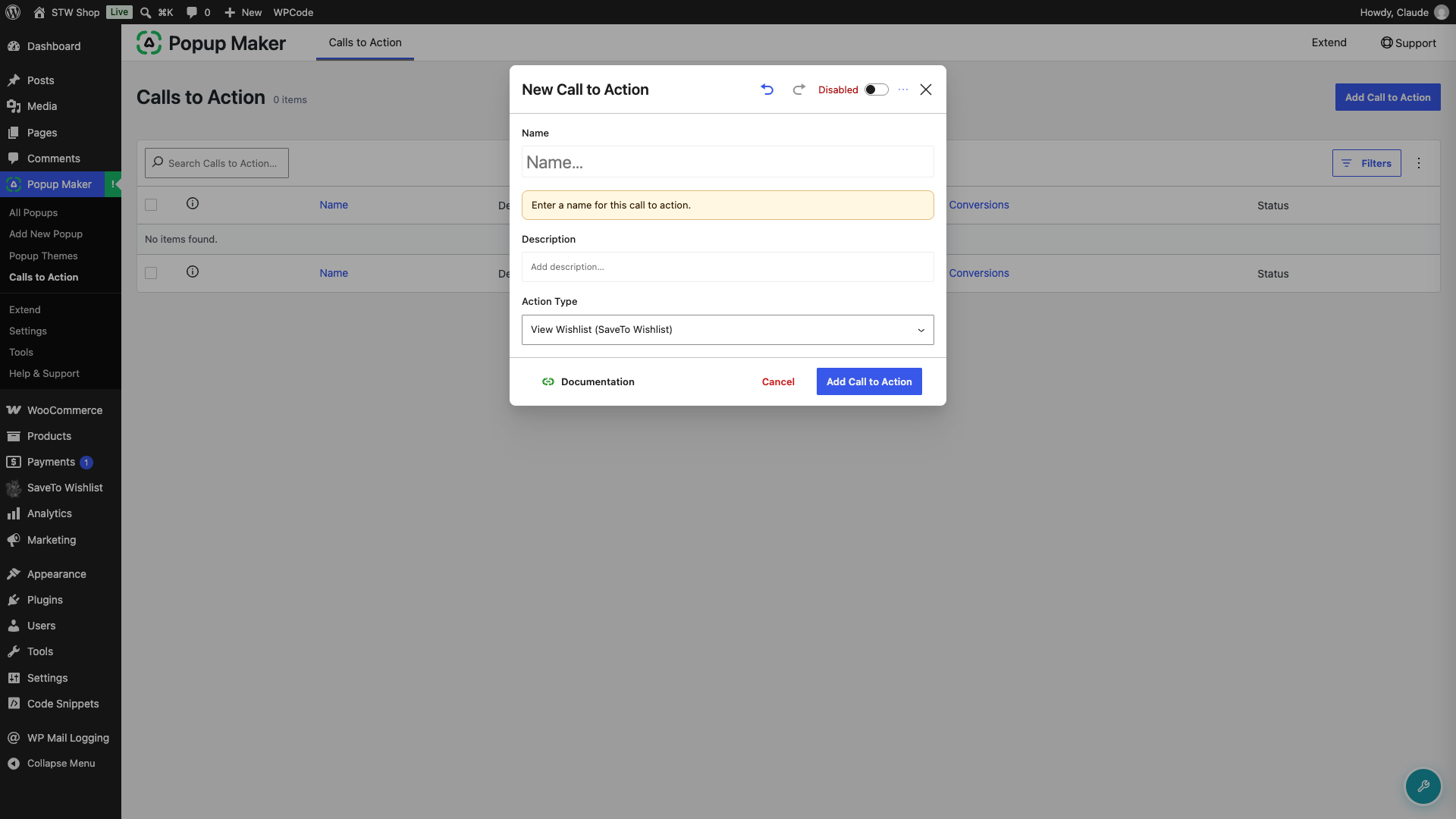
- In the New Call to Action modal, set Action Type to View Wishlist (SaveTo Wishlist).
- Give the call to action a name, then save it.
- Publish the popup.
Advanced: build your own behaviour from the signal
The trigger, condition, shortcode, and call to action above cover most cases without any code. If you want more control, SaveTo Wishlist Lite emits two raw signals on every confirmed add, whether or not Popup Maker is installed:
- It fires a browser event named
stwlite_added_to_wishlist. Use it to open a popup instantly. - It sets a cookie named
stwlite_wishlist_added. Use it to target a later visit, such as an exit-intent popup.
Both fire only after the product is actually saved, and both work for logged-in customers and guests. To open a popup from the event yourself, without the built-in trigger, add this code with a code snippets plugin or your theme, and replace 123 with your popup’s ID:
document.addEventListener('stwlite_added_to_wishlist', function () {
  if (window.PUM) { PUM.open( 123 ); }
});
Signal reference
- Event:
stwlite_added_to_wishlist, fired ondocument. Its detail containsproductIdandcollectionId. For guests,collectionIdis 0. - Cookie:
stwlite_wishlist_added. Its value is the product ID, or 0 when several products were saved at once. It lasts 30 days. It clears when the customer removes their last item with the wishlist button. Removing items on the wishlist page does not clear it.
Troubleshooting
The trigger, condition, or call to action isn’t in Popup Maker’s list
These are only available in SaveTo Wishlist Lite version 1.1.5 or later. Update the plugin, then check the popup editor again. The call to action also needs a Popup Maker version that supports call to action types; on an older Popup Maker build, only the trigger, condition, and shortcode will show up.
The condition shows the popup to the wrong visitors
If your popups run behind a full-page cache (WP Rocket, LiteSpeed Cache, and similar), exclude the stwlite_wishlist_added cookie in your caching plugin. Otherwise a cached page can serve one visitor’s condition result to another.
The popup opens but the wishlist inside it is empty
Confirm the popup’s content actually contains the SaveTo Wishlist shortcode from the picker, not just typed text. If the popup was duplicated from one that never had the shortcode, add it again from the picker rather than pasting the tag by hand.
The View Wishlist call to action sends shoppers to the home page
This happens when no wishlist page is set. Go to SaveTo Wishlist → Settings → General → Wishlist Action and choose your wishlist page in Redirect Page. The call to action then sends shoppers there.
Frequently asked questions
Do I need to know how to code?
No. The trigger, condition, shortcode, and call to action are all built into Popup Maker’s own screens. Code is only needed if you want the advanced, custom-control option.
Why doesn’t my popup open?
Check that the popup’s conditions include the pages where customers use the wishlist button, and that it has the Product Added to Wishlist (SaveTo Wishlist) trigger. Popup Maker only loads a popup where its conditions match.
Can I show the popup on a later visit instead?
Yes. Use the Customer Has Wishlisted Products condition to target a return visit, for example with an exit-intent popup.
Does it work for guests?
Yes. The trigger and the condition both work for guests and logged-in customers alike.
Need help?
- Premium users: Open a support ticket
- Free users: Visit our community forum

