

 Reviewed by
 A heart makes sense on a gift shop. It makes a lot less sense on a store selling industrial sensors, spare parts or safety gear.
For a long time, the wishlist icon in SaveTo Wishlist Lite was a hardcoded heart. There was no setting for it. If a heart clashed with your branding, your only route was custom CSS or a PHP override.
That changed in v1.1.2. The WooCommerce wishlist button icon is now a proper setting. You can pick Heart, Star, Bookmark, Plus or your own uploaded image. Better still, you set it separately for your product pages, shop pages and cart page.
Read on to see what’s waiting in your free SaveTo Wishlist Lite plugin today!
Jump to:
A Wishlist Button Icon That Matches Your Store
Your wishlist button can now carry whichever icon suits your shop. The setting is called Button Icon, and it lives under SaveTo Wishlist > Settings > Button Placement & Styles.
Each page type gets its own copy of the field. That means your product page and your shop archives don’t have to agree.
What you need to know:
- Five choices, heart still first: Heart, Star, Bookmark, Plus and Custom Image. Heart stays the default, so nothing on your storefront moves until you change it.
- Set per page type: Product Page, Shop Page and Cart Page each hold their own icon. A neutral Plus on crowded shop archives and a Bookmark on product pages is a valid combination.
- Shape only, not layout: The separate Button Type field still sets the layout and weight. It covers Icon Only, Icon and Text, pill, solid and minimal treatments. Button Icon swaps the glyph inside whichever type you picked.
- Size has its own field: Button Icon Size runs from 12px to 40px, with 20px as the default. It applies to every shape, including an uploaded image.
- Colors follow the built-in shapes: Button Icon Color and Button Hover Icon Color apply to all four glyphs. The hover color defaults to a red,
#DC2626.
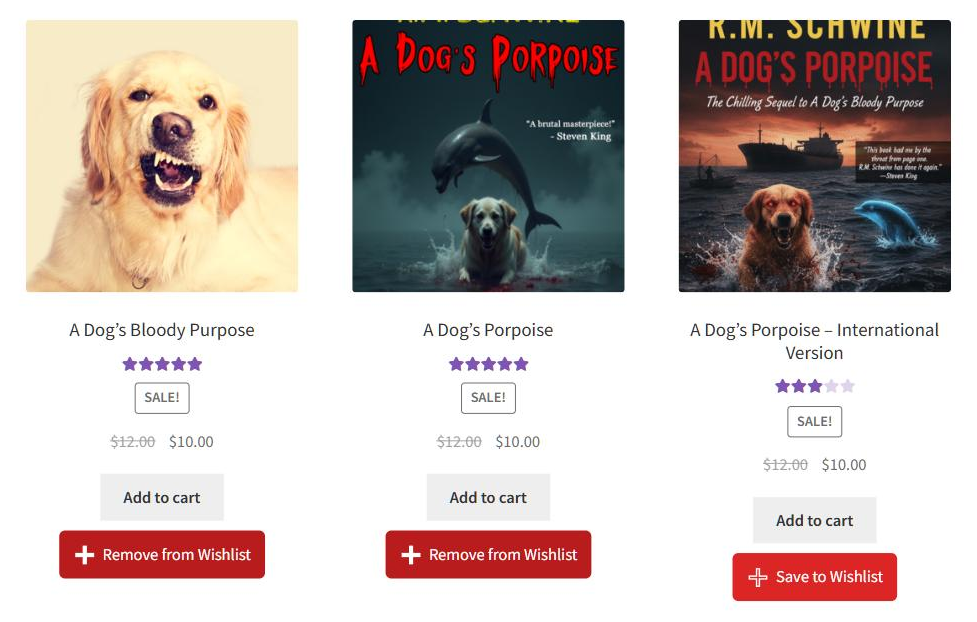
This is one of the smaller pieces of wishlist customization we’ve shipped, and it came straight from a customer. They ran an electronics and robotics store, where a heart read as “like” rather than “save for later”. Plus, the icon applies to every shopper, including guests saving without an account.
How To Change Your WooCommerce Wishlist Button Icon
There’s one step that catches people out, so I’ll put it up front. The icon fields only appear once Configuration Mode is set to Custom Settings.
In Use Presets or Theme Default mode, every style field hides itself, Button Icon included. That’s deliberate, since those two modes hand styling to a preset or to your theme. Still, it does mean the setting looks missing if you go hunting for it in the wrong mode.
Here’s the full path:
- From your WordPress dashboard, go to SaveTo Wishlist > Settings > Button Placement & Styles.
- Choose the page type you want to change: Product Page, Shop Page or Cart Page.
- Set Configuration Mode to Custom Settings. The style fields appear underneath.
- Find Button Icon and pick your shape from the dropdown.
- Adjust Button Icon Size if the new shape reads small, then save your changes.
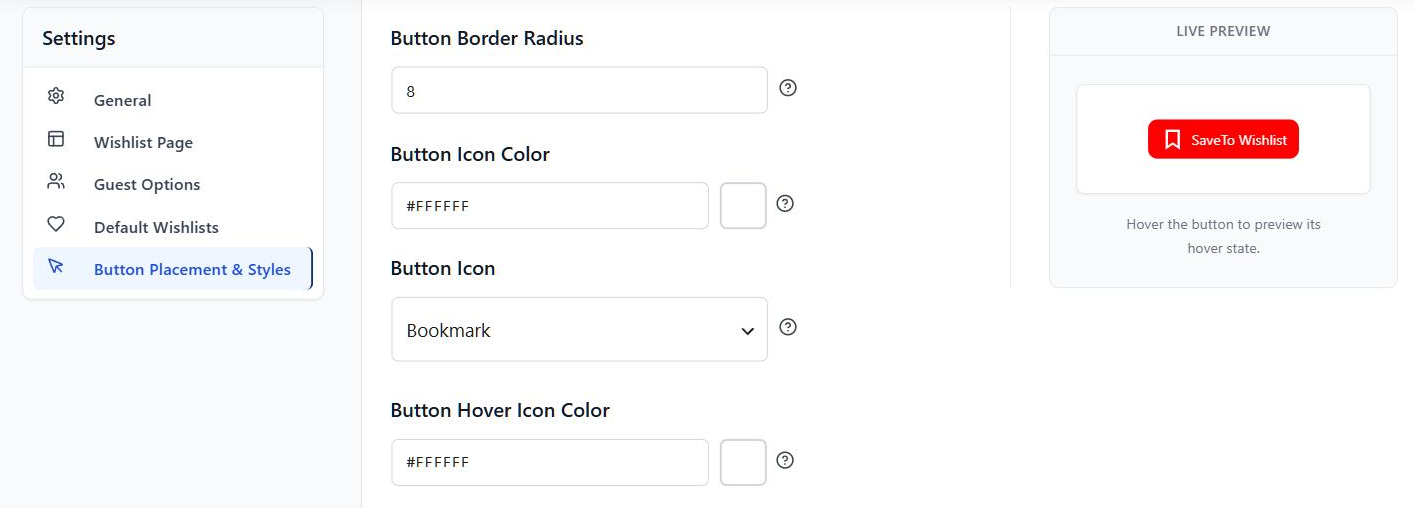
The live button preview sits beside these fields, so you can watch each change land without scrolling. Then repeat the steps for any other page type you want to differ. It’s a smaller change than the wishlist block we shipped in v1.0.9, but you’ll touch it more often.
Nothing here touches placement. Instead, moving or hiding the button is the Button Placement dropdown in the same panel. Our placement and styling walkthrough covers that side in more detail. If you build pages visually, we’ve also documented the Elementor wishlist button route.
Uploading Your Own Icon With Custom Image
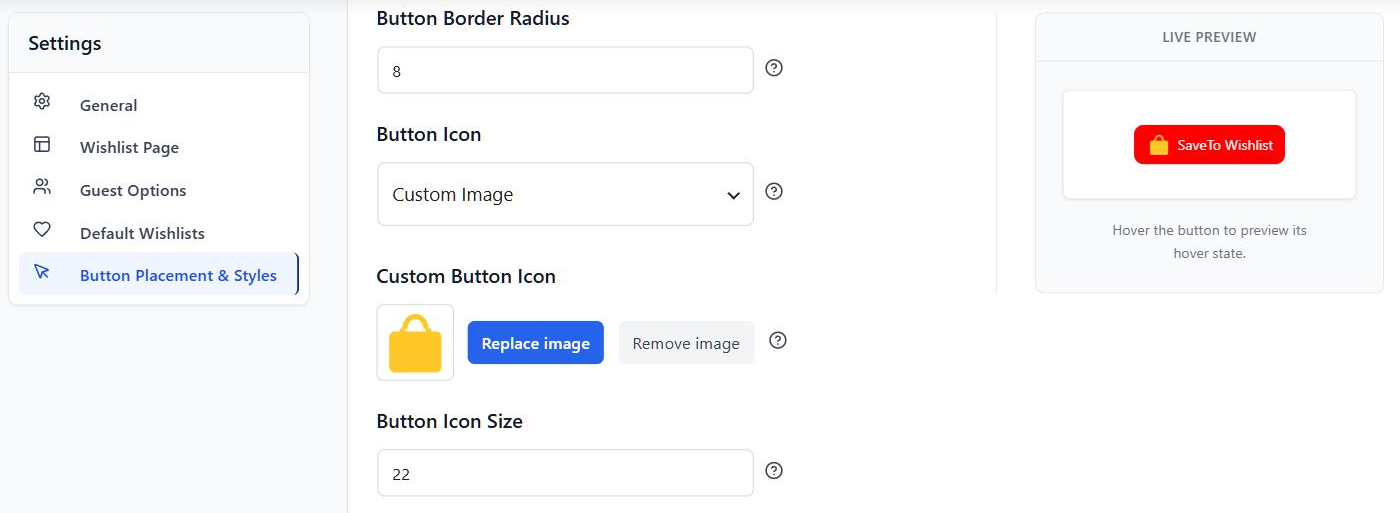
You can supply your own artwork when none of the four shapes fit. Picking Custom Image reveals a Custom Button Icon uploader directly below the dropdown.
One behavior worth knowing before you start: selecting Custom Image on its own changes nothing. Instead, the button keeps showing a heart until you actually pick an image.
What you need to know:
- The color fields disappear: Choosing Custom Image hides both Button Icon Color and Button Hover Icon Color. Color can’t reach an uploaded image, and a control that visibly does nothing reads as a bug.
- One image covers both states: Your upload shows in the resting state and on hover. The two-tone swap you get with the built-in shapes doesn’t apply here.
- Proportions are kept: A non-square upload isn’t squashed into a square. Button Icon Size still sets the scale.
- The image is treated as decorative: It renders with an empty alt attribute on purpose. The button already carries its own accessible name for screen readers.
- Deleting the file has a consequence: Remove that attachment from your media library later and the uploader reads as empty again. The button then falls back to a heart.
That last point is the one I’d flag before you upload. Still, media library cleanups are common, so keep your icon file somewhere you won’t prune by accident.
Which Icon Should You Choose?
Saving is a mainstream shopping behavior, not a niche one. In Baymard Institute’s study of 1,193 shoppers, 21% said they rely on save features. That makes the shape on your button worth a minute of thought.
Icons also carry meaning before anyone reads the label. Shoppers pick up what each shape means from other stores they use. As a result, your choice sets an expectation about what the button does.
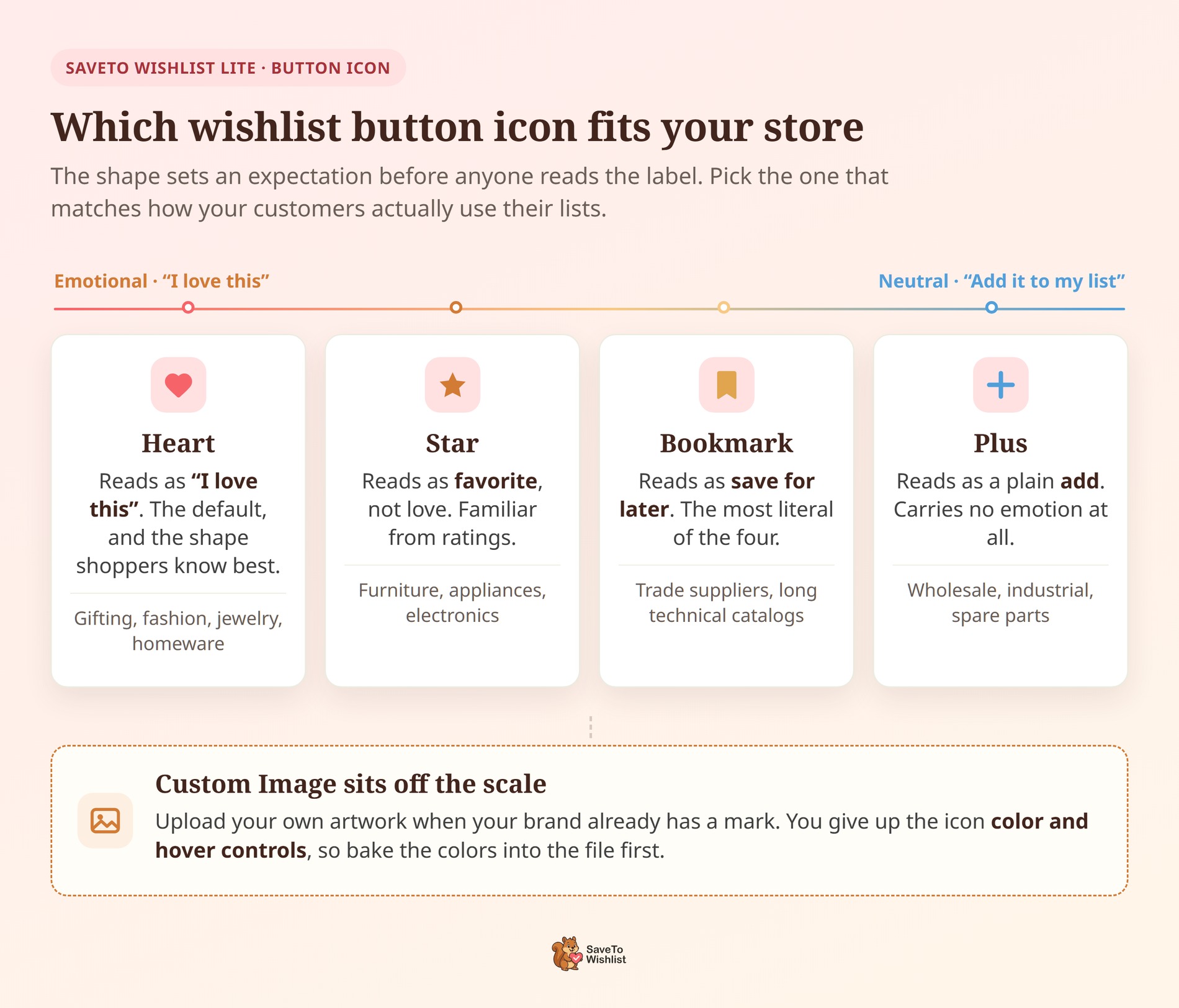
Heart fits gifting, fashion and lifestyle
The heart is our default, and it’s a shape shoppers recognize from other wishlist features. It carries warmth, which suits stores where wanting something is part of the appeal.
In practice, gift shops, clothing, jewelry and homeware all sit comfortably here. It’s also the right pick if customers build lists to share with other people.
Star reads as favorite rather than love
A star says “worth coming back to” without the affection. It’s familiar from ratings and favorites lists, so the meaning lands quickly.
In practice, it works well for catalogs where people compare options over several visits. Meanwhile, furniture, appliances and electronics are the typical cases.
Bookmark says save for later
The bookmark is the most literal of the four. It reads as “keep this where I can find it”, which is exactly what a wishlist does for most shoppers.
So pick it when your lists are working documents rather than gift lists. By contrast, trade suppliers and long technical catalogs tend to suit it.
Plus stays neutral for B2B and technical stores
The plus sign carries no emotion at all. It reads as a plain “add”. That’s often what you want when the buyer is purchasing for a business rather than themselves.
This is the one I’d start with for wholesale, industrial and spare-parts catalogs. It’s also the safest shape if your buttons sit close together in a dense product grid.
Custom image when your brand has its own mark
An upload makes sense when you’ve already got an established icon in your design system. It’s also the route to a shape we don’t ship, like a bag, a tag or a wrench.
Bear in mind you give up the color and hover controls when you go this way. So bake the colors into the file itself before you upload it.
If you’re unsure, test the shape on the page type where you get the most saves. The full wishlist guide covers where those saves usually come from.
Frequently Asked Questions
Will changing the icon affect wishlists my customers already saved?
No. The icon is presentation only, so saved lists and their contents stay exactly as they are. Your customers see a different shape on the button next time they visit.
Can I use a different icon on my shop page than my product pages?
Yes. Product Page, Shop Page and Cart Page each carry their own Button Icon setting. You’ll need to set Configuration Mode to Custom Settings on each page type you want to change.
Do I need a paid plan to change the icon?
No. Button Icon, Custom Image and Button Icon Size all ship in the free Lite plugin. Update to v1.1.2 or later and the setting is there.
Conclusion
That’s the icon setting covered. You can pick yours right now by updating SaveTo Wishlist Lite from your WordPress dashboard.
To recap, this announcement explored:
- Five wishlist button icon options, set separately for each page type.
- Where the setting lives, including the Custom Settings mode it needs.
- Uploading your own icon, and the two controls you trade away for it.
- Which shape to pick for your type of store.
My honest take on this one: don’t overthink it. Instead, match the icon to how your customers use their lists, then leave it alone. A wishlist page that feels native to your store beats a clever icon every time.
Need a hand with the button controls, or want to see what the paid plans add? Check out our knowledge base, browse the plan comparison, or reach out to our support team.
If you haven’t tried wishlists on your store yet, download the free version of SaveTo Wishlist today.



