

 Reviewed by
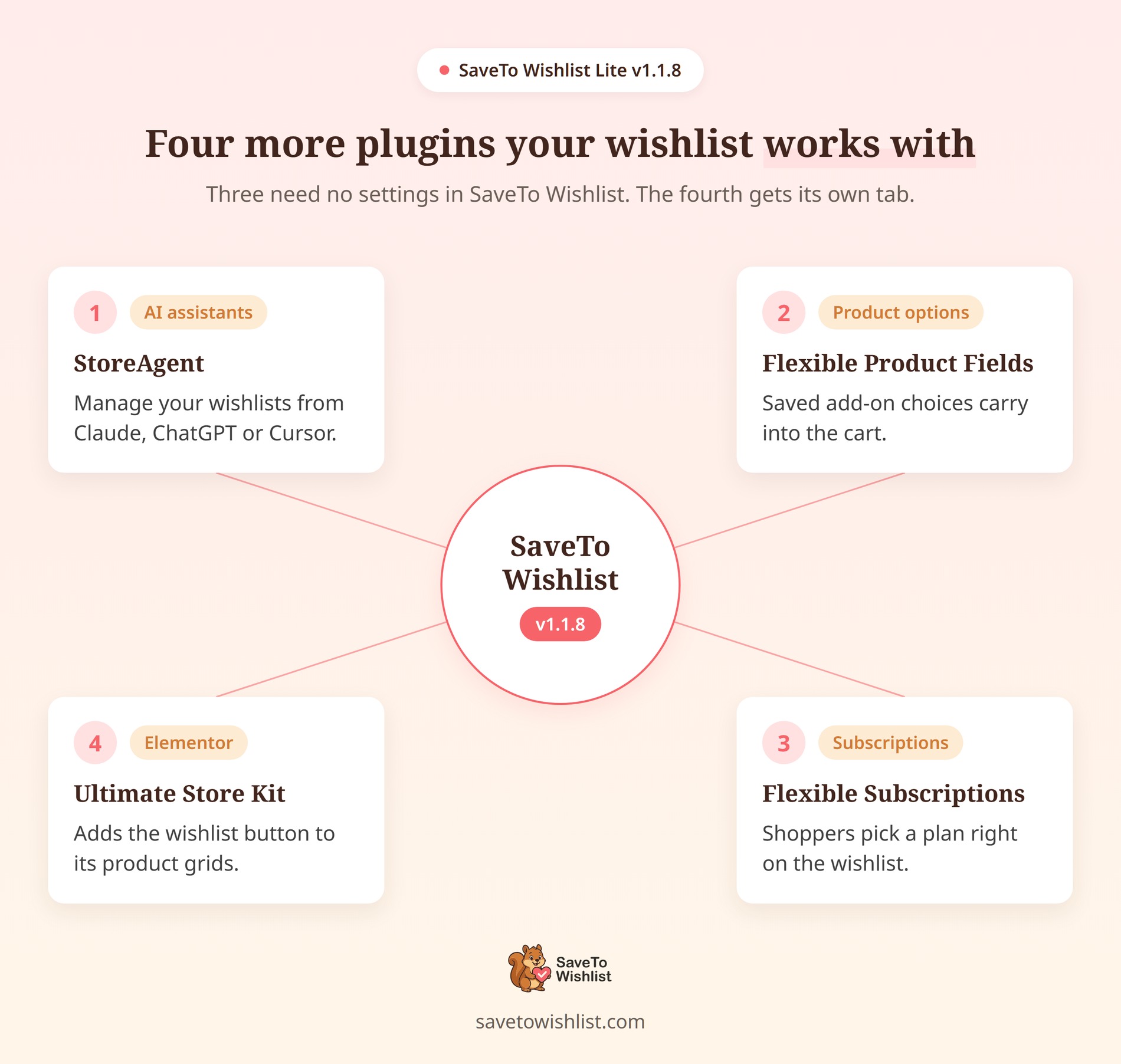
 With the release of the SaveTo Wishlist v1.1.8 integrations, the free version now connects with 4 more WordPress plugins.
Now you can manage your wishlists by chatting with an AI assistant. Plus, product add-on choices and subscription plans now carry from the wishlist to the cart. And the wishlist button finally shows on Ultimate Store Kit product grids.
As for setup, three of the four have no settings inside SaveTo Wishlist. The fourth comes with its own settings tab, which walks you through every step.
We tested each one on our demo store. So here’s a plain-English breakdown of how every new connection works!
Jump to:
4 New SaveTo Wishlist Plugin Integrations
Each SaveTo Wishlist v1.1.8 integration fixes a specific gap, from AI store management to custom options and subscriptions. Below, you’ll see how each one works and how to set it up on your store.
1. StoreAgent: Manage Your Wishlists With Your Favorite AI
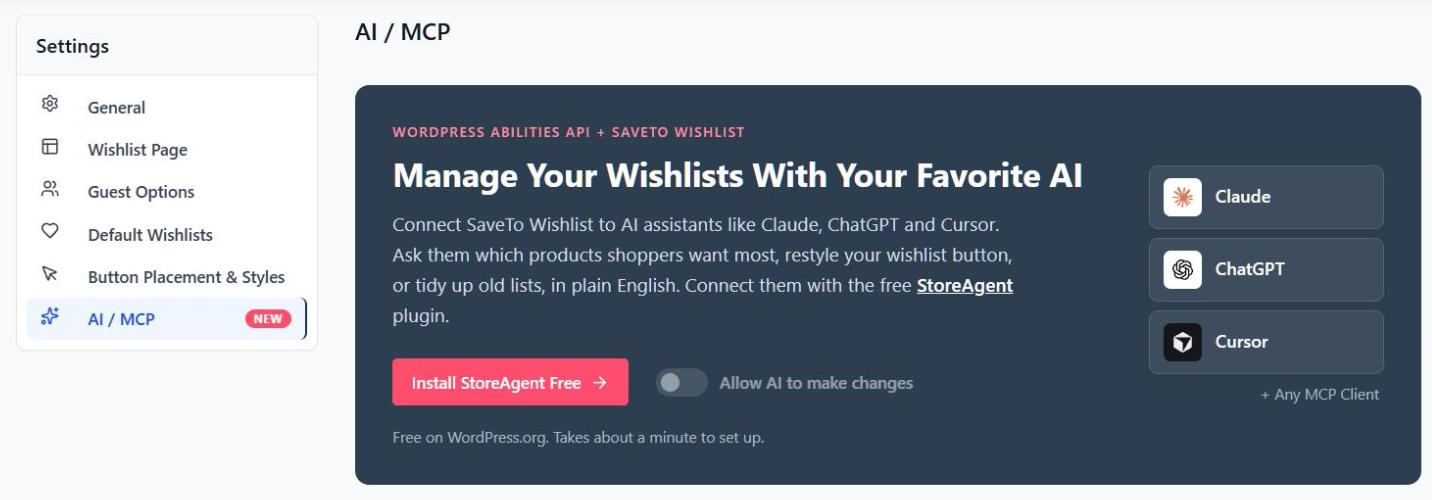
You can now ask Claude, ChatGPT or Cursor about your wishlists in plain English. The new AI / MCP tab sets this up through the free StoreAgent plugin.
Behind the scenes, SaveTo Wishlist Lite has registered 10 wishlist actions with the WordPress Abilities API since v1.1.7. With them, an AI assistant can list, create and edit wishlists, or change your wishlist button. On top of that, SaveTo Wishlist Pro adds 15 more for sharing, automations, customers and analytics.
How it works
- Guided Setup: The tab’s button changes with your StoreAgent status. It can install StoreAgent, activate it, point you to an update, or open its connection screen. MCP needs StoreAgent 1.1.9 or later.
- Read Access First: Once connected, your AI assistant can read wishlist data straight away. Every action that makes changes stays off until you allow it.
- One Switch For Changes: The Allow AI to make changes toggle allows every SaveTo Wishlist change action at once. It covers Lite and Pro. Turning it off removes only the SaveTo Wishlist actions. Other plugins’ AI permissions stay as they are.
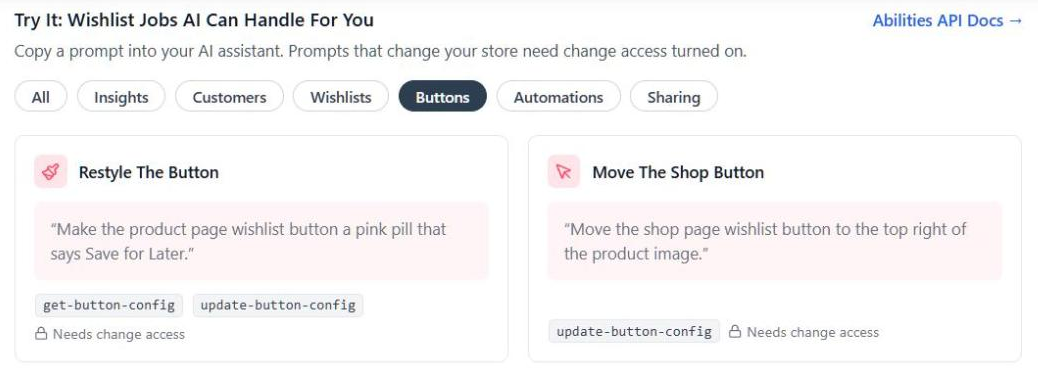
- Ready-Made Prompts: A Try It: Wishlist Jobs AI Can Handle For You section shows 12 prompts you can copy. Example: “Make the product page wishlist button a pink pill that says Save for Later.” Cards also flag prompts that need Pro or change access.
- Your MCP Endpoint: With StoreAgent connected and MCP on, the tab shows your store’s MCP endpoint URL. A Copy button sits beside it.
- Automations Keep Running: Items an AI adds to a wishlist fire the same hooks as the storefront button. So your CRM tags and wishlist automations still trigger as normal.
Settings and configuration
Unlike other settings tabs, this one has no Save button. Instead, every change on it saves immediately.
- Go to SaveTo Wishlist → Settings → AI / MCP tab.
- Click the main button, such as Install StoreAgent Free, and follow each step until it reads Manage StoreAgent Connection.
- Connect your AI assistant to your store through StoreAgent.
- Optional: turn on Allow AI to make changes if you want the assistant to create, edit or delete things.
🚀 Pro tip on access: The free version’s AI actions need an administrator account. By contrast, the Pro actions also work for shop managers.
Can your assistant read wishlists but not change anything? In that case, check that you approved its StoreAgent connection as Read and write. Our AI abilities guide lists every action.
2. Flexible Product Fields: Keep Add-On Choices From Wishlist To Cart
Shoppers no longer have to re-enter their custom options when they buy a saved product. Flexible Product Fields by WP Desk adds fields like engraving text, a gift note or a color picker. Until now, those choices didn’t survive the trip from the wishlist.
Now this integration keeps the values a shopper entered, shows them on the wishlist, and carries them into the cart.
How it works
- Values Saved With The Product: A logged-in customer who saves from the product page keeps the field values they entered. They must first pass Flexible Product Fields’ own checks.
- Shown On The Wishlist Row: Each saved value sits under the product name, like “Pet’s name for the hat: Biscuit.”
- Carried Into The Cart: Add to Cart, Add All to Cart and Add Selected to Cart keep the saved values.
- Checked Again At Add To Cart: Did you make a field required or remove an option since the save? Then the shopper goes to the product page to choose again. The cart always uses your current field prices.
- Safe Fallback: Some saves have no values, such as products saved from the shop page or by a guest. Those rows show a Select options button that opens the product page.
- Other Products Unaffected: Products with no field groups add to the cart directly, as before.

Settings and configuration
There are no settings to configure. Instead, the integration runs automatically as soon as both plugins are active.
Keep in mind that the free Flexible Product Fields plugin assigns field groups to single products. Groups for whole categories, tags or every product, plus fields that add a price, need Flexible Product Fields PRO.
🚀 Pro tip for plugin changes: Deactivating Flexible Product Fields hides saved values from wishlist rows. However, it doesn’t delete them, so they come back once you reactivate it. See our Flexible Product Fields setup guide for every edge case.
3. Flexible Subscriptions: Add The Right Plan From The Wishlist
Shoppers can now pick a subscription plan right on the wishlist, and that exact plan lands in the cart. Flexible Subscriptions by WP Desk is a free plugin for selling recurring products.
Single-plan subscription products already worked with SaveTo Wishlist. However, variable subscriptions, which offer several plans on one product, did not. This integration fixes that.
How it works
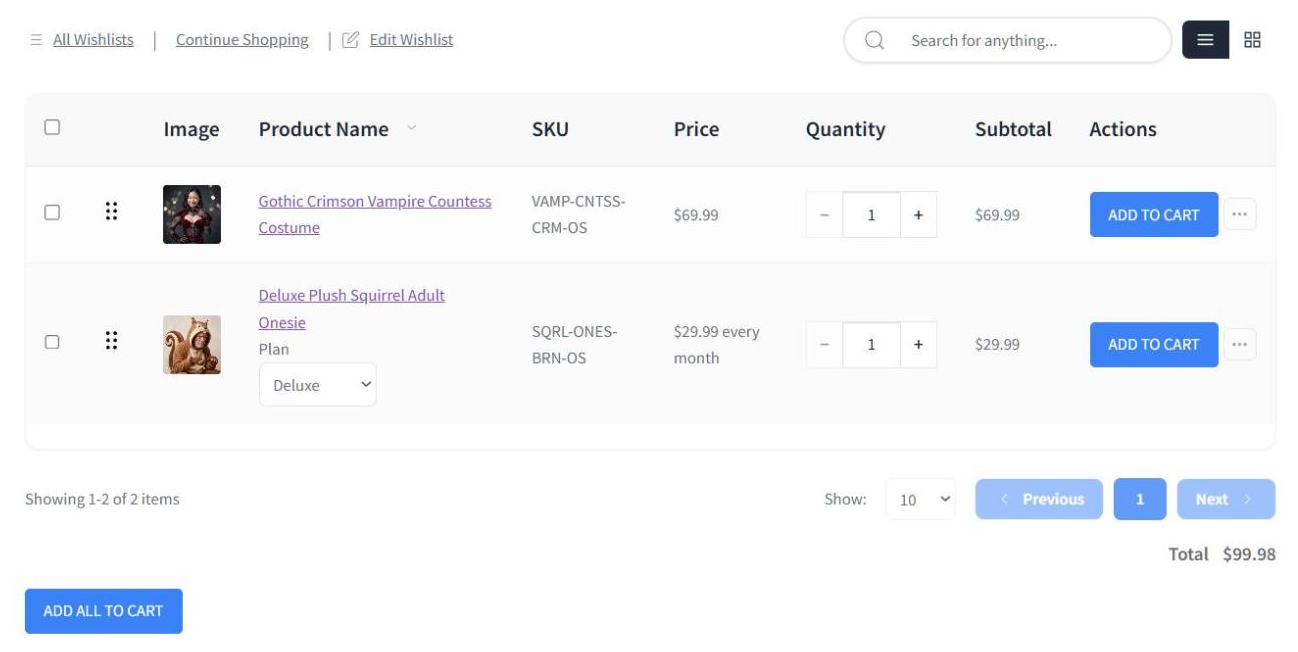
- Plan Selector On The Row: Wishlist rows for Variable Subscription products now show a plan dropdown. Guests get it too.
- The Right Plan In The Cart: Add to Cart adds the plan the shopper picked, not the parent product. Add All to Cart works the same way.
- Recurring Price Shown: Rows show the full recurring price, like “$10.00 every month.” Variable rows show the starting price, such as “From $19.99 every month.” With SaveTo Wishlist Pro 1.0.4 or later, they show the chosen plan’s price.
- Sale Alerts Supported: In SaveTo Wishlist Pro, sale alerts work too. The When a wishlist product goes on sale trigger fires when a subscription goes on sale.
Settings and configuration
Again, there are no settings. Create a Variable Subscription product in Flexible Subscriptions, add your plans as variations, and the wishlist handles the rest. Our Flexible Subscriptions guide covers the full setup.
🔍️ What We’ve Seen: On our demo store, the product page’s button still read “Select options” after we picked a plan. That label comes from Flexible Subscriptions, not SaveTo Wishlist, so it isn’t a wishlist bug.
🚀 Pro tip on sale alerts: Lowering the regular price alone won’t trigger a sale alert. Neither will changing only the billing period. Instead, set a sale price lower than the regular price.
4. Ultimate Store Kit: Show The Wishlist Button On Elementor Product Grids
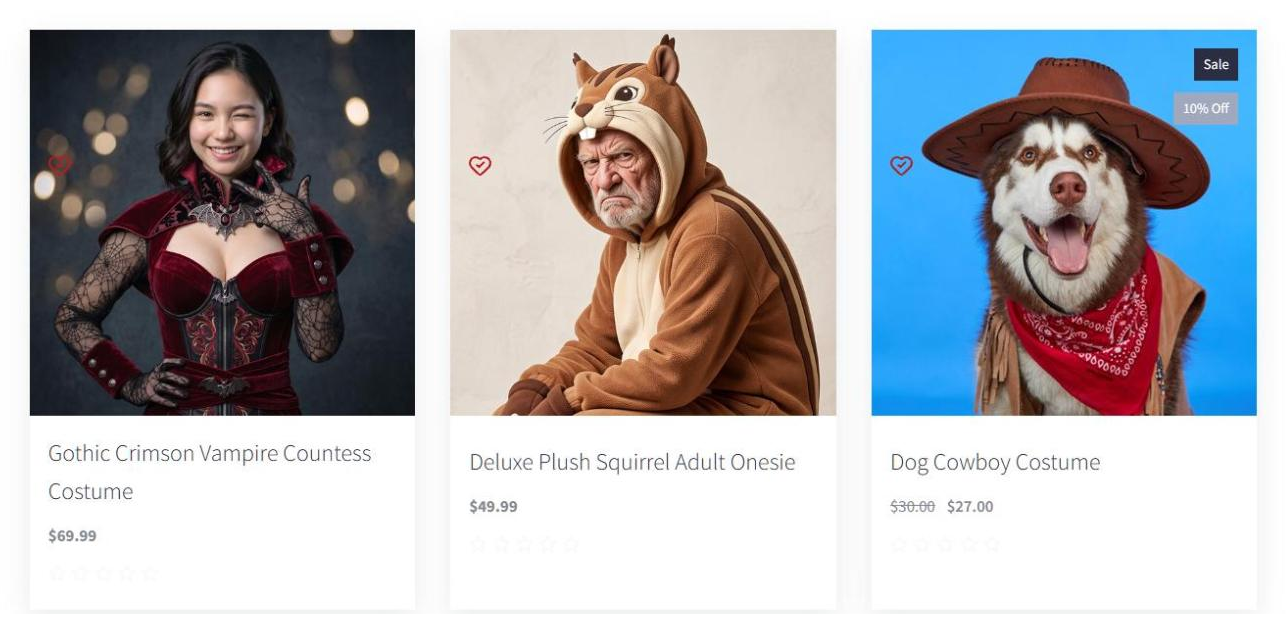
The SaveTo Wishlist button now shows on every card in your Ultimate Store Kit grids. Ultimate Store Kit by BdThemes adds Elementor widgets for product grids, carousels and sliders.
However, these widgets build each card on their own, without the standard WooCommerce shop hooks. As a result, the wishlist button never appeared on them before. Now it sits right next to each card’s own Add to Cart action.
How it works
- Added For You: The button appears on Ultimate Store Kit grids, carousels and sliders automatically. You don’t need to drag a widget into each card.
- No Double Hearts: Ultimate Store Kit’s own wishlist icon has a Wishlist switch that is on by default. While it’s on, SaveTo Wishlist hides its button, so a card never shows two hearts.
- Follows Your Shop Placement: The corner placements keep the button with the card’s icons, without covering sale or “New” badges. Other placements show it beside the card’s Add to Cart action, and Don’t show hides it.
- Icon-Only Style: Inside these cards, the button shows as an icon to match Ultimate Store Kit’s own icons. Your icon shape and colors still apply.
- Guest Rules Applied: The button follows your normal guest wishlist settings.
- Easy To Find In Elementor: Find the Save to Wishlist widget in the panel’s Ultimate Store Kit section too.
Settings and configuration
There’s nothing to set up in SaveTo Wishlist. To swap Ultimate Store Kit’s icon for the SaveTo Wishlist button, edit each grid in Elementor:
- Open the page with the grid in Elementor and click the grid widget.
- On the Content tab, open the Settings section, then the Action Button tab.
- Turn off the Wishlist switch. Keep the Add to Cart switch on.
- Click Publish.
Since each grid has its own switch, you can mix them. Keep Ultimate Store Kit’s icon in one grid and our button in another.
🔍️ Pro tip if the button is missing: It needs an Add to Cart action on each card. For example, the Glossy, Shiny and Florence grids all qualify. By contrast, Product List, Product Table and category widgets show no wishlist button. Our Elementor widget guide lists every supported widget.
Also In This Release: Core Updates
Alongside these SaveTo Wishlist v1.1.8 integrations, we also shipped two updates to the core plugin. Here’s a quick summary:
- Wishlist Total: The wishlist page now shows the wishlist’s total value below the items, for customers and guests. It covers every page of the wishlist and follows the search filter. Turn it off with Show Wishlist Total under SaveTo Wishlist → Settings → Wishlist Page → General Options.
- Cookie Privacy Control: Find Enable Wishlist Add Signal Cookie in SaveTo Wishlist → Settings → General → Privacy. Set it to No if your store needs consent before setting marketing cookies. This also turns off the signal our Popup Maker integration listens for.
Ready To Upgrade Your Wishlists?
In short, the SaveTo Wishlist v1.1.8 integrations let wishlists hold more of what a shopper actually chose. Add-on details and subscription plans now survive the trip to the cart. On top of that, you can run your wishlists from an AI chat.
Missed any of the details? Jump right back to a specific integration to review how it works:
- StoreAgent: Manage Your Wishlists With Your Favorite AI
- Flexible Product Fields: Keep Add-On Choices From Wishlist To Cart
- Flexible Subscriptions: Add The Right Plan From The Wishlist
- Ultimate Store Kit: Show The Wishlist Button On Elementor Product Grids
Update to SaveTo Wishlist Lite today and start connecting your favorite plugins!



