
Do your customers want to share their favorite products with friends and family for holidays, birthdays, or weddings? Wishlist sharing transforms a personal shopping list into a powerful marketing tool for your store.
Whether you want to let a friend browse a gift registry or invite a colleague to build a shared list, SaveTo Wishlist Pro has you covered. This guide shows you how to share any wishlist and control who can edit it, whether you are a customer managing your own list or a store admin working from the WordPress backend.
Prerequisites
- SaveTo Wishlist Pro installed and activated.
- WooCommerce installed and configured.
- Make sure “Disable Public Wishlists” option located at SaveTo Wishlist → Settings → Wishlist Page is turned off (unchecked).
Sharing a wishlist with a public link
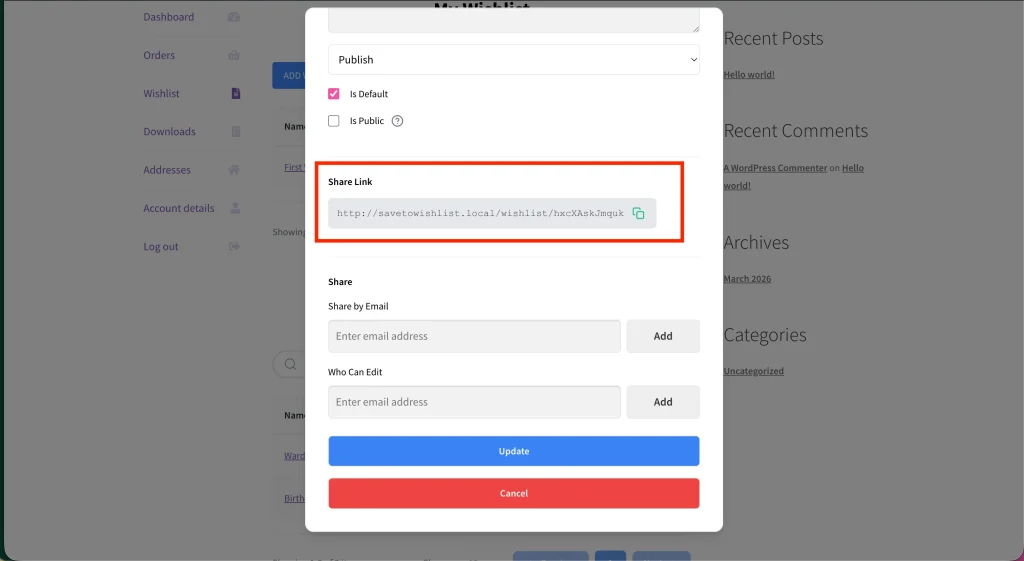
Every wishlist created in your store generates a unique, secure URL. Customers can copy this link and paste it anywhere such as text messages, social media, or group chats.
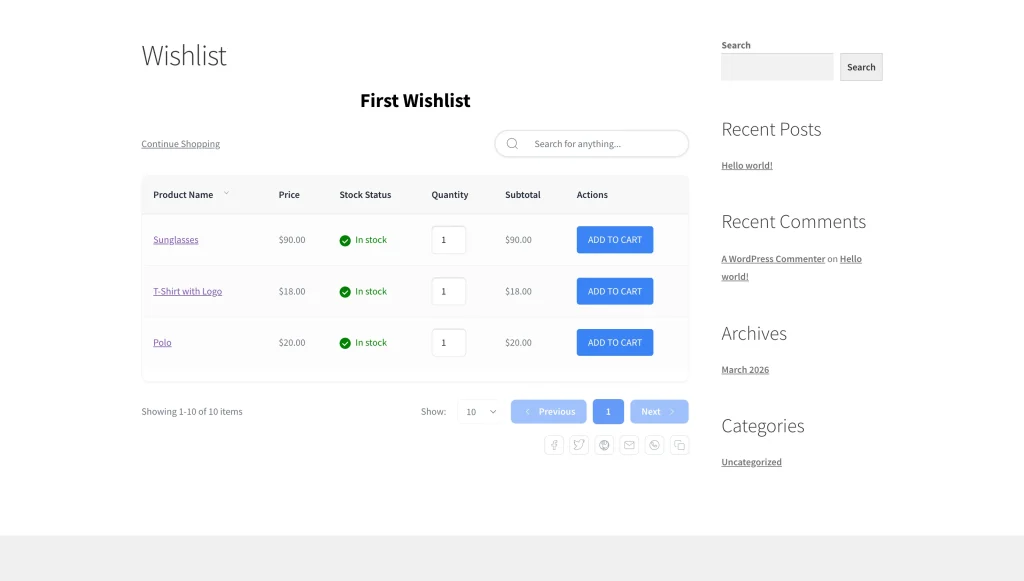
When a visitor clicks this unique link, they see a beautiful, read-only view of the wishlist. They can browse the saved items and seamlessly add them to their own cart to complete a purchase.
How to find the public wishlist link
For customers:
- Navigate to the My Account page or the dedicated Wishlist page.
- Click the specific wishlist you want to share.
- Locate the Share button and click it to copy the unique public URL.
For admins:
- Navigate to WP Dashboard → SaveTo Wishlist → All Wishlists.
- Find the desired wishlist and click View Details.
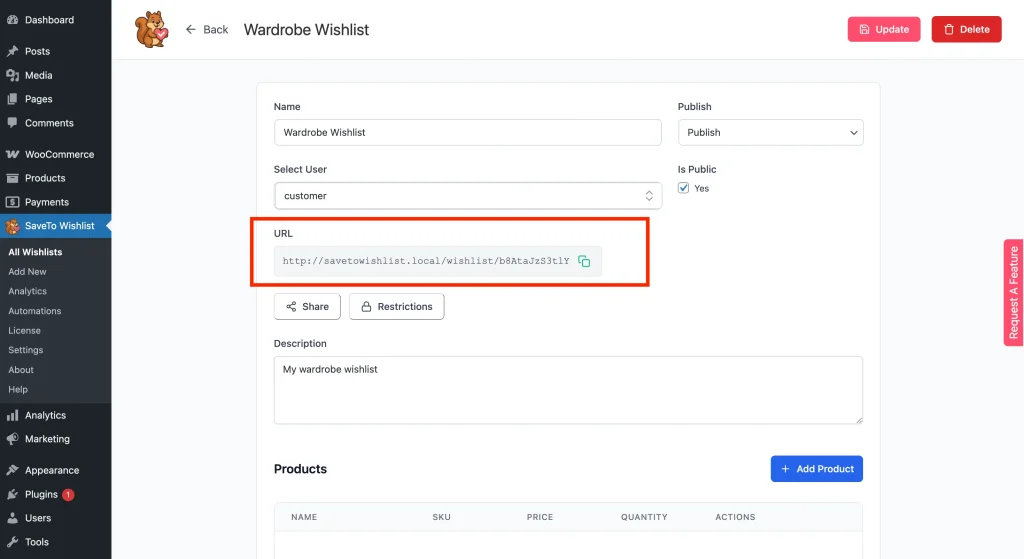
- Locate the wishlist URL and click it to copy the unique public URL.
💡 Note:
Visitors can browse items via the public link but cannot edit or remove anything unless you’ve explicitly granted them edit permissions
Inviting friends via email (view-only access)
If you or your customers prefer to send a direct, personalized invitation, wishlists can be shared via email or directly with other registered site users.
How to send invitations
For customers:
- Open the wishlist you wish to share.
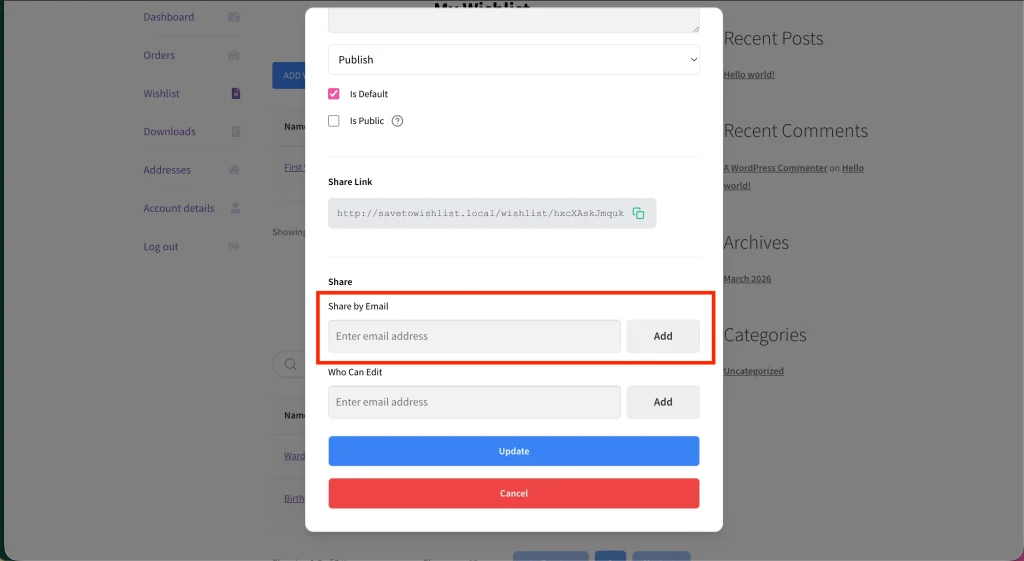
- Locate the Share by Email option.
- Enter the recipient’s email address then click Add.
- Click Update to send the invitation.
For admins:
- Navigate to WP Dashboard → SaveTo Wishlist → All Wishlists → View Details.
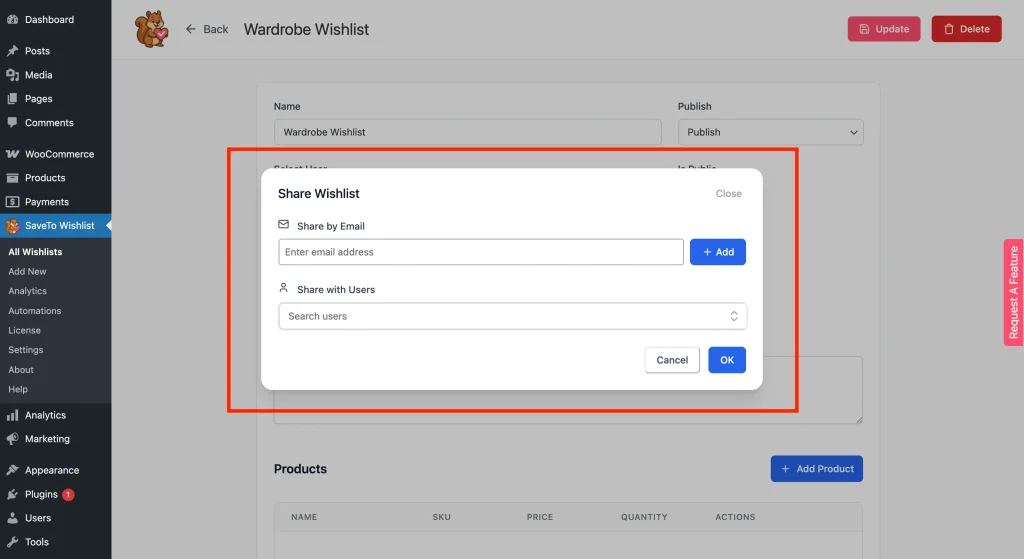
- Click the Share button to open a popup with two options:
- Share by Email: Enter the email address and click Add.
- Share with Users: Search for and select specific registered users.
- Click OK to send the branded “Wishlist Invitation” emails.
The recipient receives a branded “Wishlist Invitation” email containing a link to the wishlist. When the recipient clicks through, the plugin grants them view access automatically.
Granting edit permissions
Sometimes, wishlists require teamwork. A husband and wife might build a baby registry together, or a business team might collaborate on office supplies. SaveTo Wishlist Pro lets you grant edit access to specific individuals or entire user roles.
How to grant access to specific individuals
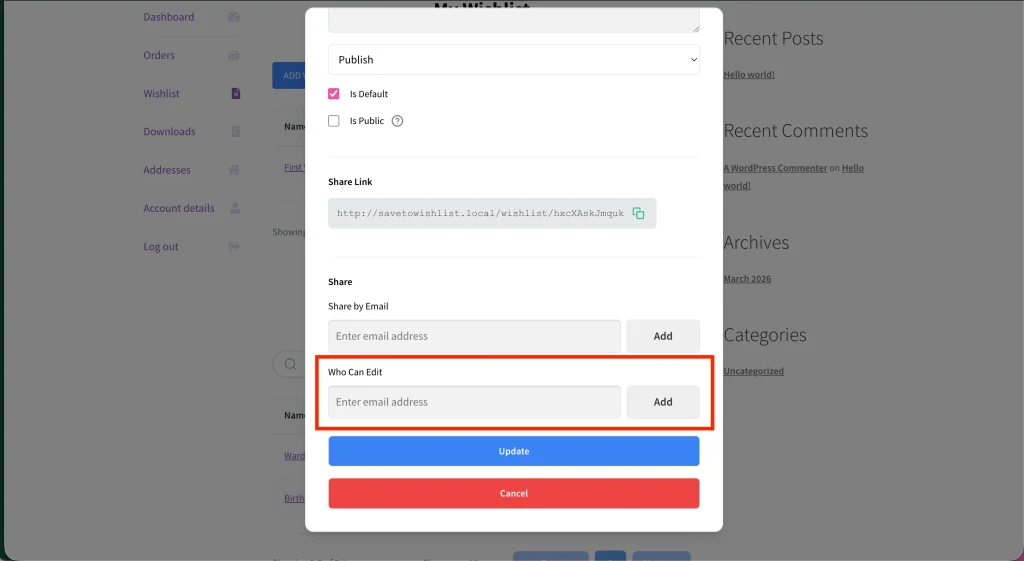
For customers:
- Open the wishlist you want to share.
- Locate the Who Can Edit option.
- Enter the collaborator’s email address, and click Add.
- Click Update to save and send a “Wishlist Edit Permission” email to the collaborator.
For admins:
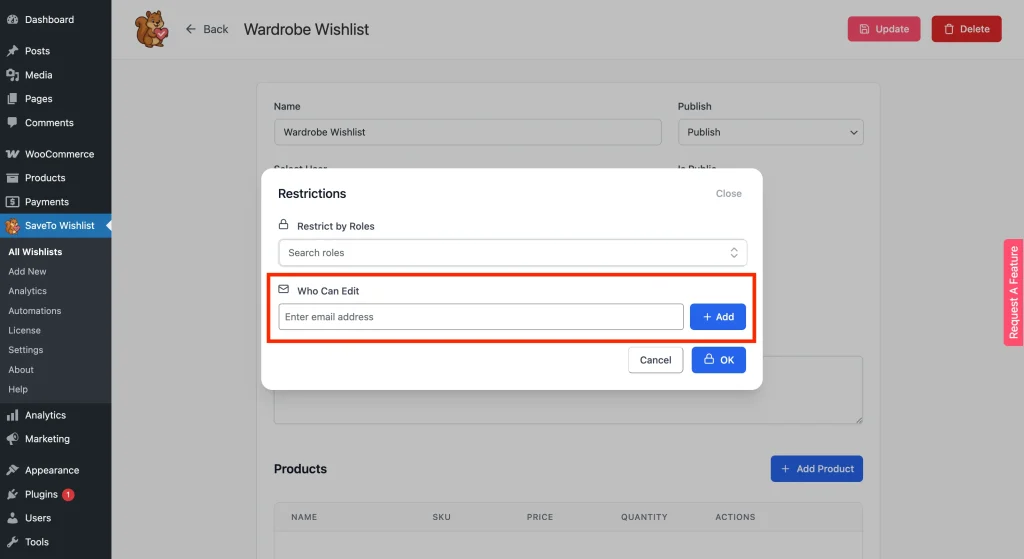
- Navigate to WP Dashboard → SaveTo Wishlist → All Wishlists → View Details.
- Click the Restrictions button.
- Enter the email address under Who Can Edit, and click Add.
- Click OK to save and send a “Wishlist Edit Permission” email to the added address.
Once added, the collaborator receives a “Wishlist Edit Permission” email. They can view, add, and remove items from that specific shared list.
How to grant access by user role (admin only)
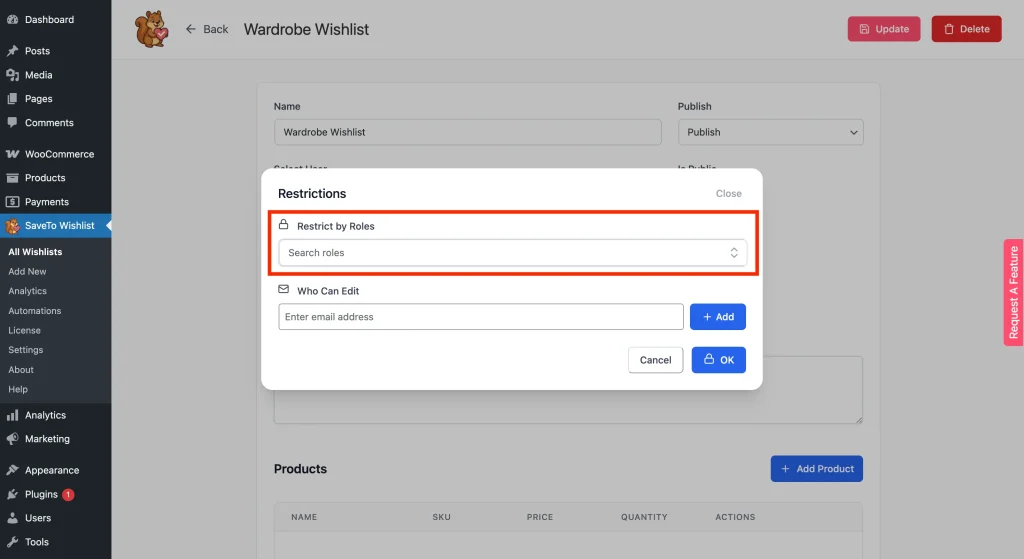
Only administrators can grant role-based edit access, and only from the WordPress backend. This lets you give every logged-in user of a specific role (e.g., “Customer” or “Subscriber”) edit access to a wishlist at once.
- Navigate to WP Dashboard → SaveTo Wishlist → All Wishlists → View Details.
- Click the Restrictions button.
- Search and select the desired Restrict by Roles (e.g., “Customer” or “Subscriber”).
- Click OK to save. Any logged-in user with a matching role will now have edit access when they view that wishlist.
Turning a shared wishlist into a gift registry
If you also run SaveTo Wishlist Registry, a customer can go a step further than sharing. A Convert to Registry action turns their wishlist into a public gift registry, which adds event details and lets visitors mark gifts as purchased so the same item is not bought twice.
The action only appears on a customer’s own wishlist, only when that wishlist is not already a registry, and only while the Registry licence is active. See How to convert a wishlist into a gift registry for the walkthrough.
Troubleshooting common sharing issues
My customer sent an invite, but their friend didn’t receive the email.
Ask the recipient to check their spam or junk folder. If it is consistently landing in spam, we recommend installing an SMTP plugin for your WordPress site to ensure reliable email delivery.
A visitor is trying to edit a wishlist but can’t.
Verify that Edit Permissions were granted rather than a View-Only share. As an admin, check the Restrictions popup in the wishlist details to ensure the correct email was added or the customer’s role is selected.
Frequently asked questions
Can customers share multiple wishlists?
Yes! Customers can create and share as many wishlists as they want, each with its own unique link and permission settings.
Can a visitor buy everything on a shared wishlist at once?
Yes. Add All to Cart on the wishlist page works on a shared wishlist too. Where the shopper lands afterwards is set store-wide by After Add All to Cart, which can leave them on the wishlist page or send them to the cart or straight to checkout. See How to configure general wishlist settings in SaveTo Wishlist.
Do visitors need an account to view a shared wishlist?
No. If shared via a public URL or email invite, visitors can browse the list as guests without creating an account.
What to do next
Sharing and edit permissions are per wishlist, so a customer can keep one list private and share another.
To see the flow as a customer does, log in with a test customer account, create a wishlist, and send an email invite to yourself.
Help & Support
We have a dedicated support team for SaveTo Wishlist Pro for WooCommerce who knows our products, WooCommerce, and the industry very well. You’re welcome to make use of their expertise at any time, worldwide.
- Premium users: Open a support ticket
- Free users: Visit our community forum

