
When a customer turns a wishlist into a registry, they pick an event type such as Wedding or Baby Shower. You decide what’s on that list. This guide shows you how to add, rename, or remove event types with SaveTo Wishlist Registry.
Prerequisites
- The base SaveTo Wishlist plugin installed and active.
- The SaveTo Wishlist Registry extension installed and active (see Getting started with SaveTo Wishlist Registry).
Step 1: Open the Event Types settings
- Go to SaveTo Wishlist → Settings.
- Open the Gift Registry tab.
- Select the Event Types tab.
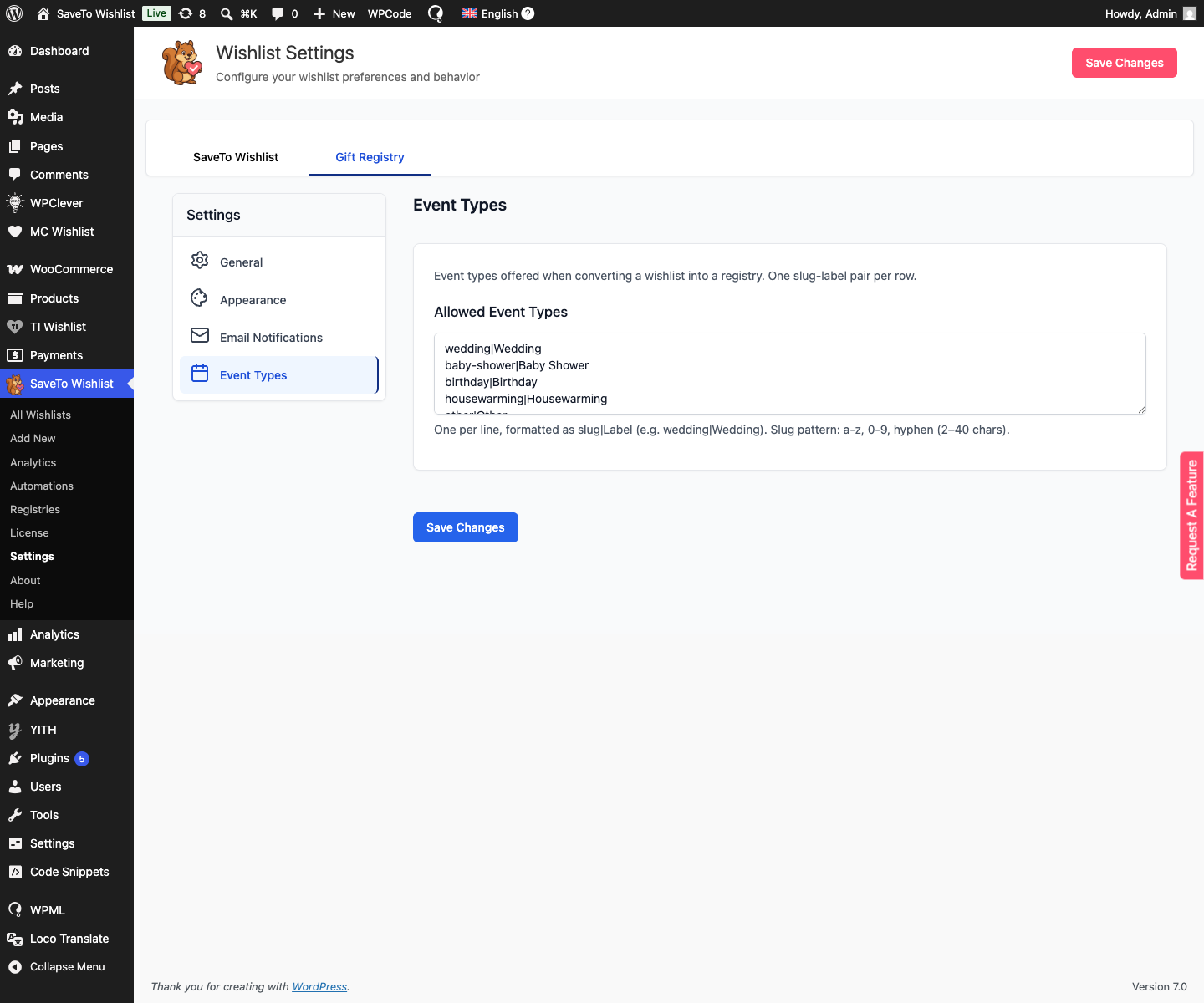
Out of the box, the list includes Wedding, Baby Shower, Birthday, Housewarming, and Other.
Step 2: Edit the list
In the Allowed Event Types box, add one event type per line using the format slug|Label. For example, anniversary|Anniversary.
- The slug is the internal id: lowercase letters, numbers, and hyphens, 2–40 characters.
- The Label is the friendly name customers see in the dropdown.
- To remove a type, delete its line.
- To rename one, change the text after the
|.
Keep the slug stable once registries are using it. Changing a slug is like creating a new type, while changing the label is a safe, cosmetic rename.
Step 3: Save your changes
Click Save Changes.
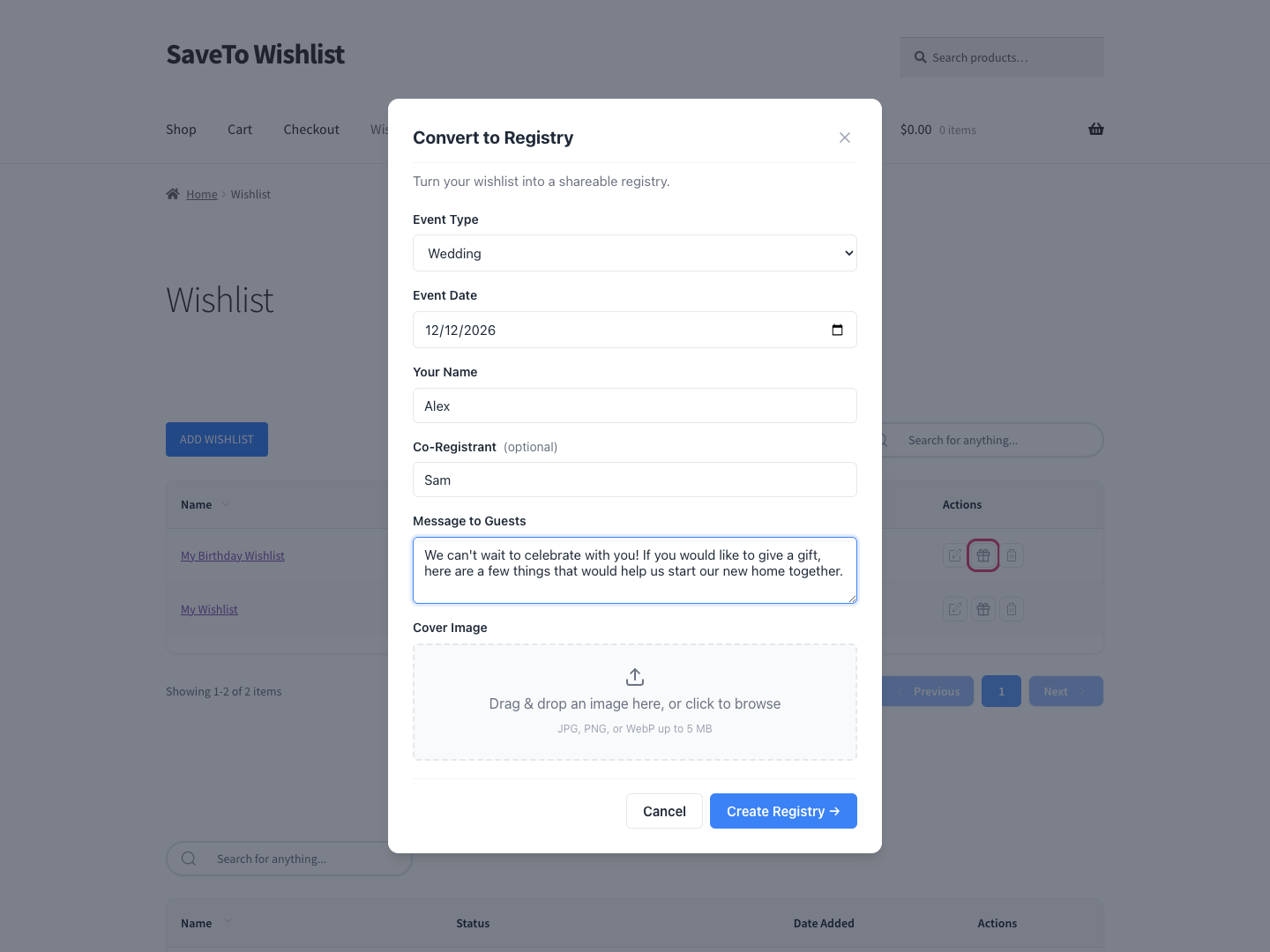
Your event types now appear in the Event Type dropdown of the Convert to Registry window, and as filter options on the search and admin screens. For the customer side, see How to convert a wishlist into a gift registry.
Troubleshooting
A new event type isn’t showing in the dropdown
Check the line uses the slug|Label format and the slug is 2–40 characters of lowercase letters, numbers, or hyphens. Then save again and reload the page.
An existing registry’s event type looks wrong after editing
If you changed a slug that registries already used, they no longer match a line in the list. Restore the original slug, or only edit the label after the | to rename safely.
Frequently asked questions
What’s the difference between the slug and the label?
The slug is the internal id the plugin stores; the label is the friendly name customers see. Change the label freely, but keep the slug stable.
Can I remove the default types?
Yes. Delete any line you don’t want. Keep at least one event type so customers can still create a registry.
Where do these event types appear?
In the Event Type dropdown when converting a wishlist, and as filter options on the Find a Registry search page and the admin Registries screen.
Need help?
- Premium users: submit a support ticket
- Free users: post in the WordPress.org support forum

