
Once guests start buying gifts from a registry, you’ll want to see who sent what and keep track of your thank-you notes. Your registry’s Gift Registries dashboard lists every purchase and lets you tick off thank-yous as you send them. This guide shows you where to find your purchases and how to track thank-you notes, using SaveTo Wishlist Registry.
Prerequisites
- WooCommerce and SaveTo Wishlist Lite installed and configured
- SaveTo Wishlist Registry installed and active
- You’ve created at least one registry by converting a wishlist into a gift registry
- You’re signed in to the account that owns the registry
Step 1: Open Gift Registries
- Go to My account in your store.
- Open the Gift Registries tab.
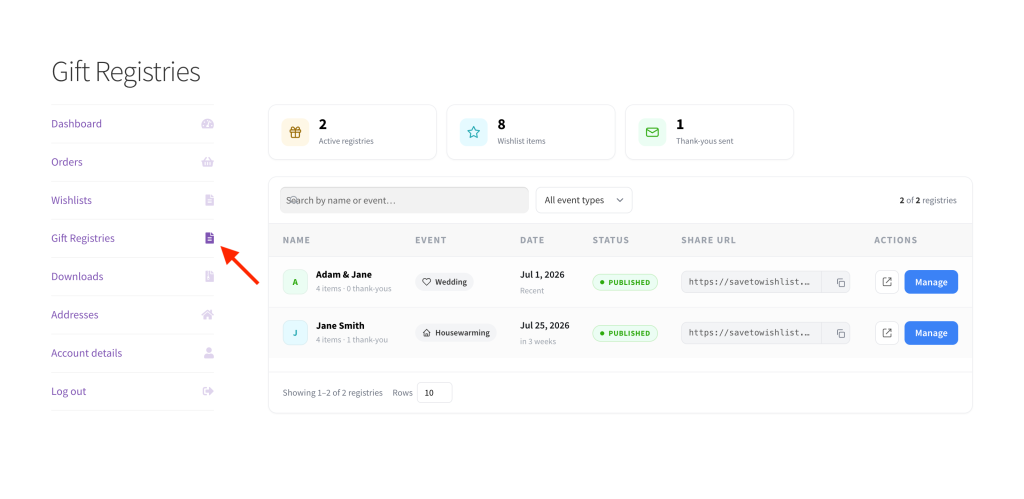
The top of the page shows a quick overview (Active registries, Wishlist items, and Thank-yous sent), followed by a table of your registries. If you only have one registry, you’ll go straight to it.
Step 2: Open a registry’s purchases
- Find the registry you want in the table.
- Click Manage.
The registry opens with its shareable link at the top and the purchase list below. To copy the public link to share with guests, use the copy button next to it.
Step 3: See who bought what
The purchase list shows one row per gift bought. Each row includes the Item, the Qty, the Buyer (name and email), the Date, and the Order number. Shop managers and admins see this as a link to the order in your store admin. Other registry owners see the order number as plain text.
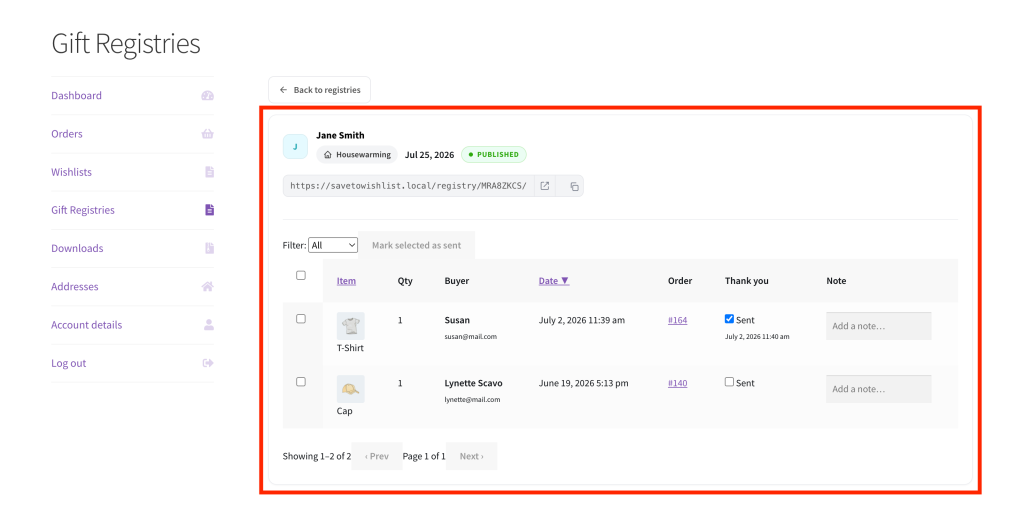
You can sort by Item or Date by clicking the column heading. As gifts are bought, the available quantity on each registry item goes down automatically, so guests don’t buy duplicates.
Step 4: Track your thank-you notes
Each purchase has a Thank you column with a Sent checkbox. Tick it once you’ve sent that guest a thank-you, and the date you marked it is recorded next to it.
To mark several at once:
- Select the purchases using the checkboxes on the left.
- Click Mark selected as sent.
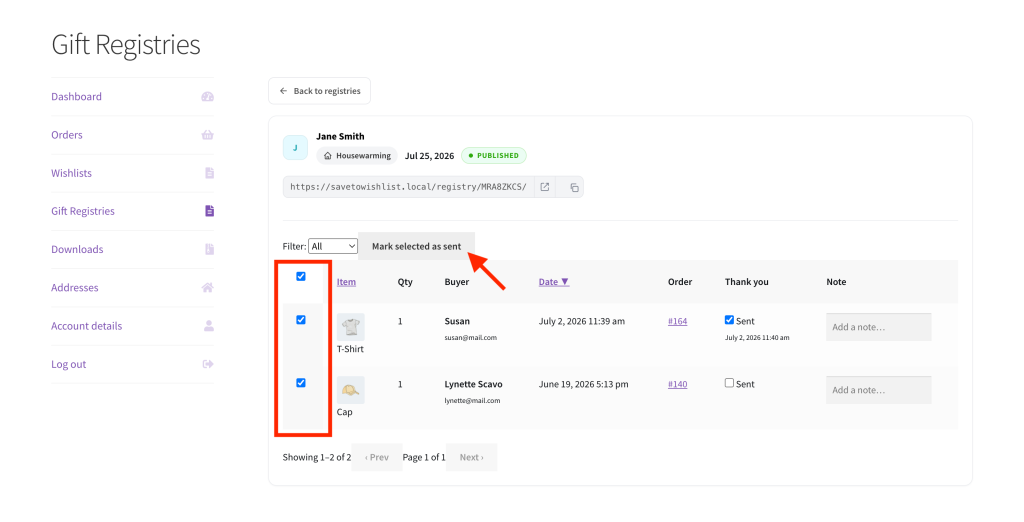
Use the Filter: dropdown to show All, Not sent, or Sent purchases, handy for working through the ones you still owe. You can also jot a private reminder for any purchase in its Note field; notes save on their own and are only visible to you.
What happens when an order is refunded or cancelled
When a guest’s order is refunded or cancelled, the registry updates by itself. You don’t need to change anything.
Full refund or cancelled order
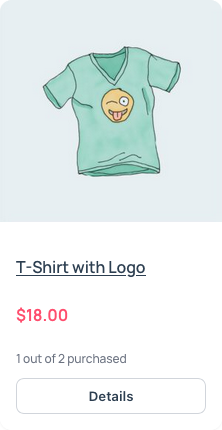
When an order is marked Refunded or Cancelled, each registry purchase from that order is voided. A voided purchase no longer counts toward the gift’s purchased total. The purchased count on the registry page, such as “3 out of 5 purchased”, goes down by the units from that order. Guests can buy those units again. The purchase stays on your purchase list, with no refund label.
An order that is cancelled before it is paid has no purchase to void, because purchases are only recorded once an order is paid.
Partial refund
When the store refunds only some units of a gift, the purchase stays on the list, and its quantity goes down by the refunded quantity. The gift’s purchased count on the registry goes down by the same amount.
If the refunds cover every unit of that purchase, the purchase is voided. A refund for an amount only, with no item quantity selected, doesn’t change the registry.
Registry owners can also get an email when a purchase is voided. See how to set up gift registry email notifications.
Troubleshooting
The purchase list is empty
A purchase appears once the guest’s order is paid, which means its status is Processing or Completed. If a recent order hasn’t appeared, check its status in your store. Orders that are still pending payment, failed, or cancelled don’t create a purchase.
I don’t see the Gift Registries tab
Make sure you’re signed in to the account that created the registry. The tab sits in My account at /my-account/gift-registries/, next to Wishlist.
A buyer shows as “Anonymous”
That means the order didn’t include a buyer name. The purchase and quantity still count toward the registry.
Frequently asked questions
Does marking a thank-you as sent send an email to the guest?
No. The Sent checkbox is a private tracker to help you keep on top of your thank-you notes. It doesn’t send anything to the guest.
Can I see the order behind a purchase?
Only if you can manage WooCommerce orders (shop manager or admin). The order number appears as a link for those users, opening the order in your store admin. Other registry owners see the order number as plain text.
What happens to a purchase if the order is refunded or cancelled?
The purchase is voided and the gift’s quantity is freed up again, so it can be bought once more. A partial refund lowers the purchased quantity by the refunded amount. See “What happens when an order is refunded or cancelled” above for the details.
Need help?
- Premium users: submit a support ticket and our team will help you out.
- Free users: post in the WordPress.org support forum.

