Your guests can only buy what is on your registry. SaveTo Wishlist Registry lets you add products, change how many you want, remove items, and put them in the order you like, all from your registry page. This guide walks you through each of these tasks.
Prerequisites
- SaveTo Wishlist Registry active. You only need an active license to create a new registry, not to manage the items on one. See How to manage your SaveTo Wishlist Registry license.
- A registry. If you don’t have one yet, see How to convert a wishlist into a gift registry.
- You’re logged in to the account that owns the registry. Store admins also see the edit controls on every registry.
- The registry isn’t archived. An archived registry hides all the edit controls.
Open your registry page
You manage items on your public registry page. When you’re logged in as the owner, the page shows extra edit controls that your guests never see.
- Go to My Account > Gift Registries.
- Find your registry in the list.
- Click Manage in the Actions column.
- Click the Open registry page icon next to the share URL.
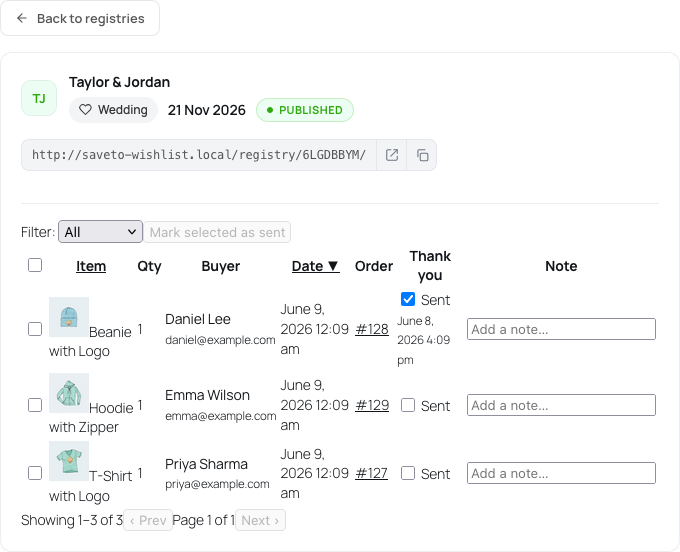 Your registry page opens. Each item card now has a small toolbar with a pencil icon and a trash icon, plus a drag handle in its top-left corner.
Add an item
You can add any published simple or variable product that shows in your shop and can be bought.
Add a simple product
- Click Add item.
- Type a product name or SKU in the Search products by name or SKU… field.
- Click Select next to the product you want.
- Set the Requested quantity.
- Click Add to registry.
- Type at least 2 characters to start the search.
- Use the Decrease quantity and Increase quantity buttons to change the number.
- To pick a different product before you add it, click Change product.
Add a variable product
Variable products, like a shirt that comes in several sizes, need one more step. You add a specific variation, not the parent product.
- Click Add item.
- Search for the product in the Search products by name or SKU… field.
- Click Choose options next to the product.
- In the Choose a variation list, click Select next to the variation you want.
- Set the Requested quantity.
- Click Add to registry.
- A variation that is out of stock shows Out of stock, and its Select button is disabled.
- To go back to the search results, click Back to product search.
- To pick another variation before you add it, click Change variation.
Change the quantity you want
- On the item card, click the pencil icon (Adjust quantity).
- Change the Requested quantity.
- Click Save.
- The window also shows how many your guests have Already purchased.
- The requested quantity must be at least 1.
- You can’t set it below the number already purchased.
Remove an item
- On the item card, click the trash icon (Remove item).
- In the Remove this item? window, click Remove.
You can only remove an item that nobody has bought yet. When an item has purchases, its trash icon is greyed out. This keeps the record of who bought what, so you can still send your thank-you notes.
Reorder your items
Put the gifts you care about most at the top, so guests see them first.
- Drag the grip icon in the top-left corner of the card. Its tooltip says “Drag to reorder”.
- Drop the card in its new place.
The new order saves automatically. Reordering needs a mouse. Keyboard and touch-screen reordering are not supported.
Troubleshooting
I don’t see the Add item button or the edit controls
Log in to the account that owns the registry, then reload the registry page. If you’re logged in as the owner, check that the registry isn’t archived. An archived registry can’t be edited.
I see “That item is already in your registry.”
Each product or variation can be on a registry only once. To ask for more, change the quantity on the existing item instead.
I see “Quantity cannot be below the number already purchased (2).”
The number in brackets is how many guests already bought the item. Enter a number that is equal to or higher than that count.
The trash icon is greyed out
The item already has purchases, so it can’t be removed. You can lower its quantity to the number already purchased instead.
My product doesn’t show in the search
Check these points in the product settings:
- The product is published.
- It is a simple or variable product. Other product types can’t be added to a registry.
- Its Catalog visibility isn’t set to Hidden.
- A simple product can be bought, for example it has a price.
I see “Too many add-item requests. Please slow down.”
Wait a few minutes, then try again. The limit protects your store from too many requests at once.
Frequently asked questions
Can my guests see the edit controls?
No. Only the registry owner and store admins see the add, edit, remove, and reorder controls. Guests see the normal registry page.
Can I add two sizes of the same product?
Yes. Each variation is a separate item, so you can add a small and a large of the same shirt.
What’s next
- Getting started with SaveTo Wishlist Registry
- How to convert a wishlist into a gift registry
- How to view gift purchases and send thank-you notes
- Registry landing page appearance settings
Need help?
If you have a question or run into any issues, we’re here to help.
- Premium users: Open a support ticket
- Free users: Visit our community forum