
Guests who want to buy from someone’s registry need an easy way to find it. The Find a Registry page lets anyone search your store’s registries by the registrant’s name, filter them by event type, and open the right one in a click. This guide shows you how to set up that search page with SaveTo Wishlist Registry.
Prerequisites
- The SaveTo Wishlist Registry extension installed and active (see Getting started with SaveTo Wishlist Registry)
- At least one published registry for guests to find (see How to convert a wishlist into a gift registry)
Step 1: Confirm the Find a Registry page exists
When you activate the extension, it creates a published page called Find a Registry containing the [saveto_registry_search] shortcode. If that page is already there, you can skip to Step 2.
To create the page yourself instead:
- Go to Pages → Add New Page.
- Give the page a title, such as Find a Registry.
- Add the shortcode
[saveto_registry_search]to the content. - Click Publish.
![The WordPress page editor with the title "Find a Registry" and the [saveto_registry_search] shortcode in the content area](https://savetowishlist.com/wp-content/uploads/saveto-wishlist-find-a-registry-page-editor.png "saveto-wishlist-find-a-registry-page-editor - SaveTo Wishlist")
Step 2: Assign the page in settings
- Go to SaveTo Wishlist → Settings.
- Open the Gift Registry tab, then the General tab.
- Under Page Assignments, set Find a Registry Page to your search page.
- Click Save Changes.
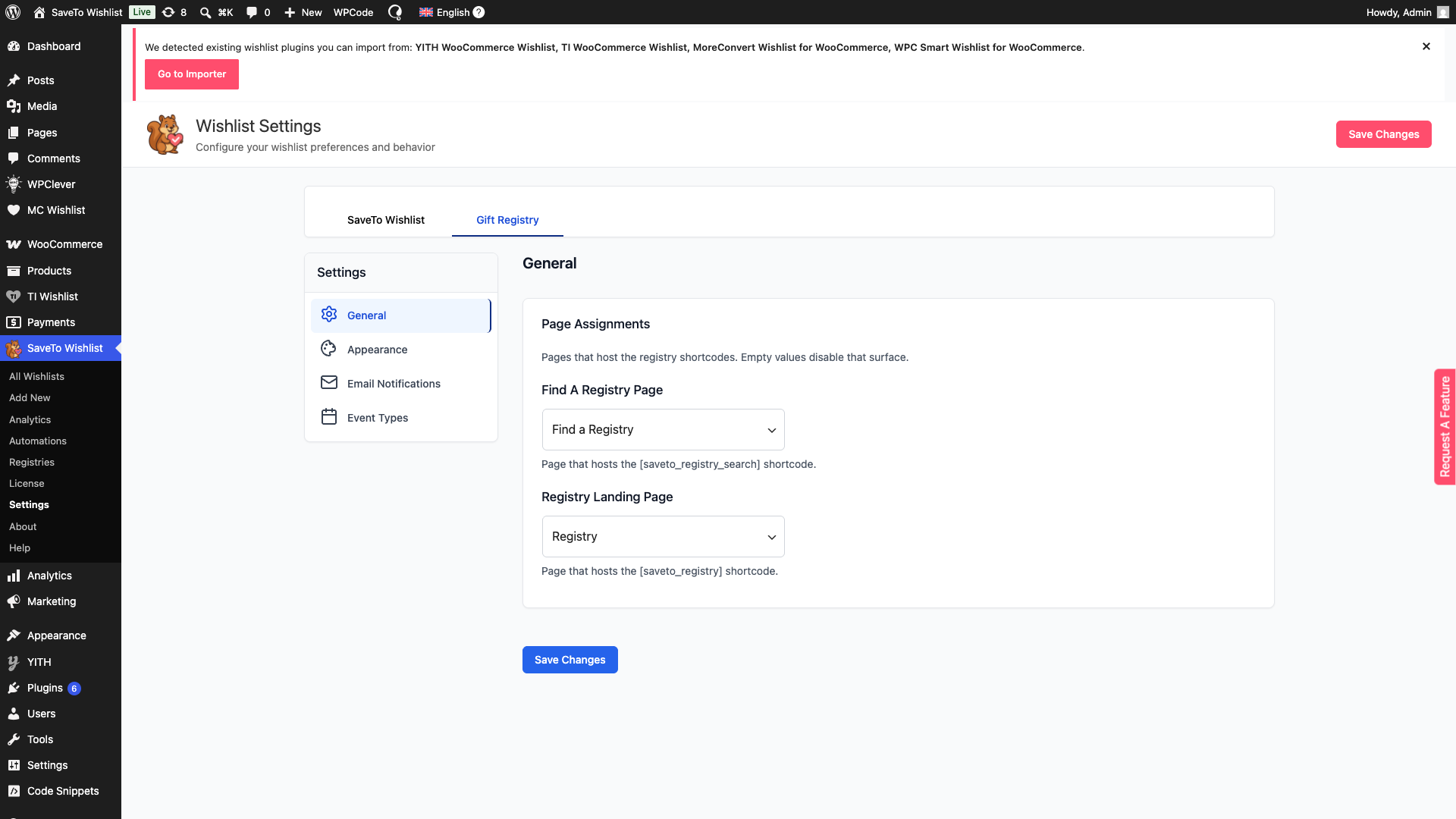
If you leave Find a Registry Page empty, the search box won’t load on any page, so make sure it points to a published page.
How guests find a registry
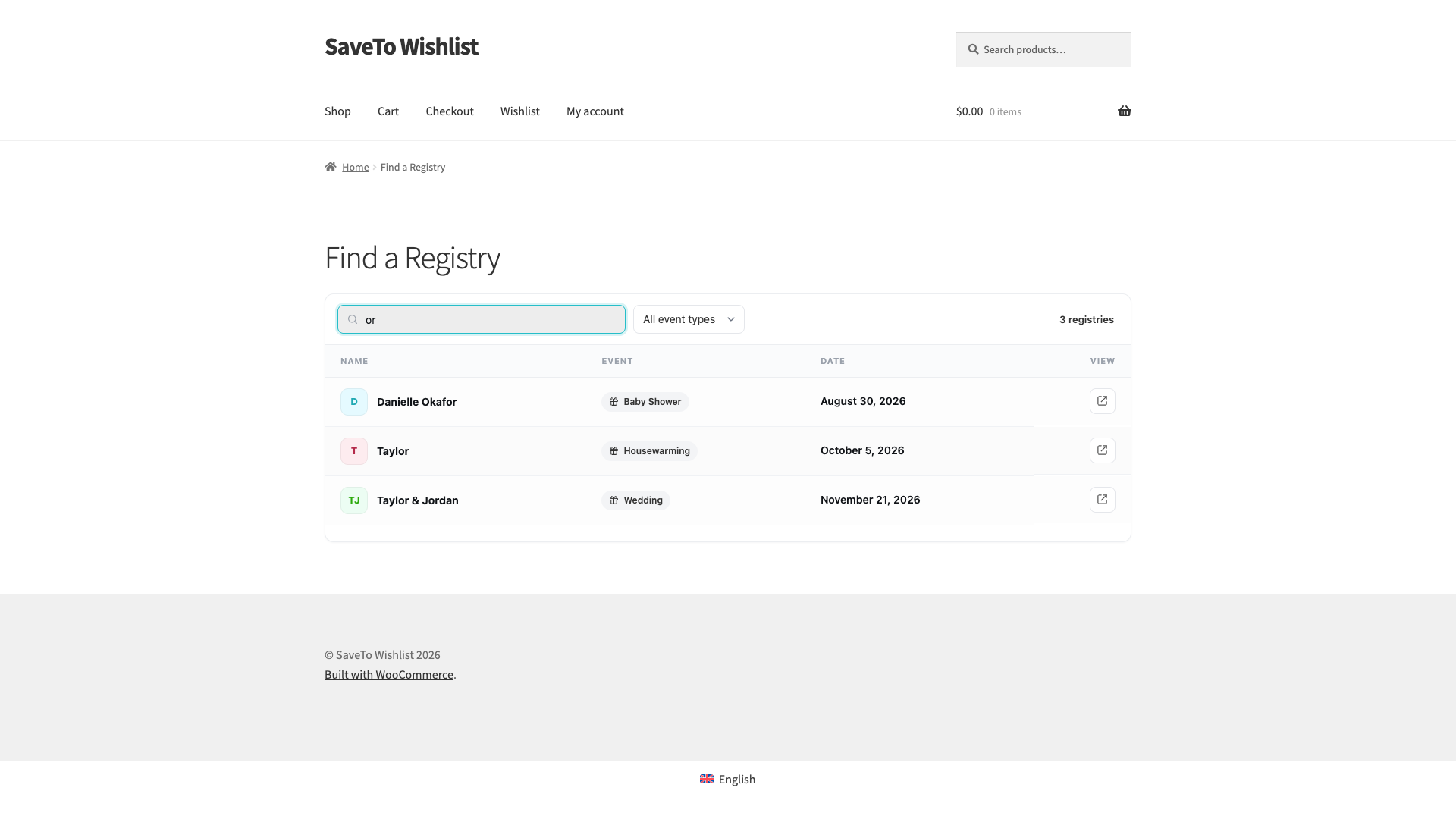
Open your Find a Registry page to see what guests see. The page loads with your published registries listed, up to 20 at a time. If there are more, guests see a note asking them to narrow the search. Guests can narrow it down in two ways.
- Type the registrant’s name into the Search by name… box. The search matches registrant and co-registrant names.
- Pick a type from the All event types dropdown.
Each match shows the registrant’s Name, the Event, and the Date. Guests click the view icon in the View column to open that registry’s public page in a new tab.
Troubleshooting
The page is blank or doesn’t search
Check that the page contains the [saveto_registry_search] shortcode and that it’s assigned under Gift Registry → General → Page Assignments.
A registry isn’t showing up
Only published registries appear in search. A registry that’s been archived or deleted won’t be listed. Also make sure the search term is at least 2 characters.
Guests see a “Too many searches — please try again in a few minutes.” message
Search is rate-limited per visitor to protect your store. It clears on its own after a few minutes.
Frequently asked questions
Do guests need an account to search?
No. The Find a Registry page is public. Anyone can search and open a registry without signing in.
Can I have the search page somewhere other than the default page?
Yes. Put the [saveto_registry_search] shortcode on any page, then assign that page under Gift Registry → General → Page Assignments.
How do guests buy a gift from search?
They click the view icon in the View column to open the registry’s public page in a new tab, where they can choose a gift and add it to the cart.
Need help?
- Premium users: submit a support ticket and our team will help you out.
- Free users: post in the WordPress.org support forum.

