
Building your pages with the Flatsome theme and its UX Builder? If you’ve tried dropping your wishlist page into the builder, you’ve probably seen it come out blank. That happens because UX Builder rewrites a page’s content into its own row and column shortcodes, and the [saveto_wishlist] shortcode that SaveTo Wishlist Lite depends on gets rewritten away with everything else. Here’s where to find the dedicated Save to Wishlist element in UX Builder, what its two options do, and how it stacks up against adding the shortcode directly.
Before you begin
- Your store is running the Flatsome theme, with UX Builder enabled for the page you want to edit.
- SaveTo Wishlist Lite is installed and active. New to wishlists? Start with Getting Started with SaveTo Wishlist first.
Find the Save to Wishlist element
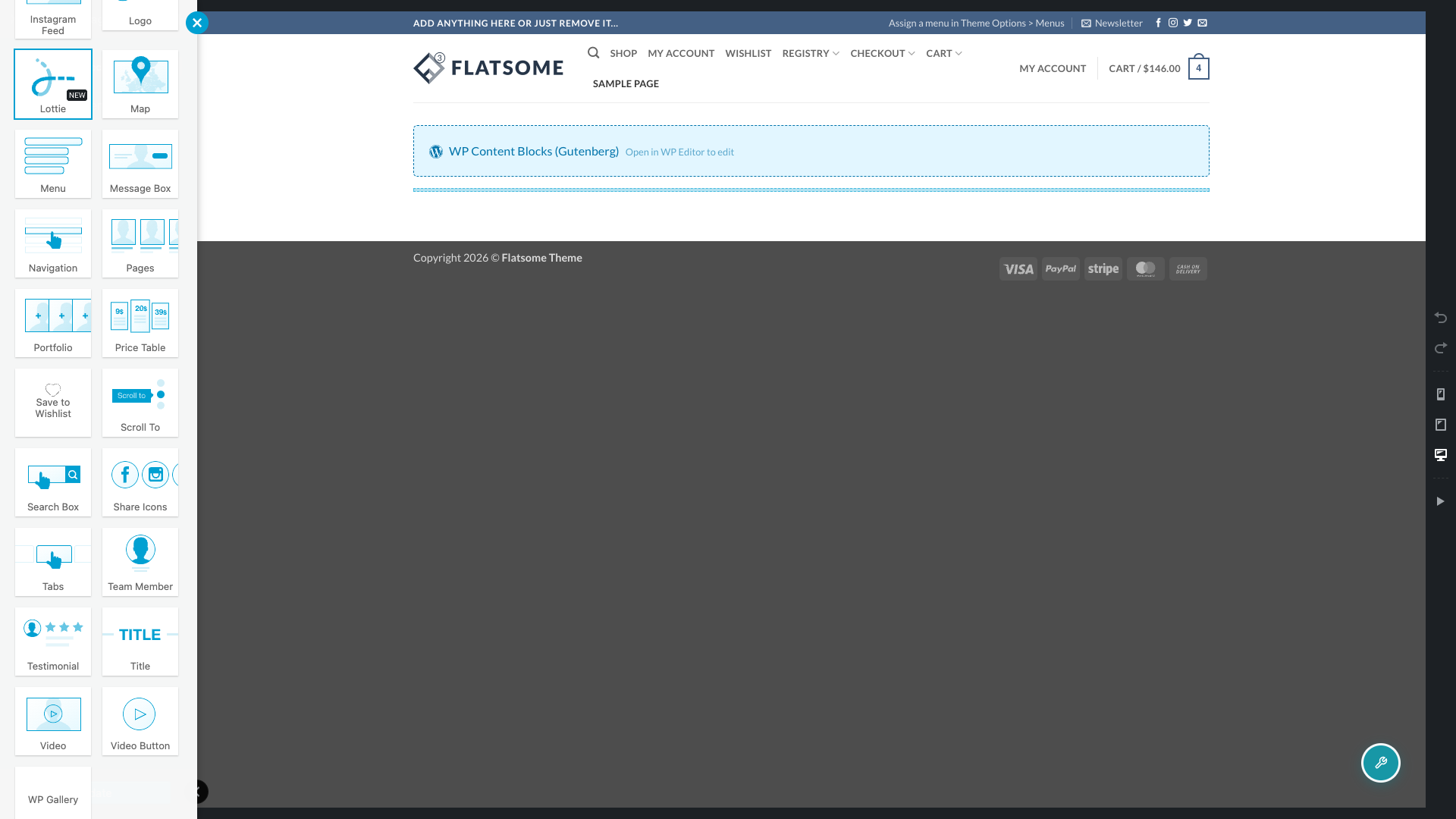
Open the page in UX Builder. In the element picker, the Save to Wishlist element sits under the Content category, next to Flatsome’s other content elements. Look for the heart icon or type in “save to wishlist”.
Add the element to your page
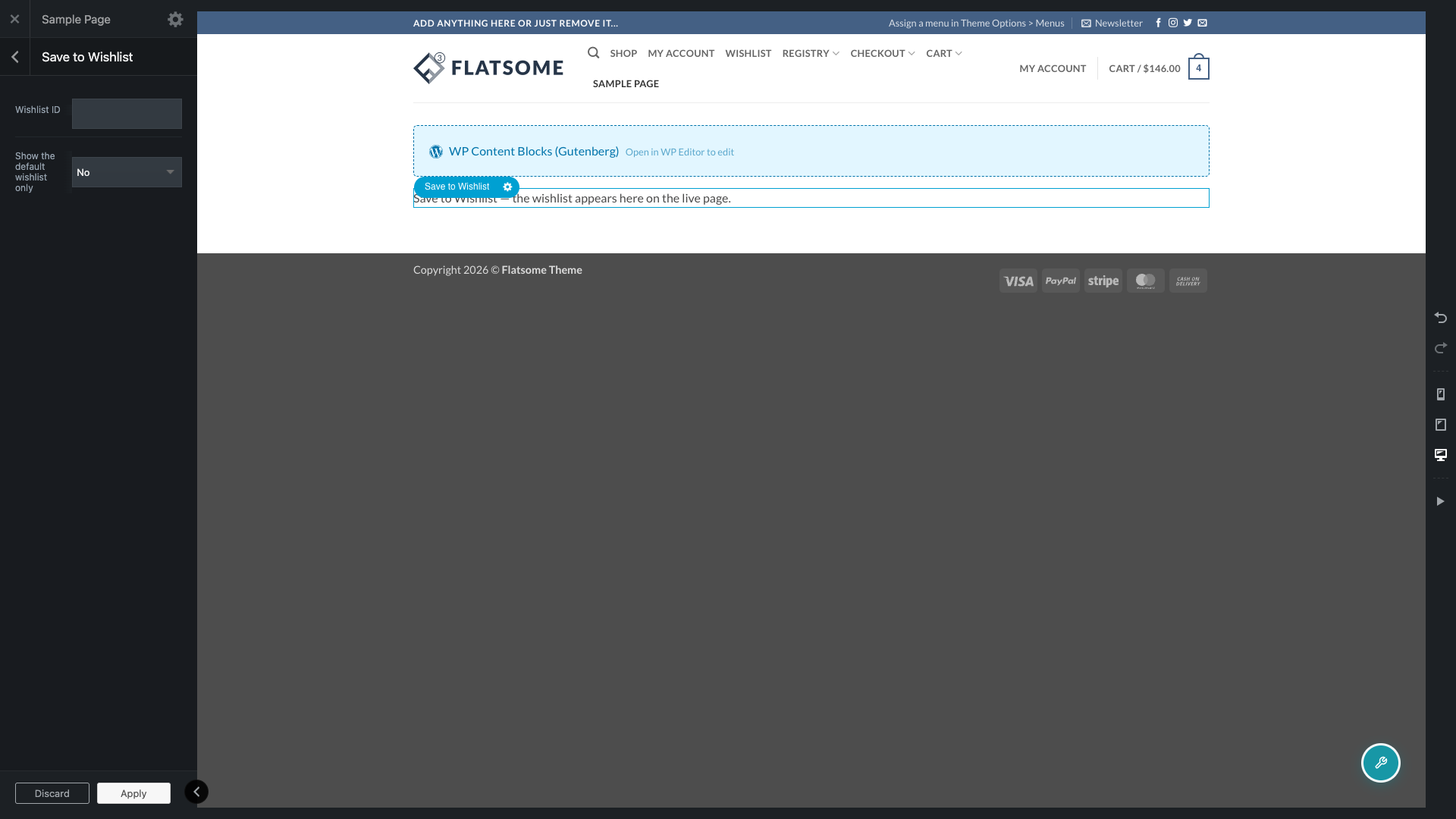
- Drag the Save to Wishlist element onto the row or column where you want the wishlist to appear.
- Click the element to open its options panel.
- Set the Wishlist ID and Show the default wishlist only options. See the table below for what each one does.
- Save your changes, then preview the page.
Configure the element’s options
| Setting | Description | Default |
|---|---|---|
| Wishlist ID | The numeric ID of a specific wishlist to display. Leave this blank to show whichever wishlist the visitor viewing the page currently has active. | Empty |
| Show the default wishlist only | When set to Yes, a logged-in visitor sees their default wishlist (or their first published wishlist, if they haven’t set one) instead of whichever wishlist they’re currently viewing. Ignored for guests and for anyone opening a shared wishlist link. | No |
What you’ll see in the builder vs. the live page
While you’re editing in UX Builder, the element shows a placeholder box instead of a live wishlist. Rendering the real, interactive wishlist inside the builder canvas would let a stray click add or remove items from your own account’s wishlist while you’re just laying out a page, so UX Builder gets a placeholder that reads “Save to Wishlist — the wishlist appears here on the live page.” instead.
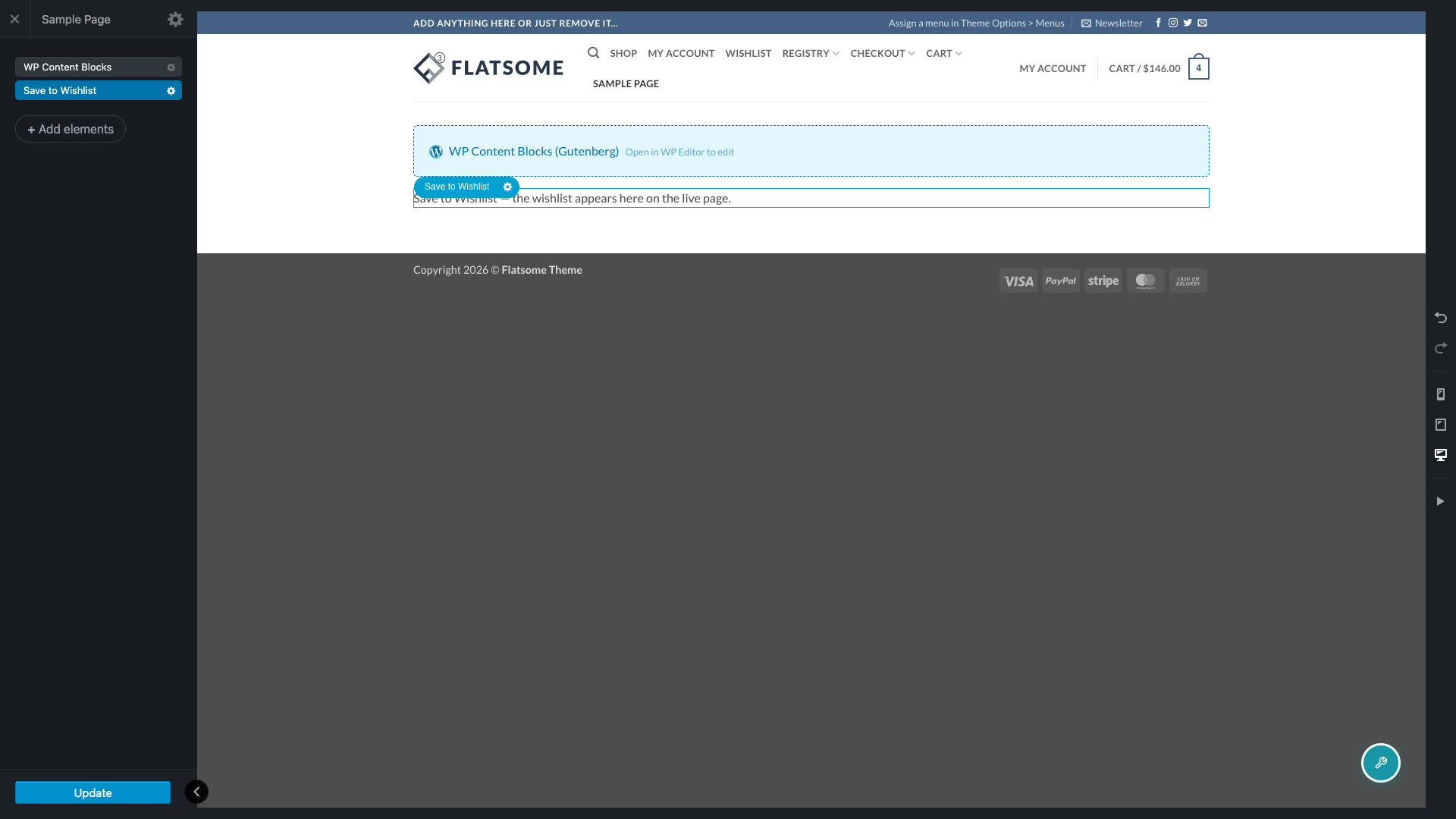
Preview or view the page normally, outside the builder, to see the actual wishlist your visitors get. The one exception is the My Account page: its wishlist tab always shows the live wishlist, even while you have UX Builder open elsewhere, since Flatsome doesn’t render that tab through UX Builder.
How this compares to the shortcode
SaveTo Wishlist Lite already lets you place a wishlist anywhere with the shortcode. The UX Builder element is built directly on top of that same shortcode, using the same Wishlist ID and Show the default wishlist only options described above, so the two behave identically. Use the shortcode if you’re editing content directly or using a different page builder. Use the UX Builder element if you’re building the page visually in Flatsome, since typing shortcode text into a UX Builder layout doesn’t work the way it does in the classic editor.
Building with a different page builder? See How to add the wishlist button with the Elementor widget or How to Use the Wishlist Gutenberg Block.
Troubleshooting
The wishlist doesn’t show up when it’s part of a footer or a reusable block
SaveTo Wishlist detects the element by scanning a page’s own content for the underlying shortcode. When the element lives inside a separate Flatsome block referenced from a footer, a custom per-page layout, a product layout, or a menu item block, that scan can’t see it, so the plugin doesn’t load the wishlist’s scripts and styles for that page. Add the Save to Wishlist element directly to the page’s own content in UX Builder. That’s the only placement this integration fully supports.
The wishlist page goes blank when I open it in UX Builder
This is the exact problem this integration solves. Opening a page that only contains the [saveto_wishlist] shortcode in UX Builder rewrites its content and drops the shortcode, so the wishlist disappears. Add the Save to Wishlist element from UX Builder’s own element picker instead of typing the shortcode into the page.
Frequently asked questions
Does the Wishlist ID option work the same as the shortcode’s id attribute?
Yes. The UX Builder element uses the exact same options as the shortcode, so there’s no difference in behavior between the two.
Will my customers ever see the placeholder text?
No. It only appears inside the UX Builder editor for logged-in users who can edit pages. Anyone viewing the live page sees the real wishlist instead.
Can I use the element on a product page or in a footer?
You can add it to any page UX Builder edits directly, including a product page’s own content. A product layout assembled from a separately referenced UX Block, such as a shared product template, isn’t fully supported, for the same reason a footer or menu-item block isn’t, as covered in Troubleshooting above.
Need help?
- Premium users: Open a support ticket
- Free users: Visit our community forum

