Selling shirts in different sizes or mugs in different colors? Your customers can save the exact variation they want to their wishlist, so they don’t have to pick it again later. Here’s how saving a variable product works in SaveTo Wishlist, what the wishlist shows for it, and what happens when a shopper saves one without picking a variation first.
Before you begin
- SaveTo Wishlist Lite is installed and active.
- You have at least one WooCommerce variable product with its variations set up (for example, a hoodie with Color and Logo options). The WooCommerce variable products guide covers how to create variations.
- The wishlist button is showing on your product pages. See How to help customers use wishlists in your store for how customers use the button.
Step 1: Save a specific variation from the product page
On a variable product’s page, the wishlist button follows whatever the shopper picks in the WooCommerce variation dropdowns. Once every option is chosen and WooCommerce finds a matching variation, the button saves that exact variation.
- Open a variable product page in your store.
- Choose an option from each variation dropdown (for example, Color and Logo).
- Click the wishlist button.
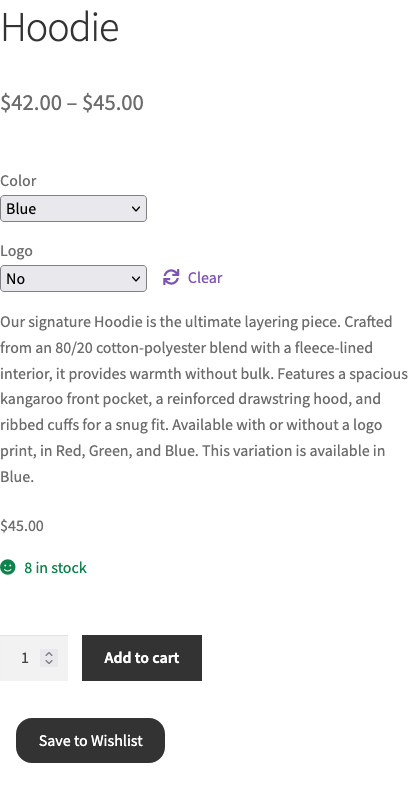
The button also updates as the shopper changes options. If they switch to a variation that’s already in their wishlist, the button shows as saved. If they switch to one that isn’t, it goes back to its unsaved look. That makes it easy for shoppers to see at a glance which versions they’ve already saved.
Each variation is saved as its own wishlist item. A shopper can save a Red hoodie and a Blue hoodie from the same product, and both show up as separate rows in their wishlist.
Step 2: Check how the variation shows in the wishlist
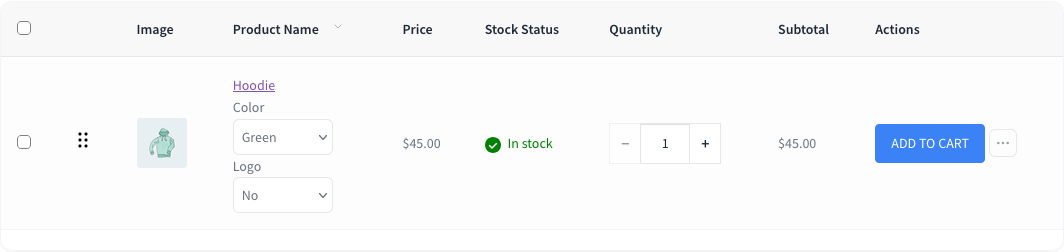
On the wishlist page, a variable product row shows the product’s name with a dropdown for each of its options right underneath. The dropdowns are already set to the variation the shopper saved, so they can see at a glance which size or color they picked.
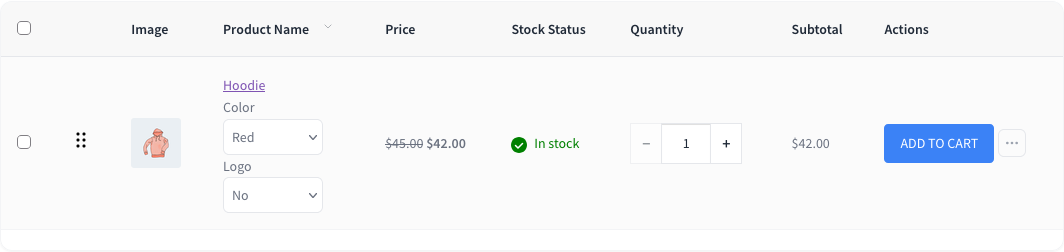
The row’s image and stock status match the saved variation. If that variation has its own image, the row shows it instead of the main product image. The Add to Cart button adds that exact variation to the cart, and the subtotal is worked out from the variation’s price.
By default, the Price column shows the product’s overall price range (the same range shoppers see on your shop page). With an active SaveTo Wishlist Pro license, the Price column shows the selected variation’s own price instead.
Changing the variation from the wishlist
Shoppers can change the dropdowns right on the wishlist row. The image, stock status, and subtotal update to match the new choice, and Add to Cart adds the newly picked variation. This change only applies while the shopper is on the page. The wishlist still keeps the variation they originally saved, so the dropdowns go back to it the next time the page loads. To save a different variation for good, the shopper saves it again from the product page.
What happens when no variation is selected
If a shopper clicks the wishlist button before choosing all the options, or saves the product from a shop or category page, SaveTo Wishlist saves the product itself without a specific variation.
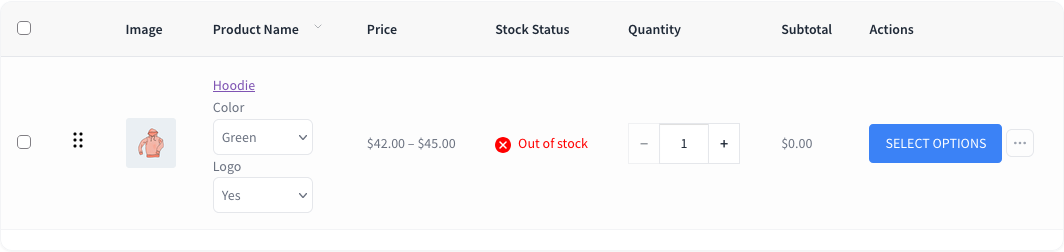
On the wishlist page, that row still shows the option dropdowns. Since there’s no saved variation to fall back on, each dropdown starts on its first option. The shopper picks the size, color, or other options they want, and then clicks Add to Cart.
If the selected options don’t match any variation you’ve created, the row shows Out of stock and the Add to Cart button changes to Select options. Clicking Select options opens the product page with the shopper’s current choices filled in, so they can finish picking a variation there.
Troubleshooting
The wishlist button saves the product, not the variation. The button only picks up a variation after the shopper has chosen every option and WooCommerce has matched it to a variation. If any dropdown is still on its default “Choose an option” setting, the product is saved without a variation. Ask the shopper to choose all the options first, then click the button again.
A wishlist row shows Out of stock and Select options, even though the product is in stock. The options picked on that row don’t match any variation you’ve created. This often happens when a product was saved without a variation and the first option of each dropdown isn’t a real combination, or when the saved variation has since been deleted. Picking a valid combination in the row’s dropdowns brings back the Add to Cart button. You can also check the product’s Variations tab in WooCommerce to make sure every combination you sell exists.
The Price column shows a price range instead of the variation’s price. That’s the default behavior. The subtotal still uses the selected variation’s price. To show each variation’s own price in the Price column, activate a SaveTo Wishlist Pro license.
Frequently asked questions
Can a customer save more than one variation of the same product?
Yes. Each variation is a separate wishlist item, so a customer can keep several sizes or colors of one product in the same wishlist.
If a customer changes the dropdowns on the wishlist page, is the new variation saved?
No. Changing the dropdowns only affects what gets added to the cart on that visit.
What happens to a saved variation if I delete it from the product?
The wishlist row stays, but it can’t find the saved variation anymore, so it falls back to the first option of each dropdown. The customer can pick a different variation on the row. If the first options don’t match a variation, the row shows Select options, and the customer can click it to choose one on the product page.
Need help?
- Premium users: Open a support ticket
- Free users: Visit our community forum