Shoppers who open a product in a quick view popup should not have to leave it to save the product. SaveTo Wishlist adds its Save to Wishlist button inside the popup of Quick View for WooCommerce by ShapedPlugin, so shoppers can save a product without opening its product page. This guide shows what shoppers see, which settings apply, and how to turn the button off in the popup.
Before you start
- SaveTo Wishlist Lite 1.1.7 or later.
- Quick View for WooCommerce active on your store. Its admin menu reads Reno QuickView.
- Nothing else to set up. The button shows in the popup by default.
What shoppers see
A shopper clicks Quick View on a product in your shop, and the popup opens with the Save to Wishlist button in it. The popup uses your Product Page button placement and style, so it matches your product pages. Clicking the button saves the product like the button on any product page.
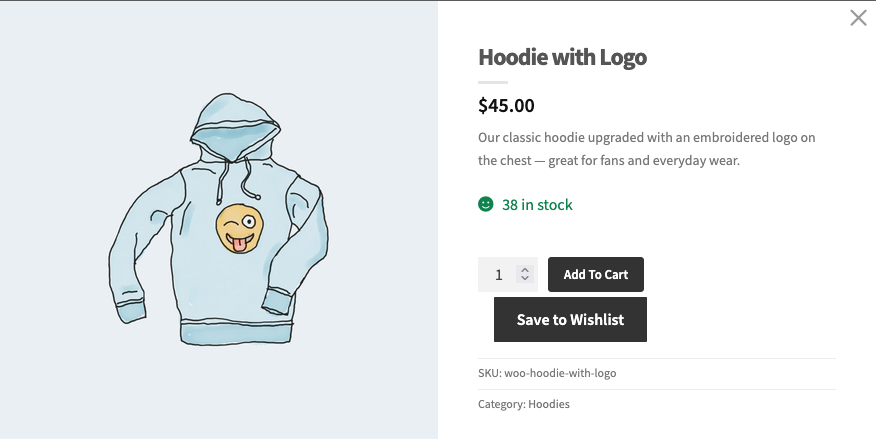
How your placement applies
If your Product Page placement is Top Right of the Product Image or Top Left of the Product Image, the popup shows the button above the product title, not on the image. If the placement is Don’t show, the popup does not show the button either. Your Shop Page placement is separate and does not change. To learn more, see How to customize wishlist button placement and styles in WooCommerce.
Turn the button off in the popup
You can keep the button on your product pages and hide it in the popup only.
- Go to SaveTo Wishlist → Settings → Button Placement & Styles.
- In the Button Settings section, turn off Show in Quick View for WooCommerce.
- Click Save Changes.
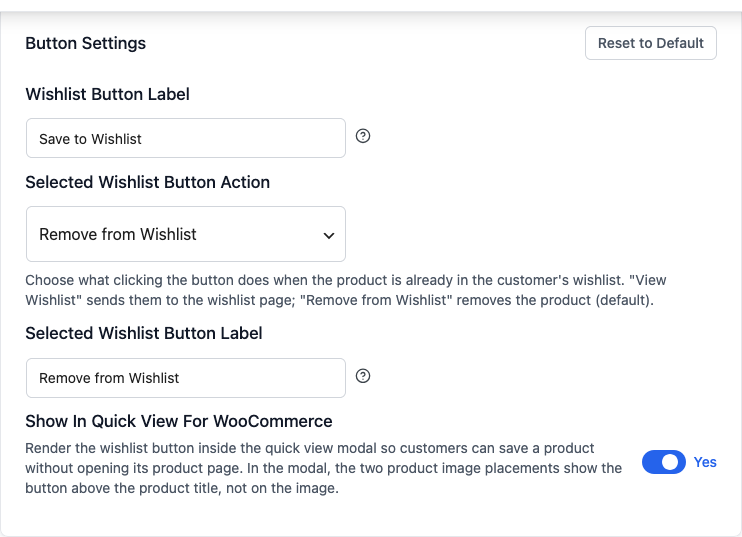
The switch is on by default. It only appears while Quick View for WooCommerce is active.
Troubleshooting
The Save to Wishlist button is missing from the popup.
Go to SaveTo Wishlist → Settings → Button Placement & Styles and check that Show in Quick View for WooCommerce is on. Then check that the Product Page placement is not Don’t show. If only logged-out shoppers cannot see it, check Disable Guest Wishlist under Guest Options.
The switch is not on the settings screen.
It only shows while Quick View for WooCommerce is active. Activate the plugin, then reload the settings screen.
Frequently asked questions
Do I need to turn the integration on?
No. It is on by default as soon as Quick View for WooCommerce is active.
Does this add a button to the product cards in my shop?
No. The cards use your Shop Page placement, which has its own setting.
Need help?
If you have a question or run into any issues, we’re here to help.
- Premium users: Open a support ticket
- Free users: Visit our community forum