
Your customers can manage all their saved products directly from their WooCommerce My Account page, without needing to visit a separate page.
If you’re not sure what your customers see once they save a product, this guide walks you through the full My Account wishlist experience, from creating and organizing lists to sharing them, plus the setting to turn off the tab if you prefer a dedicated page instead.
Prerequisites
- SaveTo Wishlist Lite or SaveTo Wishlist Pro installed and activated.
- WooCommerce installed and configured.
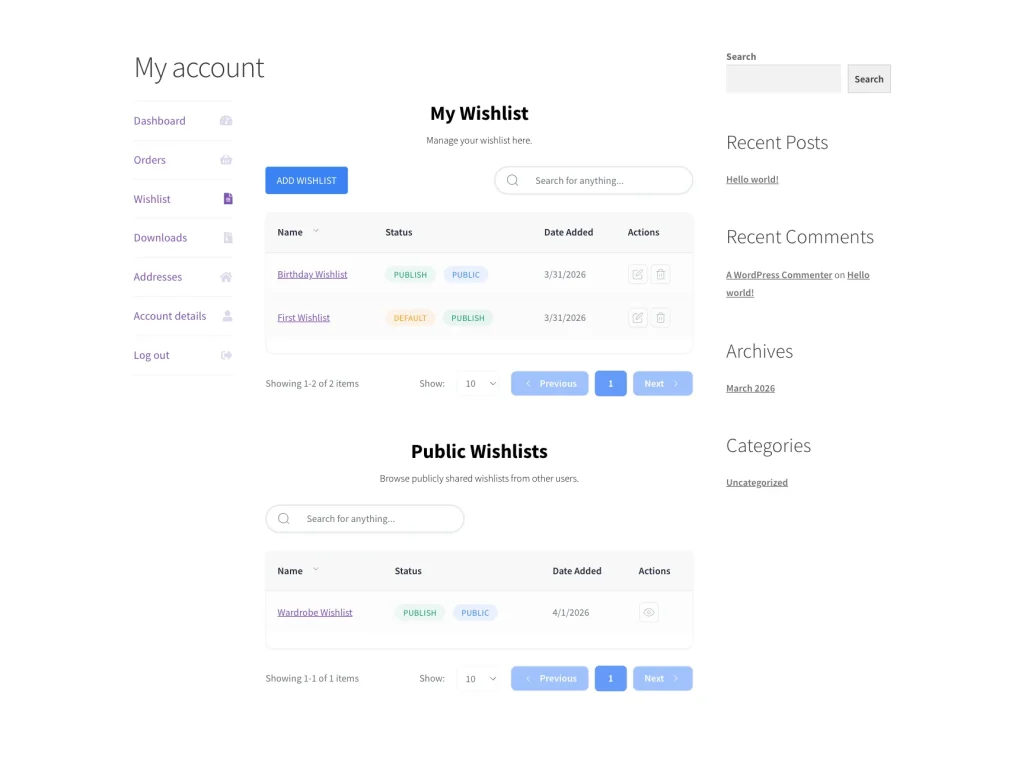
1. Accessing their wishlists from My Account
Finding saved items is simple for your customers. Once they’re logged in, they follow these steps:
- Your customer navigates to their My Account page.
- They click the Wishlist tab in the account menu.
- The Wishlist tab shows their current wishlists and the products saved in each one.
2. Creating and organizing multiple wishlists
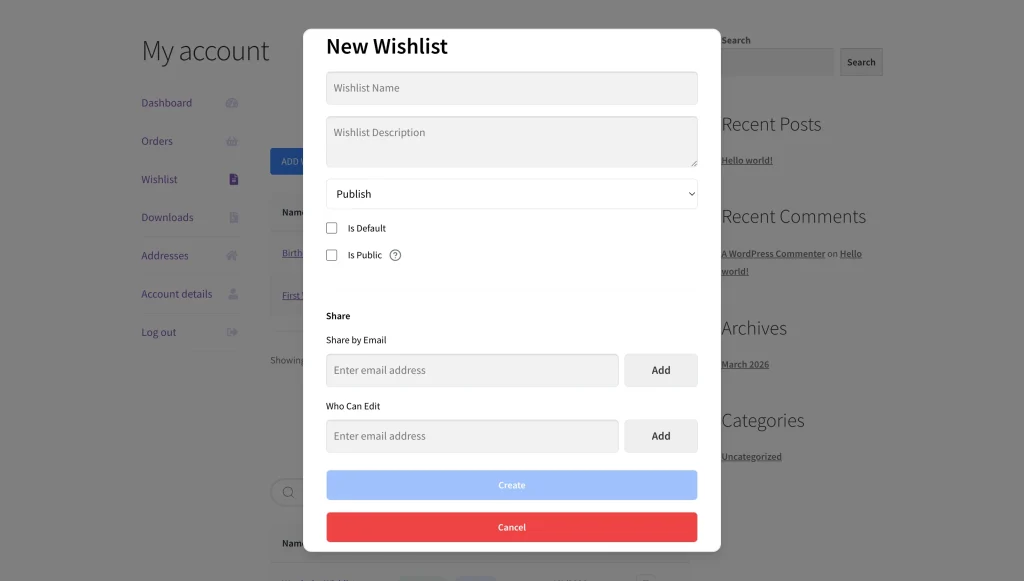
This feature lets customers organize their shopping experience by using multiple lists. Whether they’re planning a future purchase or saving gift ideas, the dashboard makes management effortless:
- Create a New List: Your customer clicks the Add Wishlist button.
- Name the List: They enter a descriptive name (e.g., “Holiday Decor”).
- Save: They click the Save button.
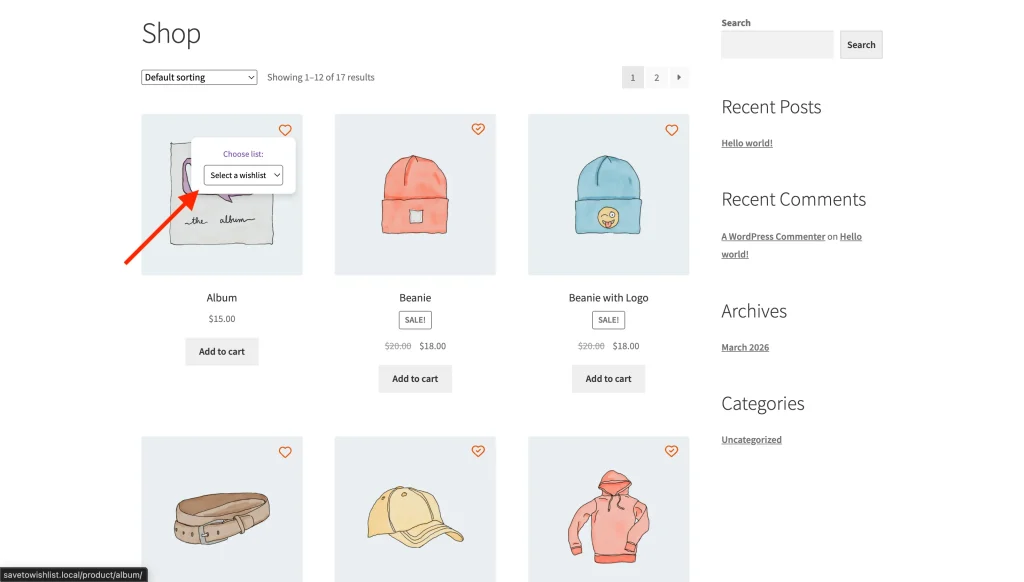
- Switching Lists: They use the dropdown or list menu to toggle between different wishlists they’ve created.
- Remove an Item: Click the Heart icon on any product to remove it from the wishlist.
- Move an Item: Use the list selector next to the product to move it to a different wishlist.
3. Sharing a wishlist via public link
Your customers can share any wishlist with friends and family directly from the My Account page, either via a public link or by sending an email invitation. They can also grant specific people edit access to collaborate on a list.
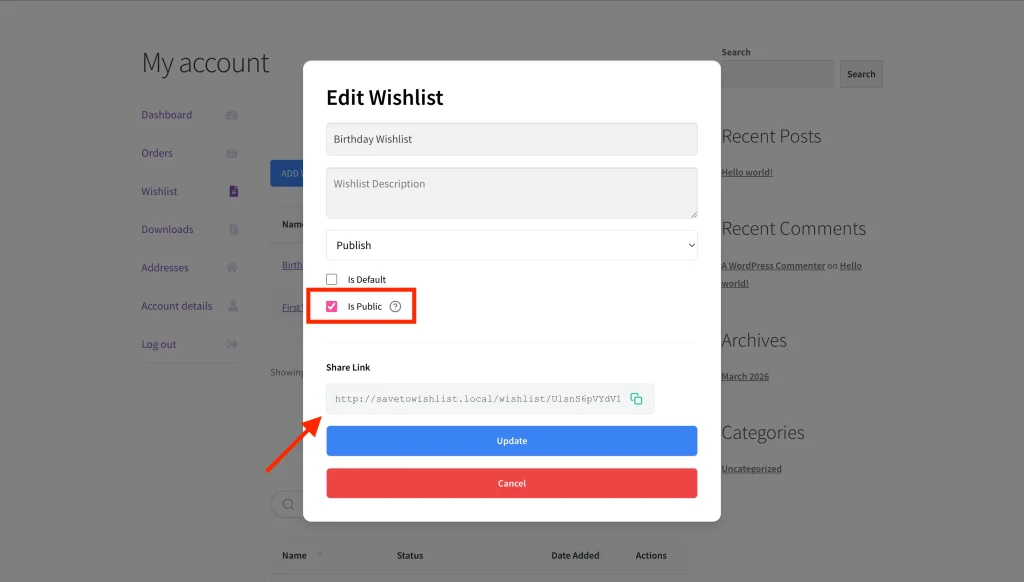
For the full step-by-step, see How to Share Your Wishlist and Manage Edit Permissions.
4. Administrative control: disabling the Wishlists tab
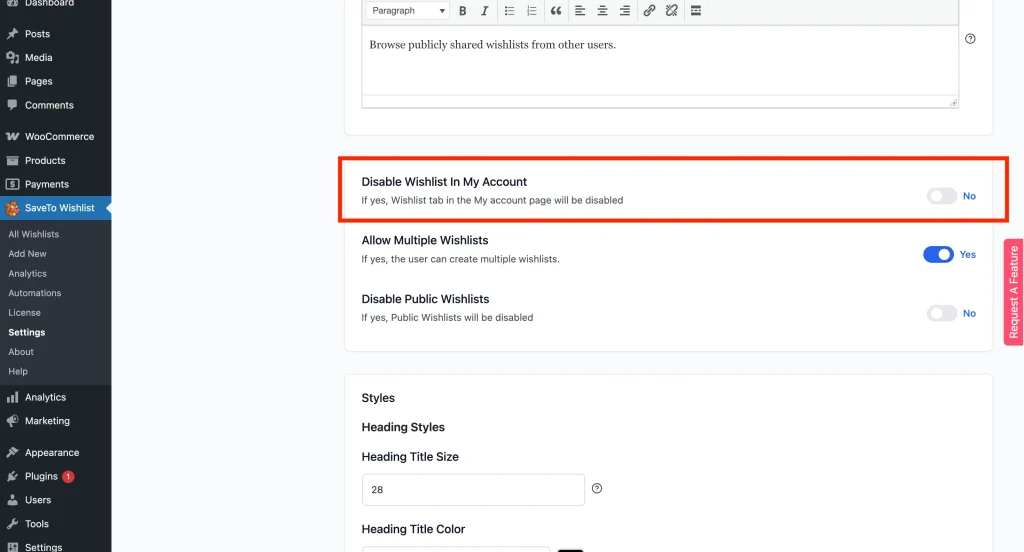
As the store owner, you can also disable this tab entirely if you prefer customers to use a dedicated wishlist page instead. To do this:
- Navigate to SaveTo Wishlist → Settings.
- Click the Wishlist Page tab.
- Toggle the Disable Wishlist in My Account option to On.
Troubleshooting
The Wishlists tab is not showing in My Account
Ensure the plugin is active and that you haven’t enabled the Disable Wishlist in My Account setting described above.
Frequently asked questions
Can guests also see the Wishlists tab?
No, the My Account integration is specifically for registered users so their data is saved permanently. However, if you have a public Wishlist page and the Disable Guest Wishlist option is not enabled, guest users can still access and use their wishlist temporarily during their session.
What to do next
Customers can now manage their own lists from My Account. If you would rather they used the dedicated wishlist page instead, turn off the My Account tab from the General Options section of the Wishlist Page tab.
Help & Support
We have a dedicated support team for SaveTo Wishlist Pro for WooCommerce who knows our products, WooCommerce, and the industry very well. You’re welcome to make use of their expertise at any time, worldwide.
- Premium users: Open a support ticket
- Free users: Visit our community forum

