
You’ve got customers saving products to their wishlists, but what does that data actually tell you? SaveTo Wishlist Pro’s Analytics dashboard breaks your store’s wishlist activity into five modules, so you can spot your most-wanted products, understand buyer behavior, and time your campaigns for maximum impact.
Prerequisites
- SaveTo Wishlist Lite or SaveTo Wishlist Pro installed and activated.
- WooCommerce installed and activated.
Accessing and filtering your data dashboard
Accessing your data takes just a few clicks, and you have full control over the timeframes you want to analyze.
- Navigate to your WordPress dashboard.
- Go to SaveTo Wishlist → Analytics.
- Each module has its own timeframe toggle next to its chart. For example, 7 Days / 30 Days on Product Insights, or 7D / 30D / 90D / 1Y on Time-Based Trends → Saves Over Time. Selecting a range updates that chart immediately.
💡 Tip:
Make it a habit to review these numbers on the 1st of every month. Comparing performance month-over-month is the best way to spot seasonal trends!
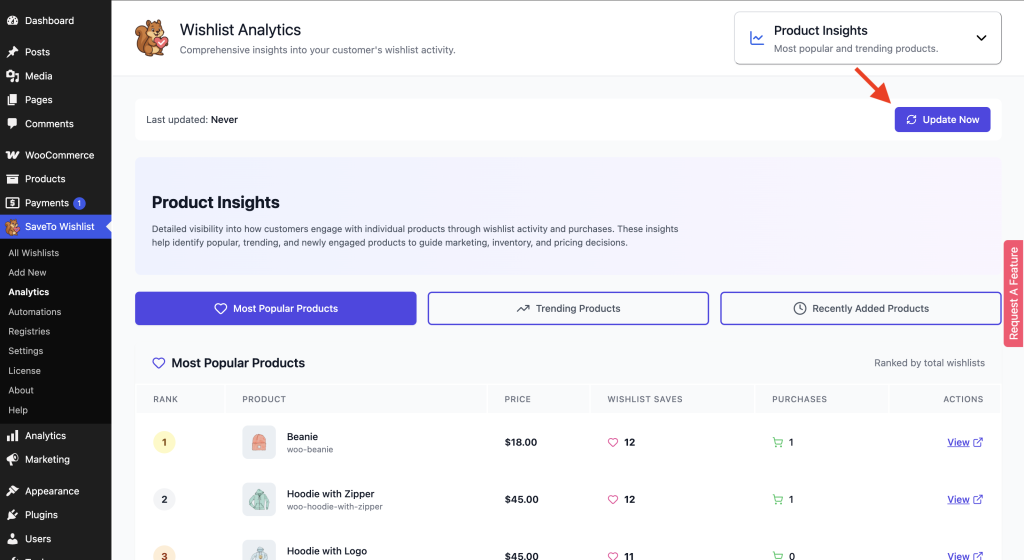
Analytics data refreshes automatically on a background schedule. If you want to see the impact of a change right away, such as a new sale or a fixed setting, click Update Now in the toolbar at the top of the Analytics screen to pull fresh data immediately. The button shows Last updated: [date/time] so you always know how current the numbers are, and briefly changes to Updating… while it works.
1. Uncovering bestsellers with Product Insights
Product Insights covers three subsections to tell you exactly which individual items are catching your customers’ eyes.
What it tracks: Total wishlist adds, removals, and successful conversions (when a user moves an item from their wishlist to the cart).
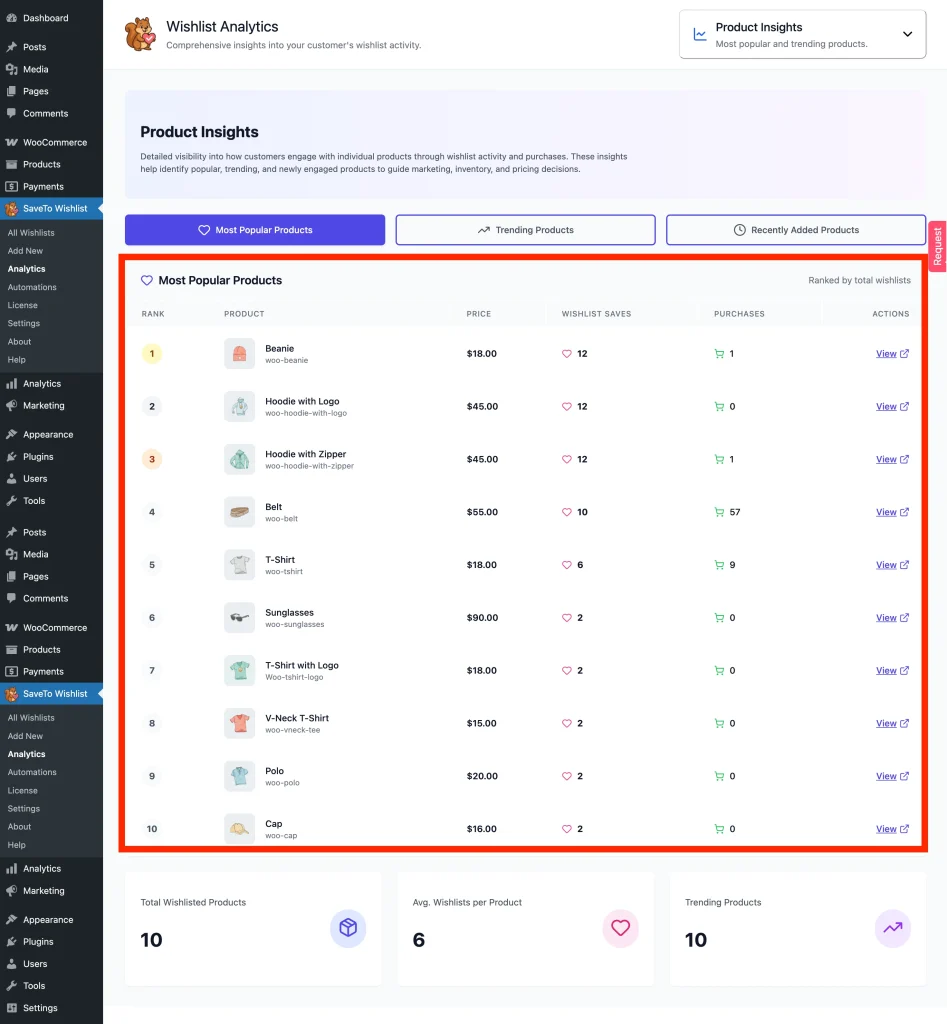
A. Most Popular Products
This shows the products that have been added to wishlists the most over time. These are your highest-demand products. Customers are clearly interested, even if they haven’t purchased yet.
How to use it:
- Identify products with high wishlist counts but low sales
- Highlight these products in promotions or homepage sections
- Use them in email campaigns or retargeting ads
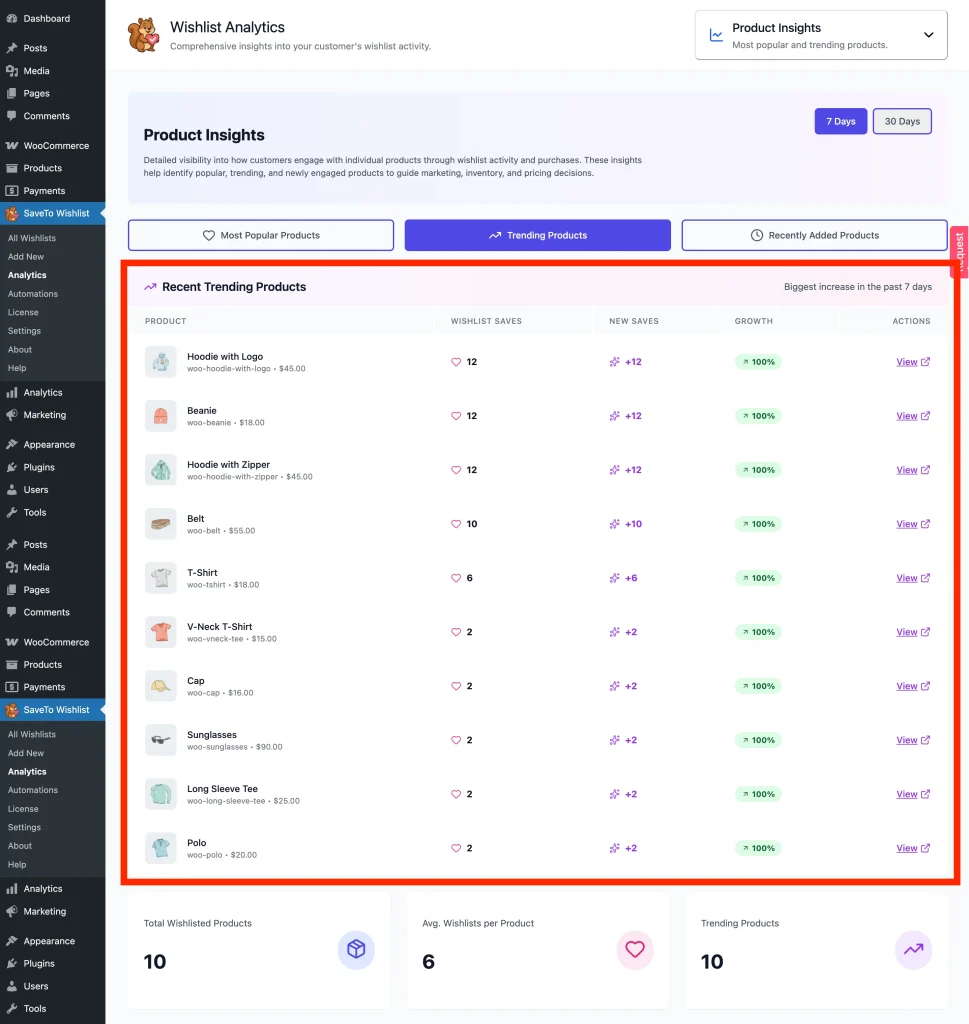
B. Trending Products
This shows products that are gaining popularity over the last 7 or 30 days. These products are currently “hot” and gaining attention quickly.
How to use it:
- Capitalize on trends early by promoting these items
- Increase stock before demand peaks
- Feature them in “Trending Now” sections
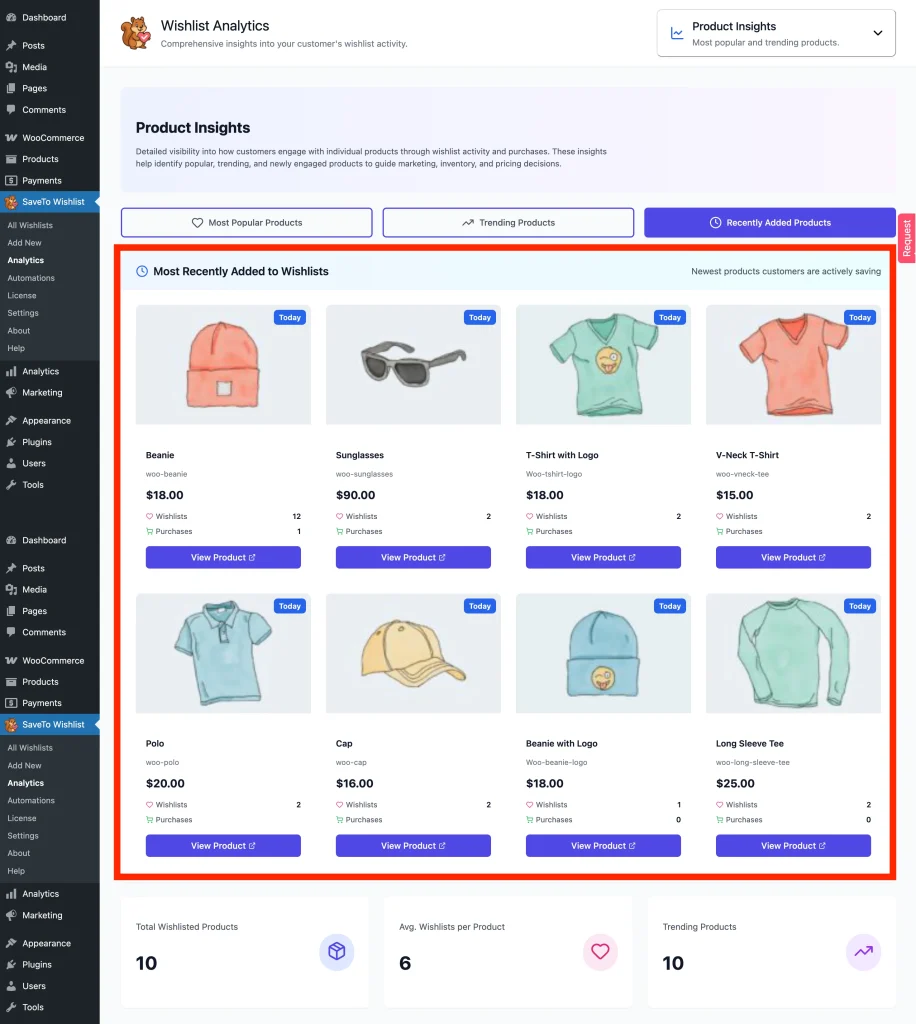
C. Recently Added Products
This shows products customers are actively saving right now. These products reflect current browsing behavior and immediate interest.
How to use it:
- Monitor what customers are engaging with today
- Use for flash sales or quick campaigns
- Spot sudden spikes in interest
2. Spotting store-wide patterns with Category & Brand Insights
Sometimes looking at individual products isn’t enough; you need the big picture. The Category & Brand Insights module aggregates wishlist data across your entire WooCommerce taxonomy.
What it tracks: Which specific product categories (e.g., “Summer Dresses”) or brands are generating the most saves.
📌 Tip:
For this data to be accurate, ensure your products are correctly assigned to WooCommerce Categories and Tags.
A. Most Popular Categories
It shows categories ranked by total wishlist saves. These categories attract the most attention across your store.
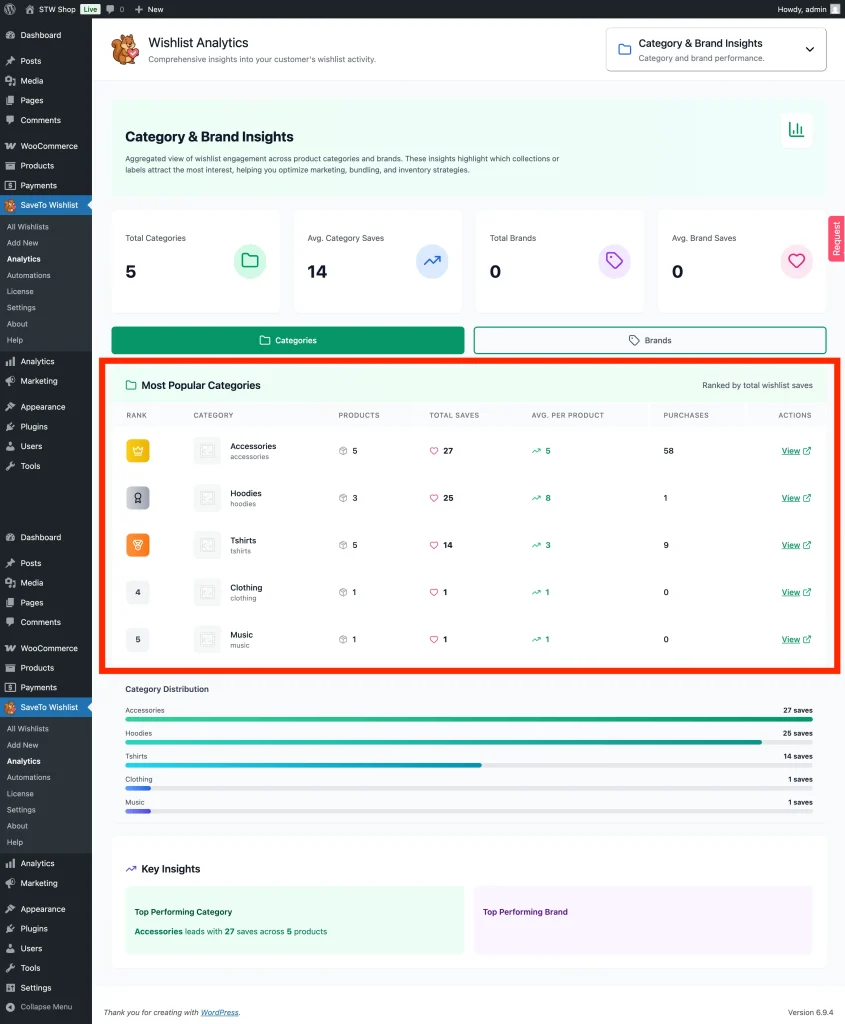
How to use it:
- Feature top categories prominently on your homepage
- Focus marketing campaigns on these categories
- Expand product offerings in high-interest areas
B. Most Popular Brands
It shows brand-level ranking based on wishlist engagement. These brands generate the most customer interest.
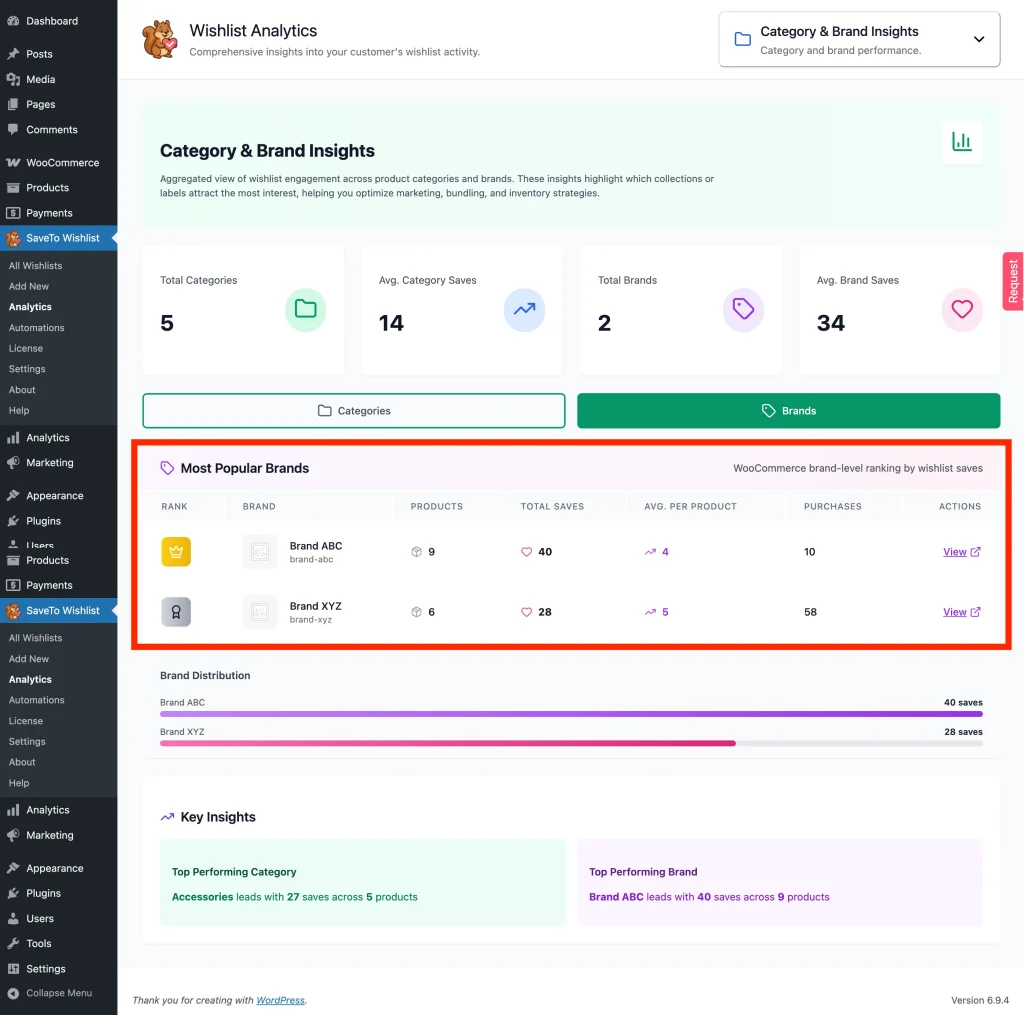
How to use it:
- Prioritize these brands in promotions
- Strengthen partnerships with high-performing brands
- Create brand-focused campaigns
C. Category Distribution and Brand Distribution
This is a visual breakdown of interest across your store. It shows how customer interest is spread across categories and brands.
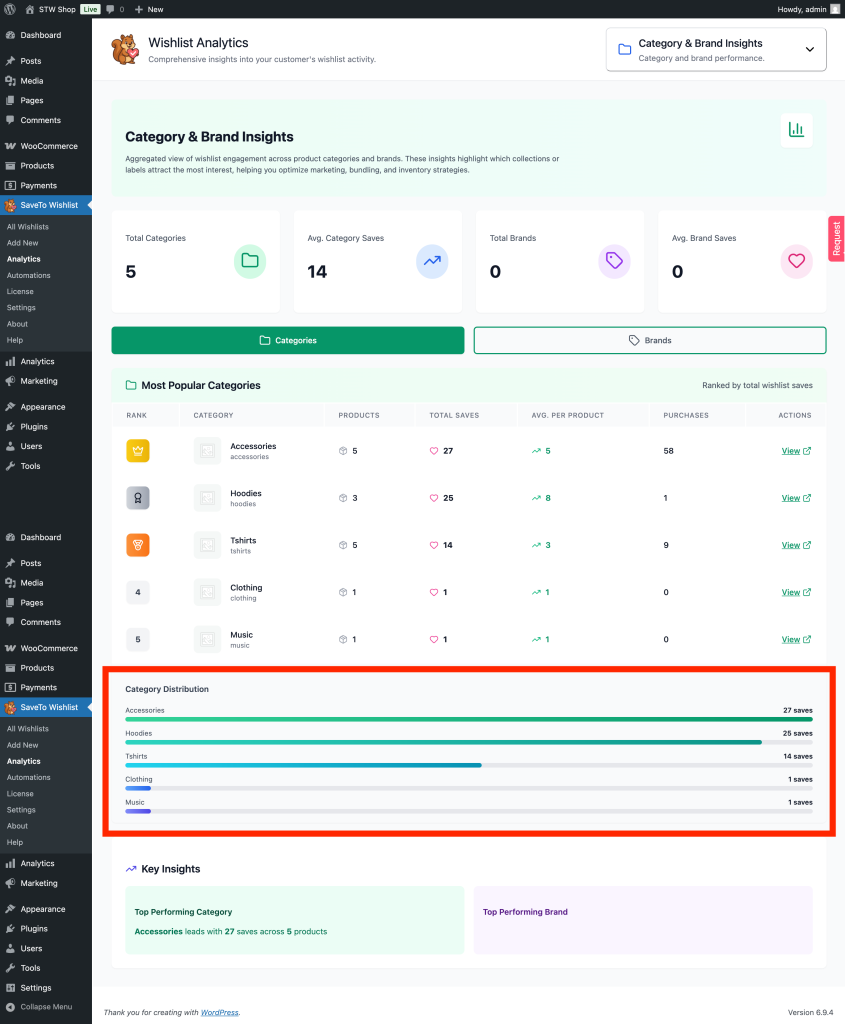
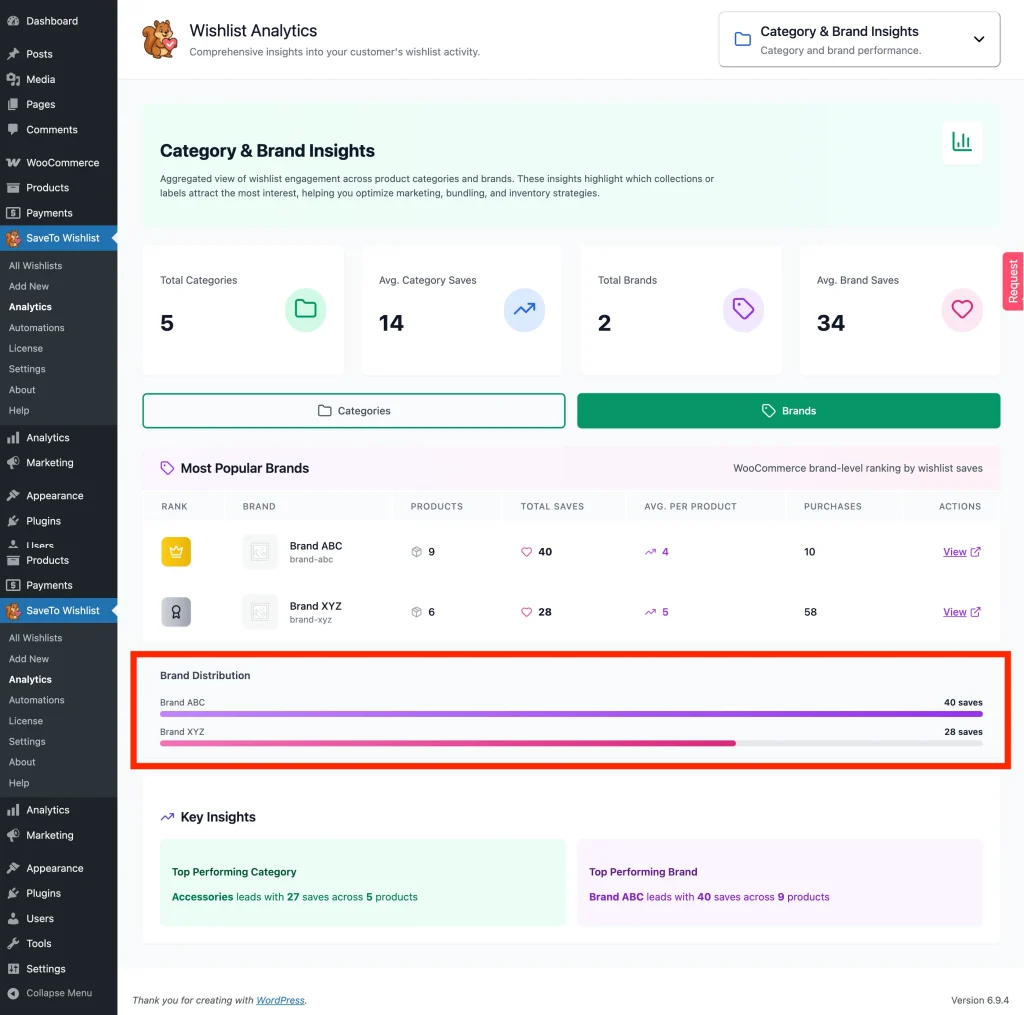
How to use it:
- Identify underperforming segments
- Rebalance your catalog or marketing focus
- Spot gaps or opportunities in your product mix
D. Key Insights
This section highlights your strongest category and brand for quick reference.
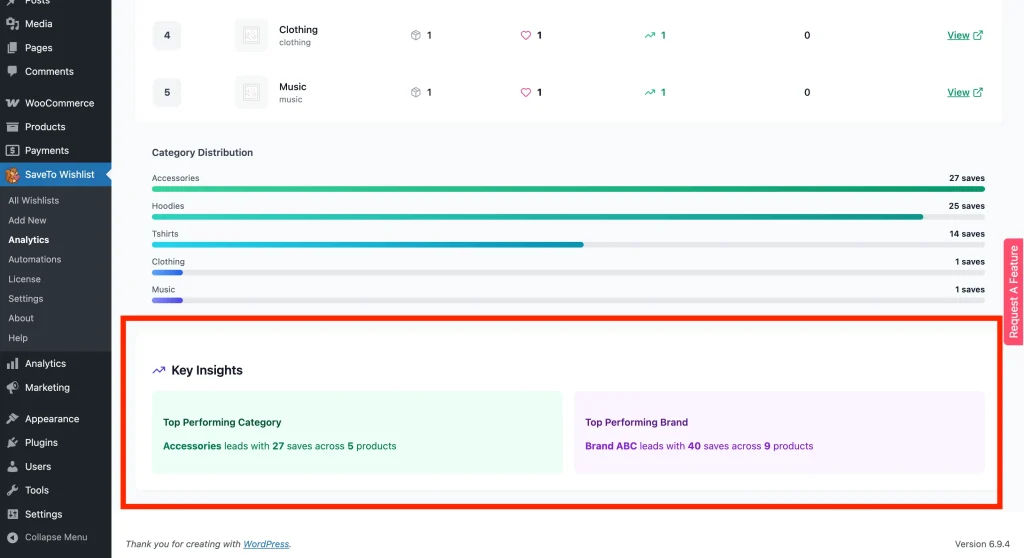
How to use it:
- Use these insights for fast decision-making
- Align homepage, ads, and campaigns with top performers
3. Optimizing sales with Engagement & Conversion Insights
Understanding how wishlist items actually perform at checkout is critical. This module tracks the success rate of your saved items.
A. High Wishlist / Low Sales Products
Customers are interested but not purchasing yet. This usually points to pricing issues or stock availability problems.
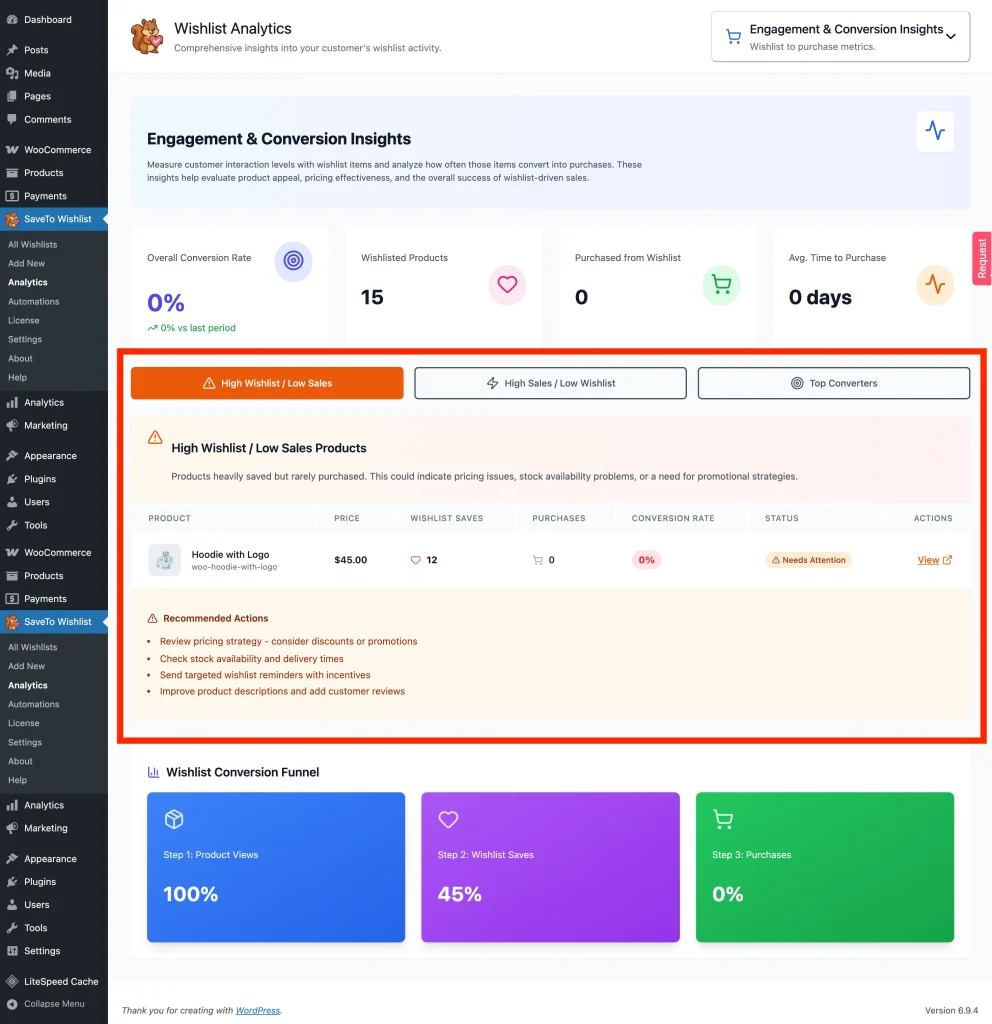
How to use it:
- Review pricing and shipping costs
- Improve product pages (images, reviews, descriptions)
- Add urgency with discounts or limited-time offers
B. High Sales / Low Wishlist Products
These products sell well without wishlist consideration. They are impulse buys.
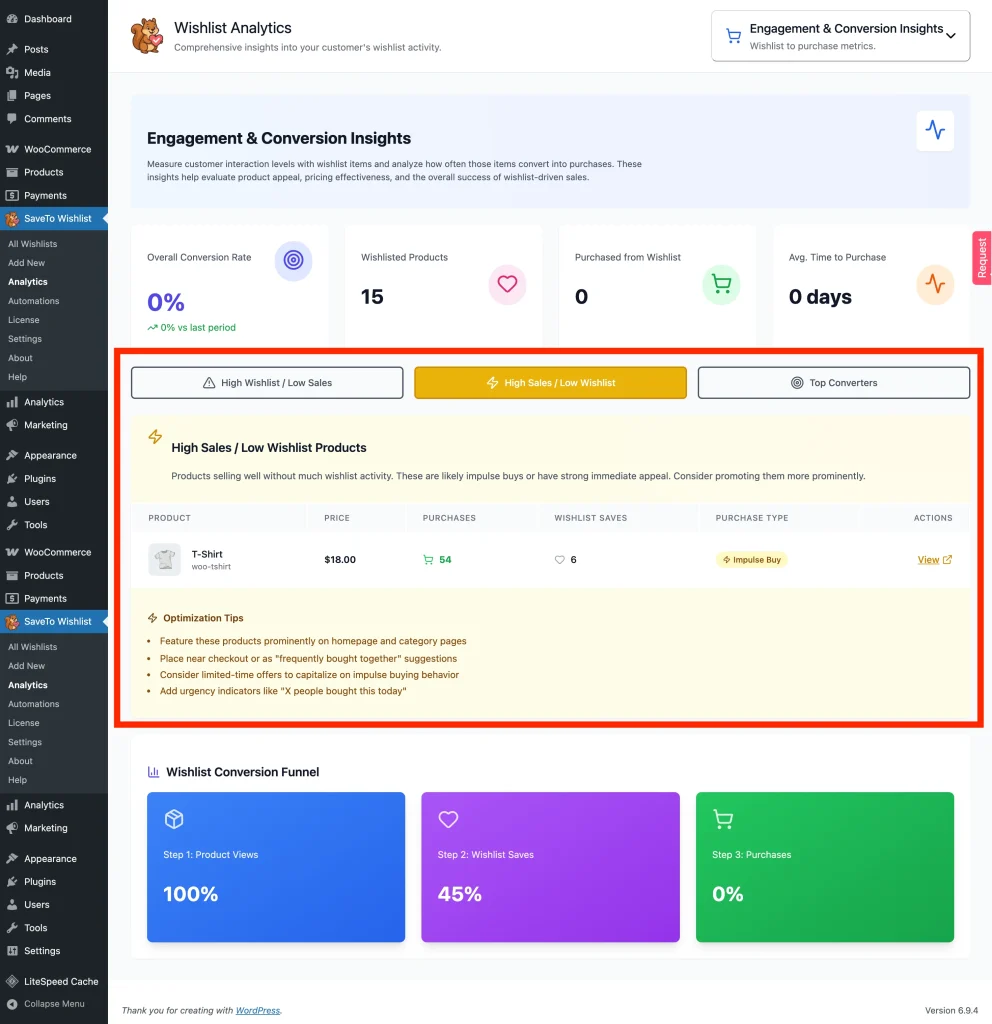
How to use it:
- Analyze what makes them effective (pricing, messaging, placement)
- Apply those strategies to other products
C. Top Converters
These are your best-performing products, the ones with the highest ratio of wishlist saves to actual purchases
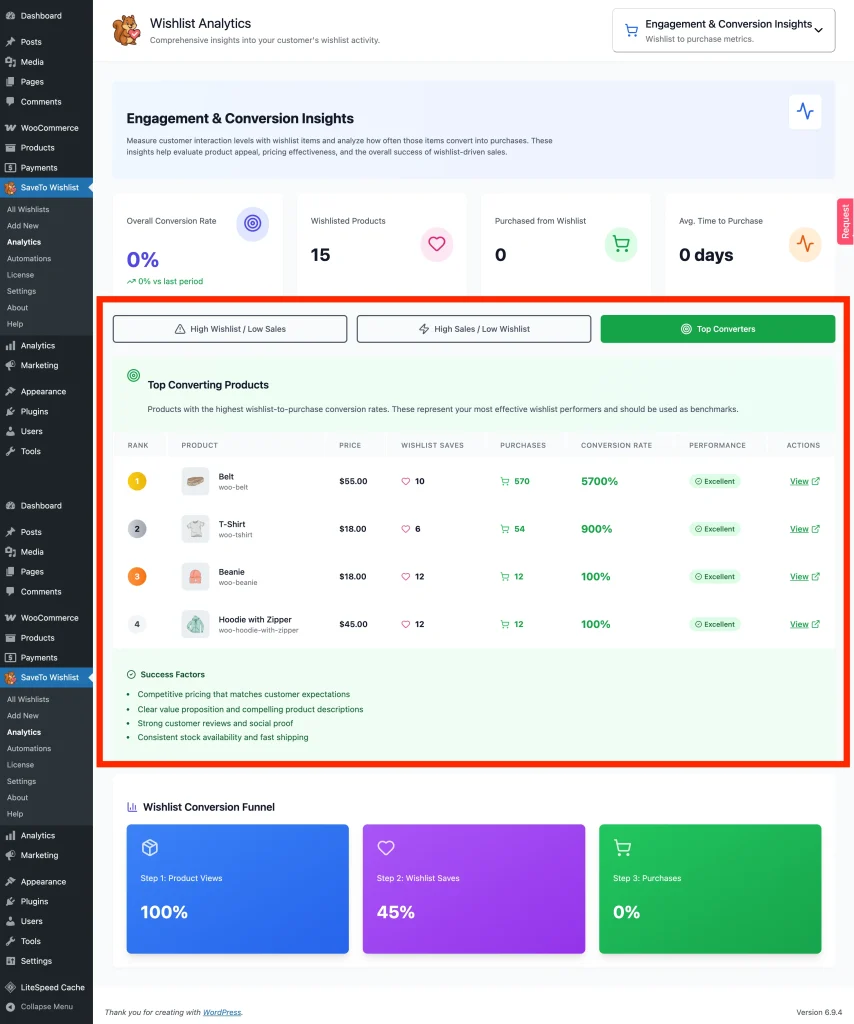
How to use it:
- Use them as benchmarks for optimization
- Feature them in ads and promotions
- Replicate their success across similar products
D. Wishlist Conversion Funnel
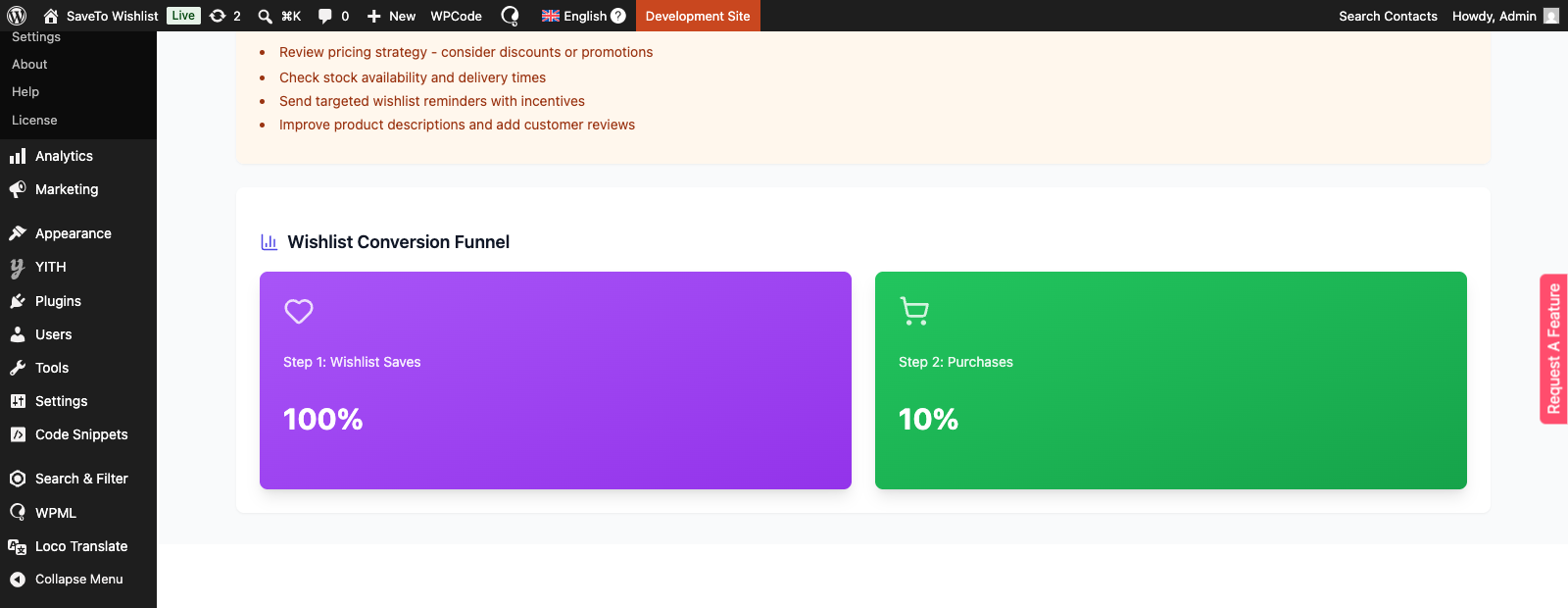
The funnel has two cards. Step 1: Wishlist Saves is the base of the funnel. It reads 100% as soon as anything in your store has been wishlisted, and 0% when nothing has. Step 2: Purchases shows the share of those wishlisted products that customers went on to buy, which is your overall conversion rate.
There is no product views step. SaveTo Wishlist does not track product views, so the funnel starts at the first action it can measure, which is a save.
How to use it:
- Track how much of your wishlist demand turns into revenue
- Watch the purchase share after a price change or a promotion
- Pair a low purchase share with the High Wishlist / Low Sales table to find what is holding buyers back
4. Anticipating peaks with Time-Based Trends
The Time-Based Trends module gives you a visual timeline of your store’s performance.
What it tracks: Daily, weekly, or monthly line charts showing peaks and valleys in wishlist activity.
💡 Tip:
Monitor this chart leading up to major shopping events like Black Friday or Valentine’s Day. By identifying exactly when “pre-holiday” interest spikes, you know exactly when to start sending your promotional emails.
A. Saves Over Time
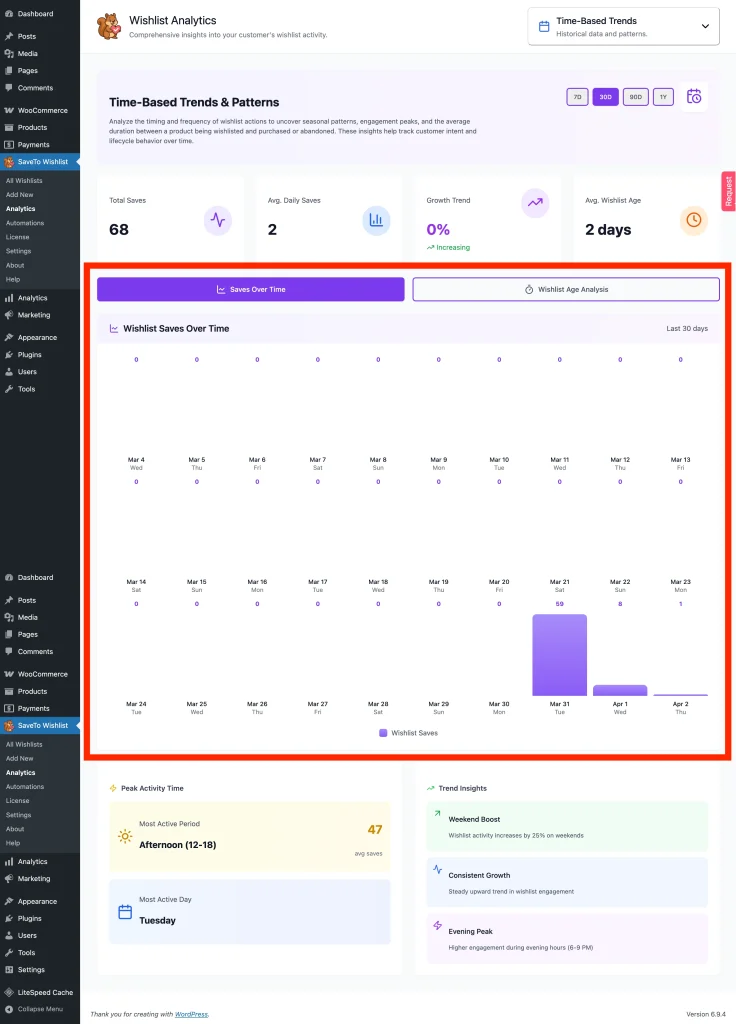
This chart tracks peak activity periods and trends. It shows how wishlist activity grows or declines over time.
How to use it:
- Prepare inventory before peak periods
- Align campaigns with seasonal demand
- Plan promotions ahead of time
B. Peak Activity Time
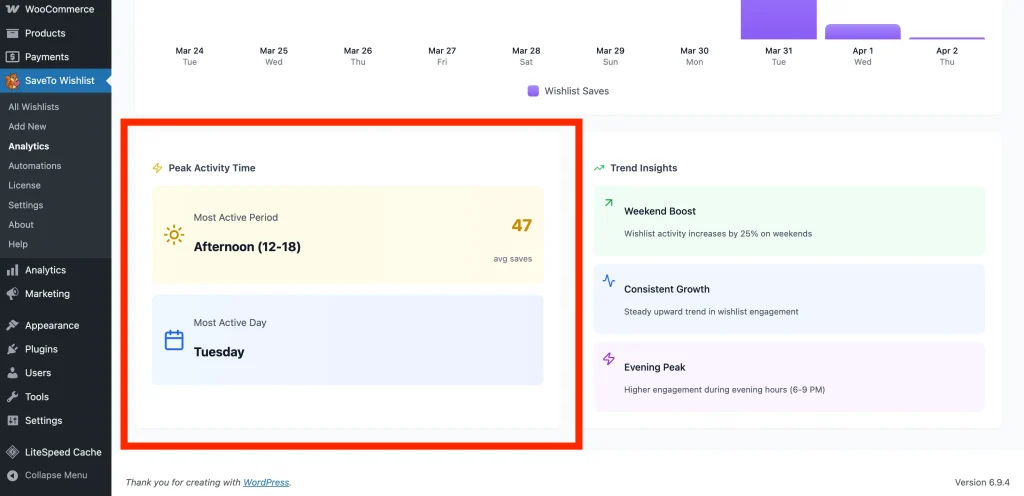
This data helps you identify when customers are most active on your store.
How to use it:
- Schedule campaigns during peak activity times
- Optimize email or ad timing
- Ensure site performance during high-traffic periods
C. Trend Insights
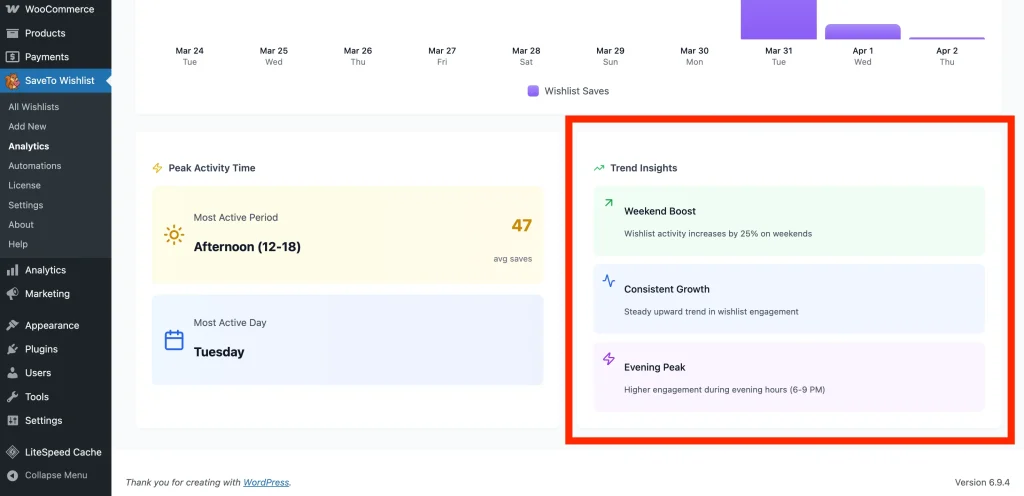
This shows how wishlist activity changes during certain times.
How to use it:
- Measure the impact of campaigns
- Identify growth trends or drops
- Adjust strategy based on performance
D. Wishlist Age Analysis
This data helps you see how long items remain in wishlists. It reveals how long customers keep items before buying or abandoning them.
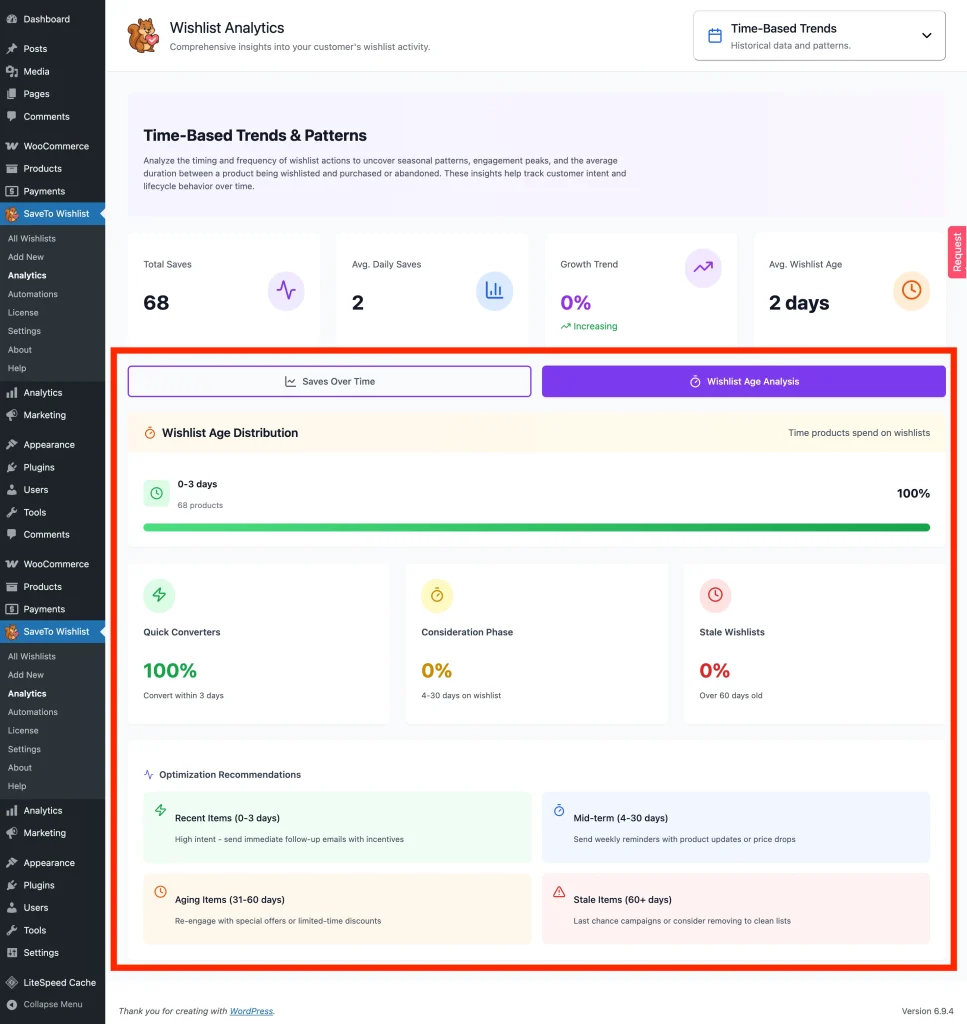
How to use it:
- Trigger reminders or promotions based on wishlist age
- Identify products that need stronger incentives
- Reduce long delays in conversion
5. Measuring buyer intent with Customer Behavior
Are people just window shopping, or are they actively planning a purchase? The Customer Behavior module answers this by tracking individual shopper habits.
What it tracks: How many wishlists are being created and the ratio of items being moved directly to the checkout.
A. Customer Behavior & Engagement
This data shows how long customers take to make a decision.
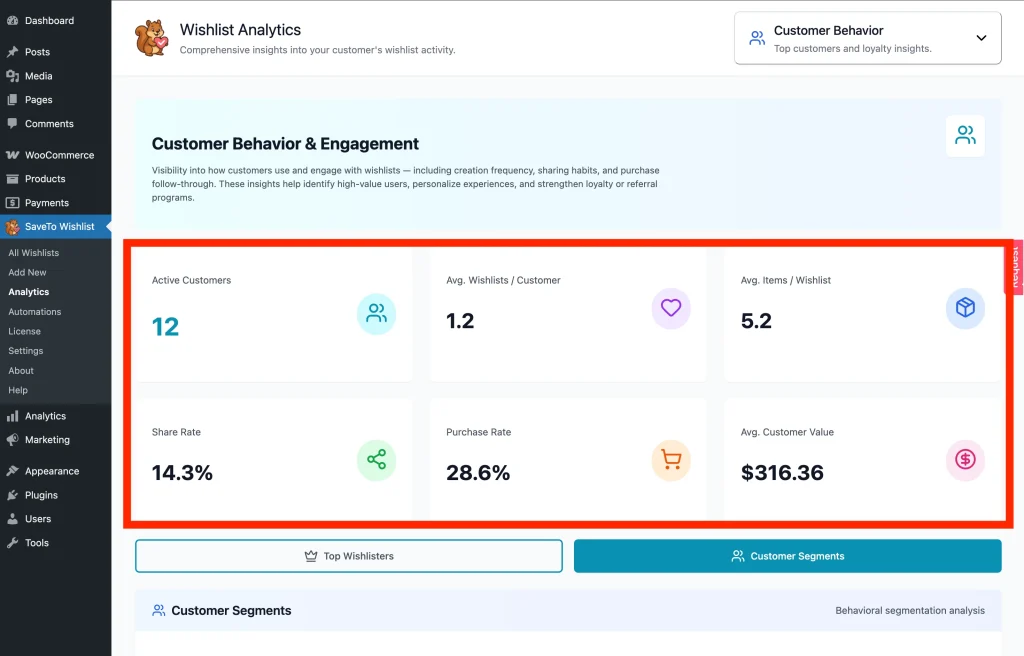
How to use it:
- Time follow-up emails or reminders effectively
- Introduce urgency if decision time is too long
- Optimize conversion timing
B. Top Wishlisters – VIP Candidates
This section identifies high-value customers perfect for loyalty programs. It automatically assigns VIP Statuses (Platinum, Gold, Silver, Bronze) based on their total wishlist saves and total money spent on your store. Admin and shop manager accounts are automatically excluded from this ranking, so it reflects genuine customer activity only.
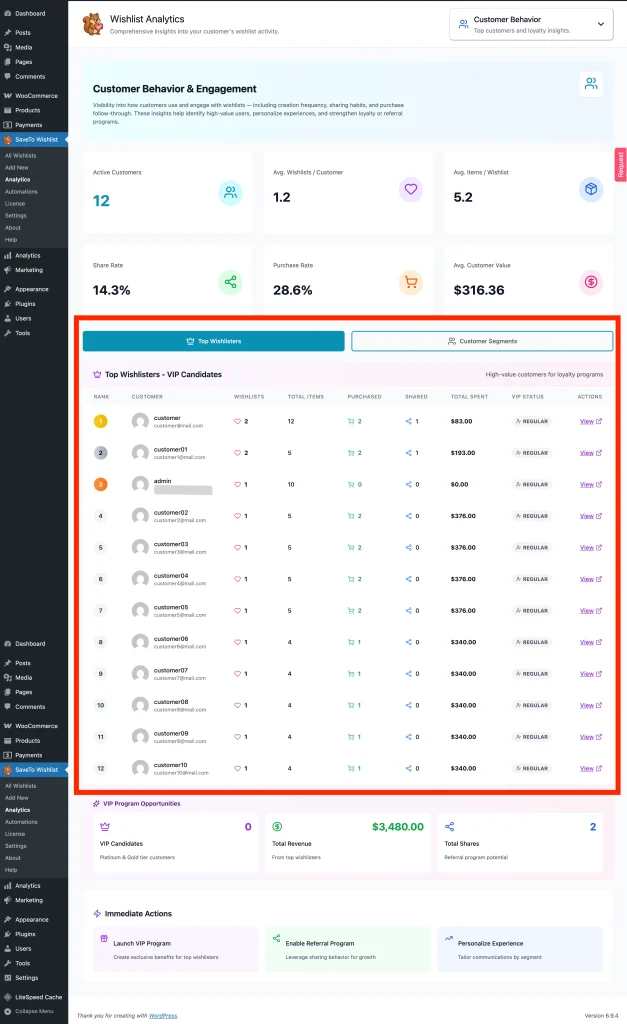
How to use it:
- Reward loyal customers with exclusive perks or early access
- Build targeted loyalty or VIP programs
- Prioritize high-value customers for special campaigns
C. Customer Segments
This section automatically organizes your audience into actionable groups based on their behavior and purchase patterns.
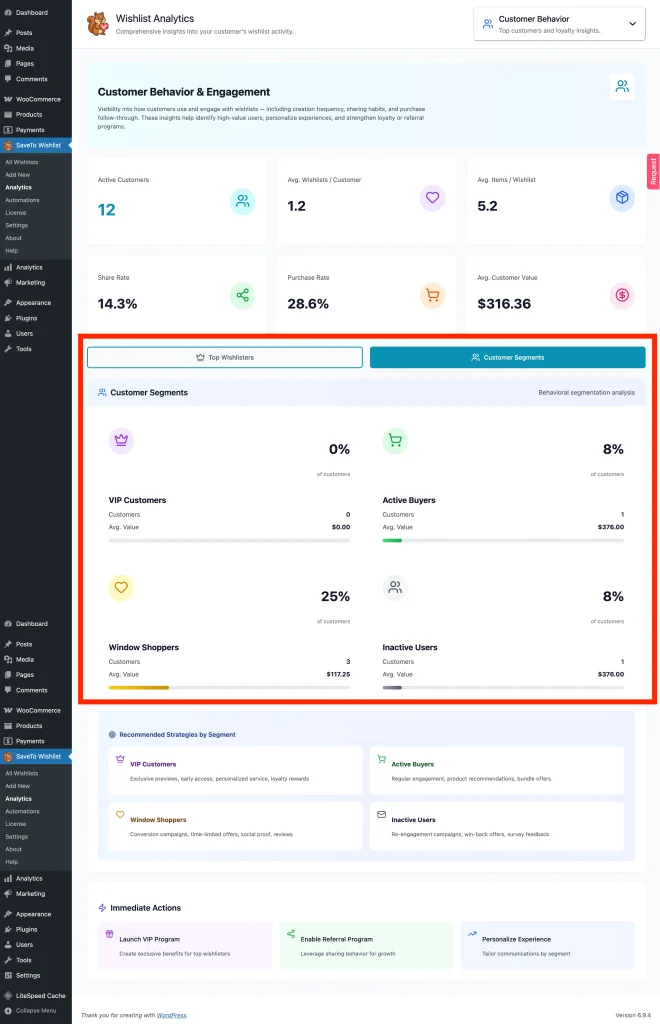
Key segments & how to use them:
- VIP Customers (high saves, high spend): Offer early access to new or limited products
- Active Buyers (consistent engagement): Promote bundles or cross-sell related items
- Window Shoppers (high saves, low purchases): Send time-limited discounts or incentives
- Inactive Users (low recent activity): Launch win-back or re-engagement campaigns
Troubleshooting common analytics issues
1. Why is my data completely empty?
SaveTo Wishlist Analytics begins tracking from the exact moment you install and activate your Pro license. It cannot look back in time at previous guest behavior. Give it 24–48 hours to populate with fresh customer data.
2. The charts aren’t loading properly.
If you use a caching or optimization tool, clear your site cache. Ensure that the SaveTo Wishlist scripts are excluded from minification if you have manual settings. For detailed caching exclusion steps, see How to Use SaveTo Wishlist with Caching Plugins.
Frequently asked questions
Why does the funnel not show product views?
SaveTo Wishlist does not record product views, so a views figure would be a guess. The funnel starts at wishlist saves instead, which is the first step it can measure accurately.
Is this data GDPR compliant?
All analytics data is stored in your own WordPress database and is never transmitted to or shared with any third parties. That said, some views, such as Top Wishlisters, display individual customer information (name, email, and purchase history) visible only to store admins. Because the plugin processes personal customer data, you should ensure your store’s privacy policy covers wishlist activity and purchase behavior tracking. Consult a GDPR advisor if you need guidance specific to your jurisdiction.
Turn wishlist insights into income
You now have the tools to stop guessing and start growing your business with confidence. By tracking product popularity, monitoring buyer behavior, and spotting trends, you can craft marketing campaigns that practically sell themselves.
Your dashboard is ready and waiting. Head over to SaveTo Wishlist → Analytics, find your top three “Most Wanted” products right now, and consider running a flash sale to turn those wishlists into paid orders today!
Help & Support
We have a dedicated support team for SaveTo Wishlist Pro for WooCommerce who knows our products, WooCommerce, and the industry very well. You’re welcome to make use of their expertise at any time, worldwide.
- Premium users: Open a support ticket
- Free users: Visit our community forum
Need help?
If you have a question or run into any issues, we’re here to help.
- Premium users: Open a support ticket
- Free users: Visit our community forum

