
 Reviewed by
 I’ve installed more WooCommerce plugins than I can count, and most of them need at least 20 minutes of fiddling with settings before they actually do anything useful. Some need even longer. So when I sat down to set up WooCommerce wishlist plugin SaveTo Wishlist for the first time, I found myself genuinely surprised by how little configuration it needed.
If you’ve been putting off adding wishlist functionality to your WooCommerce store because you assumed it would be a hassle, this guide is for you. I’ll walk you through every step from the WordPress plugin search to a fully working wishlist on your product pages. And the best part? The free version includes features that other plugins charge $99+/year for.
Table Of Contents
- What You Get With The Free Plugin
- 1st Step: Install SaveTo Wishlist
- 2nd Step: Configure Basic Settings
- 3rd Step: Check Your Product Pages
- 4th Step: Customize The Button
- 5th Step: Verify Guest Wishlists Work
- What To Do Next
- FAQ
- Set Up WooCommerce Wishlist Plugin
What You Get With The Free Plugin
Before we start installing anything, I want to set your expectations. SaveTo Wishlist’s free version isn’t a stripped-down demo. It’s a genuinely full-featured wishlist plugin.
Here’s what’s included at no cost:
- Multiple wishlists so customers can organize items into separate lists (Birthday, Holiday, Someday, etc.)
- Unlimited wishlists per customer (no cap on how many lists they can create)
- Guest wishlists so visitors can save items without creating an account
- Guest-to-user-account syncing that automatically merges guest wishlist data with a user’s account upon login or registration, so no information is lost
- Variation tracking that remembers the exact size, color, or variant a customer saved
- Block theme support for stores running modern WordPress themes
- Wishlist importer to migrate data if you’re switching from another plugin
- Button customization with deep controls that let you design your wishlist button’s appearance, including its font, shape, icon, and placement
- Button templates so you can match the wishlist button to your store’s design quickly
- Wishlist page customization that allows you to determine the look of the wishlist page, including its text and colors
- Translation-ready for multilingual stores
- REST API for developers building custom integrations
That’s a lot of ground covered before you spend a dollar. For the complete breakdown, check the full feature list.
Now, let’s get it installed.
Step 1: Install SaveTo Wishlist
This works exactly like installing any other WordPress plugin.
- Log into your WordPress dashboard.
- Navigate to Plugins > Add New Plugin.
- In the search bar, type “SaveTo Wishlist.”
- Find SaveTo Wishlist in the results and click Install Now.
- Once the installation finishes, click Activate.
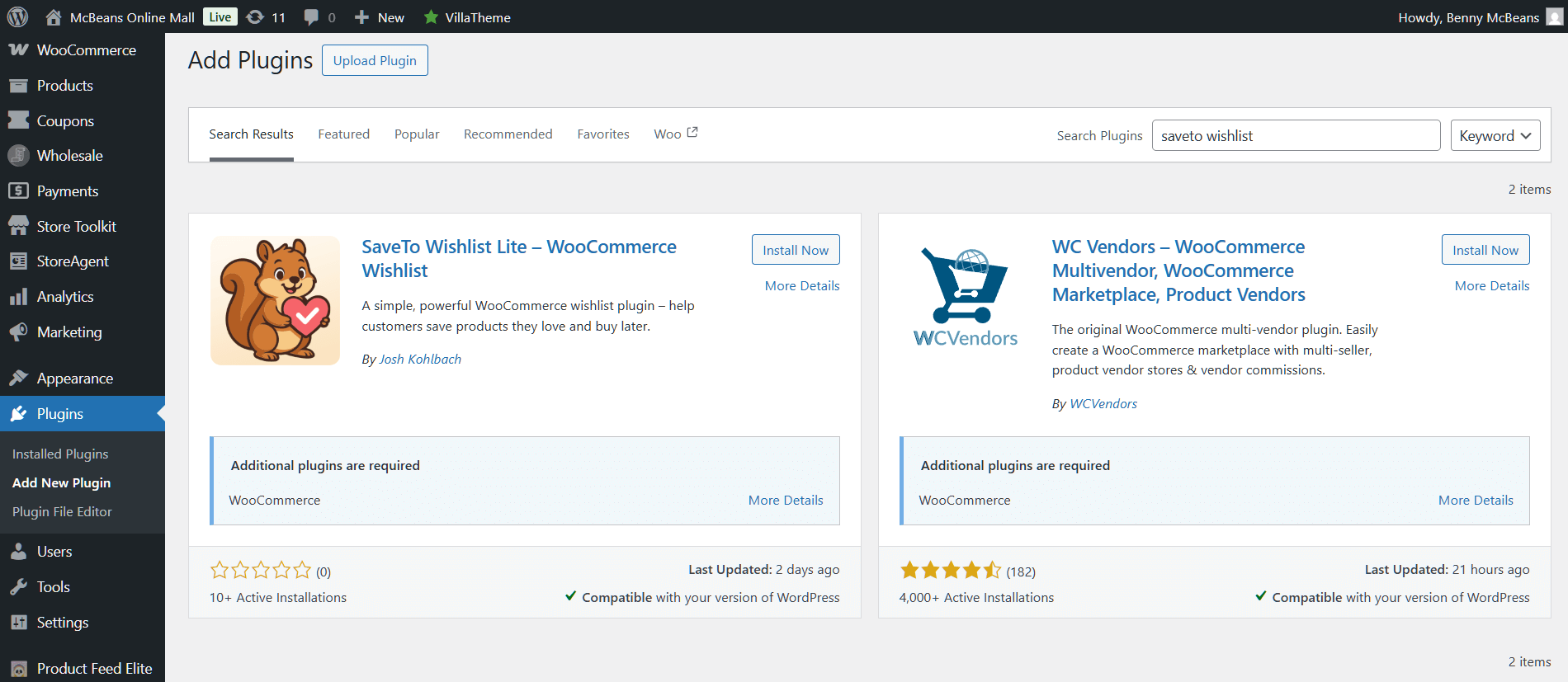
That’s it for installation. No license keys to enter, no account to create, no setup wizard that takes 15 clicks to get through.
If you prefer to download the plugin manually, you can grab it from the WordPress.org plugin directory and upload the zip file through Plugins > Add New Plugin > Upload Plugin.
Step 2: Configure Basic Settings
After activation, you’ll find a new SaveTo Wishlist menu item in your WordPress sidebar. Click into the settings, and you’ll see the main configuration panel.
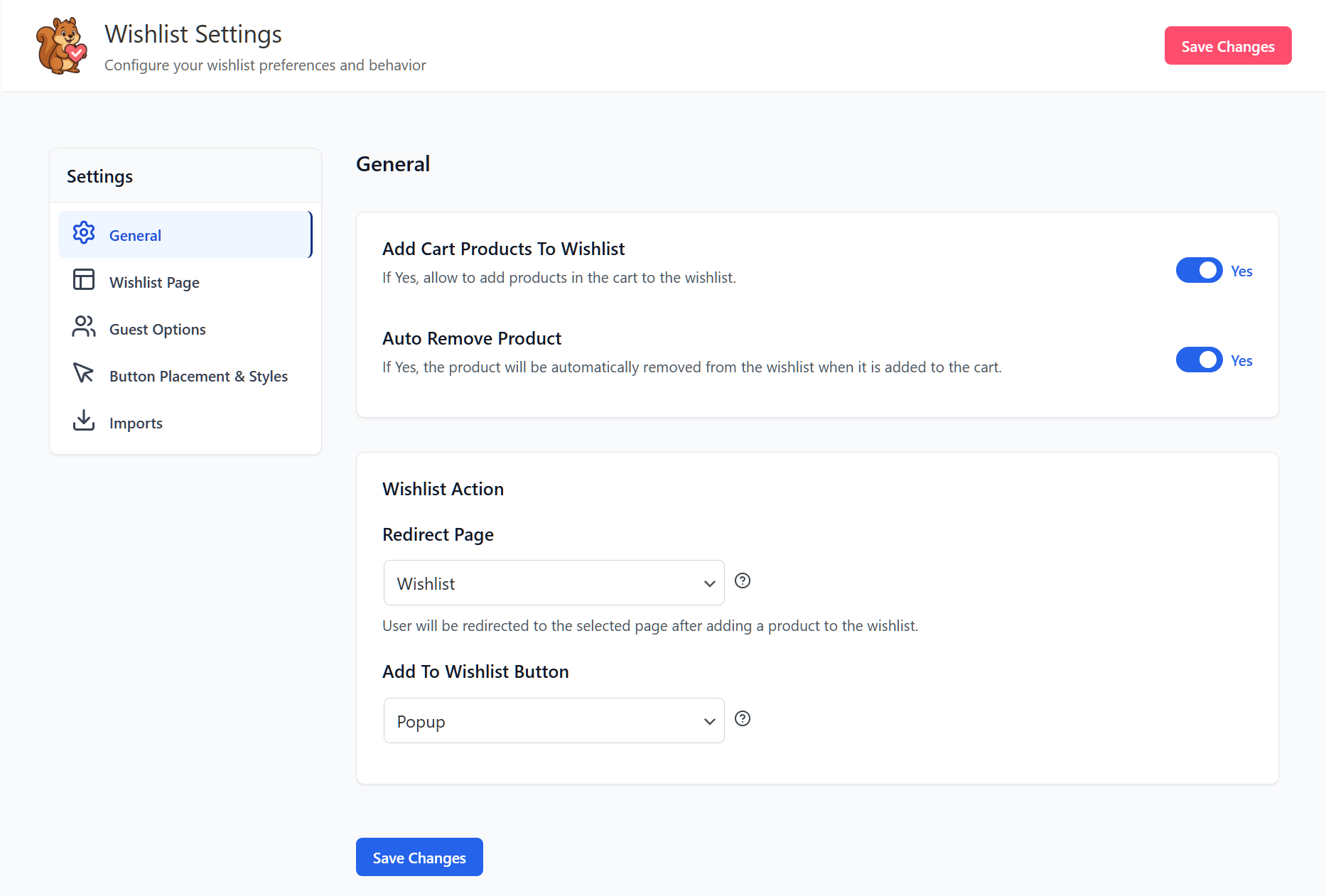
Here’s what to check:
Wishlist page
SaveTo Wishlist automatically creates a dedicated wishlist page for your store. Verify it’s been created by checking the dropdown. If you want to use a different page, you can select it here.
This section also allows you to name and describe every customer’s first and public wishlists.
Button placement and design
By default, the wishlist button appears on your shop and product pages near the Add to Cart button. This is the right spot for most stores. However, you can adjust the position if your theme handles these pages differently.
Guest wishlists
Make sure this is enabled. It lets visitors save products without logging in or creating an account, which is important because forcing account creation kills conversions.
These default settings work well for the vast majority of WooCommerce stores. If you’re running a standard theme like Storefront, Astra, Kadence, or any block-based theme, you probably won’t need to change anything here.
Step 3: Check Your Product Pages
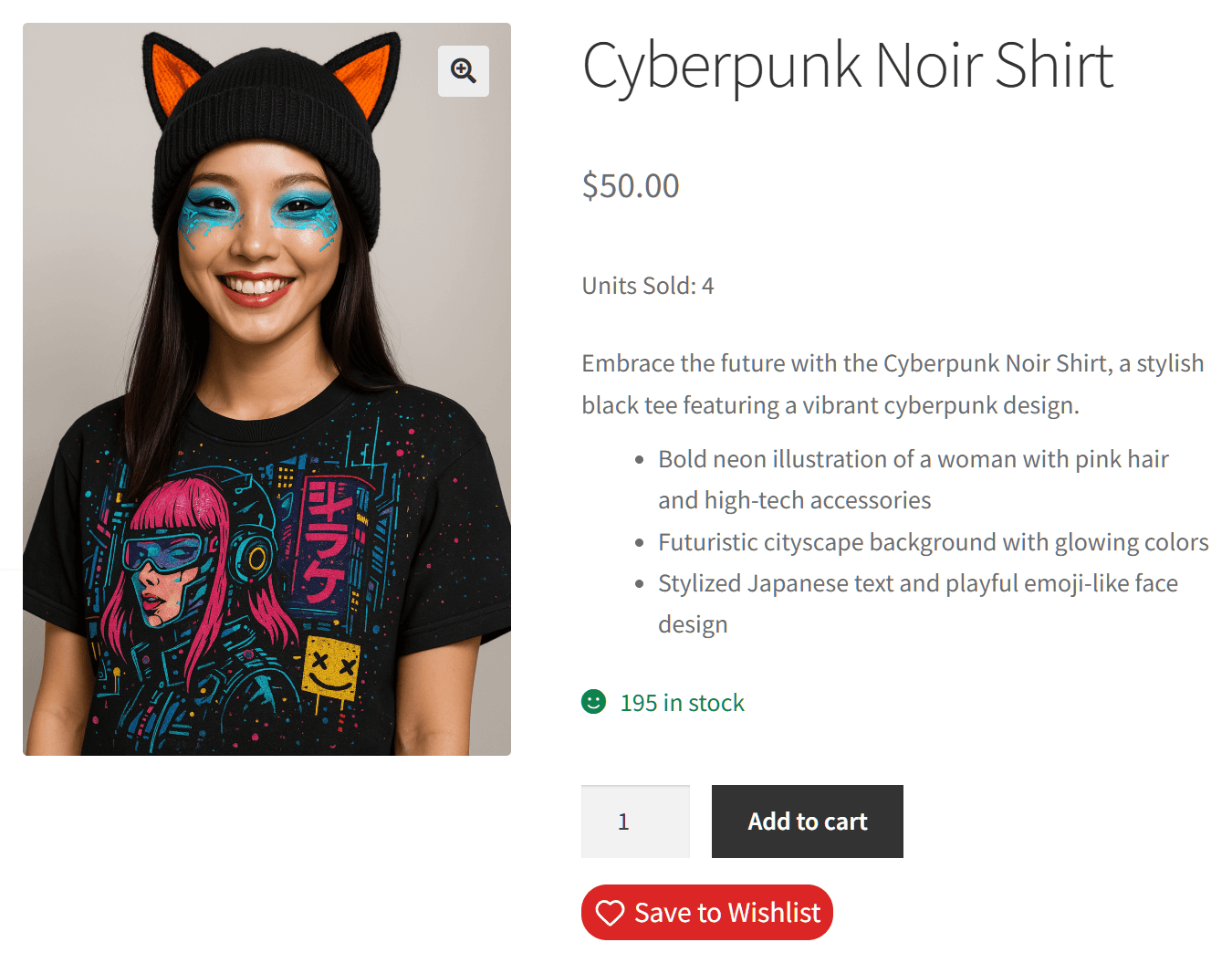
Now visit your store’s front end and open any product page. You should see a wishlist button near the Add to Cart area.
Click it. You should see a confirmation that the product has been saved to a wishlist. Then, navigate to your wishlist page (the one SaveTo Wishlist created automatically), and verify the item appears there.
If the button doesn’t appear, here are the most common fixes:
- Clear your cache. If you’re using a caching plugin (WP Super Cache, W3 Total Cache, LiteSpeed Cache, etc.), clear the cache and check again.
- Check for plugin conflicts. Temporarily deactivate other plugins to see if one is interfering. Page builder plugins occasionally conflict with button injection.
- Verify theme compatibility. SaveTo Wishlist supports block themes and most classic themes. If your theme uses a non-standard product template, you may need to adjust the button placement setting.
For most stores, the button appears automatically without any issues.
Step 4: Customize The Button
The default button works fine, but if you want it to match your store’s branding more closely, SaveTo Wishlist includes button templates in the free version.
Go to SaveTo Wishlist > Settings and look for the button style options. You can adjust:
- Button style (icon only, text only, or icon + text)
- Button text (change “Add to Wishlist” to whatever fits your store)
- Position on the product, shop, and cart page
- Colors to match your theme
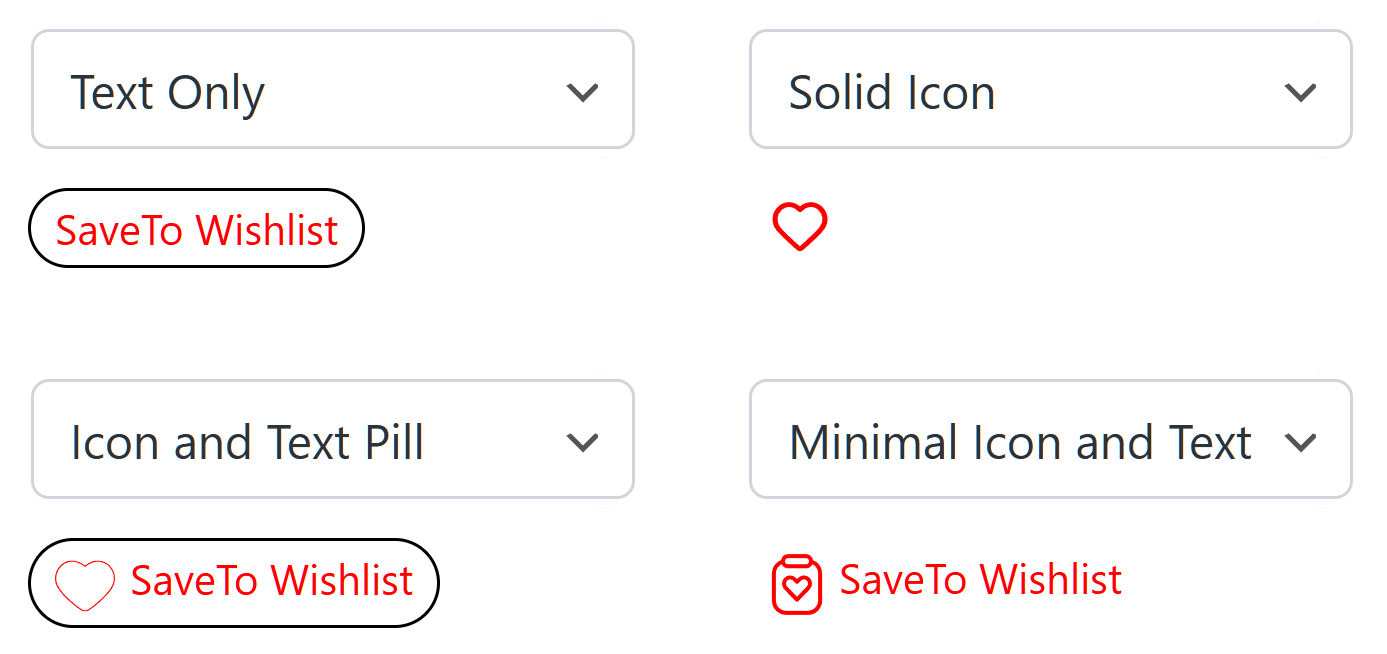
Alternatively, you could pick one of 12 button templates if you’d rather not spend too much time on this step.
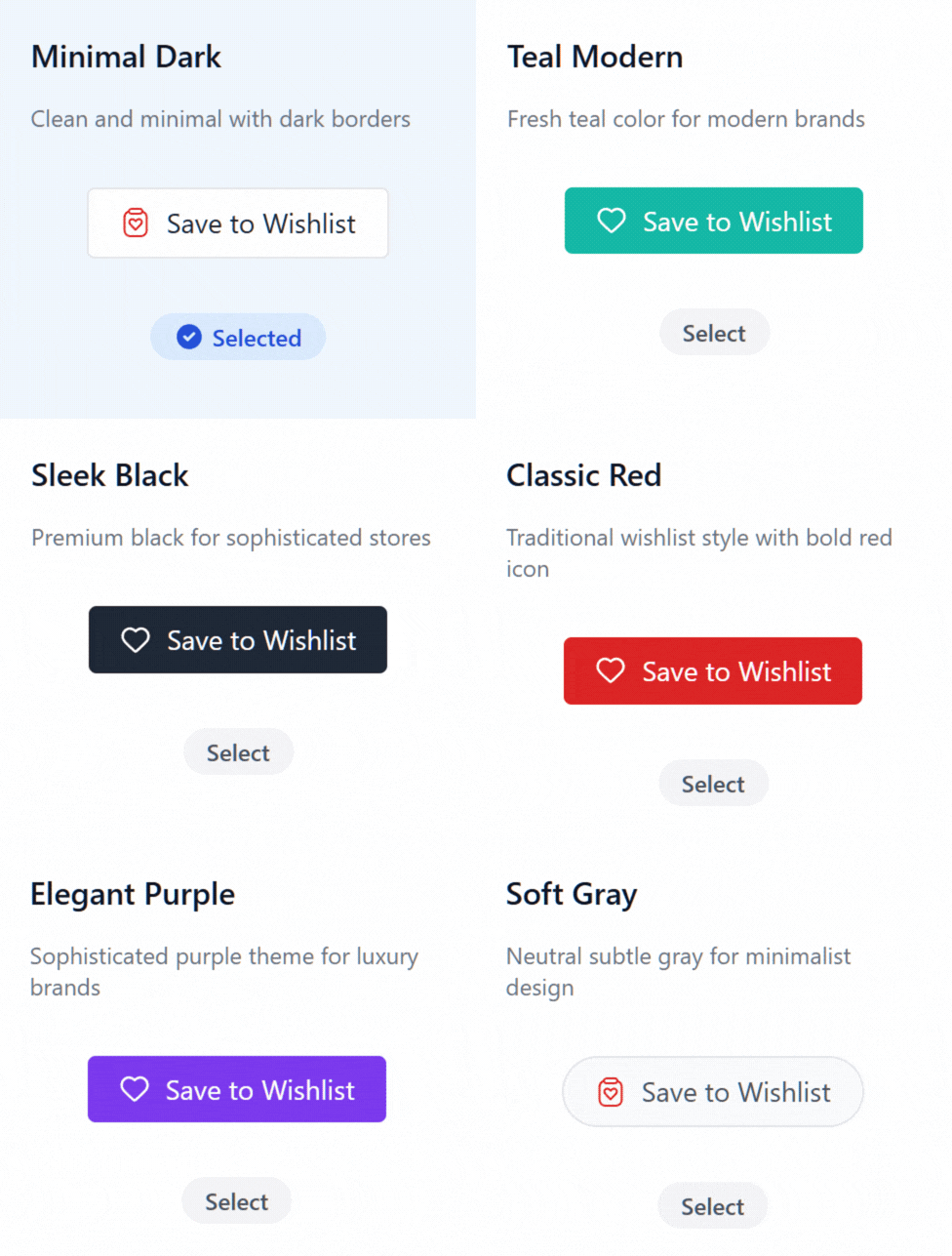
For more information on the templates and customization options, check out the button templates page.
Step 5: Verify Guest Wishlists Work
This step is worth doing separately because guest wishlists are one of the most important features for conversion.
Open an incognito or private browsing window (so you’re not logged in) and visit your store. Browse to a product page and try adding it to a wishlist. It should work without asking for a login or email address.
Why does this matter? According to the Baymard Institute, 19% of online shoppers abandon their purchase because a site requires account creation. If your wishlist forces registration, you’re losing a significant chunk of potential wishlist users before they even start. Guest wishlists remove that barrier entirely.
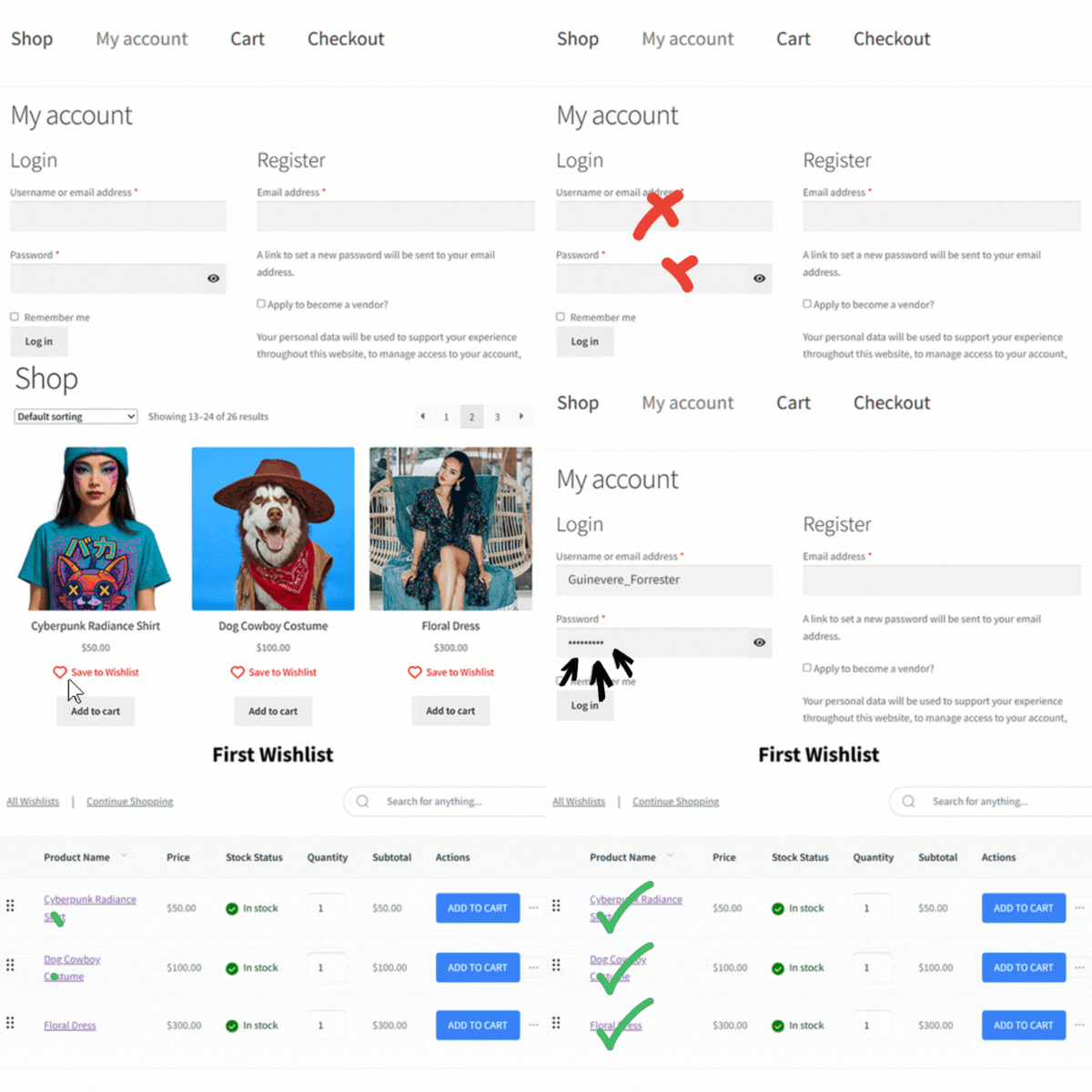
For more on why guest wishlists matter and how to get the most out of them, see the guest wishlist guide.
What To Do Next
Your wishlist is live. Customers can save products, create multiple lists, and browse their wishlists without needing an account. That’s a solid foundation.
🔍️ What We’ve Seen: Stores that start with the free version of SaveTo Wishlist typically upgrade to Pro once they realize how much purchase-intent data wishlists generate. Knowing which products customers save most, which ones sit on wishlists for weeks without converting, and which price points trigger purchases is actionable intelligence. The free version captures the data. Pro helps you act on it.
When you’re ready to go further, SaveTo Wishlist Pro adds:
- Analytics and reports to see which products get wishlisted the most and track conversion rates
- Automations, including price drop alerts and back-in-stock notifications
- Webhooks for connecting wishlist data to your email platform, CRM, or custom tools
- Collaborative lists and role-based access for B2B or team use cases
- B2B integration that displays wholesale prices on the wishlist page, and now brings that same save button onto the wholesale order form itself
Pricing starts at $49.50/year for a single site (Growth plan), rising to $99.50/year (Plus) and $199.50/year for unlimited sites (Business), all with a 14-day money-back guarantee. See the full pricing breakdown.
Want more details about SaveTo Wishlist Pro and its features? Then check out our extensive guide:
SaveTo Wishlist Pro: How To Turn Saved Items Into A Growth Engine
FAQ
Does SaveTo Wishlist work with my theme?
SaveTo Wishlist works with block themes (the modern WordPress full-site editing themes) and most classic WooCommerce themes. It’s tested with popular themes like Storefront, Astra, Kadence, GeneratePress, and OceanWP. Thus, if your theme uses standard WooCommerce product templates, the wishlist button should appear automatically.
Can customers create multiple wishlists with the free version?
Yes, the free version of SaveTo Wishlist includes multiple wishlists. Customers can create separate lists like “Birthday Ideas,” “Home Office,” or “Gift Ideas for Mom” without any limits. This is a feature that several competing plugins, including YITH WooCommerce Wishlist, lock behind their premium tiers.
Do I need to create a wishlist page manually?
No. SaveTo Wishlist automatically creates a wishlist page when you activate the plugin. While you can use the settings to change which page the plugin uses, the default setup handles this for you.
What happens to wishlists if I upgrade to Pro later?
All existing wishlist data carries over when you upgrade. As a result, you don’t lose any customer wishlists, product saves, or configuration settings. Pro adds new capabilities on top of what you already have.
Set Up WooCommerce Wishlist Plugin SaveTo Wishlist Today!
Setting up a WooCommerce wishlist doesn’t need to be complicated. With SaveTo Wishlist, you install the plugin, check your settings, and your store has a fully functional wishlist system with features like guest wishlists, multiple lists, and variation tracking included free.
If you haven’t installed it yet, search for “SaveTo Wishlist” in your WordPress plugin directory and get it running on your store today. And when you’re ready for analytics, automations, and price drop alerts, SaveTo Wishlist Pro is there to grow with you.