One wrong tap shouldn’t cost your customers a product they’ve been saving for weeks. That’s why SaveTo Wishlist Lite asks for a quick confirmation before an item leaves a wishlist. Here’s when that popup shows up, what each button does, and where your customers will see it.
Before you begin
- SaveTo Wishlist Lite version 1.0.5 or later
- A wishlist page set up in your store (see How to help customers use wishlists in your store)
There’s nothing to switch on. The confirmation popup is always active, for both logged-in customers and guests.
When the confirmation popup appears
The popup appears every time someone clicks Delete on an item from the wishlist page. That covers two places: a logged-in customer’s own wishlist, and the guest wishlist that shoppers use before they create an account.
The popup has the title Delete Item and asks: “Are you sure you want to remove this item from the wishlist?” Nothing is removed until the customer confirms.
Guests can also see the popup after they click Add to Cart on the guest wishlist. This happens when Auto Remove Product is on under SaveTo Wishlist > Settings > General. That setting removes an item from the wishlist once it goes to the cart, and the same popup opens so the guest can confirm the removal.
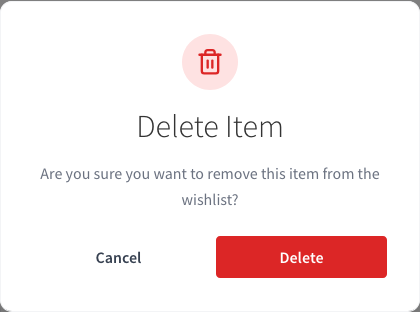
Remove an item from a logged-in customer’s wishlist
Logged-in customers remove items through the More Actions menu (the three-dot button) on each item. It works the same way in both Table view and Grid view.
- Open the wishlist that holds the item.
- Click the More Actions button (the three dots) for the item.
- Click Delete.
- In the Delete Item popup, click Delete to remove the item, or Cancel to keep it.
In Table view, the More Actions button is in the Actions column. In Grid view, it’s on the product card.
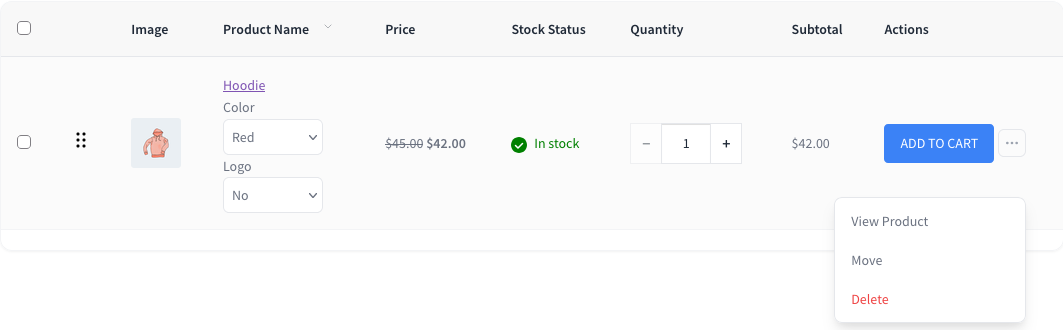
The More Actions menu only shows for the wishlist’s owner, a store admin, or someone with permission to edit that wishlist. Shoppers viewing a shared wishlist won’t see it, so they can’t remove anything.
Remove an item from the guest wishlist
Guests get a Delete button right in each item’s row, next to the Add to Cart button.
- Open the guest wishlist page.
- Click Delete on the item’s row.
- In the Delete Item popup, click Delete to remove the item, or Cancel to keep it.
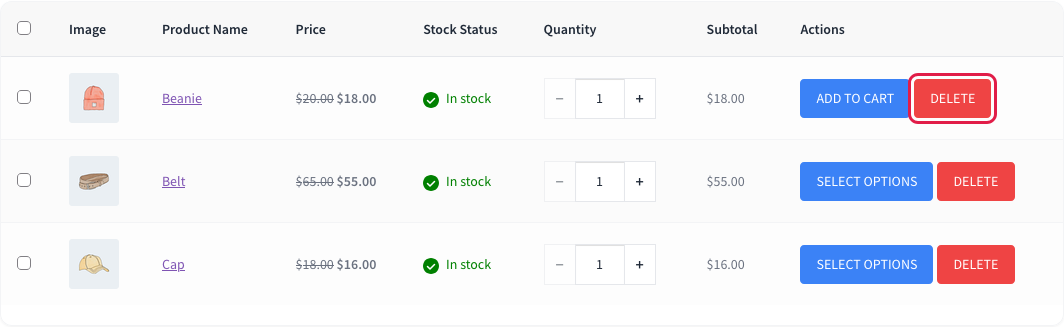
A guest wishlist lives in the shopper’s browser, so removing an item only affects that browser.
What each button in the popup does
Delete: removes the item right away, and the wishlist refreshes without it. There’s no undo. To get the item back, the customer adds it to their wishlist again from the product page.
Cancel: closes the popup and leaves the item where it was. Pressing the Esc key or clicking anywhere outside the popup does the same thing.
Troubleshooting
The More Actions button doesn’t show on wishlist items
This usually means the customer is viewing a wishlist they don’t own, such as one a friend shared with them. Only the owner, a store admin, or someone with edit permission can remove items. Ask the customer to log in to the account that owns the wishlist.
An item was removed without a popup
The popup only appears on the wishlist page. If a customer clicks the wishlist button on a product or shop page while it shows Remove from Wishlist, the item is removed straight away with no confirmation. This is expected. The customer can click the button again to re-add the item.
Frequently asked questions
Why did a popup open after a guest clicked Add to Cart?
The Auto Remove Product setting is on. It removes an item from the wishlist when it goes to the cart, and the popup asks the guest to confirm that removal. You can find the setting under SaveTo Wishlist > Settings > General.
Can I turn off the confirmation popup?
No. The popup is always on, and there’s no setting to hide it.
Can I change the text in the popup?
Yes. The popup’s title, message, and button labels are translatable, so you can change them with a translation plugin such as Loco Translate.
Do customers get a confirmation when deleting a whole wishlist?
Yes. Deleting an entire wishlist shows a separate Delete Wishlist popup with the message “Are you sure you want to delete this wishlist? This action cannot be undone.” Customers can’t delete their last remaining wishlist.
Can a removed item be restored?
Not automatically. The customer can add the item again from the product page.
What’s next
- How to help customers use wishlists in your store
- How customers can manage their wishlists in My Account
Need help?
- Premium users: Open a support ticket
- Free users: Visit our community forum