

 Reviewed by
 Plenty of wholesale buyers still keep their reorder list in a spreadsheet. The store they buy from usually has a wishlist already. It’s just labeled and styled for shoppers buying gifts, so nobody on the trade side ever opens it.
That gap is worth closing. A WooCommerce B2B wishlist isn’t a consumer feature wearing a suit. For a buyer who orders the same forty lines every quarter, a saved list is a reorder template. Rebuilding that order by hand each cycle is friction you’re charging your best customers.
Most wishlist guides speak to someone saving a pair of shoes. They address shoppers, not a buyer with a wholesale role and their own price. That’s a different job, and it needs a few settings changed before it works.
So here’s the reframe from consumer wishlist to B2B wholesale wishlist, plus how wholesale pricing reaches a saved list. I’ve also covered where role-based access fits and which defaults work against a trade store.
Jump to:
- Why B2B Buyers Behave Differently From Shoppers
- The Wishlist As A Repeat-Order List
- Saving Quantities, Not Just Product Lines
- Keep The List After The Order Goes Through
- Showing Wholesale Prices On A Saved List
- Controlling Who Can Use What
- Setting It Up For Your Wholesale Store
- When Lines Go Missing From The Cart
- Frequently Asked Questions: B2B Wholesale Wishlist
- Put Your WooCommerce B2B Wishlist To Work
Why B2B Buyers Behave Differently From Shoppers

Wholesale buyers repeat; retail shoppers browse. That single difference changes what a saved list is for. It also explains why consumer wishlist advice mostly misses trade stores.
A retail shopper saves because they’re undecided. The list has a short life and usually ends in one order or none. Trade buyers already know what they want, because they bought it last quarter and the quarter before.
Their problem isn’t deciding, it’s rebuilding. Forty products found across your catalog, quantities matched against the stockroom, then the same job again in twelve weeks. Sign-off from someone else is common too. So the list has to survive a gap between building and paying, at the buyer’s price.
Here’s how the two compare:
| Behavior | Consumer shopper | B2B buyer |
|---|---|---|
| Why they save | Considering a purchase | Building a reorder list |
| List lifespan | Weeks | Ongoing, reused each cycle |
| Number of lists | One or two | One per project, site or season |
| Price shown | Retail | Their wholesale tier |
| How it ends | A single order, or nothing | It doesn’t; it gets reused |
A consumer wishlist is disposable. By contrast, a B2B wholesale wishlist is infrastructure. It pays off through customer retention rather than one conversion.
The Wishlist As A Repeat-Order List
Treat a B2B wholesale wishlist as a reorder template, not a maybe-pile. The feature that matters then stops being the heart icon. It becomes the ability to keep several named lists and refill a cart from one.
SaveTo Wishlist Lite supports unlimited named wishlists per customer in the free version. For a trade buyer that’s the difference between one messy list and a set that mirrors how they order:
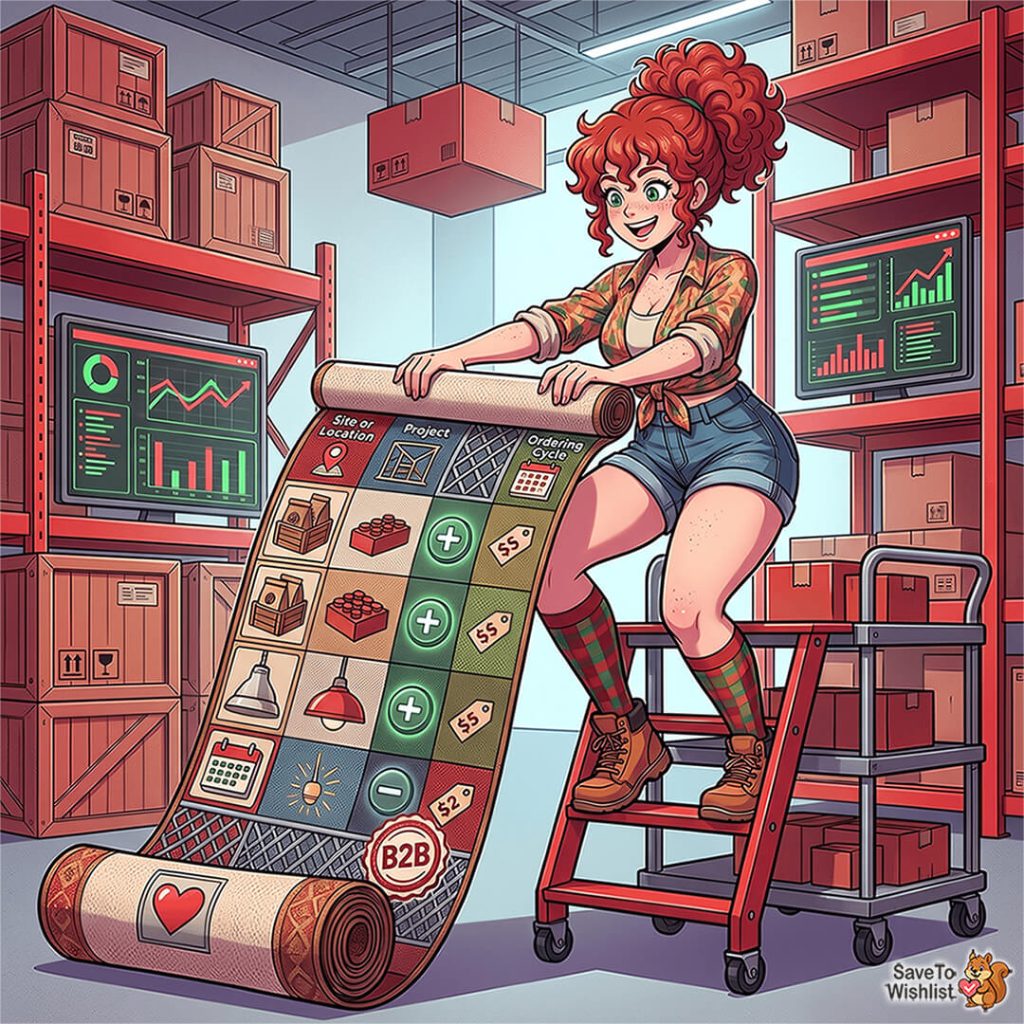
- Site or location. Three cafes, three lists, because the standing order at each is different.
- Project. Fit-outs, builds and seasonal ranges get a list that survives the job and gets reused.
- Ordering cycle. Quarterly reorders, back-to-school, pre-Christmas restock.
Naming matters more here than in retail. So multiple wishlists does real work before any paid feature.
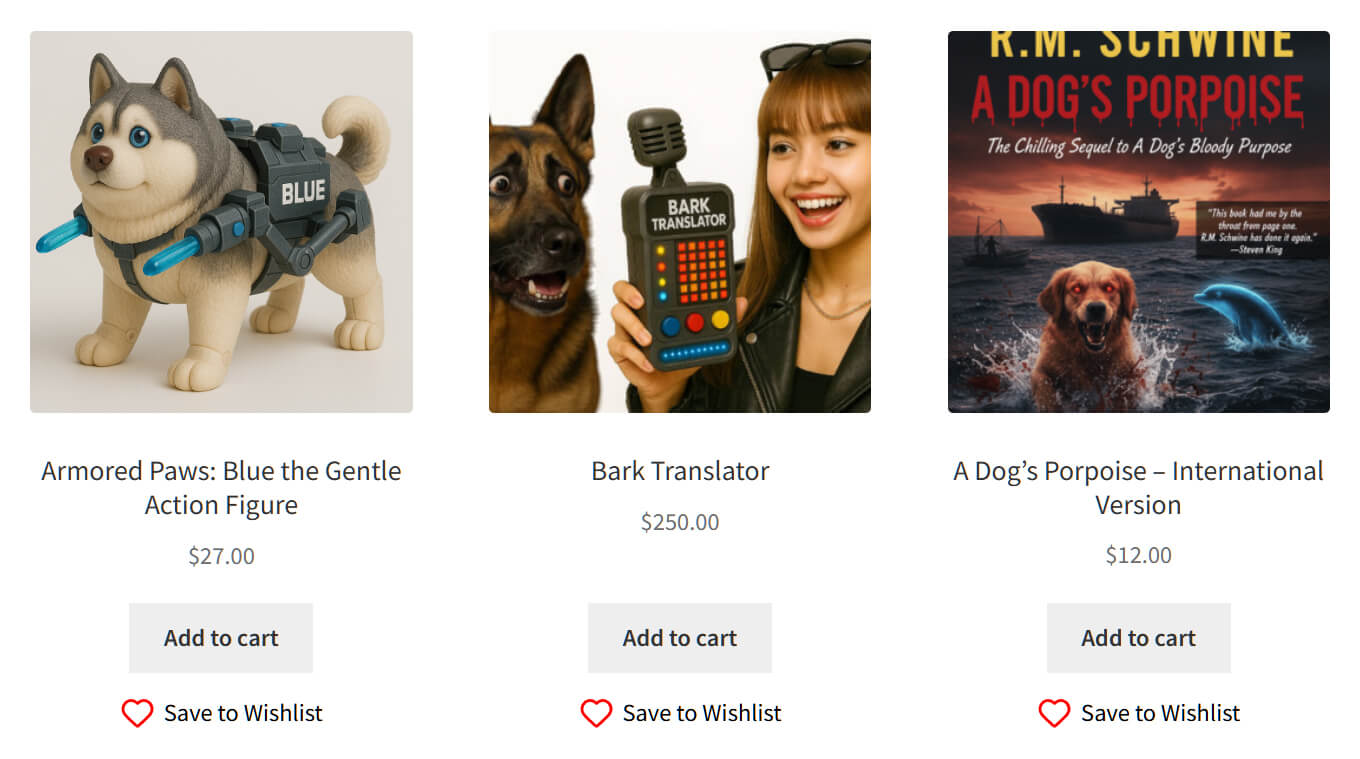
I checked this on a staging store running SaveTo Wishlist Lite 1.1.1. The Save to Wishlist button rendered across the whole shop product loop, twelve separate buttons on one /shop/ page. That store sells consumer goods, not trade lines. So read it as a check on plugin behavior rather than a wholesale configuration.
What turns a list into a reorder is the step after that. SaveTo Wishlist Lite has an “After Add All to Cart” redirect setting. It sends the customer to the Cart or Checkout page once the whole list is added. A buyer opens their Q3 list, adds everything, checks the numbers, and pays.
Saved lines are also a forward-looking demand signal. In practice, they’re the raw material behind demand forecasting.
Saving Quantities, Not Just Product Lines
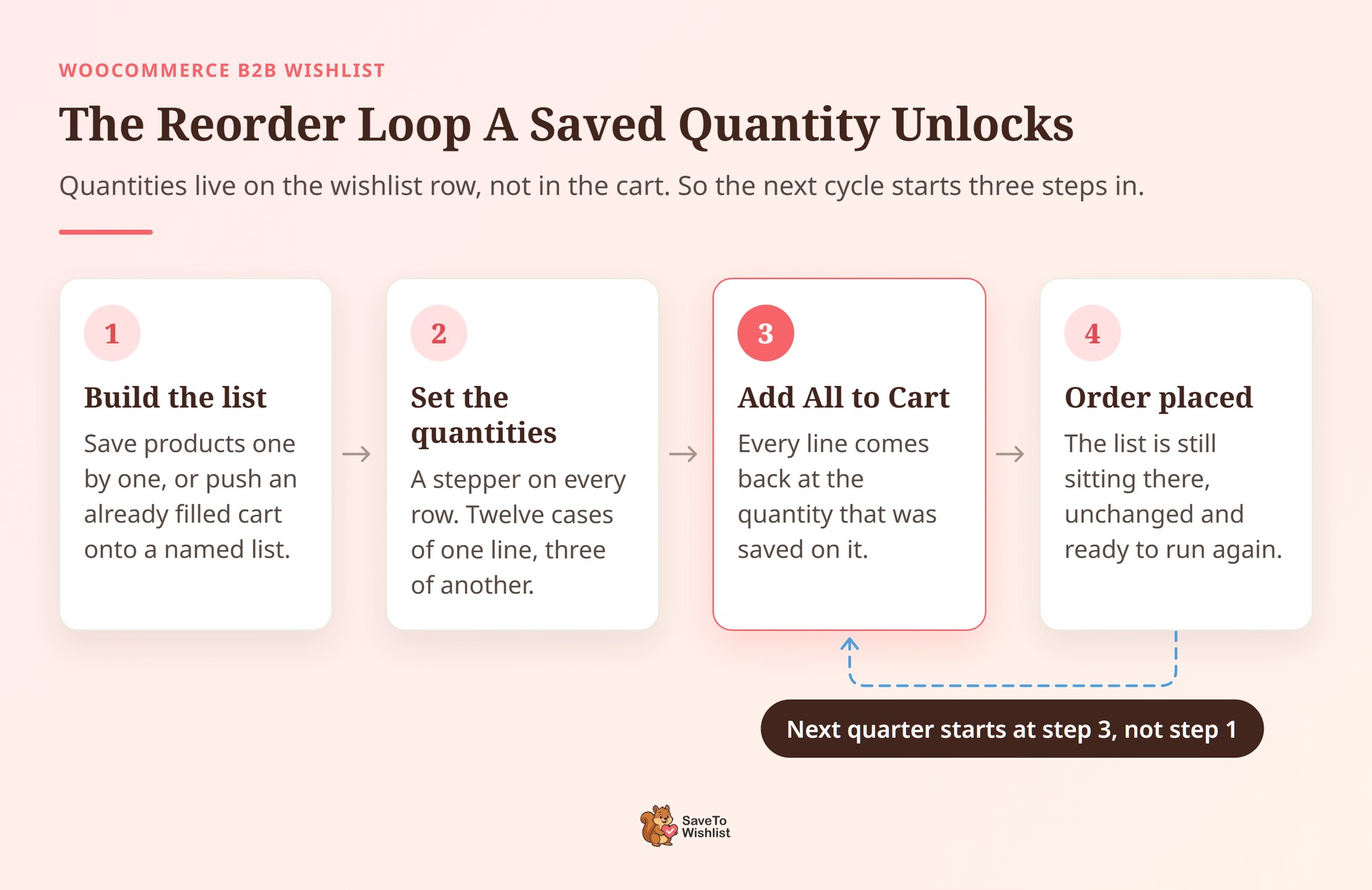
A B2B wholesale wishlist only works as a reorder template if it remembers how many. SaveTo Wishlist stores a quantity against every saved row, not just the product.
Each row in the wishlist table carries a quantity field with a minus button and a plus button. Change the number and it saves to the list straight away, not to the cart. It survives the buyer closing the tab and coming back in twelve weeks.
That’s what makes the next cycle quick. Add All to Cart brings every line back at its saved quantity. Twelve cases of one, three of another, the same as last time. The buyer edits the two lines that changed instead of typing forty numbers.
The stepper floor is 1 by default. Stores running Tiered Pricing Table get a per-product floor instead, read from that plugin’s own minimum quantity. The same integration drives bulk discount tiers on the wishlist.
Build the list from a cart the buyer already filled
Saving forty products one at a time is the slow way in. There’s a faster route, and it’s on by default.
Go to Wishlist, then Settings, then General. A switch called “Add cart products to wishlist” ships set to Yes. It lets a customer push what’s in their cart onto a wishlist, quantities included. So a buyer placing this quarter’s order by hand turns it into next quarter’s template in one action.
Two details are worth knowing before you point buyers at it:
- Duplicates are skipped, not stacked. The plugin passes over a line already on the target list, so saving the same cart twice changes nothing.
- “Cart item selection” is off by default. Switch it on, in the same General tab, and the customer picks which cart lines to save.
🔍️ What we’ve seen: A store owner tests cart saving and runs it again on the same list. Nothing happens, because that’s the duplicate check working rather than a broken save. Save to a fresh list when you want a second copy.
Keep The List After The Order Goes Through
One setting decides whether a B2B wholesale wishlist survives its first reorder. The default works against a trade store, so it’s worth changing early.
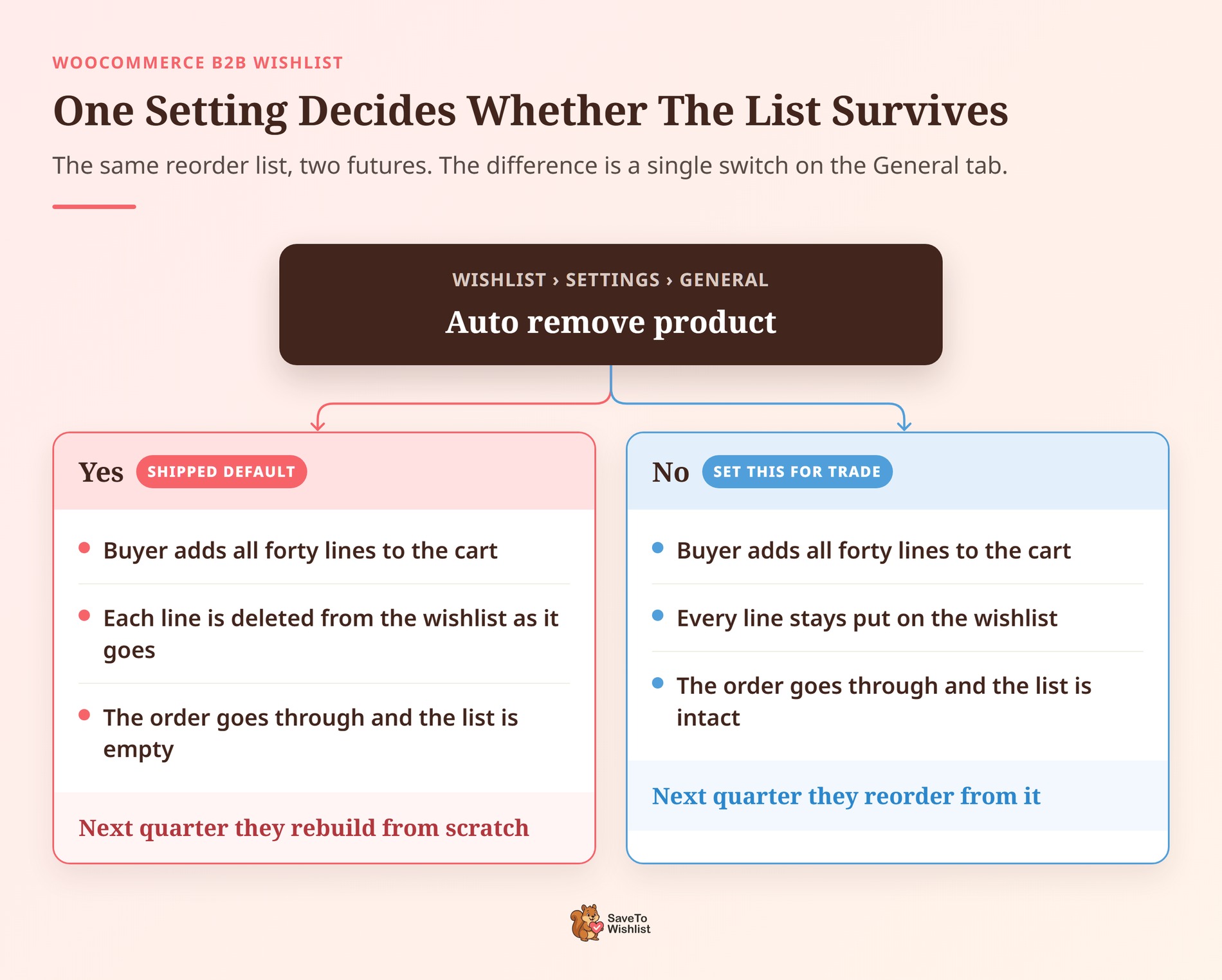
Find it under Wishlist, then Settings, then General, labeled “Auto remove product”. Its description is plain: if Yes, the product is removed from the wishlist once it goes into the cart. Yes is the shipped default.
For a shopper clearing a saved-for-later pile, that’s tidy. For a wholesale buyer it deletes the template. They add all forty lines, the order goes through, and the list is empty. The hour they spent building it buys them exactly one order.
So set it to No on a trade store. The list stays put, the buyer works from it every cycle, and nothing gets rebuilt.
A kept list also pairs well with a repeat customer discount, which Advanced Coupons walks through.
Still, there’s a real limitation to weigh if you serve both audiences from one store. This switch is store-wide rather than per role. One value covers retail shoppers and trade accounts alike. You can’t keep lists for buyers and clear them for shoppers.
Keeping lists is the safer default of the two. A buyer can delete a line in one click, and can’t recover one they never kept.
🔍️ What we’ve seen: Someone flips this switch, then re-tests in a browser tab that was already open. They expect to need a reload first, but they don’t. The value is read on the server as the add happens, so the next click already follows it. If the old result keeps coming back, the switch itself didn’t save.
Showing Wholesale Prices On A Saved List
Wholesale prices appear on the wishlist automatically once SaveTo Wishlist Pro and WooCommerce Wholesale Prices are both active. There’s no toggle to find and nothing to map. The wishlist table reads the logged-in customer’s role and shows that role’s price.
Three things need to be true before a B2B wholesale wishlist shows trade pricing:
- SaveTo Wishlist Pro is active. Wholesale price display is a Pro feature; the free plugin shows retail to everyone.
- WooCommerce Wholesale Prices is active. The free version is enough for this.
- The product carries a wholesale price for that role. Simple products take it in the General tab; variable products need it set per variation.
Why a buyer might still see the wrong price
Two behaviors matter before you promise a buyer anything. Variable products show a wholesale price range on the row. That range spans the lowest and highest price across the variations, not the named variation’s price. And if no wholesale price exists for that role, the row quietly falls back to retail.
Those prices carry into wishlist emails too. A price-drop or back-in-stock alert reaches a trade buyer with their own numbers. Our knowledge base covers the full setup for wholesale prices on the wishlist.
🔍️ What we’ve seen: Store owners set a wholesale price on the parent product, then test it against a simple product. A buyer later saves a variable line and sees a range that doesn’t match their quote. Or they save while logged out and see retail, and neither case is a broken integration. Set wholesale prices per variation, and get trade buyers logged in first.
Which raises the login problem. A guest save is held in the browser. The confirmation popup offers to log in or create an account first.
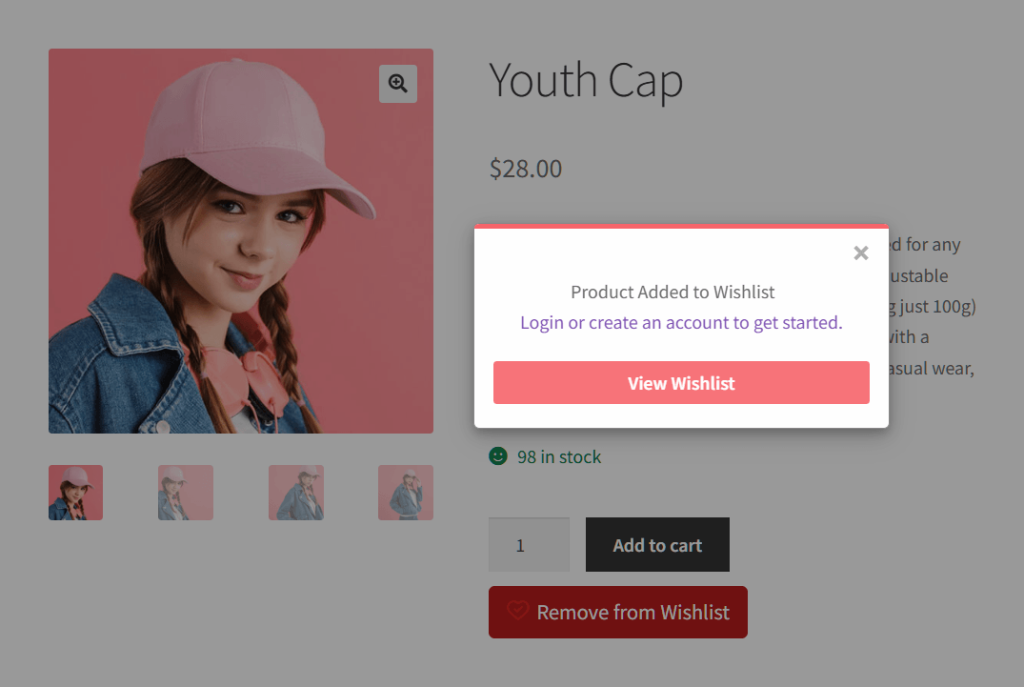
For a wholesale buyer, that prompt is the difference between seeing their price and seeing yours.
Controlling Who Can Use What
Role-based access scopes wishlist features to the account tiers you’ve already built. SaveTo Wishlist Pro adds permissions and advanced sharing on top of the free plugin. So a wholesale role and a retail role don’t get the same experience.
That helps a trade store in three places:
- Trade-only features. Sharing and collaborative editing sit behind an account tier instead of going to every visitor.
- Internal sharing. A buyer and their approver on one list is a normal B2B pattern. That’s what the wishlist sharing and permissions layer covers.
- Tier alignment. Access follows the account lines you already run, not a second system to maintain.
You set the role in WordPress rather than in the wishlist. Go to Users, then All Users, and open the customer. Under “Change role to”, select Wholesale Customer, then click Change. That one change makes their prices, emails and access behave as a trade account.
That said, a saved list is a planning tool rather than a negotiation. Turning one into a formal quote before ordering is a separate workflow with its own setup.
Setting It Up For Your Wholesale Store
Setting up a B2B wholesale wishlist runs to five steps, and the first two are free. SaveTo Wishlist Lite is the free plugin. SaveTo Wishlist Pro is the paid extension adding permissions, automations, analytics and the wholesale pricing behavior. And the Wholesale Suite integration joins the two sides together.
- Install SaveTo Wishlist Lite. Free, and enough to give buyers unlimited named lists straight away.
- Set the button placement for your shop grid. Buyers work down catalog pages, so a product-page-only button costs you most of the saves.
- Add SaveTo Wishlist Pro. Growth is $49.50 for the first year and $99 on renewal. That’s the entry point for wholesale price display and role-based access. Plus is $99.50 then $199, and Business is $199.50 then $399. Plus and Business bundle the Gift Registry Addon, and it plays no part in a B2B setup.
- Install WooCommerce Wholesale Prices and set your prices. Per variation on variable products, not only on the parent.
- Assign the Wholesale Customer role to each trade account.
Then do the step most stores skip: tell your buyers the list exists. A reorder list nobody knows about gets used about as often as the spreadsheet it replaced.
When Lines Go Missing From The Cart
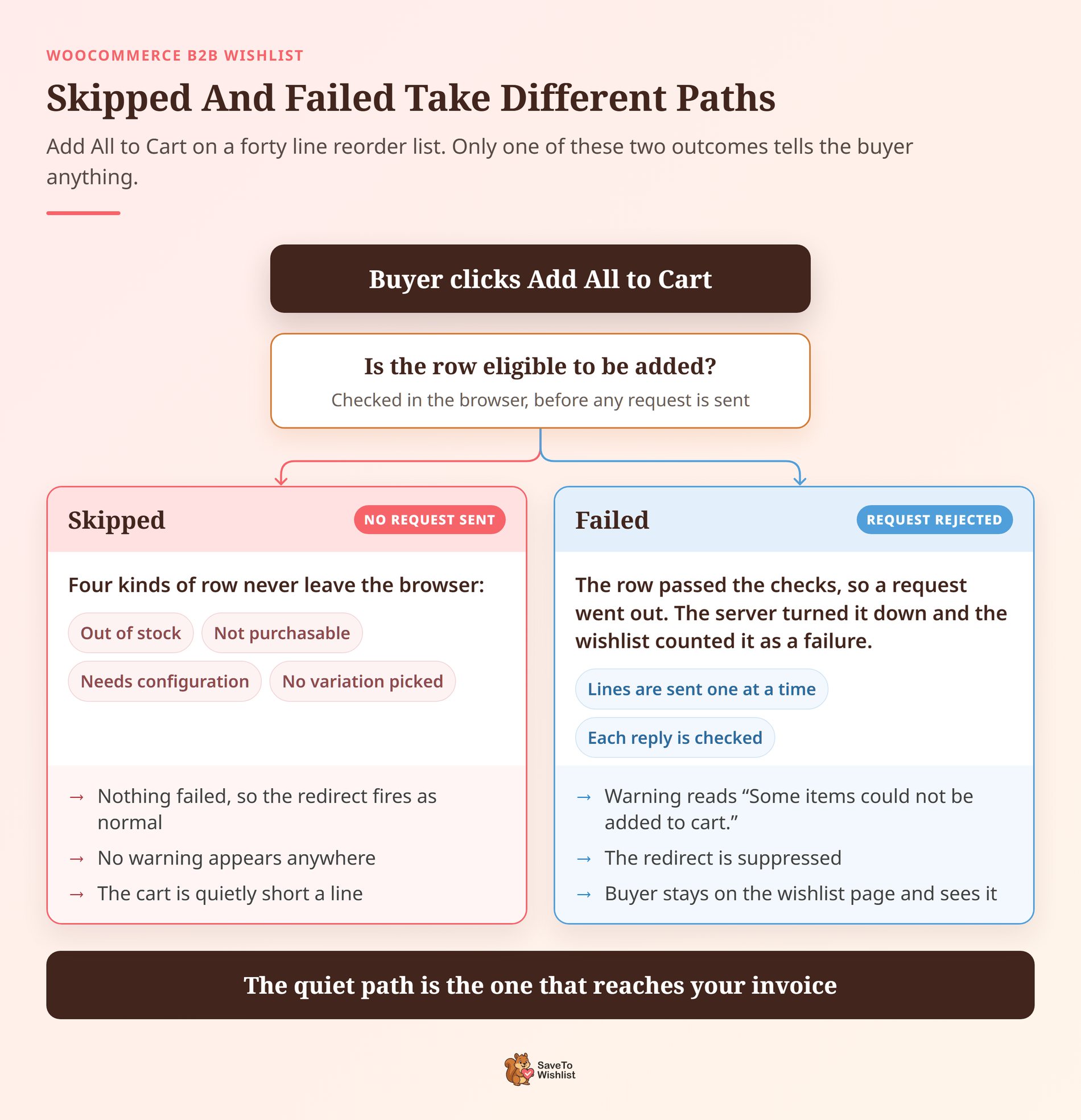
Add All to Cart doesn’t always add all, and on a forty-line list nobody counts. The plugin filters out four kinds of row before a single request reaches the server:
- Out of stock. The most common one, and the one a buyer is least likely to spot.
- Not purchasable. Catalog-mode plugins mark products this way, so a quote-only line gets skipped.
- Needs configuration. Products carrying add-on fields have to be set up on the product page first.
- A variable product with no variation picked. The row needs a size or a pack before it can go anywhere.
Skipped and failed are not the same thing
This distinction decides whether your buyer finds out, so it’s worth holding onto.
The plugin never sends a request for a filtered row. Nothing failed, so the run counts as clean and the redirect fires as normal. The buyer lands on the cart page, short a line, with no warning anywhere.
A row that’s sent and rejected behaves differently. The buyer gets a warning reading “Some items could not be added to cart.” They also stay on the wishlist page, whatever the redirect is set to. That one they will notice.
So the quieter of the two is the one that reaches your invoice. Closing that gap is a settings change rather than a workaround.
Show the problem rows before the click
Go to Wishlist, then Settings, then Wishlist Page, and find “Hide Disabled Add to Cart Buttons”. It ships set to No, which leaves a grayed-out button on rows that can’t be added.
Set it to Yes and the button disappears on rows that are not purchasable, out of stock, or unpriced. A buyer scanning the list sees which lines need a phone call before they click.
Two more things shape how a long list behaves:
- The plugin adds lines one at a time. WooCommerce keeps the cart in the session, so parallel requests would overwrite each other. A forty-line list means forty round trips, and it isn’t instant.
- “Add Selected to Cart” handles partial reorders. Tick the rows you want and use that button instead. The same redirect setting governs it.
Worth noting that the redirect itself ships as “Stay on Wishlist Page”. Cart and Checkout are both there, but neither is on until you pick one.
🔍️ What we’ve seen: A buyer says Add All to Cart worked fine, and the order arrives two lines short. Both were out of stock, so the plugin filtered them out before sending anything. Nobody was told. Hide Disabled Add to Cart Buttons puts that on the page while the buyer can still act on it.
Frequently Asked Questions: B2B Wholesale Wishlist
Do wholesale prices show correctly on the wishlist?
Yes, for logged-in customers with a wholesale role. You need SaveTo Wishlist Pro and WooCommerce Wholesale Prices both active. The wishlist table shows that role’s price on every page load, and the same pricing carries into wishlist emails.
Does a B2B wishlist need SaveTo Wishlist Pro?
The list itself doesn’t. Unlimited named wishlists ship in the free plugin, so buyers can build reorder lists on day one. Wholesale price display and role-based access are Pro features. For a trade store, those two are usually the whole point.
What happens if a buyer isn’t logged in?
They see retail prices, and the list sits in their browser rather than their account. Once they log in or register, that guest list merges into the account. Prompt the login before a wholesale buyer starts building.
Put Your WooCommerce B2B Wishlist To Work
The reframe is the trick. Nothing here asks you to buy a separate B2B tool. The B2B wishlist WooCommerce wholesale stores actually need is the one already installed for shoppers. A B2B wholesale wishlist just has to remember their catalog, their quantities and their pricing.
Here’s what to do next:
- Read your buyers’ behavior first, because repeat ordering makes a saved list worth building.
- Set up named lists per site, project or season instead of one catch-all wishlist.
- Let buyers save quantities on the list, and turn off Auto remove product so the list survives the order.
- Get wholesale prices onto the list, including a price per variation.
- Scope access by role so trade and retail accounts differ.
- Check which lines get skipped before a short order reaches a buyer.
- Budget against the renewal price, not the introductory one.
Start with SaveTo Wishlist Lite for free, then add SaveTo Wishlist Pro when you want wholesale pricing and role-based access. Pro is where the price column follows the buyer’s role and the sharing rules follow your account tiers. Compare the plans on the SaveTo Wishlist pricing page, and check the renewal figure before you pick one.



