
 Reviewed by
Most exit-intent popups run on a guess. The cursor drifts toward the browser bar, a script decides the shopper is leaving, and everyone gets the same message. Serious buyers, bargain hunters and stray mouse movements all hear the same pitch.
A wishlist save is a clearer signal. When a shopper saves a product, they’ve named the exact item they want, on purpose. That’s the idea behind a WooCommerce exit intent popup wishlist trigger: only shoppers who saved something see the popup.
SaveTo Wishlist Lite, our free WooCommerce wishlist plugin, sends two browser signals on every save. I’ll walk through both, show where each one fits, and flag the default setting that breaks the obvious approach.
Jump to:
- Why A Wishlist Save Is A Better Trigger Than A Page View
- The Two Signals SaveTo Wishlist Emits On Every Save
- Using Popup Maker Without Writing Code
- Wiring It To Any Other Popup Tool
- The Redirect-Mode Caveat
- The Privacy Setting That Switches The Signals Off
- What To Put In The Popup
- How To Test It Before You Ship
- Frequently Asked Questions About Wishlist-Triggered Popups
- Make Your WooCommerce Exit Intent Popup Smarter
Why A Wishlist Save Is A Better Trigger Than A Page View

A wishlist save is a deliberate action tied to one specific product, while a page view is ambient. That gap decides who sees your popup and what it can say.
A product page view means somebody looked. It could have been a price check, a comparison tab or a misclick. By contrast, a save means the shopper picked that item out of your catalog and wanted to keep it. One is a maybe; the other is a shortlist.
Timing matters too. The Baymard Institute puts the average documented cart abandonment rate at 70.22%, based on 50 studies. An abandoned cart is the late stage of that problem. Browse abandonment happens earlier, and a save is the one moment in that stage that leaves a usable trace.
Triggering on the save also cuts popup volume. Instead of interrupting everyone whose mouse wandered north, you reach the shoppers who told you what they want.
The Two Signals SaveTo Wishlist Emits On Every Save
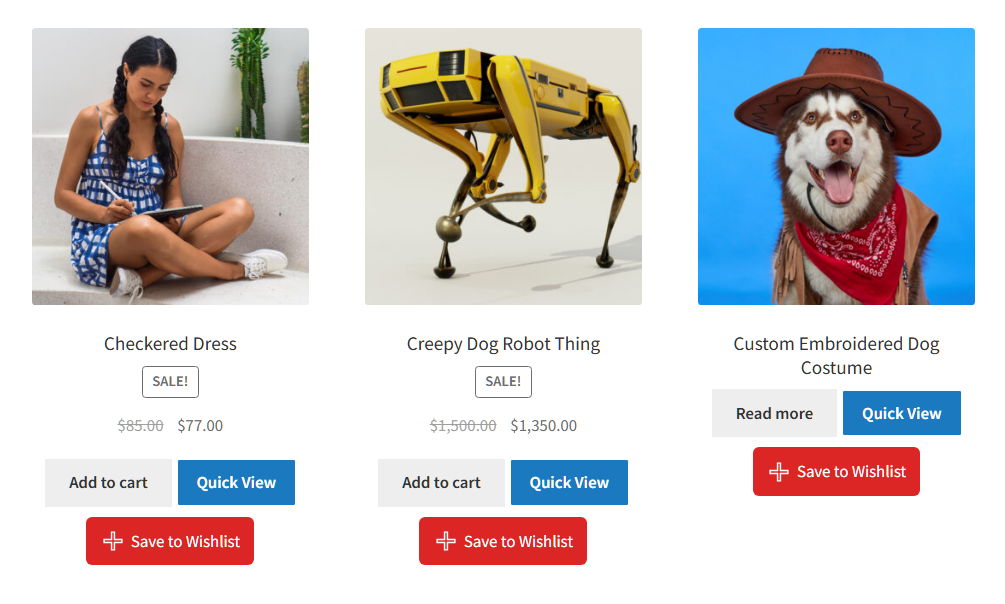
On every successful add, SaveTo Wishlist fires a DOM event and sets a cookie. Both work for guests and logged-in customers, and both are on by default.
The DOM event for instant reactions
The event fires on document and is named stwlite_added_to_wishlist. Its detail object carries two fields: productId and collectionId.
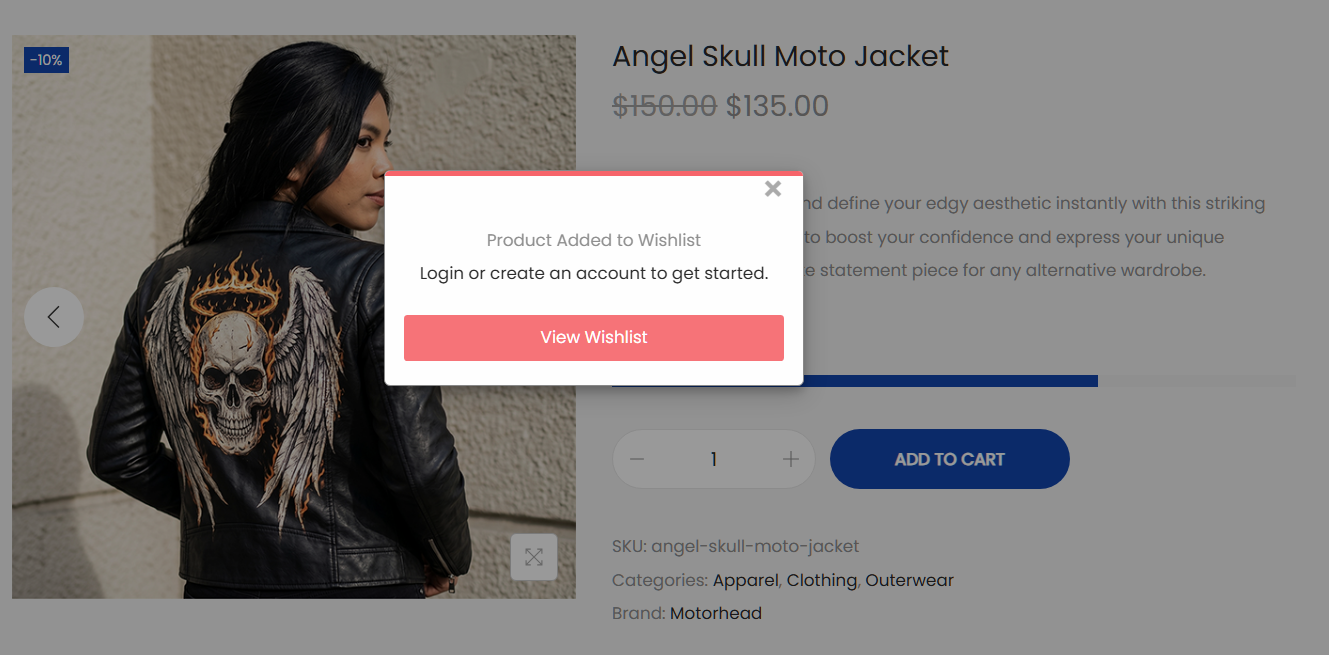
So a guest saving product 1303 sends {productId: 1303, collectionId: 0}. At the same moment, the button label switches from “Save to Wishlist” to “Remove from Wishlist”.
Three details matter before you write logic against that payload:
productIdis the variation ID on variable products. A saved size or color stays identifiable, so your popup can name the exact option.- It’s 0 when several products are saved at once. The save-cart-to-wishlist button adds a batch, so there’s no single product to name.
collectionIdis 0 for guests. Guest items sit in the browser’s local storage, not a named wishlist. So a guest list lives on one device.
The 30-day cookie for return visits
Alongside the event, a cookie named stwlite_wishlist_added stores the product ID. It lasts 30 days, so it outlives the visit that created it.
There are two things to handle. First, the value is URL-encoded, so run it through decodeURIComponent() before use. Second, it clears when the customer removes their last wishlisted product. That works in your favor, because an empty list stops qualifying without an extra rule.
Also worth knowing: the cookie holds the most recent save, not the whole list. Treat it as a “this shopper has saved something” flag.
| Signal | Name | Use it for | Caveat |
|---|---|---|---|
| DOM event | stwlite_added_to_wishlist | Instant, same-page triggers | Doesn’t survive a redirect |
| Cookie | stwlite_wishlist_added | Return-visit and exit-intent targeting | URL-encoded, so decode before use |
Using Popup Maker Without Writing Code
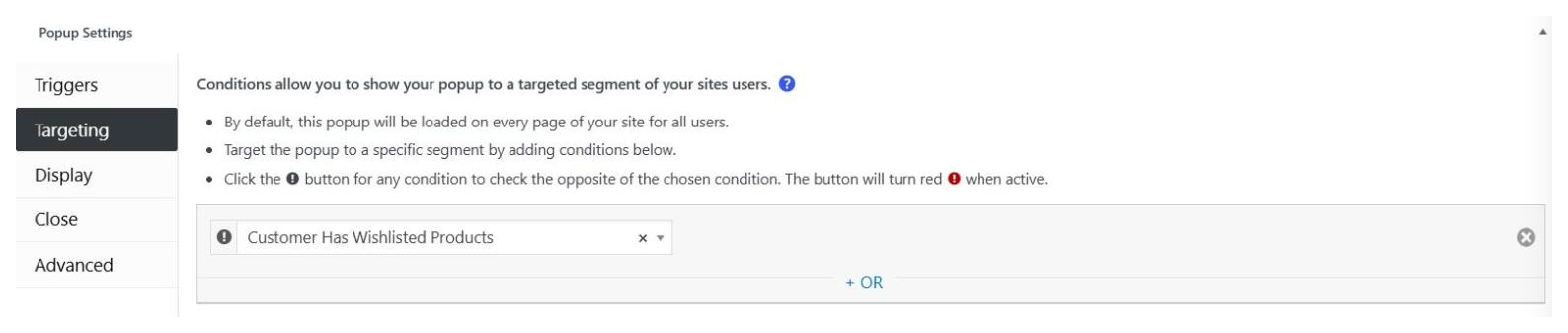
If you run Popup Maker, you can skip the code entirely. Since Lite 1.1.5, SaveTo Wishlist adds four items to Popup Maker’s own screens:
- A trigger called “Product Added to Wishlist (SaveTo Wishlist)”, which opens a popup on save, with an optional delay.
- A targeting condition called “Customer Has Wishlisted Products”, under the SaveTo Wishlist group.
- The SaveTo Wishlist shortcode in the shortcode picker, so the popup can show the shopper’s own list.
- A “View Wishlist (SaveTo Wishlist)” call to action, which records the click as a Popup Maker conversion.
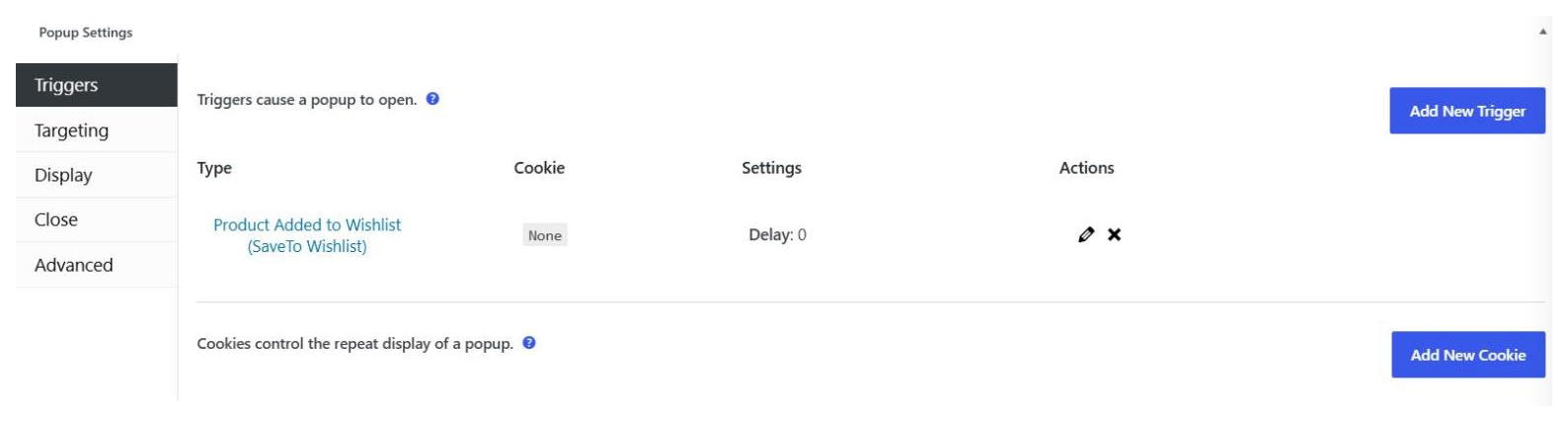
For a same-visit exit-intent popup, pair an exit-intent trigger with that condition. Logged-in customers match from their saved wishlists, while guests match from the cookie. Our Popup Maker walkthrough covers the setup screen by screen.
Wiring It To Any Other Popup Tool
Your popup tool can use these signals if it opens from a JavaScript call or checks a cookie. Neither signal is tied to one plugin.
For an instant popup, listen for the event:
document.addEventListener('stwlite_added_to_wishlist', function (e) {
  var productId = e.detail.productId;
  var collectionId = e.detail.collectionId;
  // open your popup here
});
For a later page or a later visit, read the cookie:
function savedProductId() {
  var match = document.cookie.match(/(?:^|; )stwlite_wishlist_added=([^;]*)/);
  return match ? decodeURIComponent(match[1]) : null;
}
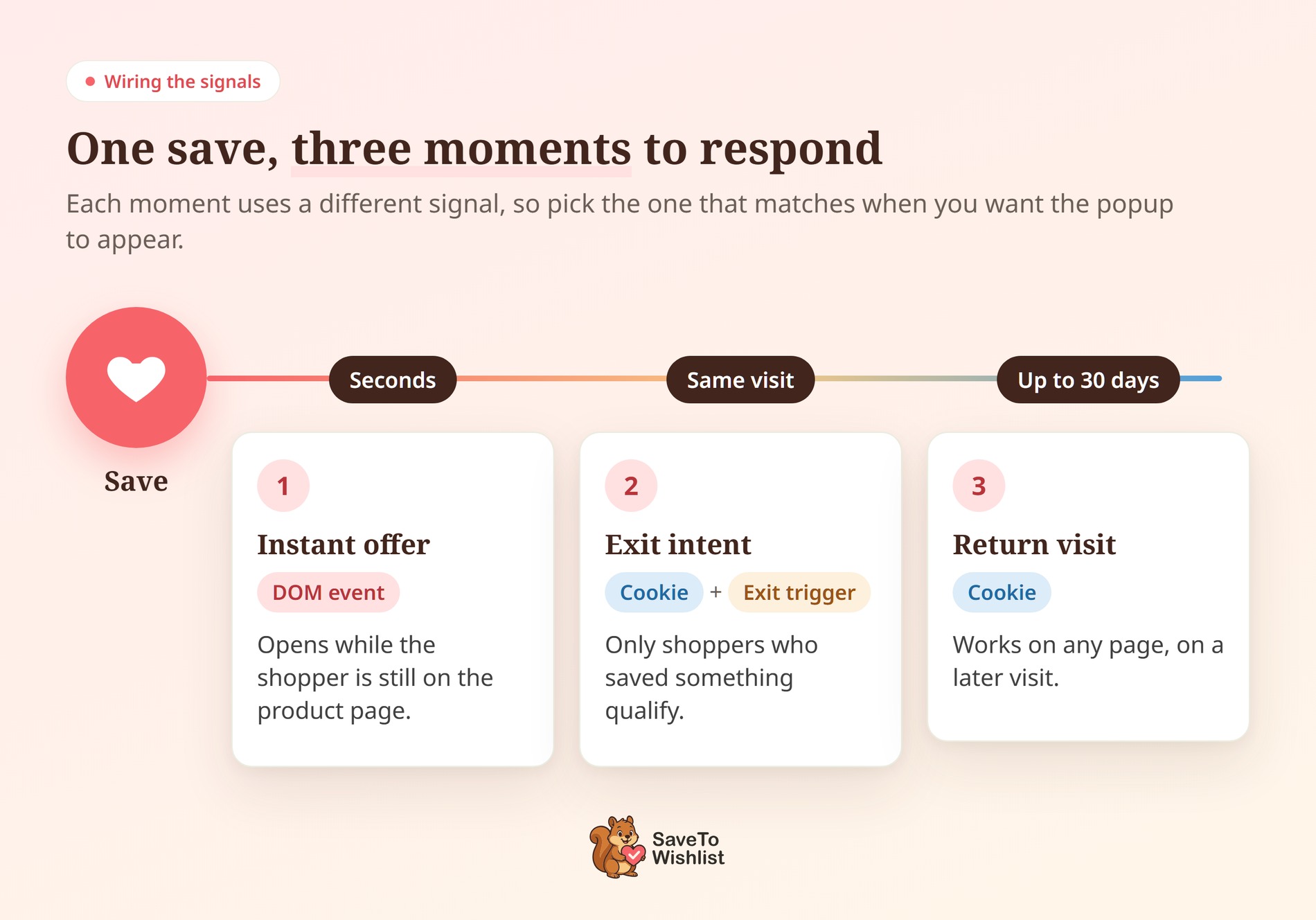
Then pick the pattern that fits the moment you want:
- Instant offer: the event listener, while the shopper is still on the product page.
- Exit intent, same visit: your tool’s exit-intent trigger plus a cookie condition, so only savers qualify.
- Return visit: the cookie condition alone, on any page, for 30 days.
🔍️ What we’ve seen: Store owners wire the event, test it once, and ship. Then the popup fires on every save, including a shopper’s third and fourth in one session. Add a frequency cap in your popup tool, because the signal reports every save and leaves the judgment to you.
The Redirect-Mode Caveat
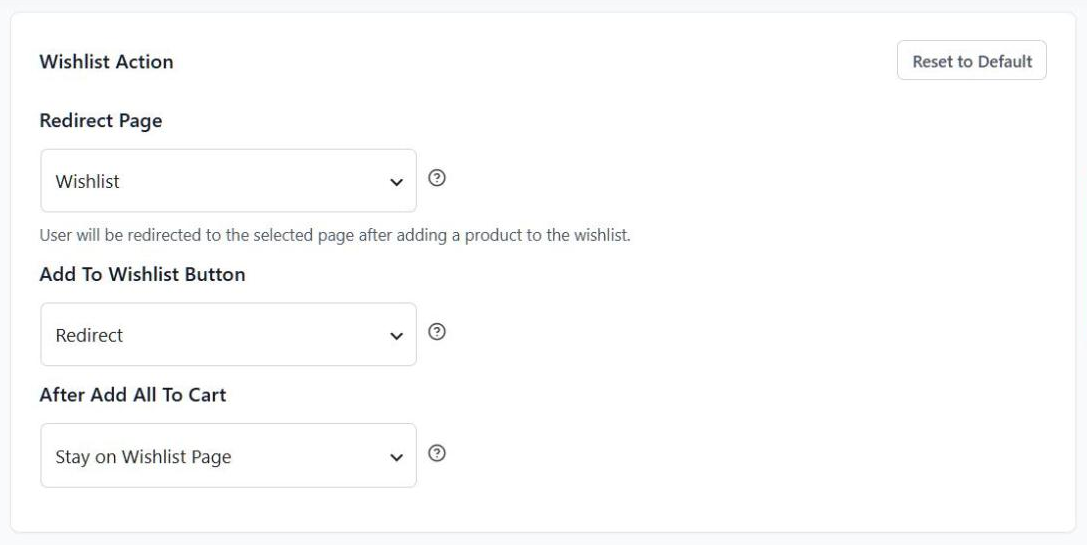
On a default install, the event approach won’t work as it stands. The Add To Wishlist Button setting ships set to Redirect, so the page navigates away once the save succeeds. The event still fires, but your listener leaves with the page.
You’ll find the setting under Wishlist > Settings > General > Add To Wishlist Button. It has three options: Redirect, Popup and Fade. The same limit applies to the Popup Maker trigger, since it listens for that event.
You have two ways forward. Switch the setting to Popup or Fade, and the shopper stays on the page. Alternatively, keep Redirect and build on the cookie, which survives the navigation.
Switching to Popup has a side benefit for guests. The confirmation popup can show a login or create-account link, which nudges more guest lists into an account. Still, if you aren’t sure how a store is set up, build cookie-first. Cookie logic works in all three modes.
The Privacy Setting That Switches The Signals Off
Since Lite 1.1.8, you can turn both signals off with one switch. It lives under Wishlist > Settings > General > Privacy, labeled “Enable Wishlist Add Signal Cookie”. It’s on by default.
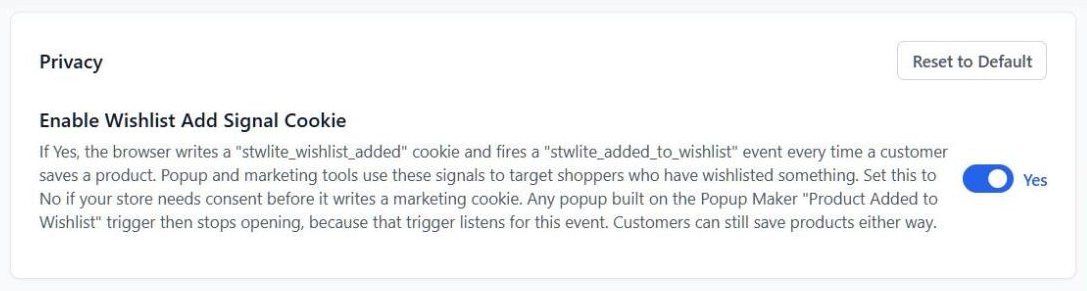
Turn it off if your store needs cookie consent before it writes a marketing cookie. Shoppers can still save products either way. Plus, any cookie left from before is cleared on the next page load.
That said, the trade-off is real, so plan for it. The Popup Maker trigger stops opening popups for everyone. The “Customer Has Wishlisted Products” condition stops matching guests, though logged-in customers still match. Any custom code listening for the event or cookie goes quiet too.
What To Put In The Popup
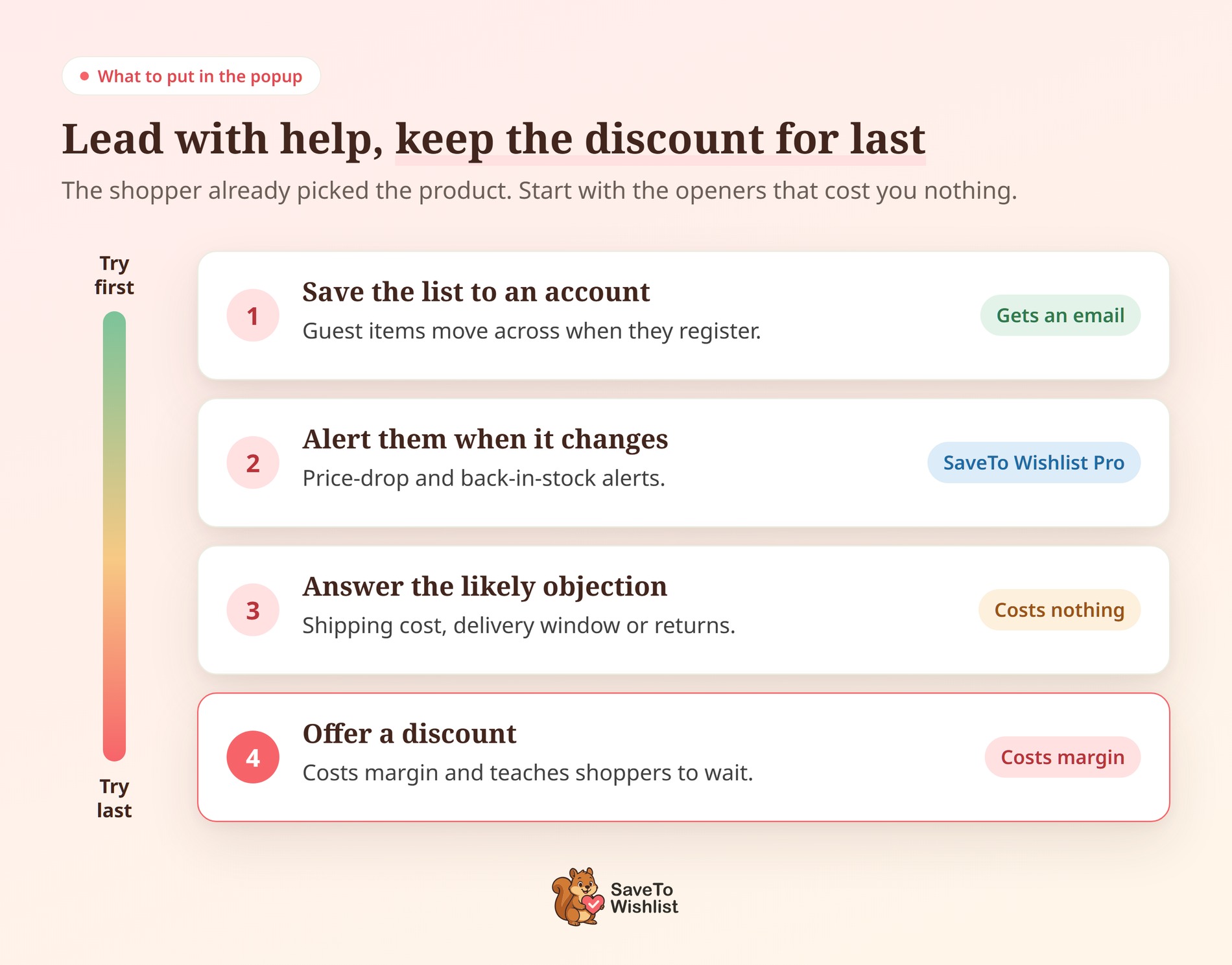
Lead with something the shopper wants, not a discount. They saved the item instead of buying it, and that pause isn’t always about price. Here are four openers that tend to earn the interruption.
Offer to save the list to an account
Guest wishlists live in the browser, so a list doesn’t follow the shopper to another device. When a guest logs in or registers, the items they saved move across into their account. That makes the offer a real favor, and it gets you an email address.
Offer an alert when the item changes
SaveTo Wishlist Pro adds price-drop and back-in-stock alerts, plus automations and webhooks. So a shopper who hesitated on price hears about the drop, without you chasing them by hand.
Answer the likely objection
State the shipping cost, delivery window or returns policy plainly. If one of those caused the pause, the answer can do more work than a coupon.
Keep the discount for last
A discount costs margin on every order it touches. Used often, it also teaches repeat shoppers to wait for the popup.
I’d pick one opener per popup and test it against the next. The save tells you who to ask, so the popup only has to ask well.
How To Test It Before You Ship
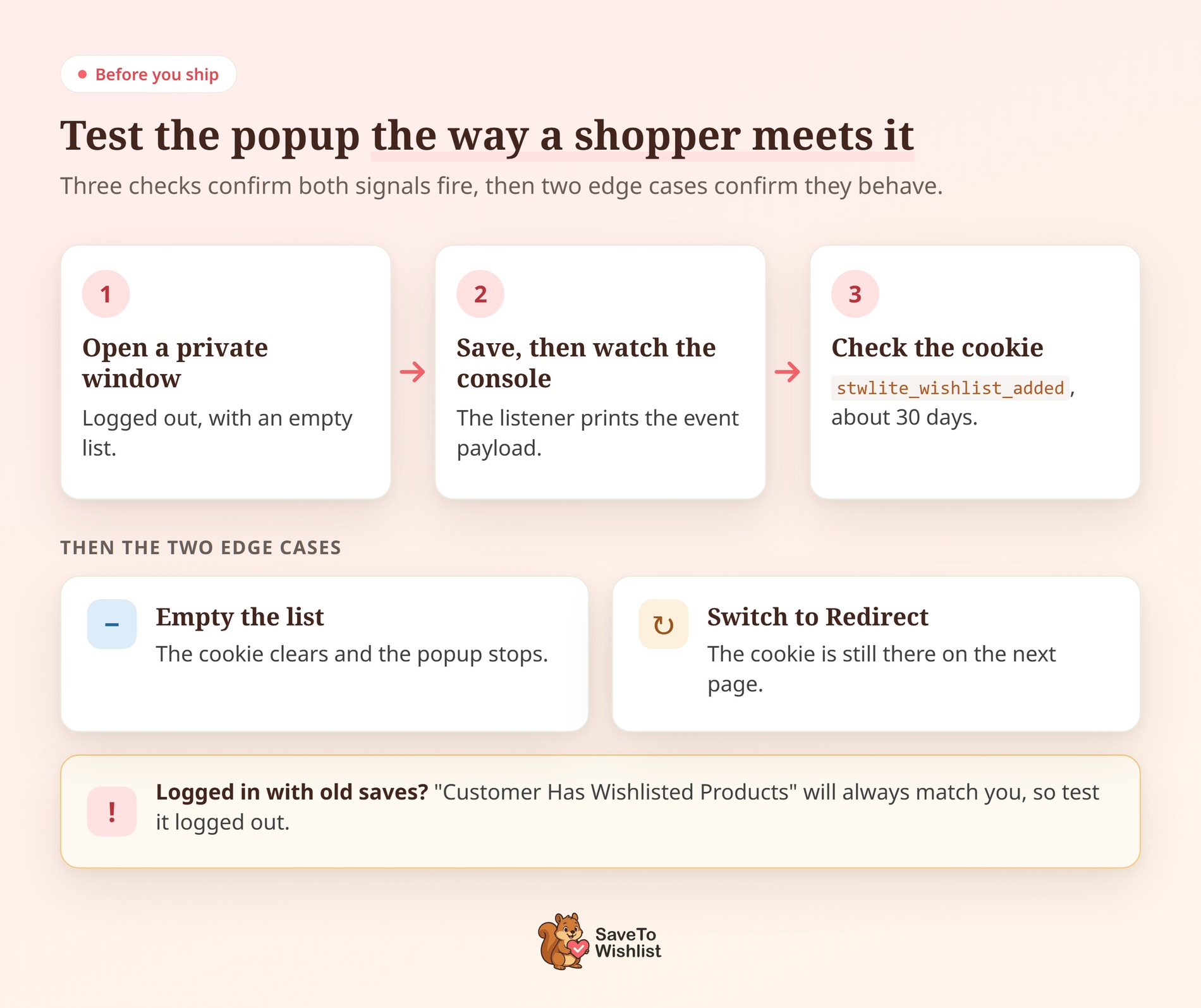
Test as a guest first, in a private browser window. You won’t be logged in, and you’ll start with an empty list, the same as a new shopper.
Before you save anything, open your browser’s developer tools and paste this into the Console tab:
document.addEventListener('stwlite_added_to_wishlist', function (e) { console.log(e.detail); });Now save a product. The console should print the payload, for example {productId: 1303, collectionId: 0}. If nothing prints, check the button action first, because Redirect leaves the page before the console can show it.
Next, check the cookie. In Chrome, that’s the Application tab, then Cookies, then your store’s address. Look for stwlite_wishlist_added holding the product ID, with an expiry about 30 days out.
Then run the two cases that most often get missed:
- Empty the list. Remove every saved product and reload. The cookie should be gone, and a cookie-gated popup should stop appearing.
- Try Redirect mode. Set Add To Wishlist Button to Redirect and save again. The cookie should still be there on the page you land on.
🔍️ What we’ve seen: The popup keeps appearing for the store owner, even after the cookie is cleared. That’s expected. “Customer Has Wishlisted Products” matches logged-in customers from their saved wishlists, so an admin with old test saves always qualifies. Test that condition logged out, or empty your own wishlist first.
Frequently Asked Questions About Wishlist-Triggered Popups
Does this work for guest shoppers?
Yes, and guests are often the shoppers who need it most. Both signals fire for guests, with collectionId set to 0 because guest items live in the browser. Since a guest list stays on one device, “save this list to an account” is a useful offer.
Which popup plugins can use these signals?
Any popup tool that can open from JavaScript or check a cookie. Both signals are standard browser features, so there’s no proprietary API involved. Popup Maker gets a built-in trigger and condition, but it isn’t required.
Do I need to turn the signals on first?
No. Both signals are on by default whenever SaveTo Wishlist is active. You’d only visit the setting to switch them off, under Wishlist > Settings > General > Privacy.
Will these signals slow my store down?
Firing one DOM event and writing one small cookie are light operations. They also run only on a successful save, not on every page load. We haven’t published a benchmark, so treat this as reasoning rather than a measured figure.
Does this work with page caching?
The event and the cookie run in the browser, so caching doesn’t block them. However, the Popup Maker condition is checked when the page renders. If you use a full-page cache, exclude the stwlite_wishlist_added cookie so each visitor gets their own answer.

Make Your WooCommerce Exit Intent Popup Smarter
Start from the save, not the popup. Most stores write the popup first, then hunt for someone to show it to. Starting from the save reverses that, because you already know the product and the moment.
Here’s the short version:
- Why A Wishlist Save Is A Better Trigger Than A Page View: target shoppers who named a product.
- The Two Signals SaveTo Wishlist Emits On Every Save: pick the event or the cookie.
- Using Popup Maker Without Writing Code: use the built-in trigger and condition.
- Wiring It To Any Other Popup Tool: add the listener, then cap the frequency.
- The Redirect-Mode Caveat: check the button action first, since Redirect is the default.
- The Privacy Setting That Switches The Signals Off: know what stops working if you need consent first.
- What To Put In The Popup: offer the account or the alert before the discount.
- How To Test It Before You Ship: test as a guest, then check the event and the cookie.
Popups are the on-site half of this. Turning the same saves into email campaigns runs through your CRM, and that’s a separate setup.
SaveTo Wishlist Lite is free and sends both signals on its own. You can wire one popup to the cookie this week. For alerts and webhooks, SaveTo Wishlist Pro starts at Growth: $49.50 the first year, renewing at $99. Plus ($99.50, then $199) and Business ($199.50, then $399) are on the pricing page.


 SaveTo Wishlist