

 Reviewed by
 A customer lands on your store and spends ten minutes comparing options. They save four products to a wishlist, then close the tab. Your email tool never hears a thing. No follow-up goes out, because nothing registered as an event.
That gap is common. Most WooCommerce automation tools trigger on carts and orders. A wishlist save is a clear buying signal. Until recently, though, acting on it meant hand-wiring a webhook.
That’s changed. SaveTo Wishlist registers three wishlist events as native triggers inside FunnelKit. The FunnelKit Automations wishlist triggers behave like any other starting point in the builder.
I’ve seen plenty of stores treat wishlists as a frontend nicety and stop there. Below is what the integration does and how to switch it on. I’ll also cover which automations are worth building first.
Jump to:
- Why Wishlist Activity Makes A Better Trigger Than A Cart
- What Does The FunnelKit Automations WooCommerce Wishlist Integration Do?
- What You Need Before You Start
- How To Set Up Wishlist Triggers In FunnelKit Automations
- Four Automations Worth Building First
- Limits To Know Before You Rely On Wishlist Triggers
- FAQs: FunnelKit Automations WooCommerce Wishlist Integration
- Put Your Wishlist Data To Work
Why Wishlist Activity Makes A Better Trigger Than A Cart
A wishlist save tells you what someone wants before they’re ready to pay. And that’s exactly the window an automated email can work in.
Cart data arrives late. According to the Baymard Institute, the average cart abandonment rate sits at 70.22%, calculated across 50 separate studies. An abandoned cart email sequence is the standard answer. However, it only fires once a shopper reaches the cart.
The bigger reason people leave isn’t a broken checkout. Baymard’s survey work spans nine studies and 11,777 participants. In it, 42% abandoned because they were “just browsing / not ready to buy”. In other words, those shoppers were never going to finish that day.
A wishlist hands you both halves of the problem. Specifically, you get the product someone wants, plus a deliberate signal that they want it. By contrast, browse abandonment has to infer interest from page views.
Nobody saves a product by accident, which is what makes the signal so clean. And if you want to track what happens next, our guide to wishlist conversion rate covers what to measure.
🔍️ One thing we see constantly: a store builds a cart recovery sequence, calls email done, then leaves wishlist data untouched. The cart sequence catches people who nearly bought. Meanwhile, a wishlist sequence catches everyone still deciding. That’s usually the larger group.
What Does The FunnelKit Automations WooCommerce Wishlist Integration Do?

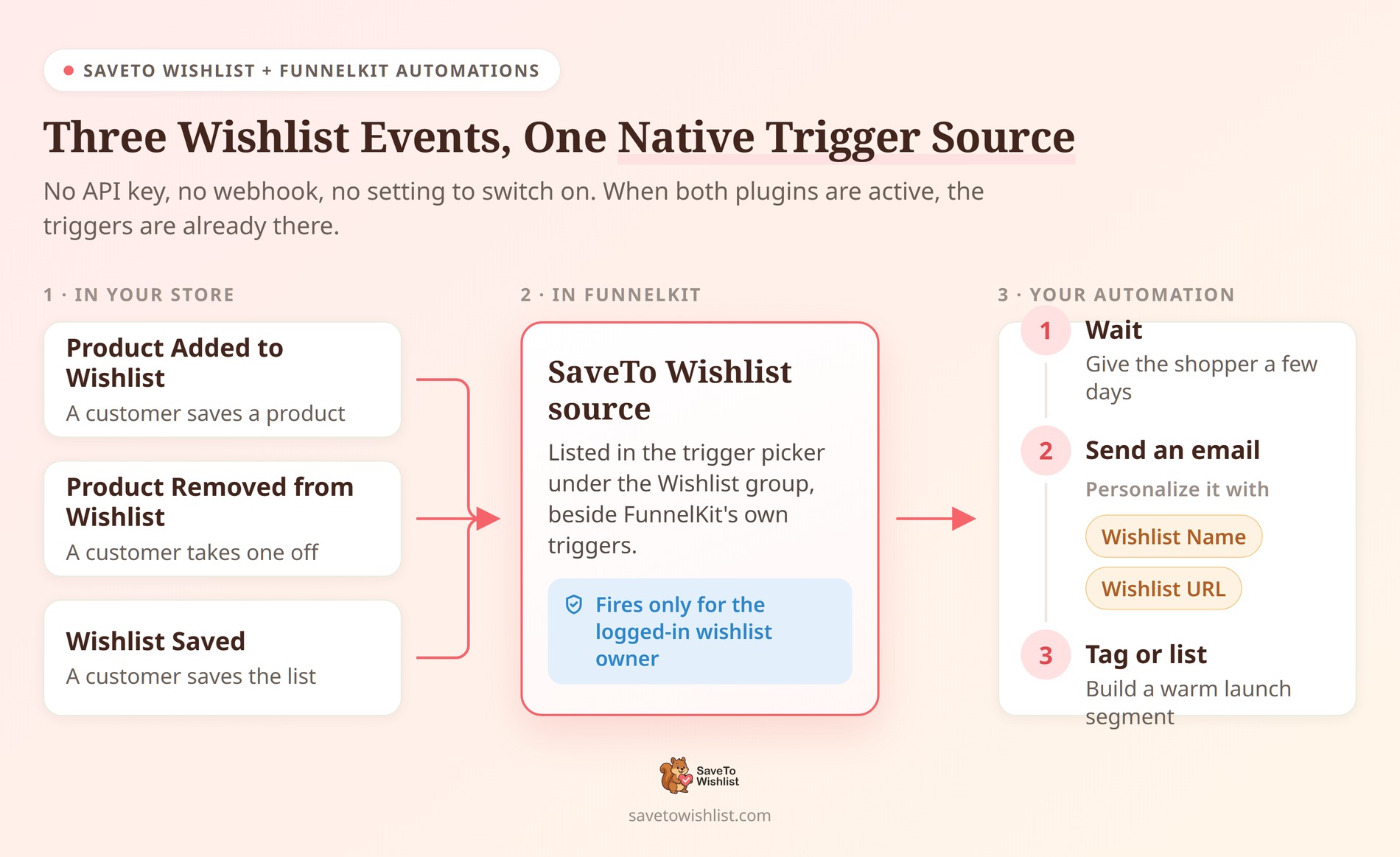
It registers SaveTo Wishlist as its own trigger source inside FunnelKit. You get three events and two merge tags. The integration shipped in SaveTo Wishlist 1.1.2. There’s nothing to configure on the SaveTo Wishlist side.
Everything runs on your own site. There’s no API key to paste and no webhook URL to build. As a result, nothing sits between the two plugins. FunnelKit Automations already runs inside WordPress, so the two talk directly.
| Trigger | Fires when |
|---|---|
| Product Added to Wishlist | A logged-in customer adds a product to their own wishlist |
| Product Removed from Wishlist | A logged-in customer removes a product from their own wishlist |
| Wishlist Saved | A logged-in customer saves their own wishlist |
In the builder they sit under a source called “SaveTo Wishlist”. From there, look for the group heading “Wishlist”. They line up beside FunnelKit’s own WooCommerce and WordPress triggers.
The two merge tags
Both tags live under the SaveTo Wishlist group in FunnelKit’s merge tag picker. They work in any email an automation sends.
- Wishlist Name (
stwlite_wishlist_name): the name of the wishlist that fired the automation. - Wishlist URL (
stwlite_wishlist_url): a shareable link straight back to that wishlist.
The two product events also carry FunnelKit’s own WooCommerce product tags. So an email can name the exact item that was saved. Wishlist Saved doesn’t, because a save isn’t scoped to one product.
What it doesn’t send
- Guest activity. A shopper who isn’t logged in never enters an automation.
- Changes made on a customer’s behalf. Wishlist edits from the admin side or an importer don’t enrol anybody.
- The whole wishlist. An event carries the wishlist that fired it plus the product involved, and nothing more.
What You Need Before You Start
Four prerequisites, and the integration itself needs no configuration.
- SaveTo Wishlist 1.1.2 or later. The free SaveTo Wishlist Lite version is enough. There’s no setting to switch on and no licence key. Our setup walkthrough covers the basics.
- FunnelKit Automations, installed and active. All three wishlist triggers work on the free version. Conditions and rules need FunnelKit Automations Pro.
- A wishlist page selected in SaveTo Wishlist. Without one, the Wishlist URL merge tag has nowhere to point. It resolves to an empty string instead of a link.
- Customers with accounts. The triggers only enrol a logged-in shopper acting on their own wishlist.
How To Set Up Wishlist Triggers In FunnelKit Automations
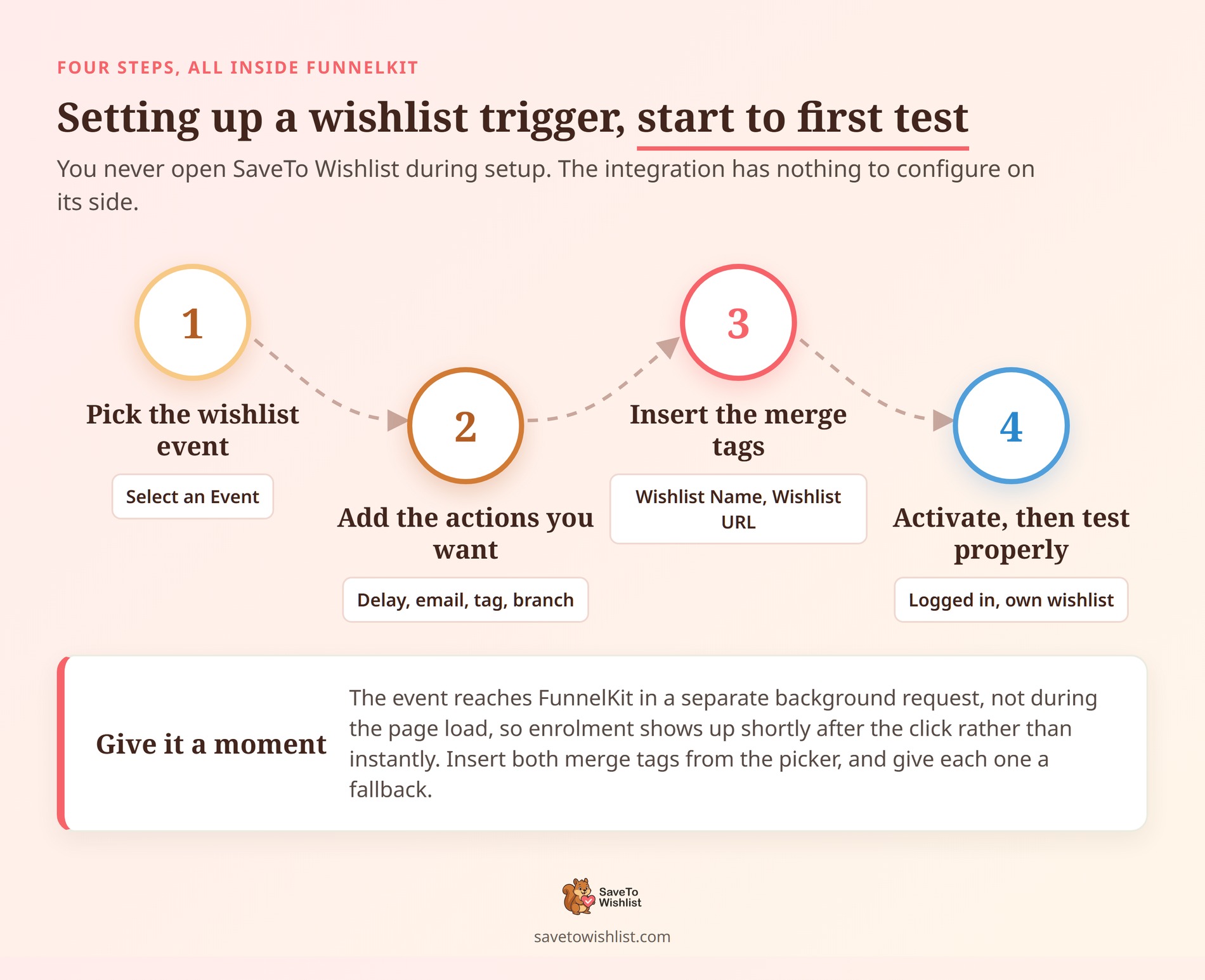
Setting up a FunnelKit Automations WooCommerce wishlist workflow happens entirely inside FunnelKit, so you won’t need to open SaveTo Wishlist once.
Create the automation and pick a wishlist event
- In your WordPress dashboard, open FunnelKit Automations and go to the Automations screen.
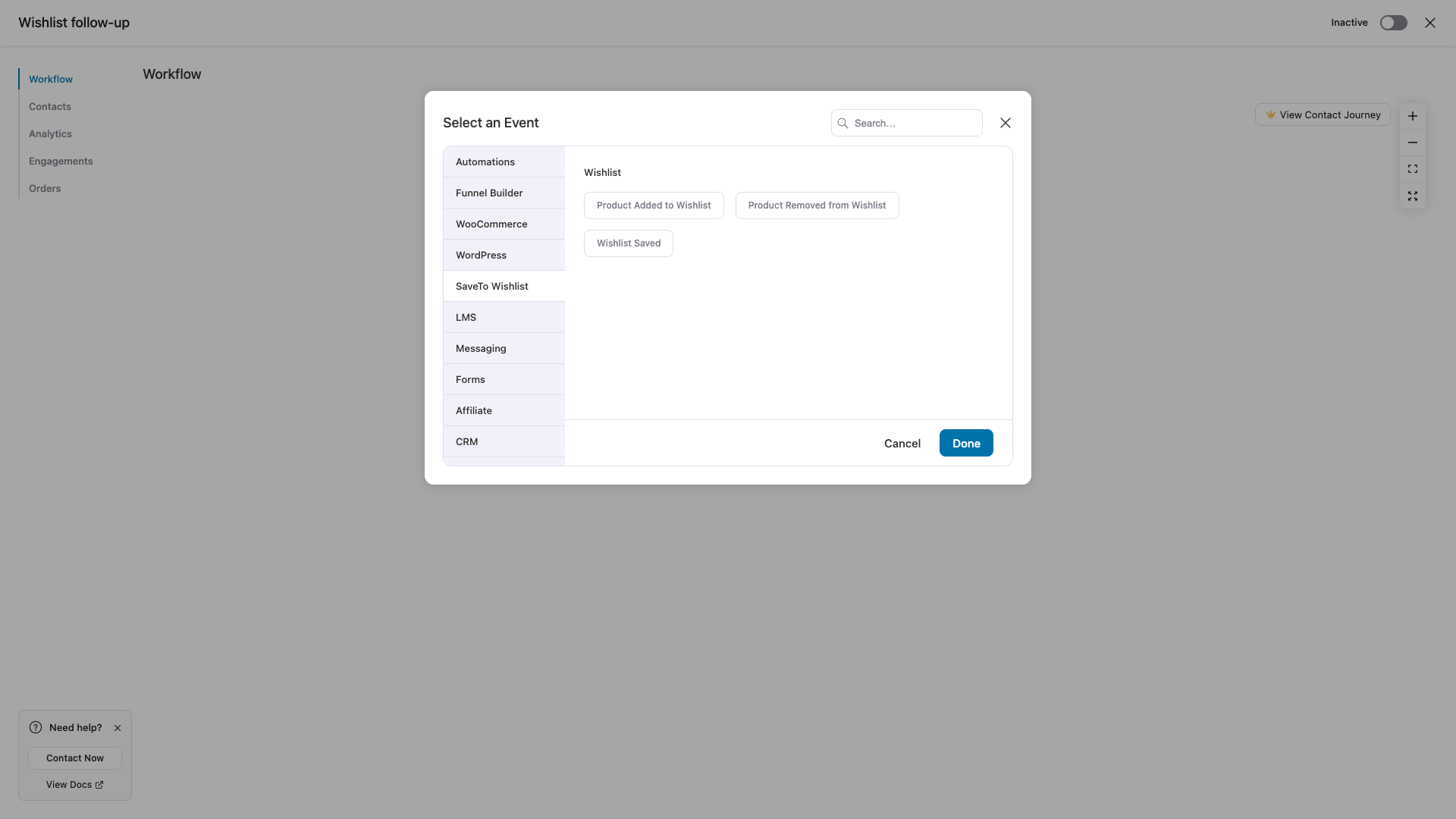
- Create a new automation. FunnelKit opens its trigger picker, a modal titled “Select an Event”.
- In the left-hand list of sources, choose SaveTo Wishlist.
- Under the Wishlist heading, select the event you want, then confirm.
Add the actions you want to run
From here it behaves like any other FunnelKit automation. Add a delay, send an email, apply a tag, or branch the path. The wishlist trigger doesn’t restrict which actions you can use.
In practice, start with one email. A single well-timed message beats an untested five-step sequence. Plus, it makes the reporting much easier to read later.
Personalize with the wishlist merge tags
Open FunnelKit’s merge tag picker inside the email action and find the SaveTo Wishlist group. Insert Wishlist Name where you want to name the list. Insert Wishlist URL wherever the customer should be able to click back.
Generally, inserting from the picker beats typing the tag by hand. It writes the exact syntax FunnelKit expects.
Both tags accept a fallback value, and both are worth giving one. After all, a customer can save a wishlist without ever naming it. Wishlist URL also comes back empty if the wishlist page is missing.
There’s more you can do with saved-product data in our WooCommerce personalization guide.
Here’s a detail that trips people up. During email preview mode, the Wishlist Name tag displays placeholder text (“My Wishlist”), which automatically populates with the customer’s actual wishlist name upon live delivery.
Activate it, then test it properly
Activate the automation, then log in as a real test customer. Then add a product to that account’s own wishlist. Testing from an admin account against someone else’s list won’t enrol anyone, and that’s deliberate.
Still, give it a moment before judging the result. The event goes to FunnelKit in a separate background request, not during the page load. So enrolment shows up shortly after the click, not in the same moment. And if no email arrives at all, that’s usually an email delivery problem rather than the trigger.
Four Automations Worth Building First
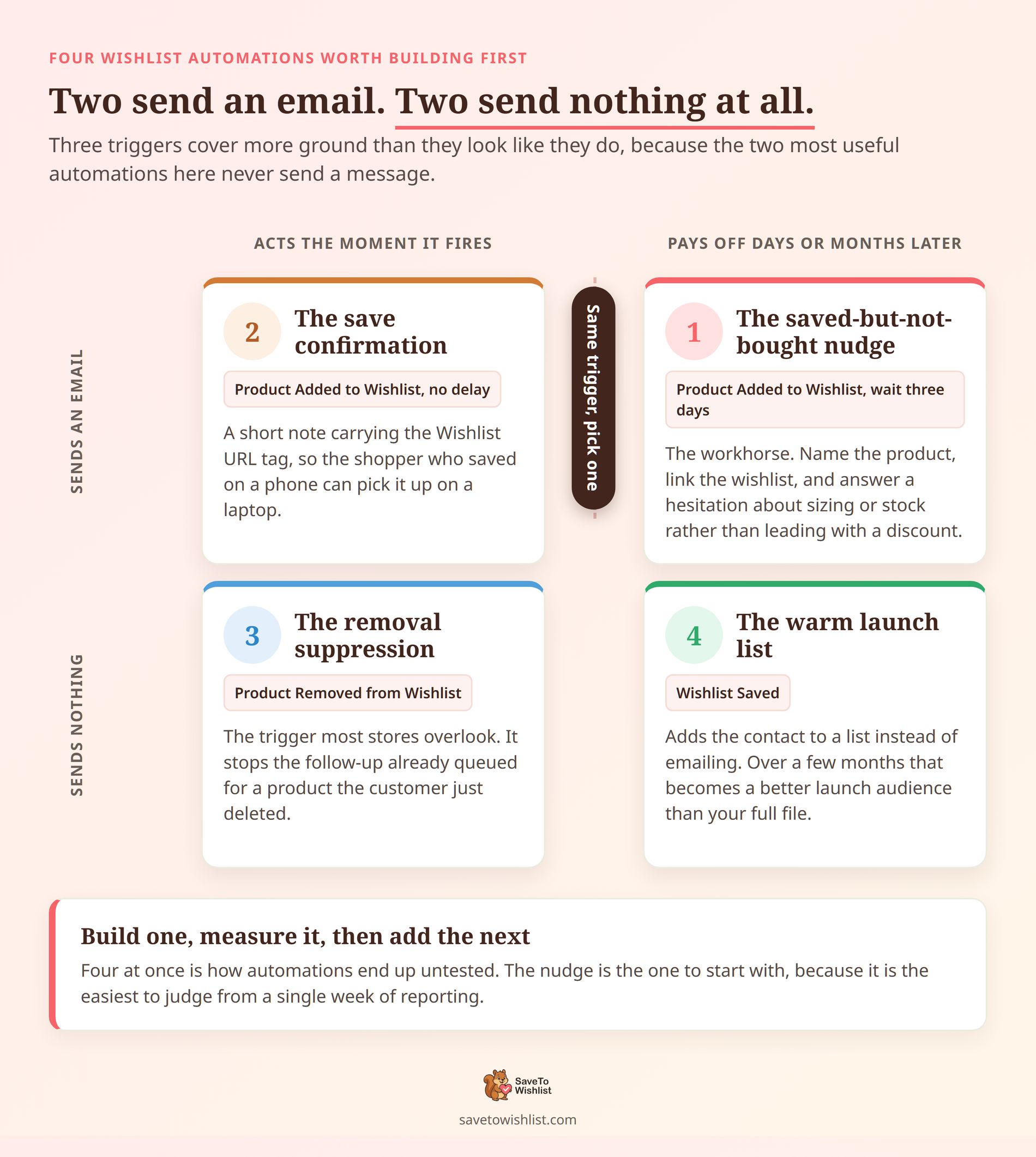
These three triggers make a small toolkit, but they cover most of what a FunnelKit Automations WooCommerce wishlist strategy is built for. Here are the four I’d build, in order.
The saved-but-not-bought nudge
Trigger on Product Added to Wishlist, wait three days, then send one email. In the email, name the product and link back to the wishlist. This one is the workhorse.
That said, resist the urge to lead with a discount. The shopper hasn’t said no yet. As a rule, a first message answering a hesitation does more work than money off. Think sizing, shipping, stock, or returns.
A save confirmation that earns the next click
Trigger on Product Added to Wishlist with no delay. Send a short confirmation with the Wishlist URL tag in it. It especially helps customers who save on a phone and buy on a laptop.
Pick this or the three-day nudge, not both. Otherwise, two emails for a single save reads as pestering. Our guide to wishlist email marketing covers gentler ways to build the habit.
Treat a removal as a signal, not a silence
Product Removed from Wishlist is the trigger that’s easiest to overlook. It’s most useful as a suppression step. So when a customer removes an item, stop the follow-up that was queued for it.
An email about a product someone deleted an hour ago lands badly. On top of that, removal doubles as soft feedback. A product that’s saved often and removed often is usually telling you something about price or stock.
A warm list for launches and sales
Trigger on Wishlist Saved and, instead of sending anything, add the contact to a list. Over a few months, that builds a segment of deliberate browsers. As a result, that’s a better launch audience than your full subscriber file.
It’s also the natural starting point for a win-back campaign aimed at savers who never converted. Our piece on how wishlists power ecommerce email campaigns goes wider on the strategy.
Build one, measure it, then add the next. Four at once is how automations end up untested.
Limits To Know Before You Rely On Wishlist Triggers
The FunnelKit Automations WooCommerce wishlist feature is deliberately conservative about who it enrols. Still, knowing where those lines sit saves a lot of confused debugging.
- Guest shoppers are excluded from entering automations. Only a logged-in customer with a resolvable email address enters an automation. If most of your saves come from guest wishlists, account creation is the lever worth pulling.
- Only the owner, acting for themselves. Being able to edit someone’s wishlist isn’t consent to email them. Admin-side edits and bulk imports never fire a trigger.
- Automatic wishlists don’t count. SaveTo Wishlist creates a default wishlist behind the scenes, and that doesn’t register as a save.
- Enrolment isn’t instant. Events are dispatched in a background request, so allow a short delay before assuming something broke.
- Filtering needs FunnelKit Automations Pro. The triggers run on the free version, but conditions and rules don’t. On the free plan, all contacts who trigger the event enter the automation, while advanced conditional filtering is available with FunnelKit Automations Pro.
- Adds fire per product. A shopper saving six items in one session fires the add event six times.
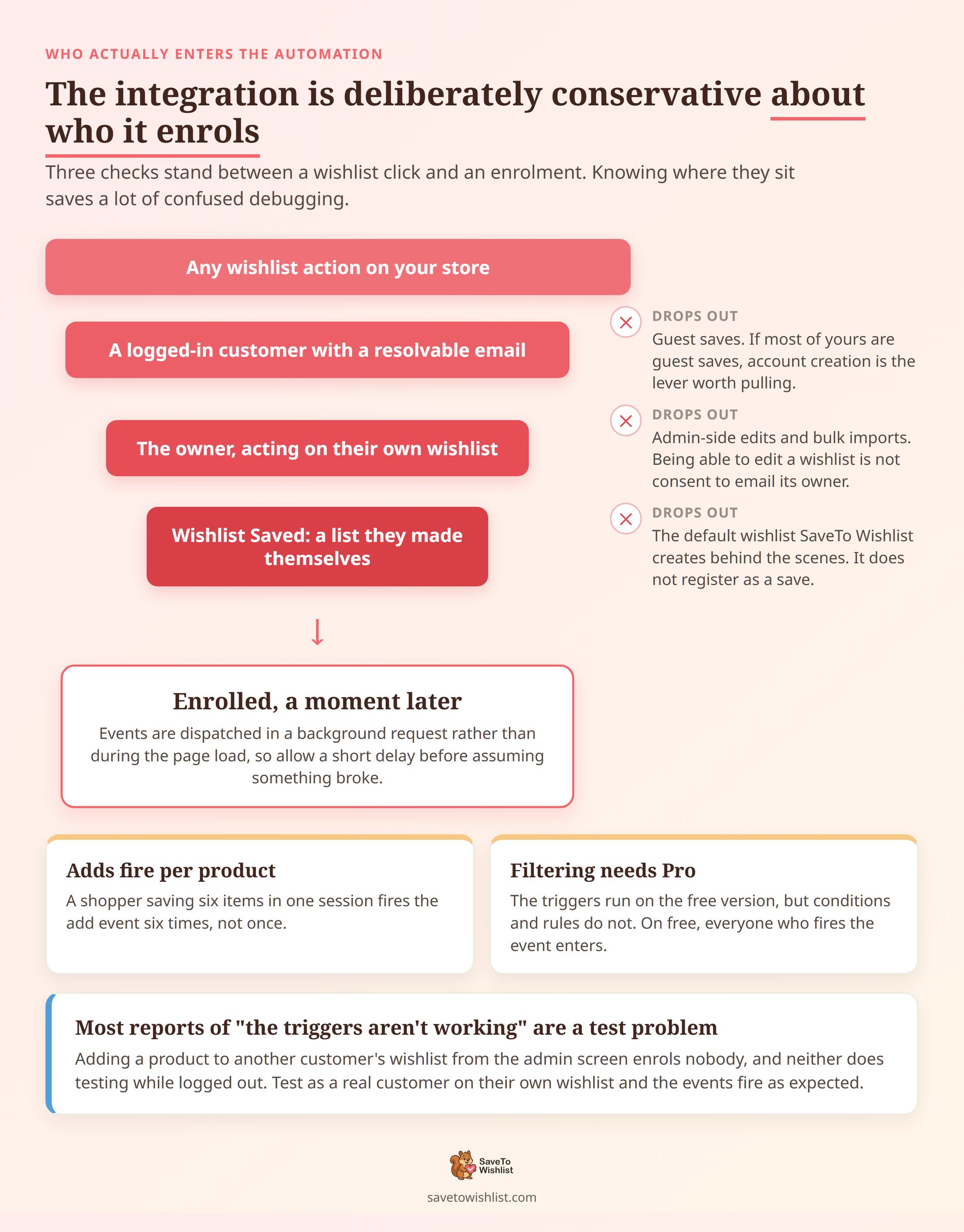
Here’s a pattern we run into often. Someone reports that the triggers aren’t working, and the test itself is the problem. Adding a product to another customer’s wishlist from the admin screen won’t enrol them. Neither will testing while logged out.
Test as a real customer, on that customer’s own wishlist, and the events fire as expected. For the raw event details, our knowledge base article goes a level deeper.
FAQs: FunnelKit Automations WooCommerce Wishlist Integration
Do I need SaveTo Wishlist Pro for this integration?
No. The integration ships in the free Lite version from 1.1.2 onwards. There’s no separate add-on to buy and no licence key to enter. SaveTo Wishlist Pro adds its own automation engine, analytics, and webhooks, but none of that is required here.
Does it work with the free version of FunnelKit Automations?
Yes. All three wishlist triggers are fully usable on the free version. The one thing you give up is conditions and rules. That feature filters which contacts are allowed in, and it needs FunnelKit Automations Pro.
Can guest shoppers trigger a wishlist automation?
No. A trigger only fires for a logged-in customer acting on their own wishlist. An automation can send email, and there’s no reliable address behind an anonymous save.
Guests can still use wishlists normally. Their activity just stays out of FunnelKit.
Why is the Wishlist URL merge tag coming out empty?
Usually because no wishlist page is selected in SaveTo Wishlist, which leaves the tag nowhere to point. The other cause is a wishlist deleted between the trigger firing and the email sending. Setting a fallback value on the tag covers both cases.
Will renaming a wishlist break an automation?
No. The wishlist name is looked up when the email sends, so a renamed list shows its new name. The source and event identifiers written into your saved automations are permanent. They won’t be changed in a later release.
Can I use this alongside another marketing tool?
Yes. SaveTo Wishlist ships integrations for several marketing platforms, and they operate independently. If you run something else, our guide to turning wishlist data into FluentCRM segments covers the same ideas. There’s broader context in our piece on wishlist data in your CRM.
Put Your Wishlist Data To Work
Wishlist automations don’t replace your cart sequence. Instead, they sit in front of it. You’re catching people while they’re still deciding, not after they’ve walked away.
That earlier window is where a well-written email has the most room to change an outcome. Better yet, there’s little to maintain. No API keys expire, no webhook quietly stops firing, and there’s no sync to watch.
Here’s where to start:
- Confirm you’re on SaveTo Wishlist 1.1.2 or later with FunnelKit Automations active, using the requirements list.
- Build one automation on the Product Added to Wishlist trigger by following the setup steps.
- Add the Wishlist Name and Wishlist URL merge tags to the email, and give each one a fallback.
- Add a suppression path on Product Removed from Wishlist before scaling up, as covered in the automations to build first.
- Test as a real logged-in customer, and read the limits before concluding anything is broken.
The triggers ship in SaveTo Wishlist Lite, so your first wishlist automation costs nothing to build. The paid plans add wishlist analytics, automated emails, and user tagging on top.



