


 Reviewed by
 The SaveTo Wishlist Pro v1.0.4 update brings more of the details shoppers need onto your WooCommerce wishlist page.
Picture a shopper who saved a large red T-shirt. Their wishlist should show that shirt’s price, not a range across every size. Meanwhile, a wholesale buyer who orders by part number wants the SKU beside each item.
That’s exactly what these three updates deliver. In this article, we’ll cover each one, where its setting lives, and what it means for your shoppers.
Jump to:
1. Show Product SKUs On The Wishlist Page
Many wholesale and B2B buyers identify products by SKU, not by name. In fact, a store owner asked for this exact feature on the plugin’s support forum. So SaveTo Wishlist Pro now adds an optional SKU column to the wishlist table.
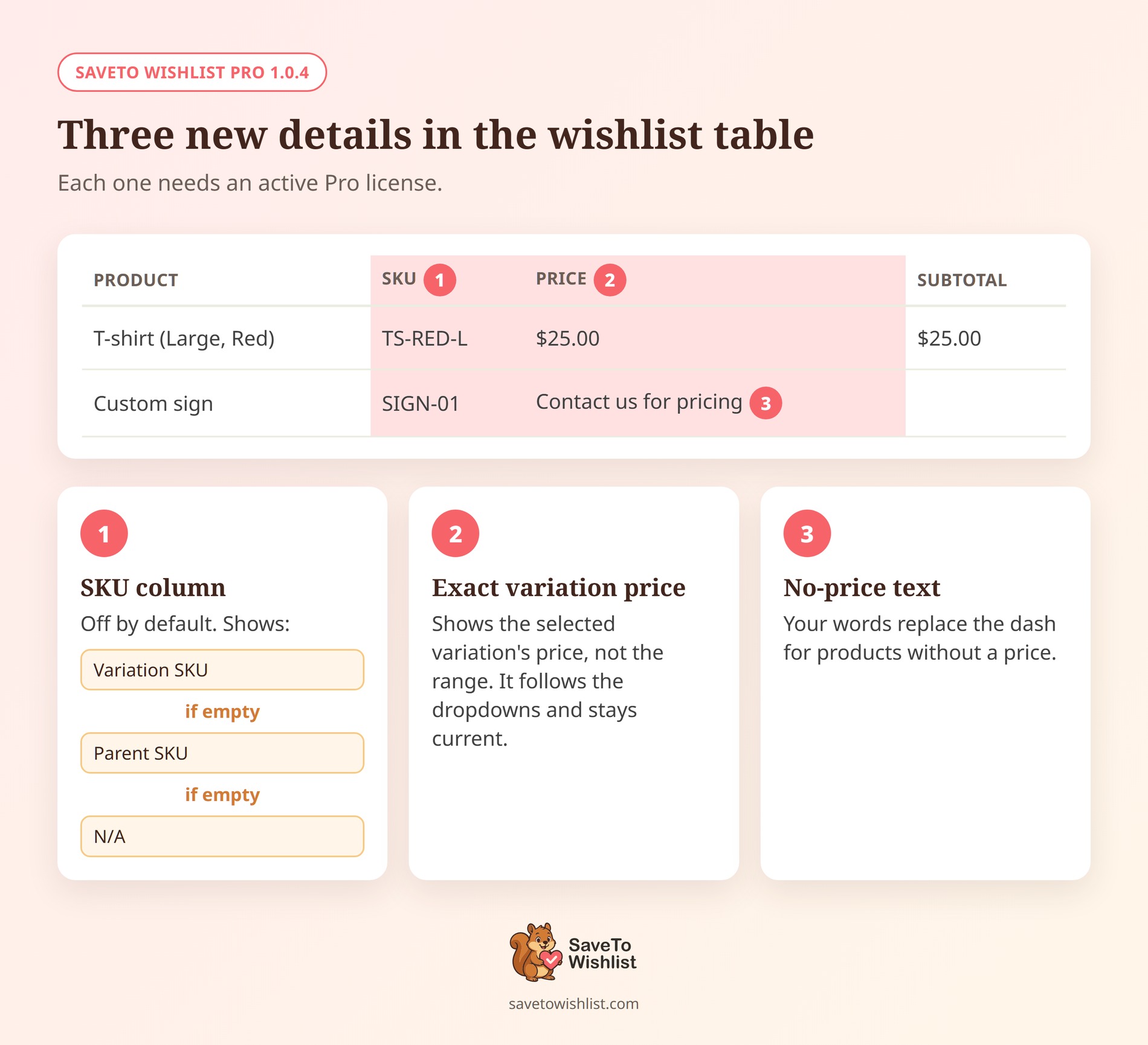
To switch it on, go to SaveTo Wishlist > Settings > Wishlist Page. Then, in the Column Visibility section, find the Wishlist Items Table heading and set Show SKU Column to Yes.
What you need to know:
- It starts switched off: Your wishlist page looks the same until you turn the column on.
- It sits after Product Name: The SKU column appears right beside the product it describes.
- Variations show their own SKU: A saved variation with its own SKU displays it. Otherwise, the parent product’s SKU fills the cell.
- Missing SKUs read N/A: A product with no SKU anywhere shows N/A, so no cell is left blank.
- It works in every view: The SKU also shows on grid view cards and on public wishlists that guests open.
🚀 Update both plugins together: Lite draws the wishlist table, so these three updates need the latest Lite alongside Pro 1.0.4. They also need an active Pro license.
2. Show The Exact Price Of The Selected Variation
Variable products now show a precise price on the wishlist page. When a shopper saves a variation, the Price column shows that variation’s price instead of the parent’s full range.
The price also follows the shopper’s choices. If they change the size or color dropdowns on the wishlist row, the price updates to match. As a result, the Price column and the Subtotal column always tell the same story.
- There’s no setting to change: It works on its own with an active Pro license.
- Prices stay current: The price is read when the page loads. So a change since the shopper saved the item shows right away.
- There’s a sensible fallback: If no variation matches, or the saved one was deleted, the parent’s price range shows.
- Other product types stay the same: Simple, grouped, and external products display exactly as before.
I think this matters most for stores with wide price spreads across sizes or materials. It also pairs nicely with tiered pricing on wishlists, where shoppers care about the exact number.
3. Add Custom Text For Products Without A Price
Some stores leave prices off on purpose. Quote-based products, made-to-order items, and wholesale-only lines are common examples. By default, the wishlist Price column shows a dash for these.
With Pro, you can now replace that dash with your own words. For example, “Contact us for pricing” tells the shopper exactly what to do next.
To set it up, go to SaveTo Wishlist > Settings > Wishlist Page > Page Content. Then fill in Text For Products Without A Price and save.
- Leave it empty to keep the dash: Nothing changes until you add your text.
- Priced products are untouched: Your text only appears where a product has no price.
- Simple formatting works: Basic HTML like bold text is kept, while scripts are stripped out for safety.
- It covers priceless variations too: Select a variation with no price, and your text shows instead of the parent’s range.
For quote-based stores, this works well alongside the Hide Disabled Add to Cart Buttons switch. Together, a priceless item gets a clear message and no dead-end button.
Frequently Asked Questions
Do I need to update both plugins?
Yes. These settings live in Pro 1.0.4, while the free Lite plugin draws the wishlist table. You need both on their latest versions, plus an active Pro license.
What shows if a variation has no SKU?
The cell falls back to the parent product’s SKU. If neither has one, it shows N/A.
Conclusion
That covers the new wishlist page updates. So you can start using them by updating SaveTo Wishlist Lite and Pro from your WordPress dashboard.
Here’s what we covered:
- An optional SKU column for B2B and wholesale buyers.
- Exact variation prices that follow the shopper’s selection.
- Custom text for priceless products, in place of a dash.
If you’re ready to try them, compare the plans on our pricing page. They’re all part of SaveTo Wishlist Pro.



