
Is your store growing beyond the basics? If you’ve been using another wishlist plugin — like YITH WooCommerce Wishlist, TI WooCommerce Wishlist, MoreConvert, or WPC Smart Wishlist — and want to take advantage of the high-performance features and modern UI of SaveTo Wishlist, we have great news. You don’t have to leave your customers’ favorite items behind.
The Wishlist Importer is a built-in tool designed for store owners who want a seamless transition. With just a few clicks, you can migrate all existing customer wishlists directly into SaveTo Wishlist, ensuring your shoppers find their saved items exactly where they left them.
By the end of this guide, you’ll know how to detect your old wishlist data, configure your migration settings, and complete a full import without losing a single product.
Prerequisites
- SaveTo Wishlist Lite installed and activated.
- Keep your source plugin activated during the import process so SaveTo Wishlist can “see” the data.
- We also recommend taking a site backup before running any data migration.
The importer currently supports data from YITH WooCommerce Wishlist, TI WooCommerce Wishlist, MoreConvert Wishlist for WooCommerce, and WPC Smart Wishlist for WooCommerce.
Why migrate your wishlists?
Moving to a new plugin usually feels like a chore, but the Wishlist Importer removes the manual labor. Whether you’re looking for better loading speeds, a more intuitive mobile experience, or the advanced analytics provided by SaveTo Wishlist, your customer data is the most valuable asset you have.
This tool ensures that the “social proof” and “intent to buy” data stored in those wishlists stays active on your site, helping you boost sales and keep customers happy.
Step-by-step: moving your data to SaveTo Wishlist
Accessing the importer tool
The importer is located right inside your plugin settings.
- Navigate to SaveTo Wishlist → Settings in your WordPress sidebar.
- Click the Imports tab.
Detecting your previous plugin
SaveTo Wishlist detects any supported wishlist plugin that’s installed and active on your site.
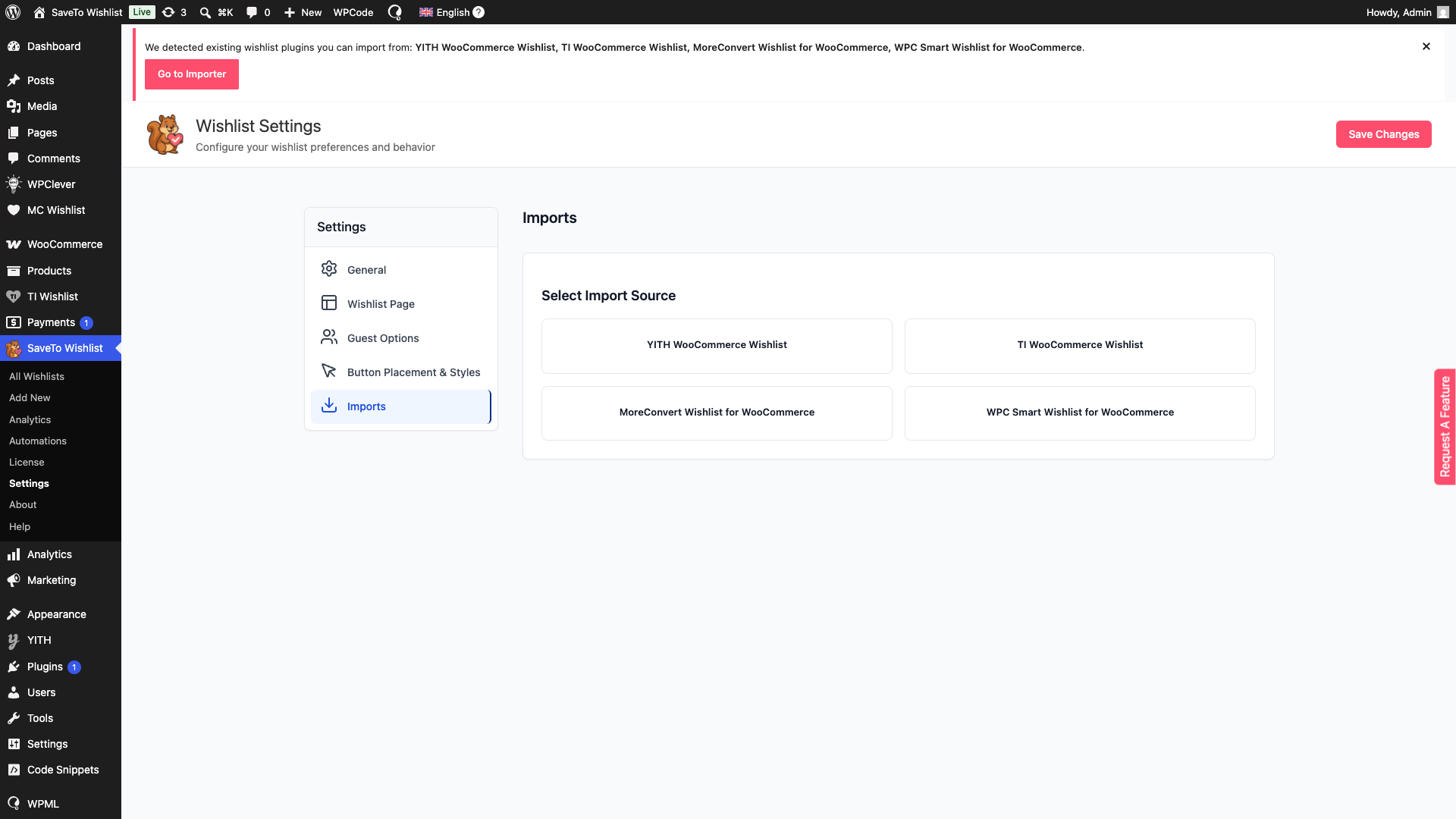
- Under Select Import Source, you’ll see a card for every active source plugin detected on your site — currently YITH WooCommerce Wishlist, TI WooCommerce Wishlist, MoreConvert Wishlist for WooCommerce, and WPC Smart Wishlist for WooCommerce.
- Click the card for the plugin you want to import from.
Previewing your migration
Before you commit, you can see exactly what is being moved.
Once you select the source, the tool processes the data and displays a summary showing the total number of wishlists, individual items, and users ready to be imported. This is a great way to verify that your data is healthy.
Configuring your import options
Every store is different, so you can choose exactly how the data should behave once it arrives.
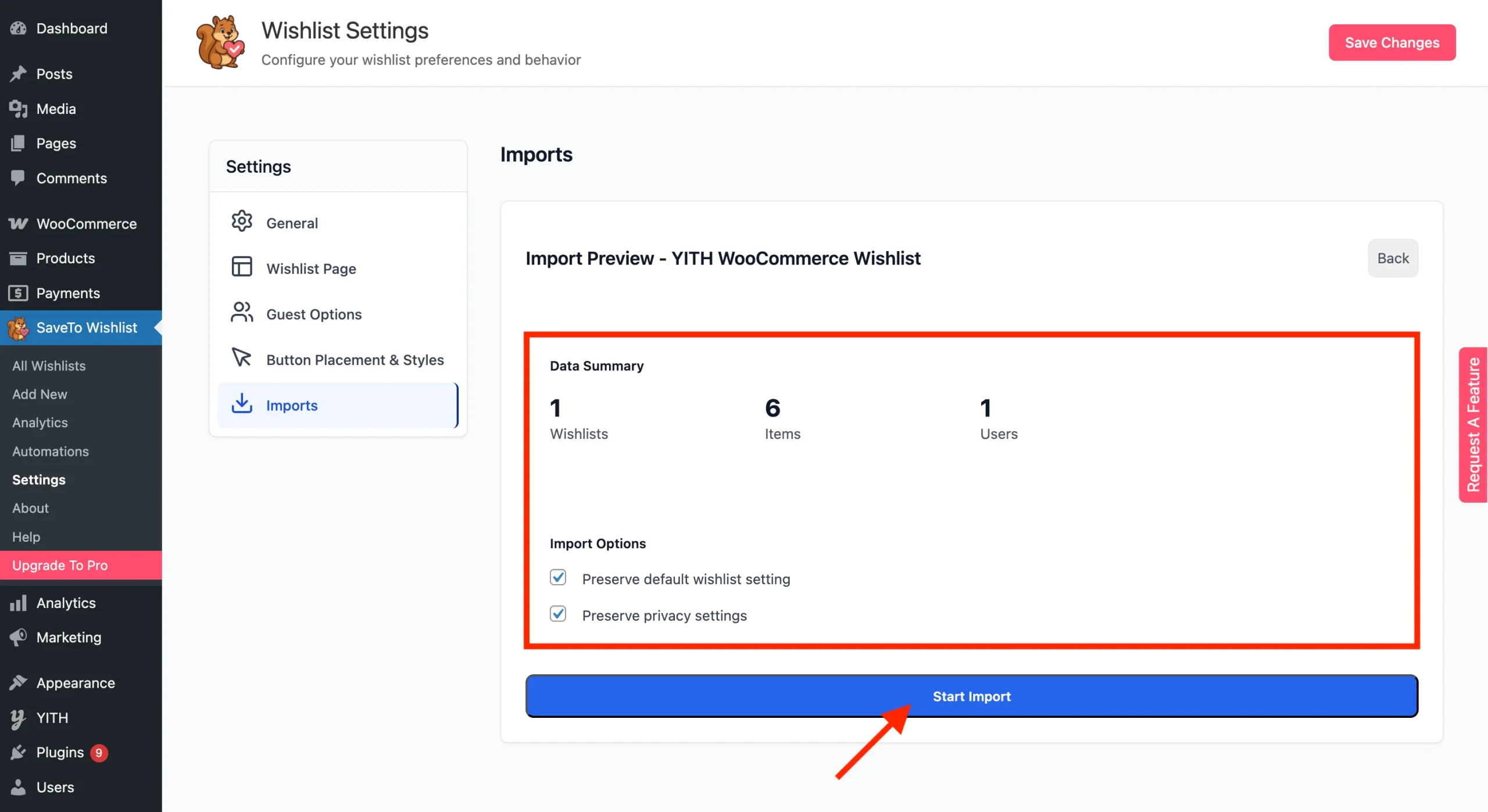
- Toggle Preserve default wishlist setting to keep each customer’s primary wishlist as their primary one after the move.
- Toggle Preserve privacy settings to keep “Public” lists public and “Private” lists private.
Launching the migration
Once you’re ready, click Start Import. You’ll see a live progress indicator showing the percentage complete.
💡 Tip:
Do not close your browser tab until the process is 100% complete to ensure all database entries are finalized.
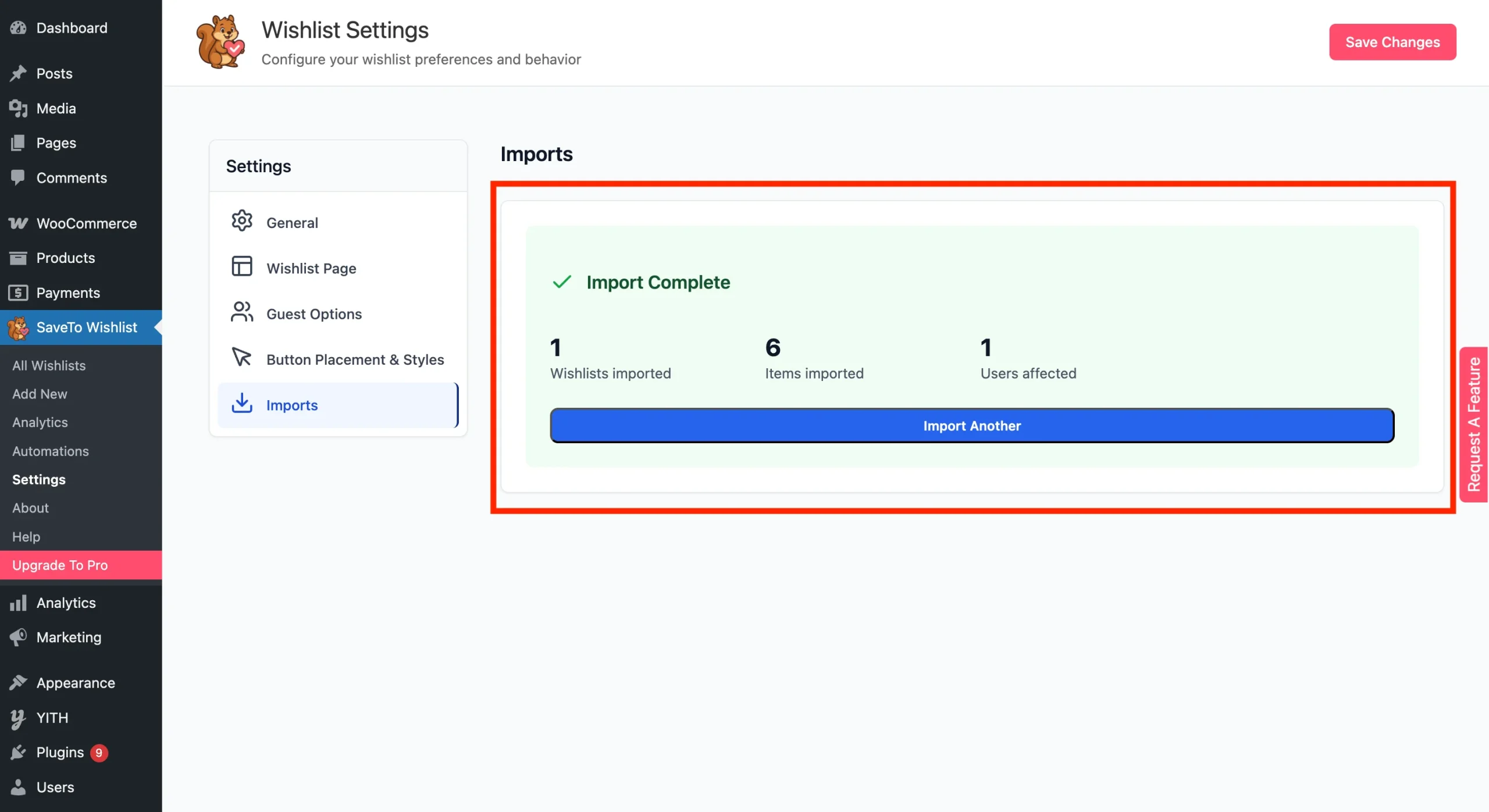
Once the bar reaches 100%, log in to your site as a test customer and open your wishlist to confirm everything imported correctly.
Optimizing your post-migration experience
Once the import is finished, your customers can immediately access their items.
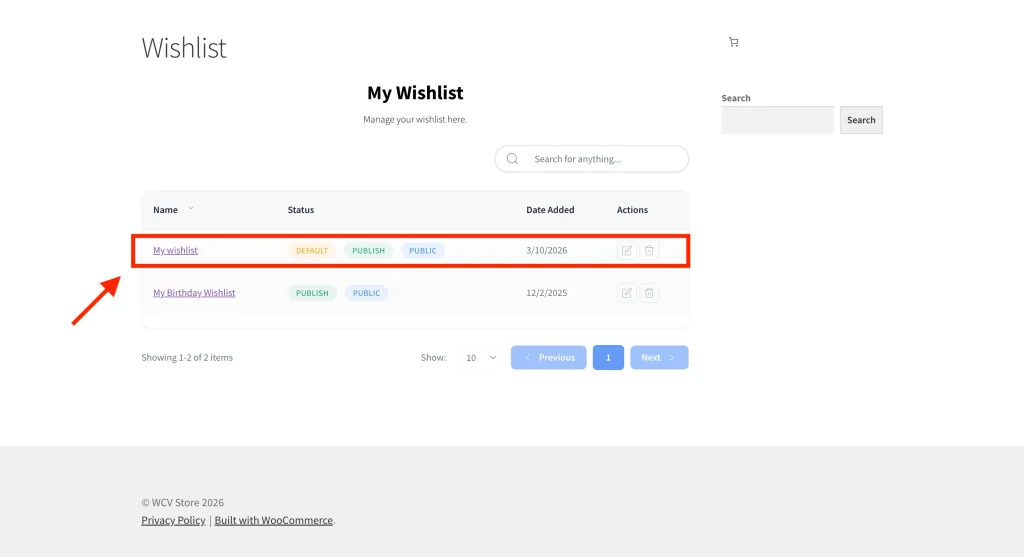
To make the transition even smoother for them, we recommend checking these areas:
- Style your buttons: Use our preset templates to make sure your new buttons match your brand perfectly.
- Update your menu: Ensure the “Wishlist” link in your navigation menu now points to the SaveTo Wishlist page. See the WordPress Menu Setup guide for core menu help.
Troubleshooting common roadblocks
⚠︎ The importer didn’t detect my old plugin.
Make sure the source plugin is both installed and active. If you’ve deactivated or deleted it, reactivate (or reinstall) it before running the import — SaveTo Wishlist only detects plugins that are currently active.
⚠︎ The import is stuck at X%.
This is usually due to “Server Timeout” on very large databases. Try increasing your server’s timeout limit, then refresh the page and run the importer again.
⚠︎ Some images are missing from the wishlist.
SaveTo Wishlist imports the Product IDs. If a product was deleted from your store before the migration, it cannot be displayed in the new wishlist.
FAQ
➤ Will this delete data from my old plugin?
No. The importer copies the data. Your original wishlist data remains untouched in your database.
➤ Which wishlist plugins can I import from?
SaveTo Wishlist currently supports imports from YITH WooCommerce Wishlist, TI WooCommerce Wishlist, MoreConvert Wishlist for WooCommerce, and WPC Smart Wishlist for WooCommerce.
➤ Can I import from a wishlist plugin that’s not on the list?
Not yet — but we’d like to know which one. Premium users: submit a request through our support form. Free users: post a request on the community forum. We prioritise new importers based on real customer demand.
Need help?
If you have a question or run into any issues, we’re here to help.
- Premium users: Open a support ticket
- Free users: Visit our community forum

